Edit form fields in TypeScript PDF Viewer
9 Jan 202617 minutes to read
The PDF Viewer component allows user to edit PDF form fields using the Form Designer UI and update them programmatically.
The PDF Viewer supports editing these field types:
Edit with the UI
- Select a form field and Right-click to open the Properties panel from the context menu to change its settings.
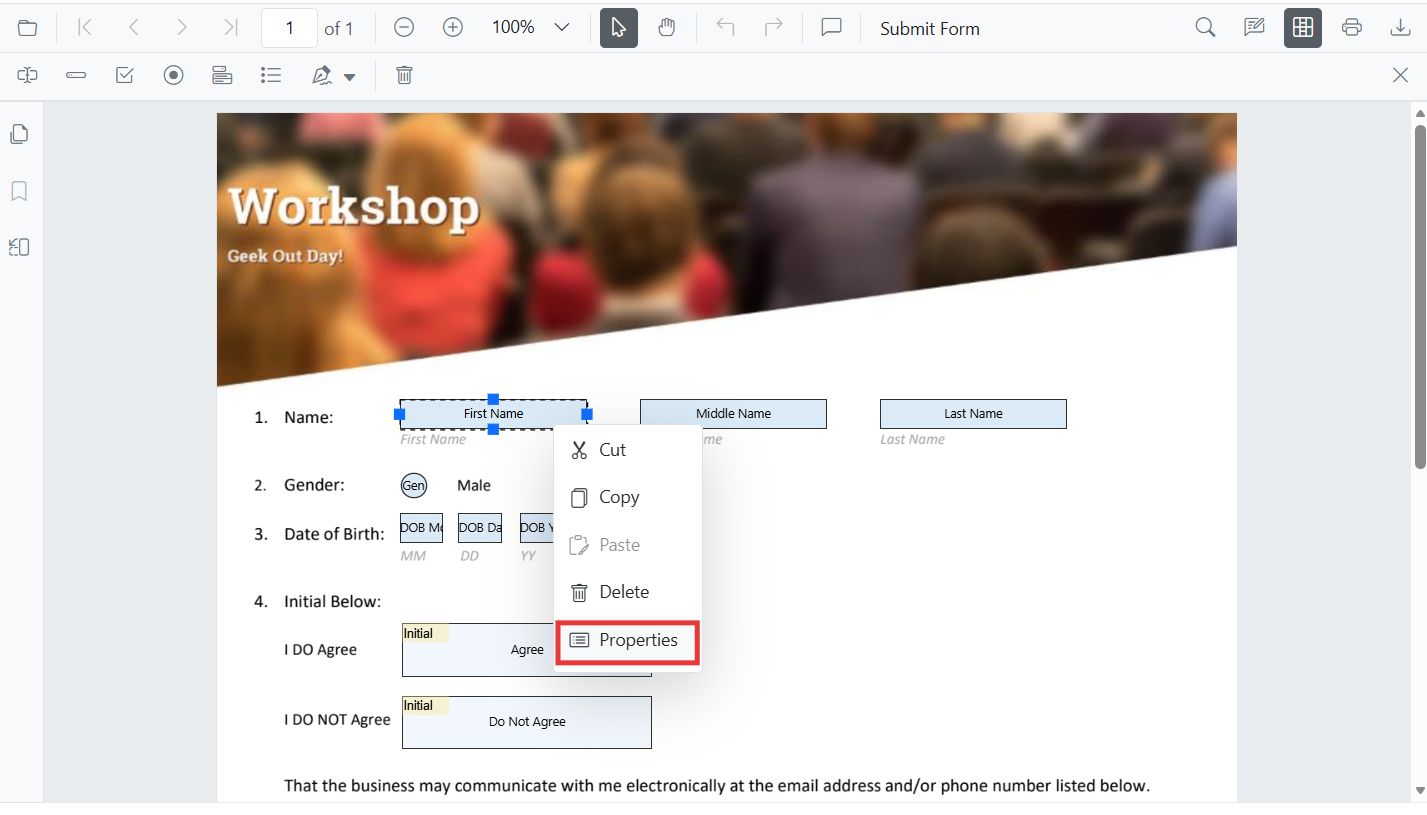
- Drag to move; use resize handles to resize.
- Use the toolbar to toggle field mode and add new fields.
Textbox
Edit Textbox
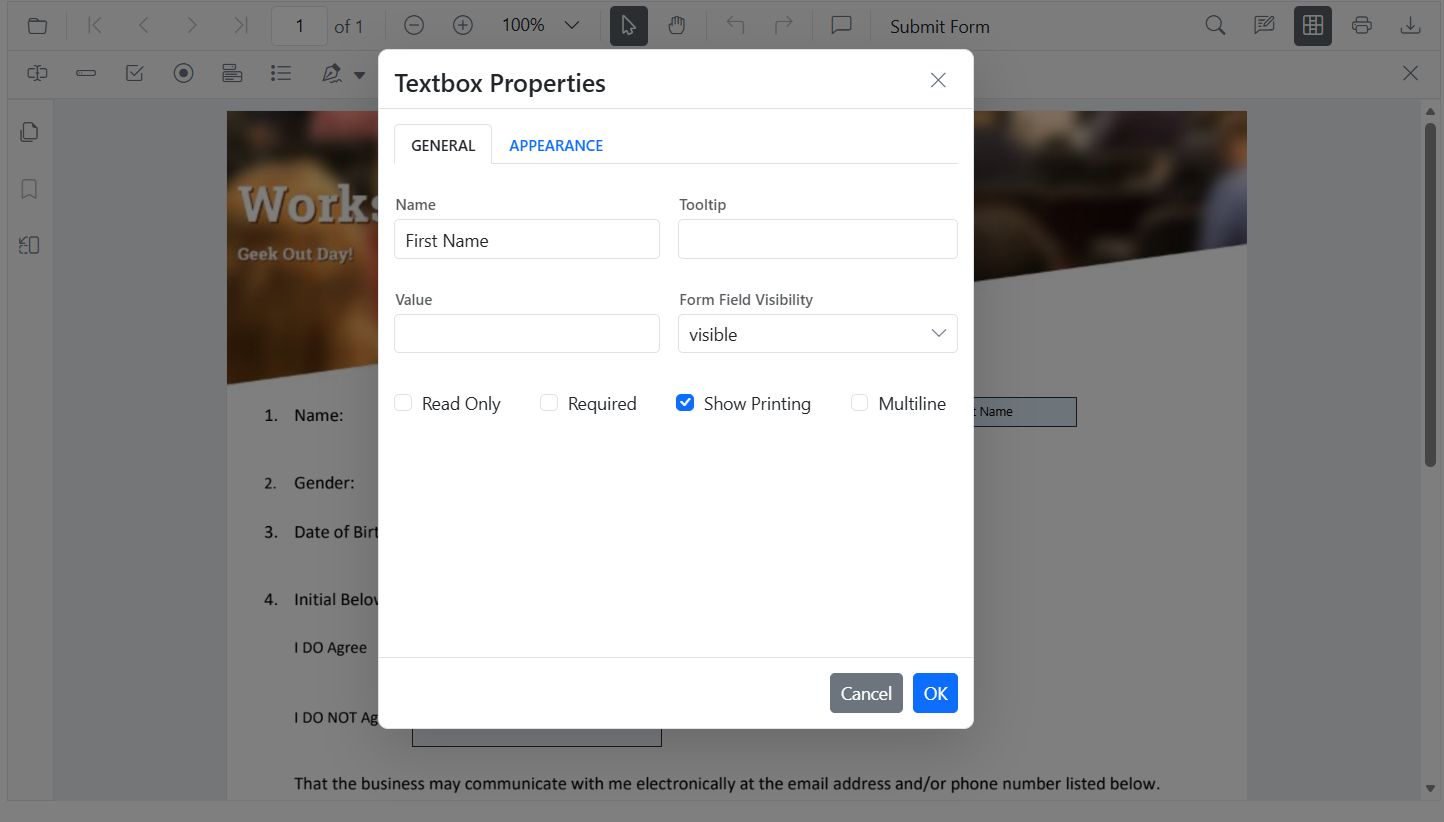
- Right-click the textbox → Properties.
- Change value, font, size, colors, border thickness, alignment, max length, multiline.
Edit Textbox programmatically
Use updateFormField on a button click for a simple, discoverable flow. The example below retrieves the fields, locates the textbox, and applies value, typography, colors, alignment, and border thickness updates.
<button id="editTextbox">Apply Textbox Changes</button>import { PdfViewer, Toolbar, Magnification, Navigation, Annotation, LinkAnnotation, ThumbnailView, BookmarkView, TextSelection, TextSearch, FormFields, FormDesigner, FontStyle, TextFieldSettings } from '@syncfusion/ej2-pdfviewer';
PdfViewer.Inject(Toolbar, Magnification, Navigation, Annotation, LinkAnnotation, ThumbnailView, BookmarkView, TextSelection, TextSearch, FormFields, FormDesigner);
const pdfviewer: PdfViewer = new PdfViewer();
pdfviewer.documentPath = 'https://cdn.syncfusion.com/content/pdf/form-designer.pdf';
pdfviewer.resourceUrl = 'https://cdn.syncfusion.com/ej2/31.1.23/dist/ej2-pdfviewer-lib';
pdfviewer.appendTo('#PdfViewer');
(document.getElementById('editTextbox') as HTMLButtonElement)?.addEventListener('click', () => {
// Retrieve form fields collection
const fields = pdfviewer.retrieveFormFields();
// Find the textbox field by name (Here field name is FIrst Name)
const field = fields.find((f: any) => f.name === 'First Name') || fields[0]; //Update Name accordingly
if (field) {
// Update textbox field styling and value
pdfviewer.formDesignerModule.updateFormField(field, {
value: 'John',
fontFamily: 'Courier',
fontSize: 12,
fontStyle: FontStyle.None,
color: 'black',
backgroundColor: 'white',
borderColor: 'black',
thickness: 2,
alignment: 'Left',
maxLength: 50
} as TextFieldSettings);
}
});Password
Edit Password
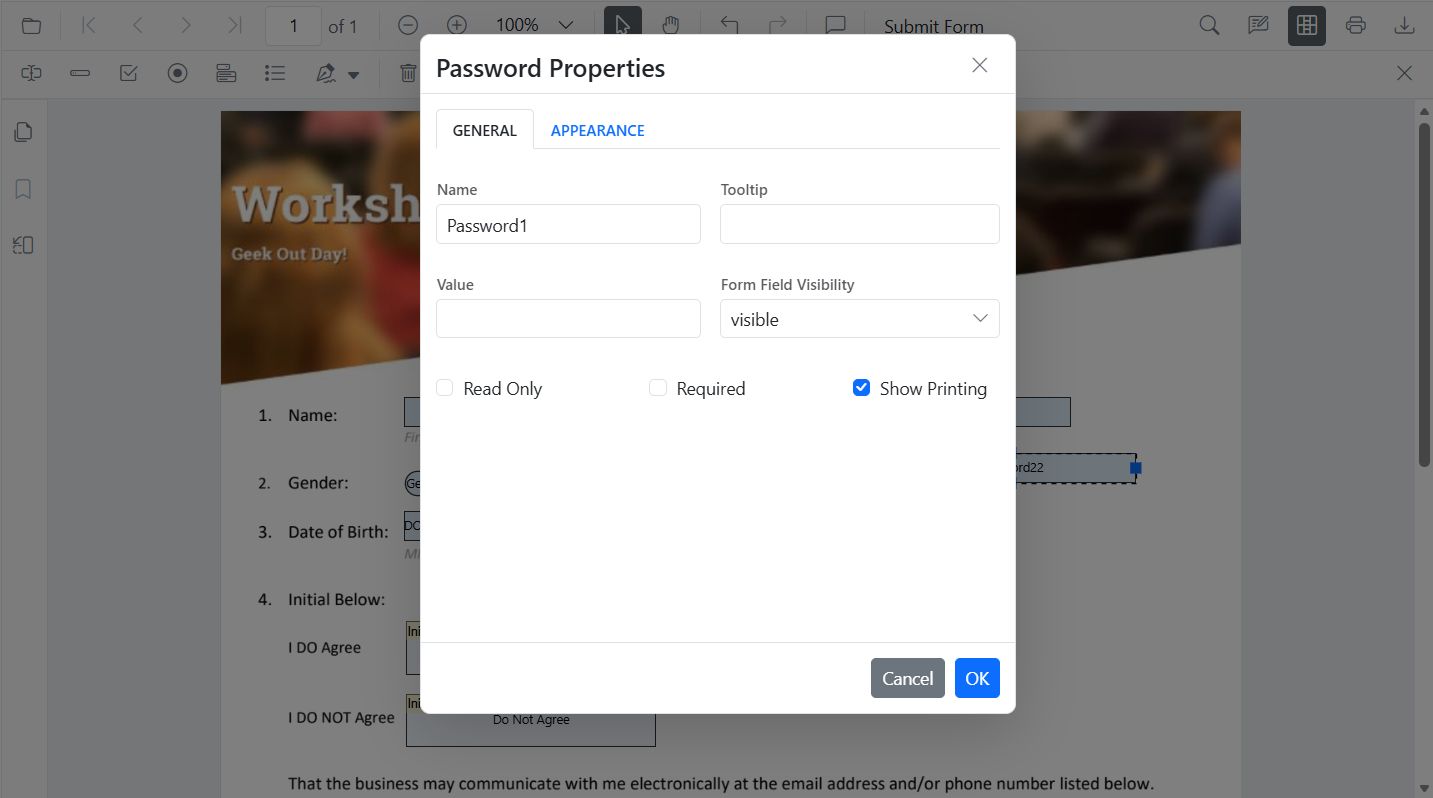
- Right-click the password field → Properties.
- Change tooltip, required, max length, font, and appearance.
Edit Password programmatically
Use updateFormField on a button click for a simple, discoverable flow. The example below retrieves the fields, locates the password field, and applies tooltip, validation flags, typography, colors, alignment, max length, and border thickness updates.
<button id="editPasswordBox">Edit PasswordBox</button>import { PdfViewer, Toolbar, Magnification, Navigation, Annotation, LinkAnnotation, ThumbnailView, BookmarkView, TextSelection, TextSearch, FormFields, FormDesigner, PasswordFieldSettings } from '@syncfusion/ej2-pdfviewer';
PdfViewer.Inject(Toolbar, Magnification, Navigation, Annotation, LinkAnnotation, ThumbnailView, BookmarkView, TextSelection, TextSearch, FormFields, FormDesigner);
const pdfviewer: PdfViewer = new PdfViewer();
pdfviewer.documentPath = 'https://cdn.syncfusion.com/content/pdf/form-designer.pdf';
pdfviewer.resourceUrl = 'https://cdn.syncfusion.com/ej2/31.1.23/dist/ej2-pdfviewer-lib';
pdfviewer.appendTo('#PdfViewer');
(document.getElementById('editPasswordBox') as HTMLButtonElement)?.addEventListener('click', () => {
// Retrieve form fields collection
const fields = pdfviewer.retrieveFormFields();
// Find the password field by name (Here field name is Password)
const field = fields.find((f: any) => f.name === 'Password');
if (field) {
// Update password field properties
pdfviewer.formDesignerModule.updateFormField(field, {
tooltip: 'Enter your password',
isReadOnly: false,
isRequired: true,
isPrint: true,
fontFamily: 'Courier',
fontSize: 10,
color: 'black',
borderColor: 'black',
backgroundColor: 'white',
alignment: 'Left',
maxLength: 20,
thickness: 1
} as PasswordFieldSettings);
}
});CheckBox
Edit CheckBox
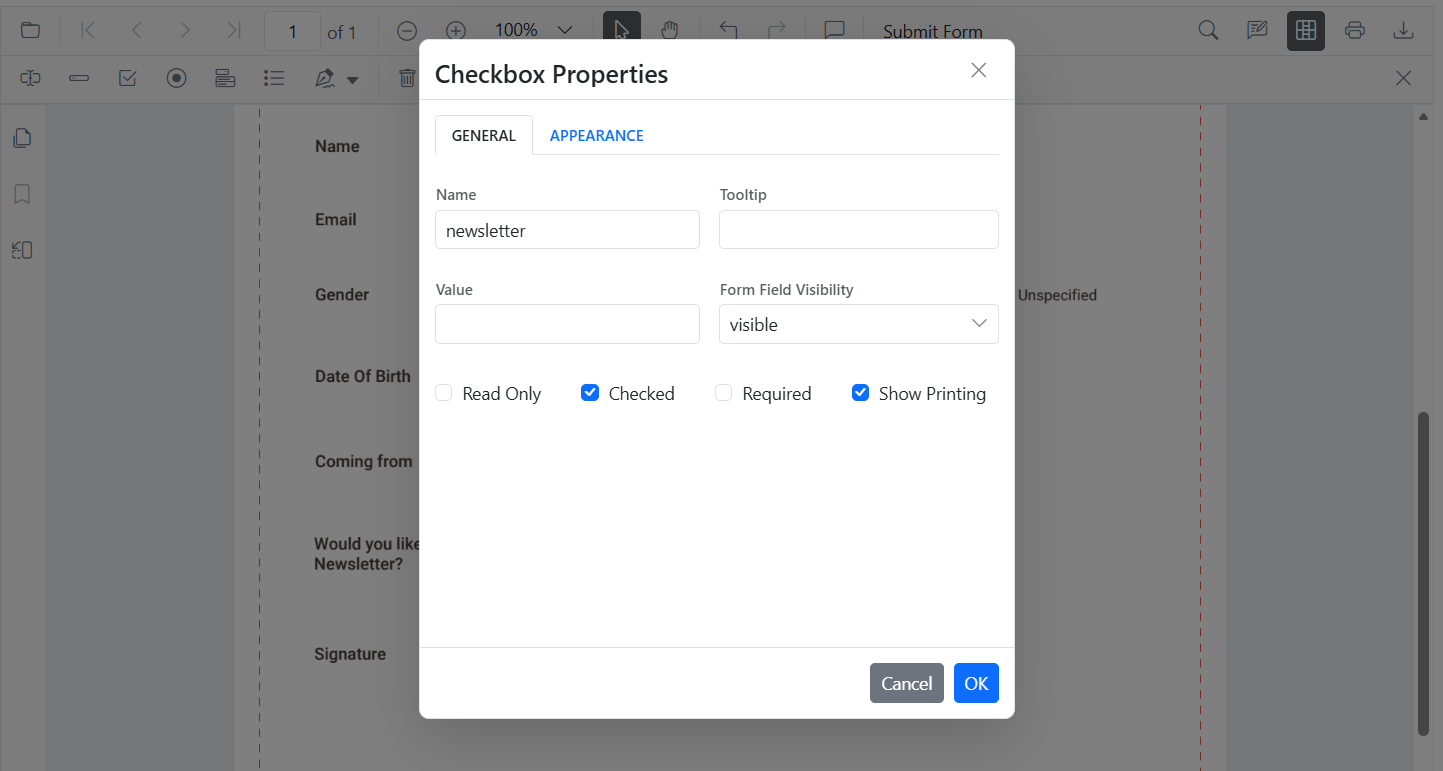
- Right-click the checkbox → Properties.
- Enable checked state.
Edit CheckBox programmatically
Use updateFormField on a button click for a simple, discoverable flow. The example below retrieves the fields, locates the checkbox field, and applies checked state, tooltip, colors, and border thickness updates.
<button id="editCheckbox">Edit CheckBox</button>import { PdfViewer, Toolbar, Magnification, Navigation, Annotation, LinkAnnotation, ThumbnailView, BookmarkView, TextSelection, TextSearch, FormFields, FormDesigner, CheckBoxFieldSettings } from '@syncfusion/ej2-pdfviewer';
PdfViewer.Inject(Toolbar, Magnification, Navigation, Annotation, LinkAnnotation, ThumbnailView, BookmarkView, TextSelection, TextSearch, FormFields, FormDesigner);
const pdfviewer: PdfViewer = new PdfViewer();
pdfviewer.documentPath = 'https://cdn.syncfusion.com/content/pdf/form-designer.pdf';
pdfviewer.resourceUrl = 'https://cdn.syncfusion.com/ej2/31.1.23/dist/ej2-pdfviewer-lib';
pdfviewer.appendTo('#PdfViewer');
(document.getElementById('editCheckbox') as HTMLButtonElement)?.addEventListener('click', () => {
// Retrieve form fields collection
const fields = pdfviewer.retrieveFormFields();
// Find the checkbox field by name (Here field name is Subscribe)
const cb = fields.find((f: any) => f.name === 'Subscribe');
if (cb) {
// Update checkbox field properties and state
pdfviewer.formDesignerModule.updateFormField(cb, {
isChecked: true,
backgroundColor: 'white',
borderColor: 'black',
thickness: 2,
tooltip: 'Subscribe to newsletter'
} as CheckBoxFieldSettings);
}
});RadioButton
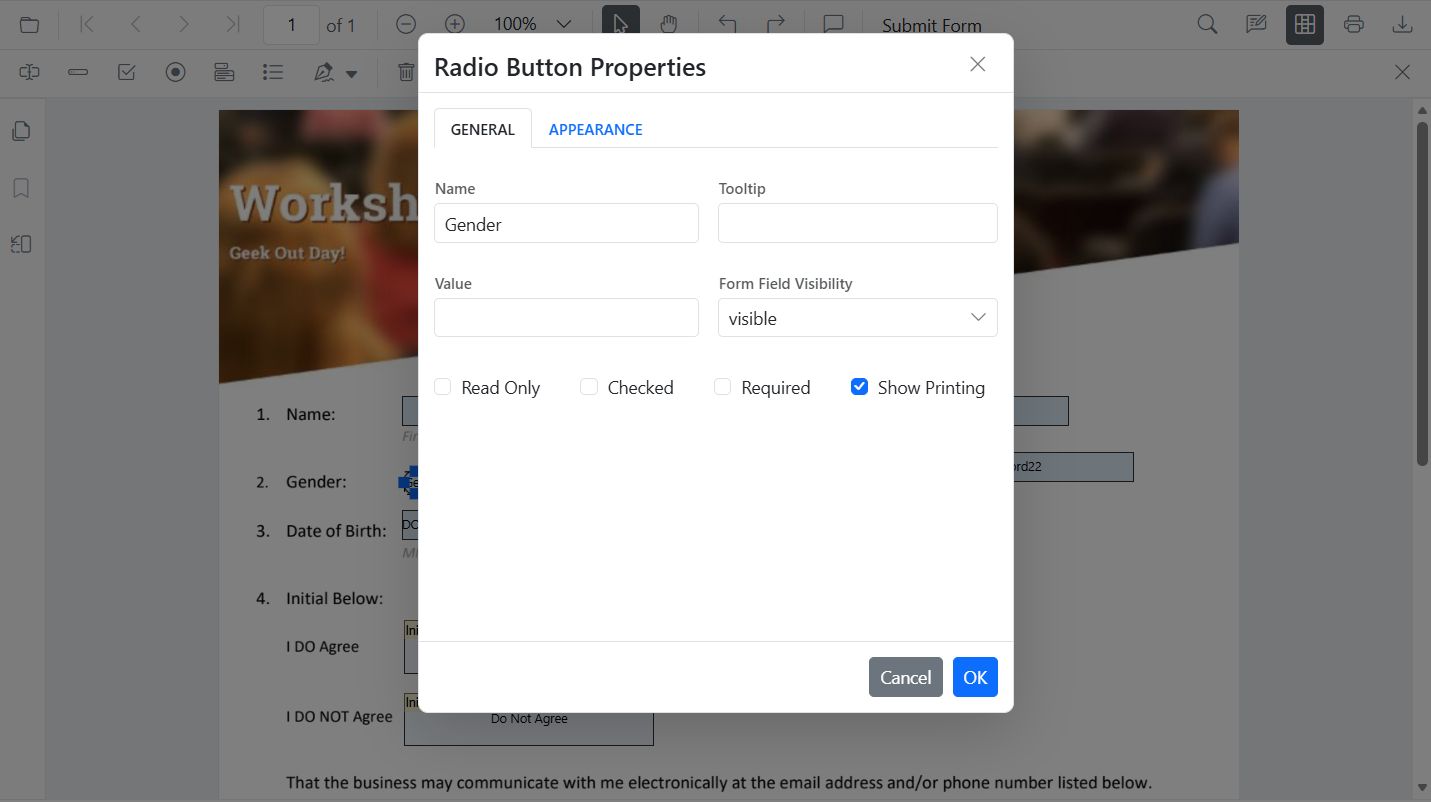
Edit RadioButton
- Right-click a radio button → Properties.
- Set selected state. Buttons with the same Name form a group; only one can be selected.
Edit RadioButton programmatically
Use updateFormField on a button click for a simple, discoverable flow. The example below retrieves the fields, locates the radio button group, and applies selection state and border appearance updates.
<button id="editRadio">Edit RadioButton</button>import { PdfViewer, Toolbar, Magnification, Navigation, Annotation, LinkAnnotation, ThumbnailView, BookmarkView, TextSelection, TextSearch, FormFields, FormDesigner, RadioButtonFieldSettings } from '@syncfusion/ej2-pdfviewer';
PdfViewer.Inject(Toolbar, Magnification, Navigation, Annotation, LinkAnnotation, ThumbnailView, BookmarkView, TextSelection, TextSearch, FormFields, FormDesigner);
const pdfviewer: PdfViewer = new PdfViewer();
pdfviewer.documentPath = 'https://cdn.syncfusion.com/content/pdf/form-designer.pdf';
pdfviewer.resourceUrl = 'https://cdn.syncfusion.com/ej2/31.1.23/dist/ej2-pdfviewer-lib';
pdfviewer.appendTo('#PdfViewer');
(document.getElementById('editRadio') as HTMLButtonElement)?.addEventListener('click', () => {
// Retrieve form fields collection
const fields = pdfviewer.retrieveFormFields();
// Filter the radio button group by name (Here group name is Gender)
const genderRadios = fields.filter((f: any) => f.name === 'Gender');
if (genderRadios[1]) {
// Update radio button selection and appearance
pdfviewer.formDesignerModule.updateFormField(genderRadios[0], { isSelected: false } as RadioButtonFieldSettings);
pdfviewer.formDesignerModule.updateFormField(genderRadios[1], { isSelected: true, thickness: 2, borderColor: 'black' } as RadioButtonFieldSettings);
}
});ListBox
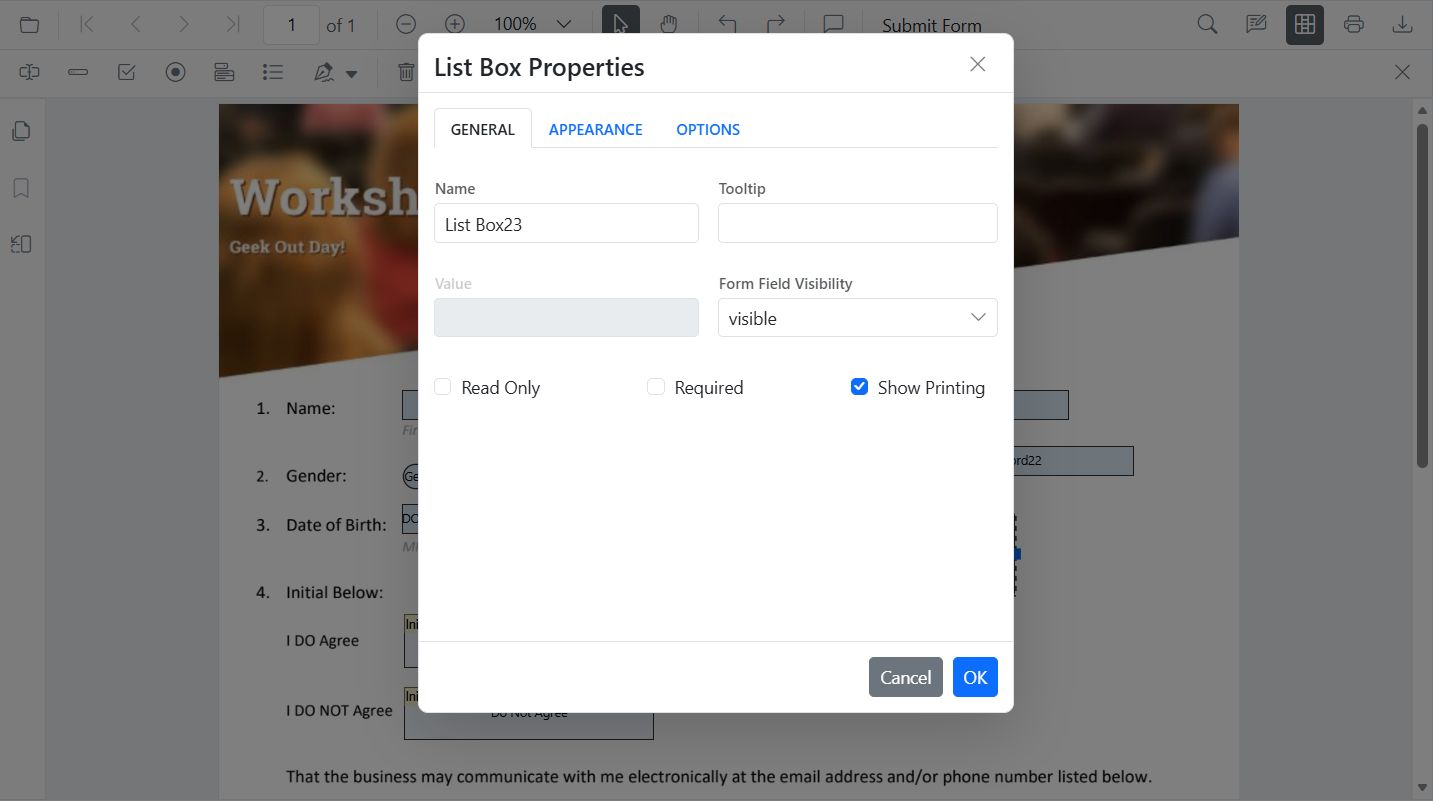
Edit ListBox
- Right-click the list box → Properties.
- Add/remove items, set selection, and adjust fonts and colors.
Edit ListBox programmatically
Use updateFormField on a button click for a simple, discoverable flow. The example below retrieves the fields, locates the list box, and applies options, selection, typography, colors, and border appearance updates.
<button id="editListBox">Edit ListBox</button>import { PdfViewer, Toolbar, Magnification, Navigation, Annotation, LinkAnnotation, ThumbnailView, BookmarkView, TextSelection, TextSearch, FormFields, FormDesigner, TextFieldSettings } from '@syncfusion/ej2-pdfviewer';
PdfViewer.Inject(Toolbar, Magnification, Navigation, Annotation, LinkAnnotation, ThumbnailView, BookmarkView, TextSelection, TextSearch, FormFields, FormDesigner);
const pdfviewer: PdfViewer = new PdfViewer();
pdfviewer.documentPath = 'https://cdn.syncfusion.com/content/pdf/form-designer.pdf';
pdfviewer.resourceUrl = 'https://cdn.syncfusion.com/ej2/31.1.23/dist/ej2-pdfviewer-lib';
pdfviewer.appendTo('#PdfViewer');
(document.getElementById('editListBox') as HTMLButtonElement)?.addEventListener('click', () => {
// Retrieve form fields collection
const fields = pdfviewer.retrieveFormFields();
// Find the listbox field by name (Here field name is States)
const lb = fields.find((f: any) => f.name === 'States');
if (lb) {
// Update listbox options, selection, and appearance
pdfviewer.formDesignerModule.updateFormField(lb, {
options: [
{ itemName: 'Alabama', itemValue: 'AL' },
{ itemName: 'Alaska', itemValue: 'AK' },
{ itemName: 'Arizona', itemValue: 'AZ' }
],
value: 'AZ',
fontFamily: 'Courier',
fontSize: 10,
color: 'black',
borderColor: 'black',
backgroundColor: 'white'
} as unknown as TextFieldSettings);
}
});DropDown
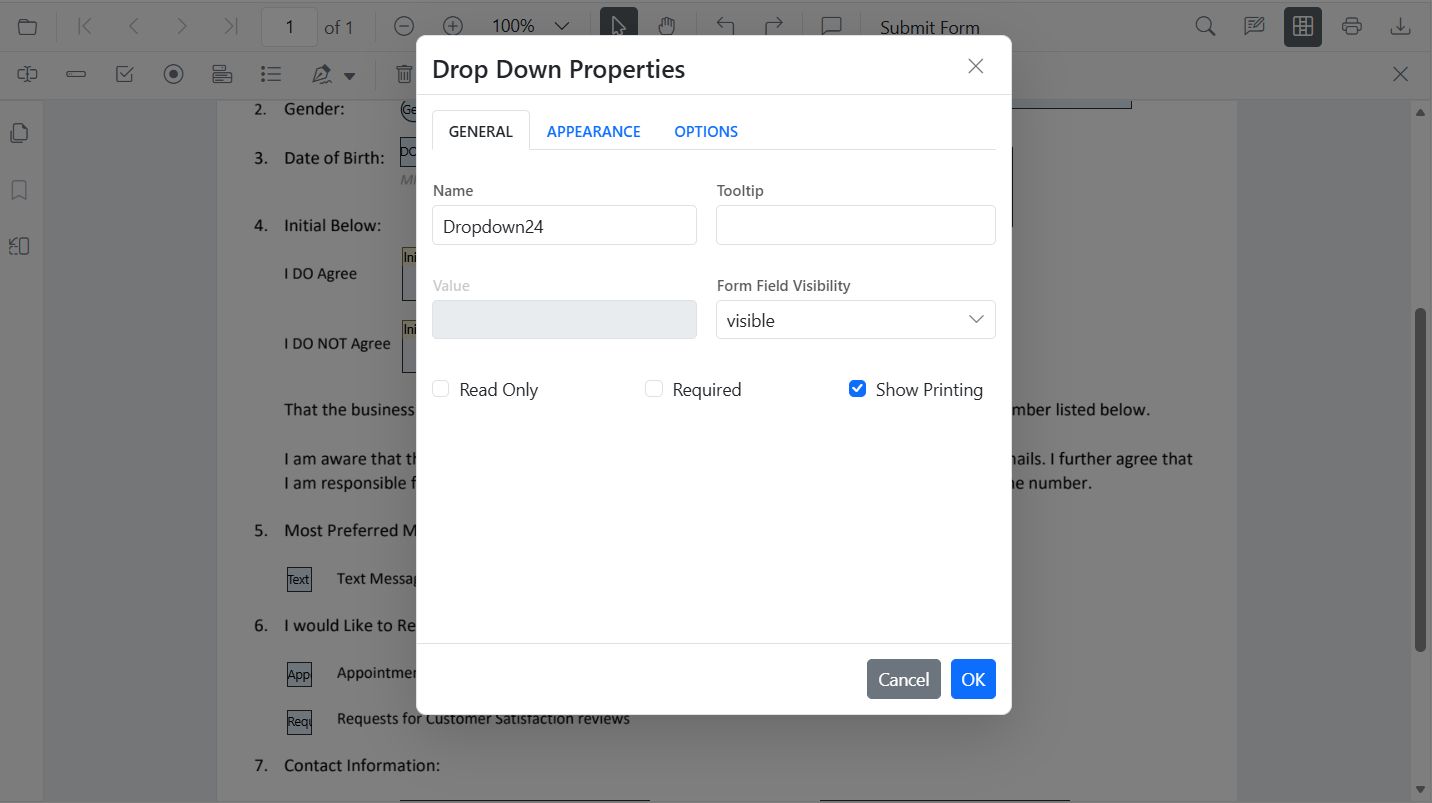
Edit DropDown
- Right-click the dropdown → Properties.
- Add/remove items, set default value, and adjust appearance.
Edit DropDown programmatically
Use updateFormField on a button click for a simple, discoverable flow. The example below retrieves the fields, locates the dropdown, and applies items, value, typography, colors, and border appearance updates.
<button id="editDropDown">Edit DropDown</button>import { PdfViewer, Toolbar, Magnification, Navigation, Annotation, LinkAnnotation, ThumbnailView, BookmarkView, TextSelection, TextSearch, FormFields, FormDesigner, DropdownFieldSettings } from '@syncfusion/ej2-pdfviewer';
PdfViewer.Inject(Toolbar, Magnification, Navigation, Annotation, LinkAnnotation, ThumbnailView, BookmarkView, TextSelection, TextSearch, FormFields, FormDesigner);
const pdfviewer: PdfViewer = new PdfViewer();
pdfviewer.documentPath = 'https://cdn.syncfusion.com/content/pdf/form-designer.pdf';
pdfviewer.resourceUrl = 'https://cdn.syncfusion.com/ej2/31.1.23/dist/ej2-pdfviewer-lib';
pdfviewer.appendTo('#PdfViewer');
(document.getElementById('editDropDown') as HTMLButtonElement)?.addEventListener('click', () => {
// Retrieve form fields collection
const fields = pdfviewer.retrieveFormFields();
// Find the dropdown field by name (Here field name is Country)
const dd = fields.find((f: any) => f.name === 'Country');
if (dd) {
// Update dropdown items, value, and appearance
pdfviewer.formDesignerModule.updateFormField(dd, {
options: [
{ itemName: 'USA', itemValue: 'US' },
{ itemName: 'Canada', itemValue: 'CA' },
{ itemName: 'Mexico', itemValue: 'MX' }
],
value: 'US',
fontFamily: 'Courier',
fontSize: 10,
color: 'black',
borderColor: 'black',
backgroundColor: 'white'
} as DropdownFieldSettings);
}
});Signature field
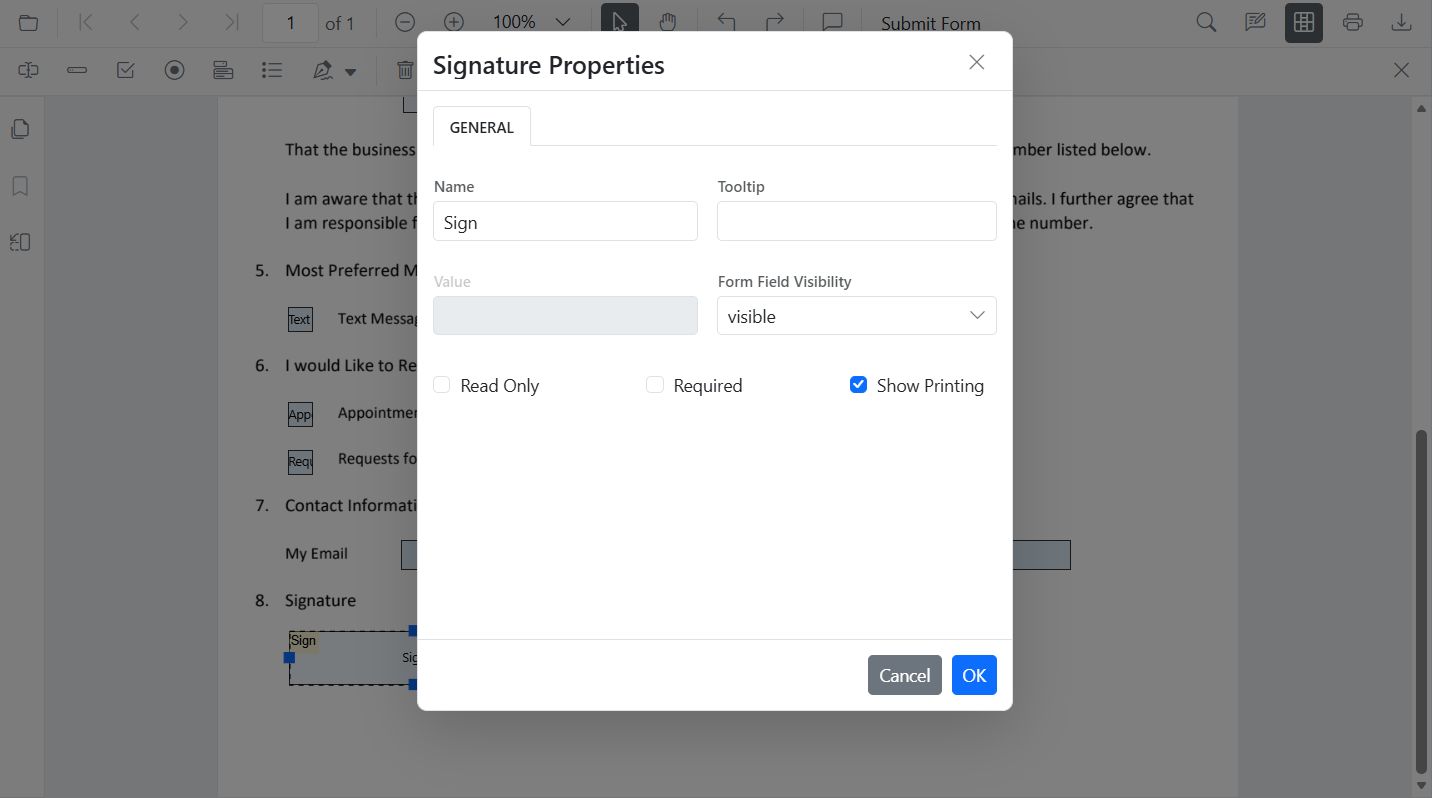
Edit Signature field
- Right-click the signature field → Properties.
- Change tooltip, thickness, indicator text, required/visibility states.
Edit Signature field programmatically
Use updateFormField on a button click for a simple, discoverable flow. The example below retrieves the fields, locates the signature field, and applies tooltip, required/print flags, colors, and border thickness updates.
<button id="editSignature">Edit Signature</button>import { PdfViewer, Toolbar, Magnification, Navigation, Annotation, LinkAnnotation, ThumbnailView, BookmarkView, TextSelection, TextSearch, FormFields, FormDesigner, SignatureFieldSettings } from '@syncfusion/ej2-pdfviewer';
PdfViewer.Inject(Toolbar, Magnification, Navigation, Annotation, LinkAnnotation, ThumbnailView, BookmarkView, TextSelection, TextSearch, FormFields, FormDesigner);
const pdfviewer: PdfViewer = new PdfViewer();
pdfviewer.documentPath = 'https://cdn.syncfusion.com/content/pdf/form-designer.pdf';
pdfviewer.resourceUrl = 'https://cdn.syncfusion.com/ej2/31.1.23/dist/ej2-pdfviewer-lib';
pdfviewer.appendTo('#PdfViewer');
(document.getElementById('editSignature') as HTMLButtonElement)?.addEventListener('click', () => {
// Retrieve form fields collection
const fields = pdfviewer.retrieveFormFields();
// Find the signature field by name (Here field name is Sign)
const sig = fields.find((f: any) => f.name === 'Sign');
if (sig) {
// Update signature field properties
pdfviewer.formDesignerModule.updateFormField(sig, {
tooltip: 'Please sign here',
thickness: 3,
isRequired: true,
isPrint: true,
backgroundColor: 'white',
borderColor: 'black'
} as SignatureFieldSettings);
}
});Initial field
Edit Initial field
- Right-click the initial field → Properties.
- Change tooltip, indicator text, thickness, and required/visibility states.
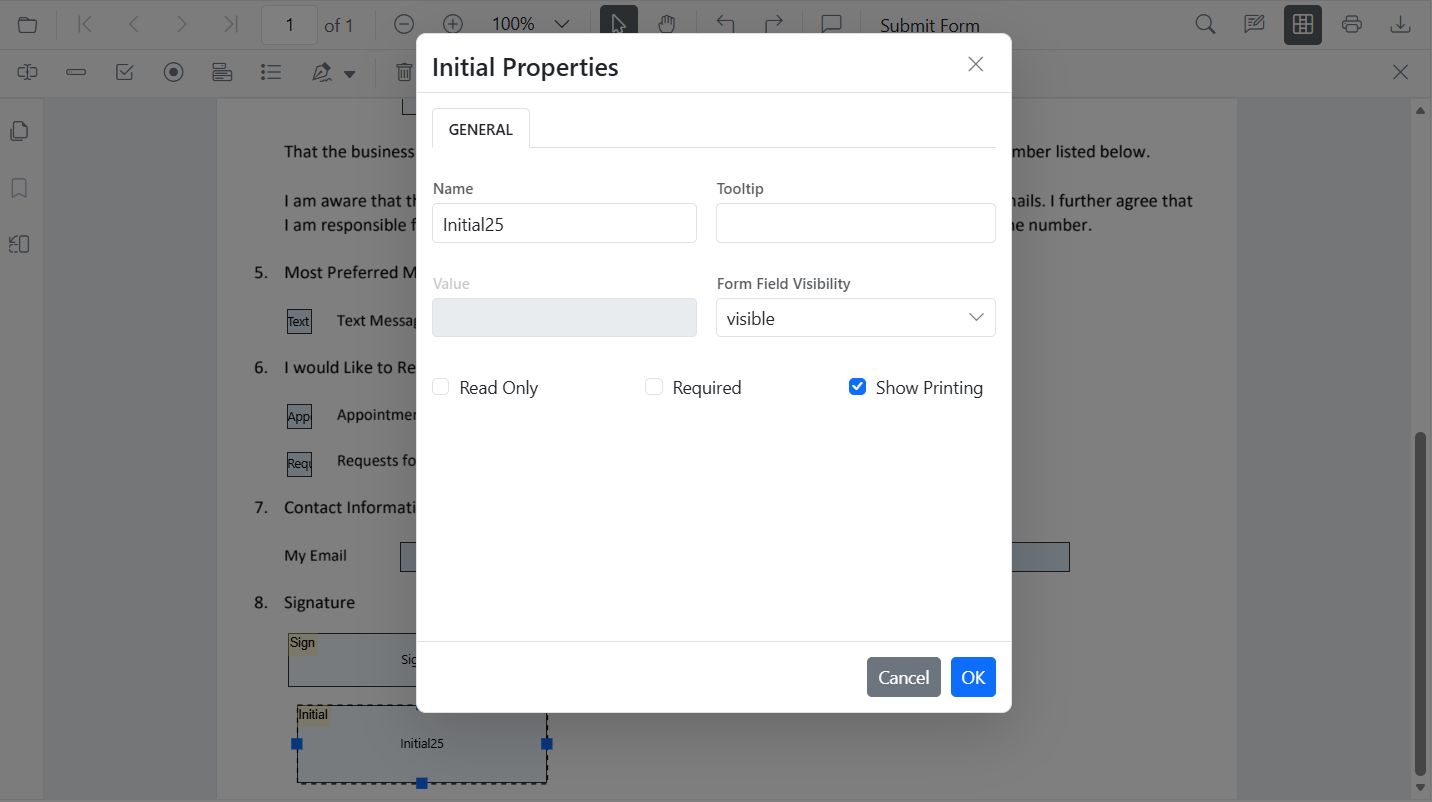
Edit Initial field programmatically
Use updateFormField on a button click for a simple, discoverable flow. The example below retrieves the fields, locates the initial field, and applies tooltip, required/print flags, colors, and border thickness updates.
<button id="editInitial">Edit Initial</button>import { PdfViewer, Toolbar, Magnification, Navigation, Annotation, LinkAnnotation, ThumbnailView, BookmarkView, TextSelection, TextSearch, FormFields, FormDesigner, InitialFieldSettings } from '@syncfusion/ej2-pdfviewer';
PdfViewer.Inject(Toolbar, Magnification, Navigation, Annotation, LinkAnnotation, ThumbnailView, BookmarkView, TextSelection, TextSearch, FormFields, FormDesigner);
const pdfviewer: PdfViewer = new PdfViewer();
pdfviewer.documentPath = 'https://cdn.syncfusion.com/content/pdf/form-designer.pdf';
pdfviewer.resourceUrl = 'https://cdn.syncfusion.com/ej2/31.1.23/dist/ej2-pdfviewer-lib';
pdfviewer.appendTo('#PdfViewer');
(document.getElementById('editInitial') as HTMLButtonElement)?.addEventListener('click', () => {
// Retrieve form fields collection
const fields = pdfviewer.retrieveFormFields();
// Find the initial field by name (Here field name is Initial)
const init = fields.find((f: any) => f.name === 'Initial');
if (init) {
// Update initial field properties
pdfviewer.formDesignerModule.updateFormField(init, {
tooltip: 'Add your initials',
thickness: 2,
isRequired: true,
isPrint: true,
backgroundColor: 'white',
borderColor: 'black'
} as InitialFieldSettings);
}
});