Create form fields in TypeScript PDF Viewer
9 Jan 202613 minutes to read
The PDF Viewer component supports interactive form field design, including drawing, dragging, and resizing fields directly on the page. Click the Form Field icon on the toolbar to add a field and place it on the document. You can also create and manage form fields programmatically using the API.
The PDF Viewer supports the following form field types:
Add the form field dynamically
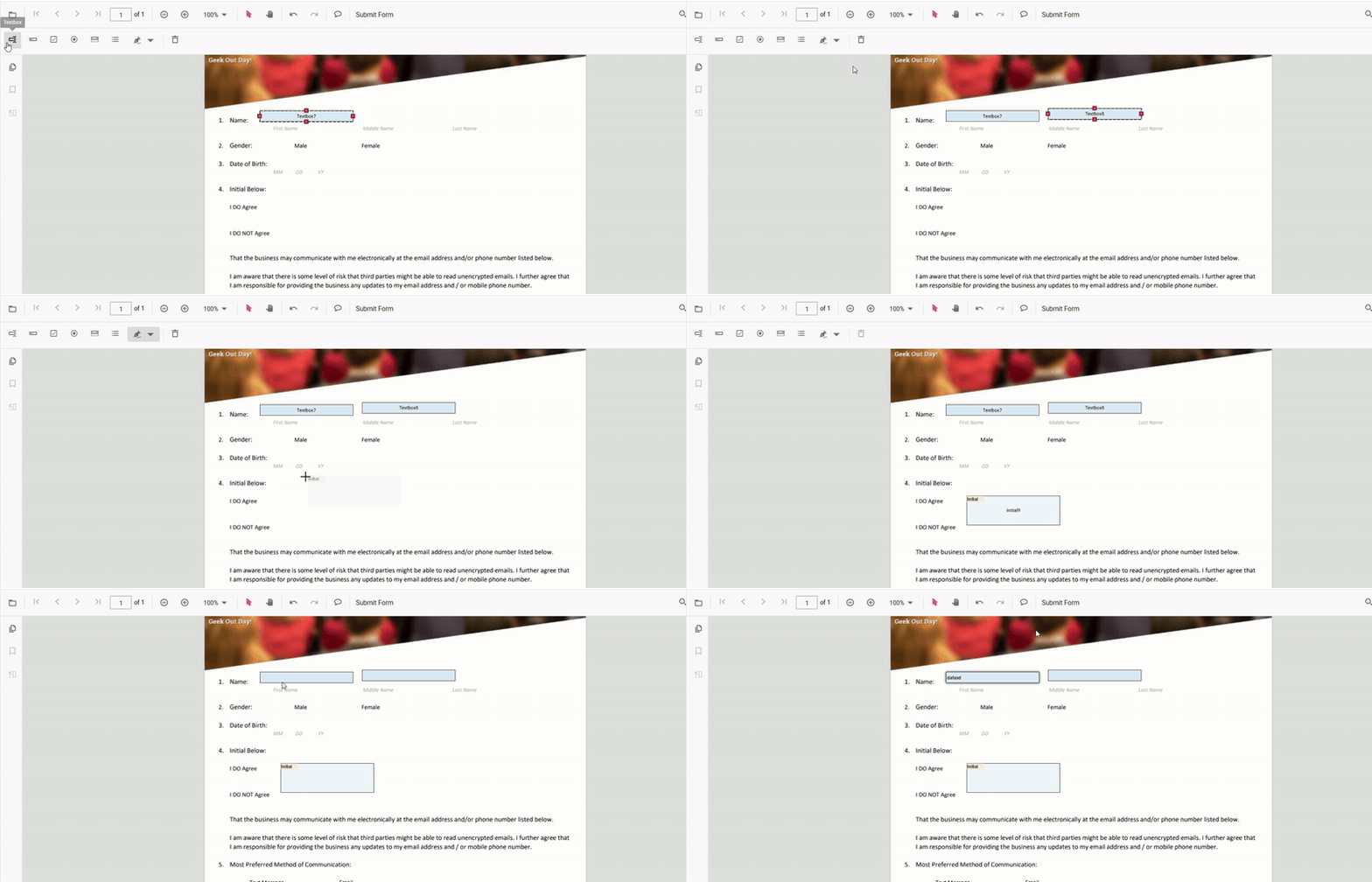
Click the Form Field icon on the toolbar, then click on the PDF to draw a form field. See the following GIF for reference.
Drag the form field
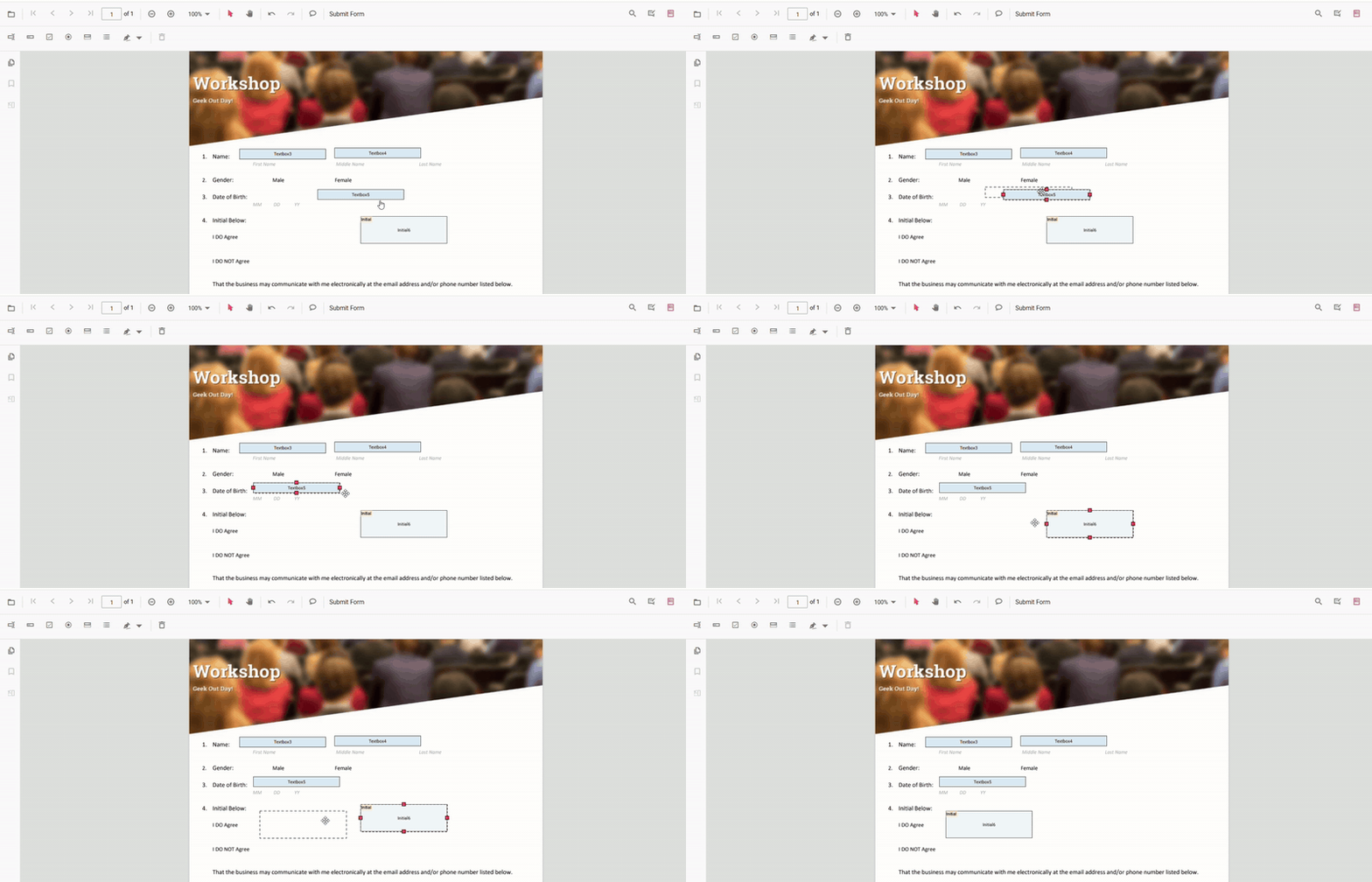
Drag the selected form field to reposition it within the PDF document. See the following GIF for reference.
Resize the form field
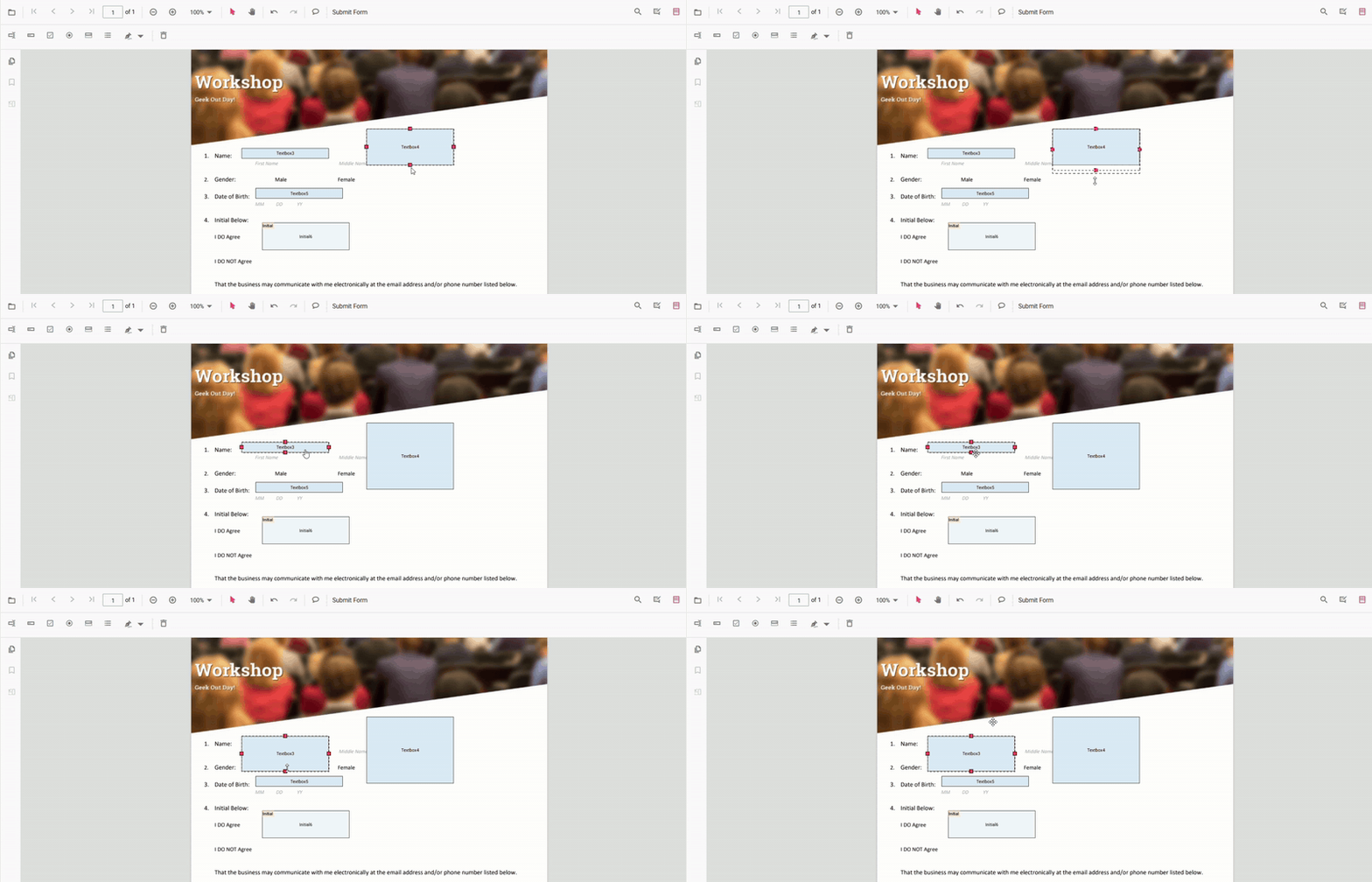
Resize the selected form field using the resize handles on the field boundary. See the following GIF for reference.
Textbox
Add Textbox
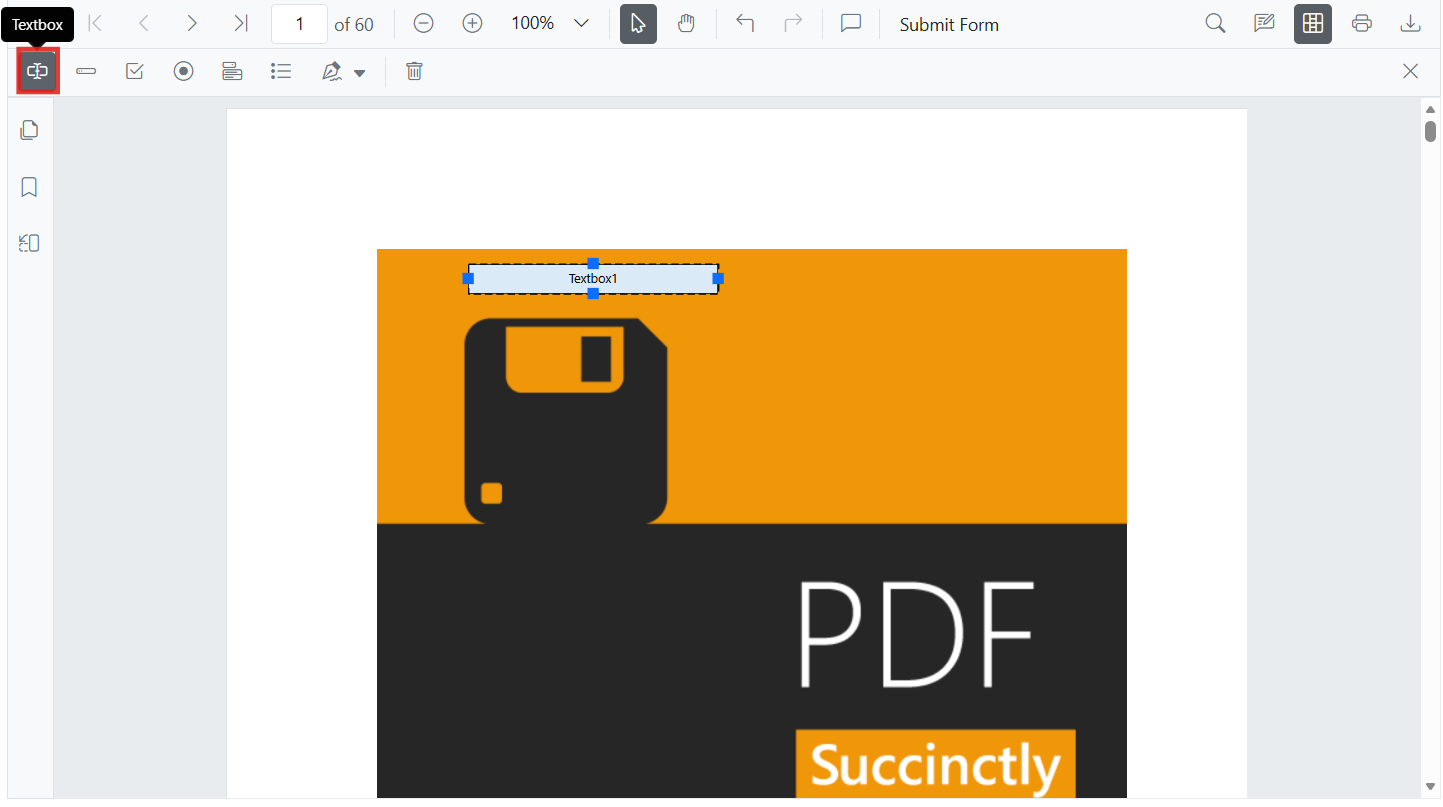
- Open the Form Designer toolbar.
- Select Textbox, then click/tap on the page to place it.
- Resize/move as needed and set properties in the property panel.
Add Textbox Programmatically
To add a Textbox programmatically, call addFormField with type ‘Textbox’ and pass as TextFieldSettings object. The example below adds a textbox when the document loads.
import { PdfViewer, Toolbar, Magnification, Navigation, Annotation, LinkAnnotation, ThumbnailView, BookmarkView, TextSelection, TextSearch, FormFields, FormDesigner, TextFieldSettings } from '@syncfusion/ej2-pdfviewer';

PdfViewer.Inject(Toolbar, Magnification, Navigation, Annotation, LinkAnnotation, ThumbnailView, BookmarkView, TextSelection, TextSearch, FormFields, FormDesigner);

let pdfviewer: PdfViewer = new PdfViewer();
pdfviewer.documentPath = "https://cdn.syncfusion.com/content/pdf/form-filling-document.pdf";
pdfviewer.resourceUrl = "https://cdn.syncfusion.com/ej2/31.1.23/dist/ej2-pdfviewer-lib";

pdfviewer.appendTo('#PdfViewer');

pdfviewer.documentLoad = () => {
  pdfviewer.formDesignerModule.addFormField('Textbox', {
    name: 'First Name',
    bounds: { X: 146, Y: 229, Width: 150, Height: 24 }
  } as TextFieldSettings);
};
Password
Add Password
- Open the Form Designer toolbar.
- Select Password, then place it on the page.
- Configure tooltip, required, max length, etc.
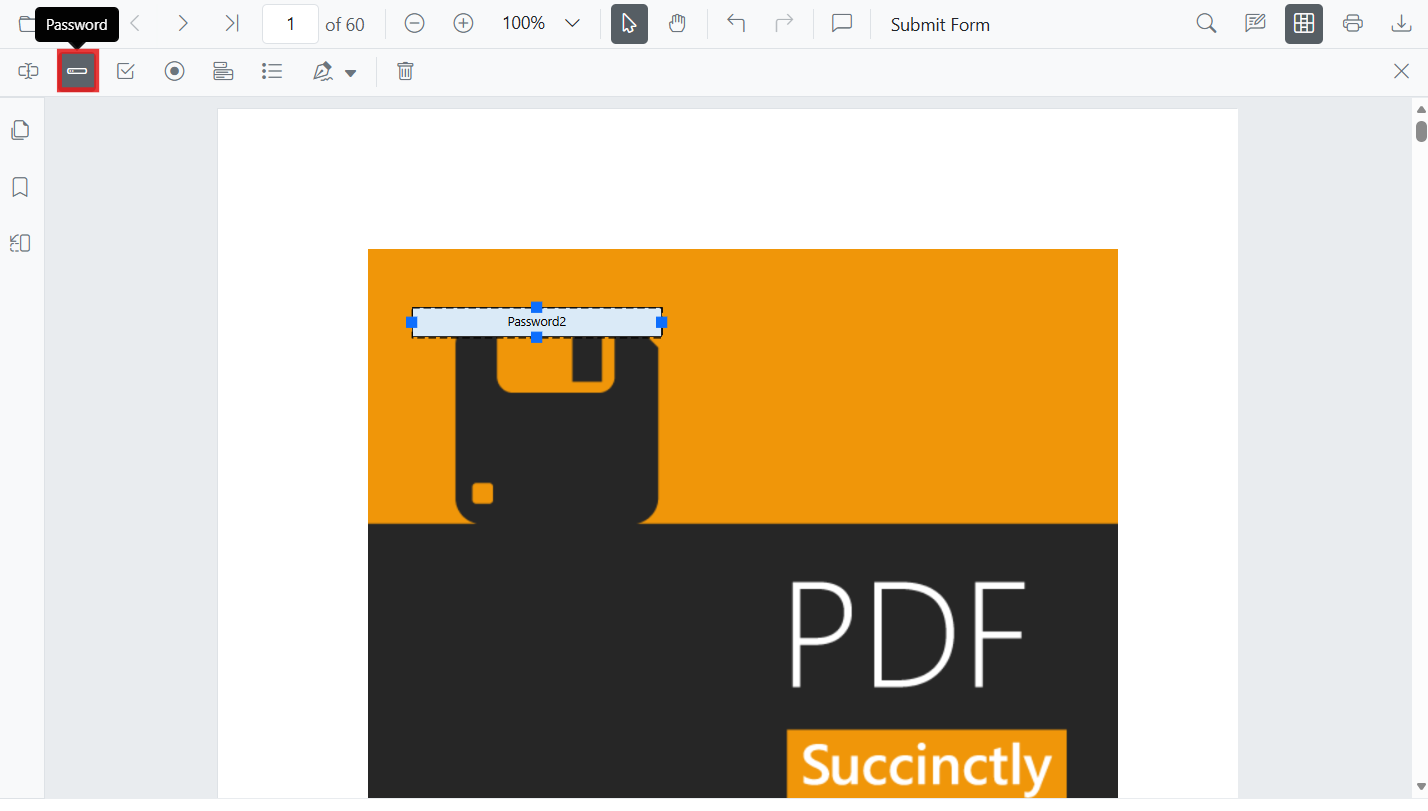
Add Password Programmatically
To add a Password field programmatically, call addFormField with type ‘Password’ and pass as PasswordFieldSettings object. The example below adds the field when the document loads.
import { PdfViewer, Toolbar, Magnification, Navigation, Annotation, LinkAnnotation, ThumbnailView, BookmarkView, TextSelection, TextSearch, FormFields, FormDesigner, PasswordFieldSettings } from '@syncfusion/ej2-pdfviewer';

PdfViewer.Inject(Toolbar, Magnification, Navigation, Annotation, LinkAnnotation, ThumbnailView, BookmarkView, TextSelection, TextSearch, FormFields, FormDesigner);

let pdfviewer: PdfViewer = new PdfViewer();
pdfviewer.documentPath = "https://cdn.syncfusion.com/content/pdf/form-filling-document.pdf";
pdfviewer.resourceUrl = "https://cdn.syncfusion.com/ej2/31.1.23/dist/ej2-pdfviewer-lib";

pdfviewer.appendTo('#PdfViewer');

pdfviewer.documentLoad = () => {
  pdfviewer.formDesignerModule.addFormField('Password', {
    name: 'Account Password',
    bounds: { X: 148, Y: 270, Width: 180, Height: 24 }
  } as PasswordFieldSettings);
};
CheckBox
Add CheckBox
- Choose CheckBox in the Form Designer toolbar.
- Click on the page to place, duplicate for multiple options if needed.
- Use property panel to set IsChecked, tooltip, and appearance.
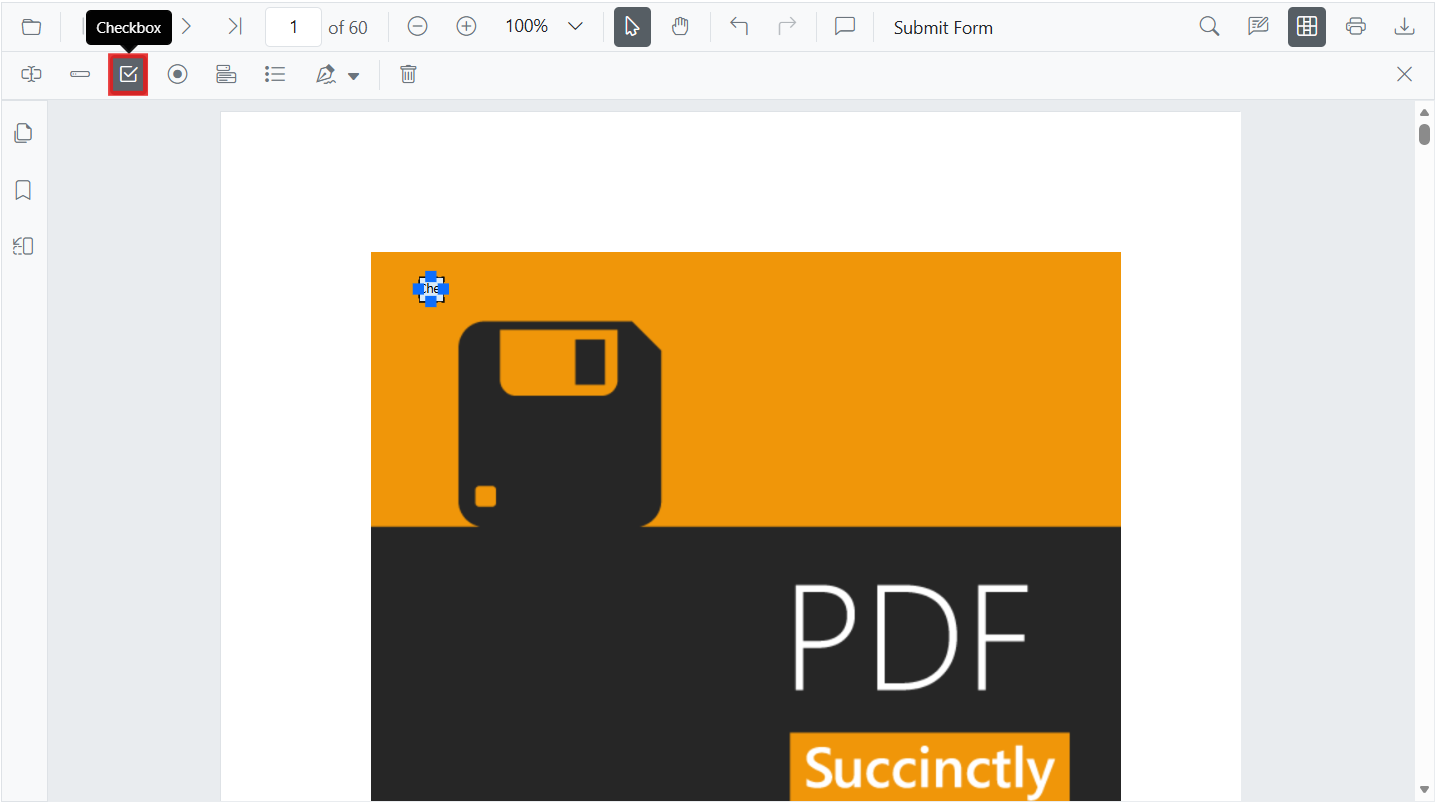
Add CheckBox Programmatically
To add a CheckBox programmatically, call addFormField with type ‘CheckBox’ and pass as CheckBoxFieldSettings object. Set isChecked and bounds as needed. The example below adds the field when the document loads.
import { PdfViewer, Toolbar, Magnification, Navigation, Annotation, LinkAnnotation, ThumbnailView, BookmarkView, TextSelection, TextSearch, FormFields, FormDesigner, CheckBoxFieldSettings } from '@syncfusion/ej2-pdfviewer';

PdfViewer.Inject(Toolbar, Magnification, Navigation, Annotation, LinkAnnotation, ThumbnailView, BookmarkView, TextSelection, TextSearch, FormFields, FormDesigner);

let pdfviewer: PdfViewer = new PdfViewer();
pdfviewer.documentPath = "https://cdn.syncfusion.com/content/pdf/form-filling-document.pdf";
pdfviewer.resourceUrl = "https://cdn.syncfusion.com/ej2/31.1.23/dist/ej2-pdfviewer-lib";

pdfviewer.appendTo('#PdfViewer');

pdfviewer.documentLoad = () => {
  pdfviewer.formDesignerModule.addFormField('CheckBox', {
    name: 'Subscribe',
    isChecked: false,
    bounds: { X: 56, Y: 664, Width: 20, Height: 20 }
  } as CheckBoxFieldSettings);
};
RadioButton
Add RadioButton
- Select RadioButton in the Form Designer toolbar.
- Place buttons sharing the same Name to create a group (e.g., Gender).
- Use property panel to set selection, colors, and tooltip.
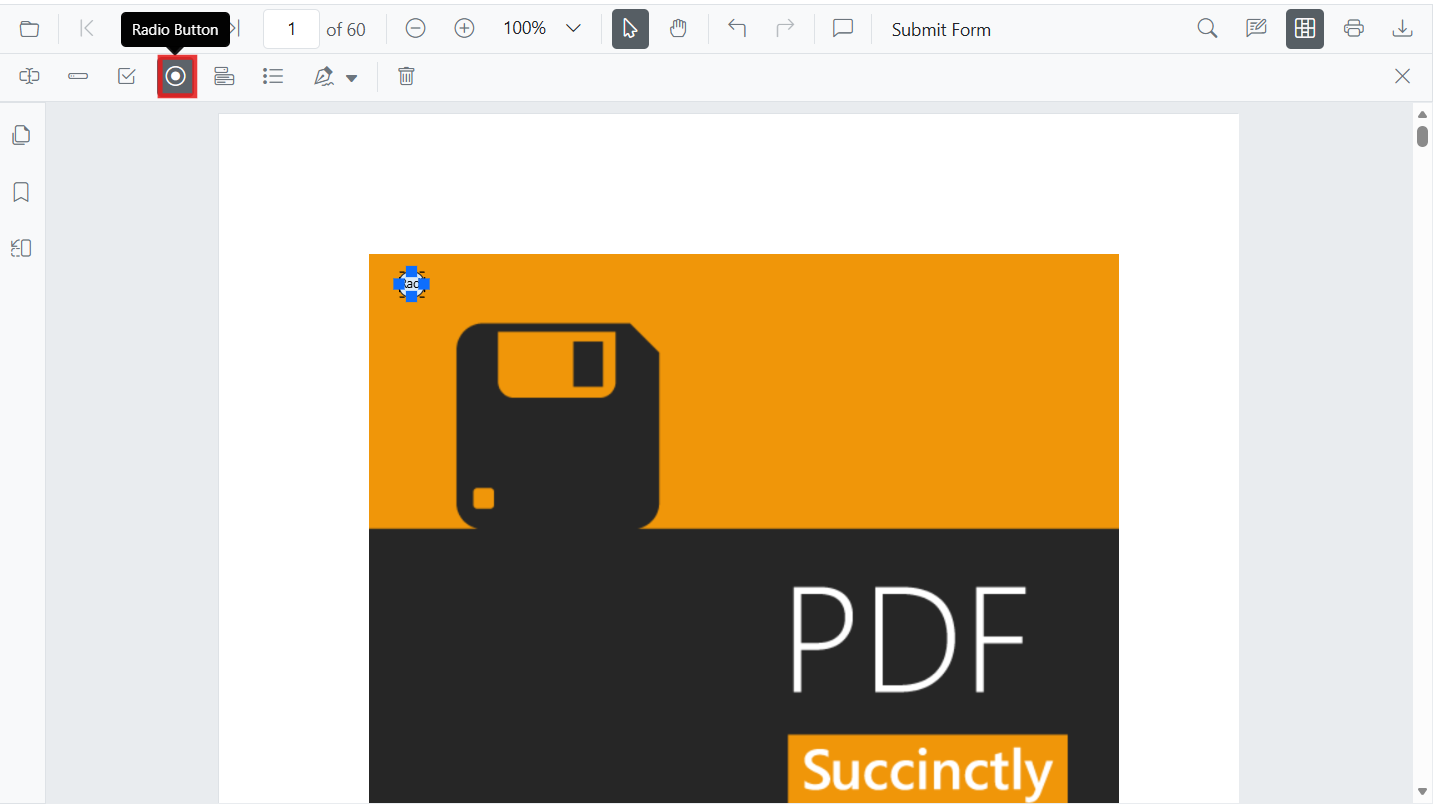
Add RadioButton Programmatically
To add radio buttons programmatically, call addFormField with type ‘RadioButton’ and pass as RadioButtonFieldSettings object. Use the same name to group buttons. The example below adds two radio buttons when the document loads.
import { PdfViewer, Toolbar, Magnification, Navigation, Annotation, LinkAnnotation, ThumbnailView, BookmarkView, TextSelection, TextSearch, FormFields, FormDesigner, RadioButtonFieldSettings } from '@syncfusion/ej2-pdfviewer';

PdfViewer.Inject(Toolbar, Magnification, Navigation, Annotation, LinkAnnotation, ThumbnailView, BookmarkView, TextSelection, TextSearch, FormFields, FormDesigner);

let pdfviewer: PdfViewer = new PdfViewer();
pdfviewer.documentPath = "https://cdn.syncfusion.com/content/pdf/form-filling-document.pdf";
pdfviewer.resourceUrl = "https://cdn.syncfusion.com/ej2/31.1.23/dist/ej2-pdfviewer-lib";

pdfviewer.appendTo('#PdfViewer');

pdfviewer.documentLoad = () => {
  // Group by name: 'Gender'
  pdfviewer.formDesignerModule.addFormField('RadioButton', {
    name: 'Gender',
    isSelected: false,
    bounds: { X: 148, Y: 289, Width: 18, Height: 18 }
  } as RadioButtonFieldSettings);

  pdfviewer.formDesignerModule.addFormField('RadioButton', {
    name: 'Gender',
    isSelected: false,
    bounds: { X: 292, Y: 289, Width: 18, Height: 18 }
  } as RadioButtonFieldSettings);
};
ListBox
Add ListBox
- Choose ListBox in the Form Designer toolbar.
- Place the field and add items in the property panel.
- Configure font, size, and selection behavior.
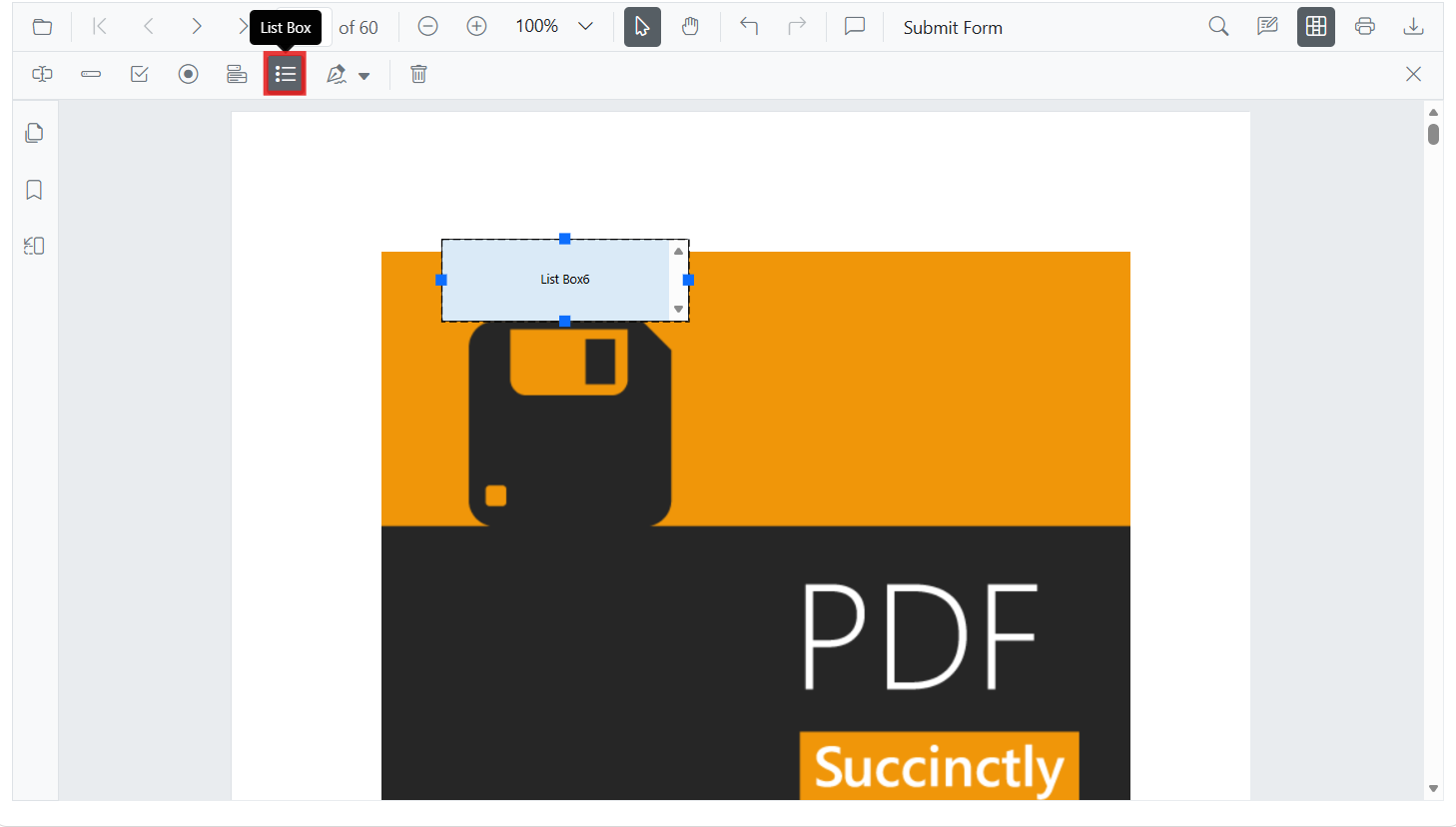
Add ListBox Programmatically
To add a ListBox programmatically, call addFormField with type ‘ListBox’ and pass as ListBoxFieldSettings object, including an options array for the items. The example below adds the field when the document loads.
import { PdfViewer, Toolbar, Magnification, Navigation, Annotation, LinkAnnotation, ThumbnailView, BookmarkView, TextSelection, TextSearch, FormFields, FormDesigner, ListBoxFieldSettings } from '@syncfusion/ej2-pdfviewer';

PdfViewer.Inject(Toolbar, Magnification, Navigation, Annotation, LinkAnnotation, ThumbnailView, BookmarkView, TextSelection, TextSearch, FormFields, FormDesigner);

let pdfviewer: PdfViewer = new PdfViewer();
pdfviewer.documentPath = "https://cdn.syncfusion.com/content/pdf/form-filling-document.pdf";
pdfviewer.resourceUrl = "https://cdn.syncfusion.com/ej2/31.1.23/dist/ej2-pdfviewer-lib";

pdfviewer.appendTo('#PdfViewer');

pdfviewer.documentLoad = () => {
  const options = [
    { itemName: 'Item 1', itemValue: 'item1' },
    { itemName: 'Item 2', itemValue: 'item2' },
    { itemName: 'Item 3', itemValue: 'item3' }
  ];

  pdfviewer.formDesignerModule.addFormField('ListBox', {
    name: 'States',
    options,
    bounds: { X: 380, Y: 320, Width: 150, Height: 60 }
  } as ListBoxFieldSettings);
};
DropDown
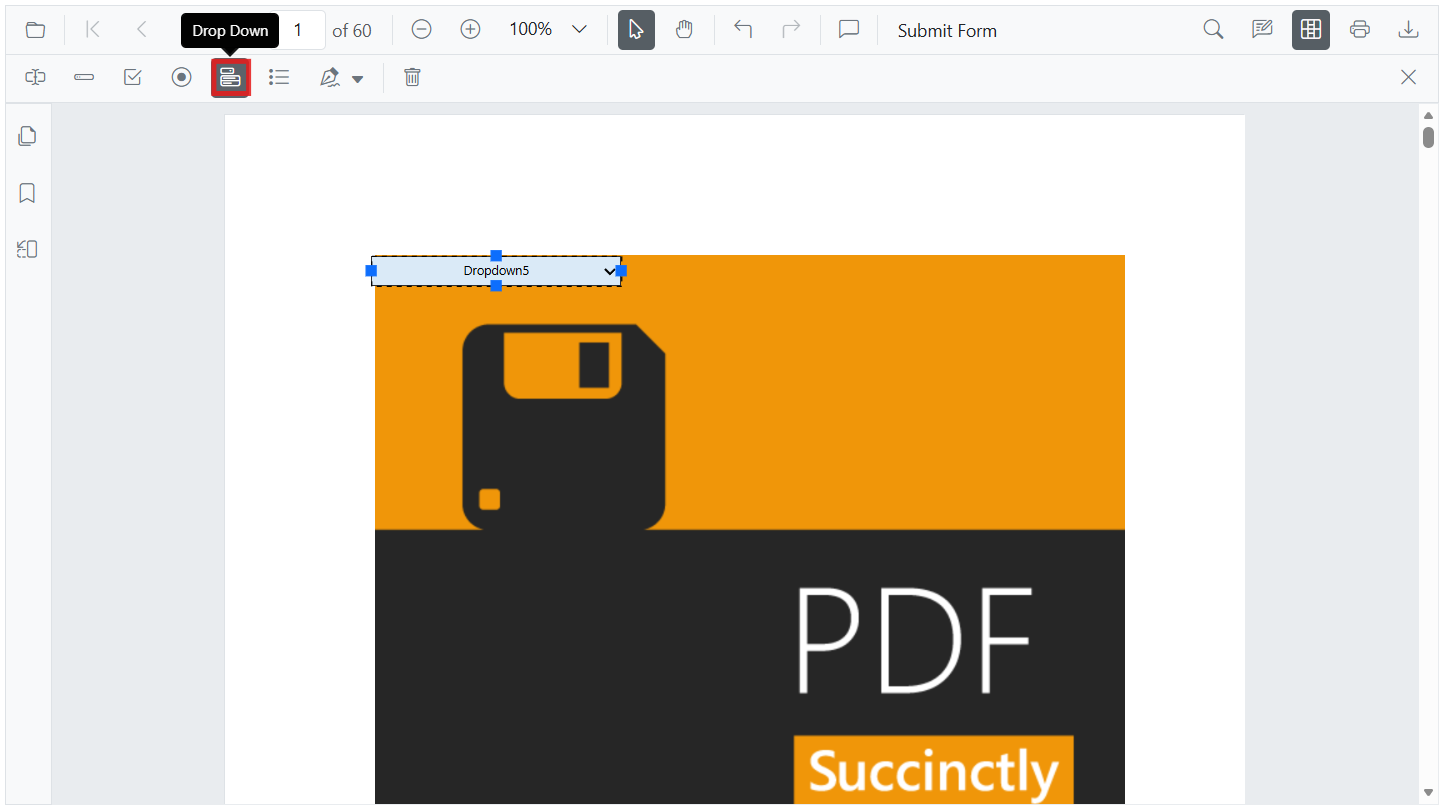
Add DropDown
- Select DropDown in the Form Designer toolbar.
- Place the field, then add items via the property panel.
- Adjust appearance and default value.
Add DropDown Programmatically
To add a DropDown programmatically, call addFormField with type ‘DropDown’ and pass a DropdownFieldSettings object with an options array. The example below adds the field when the document loads.
import { PdfViewer, Toolbar, Magnification, Navigation, Annotation, LinkAnnotation, ThumbnailView, BookmarkView, TextSelection, TextSearch, FormFields, FormDesigner, DropdownFieldSettings } from '@syncfusion/ej2-pdfviewer';

PdfViewer.Inject(Toolbar, Magnification, Navigation, Annotation, LinkAnnotation, ThumbnailView, BookmarkView, TextSelection, TextSearch, FormFields, FormDesigner);

let pdfviewer: PdfViewer = new PdfViewer();
pdfviewer.documentPath = "https://cdn.syncfusion.com/content/pdf/form-filling-document.pdf";
pdfviewer.resourceUrl = "https://cdn.syncfusion.com/ej2/31.1.23/dist/ej2-pdfviewer-lib";

pdfviewer.appendTo('#PdfViewer');

pdfviewer.documentLoad = () => {
  const options = [
    { itemName: 'Item 1', itemValue: 'item1' },
    { itemName: 'Item 2', itemValue: 'item2' },
    { itemName: 'Item 3', itemValue: 'item3' }
  ];

  pdfviewer.formDesignerModule.addFormField('DropDown', {
    name: 'Country',
    options,
    bounds: { X: 560, Y: 320, Width: 150, Height: 24 }
  } as DropdownFieldSettings);
};
Signature field
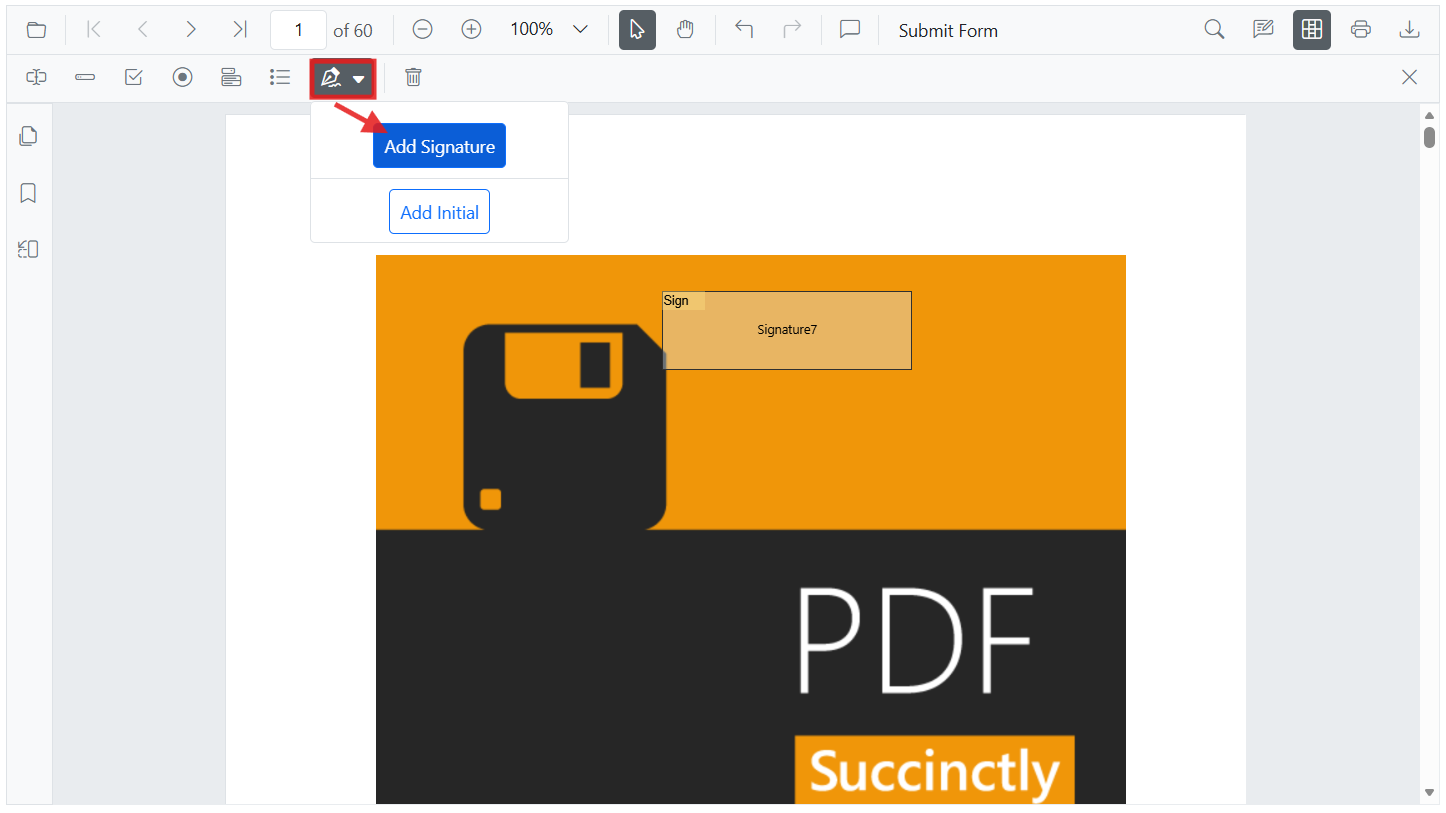
Add Signature field
- Select Signature field in the Form Designer toolbar.
- Place the field where the signer should sign.
- Configure indicator text, thickness, tooltip, and required state.
Add Signature field Programmatically
To add a Signature field programmatically, call addFormField with type ‘SignatureField’ and pass a SignatureFieldSettings object. The example below adds the field when the document loads.
import { PdfViewer, Toolbar, Magnification, Navigation, Annotation, LinkAnnotation, ThumbnailView, BookmarkView, TextSelection, TextSearch, FormFields, FormDesigner, SignatureFieldSettings } from '@syncfusion/ej2-pdfviewer';

PdfViewer.Inject(Toolbar, Magnification, Navigation, Annotation, LinkAnnotation, ThumbnailView, BookmarkView, TextSelection, TextSearch, FormFields, FormDesigner);

let pdfviewer: PdfViewer = new PdfViewer();
pdfviewer.documentPath = "https://cdn.syncfusion.com/content/pdf/form-filling-document.pdf";
pdfviewer.resourceUrl = "https://cdn.syncfusion.com/ej2/31.1.23/dist/ej2-pdfviewer-lib";

pdfviewer.appendTo('#PdfViewer');

pdfviewer.documentLoad = () => {
  pdfviewer.formDesignerModule.addFormField('SignatureField', {
    name: 'Sign',
    bounds: { X: 57, Y: 923, Width: 200, Height: 43 }
  } as SignatureFieldSettings);
};
Initial field
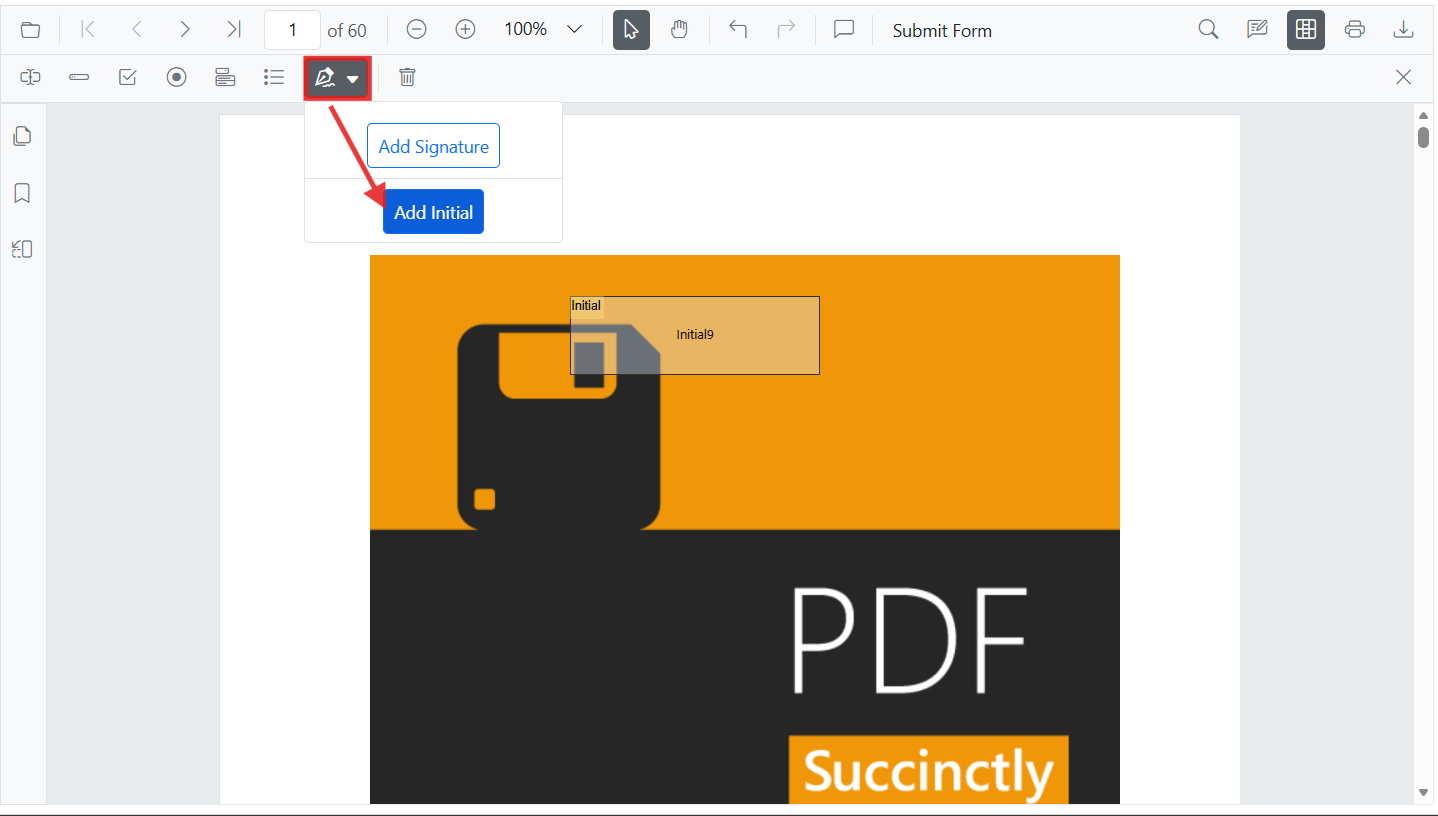
Add Initial field
- Select Initial field in the Form Designer toolbar.
- Place the field where initials are required.
- Configure indicator text, tooltip, and required state.
Add Initial field Programmatically
To add an Initial field programmatically, call addFormField with type ‘InitialField’ and pass an InitialFieldSettings object. The example below adds the field when the document loads.
import { PdfViewer, Toolbar, Magnification, Navigation, Annotation, LinkAnnotation, ThumbnailView, BookmarkView, TextSelection, TextSearch, FormFields, FormDesigner, InitialFieldSettings } from '@syncfusion/ej2-pdfviewer';

PdfViewer.Inject(Toolbar, Magnification, Navigation, Annotation, LinkAnnotation, ThumbnailView, BookmarkView, TextSelection, TextSearch, FormFields, FormDesigner);

let pdfviewer: PdfViewer = new PdfViewer();
pdfviewer.documentPath = "https://cdn.syncfusion.com/content/pdf/form-filling-document.pdf";
pdfviewer.resourceUrl = "https://cdn.syncfusion.com/ej2/31.1.23/dist/ej2-pdfviewer-lib";

pdfviewer.appendTo('#PdfViewer');

pdfviewer.documentLoad = () => {
  pdfviewer.formDesignerModule.addFormField('InitialField', {
    name: 'Initial',
    bounds: { X: 148, Y: 466, Width: 200, Height: 43 }
  } as InitialFieldSettings);
};
setFormFieldMode programmatically
The setFormFieldMode method enables adding a form field dynamically by specifying the field type. For example, the following adds a Password field when a button is clicked.
<button id="addPasswordField">Add Password Field</button>import { PdfViewer, Toolbar, Magnification, Navigation, Annotation, LinkAnnotation, ThumbnailView,
BookmarkView, TextSelection, TextSearch, FormFields, FormDesigner} from '@syncfusion/ej2-pdfviewer';
PdfViewer.Inject( Toolbar, Magnification, Navigation, Annotation, LinkAnnotation, ThumbnailView,
BookmarkView, TextSelection, TextSearch, FormFields, FormDesigner);
let pdfviewer: PdfViewer = new PdfViewer();
pdfviewer.documentPath = 'https://cdn.syncfusion.com/content/pdf/pdf-succinctly.pdf';
pdfviewer.resourceUrl = "https://cdn.syncfusion.com/ej2/31.1.23/dist/ej2-pdfviewer-lib";
pdfviewer.appendTo('#PdfViewer');
document.getElementById('addPasswordField').addEventListener('click', function () {
pdfviewer.formDesignerModule.setFormFieldMode("Password");
//In setFormFieldModule-You can pass the required field to be added like Textbox, Checkbox etc.,
});