Form filling in JavaScript PDF Viewer
14 Jan 20264 minutes to read
The PDF Viewer displays existing form fields in a PDF and enables users to fill, validate, and download the filled data.
Form Fields
Work with the runtime form fields present in a PDF Form.
- Render existing fields
- Fill fields.
- Import/Export form data as JSON, XFDF, FDF, or as a plain object
- Inject FormFields to enable form-filling features.
Use the following code-snippet to enable form-filling by injecting FormFields Module.
var pdfviewer = new ej.pdfviewer.PdfViewer({
  documentPath: 'https://cdn.syncfusion.com/content/pdf/form-filling-document.pdf',
  resourceUrl: "https://cdn.syncfusion.com/ej2/31.2.2/dist/ej2-pdfviewer-lib"
});
ej.pdfviewer.PdfViewer.Inject(ej.pdfviewer.TextSelection, ej.pdfviewer.TextSearch, ej.pdfviewer.Print, ej.pdfviewer.Navigation, ej.pdfviewer.Toolbar,
  ej.pdfviewer.Magnification, ej.pdfviewer.Annotation, ej.pdfviewer.FormFields, ej.pdfviewer.PageOrganizer);
  pdfviewer.appendTo('#PdfViewer');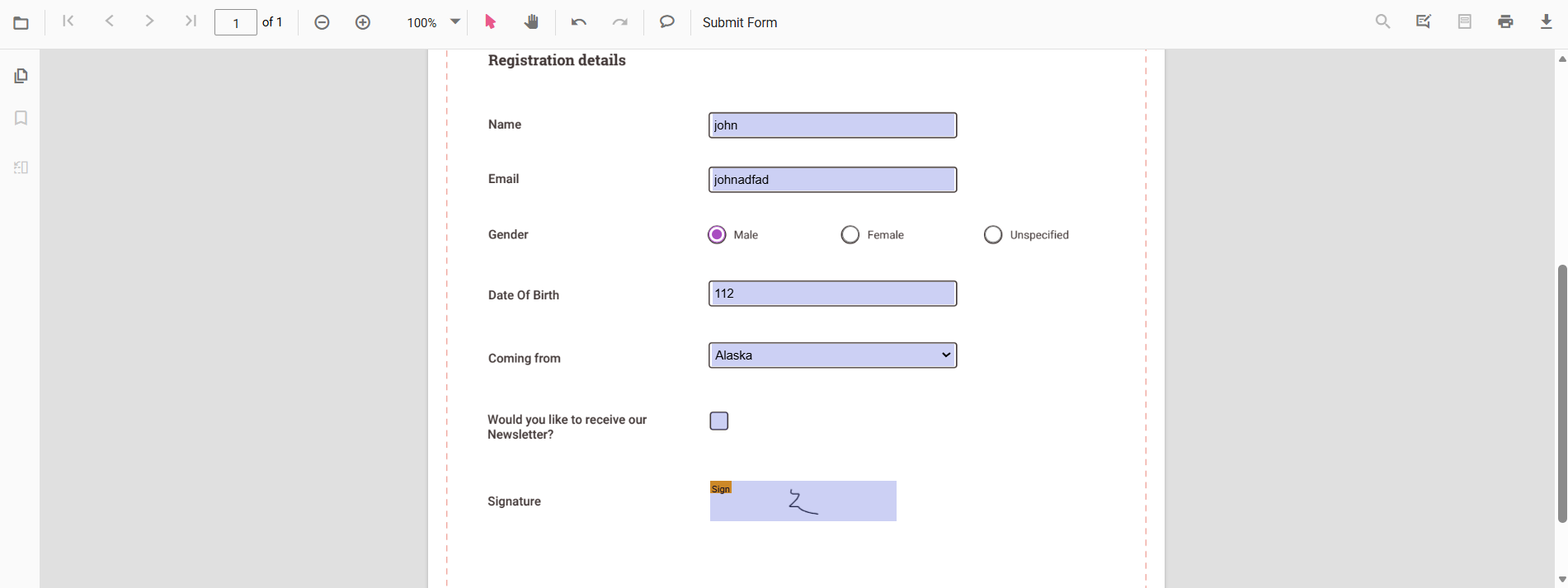
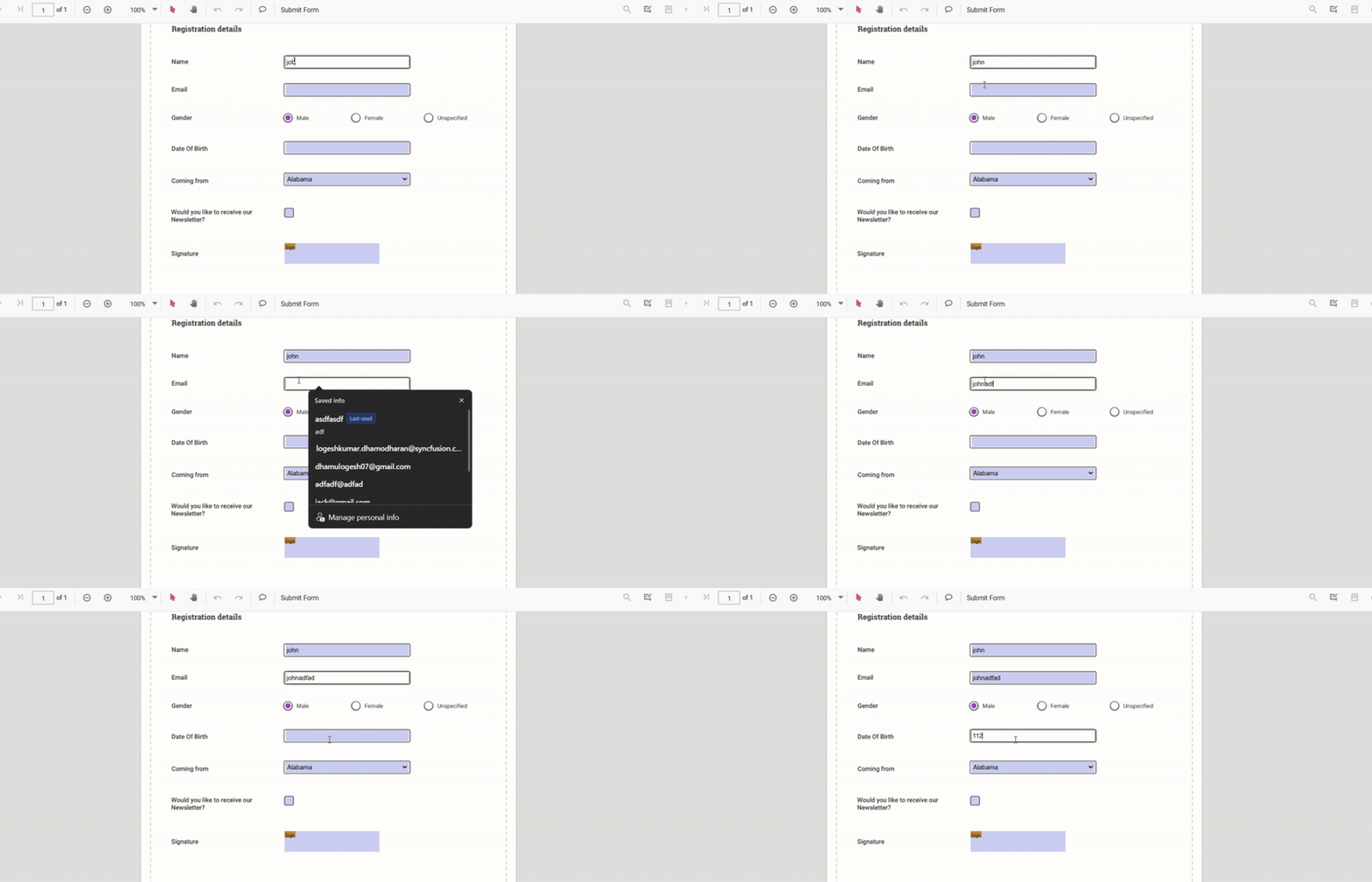
The PDF Viewer supports the following form field types:
Disabling form fields
The PDF Viewer provides an option to disable interaction with form fields using the enableFormDesigner API. Use the following configuration to disable form fields in the viewer.
var pdfviewer = new ej.pdfviewer.PdfViewer({
  documentPath: 'https://cdn.syncfusion.com/content/pdf/form-filling-document.pdf',
  resourceUrl: "https://cdn.syncfusion.com/ej2/31.2.2/dist/ej2-pdfviewer-lib",
  enableFormDesigner: true, //Set 'false' to disable form designer
});
ej.pdfviewer.PdfViewer.Inject(ej.pdfviewer.TextSelection, ej.pdfviewer.TextSearch, ej.pdfviewer.Print, ej.pdfviewer.Navigation, ej.pdfviewer.Toolbar,
  ej.pdfviewer.Magnification, ej.pdfviewer.Annotation, ej.pdfviewer.FormDesigner, ej.pdfviewer.FormFields, ej.pdfviewer.PageOrganizer);
  pdfviewer.appendTo('#PdfViewer');
Access interactive form fields
You can access the collection of all interactive form fields in the loaded document using the formFieldCollection property. Fetch the collection after the document is loaded.
Add a button to trigger fetching form fields:
<button id="formFieldCollection">Fetch Form Fields Collection</button>var pdfviewer = new ej.pdfviewer.PdfViewer({
documentPath: 'https://cdn.syncfusion.com/content/pdf/form-filling-document.pdf',
resourceUrl: "https://cdn.syncfusion.com/ej2/31.2.2/dist/ej2-pdfviewer-lib",
enableFormDesigner: true, //Set 'false' to disable form designer
});
ej.pdfviewer.PdfViewer.Inject(ej.pdfviewer.TextSelection, ej.pdfviewer.TextSearch, ej.pdfviewer.Print, ej.pdfviewer.Navigation, ej.pdfviewer.Toolbar,
ej.pdfviewer.Magnification, ej.pdfviewer.Annotation, ej.pdfviewer.FormDesigner, ej.pdfviewer.FormFields, ej.pdfviewer.PageOrganizer);
pdfviewer.appendTo('#PdfViewer');
//Click event to get formfields collection
document.getElementById('formFieldCollection').addEventListener('click', function() {
var fields = pdfviewer.formFieldCollection; // Gets all form fields
console.log(fields); // Log the formField Collection
});Add a handwritten signature to a signature field
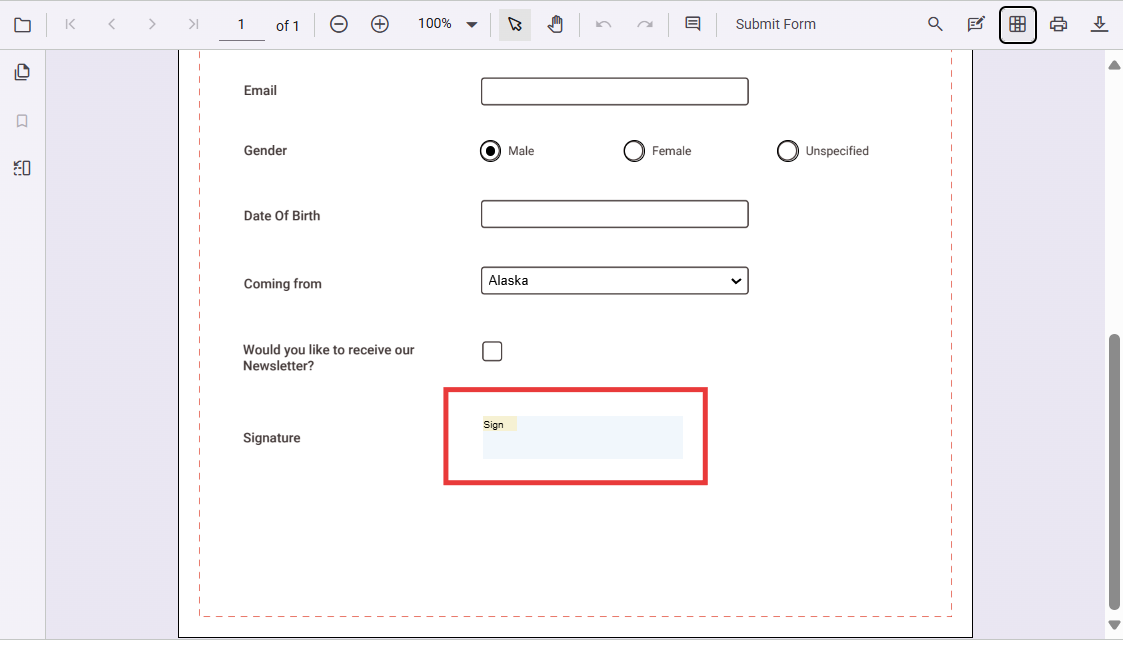
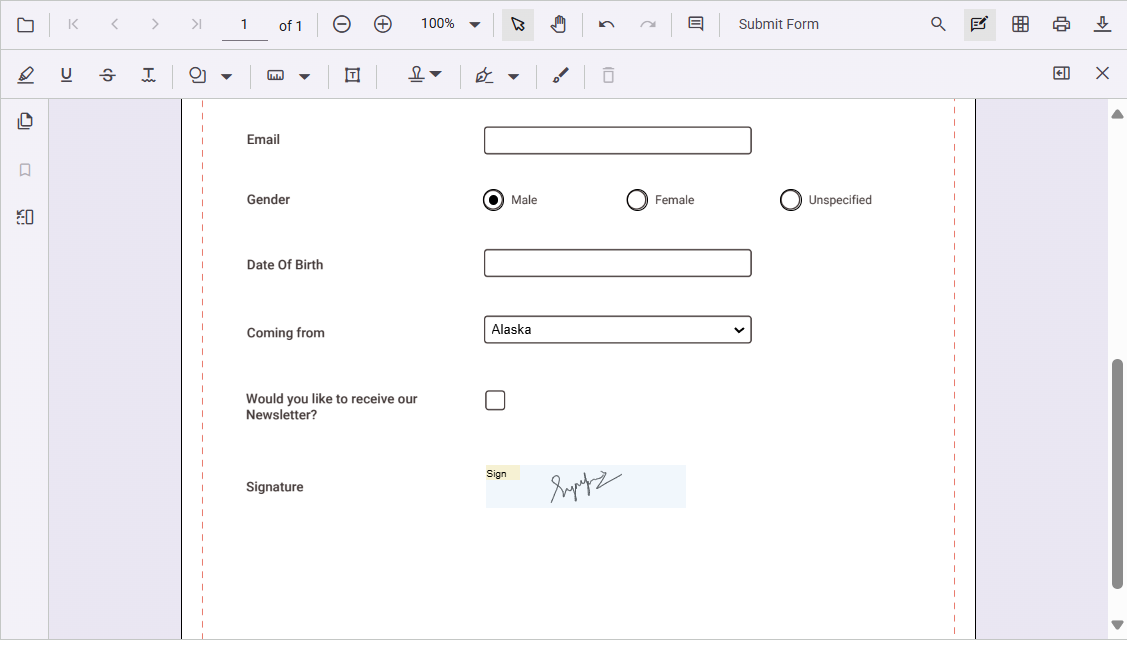
Add a handwritten signature to a signature field by following these steps:
- Click the signature field in the PDF document to open the signature panel.
- Draw the signature in the signature panel.
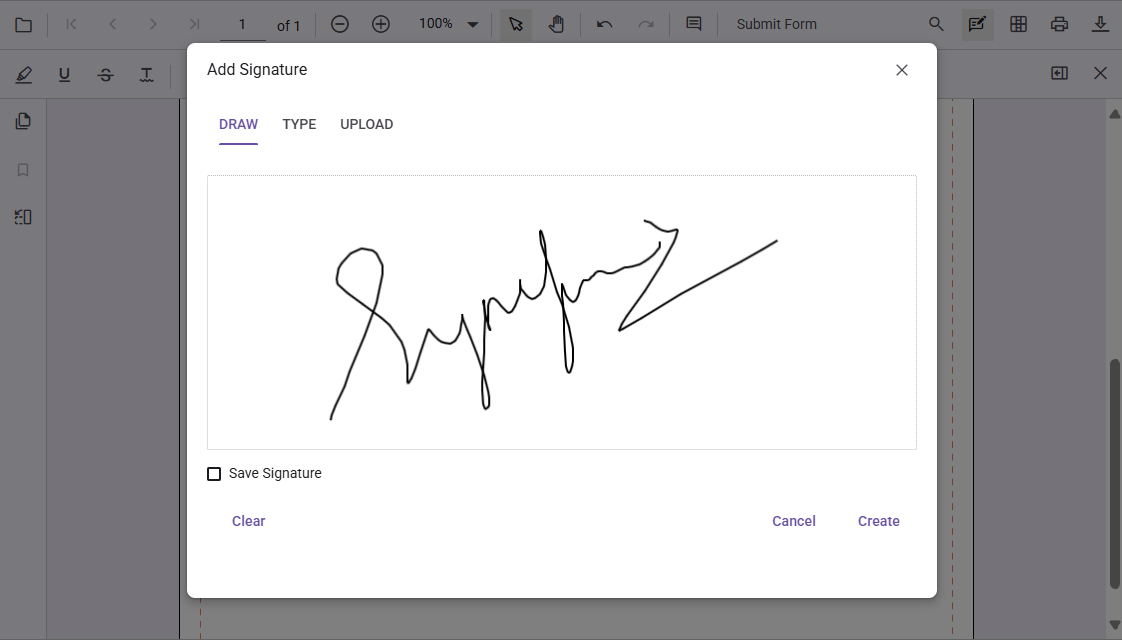
- Select CREATE. The drawn signature is added to the signature field.
Delete a signature from a signature field
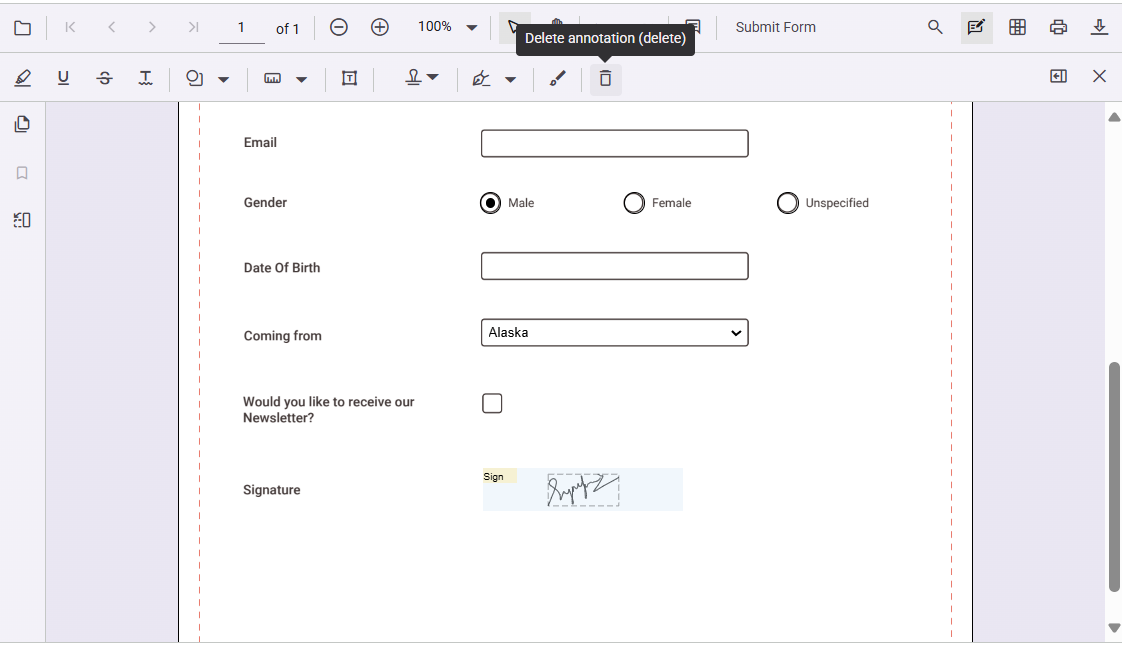
Delete a signature placed in a signature field by using the Delete option in the annotation toolbar.
Export and import form fields
The PDF Viewer supports exporting and importing form field data using the importFormFields, exportFormFields, and exportFormFieldsAsObject methods. The following formats are supported:
- FDF
- XFDF
- JSON
For more information, see the Form fields documentation.