Group form fields in JavaScript PDF Viewer
14 Jan 20264 minutes to read
In PDF forms, multiple widgets can represent the same logical form field. The Syncfusion PDF Viewer supports grouping form fields by assigning the same Name to multiple widgets. Grouped widgets mirror their values and states based on the field type.
Key behavior when fields share the same Name:
- Textbox and Password: Text entered in one widget appears in all widgets with the same name.
- CheckBox: Checking one widget checks all widgets with the same name (mirrored state).
- RadioButton: Widgets with the same name are grouped; only one radio button in the group can be selected at a time.
- ListBox and DropDown: The selected item is shared across widgets with the same name.
- Signature field and Initial field: The applied signature/initial is mirrored across widgets with the same name.
NOTE
Grouping is driven solely by the Name property. Bounds determine placement; name determines grouping.
Group with the user interface
Use the Form Designer toolbar and set the same Name for multiple widgets to group them.
Quick steps:
- Enable the Form Designer toolbar.
- Draw the desired fields (e.g., two Textbox widgets or multiple RadioButton widgets).
- Right‑click a field > Properties, and set the same Name on each widget you want to group.
- Apply and test: editing one grouped widget reflects in the others.
Textboxes and Password fields (shared value)
- Give both widgets the same Name to mirror the typed value across them.
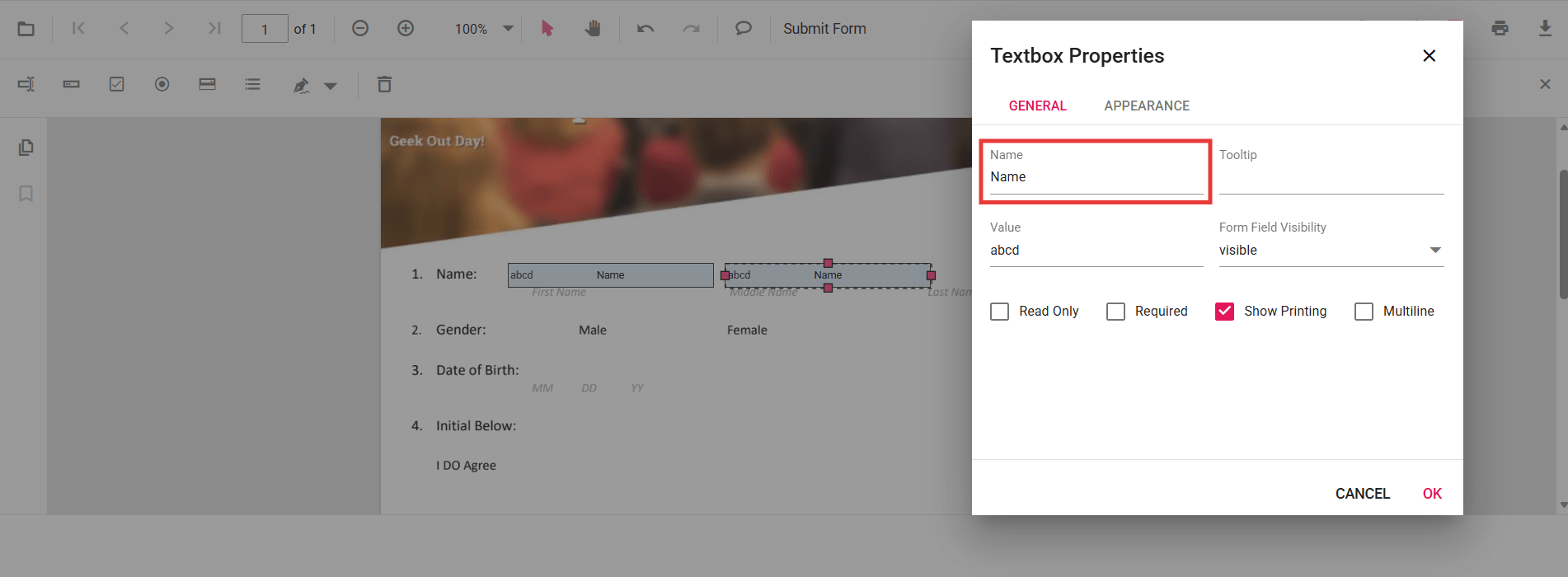
Radio buttons (exclusive choice within a group)
- Add radio buttons that share the same Name to create one group; only one can be selected at a time.
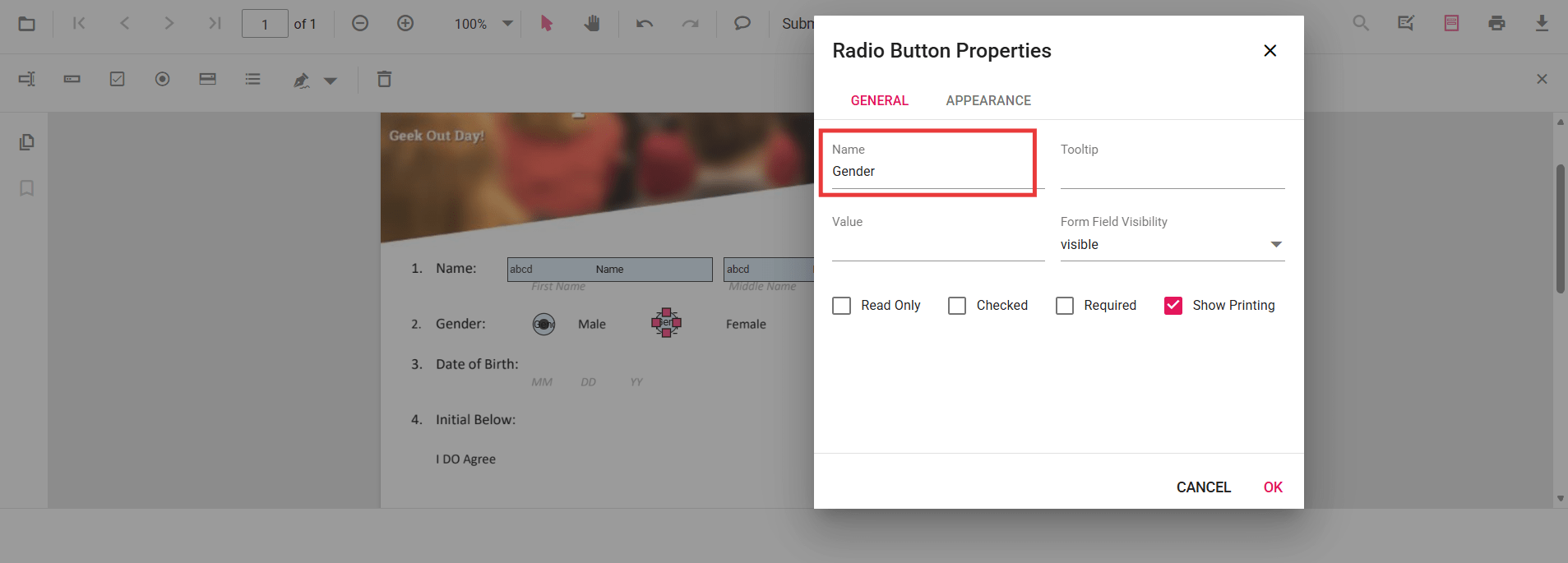
Group programmatically
Assign the same name when adding fields via code. The following example shows:
- Two Textbox widgets named EmployeeId that mirror values.
- A RadioButton group named Gender with exclusive selection.
- Two CheckBox widgets named Subscribe that mirror checked state.
// Ensure EJ2 scripts/styles are referenced in your page, e.g.:
// <link rel="stylesheet" href="https://cdn.syncfusion.com/ej2/31.1.23/material.css" />
// <script src="https://cdn.syncfusion.com/ej2/31.1.23/dist/ej2.min.js"></script>

// Inject required modules
ej.pdfviewer.PdfViewer.Inject(
  ej.pdfviewer.Toolbar,
  ej.pdfviewer.Magnification,
  ej.pdfviewer.Navigation,
  ej.pdfviewer.LinkAnnotation,
  ej.pdfviewer.ThumbnailView,
  ej.pdfviewer.BookmarkView,
  ej.pdfviewer.TextSelection,
  ej.pdfviewer.Annotation,
  ej.pdfviewer.FormDesigner,
  ej.pdfviewer.FormFields
);

var pdfviewer = new ej.pdfviewer.PdfViewer({
  documentPath: 'https://cdn.syncfusion.com/content/pdf/form-designer.pdf',
  resourceUrl: 'https://cdn.syncfusion.com/ej2/31.1.23/dist/ej2-pdfviewer-lib'
});
pdfviewer.appendTo('#PdfViewer');

pdfviewer.documentLoad = function () {
  // Textbox group: same name => mirrored value
  pdfviewer.formDesignerModule.addFormField('Textbox', {
    name: 'EmployeeId',
    bounds: { X: 146, Y: 229, Width: 150, Height: 24 }
  });

  pdfviewer.formDesignerModule.addFormField('Textbox', {
    name: 'EmployeeId', // same name groups the two widgets
    bounds: { X: 338, Y: 229, Width: 150, Height: 24 }
  });

  // Radio button group: same name => exclusive selection across the group
  pdfviewer.formDesignerModule.addFormField('RadioButton', {
    name: 'Gender',
    bounds: { X: 148, Y: 289, Width: 18, Height: 18 },
    isSelected: false
  });

  pdfviewer.formDesignerModule.addFormField('RadioButton', {
    name: 'Gender', // grouped with the first
    bounds: { X: 292, Y: 289, Width: 18, Height: 18 },
    isSelected: false
  });

  // CheckBox group: same name => mirrored checked state
  pdfviewer.formDesignerModule.addFormField('CheckBox', {
    name: 'Subscribe',
    bounds: { X: 56, Y: 664, Width: 20, Height: 20 },
    isChecked: false
  });

  pdfviewer.formDesignerModule.addFormField('CheckBox', {
    name: 'Subscribe', // grouped with the first
    bounds: { X: 242, Y: 664, Width: 20, Height: 20 },
    isChecked: false
  });
};
NOTE
To configure the server-backed PDF Viewer, add the following serviceUrl in the index.js file:
pdfviewer.serviceUrl = 'https://document.syncfusion.com/web-services/pdf-viewer/api/pdfviewer/';