Redaction UI interactions in Blazor PDF Viewer
17 Aug 20262 minutes to read
Add redaction annotations from the toolbar
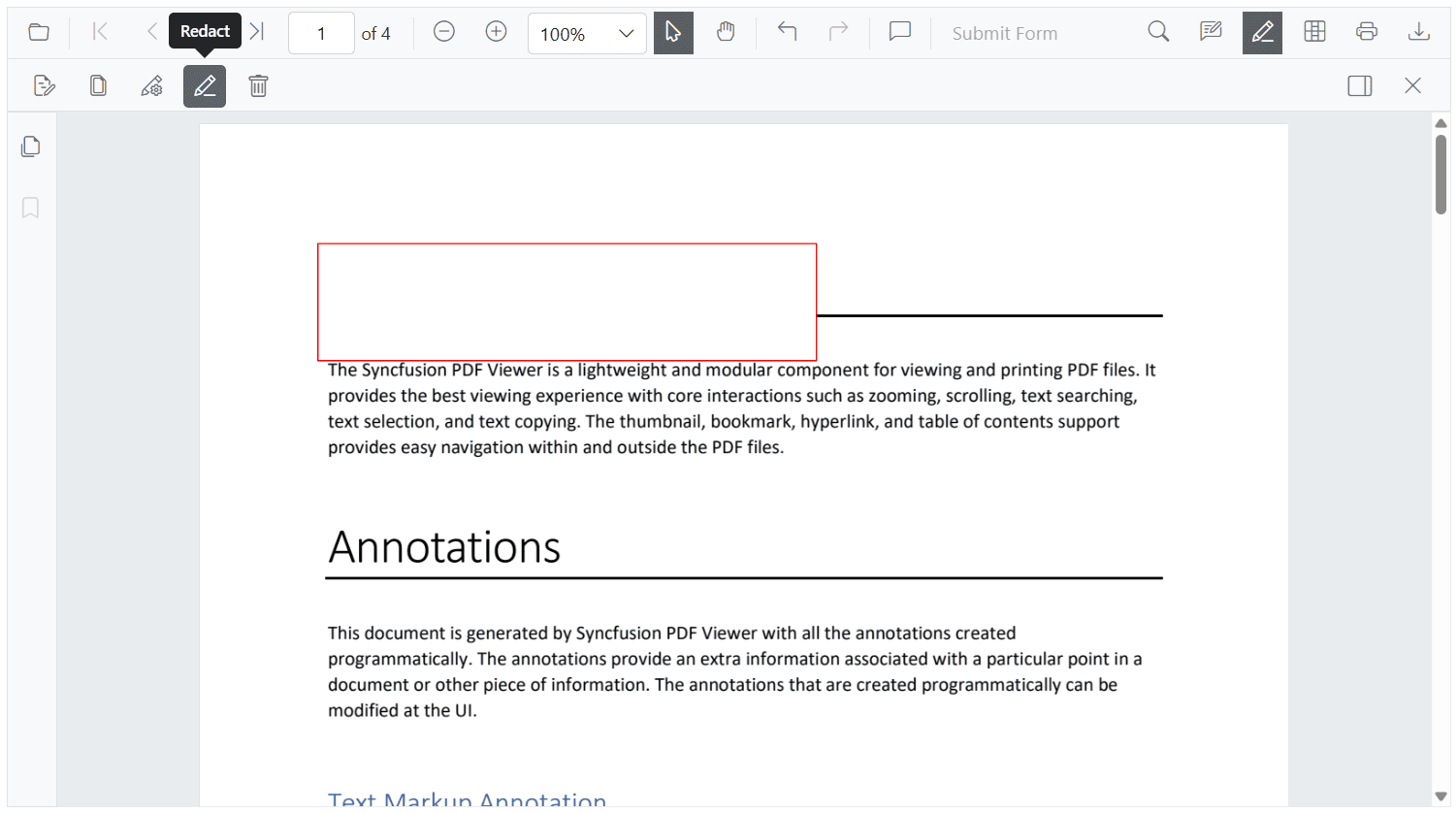
Use the redaction tool on the toolbar to draw over content to be redacted. A mark can display overlay text (for example, “Confidential”) and be styled with fill color and other properties.
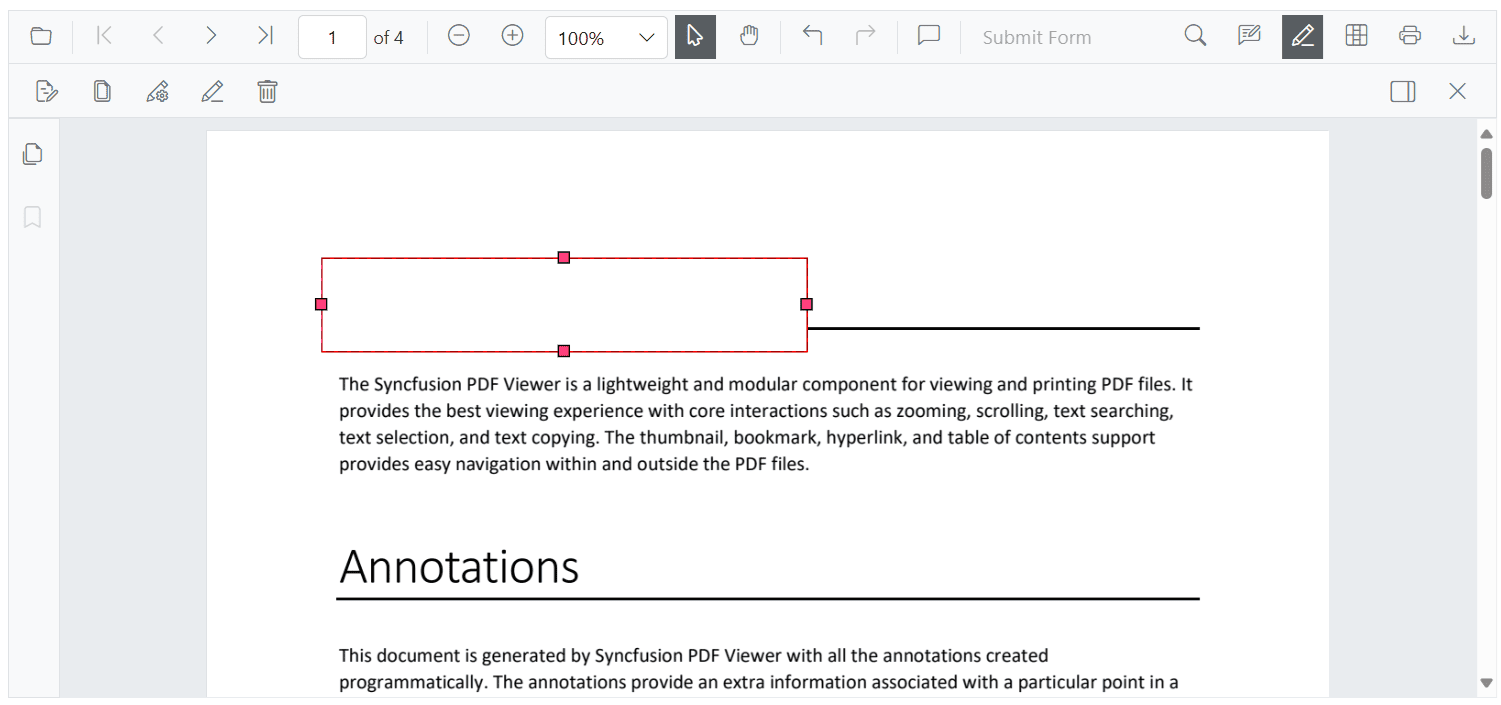
Interactive redaction annotations
- Movable: Reposition an annotation within the same page.
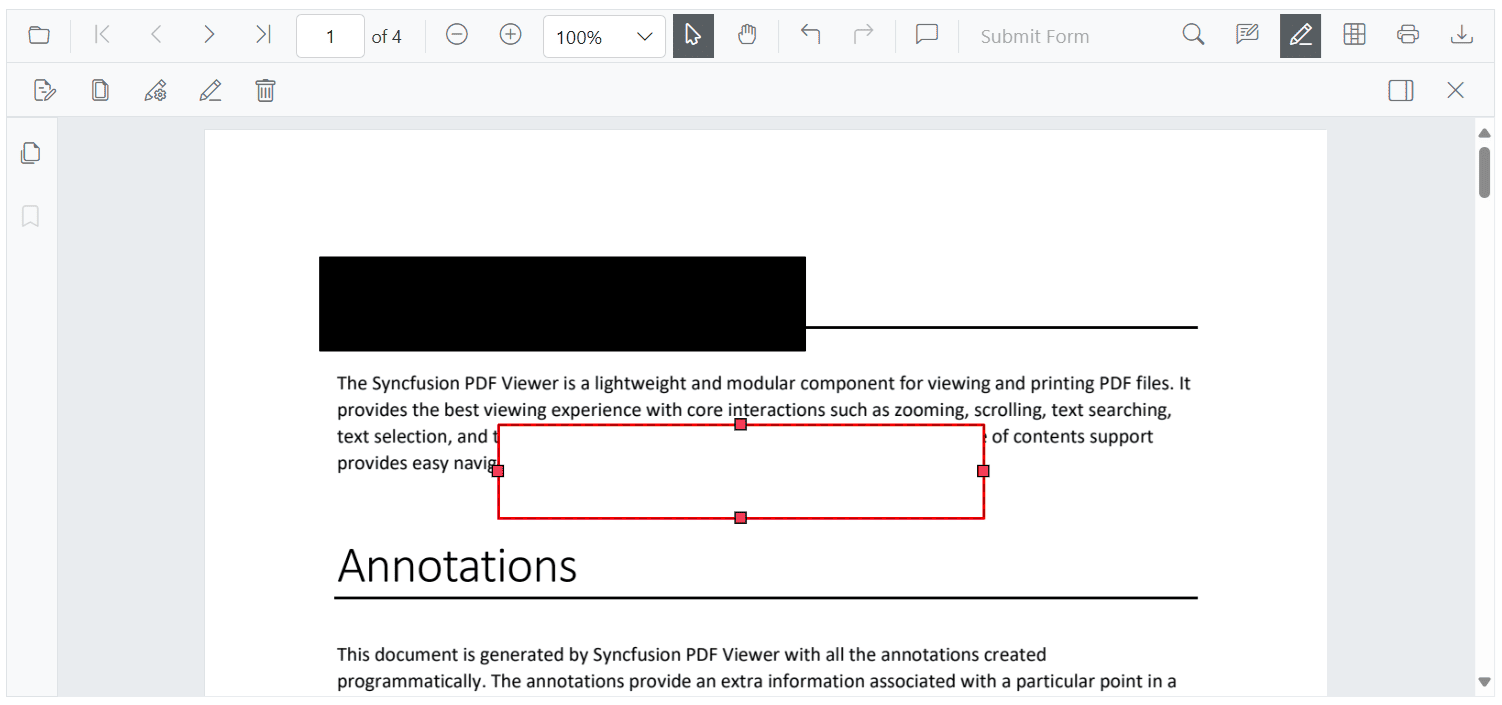
- Resizable: Adjust the size to cover the required region.
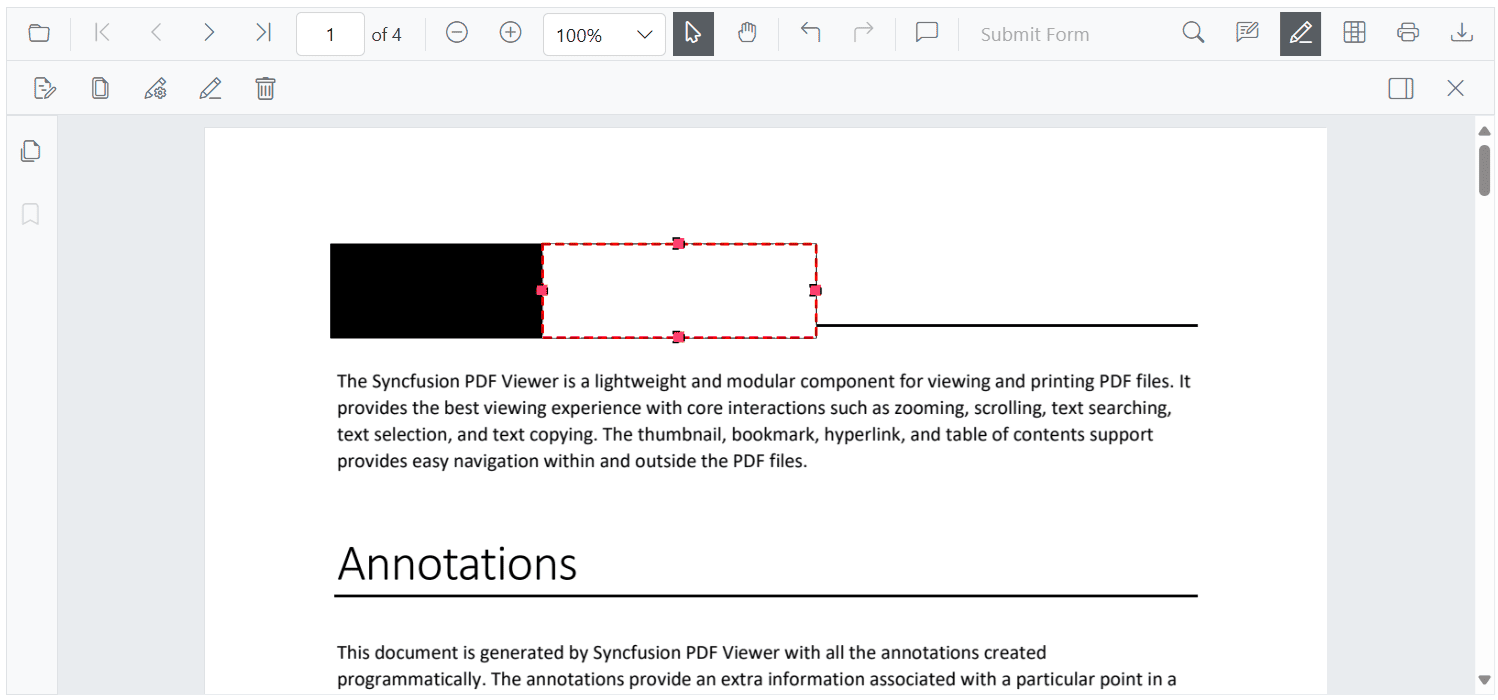
The redaction tool is hidden by default. Customize the toolbar to include it. For instructions, see Toolbar customization in the See also section.
Update redaction properties
Update redaction marks after they are added. Changes can be made using the property panel for the selected redaction or programmatically via the EditAnnotationAsync API.
Using the property panel
Select a redaction mark and edit its properties (overlay text, font, and fill color) in the property panel. Changes appear immediately in the viewer.
Access the panel by:
- Clicking the redaction panel icon on the redaction toolbar.
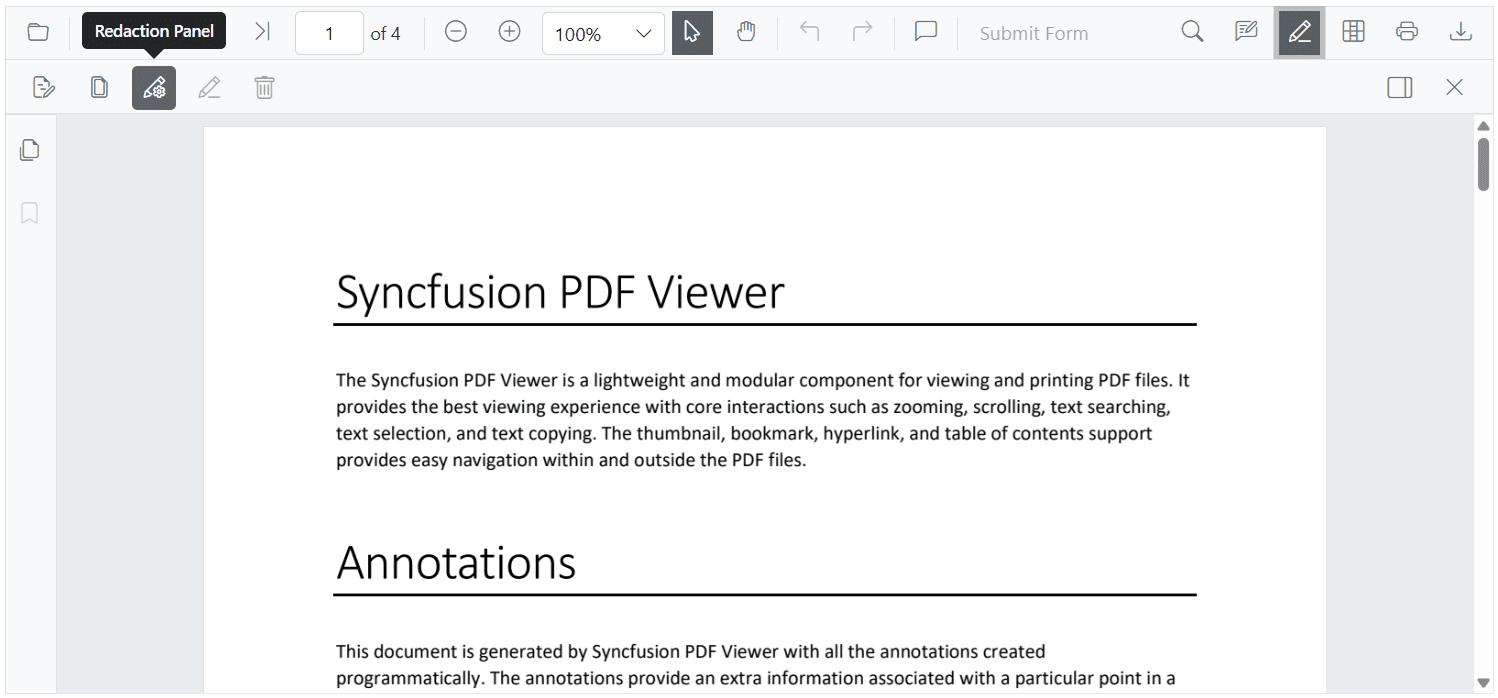
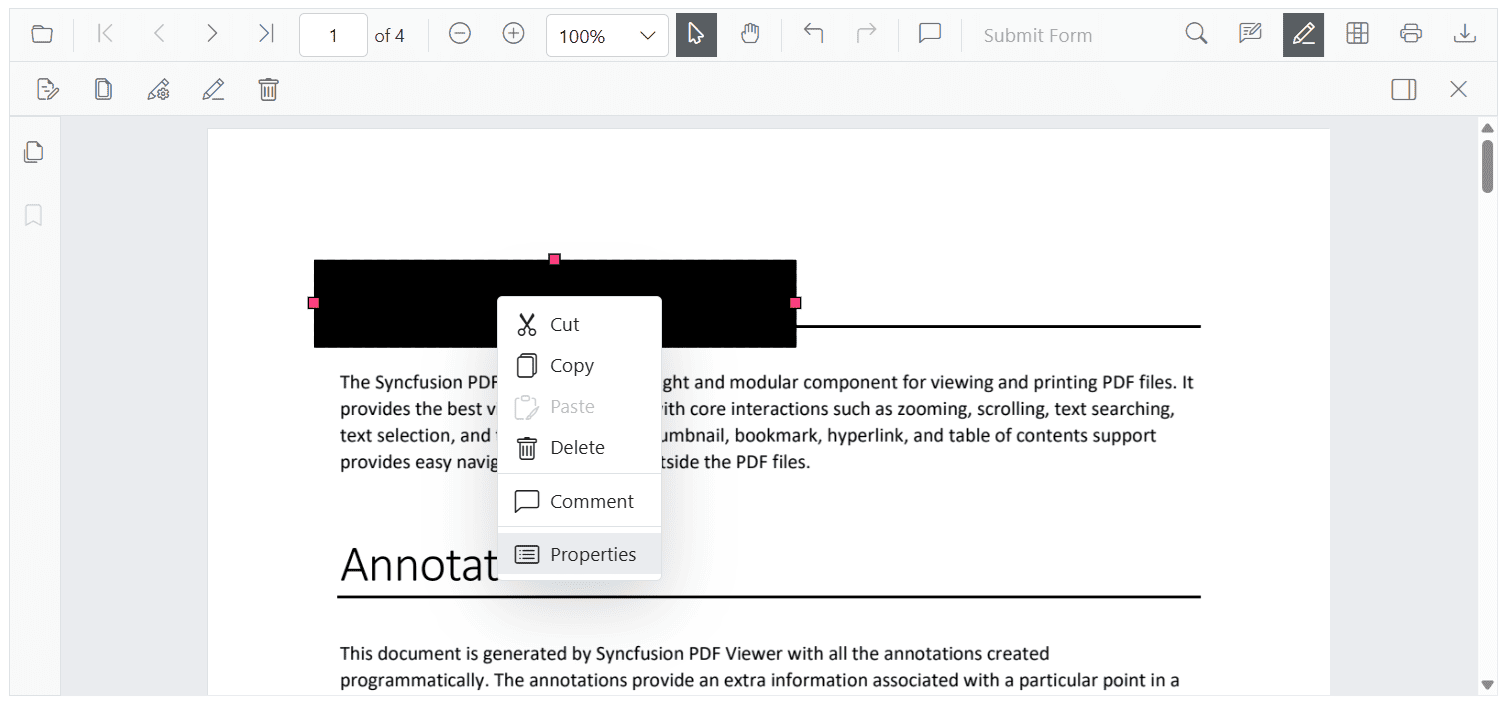
- Using the context menu (right-click or long-press on mobile) and choosing Properties.
Delete redaction marks
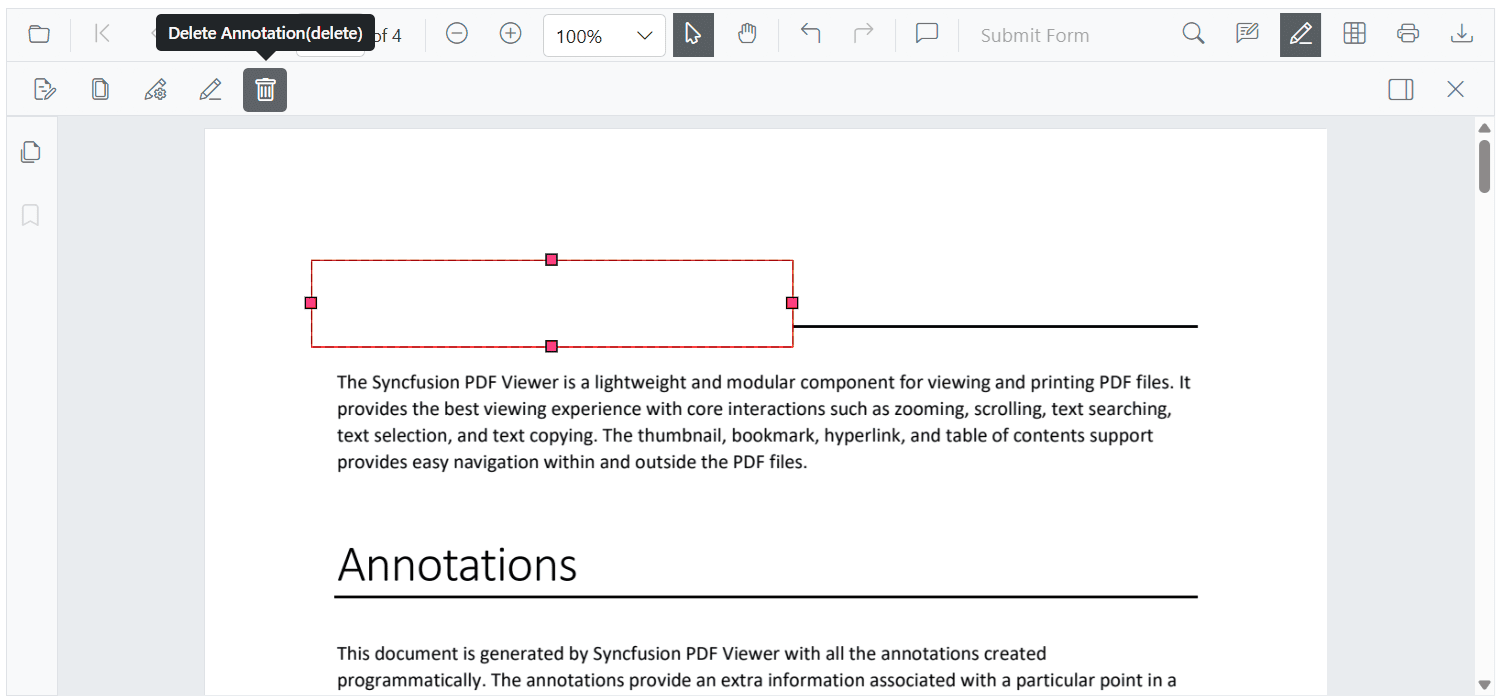
Delete a redaction mark using any of the following methods:
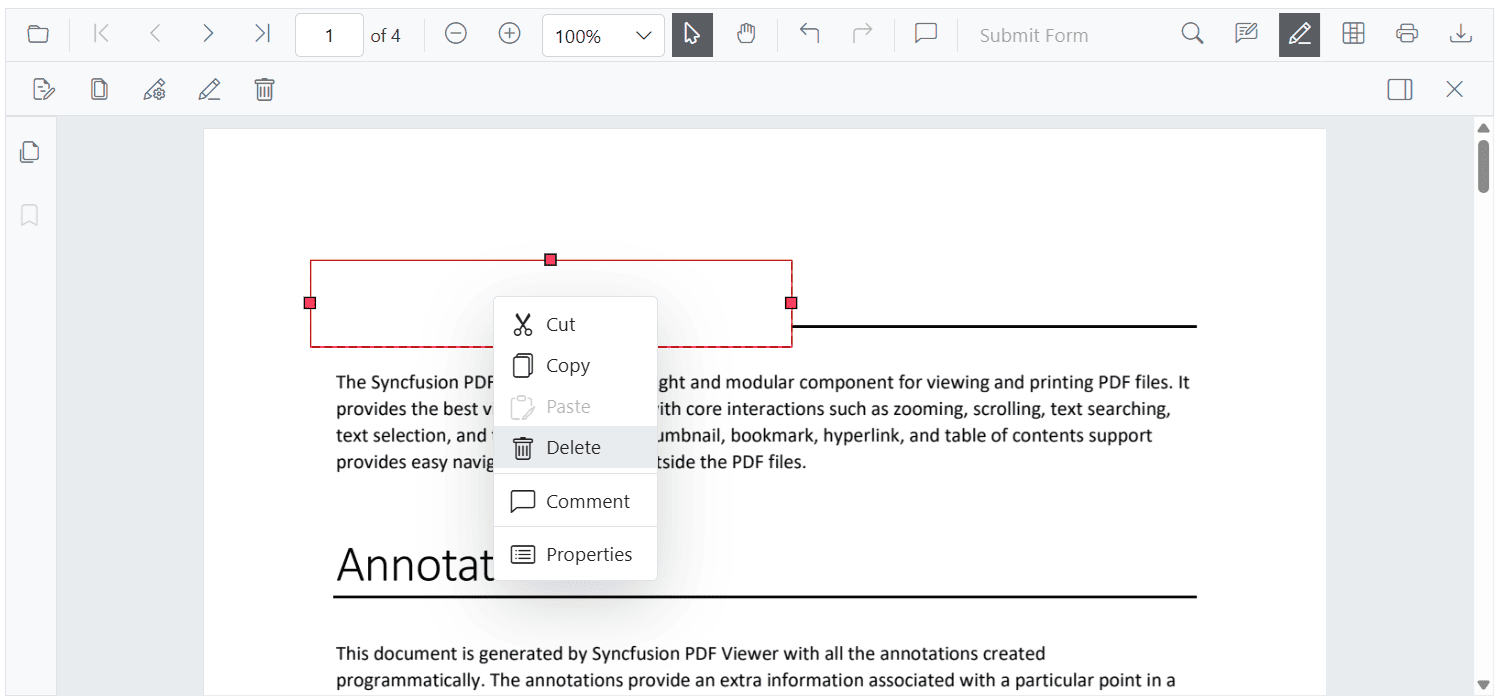
- Right-click and select Delete from the context menu.
- Click the Delete button on the toolbar.
- Press the Delete key after selecting the annotation.
Mark pages for redaction using the UI
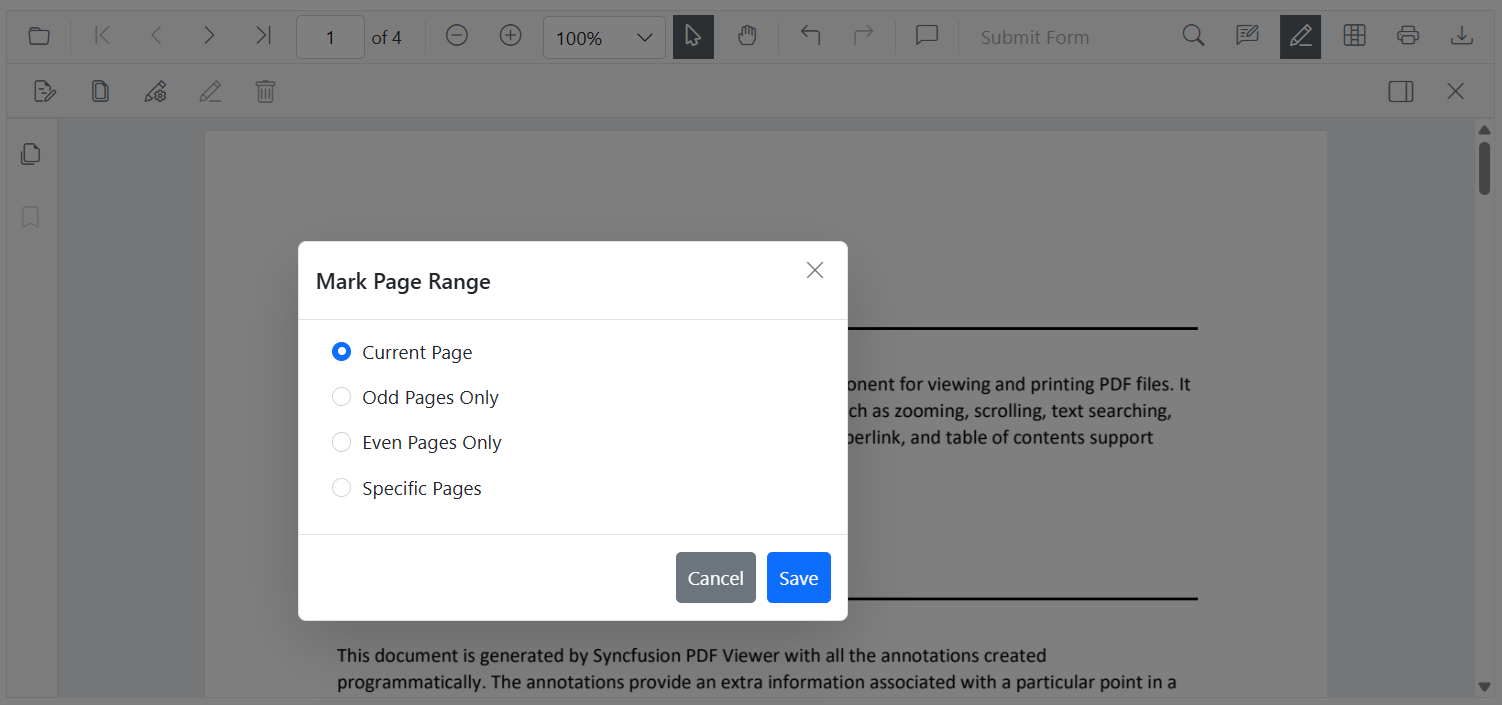
Use the Redact Pages option on the redaction toolbar to mark whole pages. This step adds redaction marks to pages only; the marks must be applied to become permanent (see the following section). The Mark Page Range dialog offers:
- Current Page: Redacts the currently visible page.
- Odd Pages Only: Redacts all odd-numbered pages.
- Even Pages Only: Redacts all even-numbered pages.
- Specific Pages: Enter a list or ranges (for example, 1, 3–5, 7).
After choosing a range, select Save to add redaction marks to the selected pages.
Apply redaction from the toolbar
The Apply Redaction button permanently applies all redaction marks in the document.
- The button is disabled when no redaction marks exist.
- It is enabled automatically when redaction marks are present.
A confirmation dialog appears, warning that the operation is permanent and irreversible.
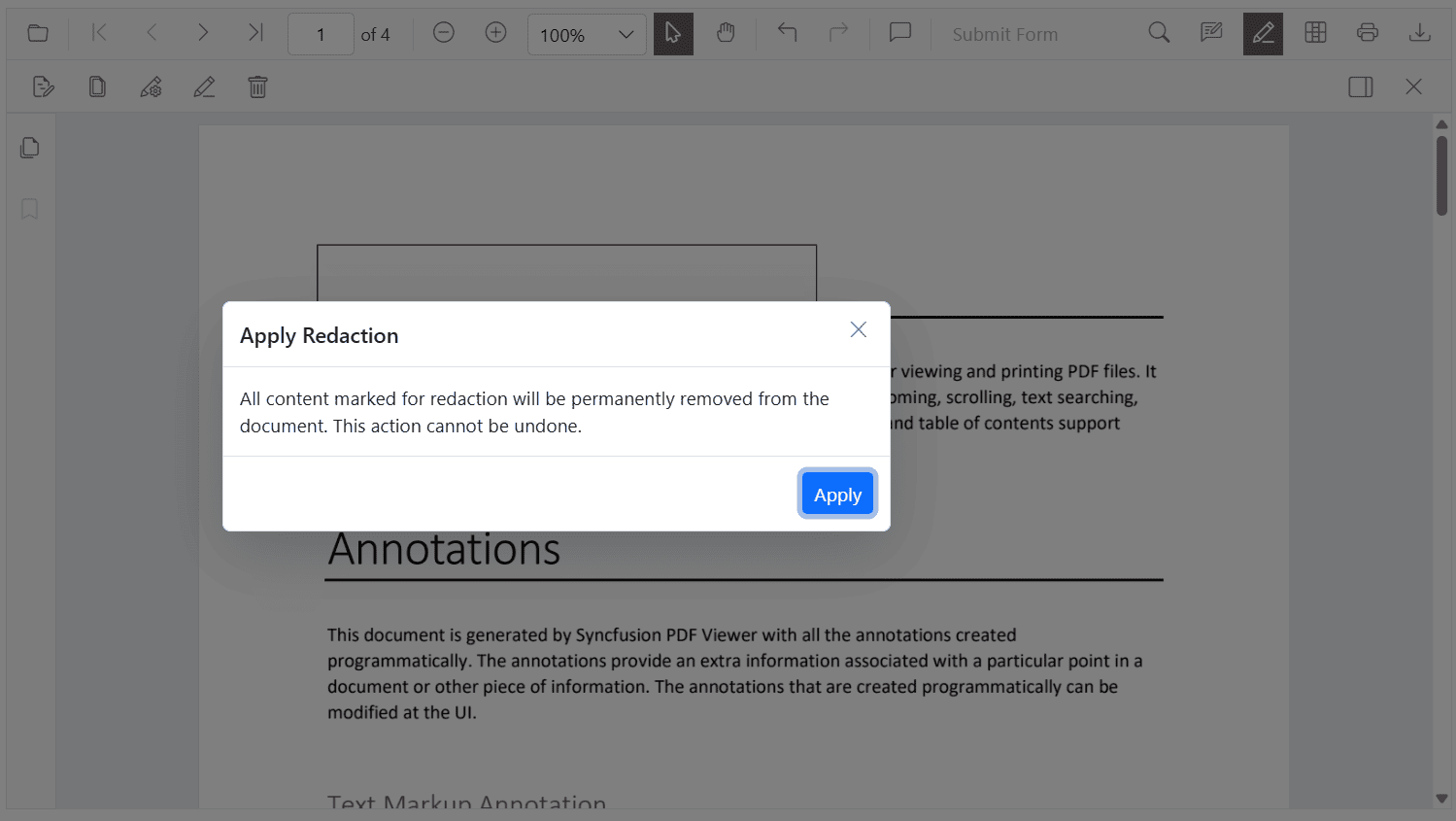
The redaction process is irreversible. Once applied, the original content cannot be recovered.