How to Deploy in Blazor PDF Viewer MAUI on Android
14 Aug 20262 minutes to read
This article describes how to render the PDF Viewer from an embedded resource in a .NET MAUI Android app using the Android emulator.
To create the .NET MAUI project, see Create a .NET MAUI app.
Add the PDF Viewer component
Add the Blazor PDF Viewer component in the ~/Pages/Index.razor file.
@page "/"

@using Syncfusion.Blazor.SfPdfViewer

<SfPdfViewer2 @ref="viewer" DocumentPath="@DocumentPath" Height="100%" Width="100%"></SfPdfViewer2>

@code {
    private SfPdfViewer2 viewer;
    private string DocumentPath { get; set; } = "";

    protected override void OnInitialized()
    {
        string basePath = "MauiBlazorAndroid.wwwroot.data.pdf_succinctly.pdf";
        Stream DocumentStream = this.GetType().Assembly.GetManifestResourceStream(basePath);
        DocumentStream.Position = 0;
        using (MemoryStream memoryStream = new MemoryStream())
        {
            DocumentStream.CopyTo(memoryStream);
            byte[] bytes = memoryStream.ToArray();
            string base64String = Convert.ToBase64String(bytes);
            string base64prefix = "data:application/pdf;base64,";
            //Assigned the base64 path to the PDF document path.
            DocumentPath = $"{base64prefix}{base64String}";
        }
        base.OnInitialized();
    }
}
In a Blazor .NET MAUI Android app, pass the DocumentPath as a Base64 data URL. This ensures the viewer can retrieve and render the PDF correctly.
Run on the Android emulator
To run the PDF Viewer in a Blazor .NET MAUI Android app using the Android emulator, follow these steps:

Step 1 Install the required dependencies, SDKs, and tools for .NET MAUI Android on Windows. Accept the Android SDK licenses when prompted. If errors occur during installation, follow the prompts to resolve them.

Step 2 In Solution Explorer, right-click ~wwwroot/data/pdf_succinctly.pdf, choose Properties, set Build Action to Embedded Resource, and set Copy to Output Directory to Copy always.

Step 3 Install and launch Android Device Manager. In Android SDK Manager, on the SDK Tools tab, select Android Device Manager and click Apply or OK. This enables the creation and management of Android Virtual Devices (AVD) for testing.
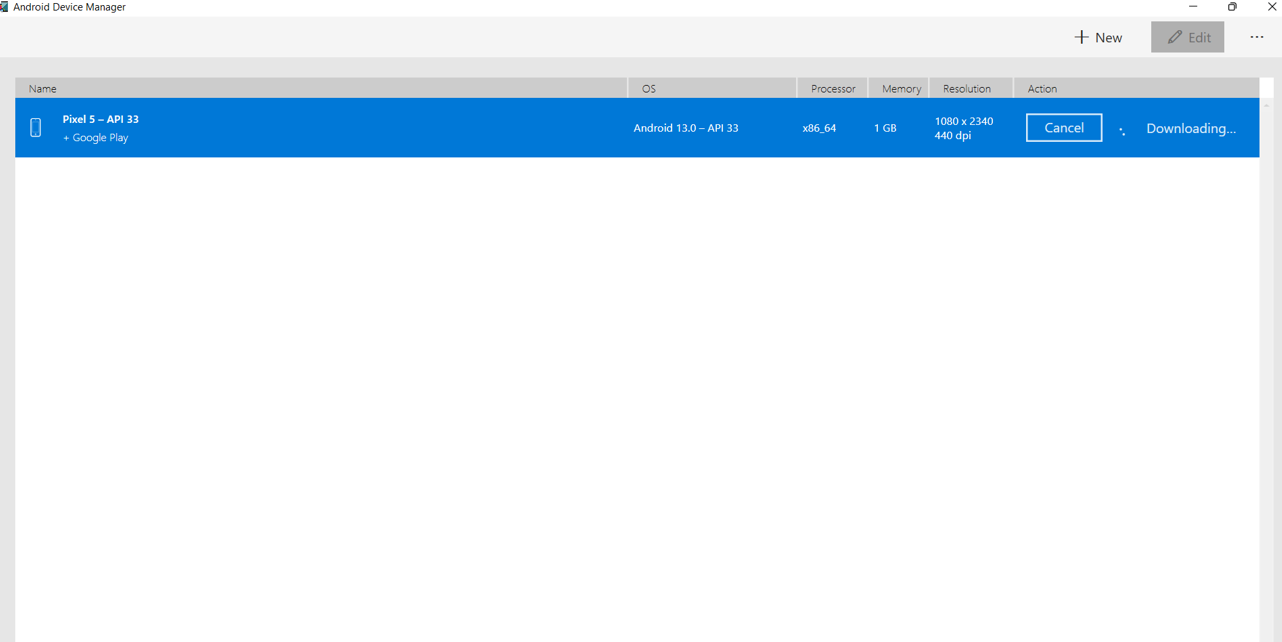
Step 4 Ensure the Android emulator is running. In Android Device Manager, create or select an AVD and start the emulator.
Step 5 In Visual Studio, set the run target to the Android emulator and press F5 to build and run the project. The PDF Viewer component renders in the Blazor .NET MAUI Android app.
For emulator issues, see Troubleshooting Android Emulator: https://learn.microsoft.com/en-us/dotnet/maui/android/emulator/troubleshooting
