Pre-process PDF Document Before Displaying in Blazor PDF Viewer
17 Jul 20268 minutes to read
This section explains why preprocessing is useful, what operations you can perform using the Syncfusion® PDF Library and Blazor PDF Viewer, and how to load the processed document in the Blazor PDF Viewer.
Why Preprocessing Is Needed
Preprocessing a PDF before sending it to the viewer helps you:
- Reduce file size: Compresses content to improve load time.
- Merge multiple documents: Combine several PDFs into a single file.
- Extract only required pages: Drop unused pages for faster loading.
- Flatten form fields and annotations: Improves rendering performance and prevents further editing.
- Apply branding elements: Such as watermarks or stamps.
Each enhancement maps directly to a measurable improvement in load time, rendering speed, or document control.
Merge PDF Documents
UI-Level Merging
You can visually merge pages in the Organize Pages UI inside the Blazor PDF Viewer. Users can import another PDF, insert its pages into the current file, reorder pages, or delete unwanted pages.
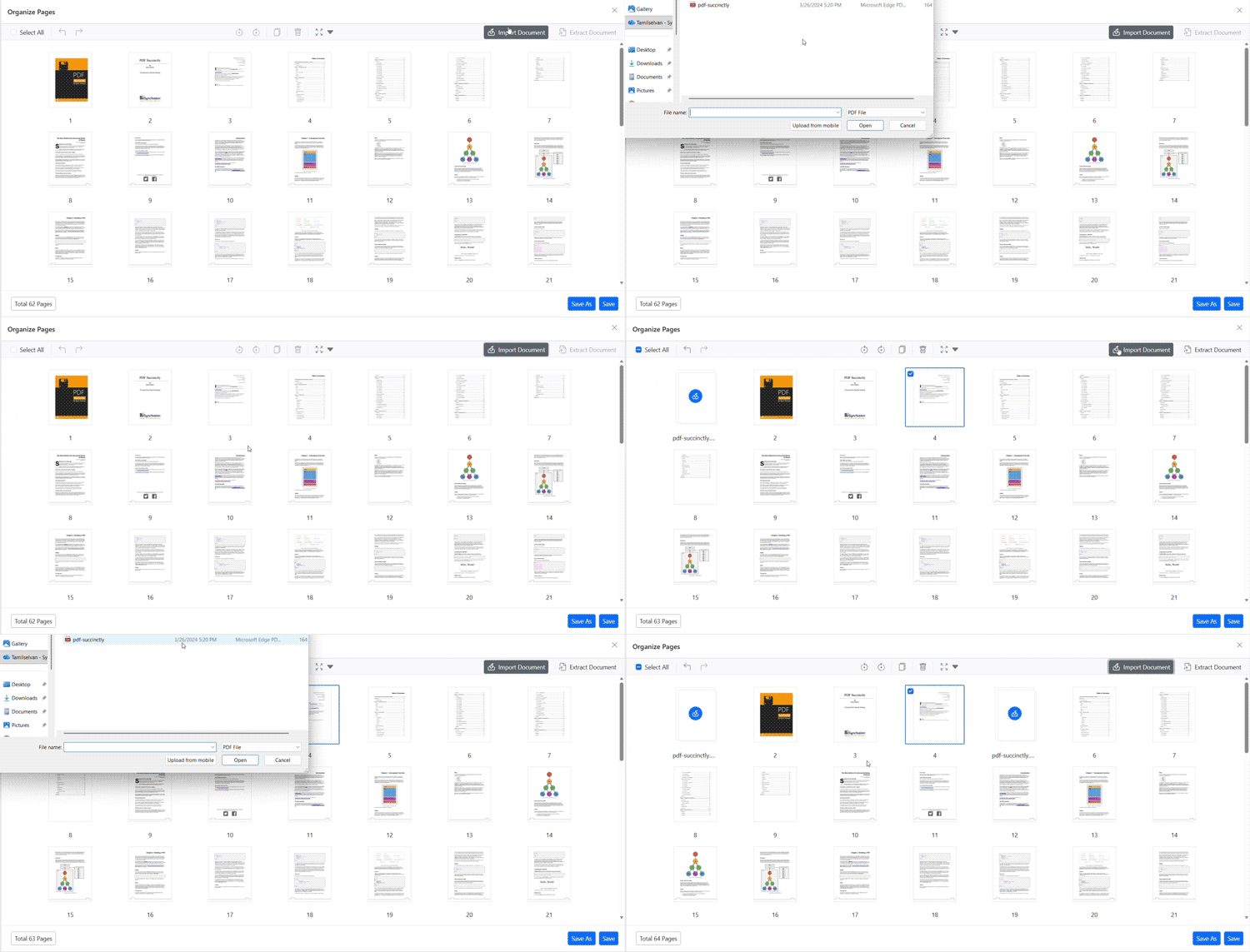
For more details, refer to UI Interactions - Import Pages.
Programmatically Merge PDFs
Using the Blazor PDF Viewer, you can merge documents before loading them into the viewer.
For more details, refer to Programmatic Support - Import Pages.
You can then load the merged PDF into the viewer using a file path, stream, or byte array.
Extract Pages
UI-Level Extraction
Using the Viewer’s Organize Pages window, users can select and extract required pages and download them separately.
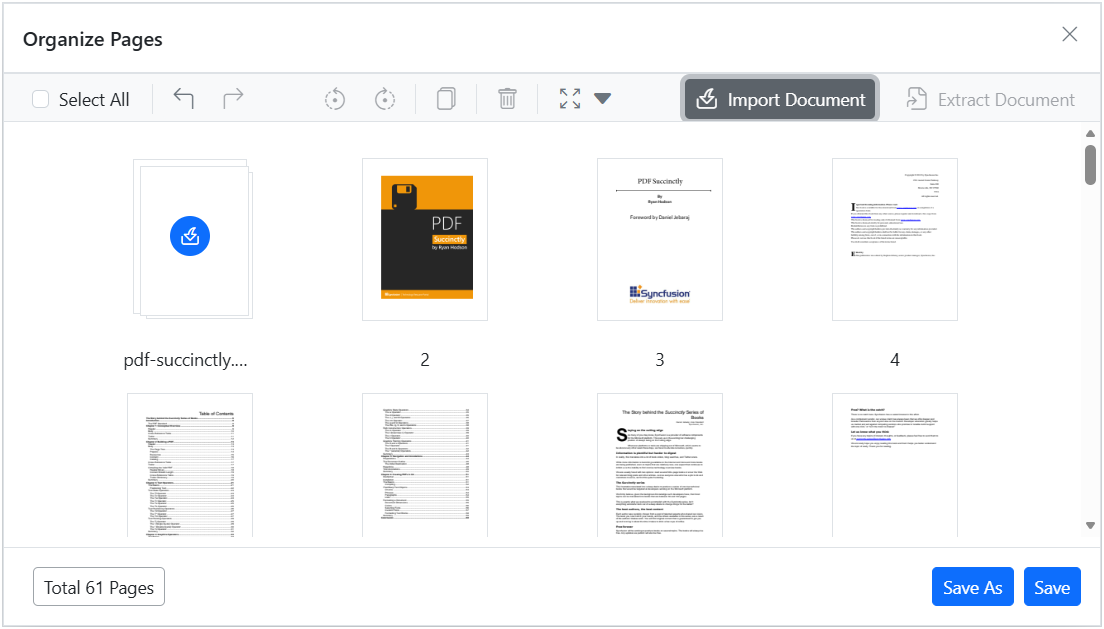
For more details, refer to UI Interactions - Extract Pages.
Programmatically Extract Pages
Using the Viewer’s Organize Pages window, users can select and extract required pages and download them separately programmatically.
For more details, refer to Programmatic Support - Export Pages.
Flatten Form Fields & Annotations
Why Flattening Helps
- Prevents users from editing form fields
- Improves rendering speed
- Ensures consistent appearance across all devices
Flatten on Load
Use the following code-snippet when you want uploaded PDFs to be flattened before they are loaded into the viewer.
@page "/"
@using Syncfusion.Blazor
@using Syncfusion.Blazor.SfPdfViewer
@using Syncfusion.Pdf
@using Syncfusion.Pdf.Parsing

<SfPdfViewer2 Height="600px" Width="100%" @ref="Viewer"><PdfViewerEvents Created="OnCreated"></PdfViewerEvents></SfPdfViewer2>
@code {
    private SfPdfViewer2? Viewer;
    async Task OnCreated()
    {
        if (Viewer is null) return;
        PdfLoadedDocument loadedDocument = new PdfLoadedDocument("wwwroot/Annotations.pdf");

        if (loadedDocument.Form !=null)
        {
            // Flatten form fields
            loadedDocument.Form.Flatten = true;
        }

        // Flatten annotations
        foreach (PdfLoadedPage page in loadedDocument.Pages)
        {
            page.Annotations.Flatten = true;
        }

        // Save flattened PDF to byte[]
        byte[] flattenedBytes;
        using (MemoryStream stream = new MemoryStream())
        {
            loadedDocument.Save(stream);
            flattenedBytes = stream.ToArray();
        }
        loadedDocument.Close(true);
        // Reload flattened document into viewer
        await Viewer.LoadAsync(flattenedBytes);
    }
}
Add Watermark or Stamp
UI-Level Stamps
The Blazor PDF Viewer toolbar allows users to:
- Add standard stamps
- Insert custom image stamps
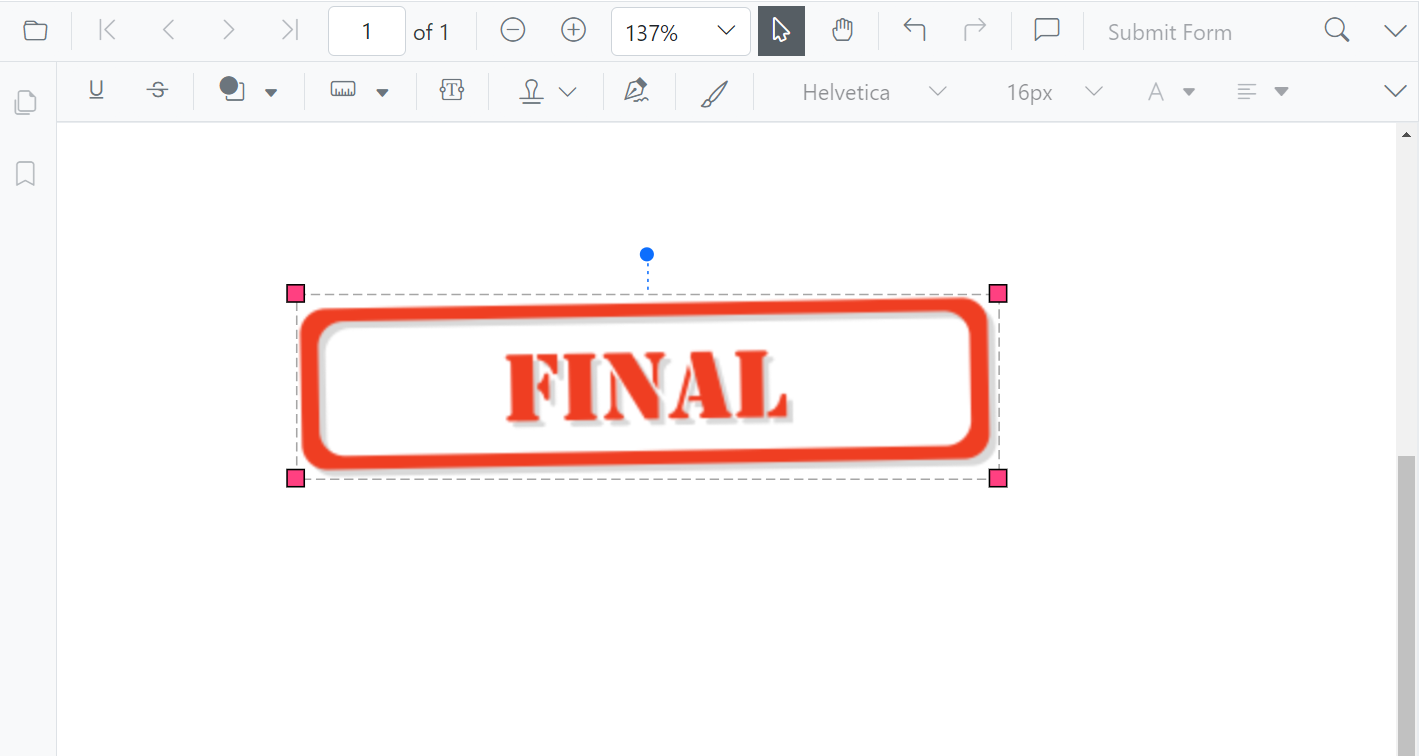
Programmatically Add a Watermark
The following example loads an existing PDF, draws a watermark image on every page using PdfGraphics, and then reloads the result into the viewer. The image is loaded from a file in wwwroot and converted to a byte[] — the recommended approach over hard-coding base64.
@page "/"
@using Syncfusion.Blazor
@using Syncfusion.Blazor.SfPdfViewer
@using Syncfusion.Pdf
@using Syncfusion.Pdf.Graphics
@using Syncfusion.Pdf.Parsing
@inject IWebHostEnvironment Env

<SfPdfViewer2 Height="100%" Width="100%" @ref="Viewer">
    <PdfViewerEvents Created="LoadPdf"></PdfViewerEvents>
</SfPdfViewer2>

@code {
    private SfPdfViewer2 Viewer;

    // Dummy watermark image base64 (replace with actual value)
    private string WatermarkImageBase64 = "/9j/4AAQSkZJRgABAQAAAQA..";

    private async Task LoadPdf()
    {
        string pdfPath = Path.Combine(Env.WebRootPath, "pdf-succinctly.pdf");

        using FileStream inputStream = new FileStream(pdfPath, FileMode.Open, FileAccess.Read);
        PdfLoadedDocument loadedDocument = new PdfLoadedDocument(inputStream);

        byte[] imageBytes = Convert.FromBase64String(WatermarkImageBase64);
        using MemoryStream imageStream = new MemoryStream(imageBytes);
        PdfImage image = PdfImage.FromStream(imageStream);

        foreach (PdfPageBase page in loadedDocument.Pages)
        {
            PdfGraphics graphics = page.Graphics;
            float pageWidth = page.Size.Width;
            float pageHeight = page.Size.Height;

            float desiredWidth = pageWidth / 2;
            float desiredHeight = image.Height * (desiredWidth / image.Width);
            float x = (pageWidth - desiredWidth) / 2;
            float y = (pageHeight - desiredHeight) / 2;

            graphics.SetTransparency(0.25f);
            graphics.DrawImage(image, x, y, desiredWidth, desiredHeight);
        }

        using MemoryStream outputStream = new MemoryStream();
        loadedDocument.Save(outputStream);
        loadedDocument.Close(true);

        await Viewer.LoadAsync(outputStream.ToArray());
    }
}
How-To Guide: Load the Preprocessed PDF in the Viewer
You can load the processed PDF using a remote URL, stream, or byte array and base64 Data.
Load From Remote URL
Refer to the Blazor PDF Viewer documentation for loading PDF from Remote URL. For more details, visit Load PDF Document from Remote URL.
https://help.syncfusion.com/document-processing/pdf/pdf-viewer/blazor/opening-pdf-file#opening-a-pdf-from-remote-url
Load Using Stream or Byte Array
Refer to the Blazor PDF Viewer documentation for loading PDF from stream or byte array. For more details, visit Load PDF Document from Stream.
Load Using base64 Data
Refer to the Blazor PDF Viewer documentation for loading PDF from base64 data. For more details, visit Load PDF Document from base64 Data.
Additional Performance Tips
- Render Multiple Pages While Scrolling: Improve performance by rendering multiple pages during scrolling. For more details, refer to How to render N pages while scrolling.
- Improve Performance Using CDN: Enhance viewer performance using a Content Delivery Network. For more details, refer to How to improve performance using CDN.