Insert blank pages using the Organize Pages tool in Blazor PDF Viewer
17 Jul 20262 minutes to read
Overview
This guide describes inserting new blank pages into a PDF using the Organize Pages UI in the Blazor PDF Viewer.
Outcome: Blank pages are added at the chosen position and will appear in the document when saved or exported.
Prerequisites
- Blazor PDF Viewer (SfPdfViewer) installed
- Organize Pages feature enabled
Steps
-
Open the Organize Pages view
- Click the Organize Pages button in the viewer toolbar to open the Organize Pages panel.
-
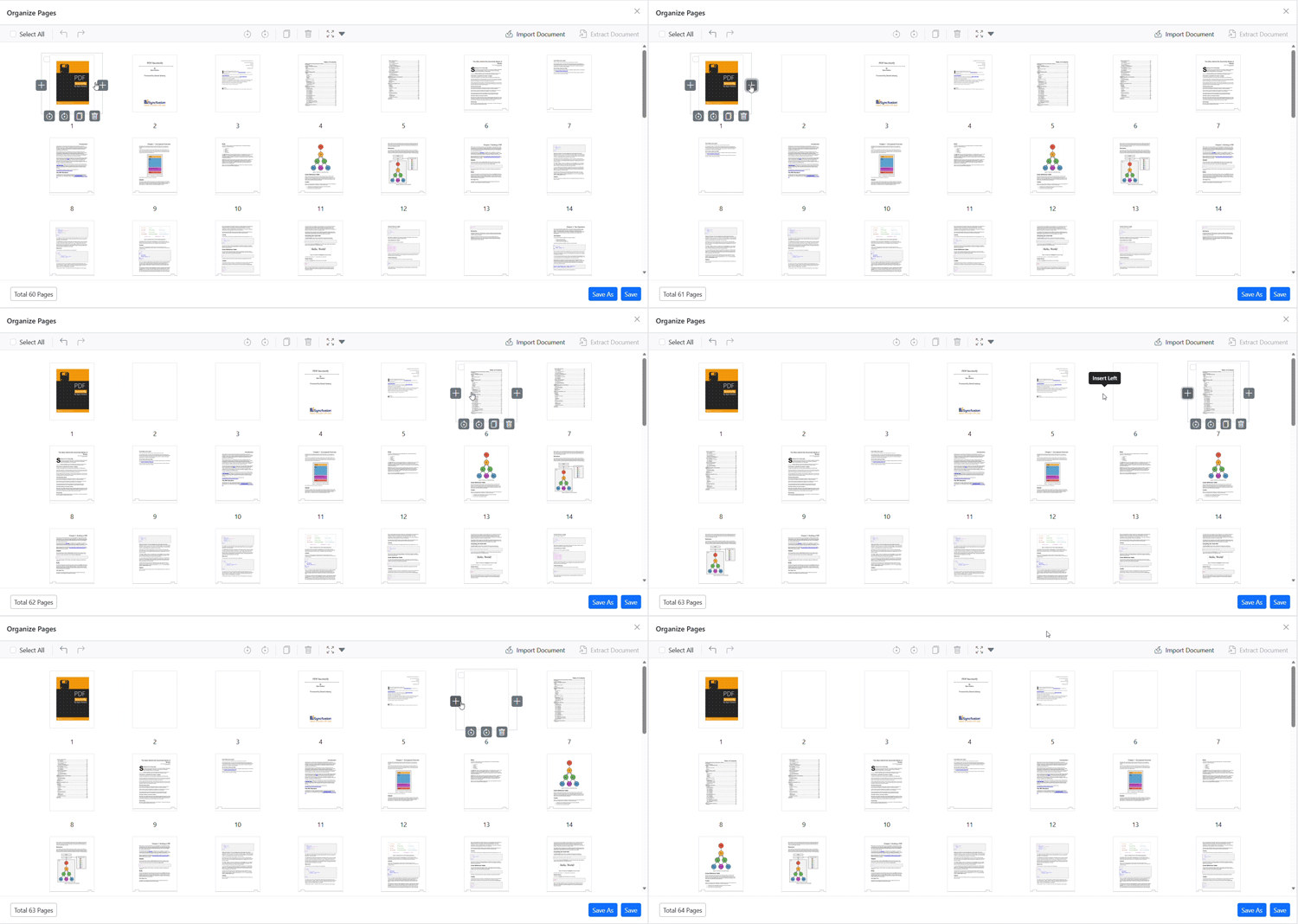
Insert blank pages
- Click the Insert button (+ icon) in the Organize Pages toolbar.
- Specify the position where you want to insert the blank page and the number of blank pages to add.
- A new blank page thumbnail appears at the specified position.
-
Adjust and confirm
- You can reposition the inserted blank page using drag-and-drop or remove it using the delete option if needed.
-
Persist the change
- Click Save or Save As to include the blank pages in the exported PDF.
Programmatic insert
You can also insert blank pages programmatically using the InsertBlankPagesAsync method.
@using Syncfusion.Blazor.Buttons

<SfButton OnClick="InsertBlankMethod">Insert</SfButton>
<SfPdfViewer2 @ref="Viewer" DocumentPath="https://cdn.syncfusion.com/content/pdf/pdf-succinctly.pdf"
              Height="100%"
              Width="100%">
</SfPdfViewer2>

@code {
    private SfPdfViewer2? Viewer;

    private async Task InsertBlankMethod() {
        await Viewer?.InsertBlankPagesAsync(2, 3);
    }
}
In this example, InsertBlankPagesAsync(2, 3) calls the API with the page index and the number of blank pages to insert as its two arguments; here, 3 blank pages are inserted starting at index 2.
For more details on programmatic support, see Programmatic support for Organize Pages.
Troubleshooting
- Organize Pages button missing: Verify that Organize Pages is enabled in the toolbar.
- Inserted pages not saved: Confirm that the changes are persisted using Save or Save As.