Remove pages using the Organize Pages tool in Blazor PDF Viewer
17 Jul 20263 minutes to read
Overview
This guide shows how to delete single or multiple pages from a PDF using the Organize Pages UI in the Blazor SfPdfViewer.
Outcome: You will remove unwanted pages and save or download the updated PDF.
Prerequisites
- Blazor SfPdfViewer installed in your project
- Basic PDF Viewer setup with
DocumentPathproperty configured
Steps
-
Open the Organize Pages view
- Click the Organize Pages button in the viewer toolbar to open the Organize Pages dialog.
-
Select pages to remove
- Click a thumbnail to select a page. Use Shift+click or Ctrl+click to select multiple pages. Use the Select all button to select every page.
-
Delete selected pages
-
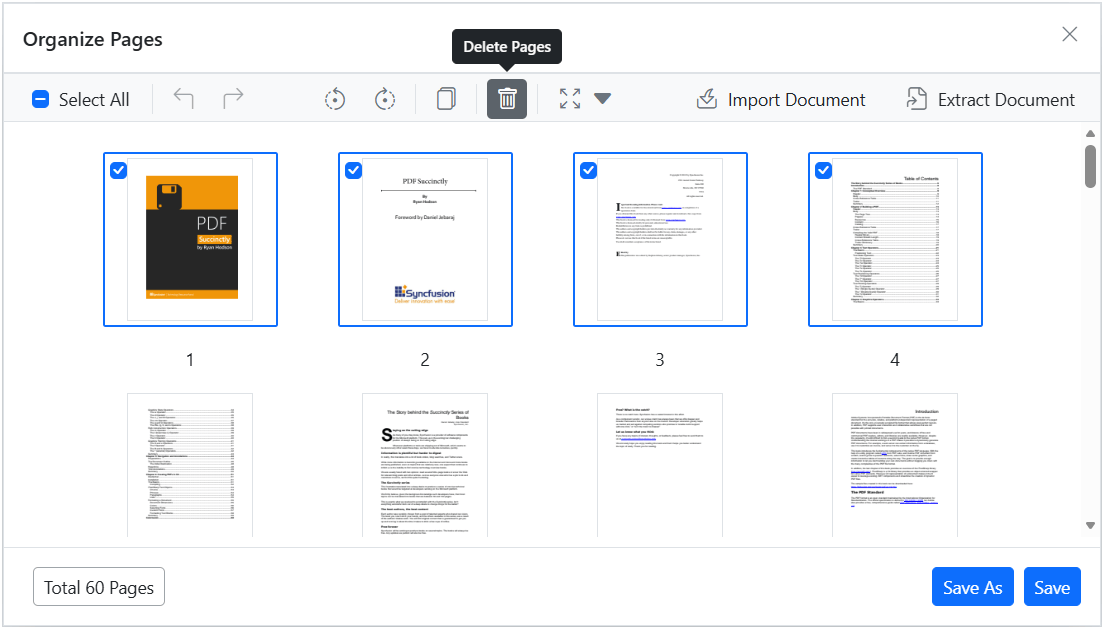
Click the Delete Pages icon in the Organize Pages toolbar to remove the selected pages. The thumbnails update immediately to reflect the deletion.
-
Delete a single page directly from its thumbnail: hover over the page thumbnail to reveal the per-page delete icon, then click that icon to remove only that page.
-
-
Undo or redo deletion
-
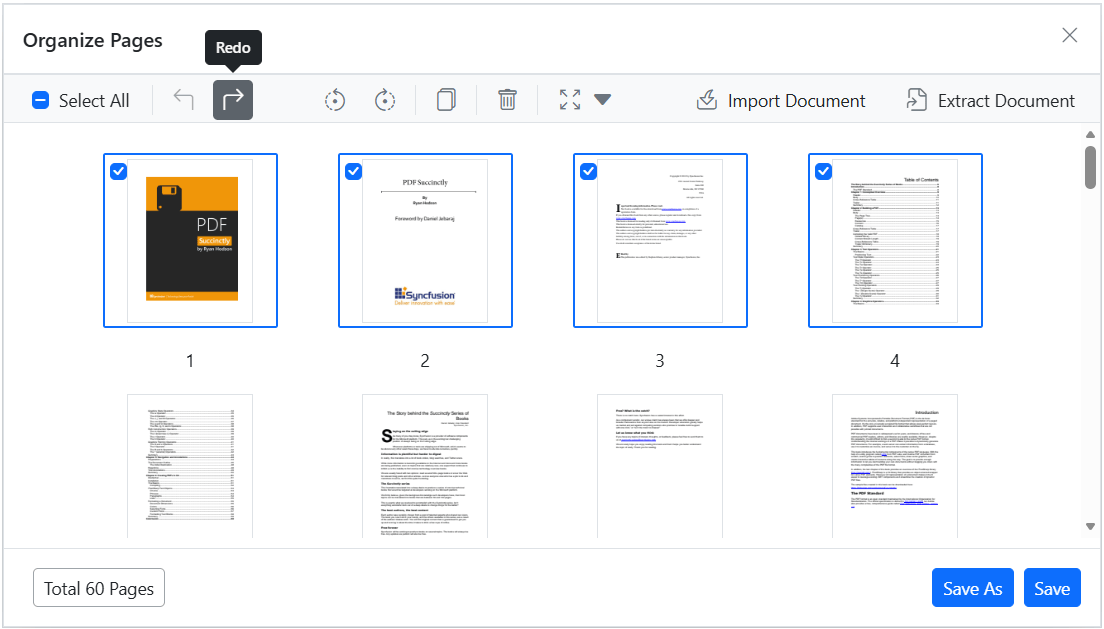
Use Undo (Ctrl+Z) to revert the last deletion.
-
Use Redo (Ctrl+Y) to reapply the last undone deletion.
-
-
Save the PDF after deletion
- Click Save to apply changes to the currently loaded document, or Save As / Download to download a copy with the removed pages permanently applied.
Enable or disable Remove Pages button
To enable or disable the Remove Pages button in the Organize Pages toolbar, update the PageOrganizerSettings. The following code snippet demonstrates how to enable or disable the delete functionality:
@using Syncfusion.Blazor.SfPdfViewer

<SfPdfViewer2 DocumentPath="https://cdn.syncfusion.com/content/pdf/pdf-succinctly.pdf"
              Width="100%"
              Height="100%">
    <PageOrganizerSettings CanDelete="true"></PageOrganizerSettings>
</SfPdfViewer2>
Programmatic page deletion
You can delete pages programmatically using the DeletePagesAsync method. This method accepts an array of 0-based page indices to remove from the document.
@using Syncfusion.Blazor.SfPdfViewer
@using Syncfusion.Blazor.Buttons

<SfButton OnClick="DeletePagesAsync">Delete Pages</SfButton>

<SfPdfViewer2 @ref="viewer"
              DocumentPath="https://cdn.syncfusion.com/content/pdf/pdf-succinctly.pdf"
              Width="100%"
              Height="100%">
    <PageOrganizerSettings CanDelete="true"></PageOrganizerSettings>
</SfPdfViewer2>

@code {
    private SfPdfViewer2? viewer;

    private async Task DeletePagesAsync()
    {
        // Delete pages at indices 5 and 6 (0-based indexing)
        int[] pagesToDelete = { 5, 6 };
        await viewer.DeletePagesAsync(pagesToDelete);
    }
}
Troubleshooting
-
Delete button disabled: Ensure
PageOrganizerSettings.CanDeleteis not set tofalse. - Selection not working: Verify that the Organize Pages dialog has focus; use Shift+click for range selection.