Load Password Protected PDFs in Blazor PDF Viewer
14 Aug 20263 minutes to read
This article explains how to open password-protected PDF files in the Blazor PDF Viewer. The viewer supports both user-interactive loading (the built-in Open File dialog) and programmatic loading using APIs.
Opening a Password-Protected PDF Using the Open File Dialog
When the user clicks the built-in Open File button in the PDF Viewer toolbar and selects a password-protected PDF:
- The viewer detects that the document is encrypted on the server side
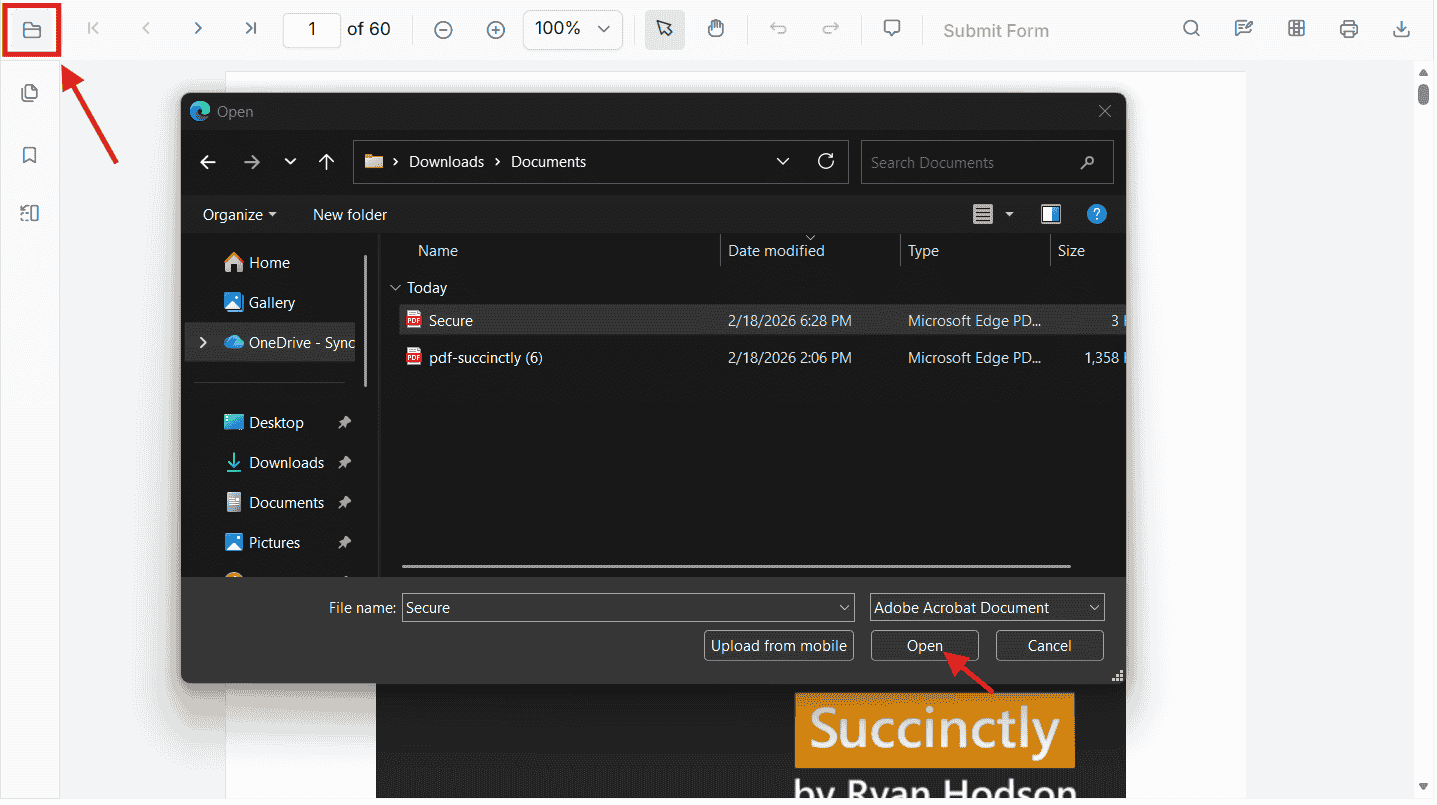
- A password input popup is automatically displayed
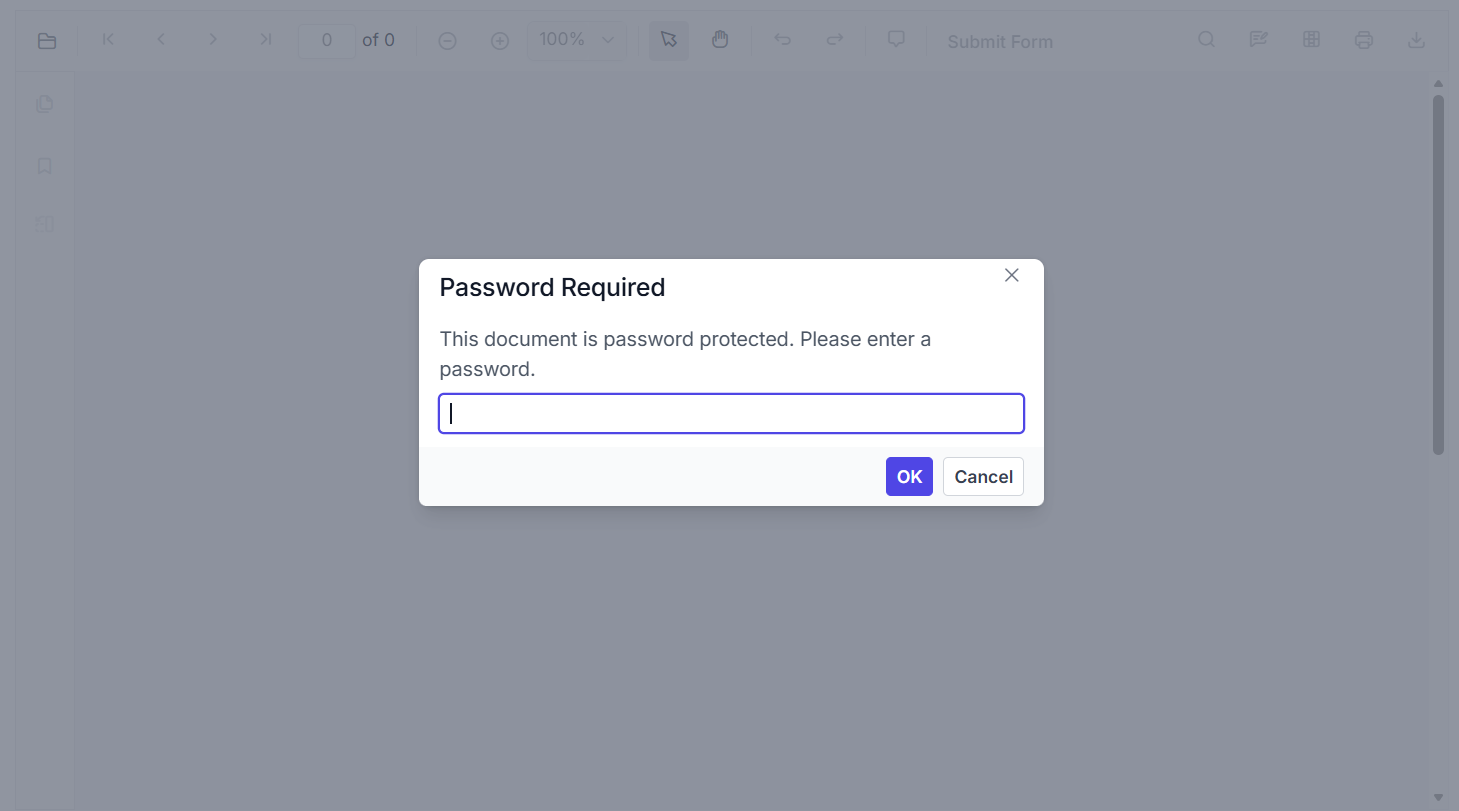
- The user enters the password
- The document is decrypted and loaded
No additional configuration or code is required. This approach works for all password-protected PDFs opened locally by the user.
Opening a Password-Protected PDF Programmatically
Use the programmatic APIs when the password is known in advance or when the document is hosted on a server. The viewer supports both the LoadAsync overloads and the DocumentPath property.
Load the Document Using LoadAsync
The LoadAsync method accepts a password parameter. The two supported overloads are:
-
LoadAsync(byte[] bytes, string password = null)— pass the PDF as a byte array -
LoadAsync(string document, string password = null)— pass a URL or server-relative path
Example (byte array):
@using Syncfusion.Blazor
@using Syncfusion.Blazor.Buttons
@using Syncfusion.Blazor.SfPdfViewer

<SfButton @onclick="Clicked">Load Document</SfButton>
<SfPdfViewer2 Height="100%" Width="100%" @ref="Viewer">
</SfPdfViewer2>

@code {
    private SfPdfViewer2 Viewer;

    private async Task Clicked()
    {
        await Viewer.LoadAsync("wwwroot/pdf-succinctly-password-protected.pdf", "password");
    }
}
The password parameter is consumed for the current load operation only and is not cached across re-renders. If the document is reloaded, supply the password again.
Outcomes
| Password state | Result |
|---|---|
| Correct | The PDF loads immediately |
| Incorrect | The viewer displays the incorrect password popup |
| Null or empty | The password popup is shown automatically |
Handle incorrect-password events through the
DocumentLoadFailedevent to surface custom error messages.
Loading a Password-Protected Document via DocumentPath
When the DocumentPath property points to a password-protected PDF, the viewer detects the encryption and prompts the user for the password automatically.
@using Syncfusion.Blazor
@using Syncfusion.Blazor.SfPdfViewer

<SfPdfViewer2 DocumentPath="@DocumentPath"
              Height="100%"
              Width="100%">
</SfPdfViewer2>

@code {
    // URL for the password-protected sample document
    private string DocumentPath { get; set; } = "https://cdn.syncfusion.com/content/pdf/pdf-succinctly-password-protected.pdf";
}
Do not pass the password as a query string inside
DocumentPath.
The viewer will:
- Detect encryption on the server
- Show the password popup automatically
- Allow the user to enter the correct password
- Decrypt and load the PDF