Hyperlink Navigation in ASP.NET Core PDF Viewer
14 Aug 20267 minutes to read
The PDF Viewer consolidates hyperlink-driven experiences, including inline links and table-of-contents (TOC) entries that target in-document destinations. These elements surface contextual entry points so users can jump directly to relevant sections without manual scrolling.
The table of contents pane and hyperlink interactions rely on the same navigation infrastructure. When these capabilities are enabled, the PDF Viewer automatically surfaces TOC entries and clickable links defined in the PDF.
Required modules
Inject the following modules to enable both navigation experiences: Toolbar, Magnification, Navigation, LinkAnnotation, BookmarkView, TextSelection, ThumbnailView, and optionally Annotation.
Table of contents navigation in PDF Viewer
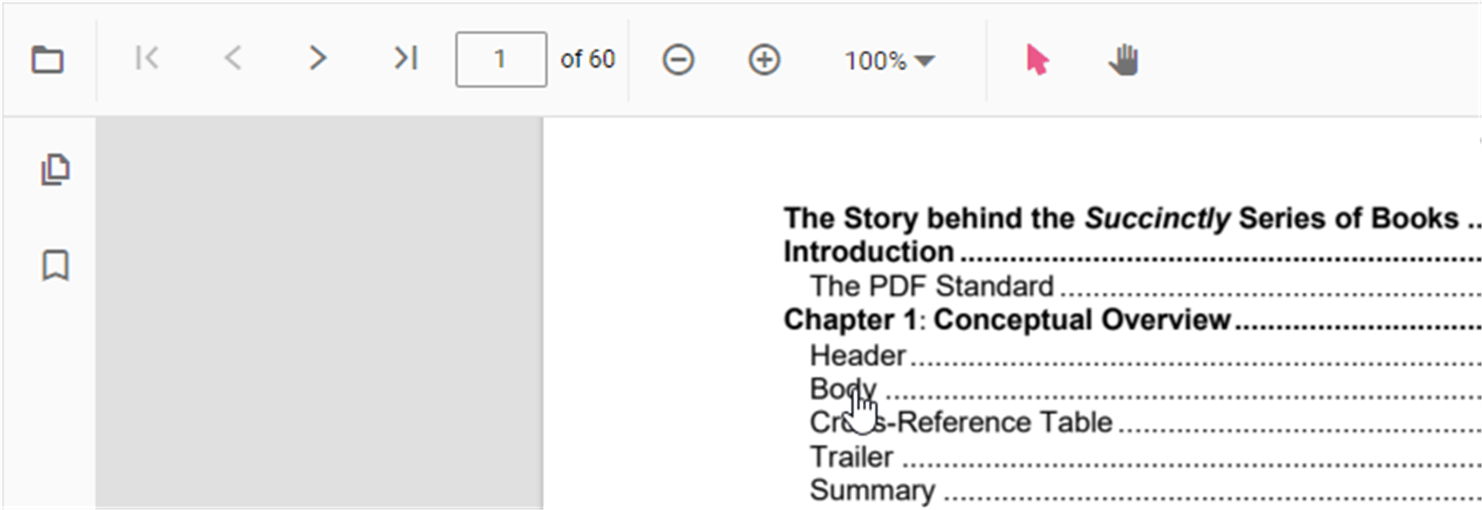
The PDF Viewer supports a built-in table of contents (TOC) experience to help users jump to sections defined by the document’s bookmarks or outline. When the document contains a bookmarks/outline structure, the viewer exposes those entries in the table of contents (Bookmarks) pane. Selecting an entry navigates directly to the mapped destination. If the PDF does not include a table of contents, the pane will not list any entries.
Hyperlink Navigation
The PDF Viewer provides robust support for hyperlink navigation within PDF documents. This allows users to interact with embedded links, which can point to external websites or other locations within the same document. This section covers how to configure hyperlink behavior, including enabling or disabling links, controlling how they open, and responding to hyperlink-related events.

Enabling and Disabling Hyperlinks
By default, the PDF Viewer automatically detects and enables all hyperlinks present in a loaded document. This behavior can be controlled using the enableHyperlink property.
-
Property:
enableHyperlink -
Type:
boolean -
Default:
true
When enableHyperlink is set to false, all hyperlinks in the document become non-interactive. This means that users cannot click them, and no hyperlink-related events will be triggered.
Example: Disable hyperlinks
<div style="width:100%;height:600px">
    <ejs-pdfviewer id="pdfviewer"
                   documentPath="https://cdn.syncfusion.com/content/pdf/pdf-succinctly.pdf"
                   enableHyperlink="false">
    </ejs-pdfviewer>
</div>
<div style="width:100%;height:600px">
<ejs-pdfviewer id="pdfviewer"
serviceUrl='/Index'
documentPath="https://cdn.syncfusion.com/content/pdf/pdf-succinctly.pdf"
enableHyperlink="false">
</ejs-pdfviewer>
</div>Disabling hyperlinks only affects the viewer’s behavior and does not alter the original PDF document.
Controlling Link Behavior
The hyperlinkOpenState property determines how external URLs are opened when a hyperlink is clicked.
-
Property:
hyperlinkOpenState -
Type:
'CurrentTab' | 'NewTab' -
Default:
'CurrentTab'
By default, links open in the same browser tab (CurrentTab). To open links in a new tab, set this property to 'NewTab'. This is useful for preserving the user’s current viewing session.
Example: Open links in a new tab
<div style="width:100%;height:600px">
    <ejs-pdfviewer id="pdfviewer"
                   documentPath="https://cdn.syncfusion.com/content/pdf/pdf-succinctly.pdf"
                   hyperlinkOpenState="NewTab">
    </ejs-pdfviewer>
</div>
<div style="width:100%;height:600px">
<ejs-pdfviewer id="pdfviewer"
serviceUrl='/Index'
documentPath="https://cdn.syncfusion.com/content/pdf/pdf-succinctly.pdf"
hyperlinkOpenState="NewTab">
</ejs-pdfviewer>
</div>Handling Hyperlink Events
The PDF Viewer exposes events that allow for monitoring and customizing hyperlink interactions.
hyperlinkClick
The hyperlinkClick event is triggered when a user clicks a hyperlink. This event can be used to implement custom logic, such as validating a URL or preventing the default navigation behavior.
The event arguments provide the following information:
-
hyperlink: The URL of the clicked hyperlink. -
cancel: A boolean that, when set totrue, prevents the default navigation action.
hyperlinkMouseOver
The hyperlinkMouseOver event is triggered when the mouse pointer hovers over a hyperlink. This can be used to display custom tooltips or other visual feedback.
The event arguments include:
-
hyperlinkElement: The HTML anchor element (<a>) corresponding to the hyperlink.
Example: Hyperlink event handlers
<div style="width:100%;height:600px">
    <ejs-pdfviewer id="pdfviewer"
                   style="height:600px"
                   documentPath="https://cdn.syncfusion.com/content/pdf/pdf-succinctly.pdf"
                   hyperlinkClick="hyperlinkClicked"
                   hyperlinkMouseOver="hyperlinkMouseOver">
    </ejs-pdfviewer>
</div>

<script>
    function hyperlinkClicked(args) {
        // Log the URL of the clicked hyperlink
        console.log('Hyperlink Clicked:', args.hyperlink);

        // To prevent the default navigation behavior, set args.cancel to true
        // args.cancel = true;
    }

    function hyperlinkMouseOver(args) {
        // Log the URL of the hyperlink being hovered over
        console.log('Hyperlink Mouse Over:', args.hyperlinkElement.href);
    }
</script>
<div style="width:100%;height:600px">
<ejs-pdfviewer id="pdfviewer"
style="height:600px"
serviceUrl='/Index'
documentPath="https://cdn.syncfusion.com/content/pdf/pdf-succinctly.pdf"
hyperlinkClick="hyperlinkClicked"
hyperlinkMouseOver="hyperlinkMouseOver">
</ejs-pdfviewer>
</div>
<script>
function hyperlinkClicked(args) {
// Log the URL of the clicked hyperlink
console.log('Hyperlink Clicked:', args.hyperlink);
// To prevent the default navigation behavior, set args.cancel to true
// args.cancel = true;
}
function hyperlinkMouseOver(args) {
// Log the URL of the hyperlink being hovered over
console.log('Hyperlink Mouse Over:', args.hyperlinkElement.href);
}
</script>