Bookmark Navigation in ASP.NET Core PDF Viewer
14 Aug 20265 minutes to read
Bookmarks embedded in PDF documents provide quick navigation points. The PDF Viewer loads PDF bookmarks and exposes APIs to navigate to bookmarks or retrieve the bookmark list programmatically.
Enable bookmark navigation
Enable or disable bookmark navigation using the enableBookmark property on the PDF Viewer. When enabled, the bookmark panel shows the document outline for quick access.
Example: Enable bookmark navigation
<div style="width:100%;height:600px">
    <ejs-pdfviewer id="pdfviewer"
                   documentPath="https://cdn.syncfusion.com/content/pdf/pdf-succinctly.pdf"
                   enableBookmark="true">
    </ejs-pdfviewer>
</div>
<div style="width:100%;height:600px">
<ejs-pdfviewer id="pdfviewer"
serviceUrl='/Index'
documentPath="https://cdn.syncfusion.com/content/pdf/pdf-succinctly.pdf"
enableBookmark="true">
</ejs-pdfviewer>
</div>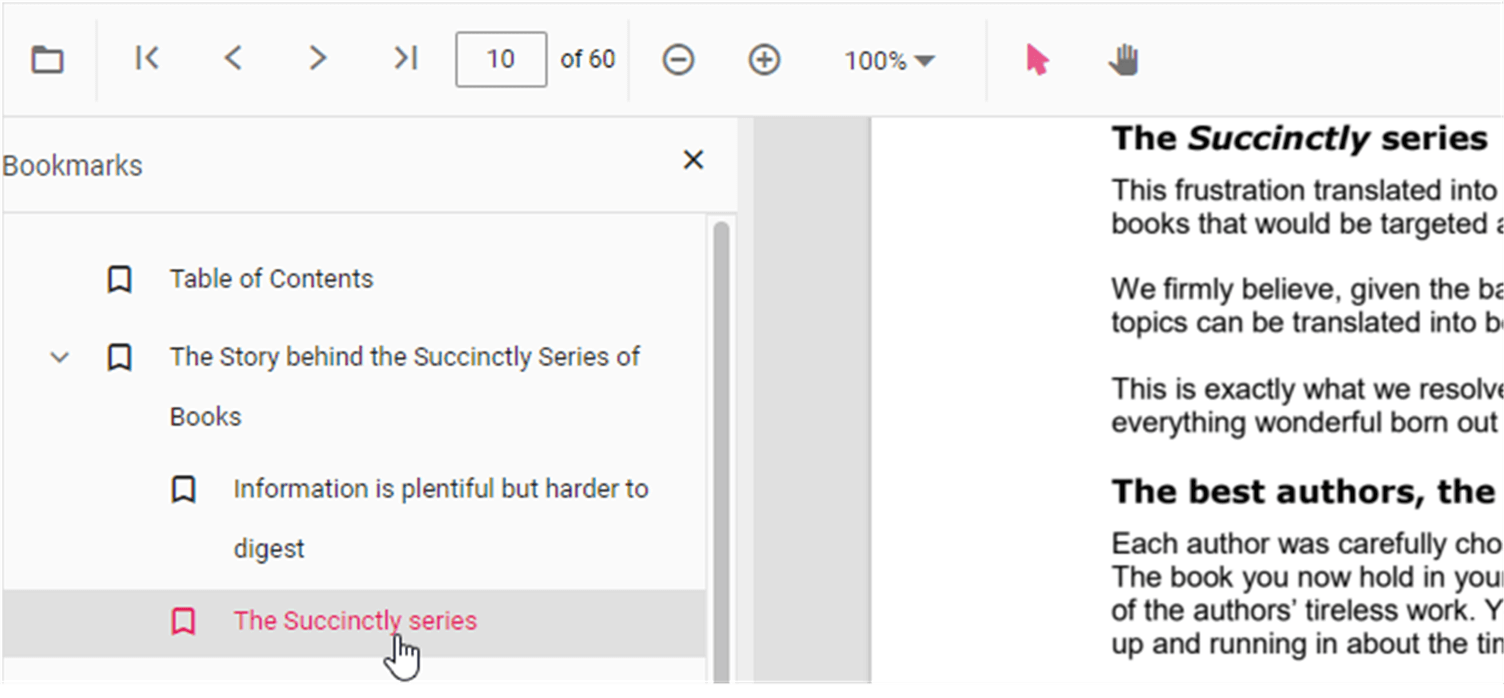
Navigate to a bookmark programmatically
To perform bookmark navigation, you can use the goToBookmark method. It’s important to note that goToBookmark will throw an error if the specified bookmark destination does not exist in the PDF document.
x - Specifies the pageIndex for Navigate.
y - Specifies the Y coordinates value of the Page.
Here is an example of how to use the goToBookmark method:
<button id="gotobookmark" onclick="gotobookmark()">Specific Page</button>

<div style="width:100%;height:600px">
    <ejs-pdfviewer id="pdfviewer"
                   style="height:600px"
                   documentPath="https://cdn.syncfusion.com/content/pdf/pdf-succinctly.pdf">
    </ejs-pdfviewer>
</div>

<script>
    function gotobookmark() {
        var pdfViewer = document.getElementById('pdfviewer').ej2_instances[0];
        pdfViewer.bookmark.goToBookmark(3, 2);
    }
</script>
<button id="gotobookmark" onclick="gotobookmark()">Specific Page</button>
<div style="width:100%;height:600px">
<ejs-pdfviewer id="pdfviewer"
style="height:600px"
serviceUrl="/api/PdfViewer"
documentPath="https://cdn.syncfusion.com/content/pdf/pdf-succinctly.pdf">
</ejs-pdfviewer>
</div>
<script>
function gotobookmark() {
var pdfViewer = document.getElementById('pdfviewer').ej2_instances[0];
pdfViewer.bookmark.goToBookmark(3, 2);
}
</script>Retrieve all bookmarks
You can use the getBookmarks method to retrieve the document’s bookmark structure. The method returns an array of bookmark objects containing title and destination information.
Example: get all bookmarks
<button id="getBookmarks" onclick="getBookmarks()">Retrieve Bookmark</button>

<div style="width:100%;height:600px">
    <ejs-pdfviewer id="pdfviewer"
                   style="height:600px"
                   documentPath="https://cdn.syncfusion.com/content/pdf/pdf-succinctly.pdf">
    </ejs-pdfviewer>
</div>

<script>
    function getBookmarks() {
        var pdfViewer = document.getElementById('pdfviewer').ej2_instances[0];
        var getBookmarks = pdfViewer.bookmark.getBookmarks();
        console.log(getBookmarks);
    }
</script>
<button id="getBookmarks" onclick="getBookmarks()">Retrieve Bookmark</button>
<div style="width:100%;height:600px">
<ejs-pdfviewer id="pdfviewer"
style="height:600px"
serviceUrl="/api/PdfViewer"
documentPath="https://cdn.syncfusion.com/content/pdf/pdf-succinctly.pdf">
</ejs-pdfviewer>
</div>
<script>
function getBookmarks() {
var pdfViewer = document.getElementById('pdfviewer').ej2_instances[0];
var getBookmarks = pdfViewer.bookmark.getBookmarks();
console.log(getBookmarks);
}
</script>