Syncfusion Licensing Errors and Solutions
18 Nov 20186 minutes to read
Licensing error popup is displayed with various messages under different circumstances. Here are some ways to resolve different issues.
Licensing errors
License key not registered / Trial Expired
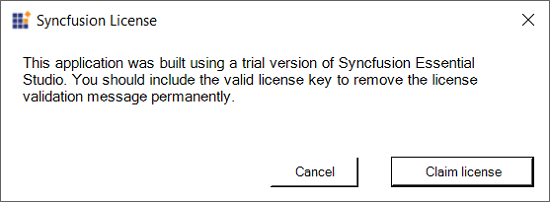
The following error message will be shown if a Syncfusion® license key has not been registered in your application or if the trial key has expired after 30 days.
Error Message: This application was built using a trial version of Syncfusion® Essential Studio®. You should include the valid license key to remove the license validation message permanently.
Solution:
-
Generate a valid license key from here Licensed users or Trial users for a specific version and platform or License keys can also be generated from the Claim License Key page by clicking the “Claim License” button click from Syncfusion® licensing warning message. Refer to this help topic for more details.
-
In your application, register the generated license key. Please refer to this help topic for information on registering the license key.
Invalid key
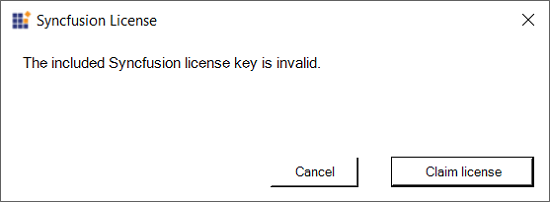
If the application is registered with an invalid key, a different version of the license key, or a different platform’s license key, the following error message will pop up when launching the application. In newer versions, the Platform Mismatch and Version Mismatch errors described in the older versions section may also surface with similar wording.
Error Message: The included Syncfusion® license key is invalid.
Solution:
-
Generate a valid license key from here Licensed users or Trial users for a specific version and platform or License keys can also be generated from the Claim License Key page by clicking the “Claim License” button click from Syncfusion® licensing warning message. Refer to this help topic for more details..
-
In your application, register the generated license key. Please refer to this help topic for information on registering the license key.
Refer to the license key generation and registration topic.
Licensing errors from version 16.2.0* to 20.3.0*
License key not registered
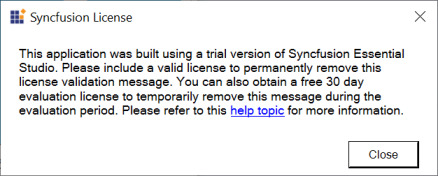
The following error message will be shown if a Syncfusion® license key has not been registered in your application.
Error Message: This application was built using a trial version of Syncfusion® Essential Studio®. Please include a valid license to permanently remove this license validation message. You can also obtain a free 30 day evaluation license to temporarily remove this message during the evaluation period. Please refer to this help topic for more information.
Solution:
-
Generate a valid license key from here Licensed users or Trial users for a specific version and platform.
-
In your application, register the generated license key. Please refer to this help topic for information on registering the license key.
Invalid key
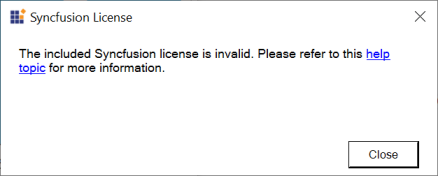
If the application is registered with an invalid key, a different version of the license key, or a different platform’s license key, the following error message will pop up when launching the application.
Error Message: The included Syncfusion® license is invalid. Please refer to this help topic for more information.
Solution:
-
Generate a valid license key from here Licensed users or Trial users for a specific version and platform.
-
In your application, register the generated license key. Please refer to this help topic for information on registering the license key.
Trial Expired
The following error message will be shown if the trial key has expired after 30 days.
Error Message: Your Syncfusion® trial license has expired. Please refer to this help topic for more information.
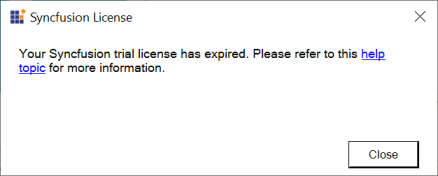
Solution: Purchase from here to get a valid Syncfusion® license.
Platform Mismatch
If the application is registered with a different platform’s license key, the following error message will pop up when launching the application.
Error Message: The included Syncfusion® license is invalid (Platform mismatch). Please refer to this help topic for more information.
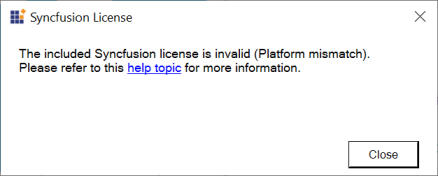
Solution:
-
Generate a valid license key from here Licensed users or Trial users for a specific version and platform.
-
In your application, register the generated license key. Please refer to this help topic for information on registering the license key.
Version Mismatch
If the application is registered with a different version’s license key, the following error message will pop up when launching the application. The license key version must match the installed Syncfusion version (for example, a v17.1.0.32 license cannot be used with v18.x assemblies). Refer to this KB for help generating a version-specific key.
Error Message: The included Syncfusion® license ({Registered Version}) is invalid for version {Required version}. Please refer to this help topic for more information.
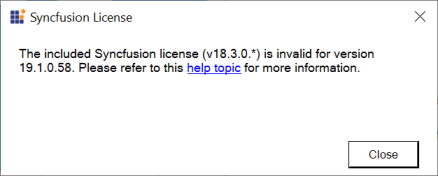
Solution:
-
Generate a valid license key from here Licensed users or Trial users for a specific version and platform. Kindly follow the KB to generate license key.
-
In your application, register the generated license key. Please refer to this help topic for information on registering the license key.
Syncfusion.Licensing.SyncfusionLicenseProvider.RegisterLicense does not exist in the current context
Error Message: The name Syncfusion.Licensing.SyncfusionLicenseProvider.RegisterLicense does not exist in this context
This error typically occurs when the Syncfusion.Licensing package/assembly is not referenced properly in the project, or when the license registration call is placed inside an arbitrary class instead of the application’s startup method.
Solution: Register the license from the application’s startup method. Examples by application type:
-
WPF / WinForms: place the call inside the
App()constructor. -
ASP.NET / ASP.NET MVC: place the call inside
Application_Start(or theStartupclass for OWIN-based apps). -
Console apps: place the call at the beginning of
Main. -
Xamarin / .NET MAUI: place the call in the platform-specific startup (for example,
AppDelegatefor iOS,MainActivity.OnCreatefor Android).
Sample registration code:
Syncfusion.Licensing.SyncfusionLicenseProvider.RegisterLicense("YOUR_LICENSE_KEY");Could not load Syncfusion.Licensing.dll assembly version…?
Please ensure that all Syncfusion® NuGet packages including Syncfusion.Licensing were installed properly, and assembly references are upgraded to the required version. Also, verify that the csproj and packages.config/web.config files references have been referred with the updated version.
To avoid run-time errors, set Copy Local to True. The Copy Local property determines whether a reference is copied to the project output path.
To set Copy Local to True in Visual Studio:
- In Solution Explorer, expand the project’s References (or Dependencies) node.
- Right-click the Syncfusion.Licensing assembly and select Properties.
- In the Properties window, set Copy Local to True.
- Repeat for all other Syncfusion assemblies referenced in the project.
- Rebuild the project.
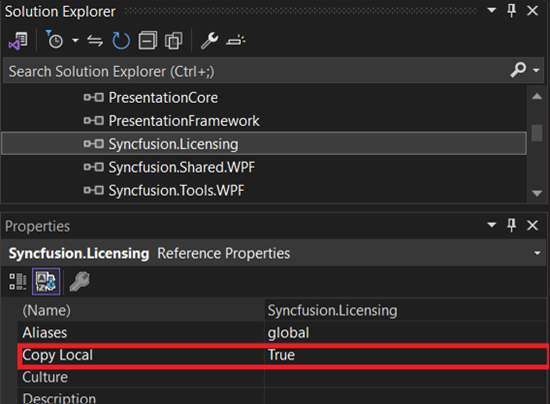
Set Copy Local to True for Syncfusion.Licensing.dll along with all other Syncfusion® assemblies, and ensure that Syncfusion.Licensing.dll is also present in the output folder or deployment folder of the application.
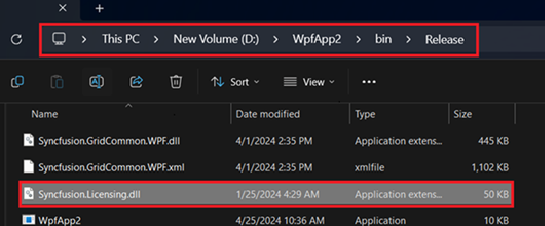
Refer to this knowledge base articles to set copy local as true.