Model Context Protocol (MCP) Configuration Guide
18 Nov 20181 minute to read
As AI systems evolve, they are often constrained by their dependence on fixed training datasets, which limits their ability to access real-time data or utilize specialized tools. The Model Context Protocol (MCP) overcomes these challenges by facilitating seamless connections between AI models and external data sources, tools, and environments, enabling dynamic and enhanced functionality.
How to Configure MCP Servers through config.yaml
You can set up an MCP server by either downloading it from the Marketplace or adding a local MCP server block to your configuration file.
Accessing the Config Page
The Config page can be accessed by clicking the gear icon located in the header of the Code Studio, then selecting the Settings tab.
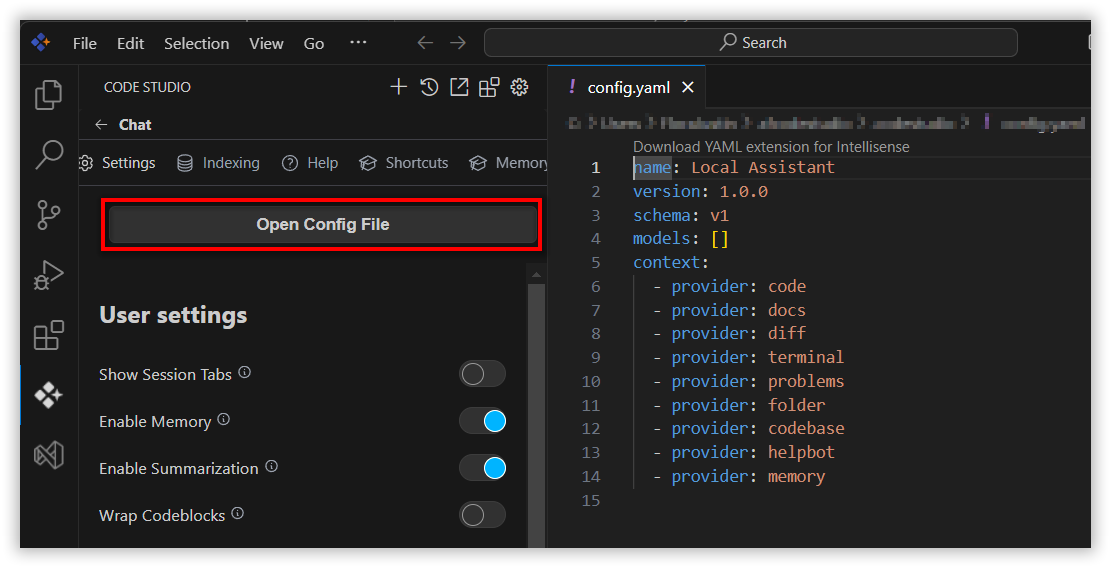
Open Config file
-
Click on the Open Config File button.
-
This will open the
config.yamlfile in the editor, where you can manually add or modify MCP server configurations. -
Below is an example of a local MCP server configuration in a
yamlfile:
mcpServers:
  - name: Browser search
    command: npx
    args:
      - "@playwright/mcp@latest"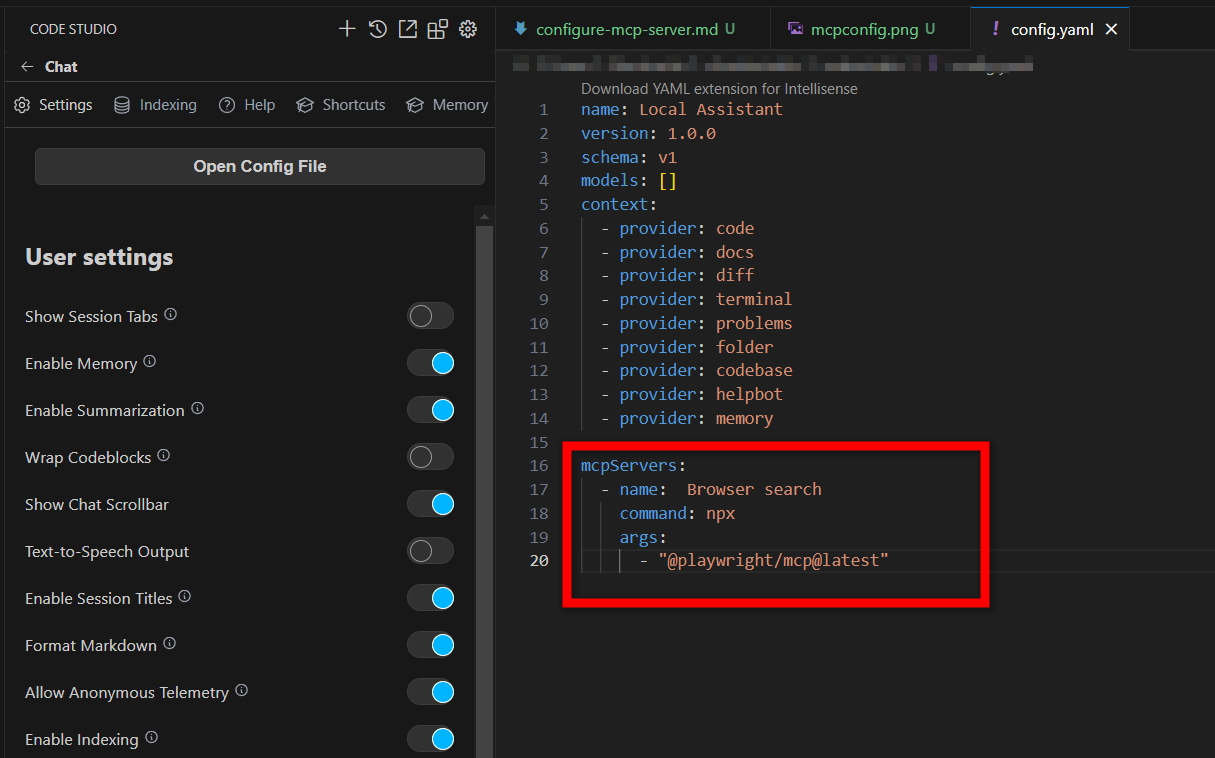
MCP Server Properties
Below are the properties you can configure for an MCP server:
- name: A display name for the MCP server, used for identification.
-
type: Specifies the type of MCP server. Supported types include:
-
sse(Server-Sent Events) -
stdio(Standard Input/Output) -
streamable-http(Streamable HTTP)
-
- command: The command to execute to start the MCP server.
- args: A list of arguments to pass to the command.
- env: Secrets or environment variables to be injected into the command for secure execution.
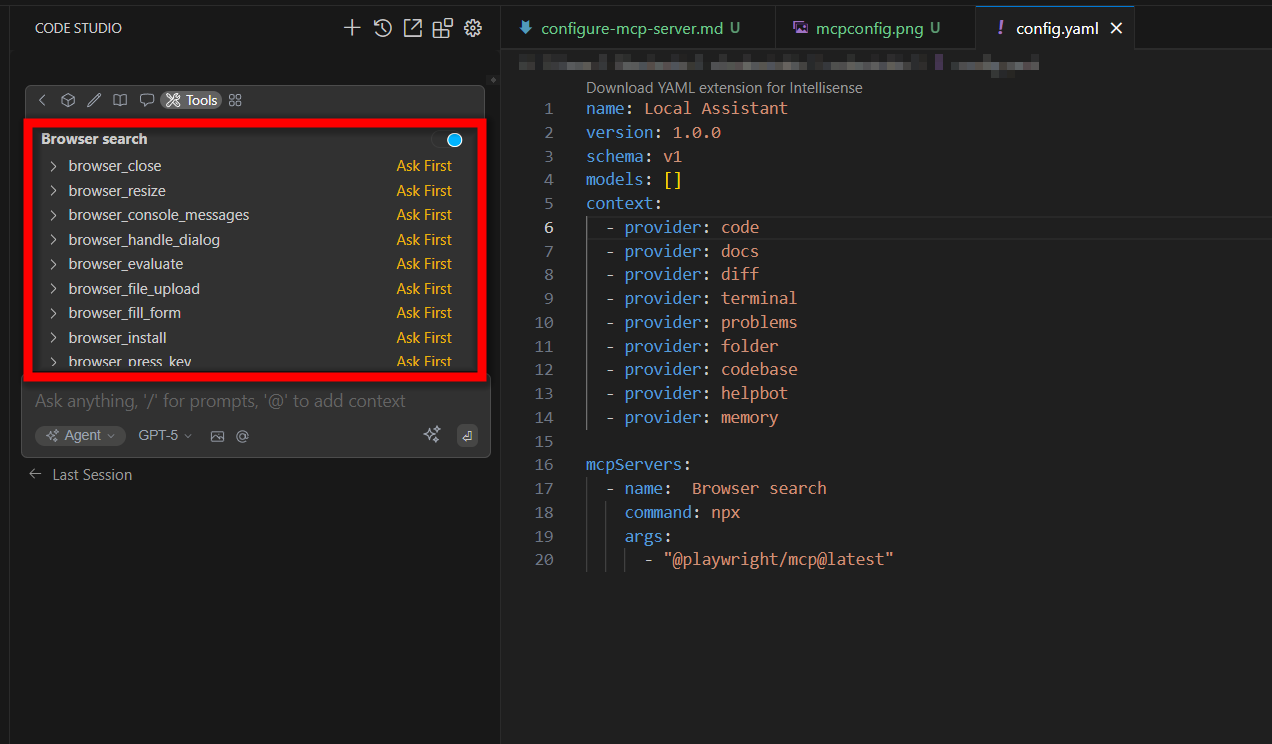
Once configured, the Playwright tools will be available in the tools list.