Blazor Sunburst Chart Appearance
The appearance of the Blazor Sunburst Chart determines how segments, rings, and the surrounding chart area are rendered on the page. You can adjust the visual style using built-in themes, a custom color palette, a background color, an outer border, layout margins, and the angular geometry of the Sunburst rings. Together these properties let the chart blend in with any application theme and adapt to small or large data sets. As an interactive Sunburst Chart, customizing appearance helps create an intuitive hierarchical data visualization that makes multi-level pie chart segments distinct and visually appealing.
The appearance of the Blazor Sunburst Chart is configured through properties on SfSunburstChart and through the SunburstChartBorder and SunburstChartMargin child components.
Default values:
ThemeisMaterial,Backgroundisnulland uses the background resolved from the active theme,SunburstChartBorder.Coloristransparent,SunburstChartBorder.Widthis0, the default margins are10on each side ofSunburstChartMargin,Radiusis1,InnerRadiusis0.2,StartAngleis0, andEndAngleis360.
Built-in themes
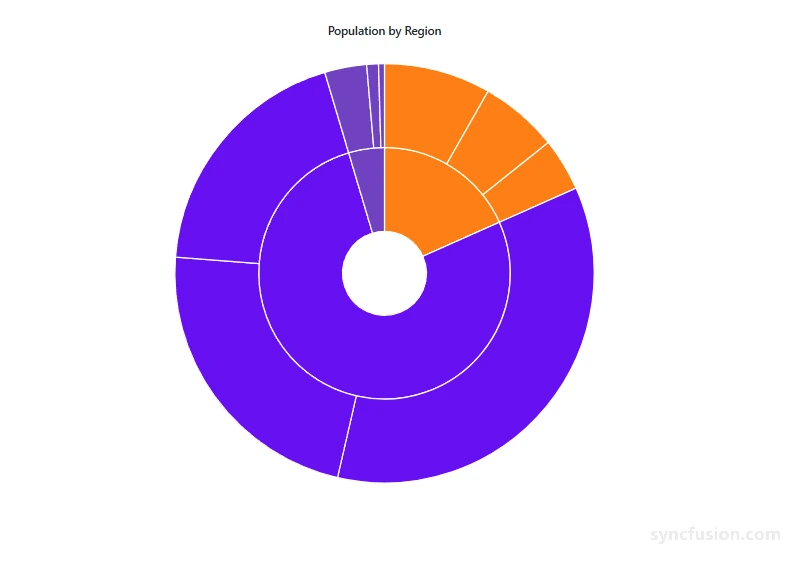
The Sunburst Chart ships with built-in themes that control the overall look and feel of the chart, including segment colors, fonts, backgrounds, and supporting elements such as tooltips and legends. Set Theme on SfSunburstChart to one of the available Syncfusion themes to match the visual style of your application.
@using Syncfusion.Blazor
@using Syncfusion.Blazor.Charts

<SfSunburstChart TItem="RegionData"
                 Title="Population by Region"
                 Theme="Theme.Bootstrap5"
                 DataSource="@Regions"
                 IdMemberPath="@nameof(RegionData.Id)"
                 ParentIdMemberPath="@nameof(RegionData.ParentId)"
                 LabelMemberPath="@nameof(RegionData.Label)"
                 ValueMemberPath="@nameof(RegionData.Population)"
                 Width="100%" Height="600px">
</SfSunburstChart>

@code {
    public class RegionData
    {
        public string Id { get; set; } = string.Empty;
        public string? ParentId { get; set; }
        public string Label { get; set; } = string.Empty;
        public double Population { get; set; }
    }

    public List<RegionData> Regions = new List<RegionData>
    {
        new RegionData { Id = "USA", ParentId = null, Label = "USA", Population = 331000000 },
        new RegionData { Id = "India", ParentId = null, Label = "India", Population = 1391000000 },
        new RegionData { Id = "Germany", ParentId = null, Label = "Germany", Population = 83000000 },

        new RegionData { Id = "USA-California", ParentId = "USA", Label = "California", Population = 39540000 },
        new RegionData { Id = "USA-Texas", ParentId = "USA", Label = "Texas", Population = 29000000 },
        new RegionData { Id = "USA-NewYork", ParentId = "USA", Label = "New York", Population = 19540000 },

        new RegionData { Id = "India-Maharashtra", ParentId = "India", Label = "Maharashtra", Population = 112400000 },
        new RegionData { Id = "India-TamilNadu", ParentId = "India", Label = "Tamil Nadu", Population = 72140000 },
        new RegionData { Id = "India-Karnataka", ParentId = "India", Label = "Karnataka", Population = 61100000 },

        new RegionData { Id = "Germany-Bavaria", ParentId = "Germany", Label = "Bavaria", Population = 13080000 },
        new RegionData { Id = "Germany-Berlin", ParentId = "Germany", Label = "Berlin", Population = 3645000 },
        new RegionData { Id = "Germany-Hamburg", ParentId = "Germany", Label = "Hamburg", Population = 1841000 }
    };
}
Custom color palette
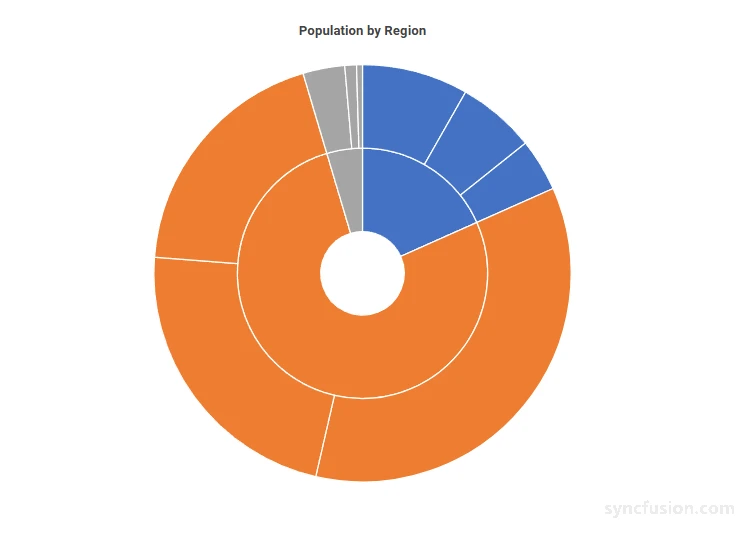
The Sunburst Chart applies colors from the active theme by default. Pass an array of color values to the Palette property of SfSunburstChart to define a custom palette. Colors are applied sequentially to the root-level segments. Child segments inherit the color of their root-level segment.
@using Syncfusion.Blazor.Charts

<SfSunburstChart TItem="RegionData"
                 Title="Population by Region"
                 Palette="@CustomPalette"
                 DataSource="@Regions"
                 IdMemberPath="@nameof(RegionData.Id)"
                 ParentIdMemberPath="@nameof(RegionData.ParentId)"
                 LabelMemberPath="@nameof(RegionData.Label)"
                 ValueMemberPath="@nameof(RegionData.Population)"
                 Width="100%" Height="600px">
</SfSunburstChart>

@code {
    public string[] CustomPalette = new string[]
    {
        "#4472C4",
        "#ED7D31",
        "#A5A5A5",
        "#FFC000",
        "#5B9BD5",
        "#70AD47"
    };

    public class RegionData
    {
        public string Id { get; set; } = string.Empty;
        public string? ParentId { get; set; }
        public string Label { get; set; } = string.Empty;
        public double Population { get; set; }
    }

    public List<RegionData> Regions = new List<RegionData>
    {
        new RegionData { Id = "USA", ParentId = null, Label = "USA", Population = 331000000 },
        new RegionData { Id = "India", ParentId = null, Label = "India", Population = 1391000000 },
        new RegionData { Id = "Germany", ParentId = null, Label = "Germany", Population = 83000000 },

        new RegionData { Id = "USA-California", ParentId = "USA", Label = "California", Population = 39540000 },
        new RegionData { Id = "USA-Texas", ParentId = "USA", Label = "Texas", Population = 29000000 },
        new RegionData { Id = "USA-NewYork", ParentId = "USA", Label = "New York", Population = 19540000 },

        new RegionData { Id = "India-Maharashtra", ParentId = "India", Label = "Maharashtra", Population = 112400000 },
        new RegionData { Id = "India-TamilNadu", ParentId = "India", Label = "Tamil Nadu", Population = 72140000 },
        new RegionData { Id = "India-Karnataka", ParentId = "India", Label = "Karnataka", Population = 61100000 },

        new RegionData { Id = "Germany-Bavaria", ParentId = "Germany", Label = "Bavaria", Population = 13080000 },
        new RegionData { Id = "Germany-Berlin", ParentId = "Germany", Label = "Berlin", Population = 3645000 },
        new RegionData { Id = "Germany-Hamburg", ParentId = "Germany", Label = "Hamburg", Population = 1841000 }
    };
}
Background color
Use the Background property of SfSunburstChart to set the background color of the chart area. Any valid CSS color value is accepted, including named colors, hexadecimal values, RGB values, and RGBA values. The default value is null, which uses the background resolved from the active theme. Set Background to transparent to display the background of the parent container.
@using Syncfusion.Blazor.Charts

<SfSunburstChart TItem="RegionData"
                 Title="Population by Region"
                 Background="#DDEBFF"
                 DataSource="@Regions"
                 IdMemberPath="@nameof(RegionData.Id)"
                 ParentIdMemberPath="@nameof(RegionData.ParentId)"
                 LabelMemberPath="@nameof(RegionData.Label)"
                 ValueMemberPath="@nameof(RegionData.Population)"
                 Width="100%" Height="600px">
</SfSunburstChart>

@code {
    public class RegionData
    {
        public string Id { get; set; } = string.Empty;
        public string? ParentId { get; set; }
        public string Label { get; set; } = string.Empty;
        public double Population { get; set; }
    }

    public List<RegionData> Regions = new List<RegionData>
    {
        new RegionData { Id = "USA", ParentId = null, Label = "USA", Population = 331000000 },
        new RegionData { Id = "India", ParentId = null, Label = "India", Population = 1391000000 },
        new RegionData { Id = "Germany", ParentId = null, Label = "Germany", Population = 83000000 },

        new RegionData { Id = "USA-California", ParentId = "USA", Label = "California", Population = 39540000 },
        new RegionData { Id = "USA-Texas", ParentId = "USA", Label = "Texas", Population = 29000000 },
        new RegionData { Id = "USA-NewYork", ParentId = "USA", Label = "New York", Population = 19540000 },

        new RegionData { Id = "India-Maharashtra", ParentId = "India", Label = "Maharashtra", Population = 112400000 },
        new RegionData { Id = "India-TamilNadu", ParentId = "India", Label = "Tamil Nadu", Population = 72140000 },
        new RegionData { Id = "India-Karnataka", ParentId = "India", Label = "Karnataka", Population = 61100000 },

        new RegionData { Id = "Germany-Bavaria", ParentId = "Germany", Label = "Bavaria", Population = 13080000 },
        new RegionData { Id = "Germany-Berlin", ParentId = "Germany", Label = "Berlin", Population = 3645000 },
        new RegionData { Id = "Germany-Hamburg", ParentId = "Germany", Label = "Hamburg", Population = 1841000 }
    };
}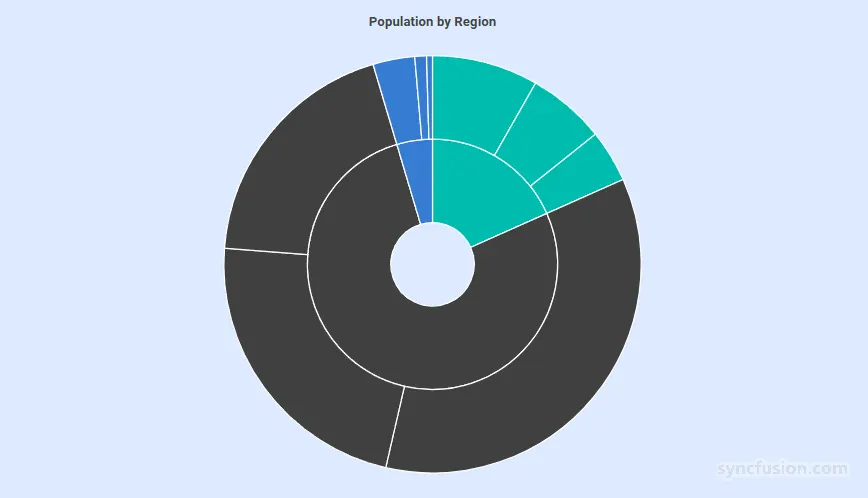
Chart border
Add a visible border around the chart area using the SunburstChartBorder child component. Set the Color and Width of the border; the border is rendered only when Width is greater than 0.
@using Syncfusion.Blazor.Charts

<SfSunburstChart TItem="RegionData"
                 Title="Population by Region"
                 Background="#F5F7FB"
                 DataSource="@Regions"
                 IdMemberPath="@nameof(RegionData.Id)"
                 ParentIdMemberPath="@nameof(RegionData.ParentId)"
                 LabelMemberPath="@nameof(RegionData.Label)"
                 ValueMemberPath="@nameof(RegionData.Population)"
                 Width="100%" Height="600px">
    <SunburstChartBorder Color="#9E9E9E" Width="2" />
</SfSunburstChart>

@code {
    public class RegionData
    {
        public string Id { get; set; } = string.Empty;
        public string? ParentId { get; set; }
        public string Label { get; set; } = string.Empty;
        public double Population { get; set; }
    }

    public List<RegionData> Regions = new List<RegionData>
    {
        new RegionData { Id = "USA", ParentId = null, Label = "USA", Population = 331000000 },
        new RegionData { Id = "India", ParentId = null, Label = "India", Population = 1391000000 },
        new RegionData { Id = "Germany", ParentId = null, Label = "Germany", Population = 83000000 },

        new RegionData { Id = "USA-California", ParentId = "USA", Label = "California", Population = 39540000 },
        new RegionData { Id = "USA-Texas", ParentId = "USA", Label = "Texas", Population = 29000000 },
        new RegionData { Id = "USA-NewYork", ParentId = "USA", Label = "New York", Population = 19540000 },

        new RegionData { Id = "India-Maharashtra", ParentId = "India", Label = "Maharashtra", Population = 112400000 },
        new RegionData { Id = "India-TamilNadu", ParentId = "India", Label = "Tamil Nadu", Population = 72140000 },
        new RegionData { Id = "India-Karnataka", ParentId = "India", Label = "Karnataka", Population = 61100000 },

        new RegionData { Id = "Germany-Bavaria", ParentId = "Germany", Label = "Bavaria", Population = 13080000 },
        new RegionData { Id = "Germany-Berlin", ParentId = "Germany", Label = "Berlin", Population = 3645000 },
        new RegionData { Id = "Germany-Hamburg", ParentId = "Germany", Label = "Hamburg", Population = 1841000 }
    };
}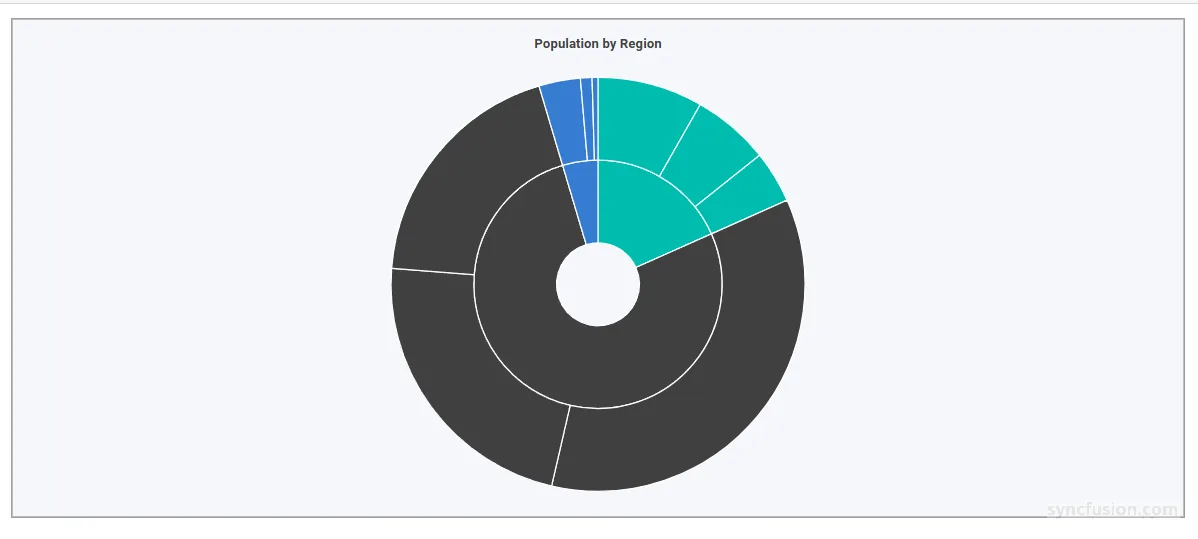
Chart margin
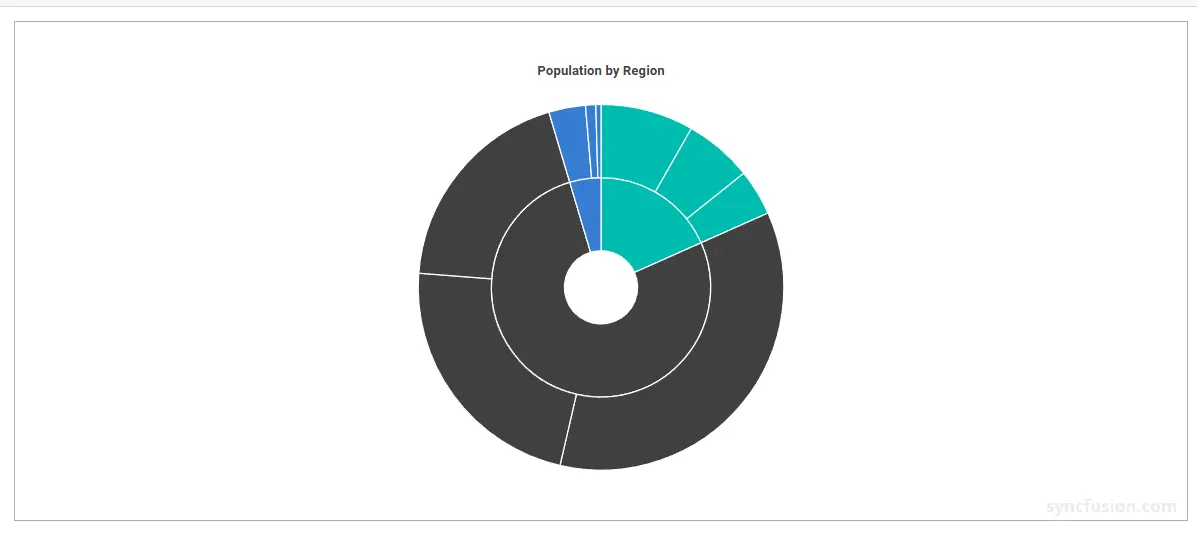
Use the SunburstChartMargin child component to control the spacing between the Sunburst Chart and the edges of its container. Margins are specified independently for the left, right, top, and bottom sides, in pixels. The default value is 10 on each side.
@using Syncfusion.Blazor.Charts

<SfSunburstChart TItem="RegionData"
                 Title="Population by Region"
                 DataSource="@Regions"
                 IdMemberPath="@nameof(RegionData.Id)"
                 ParentIdMemberPath="@nameof(RegionData.ParentId)"
                 LabelMemberPath="@nameof(RegionData.Label)"
                 ValueMemberPath="@nameof(RegionData.Population)"
                 Width="100%" Height="600px">
    <SunburstChartBorder Color="#9E9E9E" Width="1" />
    <SunburstChartMargin Left="40" Right="40" Top="40" Bottom="40" />
</SfSunburstChart>

@code {
    public class RegionData
    {
        public string Id { get; set; } = string.Empty;
        public string? ParentId { get; set; }
        public string Label { get; set; } = string.Empty;
        public double Population { get; set; }
    }

    public List<RegionData> Regions = new List<RegionData>
    {
        new RegionData { Id = "USA", ParentId = null, Label = "USA", Population = 331000000 },
        new RegionData { Id = "India", ParentId = null, Label = "India", Population = 1391000000 },
        new RegionData { Id = "Germany", ParentId = null, Label = "Germany", Population = 83000000 },

        new RegionData { Id = "USA-California", ParentId = "USA", Label = "California", Population = 39540000 },
        new RegionData { Id = "USA-Texas", ParentId = "USA", Label = "Texas", Population = 29000000 },
        new RegionData { Id = "USA-NewYork", ParentId = "USA", Label = "New York", Population = 19540000 },

        new RegionData { Id = "India-Maharashtra", ParentId = "India", Label = "Maharashtra", Population = 112400000 },
        new RegionData { Id = "India-TamilNadu", ParentId = "India", Label = "Tamil Nadu", Population = 72140000 },
        new RegionData { Id = "India-Karnataka", ParentId = "India", Label = "Karnataka", Population = 61100000 },

        new RegionData { Id = "Germany-Bavaria", ParentId = "Germany", Label = "Bavaria", Population = 13080000 },
        new RegionData { Id = "Germany-Berlin", ParentId = "Germany", Label = "Berlin", Population = 3645000 },
        new RegionData { Id = "Germany-Hamburg", ParentId = "Germany", Label = "Hamburg", Population = 1841000 }
    };
}
Radius and inner radius
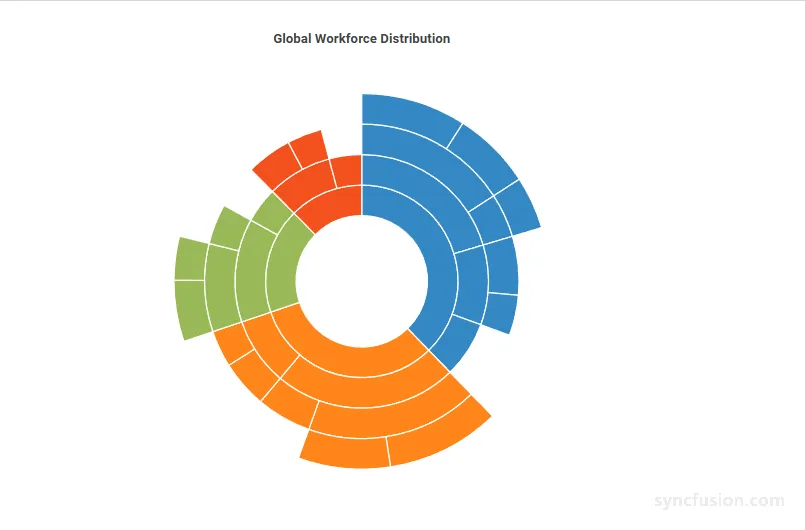
The Radius and InnerRadius properties control the geometry of the Sunburst rings:
-
Radiusdefines the ratio of the outer ring to the available rendering area. Acceptable values are between0and1. The default value is1. Smaller values leave more empty space around the chart; larger values fill more of the available area. -
InnerRadiusdefines the ratio of the inner ring to the overallRadius. The default value is0.2. A value of0renders the chart without a center hole; values greater than0create a donut-like appearance.
Together, Radius and InnerRadius control the size of the rings and the size of the hollow center of the chart.
@using Syncfusion.Blazor.Charts

<SfSunburstChart TItem="NodeDetails"
                 Title="Global Workforce Distribution"
                 DataSource="@Data"
                 Palette="@Palette"
                 IdMemberPath="@nameof(NodeDetails.Id)"
                 ParentIdMemberPath="@nameof(NodeDetails.ParentId)"
                 LabelMemberPath="@nameof(NodeDetails.Name)"
                 ValueMemberPath="@nameof(NodeDetails.Value)"
                 Radius="0.9"
                 InnerRadius="0.35"
                 Width="90%"
                 Height="600px">
</SfSunburstChart>

@code {
    private string[] Palette =
    {
        "#3588C4",
        "#FF851B",
        "#98B956",
        "#F4511E"
    };

    public class NodeDetails
    {
        public string Id { get; set; } = string.Empty;
        public string ParentId { get; set; } = string.Empty;
        public string Name { get; set; } = string.Empty;
        public double Value { get; set; }
    }

    private List<NodeDetails> Data = new()
    {
        // USA
        new() { Id = "usa", ParentId = "", Name = "USA" },
        new() { Id = "usa-tech", ParentId = "usa", Name = "Technology" },
        new() { Id = "usa-developers", ParentId = "usa-tech", Name = "Developers" },
        new() { Id = "usa-windows", ParentId = "usa-developers", Name = "Windows Dev", Value = 48 },
        new() { Id = "usa-web", ParentId = "usa-developers", Name = "Web FullStack", Value = 36 },
        new() { Id = "usa-testers", ParentId = "usa-tech", Name = "Testers" },
        new() { Id = "usa-automation", ParentId = "usa-testers", Name = "Automation QA", Value = 24 },
        new() { Id = "usa-sales", ParentId = "usa", Name = "Sales" },
        new() { Id = "usa-executive", ParentId = "usa-sales", Name = "Account Executive", Value = 32 },
        new() { Id = "usa-analyst", ParentId = "usa-sales", Name = "Sales Analyst", Value = 22 },
        new() { Id = "usa-management", ParentId = "usa", Name = "Management", Value = 38 },

        // India
        new() { Id = "india", ParentId = "", Name = "India" },
        new() { Id = "india-tech", ParentId = "india", Name = "Technical" },
        new() { Id = "india-developers", ParentId = "india-tech", Name = "Developers" },
        new() { Id = "india-cloud", ParentId = "india-developers", Name = "Cloud Services", Value = 52 },
        new() { Id = "india-ui", ParentId = "india-developers", Name = "UI Specialists", Value = 42 },
        new() { Id = "india-testers", ParentId = "india-tech", Name = "Testers", Value = 30 },
        new() { Id = "india-hr", ParentId = "india", Name = "HR" },
        new() { Id = "india-recruiters", ParentId = "india-hr", Name = "Recruiters", Value = 26 },
        new() { Id = "india-people-ops", ParentId = "india-hr", Name = "People Ops", Value = 20 },

        // Germany
        new() { Id = "germany", ParentId = "", Name = "Germany" },
        new() { Id = "germany-engineering", ParentId = "germany", Name = "Engineering" },
        new() { Id = "germany-core", ParentId = "germany-engineering", Name = "Core Systems" },
        new() { Id = "germany-architects", ParentId = "germany-core", Name = "Architects", Value = 28 },
        new() { Id = "germany-security", ParentId = "germany-core", Name = "Security Dev", Value = 20 },
        new() { Id = "germany-qa", ParentId = "germany-engineering", Name = "Quality QA", Value = 22 },
        new() { Id = "germany-support", ParentId = "germany", Name = "Customer Support", Value = 24 },

        // UK
        new() { Id = "uk", ParentId = "", Name = "UK" },
        new() { Id = "uk-finance", ParentId = "uk", Name = "Finance" },
        new() { Id = "uk-audit", ParentId = "uk-finance", Name = "Audit and Tax", Value = 25 },
        new() { Id = "uk-payroll", ParentId = "uk-finance", Name = "Payroll and AP", Value = 19 },
        new() { Id = "uk-legal", ParentId = "uk", Name = "Legal and Compliance", Value = 22 }
    };
}
Start angle and end angle
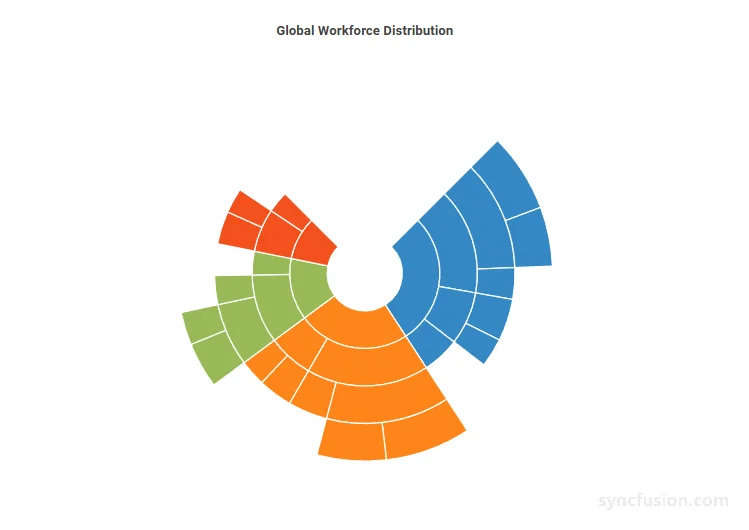
The StartAngle and EndAngle properties control the angular span of the Sunburst Chart. Use them together to render either a full chart or a partial chart that occupies only a portion of the available circular area.
-
StartAnglespecifies the angle, in degrees, at which the first segment begins. The default value is0, which corresponds to the 12 o’clock position. -
EndAnglespecifies the angle, in degrees, at which the rendering ends. The default value is360, which renders a full circle.
Setting EndAngle to less than 360 rotates the segments so the chart occupies a partial circle.
@using Syncfusion.Blazor.Charts

<SfSunburstChart TItem="NodeDetails"
                 Title="Global Workforce Distribution"
                 DataSource="@Data"
                 Palette="@Palette"
                 IdMemberPath="@nameof(NodeDetails.Id)"
                 ParentIdMemberPath="@nameof(NodeDetails.ParentId)"
                 LabelMemberPath="@nameof(NodeDetails.Name)"
                 ValueMemberPath="@nameof(NodeDetails.Value)"
                 StartAngle="45"
                 EndAngle="315"
                 Radius="0.9"
                 InnerRadius="0.2"
                 Width="90%"
                 Height="600px"></SfSunburstChart>

@code {
    private string[] Palette =
    {
        "#3588C4",
        "#FF851B",
        "#98B956",
        "#F4511E"
    };

    public class NodeDetails
    {
        public string Id { get; set; } = string.Empty;
        public string ParentId { get; set; } = string.Empty;
        public string Name { get; set; } = string.Empty;
        public double Value { get; set; }
    }

    private List<NodeDetails> Data = new()
    {
        // USA
        new() { Id = "usa", ParentId = "", Name = "USA" },
        new() { Id = "usa-tech", ParentId = "usa", Name = "Technology" },
        new() { Id = "usa-developers", ParentId = "usa-tech", Name = "Developers" },
        new() { Id = "usa-windows", ParentId = "usa-developers", Name = "Windows Dev", Value = 48 },
        new() { Id = "usa-web", ParentId = "usa-developers", Name = "Web FullStack", Value = 36 },
        new() { Id = "usa-testers", ParentId = "usa-tech", Name = "Testers", Value = 24 },
        new() { Id = "usa-sales", ParentId = "usa", Name = "Sales" },
        new() { Id = "usa-executive", ParentId = "usa-sales", Name = "Account Executive", Value = 32 },
        new() { Id = "usa-analyst", ParentId = "usa-sales", Name = "Sales Analyst", Value = 22 },
        new() { Id = "usa-management", ParentId = "usa", Name = "Management", Value = 38 },

        // India
        new() { Id = "india", ParentId = "", Name = "India" },
        new() { Id = "india-tech", ParentId = "india", Name = "Technical" },
        new() { Id = "india-developers", ParentId = "india-tech", Name = "Developers" },
        new() { Id = "india-cloud", ParentId = "india-developers", Name = "Cloud Services", Value = 52 },
        new() { Id = "india-ui", ParentId = "india-developers", Name = "UI Specialists", Value = 42 },
        new() { Id = "india-testers", ParentId = "india-tech", Name = "Testers", Value = 30 },
        new() { Id = "india-hr", ParentId = "india", Name = "HR" },
        new() { Id = "india-recruiters", ParentId = "india-hr", Name = "Recruiters", Value = 26 },
        new() { Id = "india-people-ops", ParentId = "india-hr", Name = "People Ops", Value = 20 },

        // Germany
        new() { Id = "germany", ParentId = "", Name = "Germany" },
        new() { Id = "germany-engineering", ParentId = "germany", Name = "Engineering" },
        new() { Id = "germany-core", ParentId = "germany-engineering", Name = "Core Systems" },
        new() { Id = "germany-architects", ParentId = "germany-core", Name = "Architects", Value = 28 },
        new() { Id = "germany-security", ParentId = "germany-core", Name = "Security Dev", Value = 20 },
        new() { Id = "germany-qa", ParentId = "germany-engineering", Name = "Quality QA", Value = 22 },
        new() { Id = "germany-support", ParentId = "germany", Name = "Customer Support", Value = 24 },

        // UK
        new() { Id = "uk", ParentId = "", Name = "UK" },
        new() { Id = "uk-finance", ParentId = "uk", Name = "Finance" },
        new() { Id = "uk-audit", ParentId = "uk-finance", Name = "Audit and Tax", Value = 25 },
        new() { Id = "uk-payroll", ParentId = "uk-finance", Name = "Payroll and AP", Value = 19 },
        new() { Id = "uk-legal", ParentId = "uk", Name = "Legal and Compliance", Value = 22 }
    };
}
Animation
Use EnableAnimation to enable or disable the initial rendering animation. The default value is true. Use AnimationType to select the animation effect. Supported values are SunburstAnimationType.Rotation and SunburstAnimationType.FadeIn; the default value is SunburstAnimationType.Rotation.
Title and subtitle
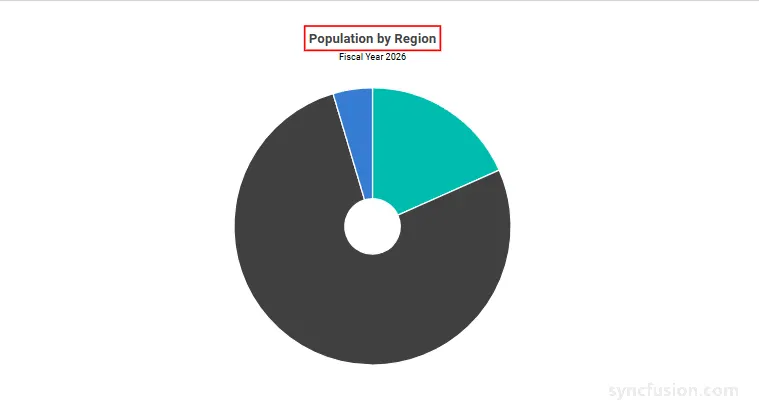
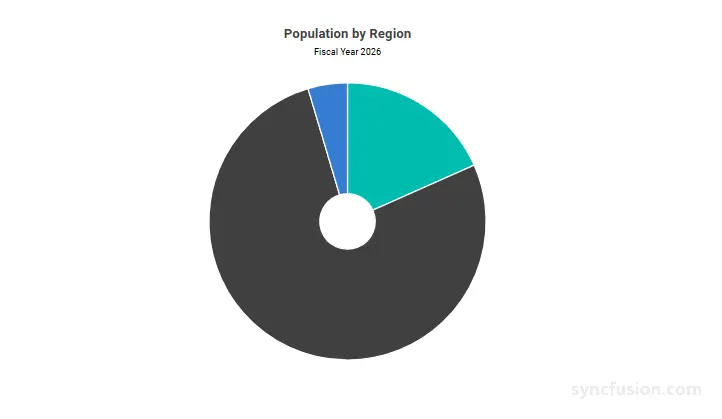
The Blazor Sunburst Chart exposes a chart heading through the Title property and an optional secondary line through the Subtitle property on SfSunburstChart. These strings default to empty, so the chart renders without a heading unless one is supplied. Use title text to identify the data being shown and subtitle text to add a reporting period, source, or other context.
@using Syncfusion.Blazor.Charts

<SfSunburstChart TItem="RegionData"
                 Title="Population by Region"
                 Subtitle="Fiscal Year 2026"
                 DataSource="@Regions"
                 IdMemberPath="@nameof(RegionData.Id)"
                 ParentIdMemberPath="@nameof(RegionData.ParentId)"
                 LabelMemberPath="@nameof(RegionData.Label)"
                 ValueMemberPath="@nameof(RegionData.Population)">
</SfSunburstChart>

@code {
    public class RegionData
    {
        public string Id { get; set; } = string.Empty;
        public string? ParentId { get; set; }
        public string Label { get; set; } = string.Empty;
        public double Population { get; set; }
    }

    public List<RegionData> Regions = new List<RegionData>
    {
        new RegionData { Id = "USA", ParentId = null, Label = "USA", Population = 331000000 },
        new RegionData { Id = "India", ParentId = null, Label = "India", Population = 1391000000 },
        new RegionData { Id = "Germany", ParentId = null, Label = "Germany", Population = 83000000 }
    };
}
Customize the title and subtitle
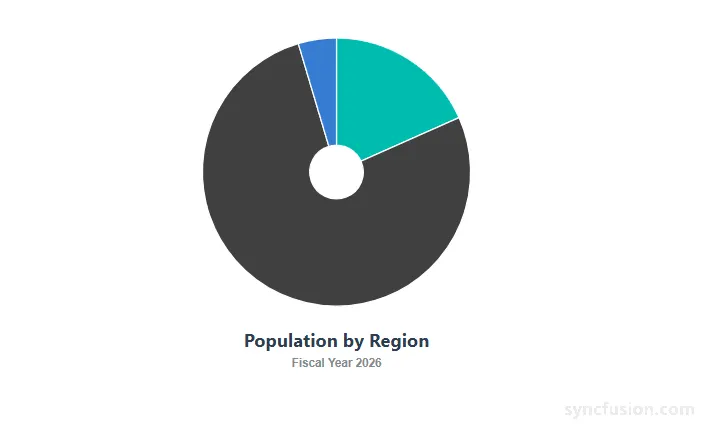
Use SunburstTitleSettings and SunburstSubtitleSettings to customize how the heading and subheading appear. SunburstTitleSettings exposes font-level styling along with a Position value that chooses which side of the chart the heading renders on. SunburstSubtitleSettings exposes the same font-level styling and also provides a nullable Position property using the SunburstTitlePosition enum.
SunburstTitleSettings properties
Configure the main title appearance:
In the SunburstTitleSettings:
-
AccessibilityDescription: Adds a text description that screen readers announce along with the title. -
AccessibilityRole: Sets the ARIA role for the title element (for example,heading). -
Focusable: Whentrue, the title can receive keyboard focus. -
Size: Specifies the font size of the title text (for example"22px"). When unset, the value falls back to the active Syncfusion theme. -
Color: Specifies the font color of the title text. Any valid CSS color value is accepted. When unset, the value falls back to the active theme. -
FontFamily: Specifies the font family of the title text. Multiple families can be supplied as a comma-separated list. When unset, the value falls back to the active theme. -
FontWeight: Specifies the font weight of the title text. Valid values includeNormal,Bold,Bolder,Lighter, and numeric values such as400,500, and700. When unset, the value falls back to the active theme. -
FontStyle: Specifies the font style of the title text. Valid values includeNormal,Italic, andOblique. When unset, the value falls back to the active theme. -
Position: Specifies the position of the title in the Sunburst chart. Use the nullableSunburstTitlePositionenum (Top,Bottom,Left, orRight). The parameter default isnull, which uses the chart’s default top placement. When the position is changed, the subtitle is repositioned along with the title so they continue to render together.
SunburstSubtitleSettings properties
Configure the subtitle appearance:
In the SunburstSubtitleSettings:
-
AccessibilityDescription: Adds a text description that screen readers announce along with the subtitle. -
AccessibilityRole: Sets the ARIA role for the subtitle element (for example,heading). -
Focusable: Whentrue, the subtitle can receive keyboard focus. The default value istrue. -
Position: Specifies the position of the subtitle in the Sunburst chart using the nullableSunburstTitlePositionenum (Top,Bottom,Left, orRight). When unset, the subtitle uses the chart’s default placement. -
Size: Specifies the font size of the subtitle text (for example"14px"). When unset, the value falls back to the active Syncfusion theme. -
Color: Specifies the font color of the subtitle text. Any valid CSS color value is accepted. When unset, the value falls back to the active theme. -
FontFamily: Specifies the font family of the subtitle text. Multiple families can be supplied as a comma-separated list. When unset, the value falls back to the active theme. -
FontWeight: Specifies the font weight of the subtitle text. Valid values includeNormal,Bold,Bolder,Lighter, and numeric values such as400,500, and700. When unset, the value falls back to the active theme. -
FontStyle: Specifies the font style of the subtitle text. Valid values includeNormal,Italic, andOblique. When unset, the value falls back to the active theme.
@using Syncfusion.Blazor.Charts

<SfSunburstChart TItem="RegionData"
                 Title="Population by Region"
                 Subtitle="Fiscal Year 2026"
                 DataSource="@Regions"
                 IdMemberPath="@nameof(RegionData.Id)"
                 ParentIdMemberPath="@nameof(RegionData.ParentId)"
                 LabelMemberPath="@nameof(RegionData.Label)"
                 ValueMemberPath="@nameof(RegionData.Population)">
    <SunburstTitleSettings Size="22px"
                           Color="#2c3e50"
                           FontFamily="Segoe UI"
                           FontWeight="Bold"
                           FontStyle="Normal"
                           Position="SunburstTitlePosition.Bottom" />
    <SunburstSubtitleSettings Size="14px"
                              Color="#7f8c8d"
                              FontFamily="Arial, sans-serif"
                              FontWeight="600"
                              FontStyle="Normal" />
</SfSunburstChart>

@code {
    public class RegionData
    {
        public string Id { get; set; } = string.Empty;
        public string? ParentId { get; set; }
        public string Label { get; set; } = string.Empty;
        public double Population { get; set; }
    }

    public List<RegionData> Regions = new List<RegionData>
    {
        new RegionData { Id = "USA", ParentId = null, Label = "USA", Population = 331000000 },
        new RegionData { Id = "India", ParentId = null, Label = "India", Population = 1391000000 },
        new RegionData { Id = "Germany", ParentId = null, Label = "Germany", Population = 83000000 }
    };
}
Accessibility of the title and subtitle
Both SunburstTitleSettings and SunburstSubtitleSettings accept accessibility-oriented properties so the heading can be properly exposed to assistive technologies.
Accessibility properties
In the SunburstTitleSettings:
-
AccessibilityDescription: Adds a text description that screen readers announce along with the title. -
AccessibilityRole: Sets the ARIA role for the title element (for example,heading). -
Focusable: Whentrue, the title can receive keyboard focus.
In the SunburstSubtitleSettings:
-
AccessibilityDescription: Adds a text description that screen readers announce along with the subtitle. -
AccessibilityRole: Sets the ARIA role for the subtitle element (for example,heading). -
Focusable: Whentrue, the subtitle can receive keyboard focus. The default value istrue.
@using Syncfusion.Blazor.Charts

<SfSunburstChart TItem="RegionData"
                 Title="Population by Region"
                 Subtitle="Fiscal Year 2026"
                 DataSource="@Regions"
                 IdMemberPath="@nameof(RegionData.Id)"
                 ParentIdMemberPath="@nameof(RegionData.ParentId)"
                 LabelMemberPath="@nameof(RegionData.Label)"
                 ValueMemberPath="@nameof(RegionData.Population)">
    <SunburstTitleSettings AccessibilityDescription="Main title for the Population by Region chart."
                           AccessibilityRole="heading"
                           Focusable="true" />
    <SunburstSubtitleSettings AccessibilityDescription="Subtitle providing the reporting period."
                              AccessibilityRole="heading" />
</SfSunburstChart>

@code {
    public class RegionData
    {
        public string Id { get; set; } = string.Empty;
        public string? ParentId { get; set; }
        public string Label { get; set; } = string.Empty;
        public double Population { get; set; }
    }

    public List<RegionData> Regions = new List<RegionData>
    {
        new RegionData { Id = "USA", ParentId = null, Label = "USA", Population = 331000000 },
        new RegionData { Id = "India", ParentId = null, Label = "India", Population = 1391000000 },
        new RegionData { Id = "Germany", ParentId = null, Label = "Germany", Population = 83000000 }
    };
}