Selection in WPF TreeGrid (SfTreeGrid)
11 Mar 202624 minutes to read
WPF TreeGrid (SfTreeGrid) allows you to select one or more rows or cells. For selecting specific row or group of rows you have to set SelectionUnit as Row and for selecting a specific cell or group of cells you have to set SelectionUnit as Cell or Any. In SelectionUnit.Any option you can select the row by clicking on row header.
Current cell navigation
Keyboard navigation through the cells and rows is determined based on the NavigationMode property. NavigationMode.Cell allows you to navigate between the cells in a row as well as between rows. NavigationMode.Row allows you to navigate only between rows. It is not possible to set NavigationMode.Row when cell selection is enabled (SelectionUnit is Cell or Any).
Selection modes
The SelectionUnit and SelectionMode properties together define the behavior of selection in SfTreeGrid.
| Modes | Description |
|---|---|
| None | Disables selection, and no rows or cells can be selected. |
| Single | Allows selection of a single row or cell. Upon selecting the next row or cell, the selection in the previous row or cell is cleared. This is the default value. |
| SingleDeselect | Allows selection of a single row or cell only. However, upon tapping the row or cell again, the selection is cleared. Similar to single mode, upon selecting the next row or cell, the selection in the previous row or cell is cleared. Also, single row or cell can be selected or deselected by pressing space key. |
| Multiple | Allows selection of more than one row or cell. Selection is not cleared when selecting more than one row or cell. When you click on an already selected row or cell for the second time, the selection is cleared. |
| Extended | Allows selecting multiple rows or cells. You can select multiple rows or cells in the SfTreeGrid by dragging the mouse or by using the key modifiers Ctrl and Shift. |
<syncfusion:SfTreeGrid Name="treeGrid"
                       AutoExpandMode="RootNodesExpanded"
                       AutoGenerateColumns="False"
                       NavigationMode="Row"
                       ChildPropertyName="Children"
                       SelectionMode="Single"
                       ColumnSizer="Star"
                       ExpanderColumn="FirstName"
                       ItemsSource="{Binding PersonDetails}">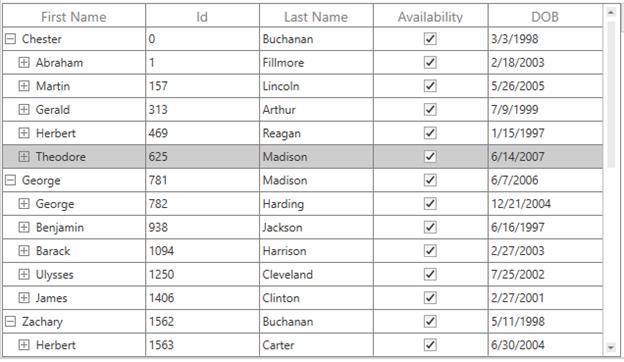
Disable selection for rows and columns
You can disable selection and navigation on particular column by setting the GridColumn.AllowFocus property. You can disable selection on particular row or cell or column by handling the CurrentCellActivating event.
Multiple row or cell selection
The SfTreeGrid allows you to select multiple rows or cells by setting the SelectionMode property as Extended or Multiple, where you can select multiple rows or cells by dragging the mouse on SfTreeGrid and also using the key modifiers.
When using Extended, you can select multiple rows or cells by pressing the key modifiers Ctrl and Shift.
<syncfusion:SfTreeGrid Name="treeGrid"
                       AutoExpandMode="RootNodesExpanded"
                       AutoGenerateColumns="False"
                       NavigationMode="Row"
                       ChildPropertyName="Children"
                       SelectionMode="Extended"
                       ColumnSizer="Star"
                       ExpanderColumn="FirstName"
                       ItemsSource="{Binding PersonDetails}">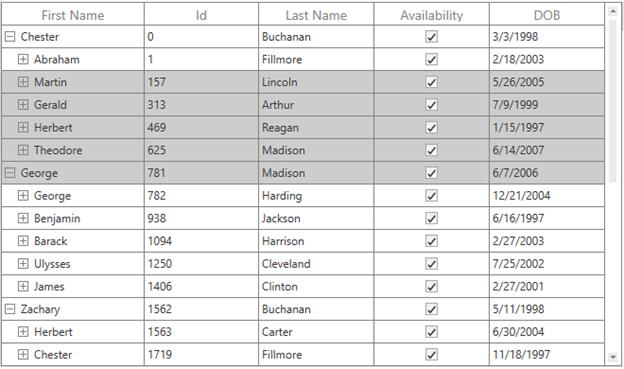
NOTE
When SelectionMode is Multiple, you can select or deselect multiple rows and cells by clicking the respective row or cell. In multiple selection, pressing the navigation keys moves only the current cell, and you can select or deselect by pressing the
Spacekey.
<syncfusion:SfTreeGrid Name="treeGrid"
                       AutoExpandMode="RootNodesExpanded"
                       AutoGenerateColumns="False"
                       NavigationMode="Cell"
                       ChildPropertyName="Children"
                       SelectionMode="Extended"
                       SelectionUnit="Cell"
                       ColumnSizer="Star"
                       ExpanderColumn="FirstName"
                       ItemsSource="{Binding PersonDetails}">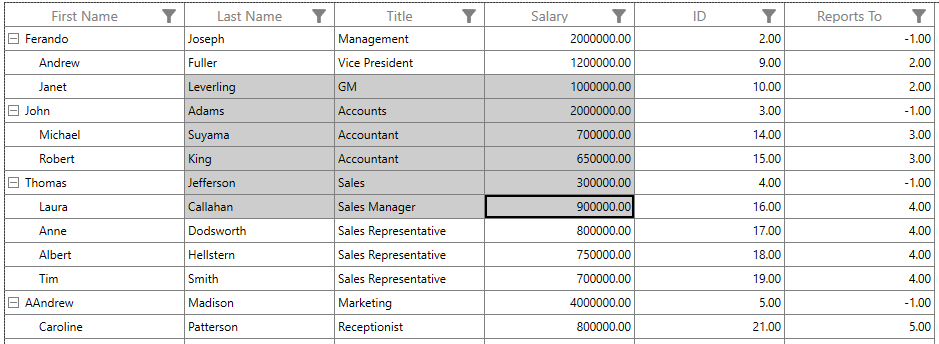
<syncfusion:SfTreeGrid Name="treeGrid"
                       AutoExpandMode="RootNodesExpanded"
                       AutoGenerateColumns="False"
                       NavigationMode="Cell"
                       ChildPropertyName="Children"
                       SelectionMode="Multiple"
                       SelectionUnit="Cell"
                       ColumnSizer="Star"
                       ExpanderColumn="FirstName"
                       ItemsSource="{Binding PersonDetails}">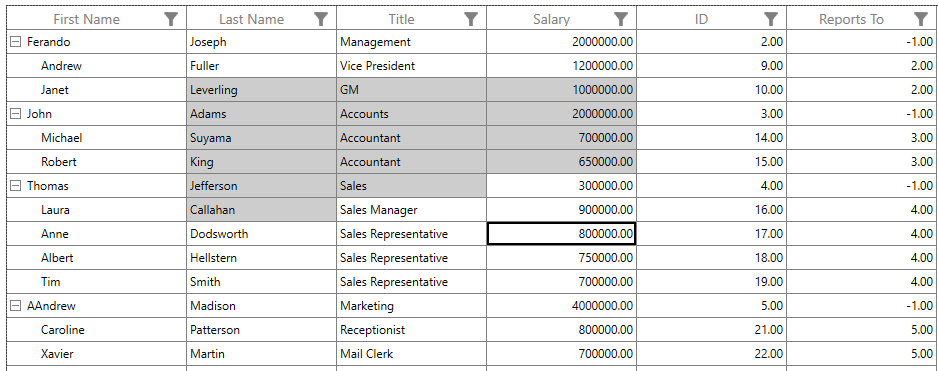
Get selected rows and cells
The SelectedItem property returns the data object of the selected row, and the SelectedIndex property returns the index of the SelectedItem in tree grid. The SelectedItem denotes the first selected row in multiple selection.
The CurrentItem returns the data object that currently has focus, and the CurrentColumn denotes the TreeGridColumn that currently has focus.
The CurrentCellInfo returns an instance TreeGridCellInfo, which contains information about the cell that currently has focus.
Row selection
You can get all the selected records using the SelectedItems property, and you can also get all the selected rows information using SfTreeGrid.SelectionController.SelectedRows, which is a collection of TreeGridRowInfo.
Cell Selection
You can get the selected cells as TreeGridCellInfo collection by using GetSelectedCells method.
List<TreeGridCellInfo> selectedCells = this.treeGrid.GetSelectedCells();CurrentItem vs SelectedItem
Both SelectedItem and CurrentItem returns the same data object when there is single cell or row is selected in SfTreeGrid. When you have selected more than one rows or cells, the record that had been selected initially is maintained in SelectedItem and the record that currently have focus is maintained in CurrentItem.
Programmatic selection
Process selection using properties
You can select a single row or cell by setting the SelectedItem property or SelectedIndex property.
var recordIndex = this.treeGrid.ResolveToNodeIndex(6);
this.treeGrid.SelectedIndex = recordIndex;
var node = this.treeGrid.GetNodeAtRowIndex(6);
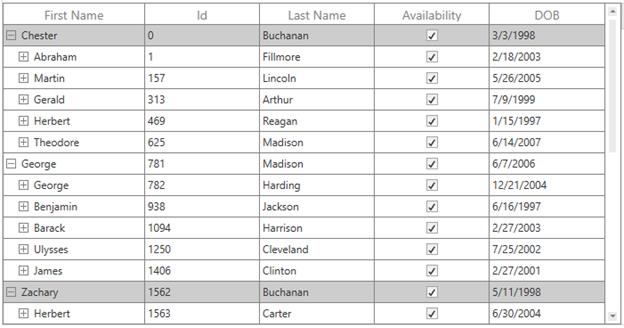
this.treeGrid.SelectedItem = node.Item;In row selection, you can select multiple rows by adding data objects to the SelectedItems property.
var viewModel = this.treeGrid.DataContext as ViewModel;

foreach (var order in viewModel.PersonDetails)
{
    if (order.LastName == "Buchanan")
        this.treeGrid.SelectedItems.Add(order);
}
Process selection using methods
You can select a range of rows using the SelectRows method in row selection.
this.treeGrid.SelectRows(3, 7);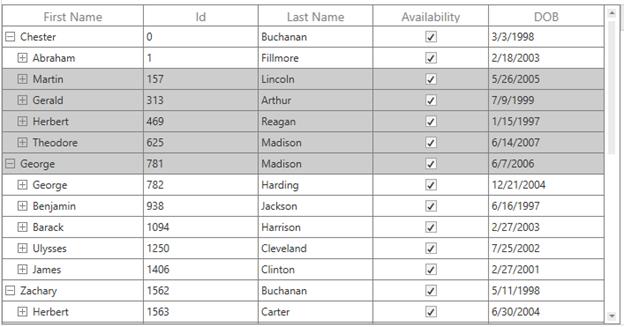
You can select a specific cell by using the SelectCell method in cell selection.
var record = this.treeGrid.GetNodeAtRowIndex(3).Item;
var column = this.treeGrid.Columns[1];
this.treeGrid.SelectCell(record, column);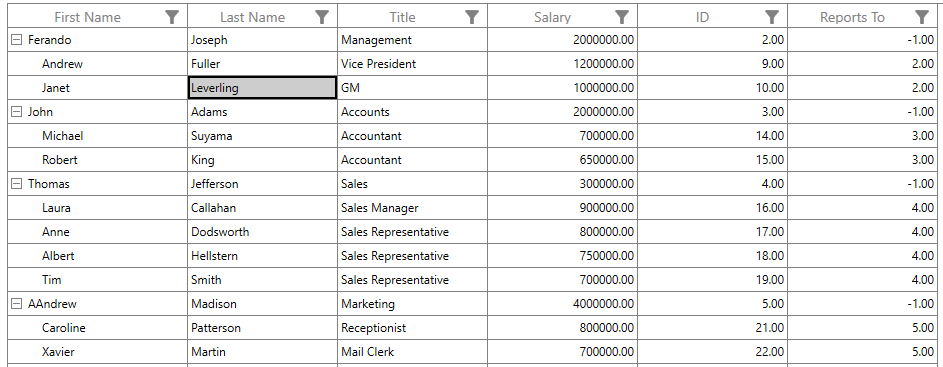
You can select a range of cells through SelectCells method in cell selection.
var firstRecord = this.treeGrid.GetNodeAtRowIndex(3).Item;
var lastRecord = this.treeGrid.GetNodeAtRowIndex(7).Item;
var firstColumn = this.treeGrid.Columns[1];
var lastColumn = this.treeGrid.Columns[3];
this.treeGrid.SelectCells(firstRecord, firstColumn, lastRecord, lastColumn);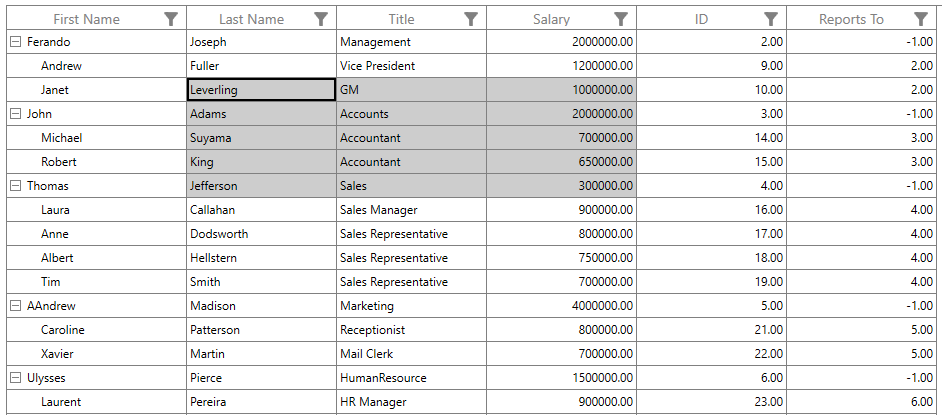
You can select all the rows or cells using SelectAll method.
this.treeGrid.SelectAll();Process current cell
When you set CurrentItem to a particular record, the CurrentCell will be moved to the corresponding record when the SelectionMode is Multiple or Extended and the selection will added to a particular record item when the SelectionMode is Single.
var viewModel = this.treeGrid.DataContext as ViewModel;
this.treeGrid.CurrentItem = viewModel.Employees.FirstOrDefault(emp => emp.FirstName == "Andrew");
You can move the CurrentCell to a particular rowColumnIndex using the MoveCurrentCell method.
this.treeGrid.MoveCurrentCell(new RowColumnIndex(3, 2), false);Clear selection
You can clear the selection using the ClearSelections method. In row selection, you can remove the selection by setting null to the SelectedItem or clearing the SelectedItems property.
this.treeGrid.SelectionController.ClearSelections(true);You can clear selection on group of cells by using the UnselectCells method in cell selection.
var firstRecord = this.treeGrid.GetNodeAtRowIndex(3).Item;
var lastRecord = this.treeGrid.GetNodeAtRowIndex(7).Item;
var firstColumn = this.treeGrid.Columns[1];
var lastColumn = this.treeGrid.Columns[3];
this.treeGrid.UnselectCells(firstRecord, firstColumn, lastRecord, lastColumn);
You can clear the selection on particular cell by using the UnselectCell method in cell selection.
var removeRecord = this.treeGrid.GetNodeAtRowIndex(5).Item;
var removeColumn = this.treeGrid.Columns[2];
this.treeGrid.UnselectCell(removeRecord, removeColumn);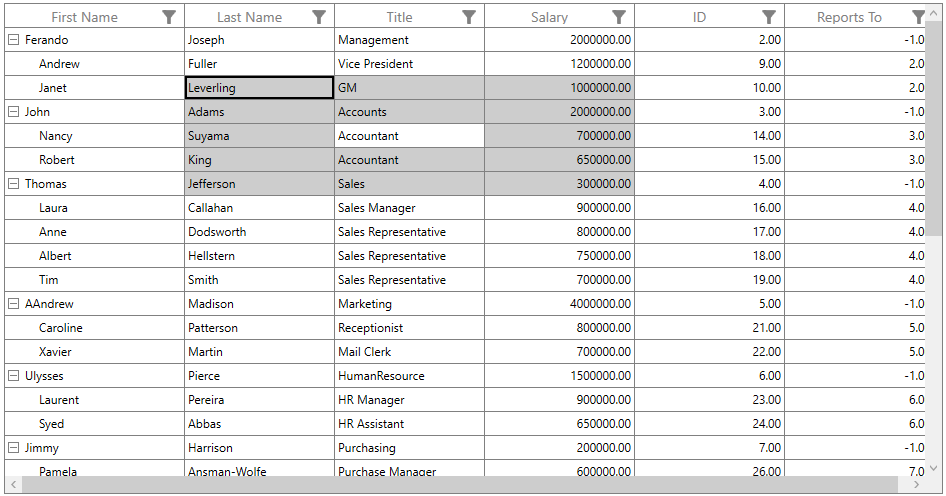
Scrolling rows and columns
Automatic scrolling on drag selection
SfTreeGrid scrolls rows and columns automatically when you try to perform the drag selection like in Excel. You can enable or disable AutoScrolling by setting the AutoScroller.AutoScrolling property.
this.treeGrid.AutoScroller.AutoScrolling = AutoScrollOrientation.Both;Scroll to a particular row or column index
You can scroll programmatically to particular cell using the ScrollInView method by passing row and column index.
int rowIndex = this.treeGrid.GetLastDataRowIndex();
int columnIndex = this.treeGrid.GetLastColumnIndex();
this.treeGrid.ScrollInView(new RowColumnIndex(rowIndex, columnIndex));
Scroll to selected item
You can scroll programmatically to the SelectedItem using the ScrollInView method.
var rowIndex = this.treeGrid.ResolveToRowIndex(this.treeGrid.SelectedItem);
var columnIndex = this.treeGrid.ResolveToStartColumnIndex();
this.treeGrid.ScrollInView(new RowColumnIndex(rowIndex, columnIndex));
Mouse and keyboard behaviors
Keyboard behavior
|
Key or Key combinations |
Description |
| DownArrow | Moves CurrentCell directly below the active current cell. If the CurrentCell is in the last row, pressing the Down arrow does nothing. |
| UpArrow | Moves the CurrentCell directly above the active current cell. If the CurrentCell is in the first row, pressing the Up arrow does nothing. |
| LeftArrow | Moves the current cell to previous to the active current cell. If the CurrentCell is in the first cell, pressing the Left arrow does nothing. If the focused row is group header, the group will be collapsed when it is in expanded state. |
| RightArrow | Moves the current cell to next to the active current cell. If the CurrentCell is in the last cell, pressing the Right arrow does nothing. If the focused row is group header, the group will be expanded when it is in collapsed state. |
| Home / Ctrl + LeftArrow | Moves the current cell to the first cell of the current row. |
| End / Ctrl + RightArrow | Moves the current cell to the last cell of the current row. |
| PageDown | The tree grid will be scrolled to the next set of rows that is not displayed in view, including the row that is partially displayed, and the current cell is set to the last row. |
| PageUp | The tree grid will be scrolled to the previous set of rows that is not displayed in view, including the row that is partially displayed, and the current cell is set to the first row. |
| Tab | Moves the current cell to next to the active current cell. If the active current cell is the last cell of the current row, the focus will be moved to the first cell of the row next to the current row. If the active current cell is the last cell of the last row, the focus will be moved to next control in the tab order of the parent container. |
| Shift + Tab | Moves the current cell to previous cell to the active current cell. If the active current cell is the first cell of the current row, the current cell will be moved to the last cell of the row previous to the current row. If the active current cell is the first cell of the first row, the focus will be moved to the previous control in the tab order of the parent container. |
| Ctrl + DownArrow | Moves the current cell to the current column of the last row. |
| Ctrl + UpArrow | Moves the current cell to the current column of the first row. |
| Ctrl + Home | Moves the current cell to the first cell of the first row. |
| Ctrl + End | Moves the current cell to the last cell of the last row. |
| Enter | If the active current cell is in edit mode, the changes will be committed, and moves the current cell to below the active current cell. If the active current cell is in the last row, commits changes only and retains the same cell. |
| Ctrl + Enter | Commits only the changes when the current cell is in edit mode and retains the focus in same cell. |
| F2 | If the property is true, and the property is true for the current column, the current cell enters into edit mode. |
| Esc | If the current cell is in edit mode, reverts the changes that had been done in the current cell. If the underlying source implements , clicking the Esc key for the second time cancels the edit mode for entire row. |
| Ctrl + A | All rows or cells will be selected. |
NOTE
When the NavigationMode is in Row, the following keys RightArrow, LeftArrow, Tab, Shift + Tab, Home and End will not work.
Shift key combinations
When SelectionMode is set to Extended, you can select multiple rows or cells using the navigation keys along with the Shift key. Before starting navigation, the current cell will be marked as a pressed cell, and the selection will be done in all rows or cells between the pressed cell and current cell.
|
Key combinations |
| Shift + DownArrow |
| Shift + UpArrow |
| Shift + RightArrow |
| Shift + LeftArrow |
| Shift + Home |
| Shift + End |
| Shift + PageDown |
| Shift + PageUp |
| Shift + Ctrl + DownArrow |
| Shift + Ctrl + UpArrow |
| Shift + Ctrl + RightArrow |
| Shift + Ctrl + LeftArrow |
| Shift + Ctrl + Home |
| Shift + Ctrl + End |
| Shift + Ctrl + PageDown |
| Shift + Ctrl + PageUp |
Mouse behavior
You can enable or disable the selection when the mouse button is in the pressed state by setting the AllowSelectionOnPointerPressed property.
When SelectionMode is set to Extended, you can select multiple rows or cells by clicking any cell along with ctrl and Shift keys. When you click a cell along with Ctrl key, you can select or deselect a particular row or cell. When you click a cell along with Shift key, you can select the range rows or cells from the pressed cell to the current cell.
Customize mouse and keyboard behaviors
You can customize the mouse and keyboard behaviors by overriding the selection controller. Refer to the Customize selection behaviors section to learn about override the selection controller.
Events
CurrentCellActivating
The CurrentCellActivating event will occurs before moving the current cell to particular cell. CurrentCellActivatingEventArgs has following members which provides information for CurrentCellActivatingEvent.
ActivationTrigger: Returns the reason for moving the current cell.
CurrentRowColumnIndex: RowColumnIndex of the cell where the current cell need to move.
PreviousRowColumnIndex: RowColumnIndex of the cell from where the current cell moved.
<syncfusion:SfTreeGrid Name="treeGrid"
                       Grid.Row="0"
                       AutoExpandMode="RootNodesExpanded"
                       AutoGenerateColumns="False"
                       ChildPropertyName="ReportsTo"
                       CurrentCellActivating="TreeGrid_CurrentCellActivating"
                       ItemsSource="{Binding EmployeeInfo}"
                       LiveNodeUpdateMode="AllowDataShaping"
Converter="{StaticResource SelectionModeConverter}">this.treeGrid.CurrentCellActivating += TreeGrid_CurrentCellActivating;
private void TreeGrid_CurrentCellActivating(object sender, Syncfusion.UI.Xaml.Grid.CurrentCellActivatingEventArgs e)
{
}You can cancel the current cell moving process within this event by setting GridCurrentCellActivatingEventArgs.Cancel to true.
private void TreeGrid_CurrentCellActivating(object sender, Syncfusion.UI.Xaml.Grid.CurrentCellActivatingEventArgs e)
{
    var provider = this.treeGrid.View.GetPropertyAccessProvider();
    var record = this.treeGrid.GetNodeAtRowIndex(e.CurrentRowColumnIndex.RowIndex).Item;

    if (record == null)
        return;

    var column = this.treeGrid.Columns[this.treeGrid.ResolveToGridVisibleColumnIndex(e.CurrentRowColumnIndex.ColumnIndex)];
    var cellValue = provider.GetValue(record, column.MappingName);

    if (cellValue.ToString() == "1001")
        e.Cancel = true;
}
CurrentCellActivated
The CurrentCellActivated event occurs after the current cell moves to the corresponding cell. CurrentCellActivatedEventArgs has the following members, which provide information to the CurrentCellActivated event:
ActivationTrigger: Returns the reason of the current cell movement.
CurrentRowColumnIndex: RowColumnIndex of the cell where the current cell move.
PreviousRowColumnIndex: RowColumnIndex of the cell from where the current cell moved.
<syncfusion:SfTreeGrid Name="treeGrid"
                       Grid.Row="0"
                       AutoExpandMode="RootNodesExpanded"
                       AutoGenerateColumns="False"
                       ChildPropertyName="ReportsTo"
                       CurrentCellActivated="TreeGrid_CurrentCellActivated"
                       ItemsSource="{Binding EmployeeInfo}"
                       LiveNodeUpdateMode="AllowDataShaping"
Converter="{StaticResource SelectionModeConverter}">this.treeGrid.CurrentCellActivated += TreeGrid_CurrentCellActivated;
private void TreeGrid_CurrentCellActivated(object sender, Syncfusion.UI.Xaml.Grid.CurrentCellActivatedEventArgs e)
{
}SelectionChanging
The SelectionChanging event occurs before processing the selection to a particular row or cell. This event is triggered only to the keyboard and mouse interactions. GridSelectionChangingEventArgs has the following members, which provide information to the SelectionChanging event.
AddedItems: Collection of TreeGridRowInfo or TreeGridCellInfo where the selection is going to be processed.
RemovedItems: Collection of TreeGridRowInfo or TreeGridCellInfo where the selection is going to be removed.
<syncfusion:SfTreeGrid Name="treeGrid"
                       Grid.Row="0"
                       AutoExpandMode="RootNodesExpanded"
                       AutoGenerateColumns="False"
                       ChildPropertyName="ReportsTo"
                       SelectionChanging="TreeGrid_SelectionChanging"
                       ItemsSource="{Binding EmployeeInfo}"
                       LiveNodeUpdateMode="AllowDataShaping"
Converter="{StaticResource SelectionModeConverter}">this.treeGrid.SelectionChanging += TreeGrid_SelectionChanging;
private void TreeGrid_SelectionChanging(object sender, Syncfusion.UI.Xaml.Grid.GridSelectionChangingEventArgs e)
{
}SelectionChanged
The SelectionChanged event occurs after the selection process is completed for a particular row or cell in tree grid. GridSelectionChangedEventArgs has the following members, which provide information to the SelectionChanged event:
AddedItems: Collection of TreeGridRowInfo or TreeGridCellInfo where the selection has been processed.
RemovedItems: Collection of TreeGridRowInfo or TreeGridCellInfo where the selection has been removed.
<syncfusion:SfTreeGrid Name="treeGrid"
                       Grid.Row="0"
                       AutoExpandMode="RootNodesExpanded"
                       AutoGenerateColumns="False"
                       ChildPropertyName="ReportsTo"
                       SelectionChanged="TreeGrid_SelectionChanged"
                       ItemsSource="{Binding EmployeeInfo}"
                       LiveNodeUpdateMode="AllowDataShaping"
Converter="{StaticResource SelectionModeConverter}">this.treeGrid.SelectionChanged += TreeGrid_SelectionChanged;
private void TreeGrid_SelectionChanged(object sender, Syncfusion.UI.Xaml.Grid.GridSelectionChangedEventArgs e)
{
}Appearance
Change selection background and foreground
You can change the selection background and foreground using the SelectionBackGround and SelectionForeGround properties.
<syncfusion:SfTreeGrid Name="treeGrid"
                       Grid.Row="0"
                       AutoExpandMode="RootNodesExpanded"
                       AutoGenerateColumns="False"
                       SelectionMode="Multiple"
                       ChildPropertyName="ReportsTo"
                       SelectionChanged="TreeGrid_SelectionChanged"
                       ItemsSource="{Binding EmployeeInfo}"
                       SelectionBackground="SkyBlue"
                       SelectionForeground="DarkBlue" >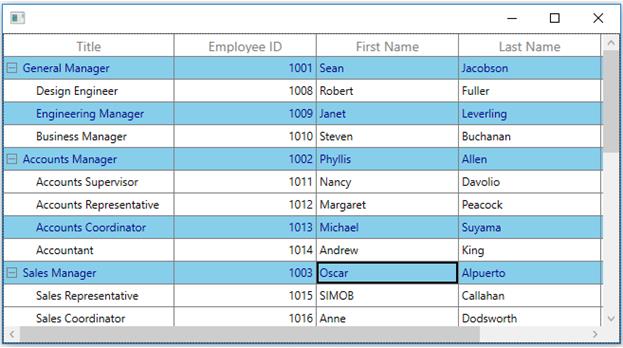
Change current cell border style
You can change the current cell border thickness and border color using the CurrentCellBorderThickness and CurrentCellBorderBrush properties.
<syncfusion:SfTreeGrid Name="treeGrid"
                       Grid.Row="0"
                       AutoExpandMode="RootNodesExpanded"
                       AutoGenerateColumns="False"
                       SelectionMode="Multiple"
                       ChildPropertyName="ReportsTo"
                       SelectionChanged="TreeGrid_SelectionChanged"
                       ItemsSource="{Binding EmployeeInfo}"
                       LiveNodeUpdateMode="AllowDataShaping"
                       ParentPropertyName="ID"
                       SelectedIndex="0"
                       CurrentCellBorderBrush="Red"
                       CurrentCellBorderThickness="1.6">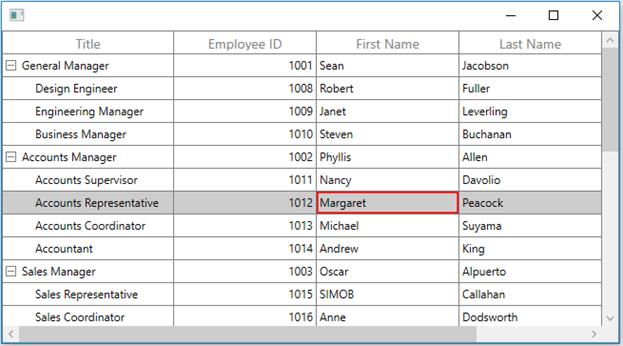
Customize row selection border
You can customize the row selection by editing the control template of TreeGridRowControl.
<Style TargetType="syncfusion:TreeGridRowControl">
            <Setter Property="BorderBrush" Value="{StaticResource ContentBorderBrush}" />
            <Setter Property="Template">
                <Setter.Value>
                    <ControlTemplate TargetType="syncfusion:TreeGridRowControl">
                        <Grid>
                            <Border x:Name="PART_BackgroundBorder"
                                Margin="{TemplateBinding IndentMargin}"
                                Background="{TemplateBinding Background}"
                                Visibility="Visible">
                                <Rectangle x:Name="PART_FocusRect"
                                       Margin="1,2,2,2"
                                       Fill="Transparent"
                                       Stroke="DarkGray"
                                       StrokeDashArray="2,2"
                                       StrokeThickness="1"
                                       Visibility="Collapsed" />
                            </Border>
             <!-- Adding new border to show border for whole selected row -->
                            <Border x:Name="PART_SelectionBorder"
                                Margin="{TemplateBinding IndentMargin}"
                                Background="{TemplateBinding SelectionBackground}"
                                Visibility="Collapsed"
                                BorderBrush="Red"
                                BorderThickness="1.5,1.5,1.5,2.5"
                                Opacity="0.75"/>

                            <ContentPresenter />

                            <VisualStateManager.VisualStateGroups>
                                <VisualStateGroup x:Name="SelectionStates">
                                    <VisualState x:Name="Unselected" />
                                    <VisualState x:Name="Selected">
                                        <Storyboard>
                                            <ObjectAnimationUsingKeyFrames BeginTime="00:00:00"
                                                                       Storyboard.TargetName="PART_SelectionBorder"
                                                                       Storyboard.TargetProperty="(UIElement.Visibility)">
                                                <DiscreteObjectKeyFrame KeyTime="00:00:00" Value="{x:Static Visibility.Visible}" />
                                            </ObjectAnimationUsingKeyFrames>
                                        </Storyboard>
                                    </VisualState>
                                    <VisualState x:Name="SelectedPointerOver">
                                        <Storyboard>
                                            <ObjectAnimationUsingKeyFrames BeginTime="00:00:00"
                                                                       Storyboard.TargetName="PART_SelectionBorder"
                                                                       Storyboard.TargetProperty="(UIElement.Visibility)">
                                                <DiscreteObjectKeyFrame KeyTime="00:00:00" Value="{x:Static Visibility.Visible}" />
                                            </ObjectAnimationUsingKeyFrames>
                                        </Storyboard>
                                    </VisualState>
                                    <VisualState x:Name="SelectedPressed">
                                        <Storyboard>
                                            <ObjectAnimationUsingKeyFrames BeginTime="00:00:00"
                                                                       Storyboard.TargetName="PART_SelectionBorder"
                                                                       Storyboard.TargetProperty="(UIElement.Visibility)">
                                                <DiscreteObjectKeyFrame KeyTime="00:00:00" Value="{x:Static Visibility.Visible}" />
                                            </ObjectAnimationUsingKeyFrames>
                                        </Storyboard>
                                    </VisualState>

                                    <VisualState x:Name="UnselectedPointerOver" />
                                    <VisualState x:Name="UnselectedPressed" />
                                    <VisualState x:Name="Focused">
                                        <Storyboard>
                                            <ObjectAnimationUsingKeyFrames BeginTime="00:00:00"
                                                                       Storyboard.TargetName="PART_FocusRect"
                                                                       Storyboard.TargetProperty="(UIElement.Visibility)">
                                                <DiscreteObjectKeyFrame KeyTime="00:00:00" Value="{x:Static Visibility.Visible}" />
                                            </ObjectAnimationUsingKeyFrames>
                                        </Storyboard>

                                    </VisualState>
                                </VisualStateGroup>
                            </VisualStateManager.VisualStateGroups>
                        </Grid>
                    </ControlTemplate>
                </Setter.Value>
            </Setter>
        </Style>
Customizing cell selection border
You can customize the cell selection by editing the control template of the corresponding TreeGridCell control.
<Style TargetType="{x:Type syncfusion:TreeGridCell}">
    <Setter Property="Background" Value="Transparent" />
    <Setter Property="BorderBrush" Value="Gray" />
    <Setter Property="BorderThickness" Value="0,0,1,1" />
    <Setter Property="Padding" Value="0,0,0,0" />
    <Setter Property="FocusVisualStyle" Value="{x:Null}" />
    <Setter Property="IsTabStop" Value="False" />
    <Setter Property="VerticalContentAlignment" Value="Center"/>
    <Setter Property="Template">
        <Setter.Value>
            <ControlTemplate TargetType="{x:Type syncfusion:TreeGridCell}">
                <Grid SnapsToDevicePixels="True">
                    <Border Background="{TemplateBinding CellSelectionBrush}"
                            SnapsToDevicePixels="True"
                            Visibility="{TemplateBinding SelectionBorderVisibility}" />
                    <Border x:Name="PART_GridCellBorder"
                            Background="{TemplateBinding Background}"
                            BorderBrush="{TemplateBinding BorderBrush}"
                            BorderThickness="{TemplateBinding BorderThickness}">
                            <ContentPresenter />
                    </Border>
                    <Border x:Name="PART_CurrentCellBorder"
                            Margin="0,0,1,1"
                            Background="Transparent"
                            BorderBrush="Red"
                            BorderThickness="0.5"
                            IsHitTestVisible="False"
                            Visibility="Collapsed"/>
                    <!—Adding new border to show inner border to the CurrentCellBorder -->
                    <Border x:Name="PART_InnerCurrentCellBorder"
                            Margin="2,2,3,3"
                            Background="Transparent"
                            BorderBrush="Red"
                            BorderThickness="0.5"
                            IsHitTestVisible="False"
                            Visibility="Collapsed"/>
                    <VisualStateManager.VisualStateGroups>
                        <VisualStateGroup x:Name="CurrentStates">
                            <VisualState x:Name="Regular" />
                            <VisualState x:Name="Current">
                                <Storyboard>
                                    <ObjectAnimationUsingKeyFrames BeginTime="00:00:00"
                                                           Storyboard.TargetName="PART_CurrentCellBorder"
                                                           Storyboard.TargetProperty="(UIElement.Visibility)">
                                        <DiscreteObjectKeyFrame KeyTime="00:00:00" Value="{x:Static Visibility.Visible}" />
                                    </ObjectAnimationUsingKeyFrames>
                                    <ObjectAnimationUsingKeyFrames BeginTime="00:00:00"
                                                            Storyboard.TargetName="PART_InnerCurrentCellBorder"
                                                            Storyboard.TargetProperty="(UIElement.Visibility)">
                                        <DiscreteObjectKeyFrame KeyTime="00:00:00" Value="{x:Static Visibility.Visible}" />
                                    </ObjectAnimationUsingKeyFrames>
                                </Storyboard>
                            </VisualState>
                        </VisualStateGroup>
                    </VisualStateManager.VisualStateGroups>
                </Grid>
            </ControlTemplate>
        </Setter.Value>
    </Setter>
</Style>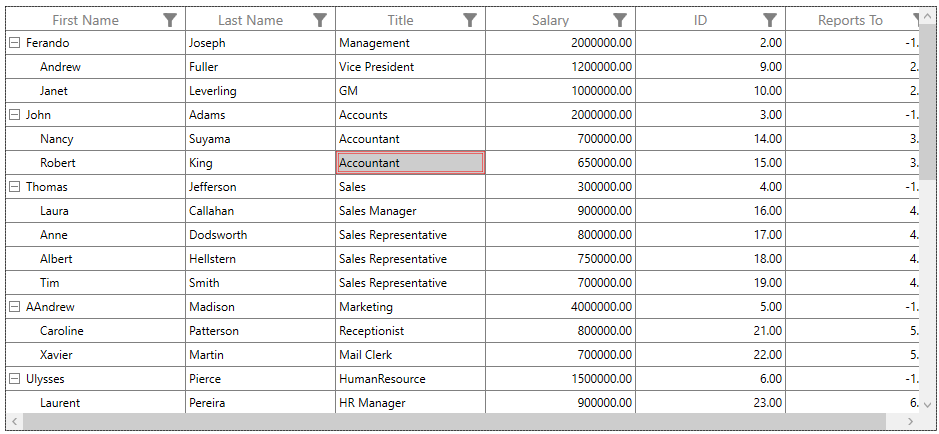
Customize selection behaviors
The SfTreeGrid process the selection operations in selection controller. Below are the built-in selection controllers,
-
TreeGridRowSelectionController – Process selection operations when
selection unitasrow. -
TreeGridCellSelectionController – process selection operations when
selection unitascellorAny.
You can customize the default row selection behaviors by overriding the TreeGridRowSelectionController class or customize the cell selection behaviors by overriding the TreeGridCellSelectionController class and set it to SfTreeGrid.SelectionController.
this.treeGrid.SelectionController = new GridSelectionControllerExt(this.treeGrid);
public class GridSelectionControllerExt : TreeGridRowSelectionController
{
    public GridSelectionControllerExt(SfTreeGrid treeGrid) : base(treeGrid)
    {
    }
}
Change enter key behavior
By default, when pressing the Enter key, the current cell will be moved to the next focused cell in the same column. You can change the Enter key behavior by overriding the ProcessKeyDown method in selection controller. In this method, you have to create a new KeyEventArgs, which refers to the Tab key and processes the Tab key action.
public class GridSelectionControllerExt : TreeGridRowSelectionController
{
    public GridSelectionControllerExt(SfTreeGrid treeGrid) : base(treeGrid)
    {

    }
    protected override void ProcessKeyDown(KeyEventArgs args)
    {
        if (args.Key == Key.Enter)
        {
            //Creates new KeyEventArgs to refer the Tab key.
            KeyEventArgs arguments = new KeyEventArgs(args.KeyboardDevice, args.InputSource, args.Timestamp, Key.Tab) { RoutedEvent = args.RoutedEvent };

            //Base ProcessKeyDown is invoked to process Tab key operations.
            base.ProcessKeyDown(arguments);
            args.Handled = arguments.Handled;
            return;
        }
        base.ProcessKeyDown(args);
    }
}
Scroll and select the record programmatically
You can scroll to the record programmatically using the ScrollInView method by passing the row index of the record. You can get the row index of the record using the ResolveToRowIndex extension method present in Syncfusion.UI.Xaml.TreeGrid.Helpers.
You can select the record programmatically by setting the SelectedItem property in tree grid.
private void Treegrid_Loaded(object sender, System.Windows.RoutedEventArgs e)
{
    var selectedItem = (this.treegrid.DataContext as ViewModel).SelectedItem;
    var rowindex = this.treegrid.ResolveToRowIndex(selectedItem);
    var columnindex = this.treegrid.ResolveToStartColumnIndex();
    //Make the row in to available on the view.
    this.treegrid.ScrollInView(new RowColumnIndex(rowindex, columnindex));
    //Set the SelectedItem in SfTreeGrid.
    this.treegrid.SelectedItem = selectedItem;
}
You can download the sample.
Prevent the selection when right-click
You can prevent the selection when right-clicking in tree grid by customizing the SelectionController and overriding the ProcessPointerPressed.
protected override void ProcessPointerPressed(MouseButtonEventArgs args, RowColumnIndex rowColumnIndex)
{
    if (args.ChangedButton == MouseButton.Right)
    {
        args.Handled = true;
    }
    else
        base.ProcessPointerPressed(args, rowColumnIndex);
}
You can download the sample.
Change the checkbox column values based on row selection
In tree grid, you can select multiple rows using the SelectionMode property. You can process the CheckBoxSelection using TreeGridCheckBoxColumn and a boolean property called IsSelected in Model. You can also select all the rows in tree grid by defining the CheckBox in header cell of GridCheckBoxColumn using GridColumn.HeaderTemplate.
public static class Commands
{
    static Commands()
    {
        CommandManager.RegisterClassCommandBinding(typeof(CheckBox), new CommandBinding(CheckAndUnCheck, OnCheckUnCheckCommand, OnCanExecuteCheckAndUnCheck));
    }

    public static RoutedCommand CheckAndUnCheck = new RoutedCommand("CheckAndUnCheck", typeof(CheckBox));

    private static void OnCheckUnCheckCommand(object sender, ExecutedRoutedEventArgs args)
    {
        var treegrid = (args.Parameter as SfTreeGrid);
        var viewmodel = (treegrid.DataContext as ViewModel);
        var checkbox = (sender as CheckBox).IsChecked;
        if (viewmodel != null)
        {
            if (checkbox == true)
            {
                treegrid.SelectAll();
                foreach (var collection in viewmodel.EmployeeInfo)
                {
                    if (collection.IsSelected == false)
                        collection.IsSelected = true;
                }
            }
            else if (checkbox == false)
            {
                treegrid.ClearSelections(false);
                foreach (var collection in viewmodel.EmployeeInfo)
                {
                    if (collection.IsSelected == true)
                        collection.IsSelected = false;
                }
            }
        }
    }

    private static void OnCanExecuteCheckAndUnCheck(object sender, CanExecuteRoutedEventArgs args)
    {
        args.CanExecute = true;
    }
}
You can download the sample.
Select the rows based on cell value
In tree grid, you can select the rows based on cell value by adding the corresponding records to SelectedItems. You can get the cell value of a particular cell using the View.GetPropertyAccessProvider method.
private void Button_Click(object sender, RoutedEventArgs e)
{
    if (treeGrid.View != null)
        reflector = treeGrid.View.GetPropertyAccessProvider();
    else
        reflector = null;

    var totalRowIndex = treeGrid.View.Nodes.Count;
    var totalColumnIndex = treeGrid.Columns.Count;

    for (int recordIndex = 0; recordIndex < totalRowIndex; recordIndex++)
    {
        for (int colindex = 0; colindex < totalColumnIndex; colindex++)
        {
            var record = this.treeGrid.View.Nodes[recordIndex];
            var mappingName = treeGrid.Columns[colindex].MappingName;
            //Get the cell value based on mappingName.
            var currentCellValue = reflector.GetValue(record.Item, mappingName);
            if (currentCellValue == "Steven")
            {
                object node = treeGrid.View.Nodes[recordIndex];
                //selected rows should be added here.
                treeGrid.SelectedItems.Add((node as TreeNode).Item);
            }
        }
    }
}
Search and select the record
You can search and select a record in tree grid based on the searched text using the TextChanged event of TextBox.
private void TextBox_TextChanged(object sender, System.Windows.Controls.TextChangedEventArgs e)
{
    var textBox = sender as TextBox;
    var treeGrid = this.AssociatedObject.treeGrid;
    if (textBox.Text == "")
        treeGrid.SelectedItems.Clear();

    for (int i = 0; i < treeGrid.View.Nodes.Count; i++)
    {
        if (Provider == null)
            Provider = treeGrid.View.GetPropertyAccessProvider();

        if (treeGrid.View.Nodes[i].HasChildNodes && treeGrid.View.Nodes[i].ChildNodes.Count == 0)
        {
            treeGrid.BeginInit();
            treeGrid.ExpandNode(treeGrid.View.Nodes[i]);
            treeGrid.CollapseNode(treeGrid.View.Nodes[i]);
            treeGrid.EndInit();
        }
        else if (treeGrid.View.Nodes[i].HasChildNodes)
        {
            dataRow = (treeGrid.View.Nodes[i].Item as EmployeeInfo);
            FindMatchText(dataRow);
            GetChildNodes(treeGrid.View.Nodes[i]);
        }
        else
        {
            dataRow=(treeGrid.View.Nodes[i].Item as EmployeeInfo);
            FindMatchText(dataRow);
        }
    }
}
You can download the sample.
Read cell values from selected items
You can get the cell values of SelectedItems using SfTreeGrid.SelectedItems and internal reflector, which reflects the field value from data object based on field name.
private void Button_Click(object sender, RoutedEventArgs e)
{
    listBox.Items.Clear();
    // Get the selected items of SfTreeGrid
    var reflector = this.treeGrid.View.GetPropertyAccessProvider();
    foreach (var row in this.treeGrid.SelectedItems)
    {
        foreach (var column in treeGrid.Columns)
        {
            //Get the value from data object based on MappingName
            var cellvalue = reflector.GetValue(row, column.MappingName);
            //Returns the display value of the cell from data object based on MappingName
            //var displayValue = reflector.GetFormattedValue(row, column.MappingName);
            listBox.Items.Add(cellvalue.ToString());
        }
    }
}
Show the selection of row/cell when setting the background
The Row/Cell selection border is behind the grid cell content. So, when you apply the background for a row, the selection is not displayed in UI. You can overcome this by setting opacity in TreeGridCell.
<Style TargetType="syncfusion:TreeGridCell">
            <Setter Property="Background">
                <Setter.Value>
                    <SolidColorBrush Color="Blue" Opacity="0.5"/>
                </Setter.Value>
</Setter>
</Style>
Set the current cell on a particular row when tree grid is loaded
You can set the current cell in tree grid using the treeGrid.SelectionController.MoveCurrentCell method.
private void TreeGrid_Loaded(object sender, RoutedEventArgs e)
{
    var viewModel = this.treeGrid.DataContext as ViewModel;
    //find the RowIndex for particular record
    var RowIndex = this.treeGrid.ResolveToRowIndex(viewModel.EmployeeInfo[5]);
    // find the ColumnIndex for that row.
    var ColumnIndex = this.treeGrid.ResolveToScrollColumnIndex(2);
    // CurrentCell is set if MappingName is EmployeeID
    if (this.treeGrid.Columns[ColumnIndex].MappingName == "FirstName")
        this.treeGrid.SelectionController.MoveCurrentCell(new RowColumnIndex(RowIndex, ColumnIndex));
}
NOTE
You can refer to our WPF TreeGrid feature tour page for its groundbreaking feature representations. You can also explore our WPF TreeGrid example to know how to render and configure the treegrid.