Crosshair in WinUI Chart
18 Nov 20189 minutes to read
The Chart crosshair behavior allows you to view the data values at the current mouse pointer or touch contact point. By moving the crosshair lines horizontally, you can identify the corresponding X values, and by moving them vertically, you can identify the Y values.
Define crosshair
To add the crosshair in the chart, create an instance of ChartCrosshairBehavior and set it to the CrosshairBehavior property of the chart.
<chart:SfCartesianChart>
    <chart:SfCartesianChart.CrosshairBehavior>
        <chart:ChartCrosshairBehavior/>
    </chart:SfCartesianChart.CrosshairBehavior>

    <!-- Configure additional chart elements -->
</chart:SfCartesianChart>
SfCartesianChart chart = new SfCartesianChart();
// Configure additional chart elements
ChartCrosshairBehavior behavior = new ChartCrosshairBehavior();
chart.CrosshairBehavior = behavior;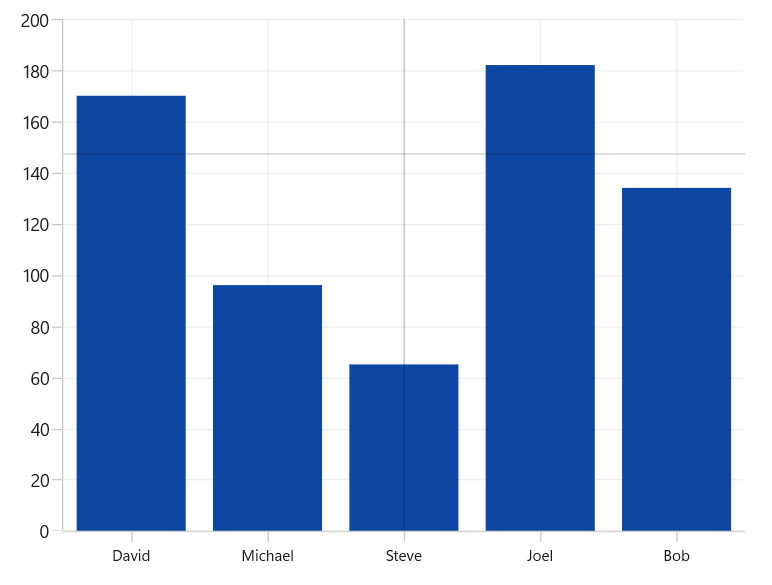
To view the crosshair label in a particular axis, you have to enable the ShowTrackballLabel property in that axis as in the following code snippet.
<chart:SfCartesianChart>
    <chart:SfCartesianChart.XAxes>
        <chart:CategoryAxis ShowTrackballLabel="True"/>
    </chart:SfCartesianChart.XAxes>

    <!-- Configure additional chart elements -->
    <chart:SfCartesianChart.CrosshairBehavior>
        <chart:ChartCrosshairBehavior/>
    </chart:SfCartesianChart.CrosshairBehavior>
</chart:SfCartesianChart>
SfCartesianChart chart = new SfCartesianChart();
// Configure additional chart elements
ChartCrosshairBehavior behavior = new ChartCrosshairBehavior();
chart.CrosshairBehavior = behavior;
CategoryAxis primaryAxis = new CategoryAxis()
{
ShowTrackballLabel = true
};
chart.XAxes.Add(primaryAxis);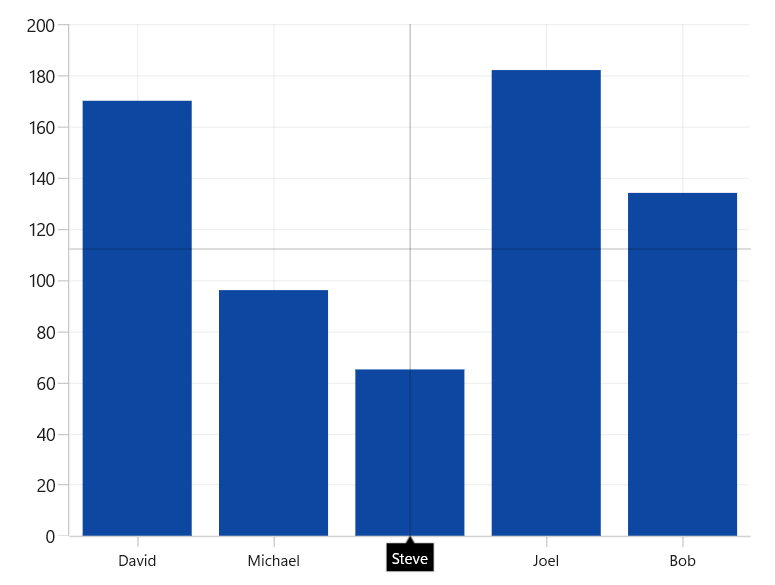
Horizontal and vertical line style
When you add ChartCrossHairBehavior to a chart in WinUI, horizontal and vertical crosshair lines will appear to indicate the current pointer position. These lines help you track the corresponding X and Y values on the chart. You can customize the appearance of these lines using the HorizontalLineStyle and VerticalLineStyle properties.
Horizontal line style
The following code snippet demonstrates how to customize the line style for the horizontal line in the crosshair.
<chart:SfCartesianChart x:Name="chart">
    <chart:SfCartesianChart.Resources>
        <ResourceDictionary>
            <Style TargetType="Line" x:Key="horizontalLineStyle">
                <Setter Property="Stroke" Value="Red"></Setter>
                <Setter Property="StrokeThickness" Value="2"></Setter>
                <Setter Property="StrokeDashArray" Value="5,2"></Setter>
            </Style>
        </ResourceDictionary>
    </chart:SfCartesianChart.Resources>

    <chart:SfCartesianChart.CrosshairBehavior>
        <chart:ChartCrosshairBehavior HorizontalLineStyle="{StaticResource horizontalLineStyle}"/>
    </chart:SfCartesianChart.CrosshairBehavior>
</chart:SfCartesianChart>
// The 'horizontalLineStyle' resource is defined in XAML Resources and referenced here.
ChartCrossHairBehavior crosshair = new ChartCrossHairBehavior()
{
HorizontalLineStyle = chart.Resources["horizontalLineStyle"] as Style
};
chart.Behaviors.Add(crosshair);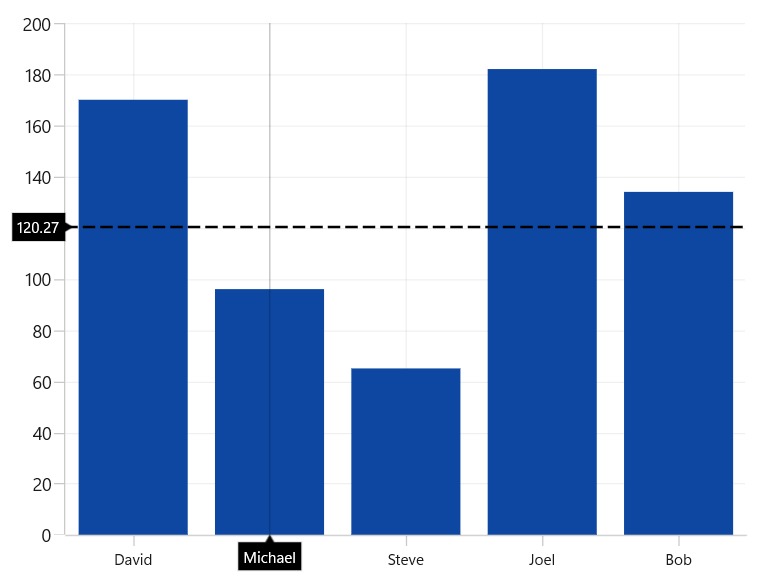
Vertical line style
The following code snippet demonstrates how to customize the line style for the vertical line in the crosshair.
<chart:SfCartesianChart x:Name="chart">
    <chart:SfCartesianChart.Resources>
        <ResourceDictionary>
            <Style TargetType="Line" x:Key="verticalLineStyle">
                 <Setter Property="Stroke" Value="Red"></Setter>
                 <Setter Property="StrokeThickness" Value="2"></Setter>
                 <Setter Property="StrokeDashArray" Value="5,2"></Setter>
            </Style>
        </ResourceDictionary>
    </chart:SfCartesianChart.Resources>

    <chart:SfCartesianChart.CrosshairBehavior>
        <chart:ChartCrosshairBehavior VerticalLineStyle="{StaticResource verticalLineStyle}"/>
    </chart:SfCartesianChart.CrosshairBehavior>
</chart:SfCartesianChart>
// The 'verticalLineStyle' resource is defined in XAML Resources and referenced here.
ChartCrossHairBehavior crosshair = new ChartCrossHairBehavior()
{
VerticalLineStyle = chart.Resources["verticalLineStyle"] as Style
};
chart.Behaviors.Add(crosshair);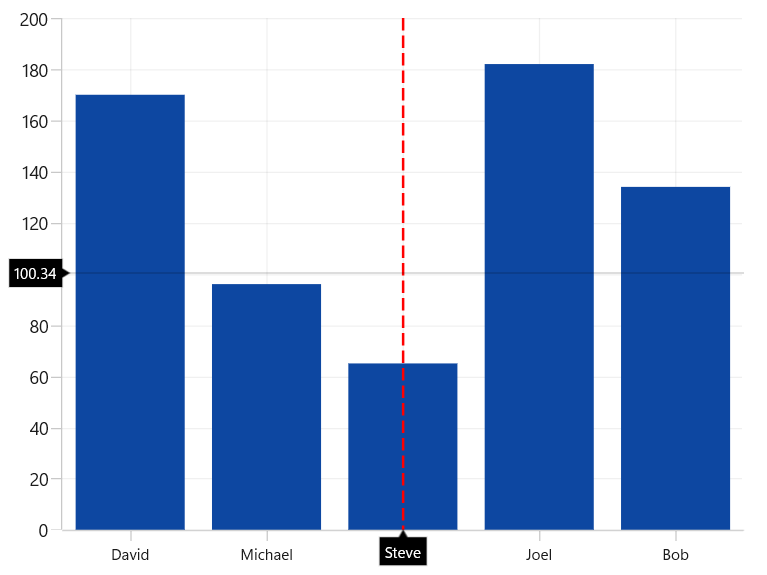
Horizontal and vertical axis label
The horizontal axis label appears when the vertical line intersects the X-axis, and the vertical axis label appears when the horizontal line intersects the Y-axis. These labels can be customized using the HorizontalAxisLabelAlignment and VerticalAxisLabelAlignment properties. By default, the axis label will be positioned in the center.
Axis label can be aligned by Near, Far, Center, and Auto options.
-
Auto- Axis label is aligned in Near/Far positions based on the movement of vertical line. -
Far- Axis label is positioned far from the position of vertical line in cross hair. -
Near- Axis label is near to the position of crosshair line. -
Center- Axis label is aligned to the center of the line.
Horizontal axis label alignment
The following code snippet demonstrates how to customize the horizontal axis label alignment in the crosshair.
<chart:SfCartesianChart.CrosshairBehavior>
    <chart:ChartCrosshairBehavior HorizontalAxisLabelAlignment="Far"/>
</chart:SfCartesianChart.CrosshairBehavior>
ChartCrossHairBehavior crosshair = new ChartCrossHairBehavior()
{
HorizontalAxisLabelAlignment = ChartAlignment.Far
};
chart.Behaviors.Add(crosshair);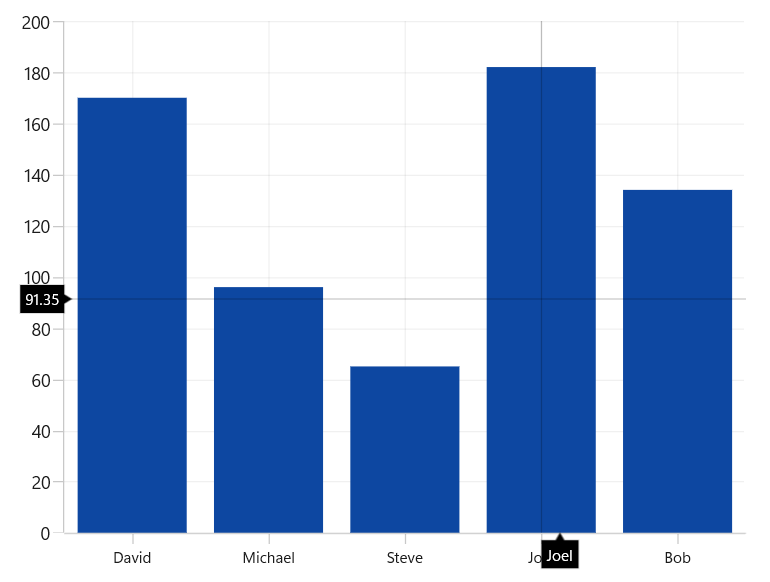
Vertical axis label alignment
The following code snippet demonstrates how to customize the vertical axis label alignment in the crosshair.
<chart:SfCartesianChart.CrosshairBehavior>
    <chart:ChartCrosshairBehavior VerticalAxisLabelAlignment="Far"/>
</chart:SfCartesianChart.CrosshairBehavior>
ChartCrossHairBehavior crosshair = new ChartCrossHairBehavior()
{
VerticalAxisLabelAlignment = ChartAlignment.Far
};
chart.Behaviors.Add(crosshair);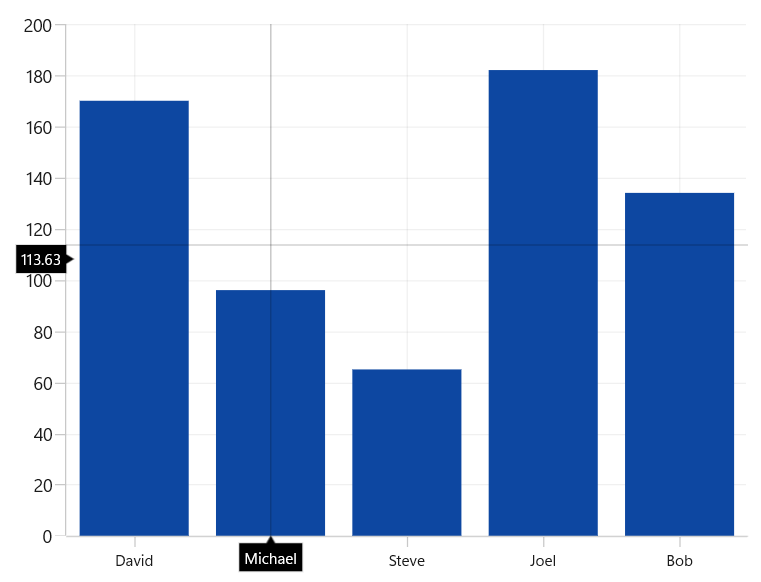
Template
The default appearance of the crosshair axis labels can be customized by using the CrosshairLabelTemplate property of the chart axis. The following example demonstrates how to set the crosshair label template.
<chart:SfCartesianChart>

    <!-- Configure additional chart elements -->
    <chart:SfCartesianChart.Resources>
        <DataTemplate x:Key="xaxesCrossHairTemplate" x:DataType="chart:ChartPointInfo">
            <Border Background="Orange" CornerRadius="4" BorderThickness="1" BorderBrush="Black">
                <TextBlock Margin="2" Text="{Binding ValueX}"/>
            </Border>
        </DataTemplate>

        <DataTemplate x:Key="yaxesCrossHairTemplate" x:DataType="chart:ChartPointInfo">
            <Border Background="Orange" CornerRadius="4" BorderThickness="1" BorderBrush="Black">
                <TextBlock Margin="2" Text="{Binding ValueY}"/>
            </Border>
        </DataTemplate>
    </chart:SfCartesianChart.Resources>

    <chart:SfCartesianChart.XAxes>
        <chart:CategoryAxis ShowTrackballLabel="True" CrosshairLabelTemplate="{StaticResource xaxesCrossHairTemplate}" />
    </chart:SfCartesianChart.XAxes>

    <chart:SfCartesianChart.YAxes>
        <chart:NumericalAxis ShowTrackballLabel="True" CrosshairLabelTemplate="{StaticResource yaxesCrossHairTemplate}"/>
    </chart:SfCartesianChart.YAxes>

    <chart:SfCartesianChart.CrosshairBehavior>
        <chart:ChartCrosshairBehavior/>
    </chart:SfCartesianChart.CrosshairBehavior>

</chart:SfCartesianChart>
SfCartesianChart chart = new SfCartesianChart();
ChartCrosshairBehavior behavior = new ChartCrosshairBehavior();
chart.CrosshairBehavior = behavior;
// The 'xaxesCrossHairTemplate' resource is defined in XAML Resources and referenced here.
CategoryAxis primaryAxis = new CategoryAxis()
{
ShowTrackballLabel = true,
CrosshairLabelTemplate = chart.Resources["xaxesCrossHairTemplate"] as DataTemplate
};
chart.XAxes.Add(primaryAxis);
// The 'yaxesCrossHairTemplate' resource is defined in XAML Resources and referenced here.
NumericalAxis secondaryAxis = new NumericalAxis()
{
ShowTrackballLabel = true,
CrosshairLabelTemplate = chart.Resources["yaxesCrossHairTemplate"] as DataTemplate
};
chart.XAxes.Add(secondaryAxis);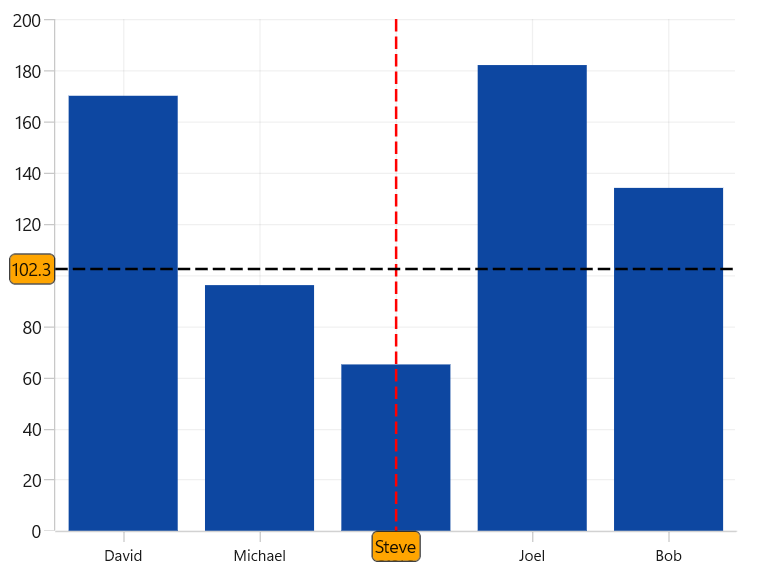
The binding context for
CrosshairLabelTemplateis ChartPointInfo, which provides the necessary data for the crosshair labels.