Style and Appearance in Blazor Scheduler
To modify the Blazor Scheduler appearance, override its default CSS. You can also create a custom theme by using Theme Studio. The following table lists the available Blazor Scheduler CSS classes.
| CSS class | Purpose |
|---|---|
| .e-schedule .e-vertical-view .e-work-cells | Work cells in vertical views of Blazor Scheduler |
| .e-schedule .e-month-view .e-work-cells | Work cells in month view of Blazor Scheduler |
| .e-schedule .e-month-view .e-other-month | Work cells from the other month in month view of Blazor Scheduler |
| .e-schedule .e-timeline-view .e-work-cells | Work cells in timeline views of Blazor Scheduler |
| .e-schedule .e-timeline-month-view .e-work-cells | Work cells in timeline month view of Blazor Scheduler |
| .e-schedule .e-timeline-year-view .e-work-cells | Work cells in timeline year view of Blazor Scheduler |
| .e-schedule .e-timeline-year-view .e-work-cells.e-other-month | Work cells from the other month in timeline year view of Blazor Scheduler |
| .e-schedule .e-month-agenda-view .e-work-cells | Work cells in month agenda view of Blazor Scheduler |
| .e-schedule .e-month-agenda-view .e-other-month | Work cells from the other month in month agenda view of Blazor Scheduler |
| .e-schedule .e-year-view .e-calendar-wrapper .e-month-calendar.e-calendar .e-other-month | Work cells from the other month in year view of Blazor Scheduler |
| .e-schedule .e-vertical-view .e-all-day-cells | All-day cells in vertical views of Blazor Scheduler |
| .e-schedule .e-vertical-view .e-work-hours | Work hour cells in vertical views of Blazor Scheduler |
| .e-schedule .e-month-view .e-work-days | Work day cells in month view of Blazor Scheduler |
| .e-schedule .e-month-agenda-view .e-work-days | Work day cells in month agenda view of Blazor Scheduler |
| .e-schedule .e-timeline-view .e-work-hours | Work hour cells in timeline views of Blazor Scheduler |
| .e-schedule .e-timeline-month-view .e-work-days | Work day cells in timeline month view of Blazor Scheduler |
| .e-schedule .e-timeline-year-view .e-work-cells.e-work-days | Work day cells in timeline year view of Blazor Scheduler |
| .e-schedule .e-vertical-view .e-day-wrapper .e-appointment | Appointments in vertical views of Blazor Scheduler |
| .e-schedule .e-vertical-view .e-all-day-appointment-wrapper .e-appointment | All-day appointments in vertical views of Blazor Scheduler |
| .e-schedule .e-month-view .e-appointment | Appointments in month view of Blazor Scheduler |
| .e-schedule .e-timeline-view .e-appointment | Appointments in timeline views of Blazor Scheduler |
| .e-schedule .e-timeline-month-view .e-appointment | Appointments in timeline month view of Blazor Scheduler |
| .e-schedule .e-timeline-year-view .e-event-table .e-appointment | Appointments in timeline year view of Blazor Scheduler |
| .e-schedule .e-year-view .e-calendar-wrapper .e-month-calendar.e-calendar .e-appointment | Appointments in year view of Blazor Scheduler |
| .e-schedule .e-agenda-view .e-appointment | Appointments in agenda view of Blazor Scheduler |
| .e-schedule .e-month-agenda-view .e-appointment-indicator | Appointment indicator in month agenda view of Blazor Scheduler |
| .e-schedule .e-block-appointment | Blocked appointments in Blazor Scheduler |
| .e-schedule .e-read-only | Read-only appointments in Blazor Scheduler |
| .e-appointment-border | Currently selected appointments |
| .e-selected-cells | Currently selected work cells |
| .e-header-cells | Header cells in Blazor Scheduler |
| .e-schedule .e-vertical-view .e-resource-cells | Resource cells in vertical views of Blazor Scheduler |
| .e-schedule .e-month-view .e-resource-cells | Resource cells in month view of Blazor Scheduler |
| .e-schedule .e-timeline-view .e-resource-cells | Resource cells in timeline views of Blazor Scheduler |
| .e-schedule .e-timeline-month-view .e-resource-cells | Resource cells in timeline month view of Blazor Scheduler |
| .e-parent-node | Parent resource cells in timeline views of Blazor Scheduler |
| .e-child-node | Child resource cells in timeline views of Blazor Scheduler |
Work cells in vertical views of Scheduler
This CSS selector targets the work cells in the vertical views (Day, Week, and WorkWeek) of the Blazor Scheduler component. These cells represent the individual time slots arranged vertically where appointments are displayed.
@using Syncfusion.Blazor.Schedule
<div class="component-container">
    <SfSchedule TValue="AppointmentData" Height="650px" @bind-SelectedDate="@CurrentDate">
        <ScheduleViews>
            <ScheduleView Option="View.Day"></ScheduleView>
            <ScheduleView Option="View.Week"></ScheduleView>
            <ScheduleView Option="View.WorkWeek"></ScheduleView>
            <ScheduleView Option="View.Month"></ScheduleView>
            <ScheduleView Option="View.Agenda"></ScheduleView>
        </ScheduleViews>
    </SfSchedule>
</div>

@code{
    DateTime CurrentDate = new DateTime(2020, 2, 14);
    public class AppointmentData
    {
        public int Id { get; set; }
        public string Subject { get; set; }
        public string Location { get; set; }
        public DateTime StartTime { get; set; }
        public DateTime EndTime { get; set; }
        public string Description { get; set; }
        public bool IsAllDay { get; set; }
        public string RecurrenceRule { get; set; }
        public string RecurrenceException { get; set; }
        public Nullable<int> RecurrenceID { get; set; }
    }
}
<style>
    .e-schedule .e-vertical-view .e-work-cells
    {
        background-color: #ebf3ff;
        border: 1px solid #cceeff;
    }
</style>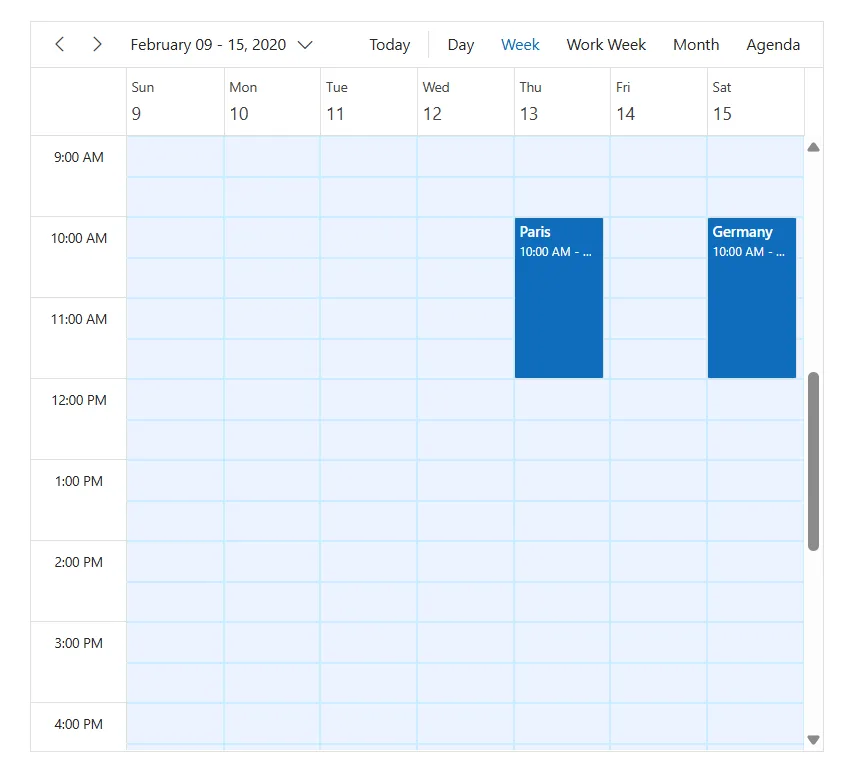
Work cells in month view of Scheduler
This CSS selector targets the work cells in the month view of the Blazor Scheduler that belong to the current month. These cells represent the individual days of the displayed month where users can schedule and view appointments.
@using Syncfusion.Blazor.Schedule
<div class="component-container">
    <SfSchedule TValue="AppointmentData" Height="650px" @bind-SelectedDate="@CurrentDate">
        <ScheduleViews>
            <ScheduleView Option="View.Month"></ScheduleView>
        </ScheduleViews>
    </SfSchedule>
</div>

@code{
    DateTime CurrentDate = new DateTime(2020, 2, 14);
    public class AppointmentData
    {
        public int Id { get; set; }
        public string Subject { get; set; }
        public string Location { get; set; }
        public DateTime StartTime { get; set; }
        public DateTime EndTime { get; set; }
        public string Description { get; set; }
        public bool IsAllDay { get; set; }
        public string RecurrenceRule { get; set; }
        public string RecurrenceException { get; set; }
        public Nullable<int> RecurrenceID { get; set; }
    }
}
<style>
    .e-schedule .e-month-view .e-work-cells
    {
        background-color:rgb(150, 244, 166);
        border: 1px solid #cceeff;
    }
</style>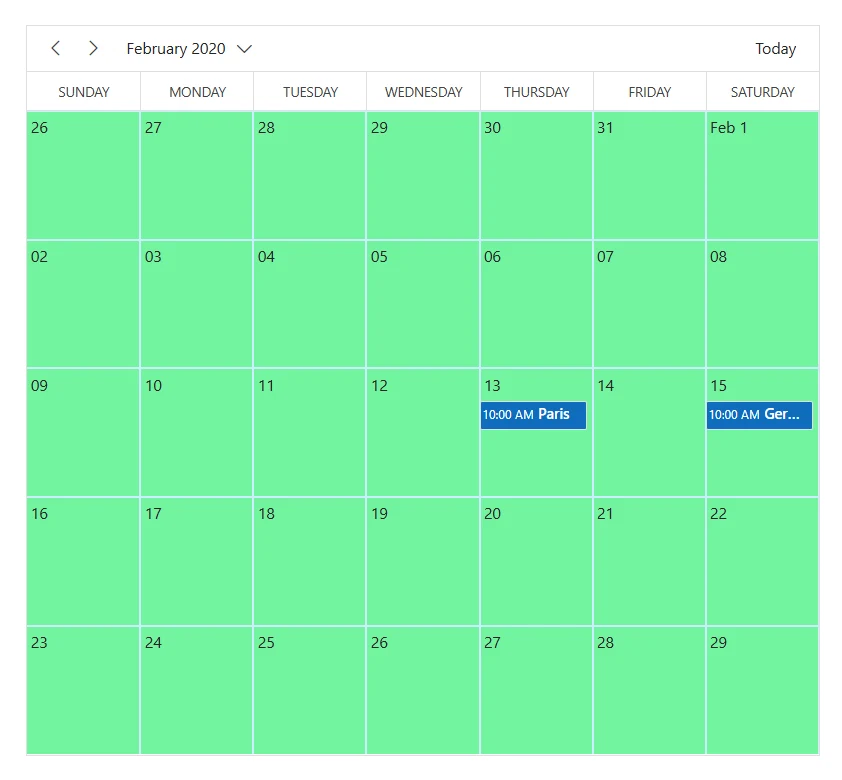
Work cells of other month in month view of Scheduler
This CSS selector targets the work cells that represent days from adjacent months and are visible in the current month view of the Scheduler. These cells typically appear at the beginning and end of the month view to complete the week rows.
@using Syncfusion.Blazor.Schedule
<div class="component-container">
    <SfSchedule TValue="AppointmentData" Height="650px" @bind-SelectedDate="@CurrentDate">
        <ScheduleViews>
            <ScheduleView Option="View.Month"></ScheduleView>
        </ScheduleViews>
    </SfSchedule>
</div>

@code{
    DateTime CurrentDate = new DateTime(2020, 2, 14);
    public class AppointmentData
    {
        public int Id { get; set; }
        public string Subject { get; set; }
        public string Location { get; set; }
        public DateTime StartTime { get; set; }
        public DateTime EndTime { get; set; }
        public string Description { get; set; }
        public bool IsAllDay { get; set; }
        public string RecurrenceRule { get; set; }
        public string RecurrenceException { get; set; }
        public Nullable<int> RecurrenceID { get; set; }
    }
}
<style>
    .e-schedule .e-month-view .e-other-month
    {
        background-color:rgb(218, 207, 240);
        opacity: 0.7;
        color: #999999;
    }
</style>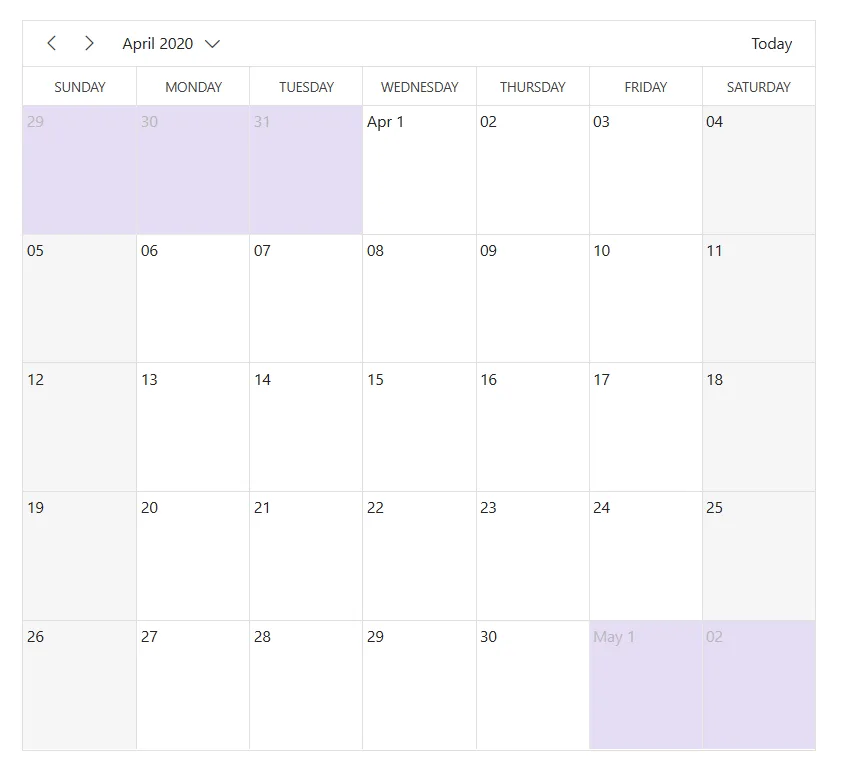
Work cells in timeline views of Scheduler
This CSS selector targets the work cells in the standard timeline views of the Scheduler. These cells represent time slots arranged horizontally across the Scheduler.
@using Syncfusion.Blazor.Schedule
<div class="component-container">
    <SfSchedule TValue="AppointmentData" Height="650px" @bind-SelectedDate="@CurrentDate">
        <ScheduleViews>
            <ScheduleView Option="View.TimelineDay"></ScheduleView>
            <ScheduleView Option="View.TimelineWeek"></ScheduleView>
        </ScheduleViews>
    </SfSchedule>
</div>

@code{
    DateTime CurrentDate = new DateTime(2020, 2, 14);
    public class AppointmentData
    {
        public int Id { get; set; }
        public string Subject { get; set; }
        public string Location { get; set; }
        public DateTime StartTime { get; set; }
        public DateTime EndTime { get; set; }
        public string Description { get; set; }
        public bool IsAllDay { get; set; }
        public string RecurrenceRule { get; set; }
        public string RecurrenceException { get; set; }
        public Nullable<int> RecurrenceID { get; set; }
    }
}
<style>
    .e-schedule .e-timeline-view .e-work-cells
    {
        background-color: rgb(119, 165, 234);
        border: 2px solid #dce7fa;
        min-width: 120px;
    }
</style>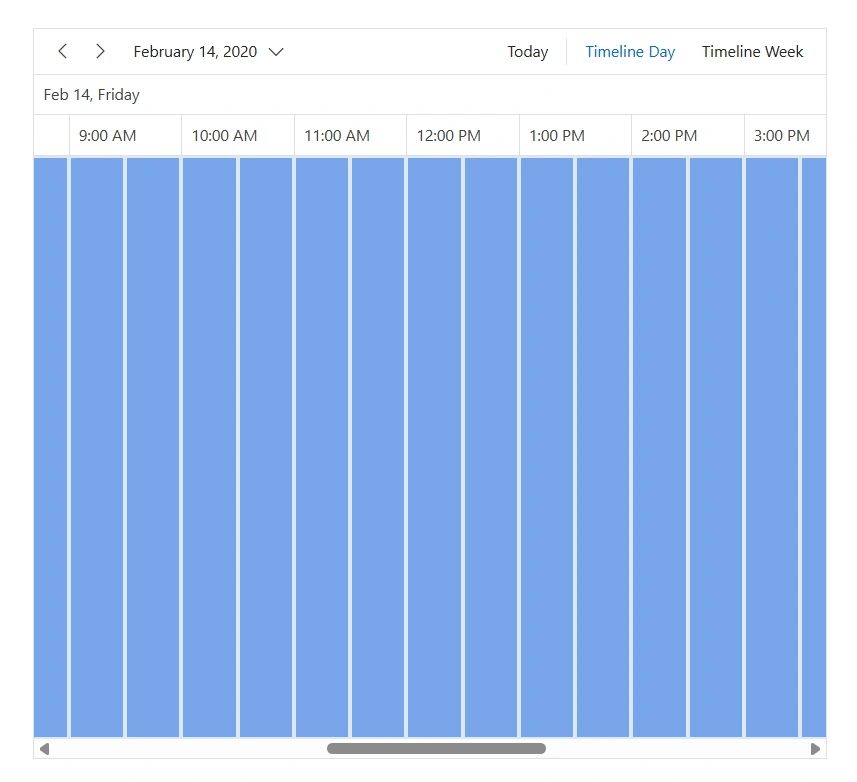
Work cells in timeline month view of Scheduler
This CSS selector targets the work cells in the timeline month view of the Blazor Scheduler component.
@using Syncfusion.Blazor.Schedule
<div class="component-container">
    <SfSchedule TValue="AppointmentData" Height="650px" @bind-SelectedDate="@CurrentDate">
        <ScheduleViews>
            <ScheduleView Option="View.TimelineMonth"></ScheduleView>
        </ScheduleViews>
    </SfSchedule>
</div>

@code{
    DateTime CurrentDate = new DateTime(2020, 2, 14);
    public class AppointmentData
    {
        public int Id { get; set; }
        public string Subject { get; set; }
        public string Location { get; set; }
        public DateTime StartTime { get; set; }
        public DateTime EndTime { get; set; }
        public string Description { get; set; }
        public bool IsAllDay { get; set; }
        public string RecurrenceRule { get; set; }
        public string RecurrenceException { get; set; }
        public Nullable<int> RecurrenceID { get; set; }
    }
}
<style>
    .e-schedule .e-timeline-month-view .e-work-cells
    {
        background-color:rgb(239, 186, 220);
        border: 1px solid rgb(31, 196, 36);
    }
</style>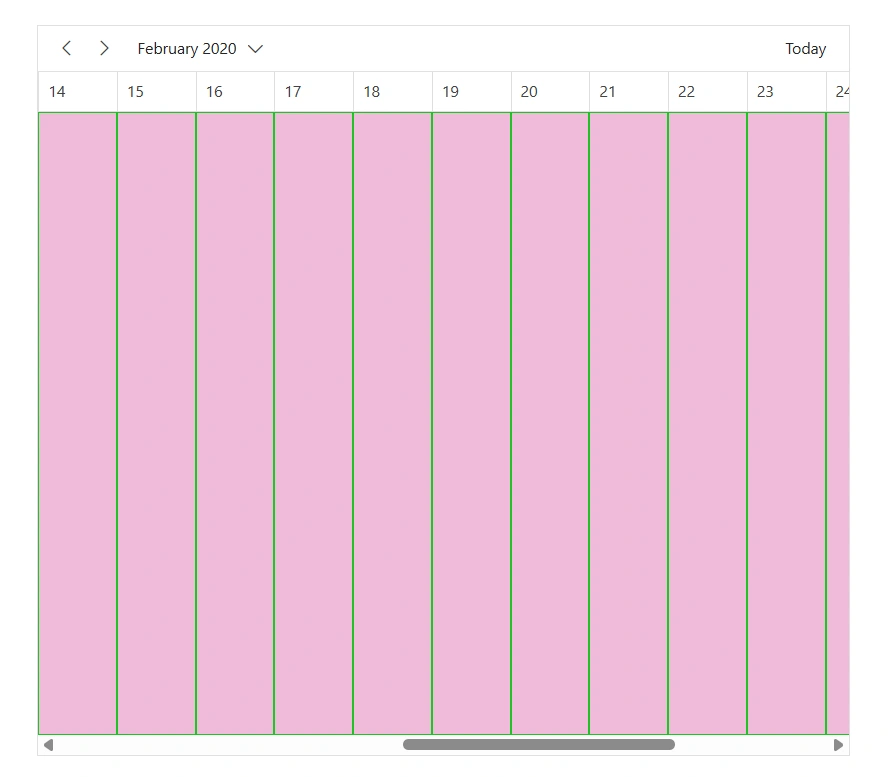
Work cells in timeline year view of Scheduler
This CSS selector targets the work cells in the timeline year view of the Blazor Scheduler component. These cells represent time slots across the year and provide an overview of appointments.
@using Syncfusion.Blazor.Schedule
<div class="component-container">
    <SfSchedule TValue="AppointmentData" Height="650px" @bind-SelectedDate="@CurrentDate">
        <ScheduleViews>
            <ScheduleView Option="View.TimelineYear"></ScheduleView>
        </ScheduleViews>
    </SfSchedule>
</div>

@code{
    DateTime CurrentDate = new DateTime(2020, 2, 14);
    public class AppointmentData
    {
        public int Id { get; set; }
        public string Subject { get; set; }
        public string Location { get; set; }
        public DateTime StartTime { get; set; }
        public DateTime EndTime { get; set; }
        public string Description { get; set; }
        public bool IsAllDay { get; set; }
        public string RecurrenceRule { get; set; }
        public string RecurrenceException { get; set; }
        public Nullable<int> RecurrenceID { get; set; }
    }
}
<style>
    .e-schedule .e-timeline-year-view .e-work-cells
    {
        background-color:rgb(255, 255, 255);
        border: 1px solid rgb(241, 199, 137);
    }
</style>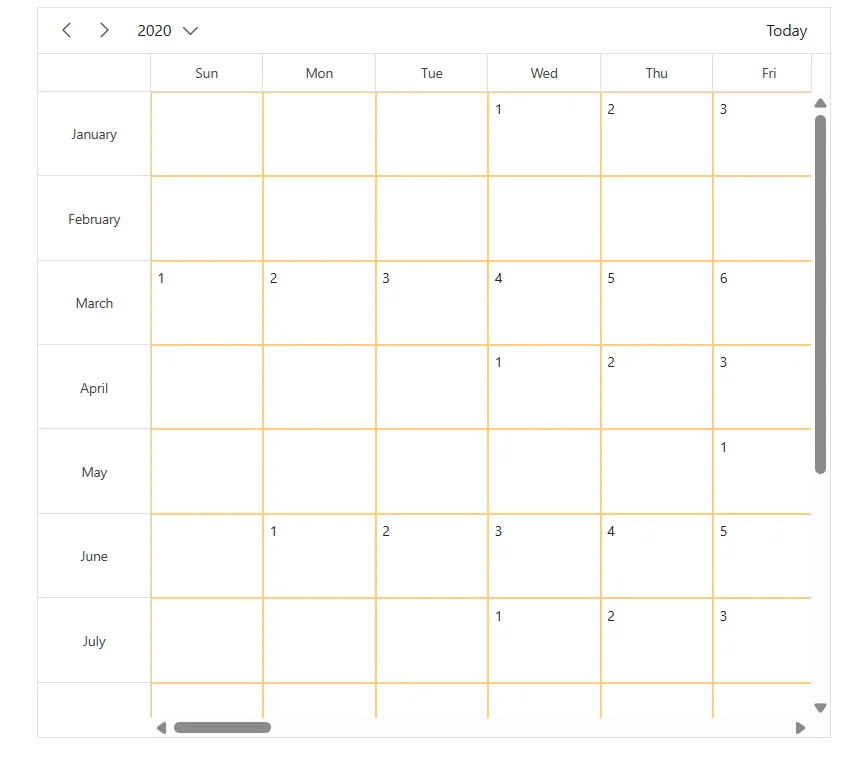
Work cells of other month in timeline year view of Scheduler
This CSS selector targets the work cells representing days from adjacent months that are visible in the timeline year view.
@using Syncfusion.Blazor.Schedule
<div class="component-container">
    <SfSchedule TValue="AppointmentData" Height="650px" @bind-SelectedDate="@CurrentDate">
        <ScheduleViews>
            <ScheduleView Option="View.TimelineYear"></ScheduleView>
        </ScheduleViews>
    </SfSchedule>
</div>

@code{
    DateTime CurrentDate = new DateTime(2020, 2, 14);
    public class AppointmentData
    {
        public int Id { get; set; }
        public string Subject { get; set; }
        public string Location { get; set; }
        public DateTime StartTime { get; set; }
        public DateTime EndTime { get; set; }
        public string Description { get; set; }
        public bool IsAllDay { get; set; }
        public string RecurrenceRule { get; set; }
        public string RecurrenceException { get; set; }
        public Nullable<int> RecurrenceID { get; set; }
    }
}
<style>
    .e-schedule .e-timeline-year-view .e-work-cells.e-other-month
    {
        background-color: rgba(247, 250, 102, 0.98);
        color: #777777;
    }
</style>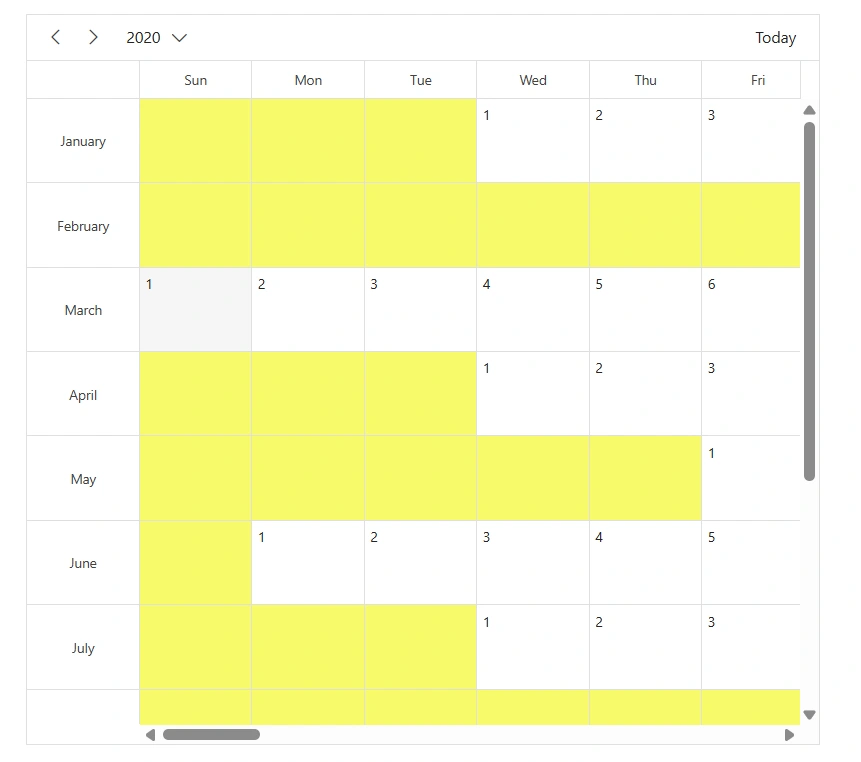
Work cells in month agenda view of Scheduler
This CSS selector targets the work cells in the month agenda view of the Scheduler. These cells are areas where appointments can be placed.
@using Syncfusion.Blazor.Schedule
<div class="component-container">
    <SfSchedule TValue="AppointmentData" Height="650px" @bind-SelectedDate="@CurrentDate">
        <ScheduleViews>
            <ScheduleView Option="View.MonthAgenda"></ScheduleView>
        </ScheduleViews>
    </SfSchedule>
</div>

@code{
    DateTime CurrentDate = new DateTime(2020, 2, 14);
    public class AppointmentData
    {
        public int Id { get; set; }
        public string Subject { get; set; }
        public string Location { get; set; }
        public DateTime StartTime { get; set; }
        public DateTime EndTime { get; set; }
        public string Description { get; set; }
        public bool IsAllDay { get; set; }
        public string RecurrenceRule { get; set; }
        public string RecurrenceException { get; set; }
        public Nullable<int> RecurrenceID { get; set; }
    }
}
<style>
    .e-schedule .e-month-agenda-view .e-work-cells
    {
        background-color: #f0f8ff;
        border: 1px solid #cceeff;
    }
</style>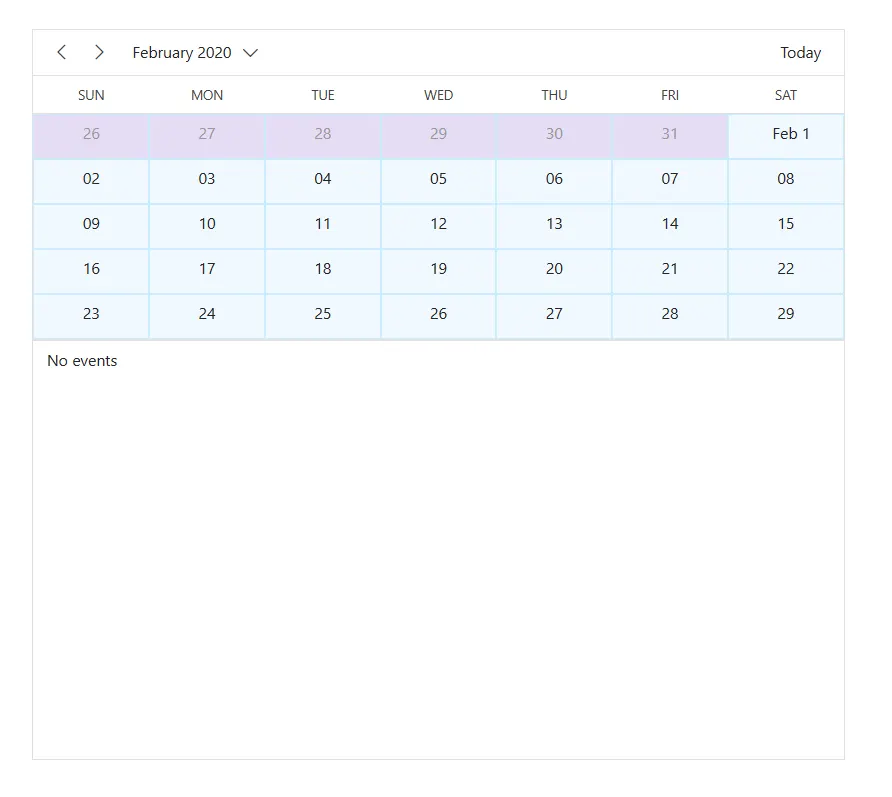
Work cells of other month in month agenda view of Scheduler
This CSS selector targets the work cells representing days that belong to adjacent months within the month agenda view. These cells often show up to provide context for appointments that may extend beyond the current month.
@using Syncfusion.Blazor.Schedule
<div class="component-container">
    <SfSchedule TValue="AppointmentData" Height="650px" @bind-SelectedDate="@CurrentDate">
        <ScheduleViews>
            <ScheduleView Option="View.MonthAgenda"></ScheduleView>
        </ScheduleViews>
    </SfSchedule>
</div>

@code{
    DateTime CurrentDate = new DateTime(2020, 2, 14);
    public class AppointmentData
    {
        public int Id { get; set; }
        public string Subject { get; set; }
        public string Location { get; set; }
        public DateTime StartTime { get; set; }
        public DateTime EndTime { get; set; }
        public string Description { get; set; }
        public bool IsAllDay { get; set; }
        public string RecurrenceRule { get; set; }
        public string RecurrenceException { get; set; }
        public Nullable<int> RecurrenceID { get; set; }
    }
}
<style>
    .e-schedule .e-month-agenda-view .e-work-cells
    {
        background-color: #f0f8ff;
        border: 1px solid #cceeff;
    }
    .e-schedule .e-month-agenda-view .e-other-month
    {
        background-color: rgba(218, 207, 240, 0.7);
        color: #999999;
    }
</style>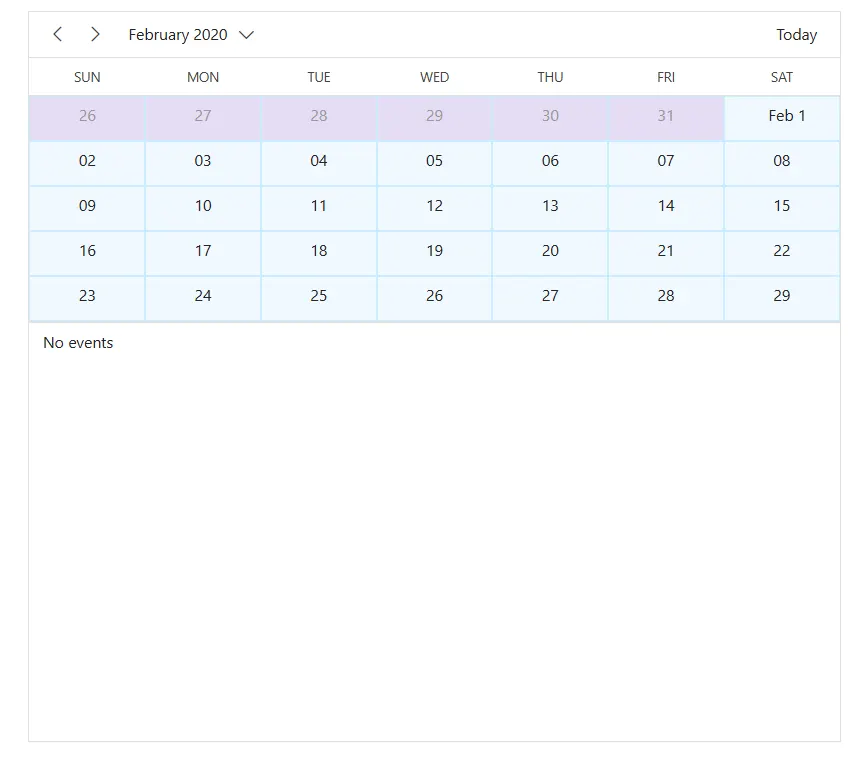
Work cells of other month in year view of Scheduler
This CSS selector targets the work cells representing days from adjacent months (previous or next month) that are visible in the year view of the Scheduler.
@using Syncfusion.Blazor.Schedule
<div class="component-container">
    <SfSchedule TValue="AppointmentData" Height="650px" @bind-SelectedDate="@CurrentDate">
        <ScheduleViews>
            <ScheduleView Option="View.Year"></ScheduleView>
        </ScheduleViews>
    </SfSchedule>
</div>

@code{
    DateTime CurrentDate = new DateTime(2020, 2, 14);
    public class AppointmentData
    {
        public int Id { get; set; }
        public string Subject { get; set; }
        public string Location { get; set; }
        public DateTime StartTime { get; set; }
        public DateTime EndTime { get; set; }
        public string Description { get; set; }
        public bool IsAllDay { get; set; }
        public string RecurrenceRule { get; set; }
        public string RecurrenceException { get; set; }
        public Nullable<int> RecurrenceID { get; set; }
    }
}
<style>
    .e-schedule .e-year-view .e-work-cells.e-other-month
    {
        background-color: rgba(230, 230, 250, 0.7);
        color: #999999;
    }
</style>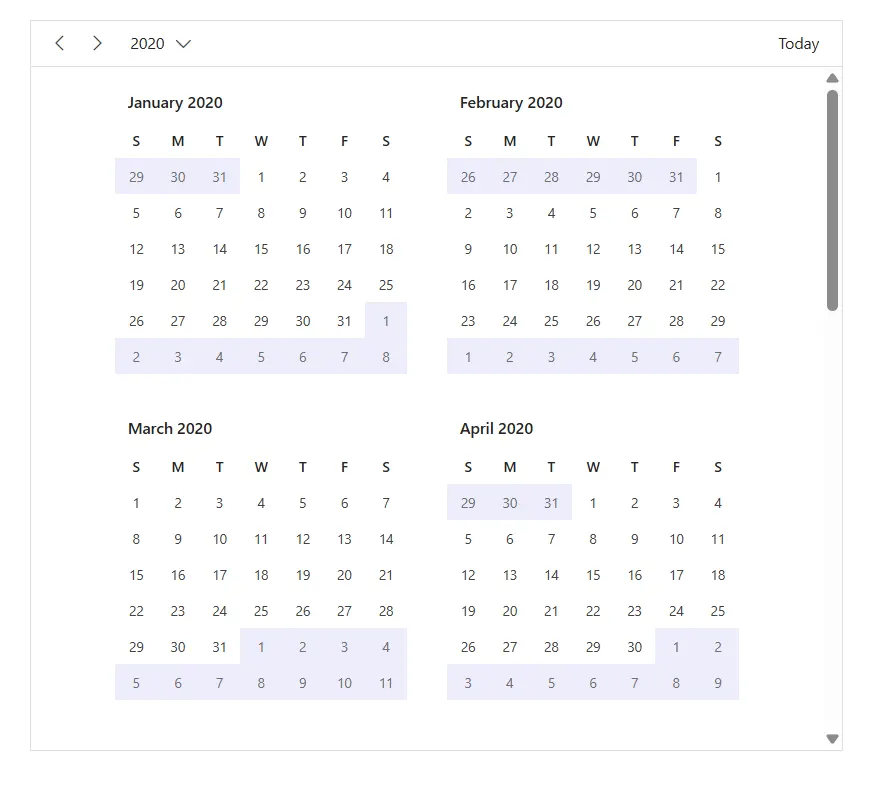
All-day cells in vertical views of Scheduler
This CSS selector targets the all-day cells in the vertical views (Day, Week, and WorkWeek) of the Blazor Scheduler component. These cells represent the time slots designated for all-day events, providing users with a straightforward way to visualize and manage significant appointments.
@using Syncfusion.Blazor.Schedule
<div class="component-container">
    <SfSchedule TValue="AppointmentData" Height="650px" @bind-SelectedDate="@CurrentDate">
        <ScheduleViews>
            <ScheduleView Option="View.Day"></ScheduleView>
            <ScheduleView Option="View.Week"></ScheduleView>
            <ScheduleView Option="View.WorkWeek"></ScheduleView>
        </ScheduleViews>
    </SfSchedule>
</div>

@code{
    DateTime CurrentDate = new DateTime(2020, 2, 14);
    public class AppointmentData
    {
        public int Id { get; set; }
        public string Subject { get; set; }
        public string Location { get; set; }
        public DateTime StartTime { get; set; }
        public DateTime EndTime { get; set; }
        public string Description { get; set; }
        public bool IsAllDay { get; set; }
        public string RecurrenceRule { get; set; }
        public string RecurrenceException { get; set; }
        public Nullable<int> RecurrenceID { get; set; }
    }
}
<style>
    .e-schedule .e-vertical-view .e-date-header-wrap .e-all-day-cells
    {
        background-color: #f8c8c8;
        border: 1px solid #f8c8c8;
    }
</style>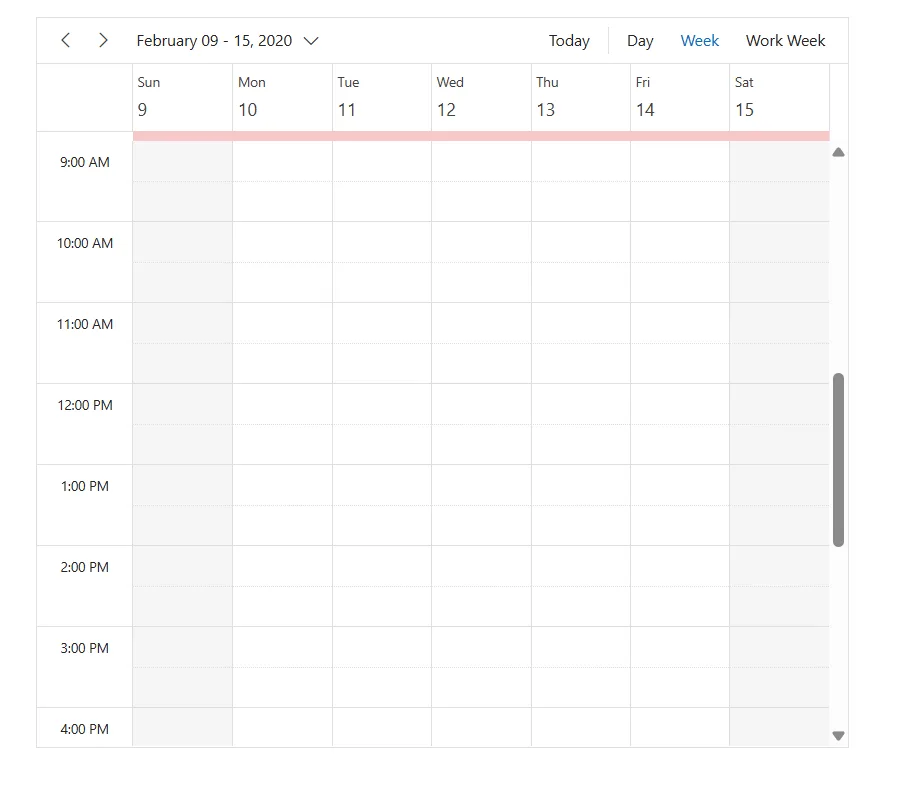
Work hour cells in vertical views of Scheduler
This CSS selector targets the work hour cells in vertical views (Day, Week, WorkWeek) of the Scheduler. These cells show the working hours where users can add appointments, making it easier to see available time slots.
@using Syncfusion.Blazor.Schedule
<div class="component-container">
    <SfSchedule TValue="AppointmentData" Height="650px" @bind-SelectedDate="@CurrentDate">
        <ScheduleViews>
            <ScheduleView Option="View.Day"></ScheduleView>
            <ScheduleView Option="View.Week"></ScheduleView>
            <ScheduleView Option="View.WorkWeek"></ScheduleView>
        </ScheduleViews>
    </SfSchedule>
</div>

@code{
    DateTime CurrentDate = new DateTime(2020, 2, 14);
    public class AppointmentData
    {
        public int Id { get; set; }
        public string Subject { get; set; }
        public string Location { get; set; }
        public DateTime StartTime { get; set; }
        public DateTime EndTime { get; set; }
        public string Description { get; set; }
        public bool IsAllDay { get; set; }
        public string RecurrenceRule { get; set; }
        public string RecurrenceException { get; set; }
        public Nullable<int> RecurrenceID { get; set; }
    }
}
<style>
    .e-schedule .e-vertical-view .e-work-hours
    {
        background-color: #d1eaf8;
        border: 1px solid #b2d3f7;
    }
</style>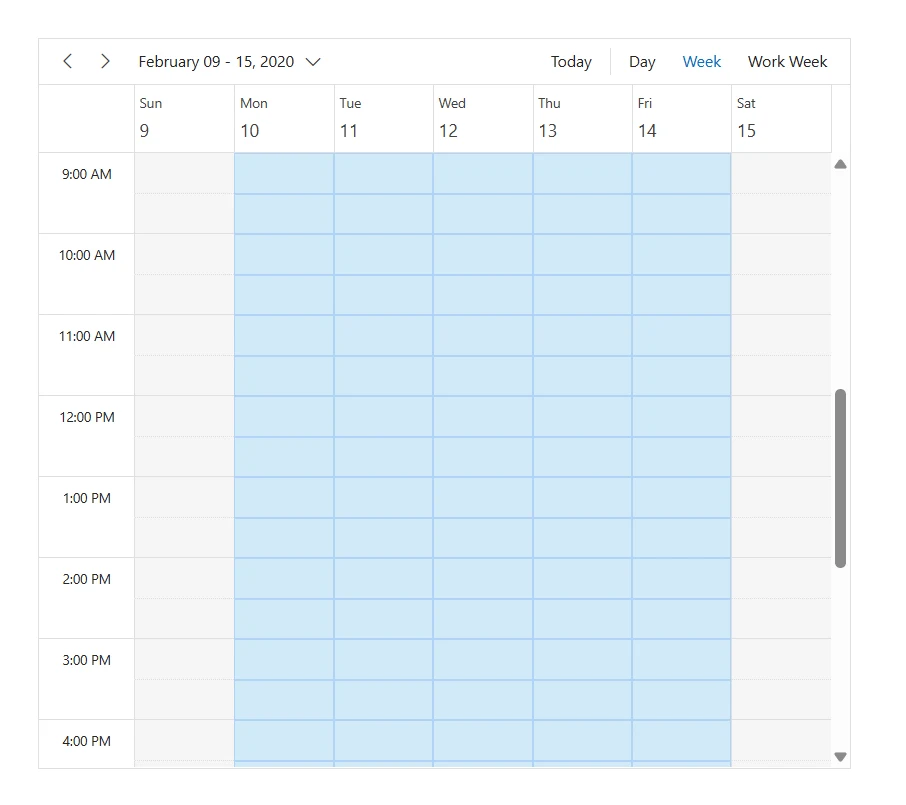
Work day cells in month view of Scheduler
This CSS selector targets the work day cells in the month view of the Scheduler. These cells show the days meant for scheduling work, helping users easily see which days are available for appointments.
@using Syncfusion.Blazor.Schedule
<div class="component-container">
    <SfSchedule TValue="AppointmentData" Height="650px" @bind-SelectedDate="@CurrentDate">
        <ScheduleViews>
            <ScheduleView Option="View.Month"></ScheduleView>
        </ScheduleViews>
    </SfSchedule>
</div>

@code{
    DateTime CurrentDate = new DateTime(2020, 2, 14);
    public class AppointmentData
    {
        public int Id { get; set; }
        public string Subject { get; set; }
        public string Location { get; set; }
        public DateTime StartTime { get; set; }
        public DateTime EndTime { get; set; }
        public string Description { get; set; }
        public bool IsAllDay { get; set; }
        public string RecurrenceRule { get; set; }
        public string RecurrenceException { get; set; }
        public Nullable<int> RecurrenceID { get; set; }
    }
}
<style>
    .e-schedule .e-month-view .e-work-days
    {
        background-color: rgb(168, 167, 205);
        border: 1px solid rgb(39, 143, 191);
    }
</style>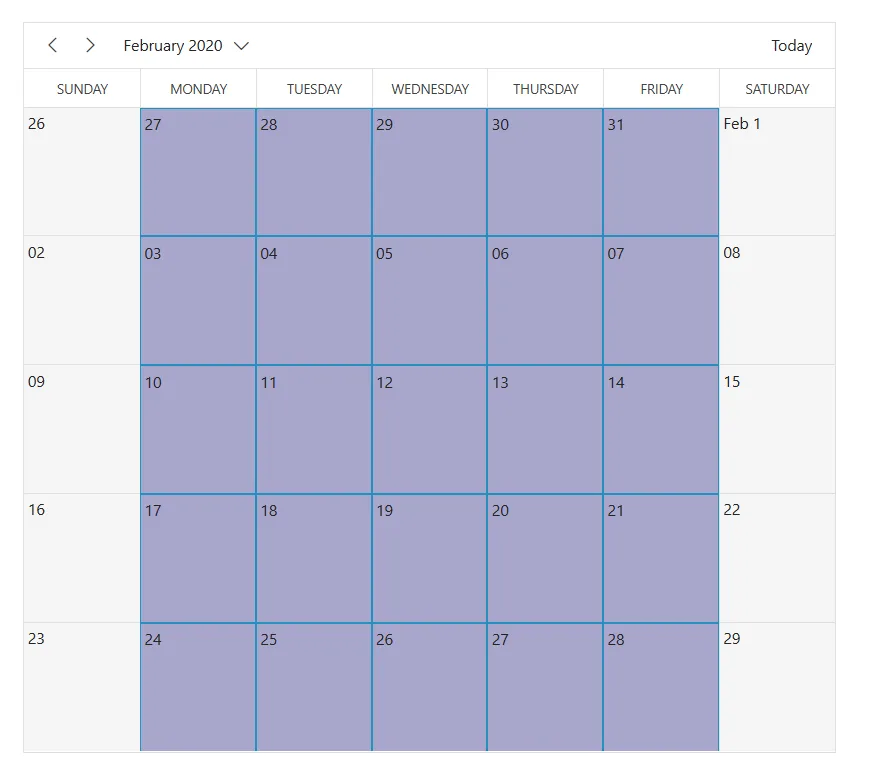
Work day cells in month agenda view of Scheduler
This CSS selector targets the work day cells that represent the days in the month agenda view of the Scheduler. These cells show the specific days within the scheduled month where users can place appointments.
@using Syncfusion.Blazor.Schedule
<div class="component-container">
    <SfSchedule TValue="AppointmentData" Height="650px" @bind-SelectedDate="@CurrentDate">
        <ScheduleViews>
            <ScheduleView Option="View.MonthAgenda"></ScheduleView>
        </ScheduleViews>
    </SfSchedule>
</div>

@code{
    DateTime CurrentDate = new DateTime(2020, 2, 14);
    public class AppointmentData
    {
        public int Id { get; set; }
        public string Subject { get; set; }
        public string Location { get; set; }
        public DateTime StartTime { get; set; }
        public DateTime EndTime { get; set; }
        public string Description { get; set; }
        public bool IsAllDay { get; set; }
        public string RecurrenceRule { get; set; }
        public string RecurrenceException { get; set; }
        public Nullable<int> RecurrenceID { get; set; }
    }
}
<style>
    .e-schedule .e-month-agenda-view .e-work-days
    {
        background-color: #e2f7e2;
        border: 1px solid #c9e1c9;
    }
</style>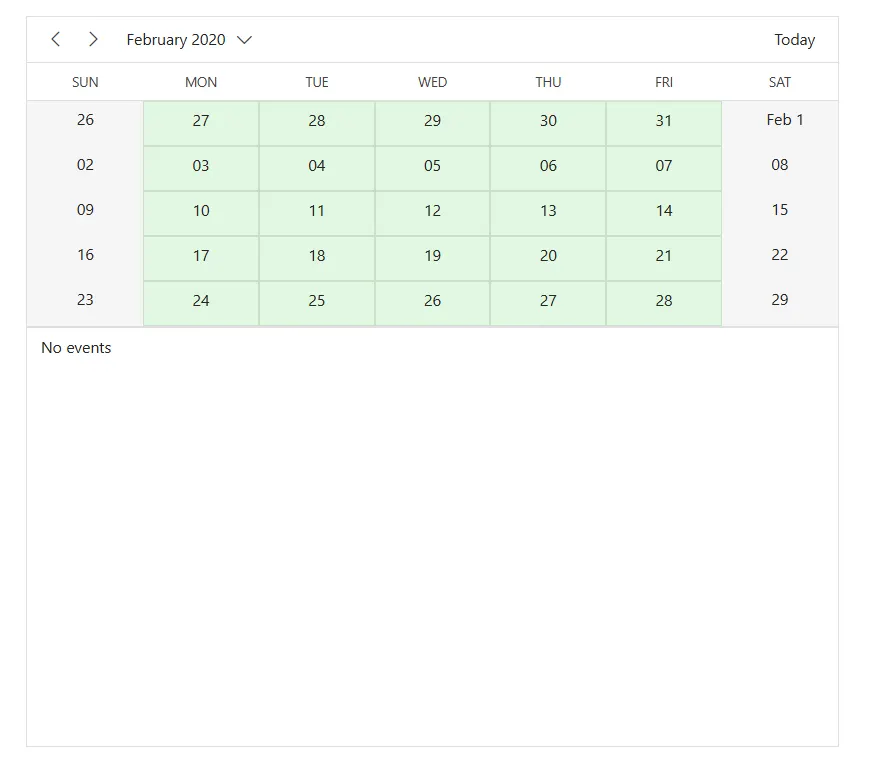
Work hour cells in timeline views of Scheduler
This CSS selector targets the work hour cells in the timeline views (TimelineDay, TimelineWeek) of the Scheduler. These cells represent the slots of time designated for work hours, providing users with a visual indication of when appointments can be scheduled.
@using Syncfusion.Blazor.Schedule
<div class="component-container">
    <SfSchedule TValue="AppointmentData" Height="650px" @bind-SelectedDate="@CurrentDate">
        <ScheduleViews>
            <ScheduleView Option="View.TimelineDay"></ScheduleView>
            <ScheduleView Option="View.TimelineWeek"></ScheduleView>
        </ScheduleViews>
    </SfSchedule>
</div>

@code{
    DateTime CurrentDate = new DateTime(2020, 2, 14);
    public class AppointmentData
    {
        public int Id { get; set; }
        public string Subject { get; set; }
        public string Location { get; set; }
        public DateTime StartTime { get; set; }
        public DateTime EndTime { get; set; }
        public string Description { get; set; }
        public bool IsAllDay { get; set; }
        public string RecurrenceRule { get; set; }
        public string RecurrenceException { get; set; }
        public Nullable<int> RecurrenceID { get; set; }
    }
}
<style>
    .e-schedule .e-timeline-view .e-work-hours
    {
        background-color: #d1eaf8;
        border: 1px solid #b2d3f7;
    }
</style>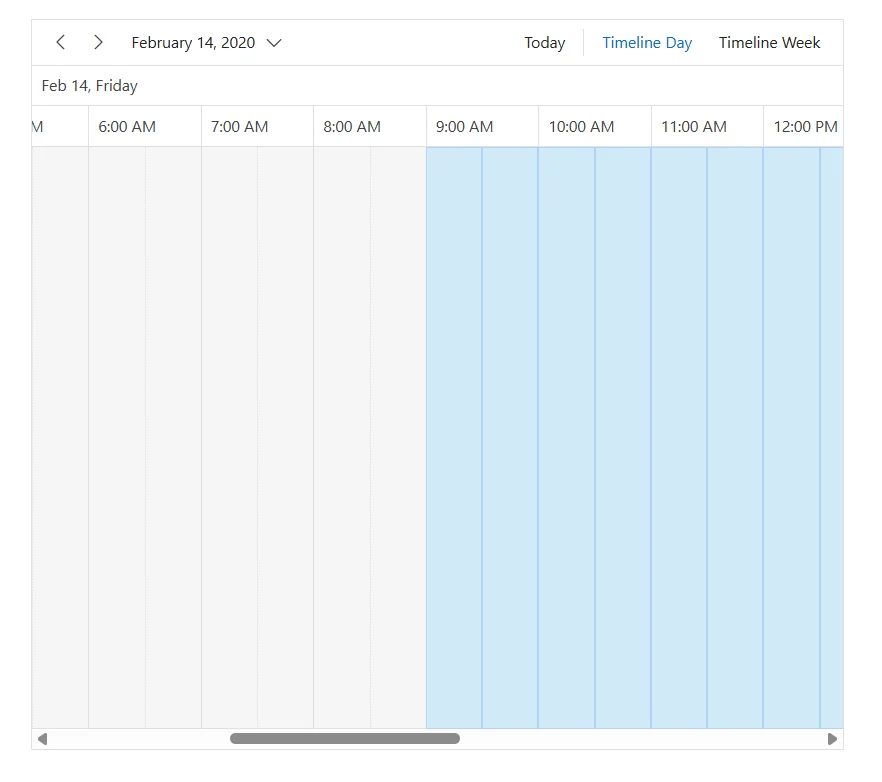
Work day cells in timeline month view of Scheduler
This CSS selector targets the work day cells in the timeline month view of the Scheduler. These cells represent the specific days designated as working days for the month timeline, allowing users to visualize their tasks and appointments within those time frames.
@using Syncfusion.Blazor.Schedule
<div class="component-container">
    <SfSchedule TValue="AppointmentData" Height="650px" @bind-SelectedDate="@CurrentDate">
        <ScheduleViews>
            <ScheduleView Option="View.TimelineMonth"></ScheduleView>
        </ScheduleViews>
    </SfSchedule>
</div>

@code{
    DateTime CurrentDate = new DateTime(2020, 2, 14);
    public class AppointmentData
    {
        public int Id { get; set; }
        public string Subject { get; set; }
        public string Location { get; set; }
        public DateTime StartTime { get; set; }
        public DateTime EndTime { get; set; }
        public string Description { get; set; }
        public bool IsAllDay { get; set; }
        public string RecurrenceRule { get; set; }
        public string RecurrenceException { get; set; }
        public Nullable<int> RecurrenceID { get; set; }
    }
}
<style>
    .e-schedule .e-timeline-month-view .e-work-days
    {
        background-color: rgb(204, 165, 198);
        border: 1px solid #a1d95a;
    }
</style>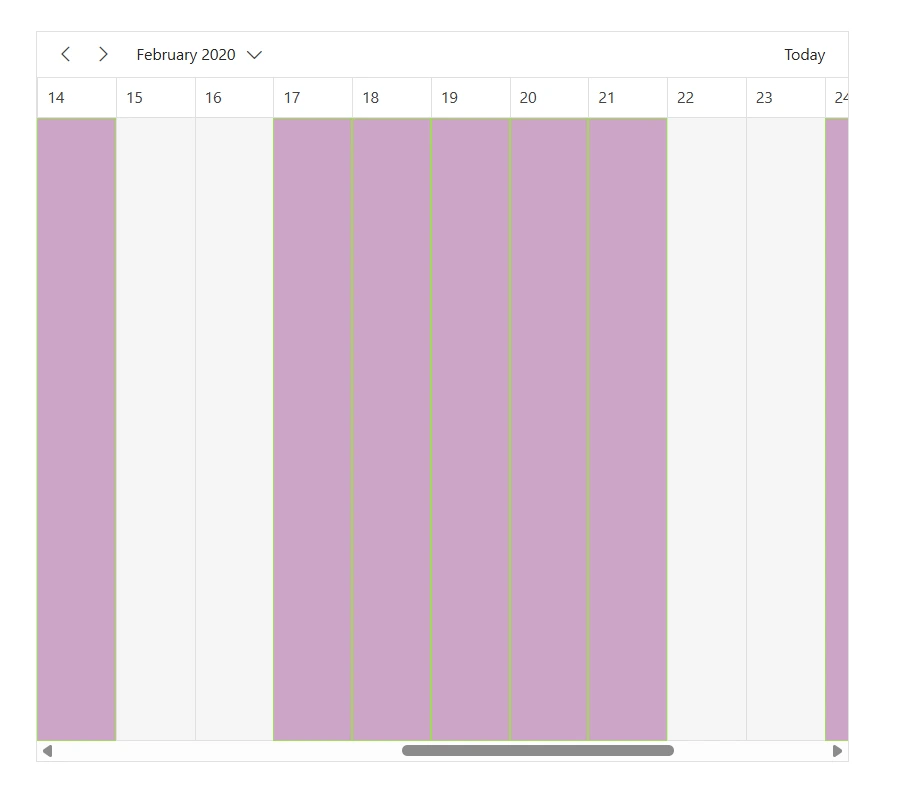
Work day cells in timeline year view of Scheduler
This CSS selector targets the work day cells in the timeline year view of the Scheduler. These cells highlight the working days throughout the entire year, giving users a comprehensive overview of their yearly schedule and enabling easier appointment management.
@using Syncfusion.Blazor.Schedule
<div class="component-container">
    <SfSchedule TValue="AppointmentData" Height="650px" @bind-SelectedDate="@CurrentDate">
        <ScheduleViews>
            <ScheduleView Option="View.TimelineYear"></ScheduleView>
        </ScheduleViews>
    </SfSchedule>
</div>

@code{
    DateTime CurrentDate = new DateTime(2020, 2, 14);
    public class AppointmentData
    {
        public int Id { get; set; }
        public string Subject { get; set; }
        public string Location { get; set; }
        public DateTime StartTime { get; set; }
        public DateTime EndTime { get; set; }
        public string Description { get; set; }
        public bool IsAllDay { get; set; }
        public string RecurrenceRule { get; set; }
        public string RecurrenceException { get; set; }
        public Nullable<int> RecurrenceID { get; set; }
    }
}
<style>
    .e-schedule .e-timeline-year-view .e-work-days
    {
        background-color: rgb(104, 177, 211);
        border: 1px solid #81d4fa;
    }
</style>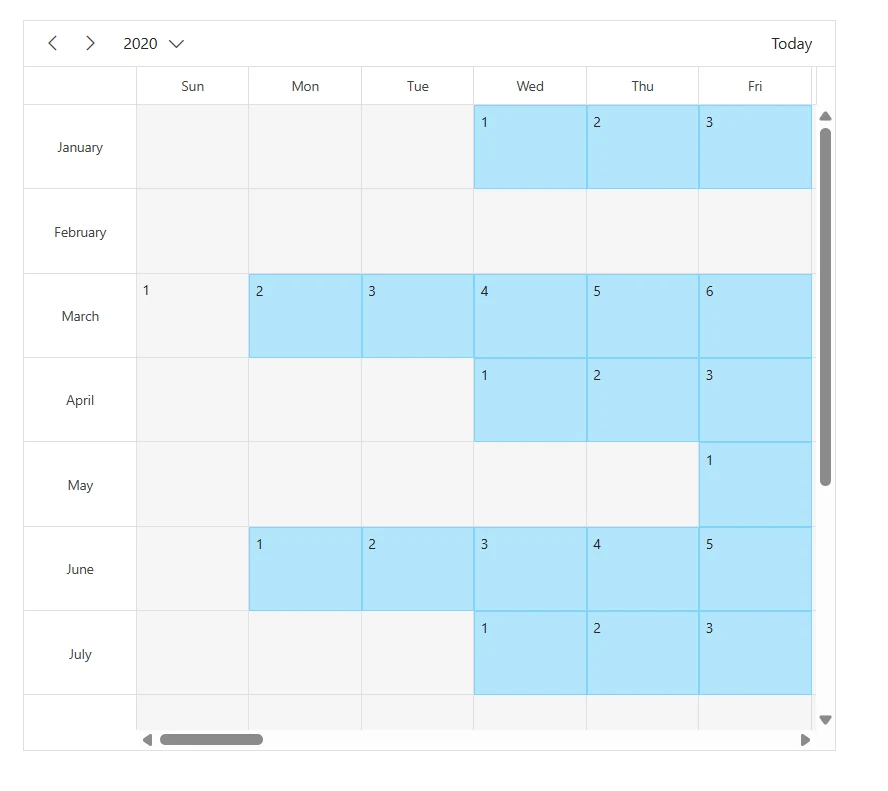
Appointments in vertical views of Scheduler
This CSS selector targets the regular appointments that appear in vertical views. Customizing this selector can significantly improve appointment visibility, readability, and overall appearance.
@using Syncfusion.Blazor.Schedule
<div class="component-container">
    <SfSchedule TValue="AppointmentData" Height="650px" @bind-SelectedDate="@CurrentDate">
        <ScheduleEventSettings DataSource="@DataSource"></ScheduleEventSettings>
        <ScheduleViews>
            <ScheduleView Option="View.Day"></ScheduleView>
            <ScheduleView Option="View.Week"></ScheduleView>
            <ScheduleView Option="View.WorkWeek"></ScheduleView>
            <ScheduleView Option="View.Month"></ScheduleView>
            <ScheduleView Option="View.Agenda"></ScheduleView>
        </ScheduleViews>
    </SfSchedule>
</div>

@code{
    DateTime CurrentDate = new DateTime(2020, 2, 14);
    List<AppointmentData> DataSource = new List<AppointmentData>
    {
        new AppointmentData { Id = 1, Subject = "Paris", StartTime = new DateTime(2020, 2, 13, 10, 0, 0) , EndTime = new DateTime(2020, 2, 13, 12, 0, 0) },
        new AppointmentData { Id = 2, Subject = "Germany", StartTime = new DateTime(2020, 2, 15, 10, 0, 0) , EndTime = new DateTime(2020, 2, 15, 12, 0, 0) }
    };
    public class AppointmentData
    {
        public int Id { get; set; }
        public string Subject { get; set; }
        public string Location { get; set; }
        public DateTime StartTime { get; set; }
        public DateTime EndTime { get; set; }
        public string Description { get; set; }
        public bool IsAllDay { get; set; }
        public string RecurrenceRule { get; set; }
        public string RecurrenceException { get; set; }
        public Nullable<int> RecurrenceID { get; set; }
    }
}
<style>
    .e-schedule .e-vertical-view .e-day-wrapper .e-appointment
    {
        border-radius: 8px;
        border: 3px solid #ce40b7;
        color: white;
        font-weight: 500;
    }
</style>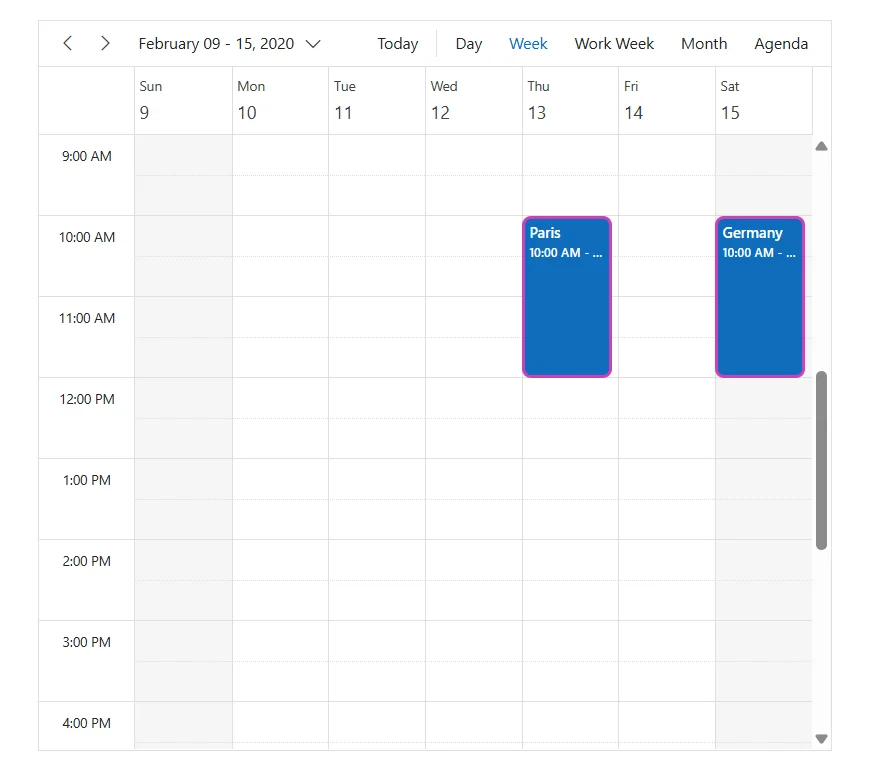
All-day appointments in vertical views of Scheduler
This CSS selector targets the all-day appointments that appear in the vertical views (Day, Week, and WorkWeek) of the Blazor Scheduler component. All-day appointments are events that span an entire day or multiple days without specific start and end times within those days.
@using Syncfusion.Blazor.Schedule
<div class="component-container">
    <SfSchedule TValue="AppointmentData" Height="650px" @bind-SelectedDate="@CurrentDate">
        <ScheduleEventSettings DataSource="@DataSource"></ScheduleEventSettings>
        <ScheduleViews>
            <ScheduleView Option="View.Day"></ScheduleView>
            <ScheduleView Option="View.Week"></ScheduleView>
            <ScheduleView Option="View.WorkWeek"></ScheduleView>
            <ScheduleView Option="View.Month"></ScheduleView>
            <ScheduleView Option="View.Agenda"></ScheduleView>
        </ScheduleViews>
    </SfSchedule>
</div>

@code{
    DateTime CurrentDate = new DateTime(2020, 2, 14);
    List<AppointmentData> DataSource = new List<AppointmentData>
    {
        new AppointmentData { Id = 1, Subject = "Paris", StartTime = new DateTime(2020, 2, 11, 10, 0, 0) , EndTime = new DateTime(2020, 2, 12, 12, 0, 0), IsAllDay = true },
        new AppointmentData { Id = 2, Subject = "Germany", StartTime = new DateTime(2020, 2, 15, 10, 0, 0) , EndTime = new DateTime(2020, 2, 15, 12, 0, 0), IsAllDay = true }
    };
    public class AppointmentData
    {
        public int Id { get; set; }
        public string Subject { get; set; }
        public string Location { get; set; }
        public DateTime StartTime { get; set; }
        public DateTime EndTime { get; set; }
        public string Description { get; set; }
        public bool IsAllDay { get; set; }
        public string RecurrenceRule { get; set; }
        public string RecurrenceException { get; set; }
        public Nullable<int> RecurrenceID { get; set; }
    }
}
<style>
    .e-schedule .e-vertical-view .e-all-day-appointment-wrapper .e-appointment
    {
        background-color: #ff824d;
        border-radius: 3px;
        color: white;
        font-weight: 500;
        border: 3px solid #6aff4d;
    }
</style>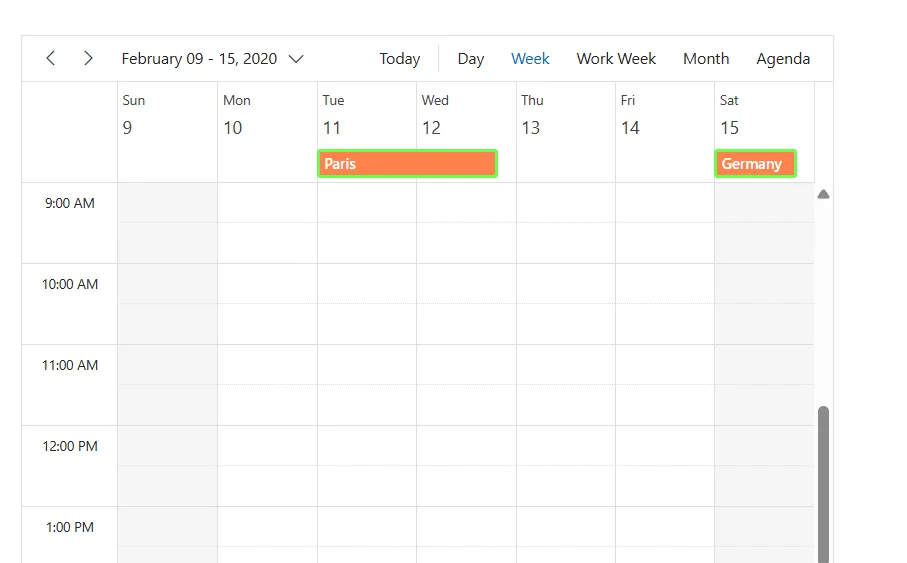
Appointments in month view of Scheduler
This CSS selector targets appointment elements in the month view of the Blazor Scheduler component. This selector is crucial for customizing how appointments appear in the calendar-style month view, which presents unique visualization challenges due to the compact nature of displaying an entire month at once.
@using Syncfusion.Blazor.Schedule
<div class="component-container">
    <SfSchedule TValue="AppointmentData" Height="650px" @bind-SelectedDate="@CurrentDate">
        <ScheduleEventSettings DataSource="@DataSource"></ScheduleEventSettings>
        <ScheduleViews>
            <ScheduleView Option="View.Month"></ScheduleView>
        </ScheduleViews>
    </SfSchedule>
</div>

@code{
    DateTime CurrentDate = new DateTime(2020, 2, 14);
    List<AppointmentData> DataSource = new List<AppointmentData>
    {
        new AppointmentData { Id = 1, Subject = "Paris", StartTime = new DateTime(2020, 2, 10, 10, 0, 0) , EndTime = new DateTime(2020, 2, 11, 12, 0, 0) },
        new AppointmentData { Id = 2, Subject = "Germany", StartTime = new DateTime(2020, 2, 13, 10, 0, 0) , EndTime = new DateTime(2020, 2, 15, 12, 0, 0) }
    };
    public class AppointmentData
    {
        public int Id { get; set; }
        public string Subject { get; set; }
        public string Location { get; set; }
        public DateTime StartTime { get; set; }
        public DateTime EndTime { get; set; }
        public string Description { get; set; }
        public bool IsAllDay { get; set; }
        public string RecurrenceRule { get; set; }
        public string RecurrenceException { get; set; }
        public Nullable<int> RecurrenceID { get; set; }
    }
}
<style>
    .e-schedule .e-month-view .e-appointment
    {
        background-color: #4CAF50;
        color: white;
        border-radius: 4px;
        padding: 4px;
        font-size: 14px;
        box-shadow: 0 2px 4px rgba(0, 0, 0, 0.8);
    }
</style>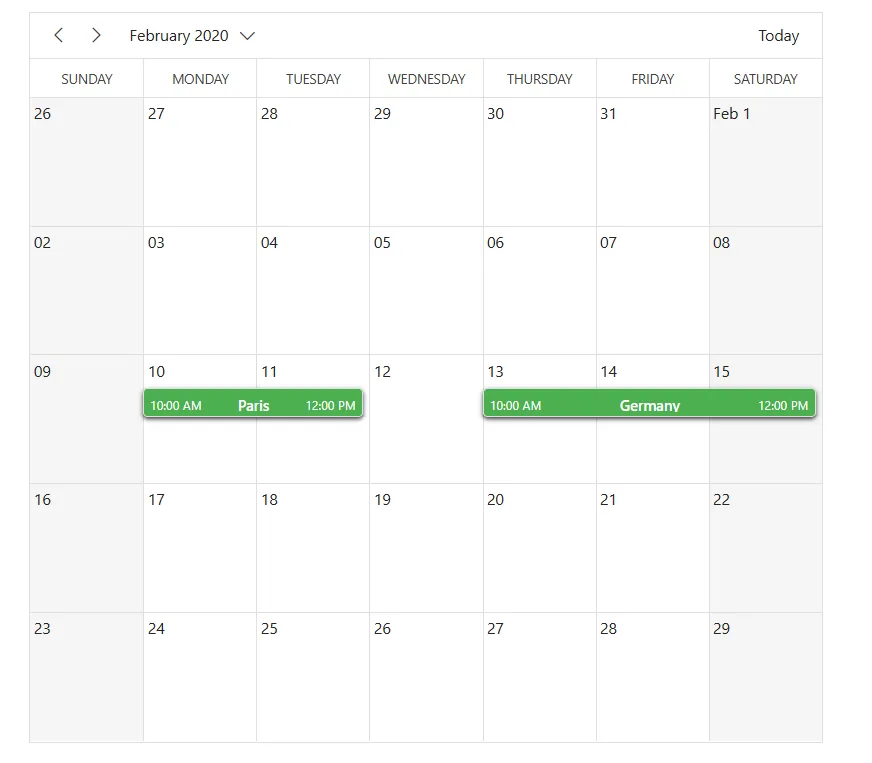
Appointments in timeline views of Scheduler
This CSS selector targets appointment elements in the timeline views of the Blazor Scheduler component. Timeline views (TimelineDay, TimelineWeek, TimelineWorkWeek) present a unique horizontal orientation of appointments that differs significantly from the traditional vertical or month views.
@using Syncfusion.Blazor.Schedule
<div class="component-container">
    <SfSchedule TValue="AppointmentData" Height="650px" @bind-SelectedDate="@CurrentDate">
        <ScheduleEventSettings DataSource="@DataSource"></ScheduleEventSettings>
        <ScheduleViews>
            <ScheduleView Option="View.TimelineDay"></ScheduleView>
            <ScheduleView Option="View.TimelineWeek"></ScheduleView>
        </ScheduleViews>
    </SfSchedule>
</div>

@code{
    DateTime CurrentDate = new DateTime(2020, 2, 13);
    List<AppointmentData> DataSource = new List<AppointmentData>
    {
        new AppointmentData { Id = 1, Subject = "Paris", StartTime = new DateTime(2020, 2, 13, 10, 0, 0) , EndTime = new DateTime(2020, 2, 13, 12, 0, 0) },
        new AppointmentData { Id = 2, Subject = "Germany", StartTime = new DateTime(2020, 2, 13, 12, 30, 0) , EndTime = new DateTime(2020, 2, 13, 14, 0, 0) }
    };
    public class AppointmentData
    {
        public int Id { get; set; }
        public string Subject { get; set; }
        public string Location { get; set; }
        public DateTime StartTime { get; set; }
        public DateTime EndTime { get; set; }
        public string Description { get; set; }
        public bool IsAllDay { get; set; }
        public string RecurrenceRule { get; set; }
        public string RecurrenceException { get; set; }
        public Nullable<int> RecurrenceID { get; set; }
    }
}
<style>
    .e-schedule .e-timeline-view .e-appointment
    {
        background-color: #ef3707;
        height: 50px !important;
        color: white;
        border-radius: 8px;
    }
</style>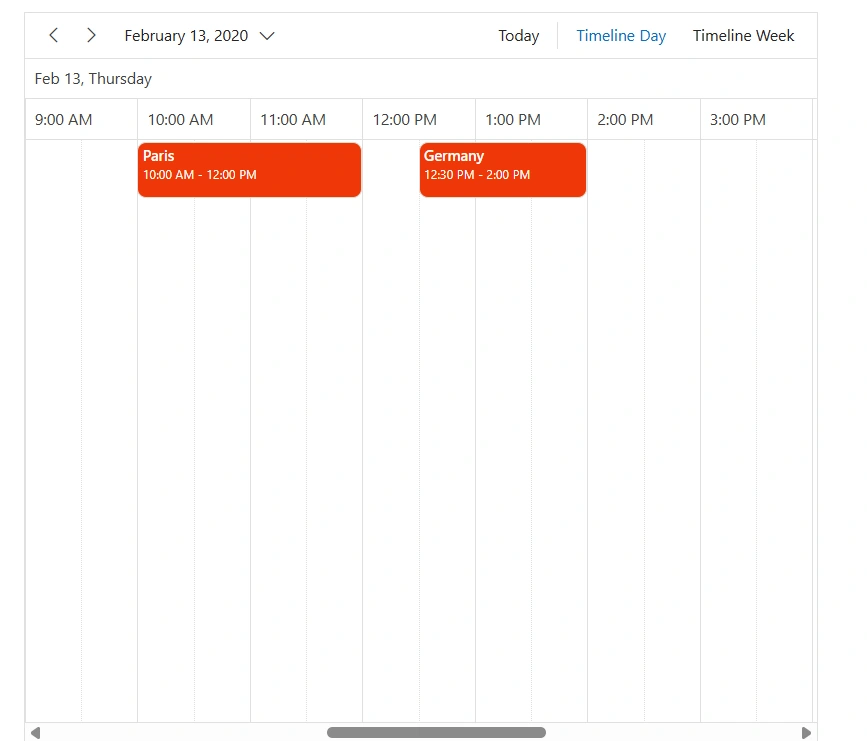
Appointments in timeline month view of Scheduler
This CSS selector targets appointment elements specifically in the timeline month view of the Blazor Scheduler component. This specialized view combines the horizontal time-based layout of timeline views with the monthly calendar perspective, creating a unique visualization for planning and scheduling.
@using Syncfusion.Blazor.Schedule
<div class="component-container">
    <SfSchedule TValue="AppointmentData" Height="650px" @bind-SelectedDate="@CurrentDate">
        <ScheduleEventSettings DataSource="@DataSource"></ScheduleEventSettings>
        <ScheduleViews>
            <ScheduleView Option="View.TimelineMonth"></ScheduleView>
        </ScheduleViews>
    </SfSchedule>
</div>

@code{
    DateTime CurrentDate = new DateTime(2020, 2, 11);
    List<AppointmentData> DataSource = new List<AppointmentData>
    {
        new AppointmentData { Id = 1, Subject = "Paris", StartTime = new DateTime(2020, 2, 13, 10, 0, 0) , EndTime = new DateTime(2020, 2, 13, 12, 0, 0) },
        new AppointmentData { Id = 2, Subject = "Germany", StartTime = new DateTime(2020, 2, 15, 10, 0, 0) , EndTime = new DateTime(2020, 2, 15, 12, 0, 0) }
    };
    public class AppointmentData
    {
        public int Id { get; set; }
        public string Subject { get; set; }
        public string Location { get; set; }
        public DateTime StartTime { get; set; }
        public DateTime EndTime { get; set; }
        public string Description { get; set; }
        public bool IsAllDay { get; set; }
        public string RecurrenceRule { get; set; }
        public string RecurrenceException { get; set; }
        public Nullable<int> RecurrenceID { get; set; }
    }
}

<style>
    .e-schedule .e-timeline-month-view .e-appointment
    {
        background-color: #ef07ca;
        border: 2px solid #3d30cb;
        height: 50px !important;
        color: white;
        border-radius: 8px;
    }
</style>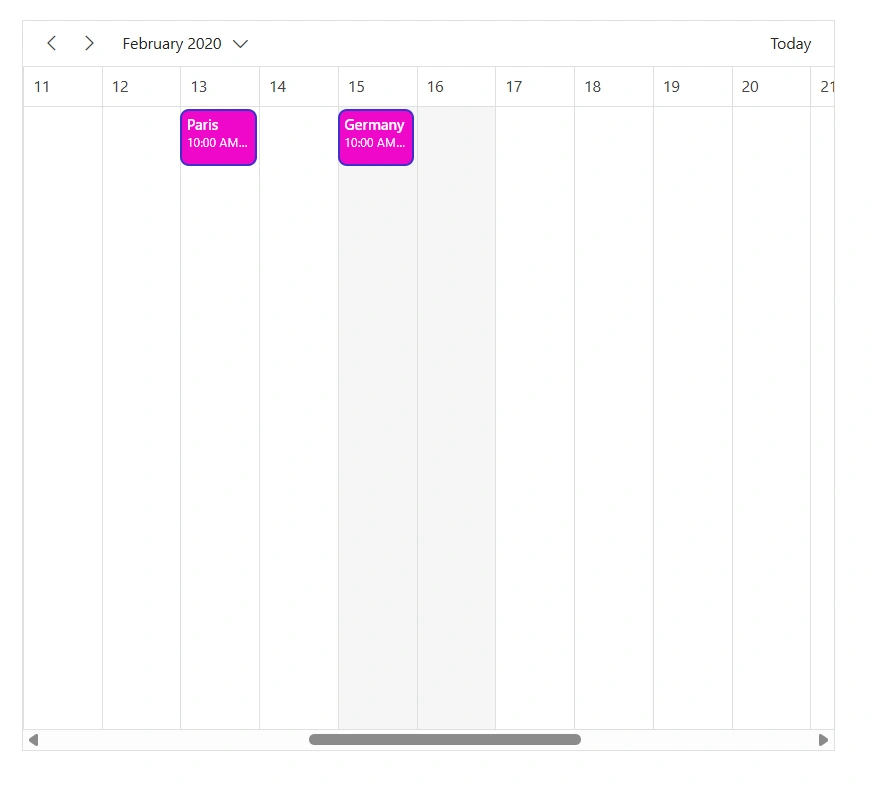
Appointments in timeline year view of Scheduler
This CSS selector targets appointment elements specifically in the timeline year view of the Blazor Scheduler component. The Timeline Year view in Blazor Scheduler is designed to display events across an entire year in a horizontal, scrollable layout.
@using Syncfusion.Blazor.Schedule
<div class="component-container">
    <SfSchedule TValue="AppointmentData" Height="650px" @bind-SelectedDate="@CurrentDate">
        <ScheduleEventSettings DataSource="@DataSource"></ScheduleEventSettings>
        <ScheduleViews>
            <ScheduleView Option="View.TimelineYear"></ScheduleView>
        </ScheduleViews>
    </SfSchedule>
</div>

@code{
    DateTime CurrentDate = new DateTime(2020, 2, 11);
    List<AppointmentData> DataSource = new List<AppointmentData>
    {
        new AppointmentData { Id = 1, Subject = "Paris", StartTime = new DateTime(2020, 1, 1, 10, 0, 0) , EndTime = new DateTime(2020, 1, 2, 12, 0, 0) },
        new AppointmentData { Id = 2, Subject = "Germany", StartTime = new DateTime(2020, 4, 3, 10, 0, 0) , EndTime = new DateTime(2020, 4, 3, 12, 0, 0) }
    };
    public class AppointmentData
    {
        public int Id { get; set; }
        public string Subject { get; set; }
        public string Location { get; set; }
        public DateTime StartTime { get; set; }
        public DateTime EndTime { get; set; }
        public string Description { get; set; }
        public bool IsAllDay { get; set; }
        public string RecurrenceRule { get; set; }
        public string RecurrenceException { get; set; }
        public Nullable<int> RecurrenceID { get; set; }
    }
}

<style>
    .e-schedule .e-timeline-year-view .e-event-table .e-appointment
    {
        background-color: #ffc107;
        border: 2px solid #3d30cb;
        color: #212529;
        border-radius: 8px;
    }
</style>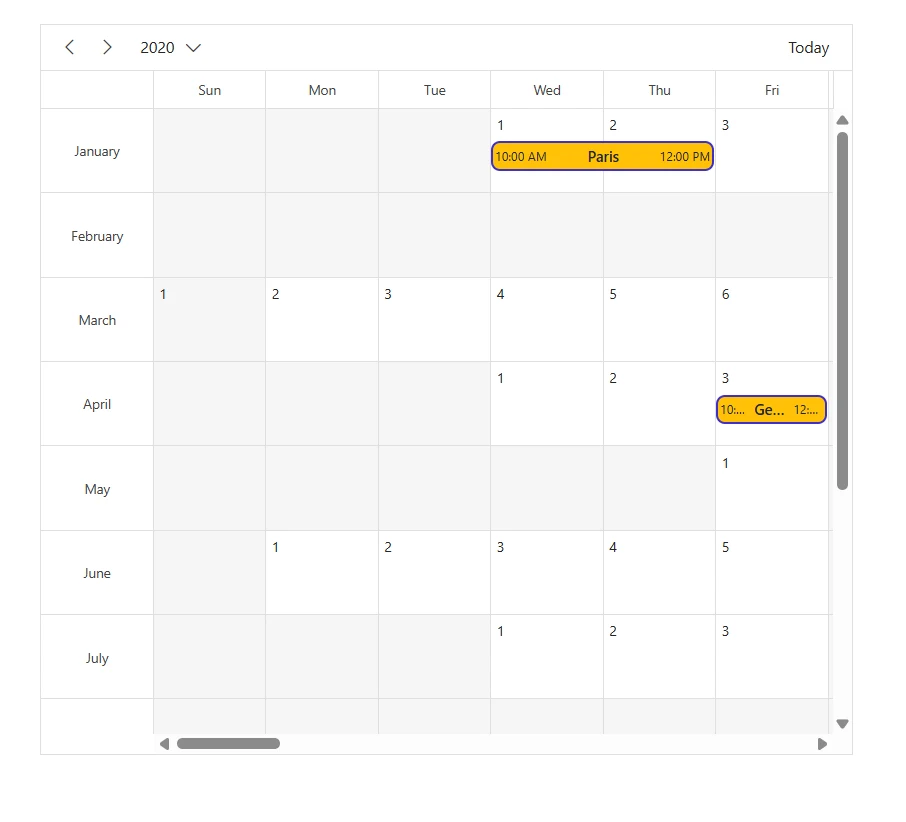
Appointments in year view of Scheduler
This CSS selector targets appointment elements specifically in the year view of the Blazor Scheduler component. In a year view of a scheduler, appointments are displayed across all 12 months of the year, offering a high-level overview of scheduled events.
@using Syncfusion.Blazor.Schedule
<div class="component-container">
    <SfSchedule TValue="AppointmentData" Height="650px" @bind-SelectedDate="@CurrentDate">
        <ScheduleEventSettings DataSource="@DataSource"></ScheduleEventSettings>
        <ScheduleViews>
            <ScheduleView Option="View.Year"></ScheduleView>
        </ScheduleViews>
    </SfSchedule>
</div>

@code{
    DateTime CurrentDate = new DateTime(2020, 2, 14);
    List<AppointmentData> DataSource = new List<AppointmentData>
    {
        new AppointmentData { Id = 1, Subject = "Paris", StartTime = new DateTime(2020, 2, 13, 10, 0, 0) , EndTime = new DateTime(2020, 2, 13, 12, 0, 0) },
        new AppointmentData { Id = 2, Subject = "Germany", StartTime = new DateTime(2020, 2, 15, 10, 0, 0) , EndTime = new DateTime(2020, 2, 15, 12, 0, 0) }
    };
    public class AppointmentData
    {
        public int Id { get; set; }
        public string Subject { get; set; }
        public string Location { get; set; }
        public DateTime StartTime { get; set; }
        public DateTime EndTime { get; set; }
        public string Description { get; set; }
        public bool IsAllDay { get; set; }
        public string RecurrenceRule { get; set; }
        public string RecurrenceException { get; set; }
        public Nullable<int> RecurrenceID { get; set; }
    }
}
<style>
    .e-schedule .e-year-view .e-calendar-wrapper .e-month-calendar.e-calendar .e-appointment-indicator
    {
        background-color: #db1005;
    }
</style>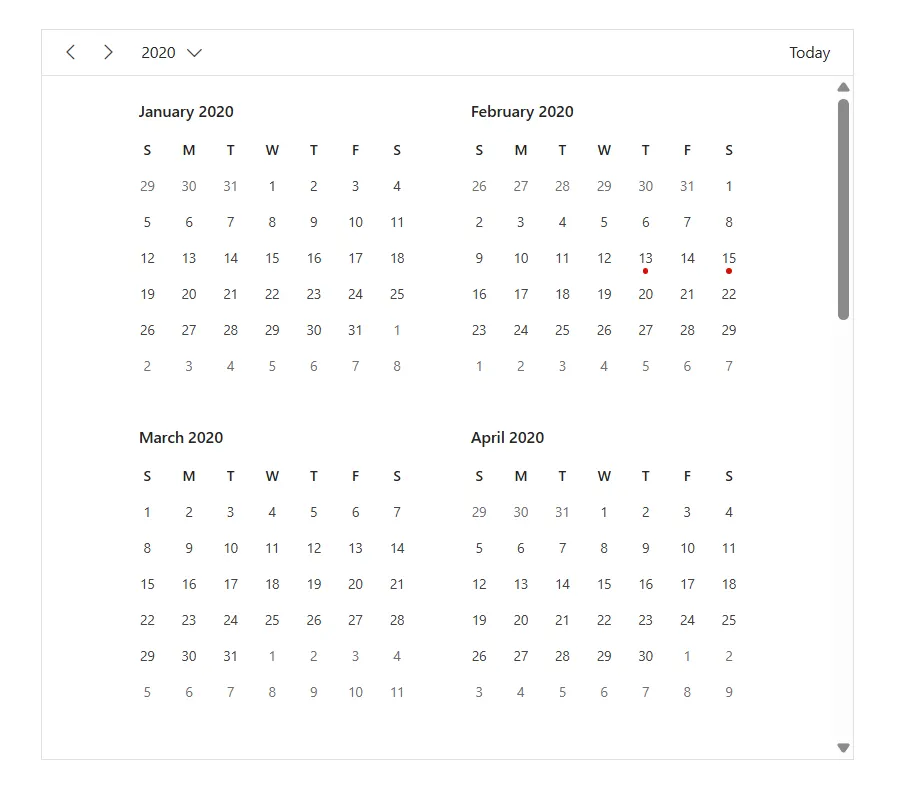
Appointments in agenda view of Scheduler
This CSS selector targets appointment elements specifically in the agenda view of the Blazor Scheduler component. An appointment in the agenda view of a Blazor Scheduler is shown as a simple list of events sorted by date and time.
@using Syncfusion.Blazor.Schedule
<div class="component-container">
    <SfSchedule TValue="AppointmentData" Height="650px" @bind-SelectedDate="@CurrentDate">
        <ScheduleEventSettings DataSource="@DataSource"></ScheduleEventSettings>
        <ScheduleViews>
            <ScheduleView Option="View.Agenda"></ScheduleView>
        </ScheduleViews>
    </SfSchedule>
</div>

@code{
    DateTime CurrentDate = new DateTime(2020, 2, 12);
    List<AppointmentData> DataSource = new List<AppointmentData>
    {
        new AppointmentData { Id = 1, Subject = "Paris", StartTime = new DateTime(2020, 2, 13, 10, 0, 0) , EndTime = new DateTime(2020, 2, 13, 12, 0, 0) },
        new AppointmentData { Id = 2, Subject = "Germany", StartTime = new DateTime(2020, 2, 15, 10, 0, 0) , EndTime = new DateTime(2020, 2, 15, 12, 0, 0) }
    };
    public class AppointmentData
    {
        public int Id { get; set; }
        public string Subject { get; set; }
        public string Location { get; set; }
        public DateTime StartTime { get; set; }
        public DateTime EndTime { get; set; }
        public string Description { get; set; }
        public bool IsAllDay { get; set; }
        public string RecurrenceRule { get; set; }
        public string RecurrenceException { get; set; }
        public Nullable<int> RecurrenceID { get; set; }
    }
}
<style>
    .e-schedule .e-agenda-view .e-appointment
    {
        background-color: #bdf3bf;
        border: 2px solid #170c92;
        border-radius: 20px;
        width: 400px;
    }
</style>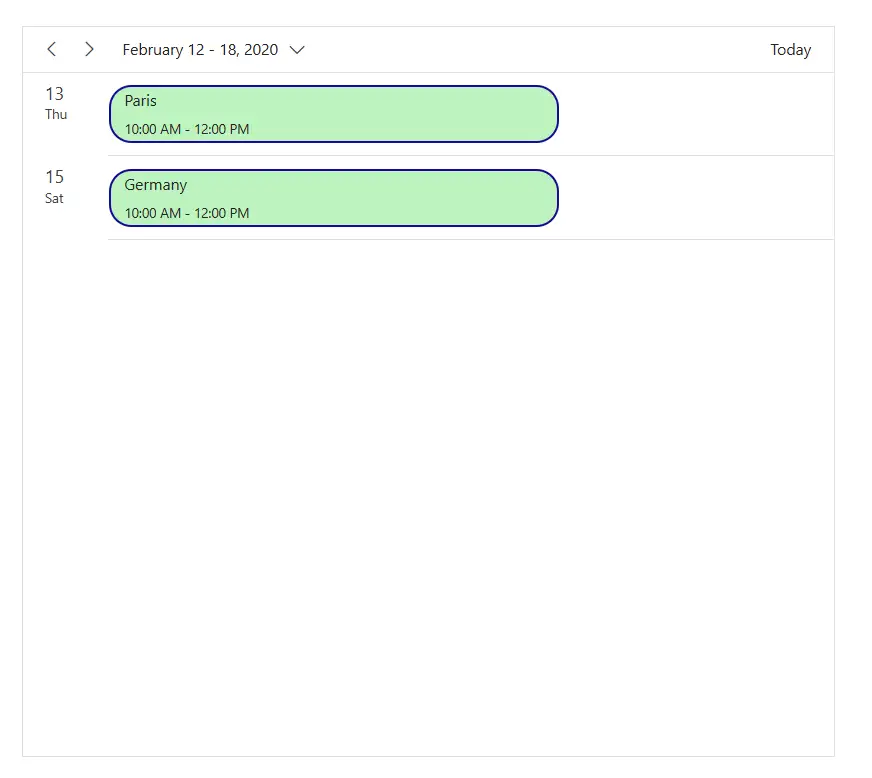
Appointments in month agenda view of Scheduler
This CSS selector targets appointment elements specifically in the month agenda view of the Blazor Scheduler component. An appointment in the month agenda view of a Blazor Scheduler is shown as a list of events organized by day within a selected month.
@using Syncfusion.Blazor.Schedule
<div class="component-container">
    <SfSchedule TValue="AppointmentData" Height="650px" @bind-SelectedDate="@CurrentDate">
        <ScheduleEventSettings DataSource="@DataSource"></ScheduleEventSettings>
        <ScheduleViews>
            <ScheduleView Option="View.MonthAgenda"></ScheduleView>
        </ScheduleViews>
    </SfSchedule>
</div>

@code{
    DateTime CurrentDate = new DateTime(2020, 2, 13);
    List<AppointmentData> DataSource = new List<AppointmentData>
    {
        new AppointmentData { Id = 1, Subject = "Paris", StartTime = new DateTime(2020, 2, 13, 10, 0, 0) , EndTime = new DateTime(2020, 2, 13, 12, 0, 0) },
        new AppointmentData { Id = 2, Subject = "Germany", StartTime = new DateTime(2020, 2, 15, 10, 0, 0) , EndTime = new DateTime(2020, 2, 15, 12, 0, 0) }
    };
    public class AppointmentData
    {
        public int Id { get; set; }
        public string Subject { get; set; }
        public string Location { get; set; }
        public DateTime StartTime { get; set; }
        public DateTime EndTime { get; set; }
        public string Description { get; set; }
        public bool IsAllDay { get; set; }
        public string RecurrenceRule { get; set; }
        public string RecurrenceException { get; set; }
        public Nullable<int> RecurrenceID { get; set; }
    }
}
<style>
    .e-schedule .e-month-agenda-view .e-appointment
    {
        background-color: #bdf3bf;
        border: 2px solid #170c92;
        border-radius: 20px;
    }
    .e-schedule .e-month-agenda-view .e-work-cells .e-appointment-indicator
    {
        background-color: #170c92;
    }
</style>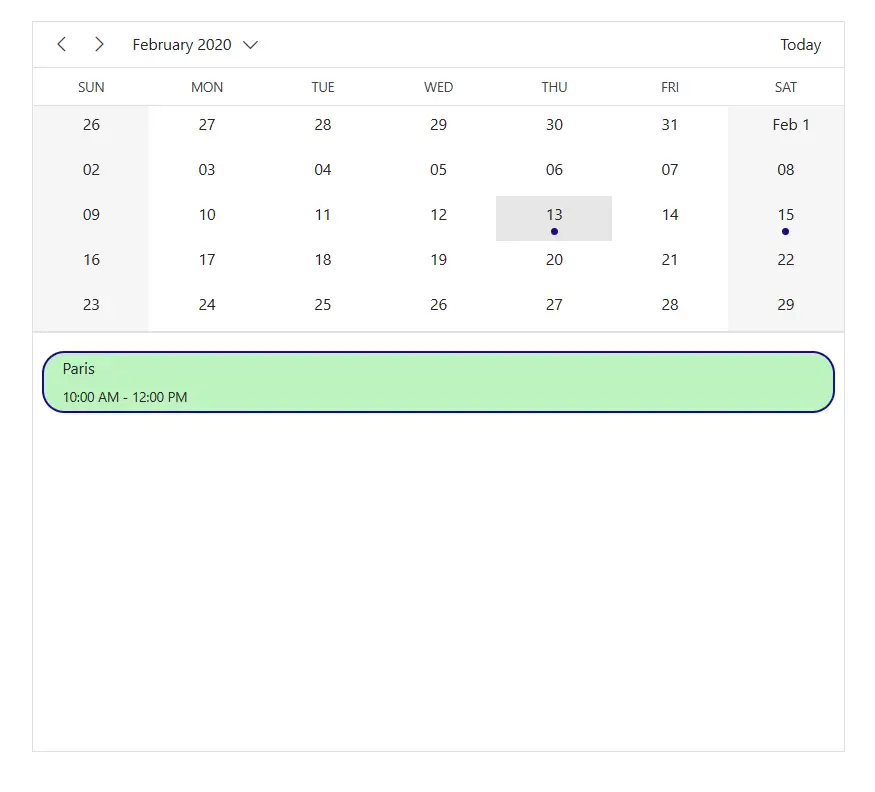
Blocked appointments in Scheduler
This CSS selector targets appointment elements specifically designated as blocked appointments in the Blazor Scheduler component. A blocked appointment refers to a reserved time slot during which no other appointments or events can be scheduled.
@using Syncfusion.Blazor.Schedule
<div class="component-container">
    <SfSchedule TValue="AppointmentData" Height="650px" @bind-SelectedDate="@CurrentDate">
        <ScheduleEventSettings DataSource="@DataSource"></ScheduleEventSettings>
        <ScheduleViews>
             <ScheduleView Option="View.Day"></ScheduleView>
            <ScheduleView Option="View.Week"></ScheduleView>
            <ScheduleView Option="View.WorkWeek"></ScheduleView>
            <ScheduleView Option="View.Month"></ScheduleView>
            <ScheduleView Option="View.Agenda"></ScheduleView>
        </ScheduleViews>
    </SfSchedule>
</div>

@code{
    DateTime CurrentDate = new DateTime(2020, 2, 13);
    List<AppointmentData> DataSource = new List<AppointmentData>
    {
        new AppointmentData { Id = 1, Subject = "Blocked", StartTime = new DateTime(2020, 2, 13, 10, 0, 0) , EndTime = new DateTime(2020, 2, 13, 12, 0, 0), IsBlock = true },
        new AppointmentData { Id = 2, Subject = "Blocked", StartTime = new DateTime(2020, 2, 15, 10, 0, 0) , EndTime = new DateTime(2020, 2, 15, 12, 0, 0), IsBlock = true }
    };
    public class AppointmentData
    {
        public int Id { get; set; }
        public string Subject { get; set; }
        public string Location { get; set; }
        public DateTime StartTime { get; set; }
        public DateTime EndTime { get; set; }
        public string Description { get; set; }
        public bool IsAllDay { get; set; }
        public bool IsBlock { get; set; }
        public string RecurrenceRule { get; set; }
        public string RecurrenceException { get; set; }
        public Nullable<int> RecurrenceID { get; set; }
    }
}
<style>
    .e-schedule .e-block-appointment
    {
        background-color: #9a9e9a;
        border: 2px solid #170c92;
        border-radius: 5px;
        color: #ffffff;
    }
</style>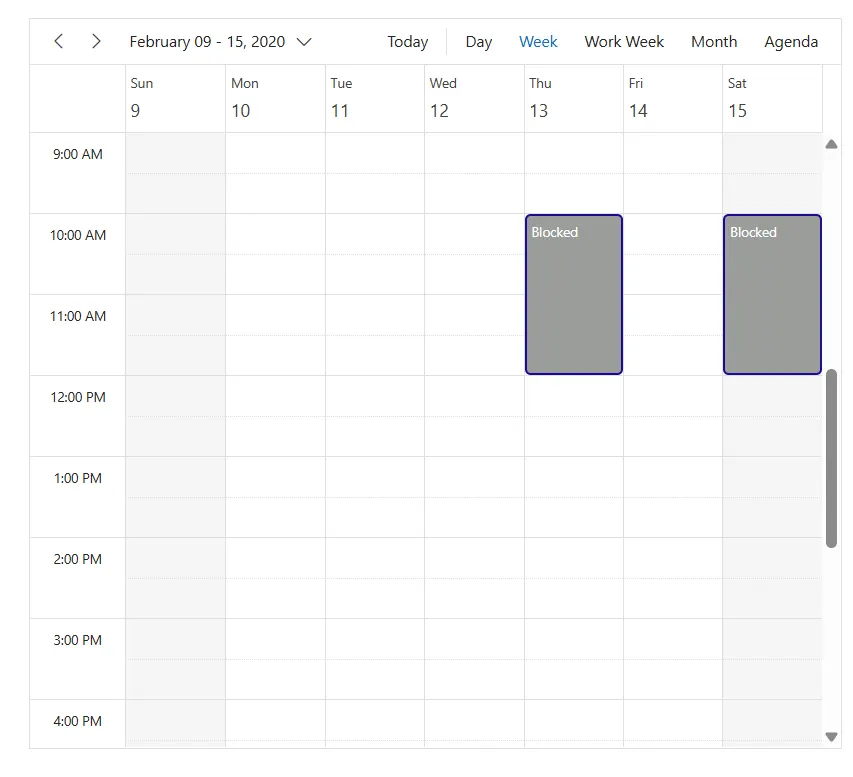
Read-only appointments in Scheduler
This CSS selector targets appointment elements that are specifically marked as read-only in the Blazor Scheduler component. A read-only appointment in a Blazor Scheduler refers to an event or time slot that is visible to users but cannot be modified, deleted, or rescheduled through the user interface.
@using Syncfusion.Blazor.Schedule
<div class="component-container">
    <SfSchedule TValue="AppointmentData" Height="650px" @bind-SelectedDate="@CurrentDate">
        <ScheduleEventSettings DataSource="@DataSource"></ScheduleEventSettings>
        <ScheduleViews>
             <ScheduleView Option="View.Day"></ScheduleView>
            <ScheduleView Option="View.Week"></ScheduleView>
            <ScheduleView Option="View.WorkWeek"></ScheduleView>
            <ScheduleView Option="View.Month"></ScheduleView>
            <ScheduleView Option="View.Agenda"></ScheduleView>
        </ScheduleViews>
    </SfSchedule>
</div>

@code{
    DateTime CurrentDate = new DateTime(2020, 2, 13);
    List<AppointmentData> DataSource = new List<AppointmentData>
    {
        new AppointmentData { Id = 1, Subject = "Paris", StartTime = new DateTime(2020, 2, 13, 10, 0, 0) , EndTime = new DateTime(2020, 2, 13, 12, 0, 0), IsReadonly  = true },
        new AppointmentData { Id = 2, Subject = "German", StartTime = new DateTime(2020, 2, 15, 10, 0, 0) , EndTime = new DateTime(2020, 2, 15, 12, 0, 0), IsReadonly  = true }
    };
    public class AppointmentData
    {
        public int Id { get; set; }
        public string Subject { get; set; }
        public string Location { get; set; }
        public DateTime StartTime { get; set; }
        public DateTime EndTime { get; set; }
        public string Description { get; set; }
        public bool IsAllDay { get; set; }
        public bool IsReadonly  { get; set; }
        public string RecurrenceRule { get; set; }
        public string RecurrenceException { get; set; }
        public Nullable<int> RecurrenceID { get; set; }
    }
}
<style>
    .e-schedule .e-read-only
    {
        background-color: #e1abc0 !important;
        border-radius: 5px !important;
    }
</style>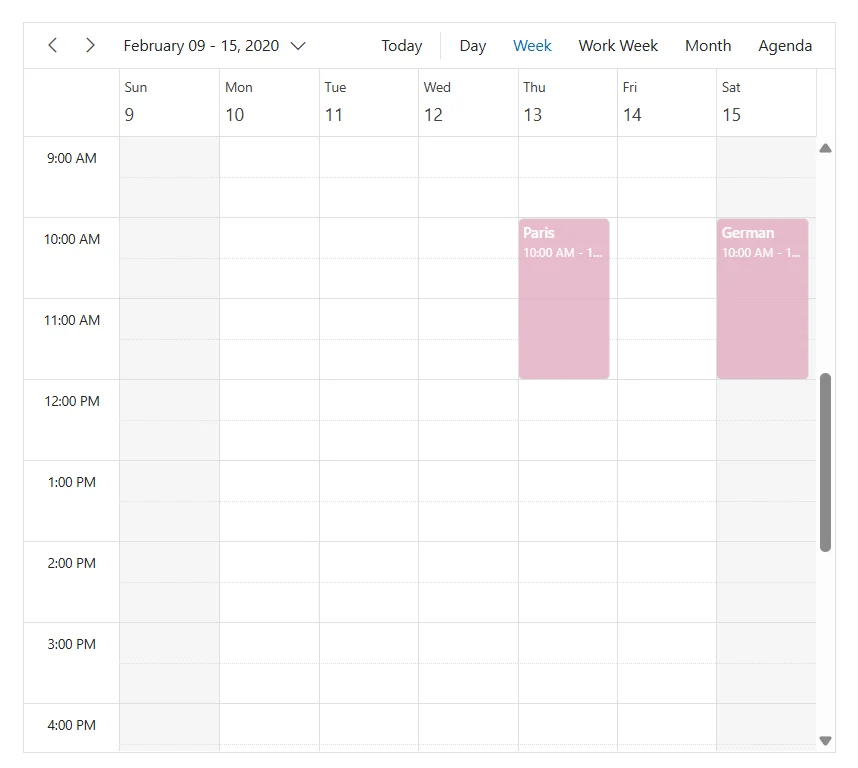
Selected appointments in Scheduler
This CSS selector targets appointment elements that are specifically marked as selected in the Blazor Scheduler component. A selected appointment in a Blazor Scheduler refers to an event that a user has actively clicked on or interacted with.
@using Syncfusion.Blazor.Schedule
<div class="component-container">
    <SfSchedule TValue="AppointmentData" Height="650px" @bind-SelectedDate="@CurrentDate">
        <ScheduleEventSettings DataSource="@DataSource"></ScheduleEventSettings>
        <ScheduleViews>
             <ScheduleView Option="View.Day"></ScheduleView>
            <ScheduleView Option="View.Week"></ScheduleView>
            <ScheduleView Option="View.WorkWeek"></ScheduleView>
            <ScheduleView Option="View.Month"></ScheduleView>
            <ScheduleView Option="View.Agenda"></ScheduleView>
        </ScheduleViews>
    </SfSchedule>
</div>

@code{
    DateTime CurrentDate = new DateTime(2020, 2, 13);
    List<AppointmentData> DataSource = new List<AppointmentData>
    {
        new AppointmentData { Id = 1, Subject = "Paris", StartTime = new DateTime(2020, 2, 13, 10, 0, 0) , EndTime = new DateTime(2020, 2, 13, 12, 0, 0) },
        new AppointmentData { Id = 2, Subject = "German", StartTime = new DateTime(2020, 2, 15, 10, 0, 0) , EndTime = new DateTime(2020, 2, 15, 12, 0, 0) }
    };
    public class AppointmentData
    {
        public int Id { get; set; }
        public string Subject { get; set; }
        public string Location { get; set; }
        public DateTime StartTime { get; set; }
        public DateTime EndTime { get; set; }
        public string Description { get; set; }
        public bool IsAllDay { get; set; }
        public string RecurrenceRule { get; set; }
        public string RecurrenceException { get; set; }
        public Nullable<int> RecurrenceID { get; set; }
    }
}
<style>
    .e-schedule .e-vertical-view .e-day-wrapper .e-appointment.e-appointment-border
    {
        background-color: #2d24d6;
        border: 2px solid #ebde52;
        border-radius: 5px !important;
        box-shadow: 0 2px 4px rgba(0, 0, 0, 0.8);
    }
</style>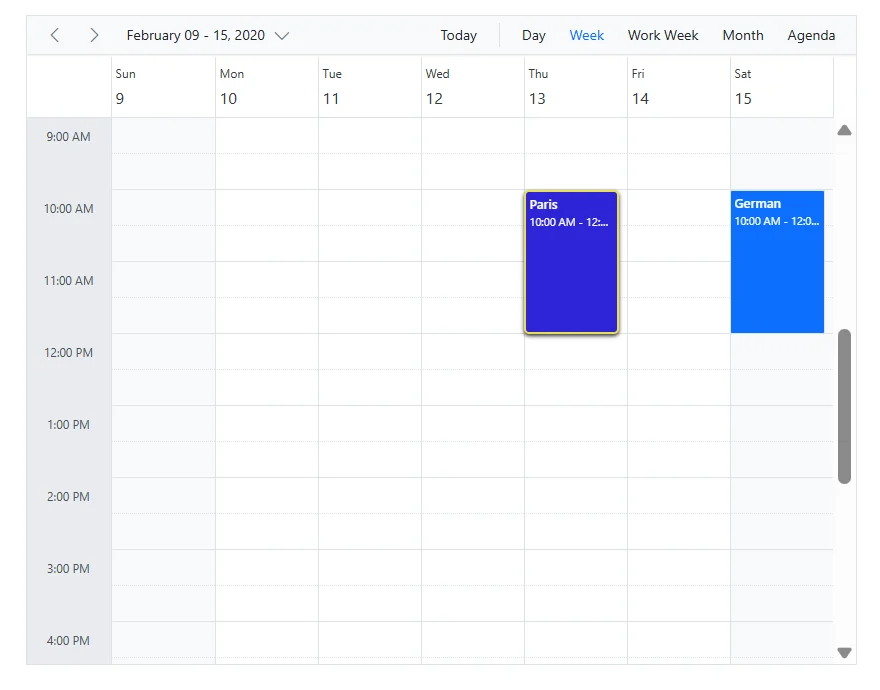
Selected cells in Scheduler
This CSS selector targets the cells that are specifically marked as selected in the Blazor Scheduler component. A selected cell in a Blazor Scheduler refers to a time slot that a user has actively clicked on or interacted with.
@using Syncfusion.Blazor.Schedule
<div class="component-container">
    <SfSchedule TValue="AppointmentData" Height="650px" @bind-SelectedDate="@CurrentDate">
        <ScheduleEventSettings DataSource="@DataSource"></ScheduleEventSettings>
        <ScheduleViews>
             <ScheduleView Option="View.Day"></ScheduleView>
            <ScheduleView Option="View.Week"></ScheduleView>
            <ScheduleView Option="View.WorkWeek"></ScheduleView>
            <ScheduleView Option="View.Month"></ScheduleView>
            <ScheduleView Option="View.Agenda"></ScheduleView>
        </ScheduleViews>
    </SfSchedule>
</div>

@code{
    DateTime CurrentDate = new DateTime(2020, 2, 13);
    List<AppointmentData> DataSource = new List<AppointmentData>
    {
        new AppointmentData { Id = 1, Subject = "Paris", StartTime = new DateTime(2020, 2, 13, 10, 0, 0) , EndTime = new DateTime(2020, 2, 13, 12, 0, 0) },
        new AppointmentData { Id = 2, Subject = "German", StartTime = new DateTime(2020, 2, 15, 10, 0, 0) , EndTime = new DateTime(2020, 2, 15, 12, 0, 0) }
    };
    public class AppointmentData
    {
        public int Id { get; set; }
        public string Subject { get; set; }
        public string Location { get; set; }
        public DateTime StartTime { get; set; }
        public DateTime EndTime { get; set; }
        public string Description { get; set; }
        public bool IsAllDay { get; set; }
        public string RecurrenceRule { get; set; }
        public string RecurrenceException { get; set; }
        public Nullable<int> RecurrenceID { get; set; }
    }
}
<style>
    .e-schedule .e-vertical-view .e-selected-cell
    {
        border: 2px solid #2d24d6;
        border-radius: 5px;
        box-shadow: 0 2px 4px rgba(0, 0, 0, 0.8);
    }
</style>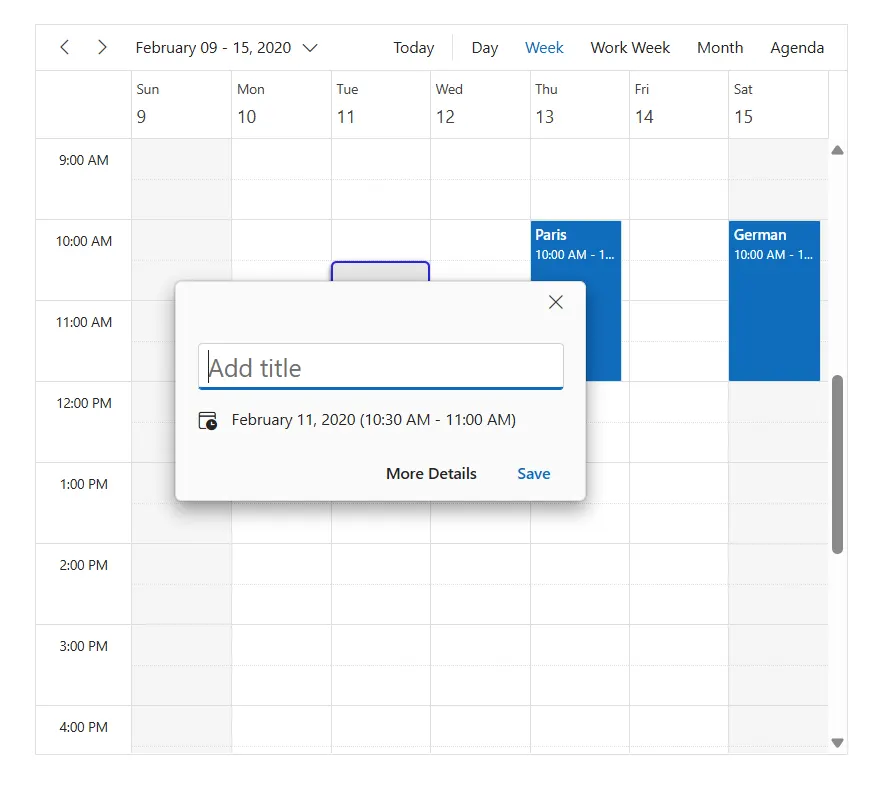
Header cells in Scheduler
This CSS selector targets the cells that are specifically marked as header cells in the Blazor Scheduler component. Header cells refer to the top row that displays contextual information such as dates and day labels.
@using Syncfusion.Blazor.Schedule
<div class="component-container">
    <SfSchedule TValue="AppointmentData" Height="650px" @bind-SelectedDate="@CurrentDate">
        <ScheduleEventSettings DataSource="@DataSource"></ScheduleEventSettings>
        <ScheduleViews>
             <ScheduleView Option="View.Day"></ScheduleView>
            <ScheduleView Option="View.Week"></ScheduleView>
            <ScheduleView Option="View.WorkWeek"></ScheduleView>
        </ScheduleViews>
    </SfSchedule>
</div>

@code{
    DateTime CurrentDate = new DateTime(2020, 2, 13);
    List<AppointmentData> DataSource = new List<AppointmentData>
    {
        new AppointmentData { Id = 1, Subject = "Paris", StartTime = new DateTime(2020, 2, 13, 10, 0, 0) , EndTime = new DateTime(2020, 2, 13, 12, 0, 0) },
        new AppointmentData { Id = 2, Subject = "German", StartTime = new DateTime(2020, 2, 15, 10, 0, 0) , EndTime = new DateTime(2020, 2, 15, 12, 0, 0) }
    };
    public class AppointmentData
    {
        public int Id { get; set; }
        public string Subject { get; set; }
        public string Location { get; set; }
        public DateTime StartTime { get; set; }
        public DateTime EndTime { get; set; }
        public string Description { get; set; }
        public bool IsAllDay { get; set; }
        public string RecurrenceRule { get; set; }
        public string RecurrenceException { get; set; }
        public Nullable<int> RecurrenceID { get; set; }
    }
}
<style>
    .e-schedule .e-vertical-view .e-date-header-wrap .e-header-cells
    {
        border: 2px solid #9c99d5 !important;
        border-radius: 5px;
    }
</style>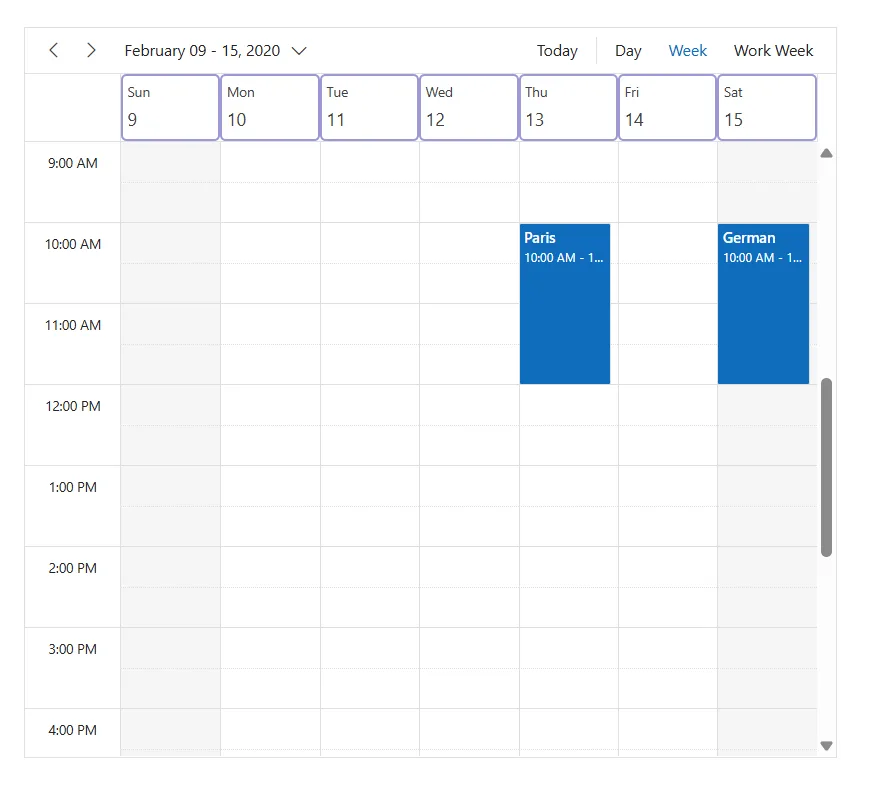
Resource cells in vertical views of Scheduler
This CSS selector targets the cells that are specifically marked as resource cells in the Blazor Scheduler component. Resource cells in the vertical views of Blazor Scheduler display the names or labels of resources such as people, rooms, equipment, or services. These cells are usually shown at the top of the Blazor Scheduler and help organize appointments by resource.
@using Syncfusion.Blazor.Schedule
<SfSchedule TValue="AppointmentData" Height="550px" @bind-SelectedDate="@CurrentDate">
    <ScheduleGroup Resources="@Resources"></ScheduleGroup>
    <ScheduleResources>
        <ScheduleResource TItem="ResourceData" TValue="int[]" DataSource="@OwnersData" Field="OwnerId" Title="Owner" Name="Owners" TextField="OwnerText" IdField="Id" ColorField="OwnerColor" AllowMultiple="true"></ScheduleResource>
    </ScheduleResources>
    <ScheduleEventSettings DataSource="@DataSource"></ScheduleEventSettings>
    <ScheduleViews>
        <ScheduleView Option="View.Day"></ScheduleView>
        <ScheduleView Option="View.Week"></ScheduleView>
        <ScheduleView Option="View.WorkWeek"></ScheduleView>
    </ScheduleViews>
</SfSchedule>
@code{
    DateTime CurrentDate = new DateTime(2023, 6, 1);
    public string[] Resources { get; set; } = { "Owners" };
    List<AppointmentData> DataSource = new List<AppointmentData>
     {
        new AppointmentData { Id = 1, Subject = "Meeting", StartTime = new DateTime(2023, 6, 1, 9, 30, 0) , EndTime = new DateTime(2023, 6, 1, 11, 0, 0), OwnerId = 1 },
        new AppointmentData { Id = 2, Subject = "Swimming", StartTime = new DateTime(2023, 6, 2, 10, 30, 0) , EndTime = new DateTime(2023, 6, 2, 12, 30, 0), OwnerId = 2 },
        new AppointmentData { Id = 3, Subject = "Movie", StartTime = new DateTime(2023, 6, 3, 10, 0, 0) , EndTime = new DateTime(2023,6 , 3, 12, 0, 0), OwnerId = 3 }
    };
    public List<ResourceData> OwnersData { get; set; } = new List<ResourceData>
    {
        new ResourceData{ OwnerText = "Nancy", Id = 1, OwnerColor = "#ffaa00" },
        new ResourceData{ OwnerText = "Steven", Id = 2, OwnerColor = "#f8a398" },
        new ResourceData{ OwnerText = "Michael", Id = 3, OwnerColor = "#7499e1" }
    };
    public class AppointmentData
    {
        public int Id { get; set; }
        public string Subject { get; set; }
        public string Location { get; set; }
        public DateTime StartTime { get; set; }
        public DateTime EndTime { get; set; }
        public string Description { get; set; }
        public bool IsAllDay { get; set; }
        public string RecurrenceRule { get; set; }
        public string RecurrenceException { get; set; }
        public Nullable<int> RecurrenceID { get; set; }
        public int OwnerId { get; set; }
    }
    public class ResourceData
    {
        public int Id { get; set; }
        public string OwnerText { get; set; }
        public string OwnerColor { get; set; }
    }
}

<style>
    .e-schedule .e-vertical-view .e-resource-cells .e-text-ellipsis
    {
        background-color: #ebdf0cdb;
        border-radius: 5px !important;
        font-size: 14px;
        font-weight: 500;
        color: #4814ee;
        text-align: center;
    }
</style>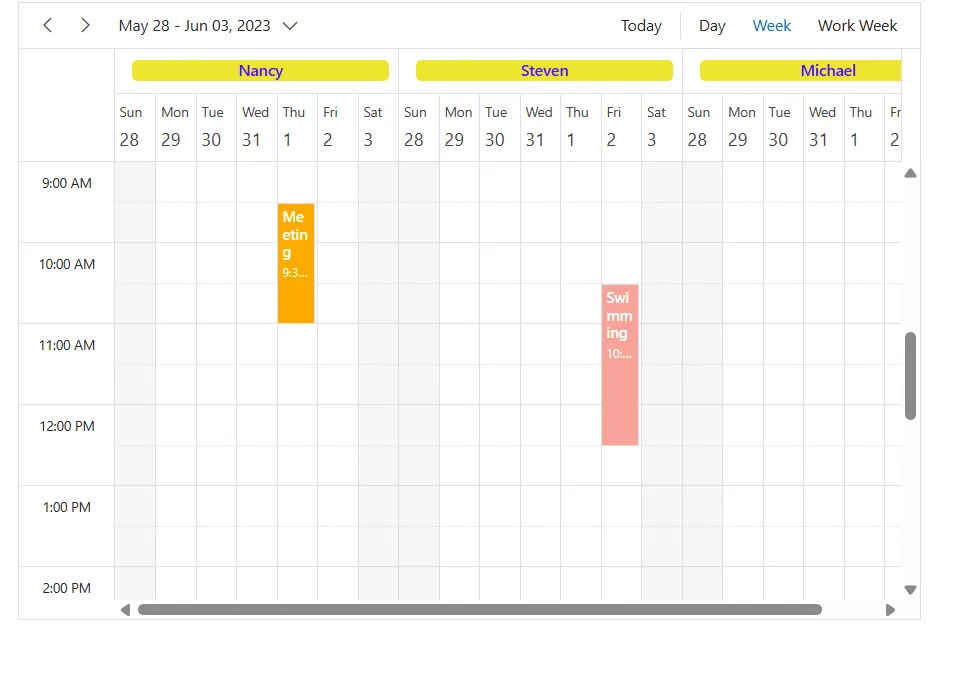
Resource cells in month views of Scheduler
This CSS selector targets the resource cells in the Blazor Scheduler Month view. These cells show resource names in the month view.
@using Syncfusion.Blazor.Schedule
<SfSchedule TValue="AppointmentData" Height="550px" @bind-SelectedDate="@CurrentDate">
    <ScheduleGroup Resources="@Resources"></ScheduleGroup>
    <ScheduleResources>
        <ScheduleResource TItem="ResourceData" TValue="int[]" DataSource="@OwnersData" Field="OwnerId" Title="Owner" Name="Owners" TextField="OwnerText" IdField="Id" ColorField="OwnerColor" AllowMultiple="true"></ScheduleResource>
    </ScheduleResources>
    <ScheduleEventSettings DataSource="@DataSource"></ScheduleEventSettings>
    <ScheduleViews>
        <ScheduleView Option="View.Month"></ScheduleView>
    </ScheduleViews>
</SfSchedule>
@code{
    DateTime CurrentDate = new DateTime(2023, 6, 1);
    public string[] Resources { get; set; } = { "Owners" };
    List<AppointmentData> DataSource = new List<AppointmentData>
     {
        new AppointmentData { Id = 1, Subject = "Meeting", StartTime = new DateTime(2023, 6, 1, 9, 30, 0) , EndTime = new DateTime(2023, 6, 1, 11, 0, 0), OwnerId = 1 },
        new AppointmentData { Id = 2, Subject = "Swimming", StartTime = new DateTime(2023, 6, 2, 10, 30, 0) , EndTime = new DateTime(2023, 6, 2, 12, 30, 0), OwnerId = 2 },
        new AppointmentData { Id = 3, Subject = "Movie", StartTime = new DateTime(2023, 6, 3, 10, 0, 0) , EndTime = new DateTime(2023,6 , 3, 12, 0, 0), OwnerId = 3 }
    };
    public List<ResourceData> OwnersData { get; set; } = new List<ResourceData>
    {
        new ResourceData{ OwnerText = "Nancy", Id = 1, OwnerColor = "#ffaa00" },
        new ResourceData{ OwnerText = "Steven", Id = 2, OwnerColor = "#f8a398" },
        new ResourceData{ OwnerText = "Michael", Id = 3, OwnerColor = "#7499e1" }
    };
    public class AppointmentData
    {
        public int Id { get; set; }
        public string Subject { get; set; }
        public string Location { get; set; }
        public DateTime StartTime { get; set; }
        public DateTime EndTime { get; set; }
        public string Description { get; set; }
        public bool IsAllDay { get; set; }
        public string RecurrenceRule { get; set; }
        public string RecurrenceException { get; set; }
        public Nullable<int> RecurrenceID { get; set; }
        public int OwnerId { get; set; }
    }
    public class ResourceData
    {
        public int Id { get; set; }
        public string OwnerText { get; set; }
        public string OwnerColor { get; set; }
    }
}

<style>
    .e-schedule .e-month-view .e-resource-cells
    {
        border: 2px solid #9c99d5 !important;
    }
    .e-schedule .e-month-view .e-resource-cells .e-text-ellipsis
    {
        border-radius: 5px !important;
        font-size: 14px;
        font-weight: 500;
        color: #4814ee;
        text-align: center;
    }
</style>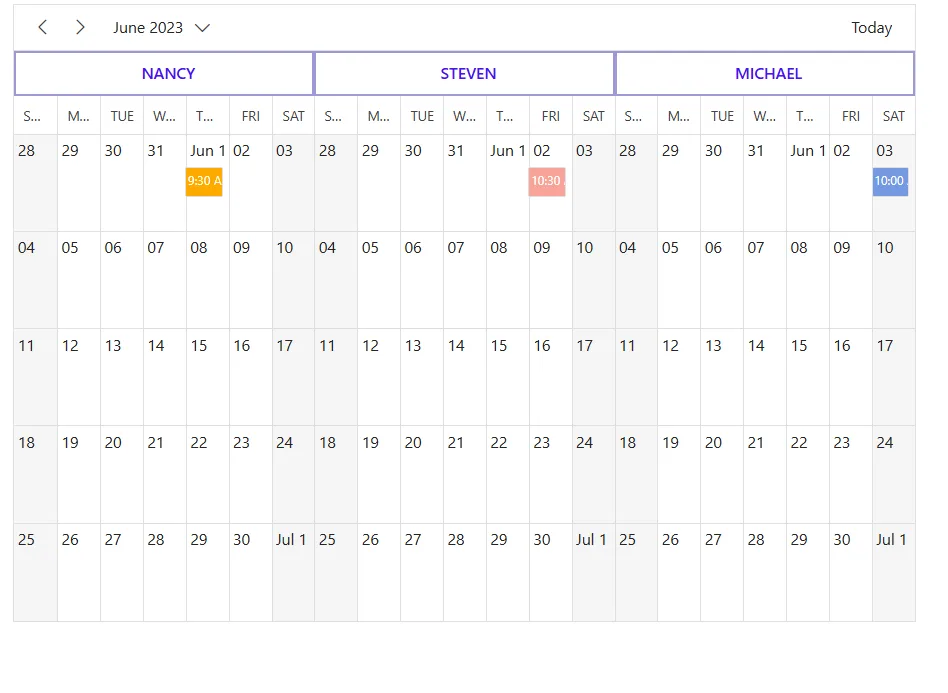
Resource cells in timeline views of Scheduler
This CSS selector targets the cells that are specifically marked as resource cells in timeline views of the Blazor Scheduler component. Resource cells in timeline views are usually shown on the left side of the Scheduler.
@using Syncfusion.Blazor.Schedule
<SfSchedule TValue="AppointmentData" Height="550px" @bind-SelectedDate="@CurrentDate">
    <ScheduleGroup Resources="@Resources"></ScheduleGroup>
    <ScheduleResources>
        <ScheduleResource TItem="ResourceData" TValue="int[]" DataSource="@OwnersData" Field="OwnerId" Title="Owner" Name="Owners" TextField="OwnerText" IdField="Id" ColorField="OwnerColor" AllowMultiple="true"></ScheduleResource>
    </ScheduleResources>
    <ScheduleEventSettings DataSource="@DataSource"></ScheduleEventSettings>
    <ScheduleViews>
        <ScheduleView Option="View.TimelineDay"></ScheduleView>
        <ScheduleView Option="View.TimelineWeek"></ScheduleView>
        <ScheduleView Option="View.TimelineWorkWeek"></ScheduleView>
    </ScheduleViews>
</SfSchedule>
@code{
    DateTime CurrentDate = new DateTime(2023, 6, 1);
    public string[] Resources { get; set; } = { "Owners" };
    List<AppointmentData> DataSource = new List<AppointmentData>
     {
        new AppointmentData { Id = 1, Subject = "Meeting", StartTime = new DateTime(2023, 6, 1, 9, 30, 0) , EndTime = new DateTime(2023, 6, 1, 11, 0, 0), OwnerId = 1 },
        new AppointmentData { Id = 2, Subject = "Swimming", StartTime = new DateTime(2023, 6, 2, 10, 30, 0) , EndTime = new DateTime(2023, 6, 2, 12, 30, 0), OwnerId = 2 },
        new AppointmentData { Id = 3, Subject = "Movie", StartTime = new DateTime(2023, 6, 3, 10, 0, 0) , EndTime = new DateTime(2023,6 , 3, 12, 0, 0), OwnerId = 3 }
    };
    public List<ResourceData> OwnersData { get; set; } = new List<ResourceData>
    {
        new ResourceData{ OwnerText = "Nancy", Id = 1, OwnerColor = "#ffaa00" },
        new ResourceData{ OwnerText = "Steven", Id = 2, OwnerColor = "#f8a398" },
        new ResourceData{ OwnerText = "Michael", Id = 3, OwnerColor = "#7499e1" }
    };
    public class AppointmentData
    {
        public int Id { get; set; }
        public string Subject { get; set; }
        public string Location { get; set; }
        public DateTime StartTime { get; set; }
        public DateTime EndTime { get; set; }
        public string Description { get; set; }
        public bool IsAllDay { get; set; }
        public string RecurrenceRule { get; set; }
        public string RecurrenceException { get; set; }
        public Nullable<int> RecurrenceID { get; set; }
        public int OwnerId { get; set; }
    }
    public class ResourceData
    {
        public int Id { get; set; }
        public string OwnerText { get; set; }
        public string OwnerColor { get; set; }
    }
}

<style>
    .e-schedule .e-timeline-view .e-resource-cells
    {
        background-color: #8ec4c0;
    }
    .e-schedule .e-timeline-view .e-resource-cells .e-text-ellipsis
    {
        border-radius: 5px !important;
        font-size: 14px;
        font-weight: 500;
        text-align: center;
    }
</style>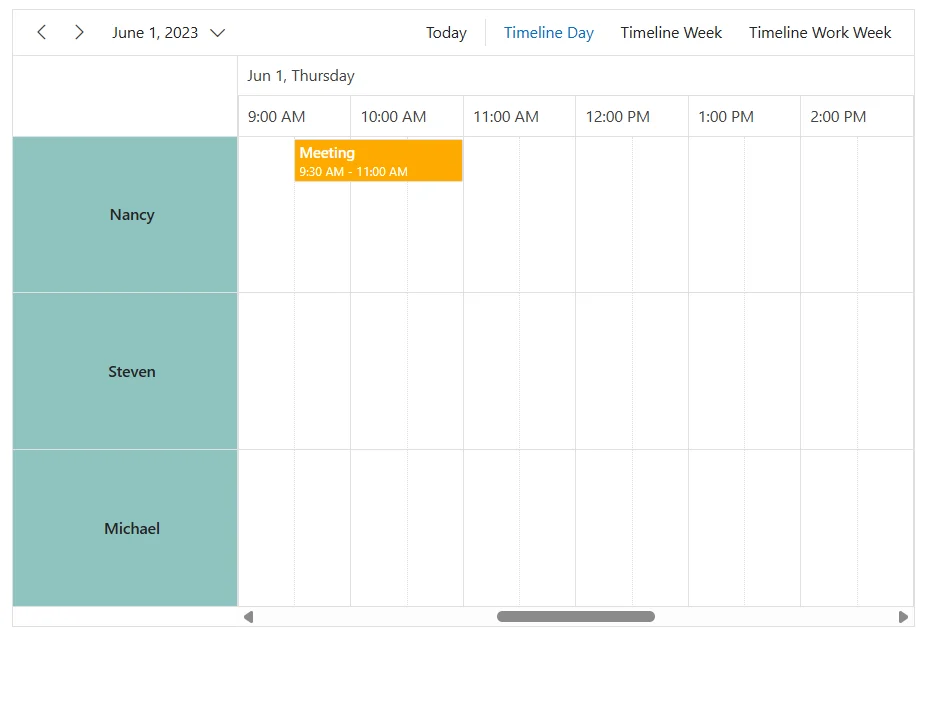
Resource cells in timeline month views of Scheduler
This CSS selector targets the cells that are specifically marked as resource cells in timeline month views of the Blazor Scheduler component.
@using Syncfusion.Blazor.Schedule
<SfSchedule TValue="AppointmentData" Height="550px" @bind-SelectedDate="@CurrentDate">
    <ScheduleGroup Resources="@Resources"></ScheduleGroup>
    <ScheduleResources>
        <ScheduleResource TItem="ResourceData" TValue="int[]" DataSource="@OwnersData" Field="OwnerId" Title="Owner" Name="Owners" TextField="OwnerText" IdField="Id" ColorField="OwnerColor" AllowMultiple="true"></ScheduleResource>
    </ScheduleResources>
    <ScheduleEventSettings DataSource="@DataSource"></ScheduleEventSettings>
    <ScheduleViews>
        <ScheduleView Option="View.TimelineMonth"></ScheduleView>
    </ScheduleViews>
</SfSchedule>
@code{
    DateTime CurrentDate = new DateTime(2023, 6, 1);
    public string[] Resources { get; set; } = { "Owners" };
    List<AppointmentData> DataSource = new List<AppointmentData>
     {
        new AppointmentData { Id = 1, Subject = "Meeting", StartTime = new DateTime(2023, 6, 1, 9, 30, 0) , EndTime = new DateTime(2023, 6, 1, 11, 0, 0), OwnerId = 1 },
        new AppointmentData { Id = 2, Subject = "Swimming", StartTime = new DateTime(2023, 6, 2, 10, 30, 0) , EndTime = new DateTime(2023, 6, 2, 12, 30, 0), OwnerId = 2 },
        new AppointmentData { Id = 3, Subject = "Movie", StartTime = new DateTime(2023, 6, 3, 10, 0, 0) , EndTime = new DateTime(2023,6 , 3, 12, 0, 0), OwnerId = 3 }
    };
    public List<ResourceData> OwnersData { get; set; } = new List<ResourceData>
    {
        new ResourceData{ OwnerText = "Nancy", Id = 1, OwnerColor = "#ffaa00" },
        new ResourceData{ OwnerText = "Steven", Id = 2, OwnerColor = "#f8a398" },
        new ResourceData{ OwnerText = "Michael", Id = 3, OwnerColor = "#7499e1" }
    };
    public class AppointmentData
    {
        public int Id { get; set; }
        public string Subject { get; set; }
        public string Location { get; set; }
        public DateTime StartTime { get; set; }
        public DateTime EndTime { get; set; }
        public string Description { get; set; }
        public bool IsAllDay { get; set; }
        public string RecurrenceRule { get; set; }
        public string RecurrenceException { get; set; }
        public Nullable<int> RecurrenceID { get; set; }
        public int OwnerId { get; set; }
    }
    public class ResourceData
    {
        public int Id { get; set; }
        public string OwnerText { get; set; }
        public string OwnerColor { get; set; }
    }
}

<style>
    .e-schedule .e-timeline-month-view .e-resource-cells
    {
        background-color: #b5efe7;
        border: 1px solid #ff0000 !important;
    }
    .e-schedule .e-timeline-month-view .e-resource-cells .e-text-ellipsis
    {
        font-size: 14px;
        font-weight: 500;
        text-align: center
    }
</style>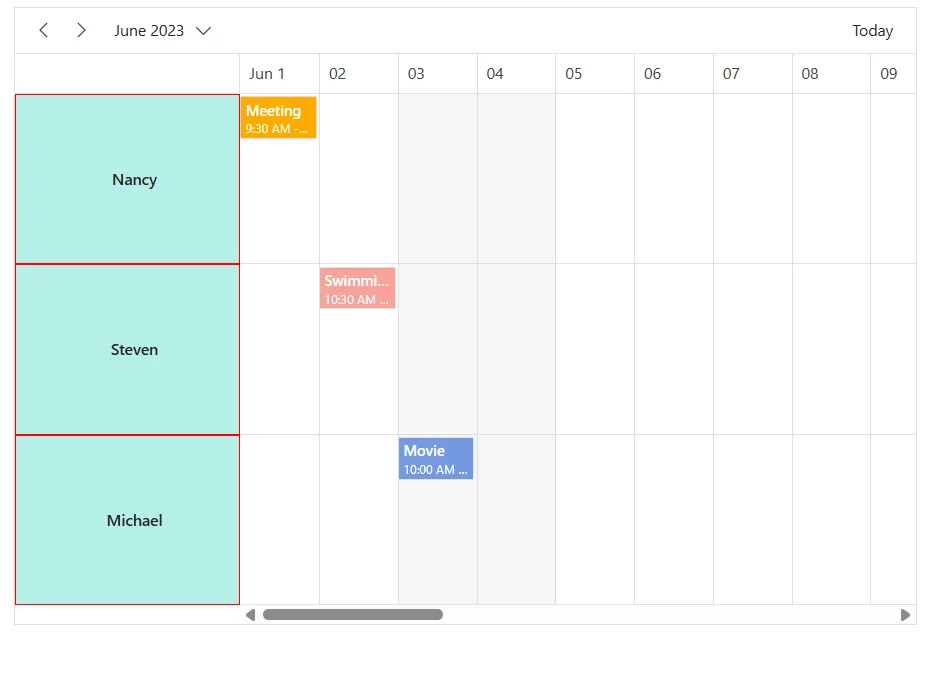
Resource cells in timeline month views of scheduler.
This CSS selector targets the cells that are specifically marked as resource cells in timeline month views of the Blazor Scheduler component.
@using Syncfusion.Blazor.Schedule
<SfSchedule TValue="AppointmentData" Height="550px" @bind-SelectedDate="@CurrentDate">
    <ScheduleGroup Resources="@Resources"></ScheduleGroup>
    <ScheduleResources>
        <ScheduleResource TItem="ResourceData" TValue="int[]" DataSource="@OwnersData" Field="OwnerId" Title="Owner" Name="Owners" TextField="OwnerText" IdField="Id" ColorField="OwnerColor" AllowMultiple="true"></ScheduleResource>
    </ScheduleResources>
    <ScheduleEventSettings DataSource="@DataSource"></ScheduleEventSettings>
    <ScheduleViews>
        <ScheduleView Option="View.TimelineMonth"></ScheduleView>
    </ScheduleViews>
</SfSchedule>
@code{
    DateTime CurrentDate = new DateTime(2023, 6, 1);
    public string[] Resources { get; set; } = { "Owners" };
    List<AppointmentData> DataSource = new List<AppointmentData>
     {
        new AppointmentData { Id = 1, Subject = "Meeting", StartTime = new DateTime(2023, 6, 1, 9, 30, 0) , EndTime = new DateTime(2023, 6, 1, 11, 0, 0), OwnerId = 1 },
        new AppointmentData { Id = 2, Subject = "Swimming", StartTime = new DateTime(2023, 6, 2, 10, 30, 0) , EndTime = new DateTime(2023, 6, 2, 12, 30, 0), OwnerId = 2 },
        new AppointmentData { Id = 3, Subject = "Movie", StartTime = new DateTime(2023, 6, 3, 10, 0, 0) , EndTime = new DateTime(2023,6 , 3, 12, 0, 0), OwnerId = 3 }
    };
    public List<ResourceData> OwnersData { get; set; } = new List<ResourceData>
    {
        new ResourceData{ OwnerText = "Nancy", Id = 1, OwnerColor = "#ffaa00" },
        new ResourceData{ OwnerText = "Steven", Id = 2, OwnerColor = "#f8a398" },
        new ResourceData{ OwnerText = "Michael", Id = 3, OwnerColor = "#7499e1" }
    };
    public class AppointmentData
    {
        public int Id { get; set; }
        public string Subject { get; set; }
        public string Location { get; set; }
        public DateTime StartTime { get; set; }
        public DateTime EndTime { get; set; }
        public string Description { get; set; }
        public bool IsAllDay { get; set; }
        public string RecurrenceRule { get; set; }
        public string RecurrenceException { get; set; }
        public Nullable<int> RecurrenceID { get; set; }
        public int OwnerId { get; set; }
    }
    public class ResourceData
    {
        public int Id { get; set; }
        public string OwnerText { get; set; }
        public string OwnerColor { get; set; }
    }
}

<style>
    .e-schedule .e-timeline-month-view .e-resource-cells
    {
        background-color: #b5efe7;
        border: 1px solid #ff0000 !important;
    }
    .e-schedule .e-timeline-month-view .e-resource-cells .e-text-ellipsis
    {
        font-size: 14px;
        font-weight: 500;
        text-align: center
    }
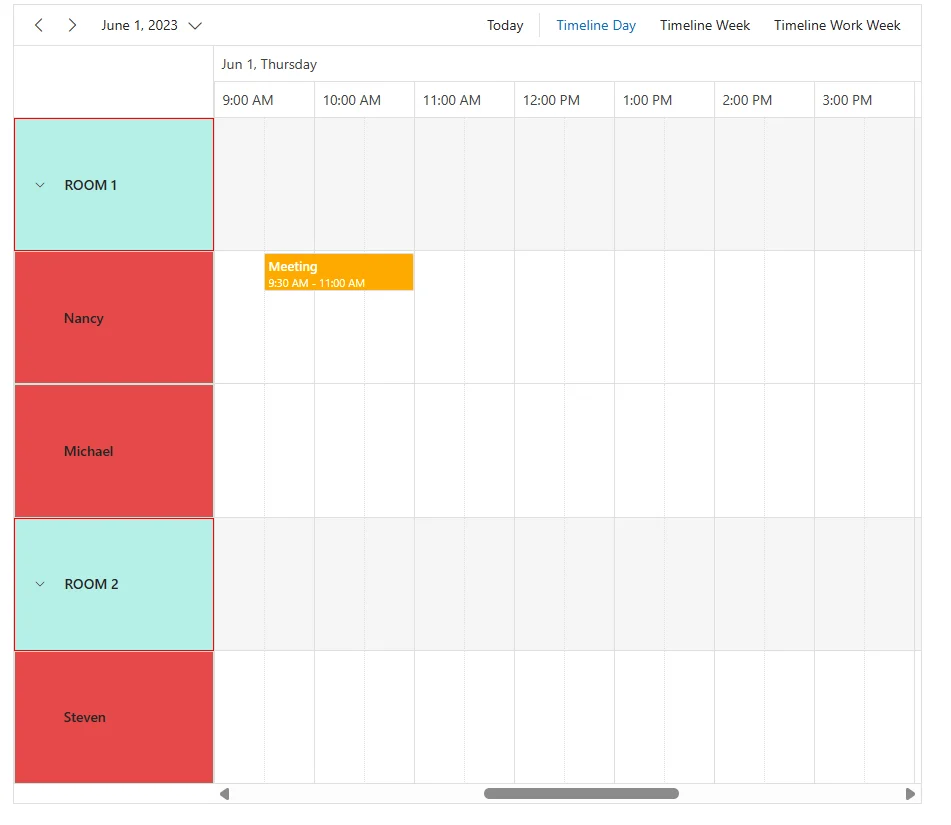
</style>Parent and child resource cells in timeline views of scheduler.
This CSS selector targets the parent and child resource cells in the timeline views of the Blazor Scheduler component. These cells display both parent and child resources (like rooms and individuals) and help organize appointments based on resource hierarchy.
@using Syncfusion.Blazor.Schedule

<SfSchedule TValue="AppointmentData" Height="800px" @bind-SelectedDate="@CurrentDate">
    <ScheduleGroup Resources="@Resources"></ScheduleGroup>
    <ScheduleResources>
        <ScheduleResource TItem="ResourceData" TValue="int" DataSource="@RoomData" Field="RoomId" Title="Room" Name="Rooms" TextField="RoomText" IdField="Id" ColorField="RoomColor" AllowMultiple="false"></ScheduleResource>
        <ScheduleResource TItem="ResourceData" TValue="int[]" DataSource="@OwnersData" Field="OwnerId" Title="Owner" Name="Owners" TextField="OwnerText" IdField="Id" GroupIDField="OwnerGroupId" ColorField="OwnerColor" AllowMultiple="true"></ScheduleResource>
    </ScheduleResources>
    <ScheduleEventSettings DataSource="@DataSource"></ScheduleEventSettings>
    <ScheduleViews>
        <ScheduleView Option="View.TimelineDay" MaxEventsPerRow="2"></ScheduleView>
        <ScheduleView Option="View.TimelineWeek" MaxEventsPerRow="2"></ScheduleView>
        <ScheduleView Option="View.TimelineWorkWeek" MaxEventsPerRow="2"></ScheduleView>

    </ScheduleViews>
</SfSchedule>
@code{
    DateTime CurrentDate = new DateTime(2023, 6, 1);
    public string[] Resources { get; set; } = { "Rooms", "Owners" };
    public List<ResourceData> RoomData { get; set; } = new List<ResourceData>
    {
        new ResourceData{ RoomText = "ROOM 1", Id = 1, RoomColor = "#cb6bb2" },
        new ResourceData{ RoomText = "ROOM 2", Id = 2, RoomColor = "#56ca85" }
    };
    public List<ResourceData> OwnersData { get; set; } = new List<ResourceData>
    {
        new ResourceData{ OwnerText = "Nancy", Id = 1, OwnerGroupId = 1, OwnerColor = "#ffaa00" },
        new ResourceData{ OwnerText = "Steven", Id = 2, OwnerGroupId = 2, OwnerColor = "#f8a398" },
        new ResourceData{ OwnerText = "Michael", Id = 3, OwnerGroupId = 1, OwnerColor = "#7499e1" }
    };
    List<AppointmentData> DataSource = new List<AppointmentData>
     {
        new AppointmentData { Id = 1, Subject = "Meeting", StartTime = new DateTime(2023, 6, 1, 9, 30, 0) , EndTime = new DateTime(2023, 6, 1, 11, 0, 0), OwnerId = 1, RoomId = 1 }
    };
    public class AppointmentData
    {
        public int Id { get; set; }
        public string Subject { get; set; }
        public string Location { get; set; }
        public DateTime StartTime { get; set; }
        public DateTime EndTime { get; set; }
        public string Description { get; set; }
        public bool IsAllDay { get; set; }
        public string RecurrenceRule { get; set; }
        public string RecurrenceException { get; set; }
        public Nullable<int> RecurrenceID { get; set; }
        public int OwnerId { get; set; }
        public int RoomId { get; set; }
    }
    public class ResourceData
    {
        public int Id { get; set; }
        public string RoomText { get; set; }
        public string RoomColor { get; set; }
        public string OwnerText { get; set; }
        public string OwnerColor { get; set; }
        public int OwnerGroupId { get; set; }
    }
}

<style>
    .e-schedule .e-timeline-view .e-resource-cells.e-parent-node
    {
        background-color: #b5efe7;
        border: 1px solid #ff0000 !important;
    }
     .e-schedule .e-timeline-view .e-resource-cells.e-child-node
    {
        background-color: #e74949;
        border: 1px solid #b5efe7 !important;
    }
    .e-schedule .e-timeline-view .e-resource-cells .e-text-ellipsis
    {
        font-size: 14px;
        font-weight: 500;
    }
</style>