Set Minimum and Maximum Date in Blazor Scheduler
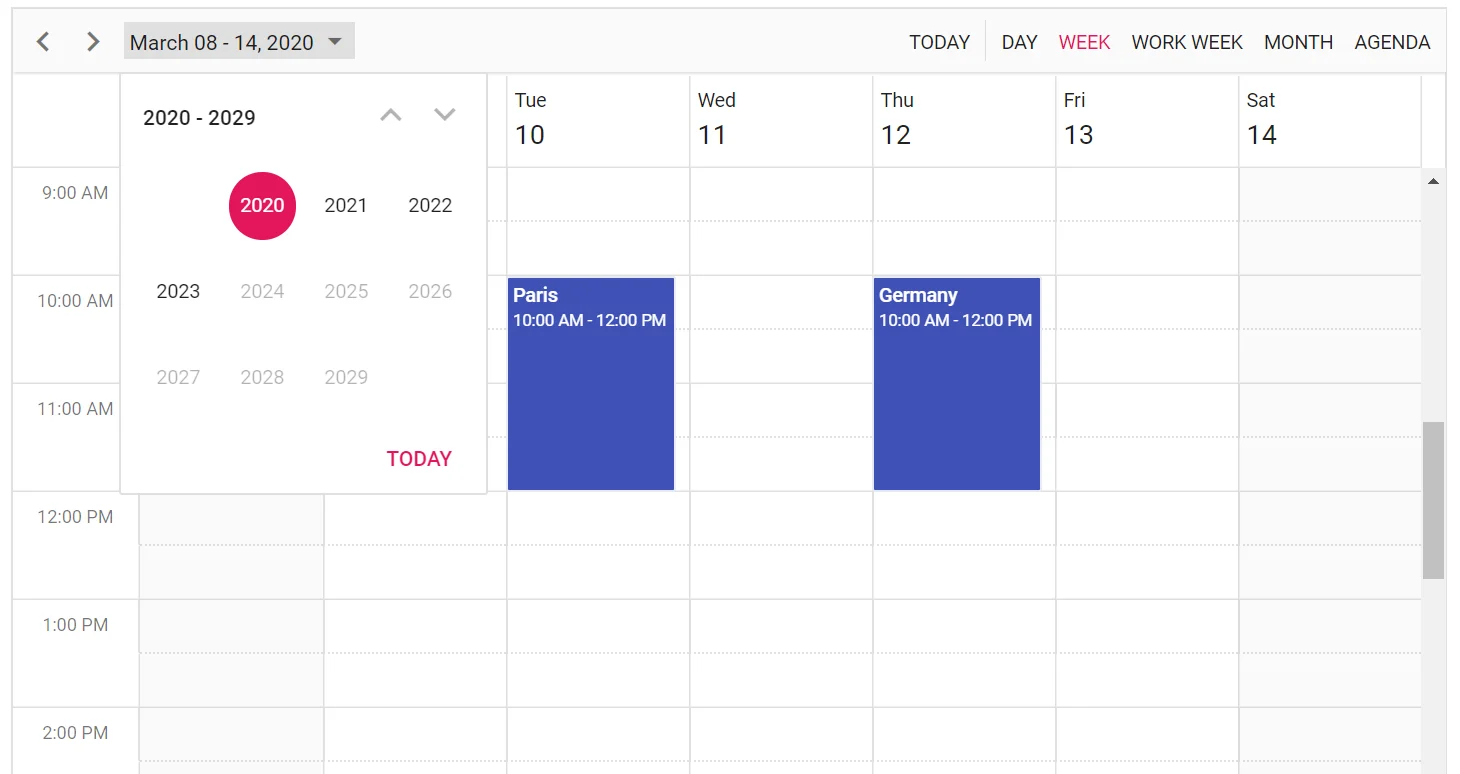
By default, all date ranges are available in Blazor Scheduler. You can render only a specific date range by setting the MinDate and MaxDate properties. In the following code example, Blazor Scheduler is rendered from 2020 to 2023 only.
@using Syncfusion.Blazor.Schedule

<SfSchedule TValue="AppointmentData" Height="550px" MinDate="new DateTime(2020, 1, 1)" MaxDate="new DateTime(2023, 12, 31)" @bind-SelectedDate="@CurrentDate">
    <ScheduleEventSettings DataSource="@DataSource"></ScheduleEventSettings>
    <ScheduleViews>
        <ScheduleView Option="View.Day"></ScheduleView>
        <ScheduleView Option="View.Week"></ScheduleView>
        <ScheduleView Option="View.WorkWeek"></ScheduleView>
        <ScheduleView Option="View.Month"></ScheduleView>
        <ScheduleView Option="View.Agenda"></ScheduleView>
    </ScheduleViews>
</SfSchedule>

@code{
    DateTime CurrentDate = new DateTime(2020, 3, 11);
    List<AppointmentData> DataSource = new List<AppointmentData>
    {
        new AppointmentData { Id = 1, Subject = "Paris", StartTime = new DateTime(2020, 3, 10, 10, 0, 0 ) , EndTime = new DateTime(2020, 3, 10, 12, 0, 0) },
        new AppointmentData { Id = 2, Subject = "Germany", StartTime = new DateTime(2020, 3, 12, 10, 0, 0) , EndTime = new DateTime(2020, 3, 12, 12, 0, 0) }
    };
    public class AppointmentData
    {
        public int Id { get; set; }
        public string Subject { get; set; }
        public string Location { get; set; }
        public DateTime StartTime { get; set; }
        public DateTime EndTime { get; set; }
        public string Description { get; set; }
        public bool IsAllDay { get; set; }
        public string RecurrenceRule { get; set; }
        public string RecurrenceException { get; set; }
        public Nullable<int> RecurrenceID { get; set; }
    }
}