Data Binding in ASP.NET MVC Scheduler
The Scheduler uses DataManager, which supports both RESTful JSON data services binding and local JavaScript object array binding. The DataSource property can be assigned either with an instance of DataManager or a JavaScript object array collection. It supports two kinds of data binding methods:
- Local data
- Remote data
Binding local data
To bind local JSON data to the Scheduler, you can simply assign a JavaScript object array to the DataSource option of the scheduler within the EventSettings property. The local data source can also be provided as an instance of the DataManager.
@using Syncfusion.EJ2.Schedule

@(Html.EJS().Schedule("schedule")
    .Width("100%")
    .Height("550px")
    .EventSettings(new ScheduleEventSettings { DataSource = ViewBag.datasource })
    .SelectedDate(new DateTime(2018, 2, 15))
    .Render()
)
public ActionResult Index()
{
ViewBag.datasource = GetScheduleData();
return View();
}
public List<AppointmentData> GetScheduleData()
{
List<AppointmentData> appData = new List<AppointmentData>();
appData.Add(new AppointmentData
{ Id = 1, Subject = "Blue Moon Eclipse", StartTime = new DateTime(2018, 2, 12, 9, 30, 0), EndTime = new DateTime(2018, 2, 12, 11, 0, 0) });
appData.Add(new AppointmentData
{ Id = 2, Subject = "Milky Way as Melting pot", StartTime = new DateTime(2018, 2, 14, 9, 30, 0), EndTime = new DateTime(2018, 2, 14, 11, 0, 0) });
return appData;
}
public class AppointmentData
{
public int Id { get; set; }
public string Subject { get; set; }
public DateTime StartTime { get; set; }
public DateTime EndTime { get; set; }
}By default,
DataManagerusesJsonAdaptorfor local data-binding.
You can also bind different field names to the default event fields as well as include additional
custom fieldsto the event object collection, which can be referred to here.
Binding remote data
Any kind of remote data service can be bound to the Scheduler. To do so, create an instance of DataManager and provide the service URL to the Url option of DataManager, and then assign it to the DataSource property within EventSettings.
Using ODataV4Adaptor
ODataV4 is a standardized protocol for creating and consuming data. Refer to the following code example to retrieve the data from an ODataV4 service using the DataManager. To connect with ODataV4 service endpoints, it is necessary to use the ODataV4Adaptor within DataManager.
@using Syncfusion.EJ2.Schedule

@(Html.EJS().Schedule("schedule")
    .Width("100%")
    .Height("550px")
    .Readonly(true)
    .EventSettings(e =>
        e.DataSource(d =>
            d.Url("https://services.syncfusion.com/aspnet/production/api/Schedule")
            .Adaptor("ODataV4Adaptor")
            .CrossDomain(true)
        )
    )
    .SelectedDate(new DateTime(2020, 9, 20))
    .Render()
)
public ActionResult Index()
{
return View();
}Filter events using the in-built query
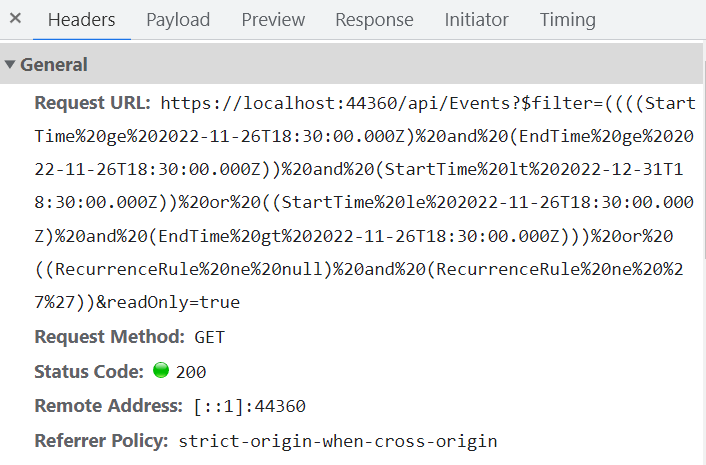
To enable server-side filtering operations based on predetermined conditions, the includeFiltersInQuery API can be set to true. This allows the filter query to be constructed using the start date, end date, and recurrence rule, which in turn enables the request to be filtered accordingly.
This method greatly improves the component’s performance by reducing the data that needs to be transferred to the client side. As a result, the component’s efficiency and responsiveness are significantly enhanced, resulting in a better user experience. However, it is important to consider the possibility of longer query strings, which may cause issues with the maximum URL length or server limitations on query string length.
@using Syncfusion.EJ2.Schedule
@(Html.EJS().Schedule("schedule")
.Width("100%")
.Height("550px")
.Readonly(true)
.EventSettings(e =>
e.DataSource(d =>
d.Url("https://services.odata.org/V4/Northwind/Northwind.svc/Orders/")
.Adaptor("ODataV4Adaptor")
.CrossDomain(true)
)
.Fields(f =>
f.Subject(sub => sub.Name("ShipName"))
.Id("Id")
.Location(loc => loc.Name("ShipCountry"))
.Description(des => des.Name("ShipAddress"))
.StartTime(st => st.Name("OrderDate"))
.EndTime(et => et.Name("RequiredDate"))
.RecurrenceRule(rec => rec.Name("ShipRegion"))
)
.Query("new ej.data.Query()")
.IncludeFiltersInQuery(true)
)
.SelectedDate(new DateTime(1996, 7, 9))
.Render()
)public ActionResult Index()
{
return View();
}
public class AppointmentData
{
public int Id { get; set; }
public string ShipName { get; set; }
public DateTime OrderDate { get; set; }
public DateTime RequiredDate { get; set; }
public string ShipCountry { get; set; }
public string ShipAddress { get; set; }
public string ShipRegion { get; set; }
}The following image represents how the parameters are passed using ODataV4 filter.
Using custom adaptor
It is possible to create your own custom adaptor by extending the built-in available adaptors. The following example demonstrates the custom adaptor usage and how to add a custom field EventID for the appointments by overriding the built-in response processing using the processResponse method of the ODataV4Adaptor. The custom adaptor is registered with the DataManager using the adaptor option, and the resulting DataManager instance is then assigned to the Scheduler’s DataSource property.
@using Syncfusion.EJ2.Schedule
@(Html.EJS().Schedule("schedule")
.Width("100%")
.Height("550px")
.Readonly(true)
.SelectedDate(new DateTime(2020, 9, 20))
.Created("created")
.Render()
)
<script type="text/javascript">
function created(args) {
class CustomAdaptor extends ej.data.ODataV4Adaptor {
processResponse() {
var i = 0;
// calling base class processResponse function
var original = super.processResponse.apply(this, arguments);
// adding employee id
original.forEach(function (item) { item['EmpID'] = ++i });
return original;
}
}
var dataManager = new ej.data.DataManager({
url: 'https://services.syncfusion.com/aspnet/production/api/Schedule',
adaptor: new CustomAdaptor
});
var schObj = document.querySelector('.e-schedule').ej2_instances[0];
schObj.eventSettings.dataSource = dataManager;
}
</script>public ActionResult Index()
{
return View();
}Loading data via AJAX post
You can bind the event data through an external AJAX request and assign it to the DataSource property of the Scheduler. In the following code example, we have retrieved the data from the server with the help of an AJAX request and assigned the resultant data to the DataSource property of the Scheduler within the success (also known as onSuccess) event of the AJAX call.
@using Syncfusion.EJ2.Schedule
<input type="button" value="Click me to load Event" onclick="GetData()" /><br><br>
@(Html.EJS().Schedule("schedule")
.Width("100%")
.Height("550px")
.Readonly(true)
.SelectedDate(new DateTime(2017, 6, 11))
.Render()
)
<script type="text/javascript">
function GetData() {
var ajax = new ej.base.Ajax('/Home/GetData', 'Post', false);
ajax.send().then(
function (value) {
var scheduleObj = document.querySelector('.e-schedule').ej2_instances[0];
scheduleObj.eventSettings.dataSource = JSON.parse(value);
scheduleObj.dataBind();
},
function (reason) {
console.log(reason);
});
}
</script>public ActionResult Index()
{
return View();
}The definition for the controller method
GetDatacan be referred to here.
Passing additional parameters to the server
To send an additional custom parameter to the server-side post, you need to use the addParams method of Query. Then, assign this Query object with the additional parameters to the Query property of the Scheduler.
@using Syncfusion.EJ2.Schedule
@(Html.EJS().Schedule("schedule")
.Width("100%")
.Height("550px")
.Readonly(true)
.EventSettings(e =>
e.DataSource(d => d.Url("https://services.syncfusion.com/aspnet/production/odata/")
.Adaptor("ODataV4Adaptor")
.CrossDomain(true)
)
.Query("new ej.data.Query().from('Events').addParams('readOnly', 'true')")
)
.SelectedDate(new DateTime(2017, 6, 11))
.Render()
)public ActionResult Index()
{
return View();
}The parameters added using the
Queryproperty will be sent along with the data request to the server on every Scheduler action.
Handling failure actions
When the Scheduler interacts with the server, there are chances that some server-side exceptions may occur. You can acquire those error messages or exception details on the client side using the ActionFailure event of the Scheduler.
@using Syncfusion.EJ2
@using Syncfusion.EJ2.Schedule
@(Html.EJS().Schedule("schedule")
.Width("100%")
.Height("550px")
.EventSettings(e =>
e.DataSource(d => d.Url("http://some.com/invalidUrl").Adaptor("UrlAdaptor").CrossDomain(true))
)
.ActionFailure("onActionFailure")
.SelectedDate(new DateTime(2017, 6, 11))
.Render()
)
<script type="text/javascript">
function onActionFailure(args) {
var scheduleObj = document.getElementById('schedule').ej2_instances[0];
var span = document.createElement('span');
scheduleObj.element.parentNode.insertBefore(span, scheduleObj.element);
span.style.color = '#FF0000';
span.innerHTML = 'Server exception: 404 Not found';
}
</script>public ActionResult Index()
{
return View();
}The argument passed to the ActionFailure event contains the error details returned from the server. The argument exposes properties such as error (the error object or message), action (the operation that caused the failure, for example, insert, update, remove, batch, or read), and result (the raw server response, if any), so you can inspect the cause and surface an appropriate message to the end user.
Scheduler CRUD actions
The CRUD (Create, Read, Update, and Delete) actions can be performed easily on Scheduler appointments using the various adaptors available within the DataManager. Most preferably, you can use the UrlAdaptor for performing CRUD actions on Scheduler appointments.
@(Html.EJS().Schedule("schedule")
.Width("100%")
.Height("550px")
.EventSettings(e => e.DataSource(d => d.Url("Home/GetData").CrudUrl("Home/UpdateData").Adaptor("UrlAdaptor").CrossDomain(true)))
.SelectedDate(new DateTime(2017, 6, 5))
.Render()
)The server-side controller code to handle the CRUD operations are as follows.
using System;
using System.Collections.Generic;
using System.Linq;
using System.Web;
using System.Web.Mvc;
using ScheduleSample.Models;
namespace ScheduleSample.Controllers
{
public class HomeController : Controller
{
ScheduleDataDataContext db = new ScheduleDataDataContext();
public ActionResult Index()
{
    return View();
}
public ActionResult LoadData() // Here we get the Start and End Date and based on that can filter the data and return to Scheduler
{
var data = db.ScheduleEventDatas.ToList();
return Json(data);
}
[HttpPost]
public ActionResult UpdateData([FromBody] EditParams param)
{
if (param.action == "insert" || (param.action == "batch" && param.added != null)) // this block of code will execute while inserting the appointments
{
var value = (param.action == "insert") ? param.value : param.added[0];
int intMax = db.ScheduleEventDatas.ToList().Count > 0 ? db.ScheduleEventDatas.ToList().Max(p => p.Id) : 1;
DateTime startTime = Convert.ToDateTime(value.StartTime);
DateTime endTime = Convert.ToDateTime(value.EndTime);
ScheduleEventData appointment = new ScheduleEventData()
{
Id = intMax + 1,
StartTime = startTime,
EndTime = endTime,
Subject = value.Subject,
IsAllDay = value.IsAllDay,
StartTimezone = value.StartTimezone,
EndTimezone = value.EndTimezone,
RecurrenceRule = value.RecurrenceRule,
RecurrenceID = value.RecurrenceID,
RecurrenceException = value.RecurrenceException
};
db.ScheduleEventDatas.InsertOnSubmit(appointment);
db.SubmitChanges();
}
if (param.action == "update" || (param.action == "batch" && param.changed != null)) // this block of code will execute while updating the appointment
{
var value = (param.action == "update") ? param.value : param.changed[0];
var filterData = db.ScheduleEventDatas.Where(c => c.Id == Convert.ToInt32(value.Id));
if (filterData.Count() > 0)
{
DateTime startTime = Convert.ToDateTime(value.StartTime);
DateTime endTime = Convert.ToDateTime(value.EndTime);
ScheduleEventData appointment = db.ScheduleEventDatas.Single(A => A.Id == Convert.ToInt32(value.Id));
appointment.StartTime = startTime;
appointment.EndTime = endTime;
appointment.StartTimezone = value.StartTimezone;
appointment.EndTimezone = value.EndTimezone;
appointment.Subject = value.Subject;
appointment.IsAllDay = value.IsAllDay;
appointment.RecurrenceRule = value.RecurrenceRule;
appointment.RecurrenceID = value.RecurrenceID;
appointment.RecurrenceException = value.RecurrenceException;
}
db.SubmitChanges();
}
if (param.action == "remove" || (param.action == "batch" && param.deleted != null)) // this block of code will execute while removing the appointment
{
if (param.action == "remove")
{
int key = Convert.ToInt32(param.key);
ScheduleEventData appointment = db.ScheduleEventDatas.Where(c => c.Id == key).FirstOrDefault();
if (appointment != null) db.ScheduleEventDatas.DeleteOnSubmit(appointment);
}
else
{
foreach (var apps in param.deleted)
{
ScheduleEventData appointment = db.ScheduleEventDatas.Where(c => c.Id == apps.Id).FirstOrDefault();
if (appointment != null) db.ScheduleEventDatas.DeleteOnSubmit(appointment);
}
}
db.SubmitChanges();
}
var data = db.ScheduleEventDatas.ToList();
return Json(data);
}
public class EditParams
{
public string key { get; set; }
public string action { get; set; }
public List<ScheduleEventData> added { get; set; }
public List<ScheduleEventData> changed { get; set; }
public List<ScheduleEventData> deleted { get; set; }
public ScheduleEventData value { get; set; }
}
}
}Configuring Scheduler with Google API service
We have assigned our custom-created Google Calendar URL to the DataManager and assigned the same to the Scheduler DataSource. Since the event data retrieved from Google Calendar will be in its own object format, it needs to be resolved manually within the Scheduler’s DataBinding event. Within this event, the event fields need to be mapped properly and then assigned to the result. The Google Calendar URL must support CORS or be accessible from the Scheduler’s hosting domain, and you must provide a valid API key in the key query parameter of the Google Calendar URL.
@using Syncfusion.EJ2
@using Syncfusion.EJ2.Schedule

@{
    var calendarId = "[email protected]";
    var publicKey = "AIzaSyD76zjMDsL_jkenM5AAnNsORypS1Icuqxg";
    var dataManager = new DataManager() { Url = "https://www.googleapis.com/calendar/v3/calendars/" + calendarId + "/events?key=" + publicKey, Adaptor = "WebApiAdaptor", CrossDomain = true };
}

@(Html.EJS().Schedule("schedule")
    .Width("100%")
    .Height("650px")
    .EventSettings(new ScheduleEventSettings { DataSource = dataManager })
    .DataBinding("onDataBinding")
    .Readonly(true)
    .SelectedDate(new DateTime(2018, 11, 14))
    .Render()
)

<script type="text/javascript">
    function onDataBinding(e) {
        var items = e.result.items;
        var scheduleData = [];
        if (items.length > 0) {
            for (var i = 0; i < items.length; i++) {
                var event = items[i];
                var when = event.start.dateTime;
                var start = event.start.dateTime;
                var end = event.end.dateTime;
                if (!when) {
                    when = event.start.date;
                    start = event.start.date;
                    end = event.end.date;
                }
                scheduleData.push({
                    Id: event.id,
                    Subject: event.summary,
                    StartTime: new Date(start),
                    EndTime: new Date(end),
                    IsAllDay: !event.start.dateTime
                });
            }
        }
        e.result = scheduleData;
    }
</script>
public ActionResult Index()
{
return View();
}You can refer to our ASP.NET MVC Scheduler feature tour page for its groundbreaking feature representations. You can also explore our ASP.NET MVC Scheduler example to know how to present and manipulate data.