Cell Customization in ASP.NET MVC Scheduler
The cells of the Scheduler can be customized either using the cell template or the RenderCell event.
Setting cell dimensions in all views
The height and width of the Scheduler cells can be customized to increase or reduce their size through the CssClass property, which overrides the default CSS applied to the cells.
@using Syncfusion.EJ2.Schedule

@(Html.EJS().Schedule("schedule")
    .Width("100%")
    .Views(ViewBag.view)
    .EventSettings(new ScheduleEventSettings { DataSource = ViewBag.datasource })
    .CssClass("schedule-cell-dimension")
    .Height("550px")
    .SelectedDate(new DateTime(2018, 2, 15))
    .Render()
)

<style>
    .schedule-cell-dimension.e-schedule .e-vertical-view .e-date-header-wrap table col,
    .schedule-cell-dimension.e-schedule .e-vertical-view .e-content-wrap table col {
        width: 200px;
    }

    .schedule-cell-dimension.e-schedule .e-vertical-view .e-time-cells-wrap table td,
    .schedule-cell-dimension.e-schedule .e-vertical-view .e-work-cells {
        height: 100px;
    }

    .schedule-cell-dimension.e-schedule .e-month-view .e-work-cells,
    .schedule-cell-dimension.e-schedule .e-month-view .e-date-header-wrap table col {
        width: 200px;
    }

    .schedule-cell-dimension.e-schedule .e-month-view .e-work-cells {
        height: 200px;
    }
</style>
public ActionResult Index()
{
ViewBag.datasource = GetEmployeeEventData();
List<ScheduleView> viewOption = new List<ScheduleView>()
{
new ScheduleView {Option = Syncfusion.EJ2.Schedule.View.Day },
new ScheduleView {Option = Syncfusion.EJ2.Schedule.View.Week },
new ScheduleView {Option = Syncfusion.EJ2.Schedule.View.WorkWeek },
new ScheduleView {Option = Syncfusion.EJ2.Schedule.View.Month }
};
ViewBag.view = viewOption;
return View();
}
public List<EmployeeEventData> GetEmployeeEventData()
{
List<EmployeeEventData> employeeEventData = new List<EmployeeEventData>();
employeeEventData.Add(new EmployeeEventData
{ Id = 1,
Subject = "Project Workflow Analysis",
StartTime = new DateTime(2023, 2, 14, 9, 0, 0),
EndTime = new DateTime(2023, 2, 14, 11, 0, 0),
CategoryColor = "#1aaa55"
});
employeeEventData.Add(new EmployeeEventData
{
Id = 2,
Subject = "Project Requirement Planning",
StartTime = new DateTime(2023, 2, 15, 9, 0, 0),
EndTime = new DateTime(2023, 2, 15, 11, 0, 0),
CategoryColor = "#357cd2"
});
employeeEventData.Add(new EmployeeEventData
{
Id = 3,
Subject = "Quality Analysis",
StartTime = new DateTime(2023, 2, 16, 9, 0, 0),
EndTime = new DateTime(2023, 2, 16, 11, 0, 0),
CategoryColor = "#7fa900"
});
return employeeEventData;
}
public class EmployeeEventData
{
public int Id { get; set; }
public string Subject { get; set; }
public DateTime StartTime { get; set; }
public DateTime EndTime { get; set; }
public string CategoryColor { get; set; }
}Check for cell availability
You can check whether the given time-range slots are available for event creation or already occupied by other events using the isSlotAvailable method. In the following code example, if a specific time slot already contains an appointment, then no more appointments can be added to that cell.
@using Syncfusion.EJ2.Schedule

@(Html.EJS().Schedule("schedule")
    .Width("100%")
    .Height("550px")
    .Views(ViewBag.view)
    .ActionBegin("onActionBegin")
    .EventSettings(new ScheduleEventSettings { DataSource = ViewBag.datasource })
    .SelectedDate(new DateTime(2018, 2, 15))
    .Render()
)

<script type="text/javascript">
    function onActionBegin(args) {
        var scheduleObj = document.getElementById('schedule').ej2_instances[0];
        if (args.requestType === 'eventCreate' && args.data.length > 0) {
            var eventData = args.data[0];
            var eventField = scheduleObj.eventFields;
            var startDate = eventData[eventField.startTime];
            var endDate = eventData[eventField.endTime];
            args.cancel = !scheduleObj.isSlotAvailable(startDate, endDate);
        }
    }
</script>
public ActionResult Index()
{
ViewBag.datasource = GetScheduleData();
List<ScheduleView> viewOption = new List<ScheduleView>()
{
new ScheduleView {Option = Syncfusion.EJ2.Schedule.View.Week },
new ScheduleView {Option = Syncfusion.EJ2.Schedule.View.WorkWeek }
};
ViewBag.view = viewOption;
return View();
}
public List<AppointmentData> GetScheduleData()
{
List<AppointmentData> appData = new List<AppointmentData>();
appData.Add(new AppointmentData
{ Id = 1, Subject = "Blue Moon Eclipse", StartTime = new DateTime(2023, 2, 14, 9, 30, 0), EndTime = new DateTime(2023, 2, 14, 11, 0, 0) });
appData.Add(new AppointmentData
{ Id = 2, Subject = "Meteor Showers in 2018", StartTime = new DateTime(2023, 2, 15, 9, 30, 0), EndTime = new DateTime(2023, 2, 15, 11, 0, 0) });
appData.Add(new AppointmentData
{ Id = 3, Subject = "Milky Way as Melting pot", StartTime = new DateTime(2023, 2, 16, 9, 30, 0), EndTime = new DateTime(2023, 2, 16, 11, 0, 0) });
return appData;
}
public class AppointmentData
{
public int Id { get; set; }
public string Subject { get; set; }
public DateTime StartTime { get; set; }
public DateTime EndTime { get; set; }
}Customizing cells in all the views
It is possible to customize the appearance of the cells using both the template option and the RenderCell event on all the views.
Using template
The CellTemplate option accepts the template string and is used to customize the cell background with specific images or appropriate text on the given date values.
@using Syncfusion.EJ2.Schedule

@{
    var template = "${if(type === 'monthCells')}<div class='templatewrap'>${getCellContent(data.date)}</div>${/if}";
}

@(Html.EJS().Schedule("schedule")
    .Width("100%")
    .Views(ViewBag.view)
    .Height("550px")
    .CellTemplate(@template)
    .SelectedDate(new DateTime(2017, 12, 15))
    .Render()
)

<style>
    .e-schedule .e-month-view .e-work-cells {
        position: relative;
    }
    .e-schedule .templatewrap {
        text-align: center;
        position: absolute;
        width: 100%;
    }
    .e-schedule .templatewrap img {
        width: 25px;
        height: 25px;
    }
    .e-schedule .caption {
        overflow: hidden;
        text-overflow: ellipsis;
        vertical-align: middle;
    }
</style>

<script type="text/javascript">
    function getCellContent(date) {
        if (date.getMonth() === 9 && date.getDate() === 31) {
            return '<div class="caption">Thanksgiving day</div>';
        } else if (date.getMonth() === 11 && date.getDate() === 9) {
            return '<div class="caption">Party time</div>';
        } else if (date.getMonth() === 11 && date.getDate() === 13) {
            return '<div class="caption">Party time</div>';
        } else if (date.getMonth() === 11 && date.getDate() === 22) {
            return '<div class="caption">Happy birthday</div>';
        } else if (date.getMonth() === 11 && date.getDate() === 24) {
            return '<div class="caption">Christmas Eve</div>';
        } else if (date.getMonth() === 11 && date.getDate() === 25) {
            return '<div class="caption">Christmas Day</div>';
        } else if (date.getMonth() === 0 && date.getDate() === 1) {
            return '<div class="caption">New Year"s Day</div>';
        } else if (date.getMonth() === 0 && date.getDate() === 14) {
            return '<div class="caption">Get together</div>';
        }
        return '';
    }
</script>
public ActionResult Index()
{
List<ScheduleView> viewOption = new List<ScheduleView>()
{
new ScheduleView { Option = Syncfusion.EJ2.Schedule.View.Month }
};
ViewBag.view = viewOption;
return View();
}Using renderCell event
An alternative to CellTemplate is the RenderCell event, which can also be used to customize the cells with appropriate images or formatted text values.
@using Syncfusion.EJ2.Schedule

@(Html.EJS().Schedule("schedule")
    .Width("100%")
    .Views(ViewBag.view)
    .Height("550px")
    .RenderCell("onRenderCell")
    .SelectedDate(new DateTime(2018, 2, 15))
    .Render()
)

<script type="text/javascript">
    function onRenderCell(args) {
        if (args.element.classList.contains('e-work-hours') && (args.date.getDay() === 1)) {
            args.element.style.background = '#1aaa55';
        } else if (args.element.classList.contains('e-work-hours') && (args.date.getDay() === 2)) {
            args.element.style.background = '#357cd2';
        } else if (args.element.classList.contains('e-work-hours') && (args.date.getDay() === 3)) {
            args.element.style.background = '#e2ff89';
        } else if (args.element.classList.contains('e-work-hours') && (args.date.getDay() === 4)) {
            args.element.style.background = '#f57f17';
        } else if (args.element.classList.contains('e-work-hours') && (args.date.getDay() === 5)) {
            args.element.style.background = '#00bdae';
        }
    }
</script>
public ActionResult Index()
{
List<ScheduleView> viewOption = new List<ScheduleView>()
{
new ScheduleView { Option = Syncfusion.EJ2.Schedule.View.Day },
new ScheduleView { Option = Syncfusion.EJ2.Schedule.View.Week },
new ScheduleView { Option = Syncfusion.EJ2.Schedule.View.WorkWeek }
};
ViewBag.view = viewOption;
return View();
}You can customize cells such as work cells, month cells, all-day cells, header cells, and resource header cells using the RenderCell event by checking the elementType option within the event. You can check elementType against any of the following values.
| Element type | Description |
|---|---|
dateHeader |
Triggers on header cell rendering. |
monthDay |
Triggers on header cell in month view rendering. |
resourceHeader |
Triggers on resource header cell rendering. |
alldayCells |
Triggers on all-day cell rendering. |
emptyCells |
Triggers on empty cell rendering on the header bar. |
resourceGroupCells |
Triggers on rendering of work cells for the parent resource. |
workCells |
Triggers on work cell rendering. |
monthCells |
Triggers on month cell rendering. |
majorSlot |
Triggers on major time slot cell rendering. |
minorSlot |
Triggers on minor time slot cell rendering. |
weekNumberCell |
Triggers on cell displaying week number. |
Customizing cell header in month view
The month header of each date cell in the month view can be customized using the CellHeaderTemplate option, which accepts a string or an HTMLElement. The corresponding date can be accessed within the template.
@using Syncfusion.EJ2.Schedule

@{
    var template = "<div>${getCellHeaderContent(data.date)}</div>";
}

@(Html.EJS().Schedule("schedule")
    .Views(view => { view.Option(View.Month).Add(); })
    .Height("550px")
    .CellHeaderTemplate(@template)
    .Render()
)

<script type="text/javascript">
    var instance = new ej.base.Internationalization();
    function getCellHeaderContent(date) {
        return instance.formatDate(date, { skeleton: "Ed" });
    }
</script>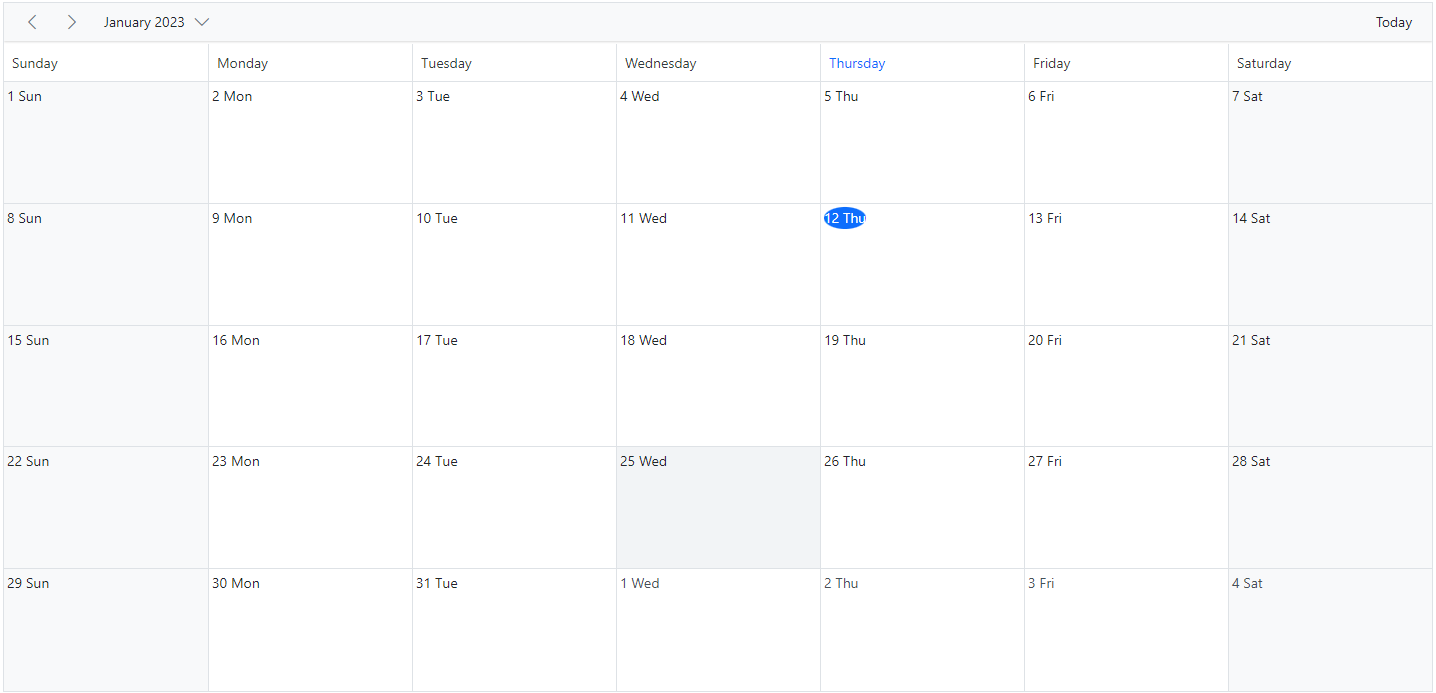
Customizing the minimum and maximum date values
Setting the minDate and maxDate properties with specific date values allows the Scheduler to set the minimum and maximum date range. Scheduler dates that lie beyond this range are in a disabled state, so date navigation is blocked beyond the specified range.
@using Syncfusion.EJ2.Schedule

@(Html.EJS().Schedule("schedule")
    .Width("100%")
    .Views(ViewBag.view)
    .Height("550px")
    .EventSettings(new ScheduleEventSettings { DataSource = ViewBag.datasource })
    .SelectedDate(new DateTime(2018, 2, 17))
    .minDate(new DateTime(2017, 4, 17))
    .maxDate(new DateTime(2018, 5, 17))
    .Render()
)
public ActionResult Index()
{
List<ScheduleView> viewOption = new List<ScheduleView>()
{
new ScheduleView { Option = Syncfusion.EJ2.Schedule.View.Week },
new ScheduleView { Option = Syncfusion.EJ2.Schedule.View.TimelineDay }
};
ViewBag.view = viewOption;
return View();
}By default, the
minDateproperty value is set tonew Date(1900, 0, 1)and themaxDateproperty value is set tonew Date(2099, 11, 31). You can also set custom values for theminDateandmaxDateproperties.
Customizing the weekend cells background color
You can customize the background color of weekend cells by using the RenderCell event and checking the elementType option within the event.
function onRendercell(args) {
        if (args.elementType == "workCells") {
            // To change the color of weekend columns in week view
            if (args.date) {
                if (args.date.getDay() === 6) {
                    (args.element).style.background = '#ffdea2';
                }
                if (args.date.getDay() === 0) {
                    (args.element).style.background = '#ffdea2';
                }
            }
        }
    }
Likewise, the background color for weekend cells in the Month view can be customized through the cssClass property, which overrides the default CSS applied to the cells.
.schedule-cell-customization.e-schedule .e-month-view .e-work-cells:not(.e-work-days) {
    background-color: #f08080;
}@using Syncfusion.EJ2.Schedule
@(Html.EJS().Schedule("schedule")
.Width("100%")
.Views(ViewBag.view)
.EventSettings(new ScheduleEventSettings { DataSource = ViewBag.datasource })
.CssClass("schedule-cell-customization")
.Height("550px")
.SelectedDate(new DateTime(2018, 2, 15))
.RenderCell("onRendercell")
.Render()
)
<script>
function onRendercell(args) {
if (args.elementType == "workCells") {
// To change the color of weekend columns in week view
if (args.date) {
if (args.date.getDay() === 6) {
(args.element).style.background = '#ffdea2';
}
if (args.date.getDay() === 0) {
(args.element).style.background = '#ffdea2';
}
}
}
}
</script>
<style>
.schedule-cell-customization.e-schedule .e-month-view .e-work-cells:not(.e-work-days) {
background-color: #f08080;
}
</style>public ActionResult Index()
{
ViewBag.datasource = GetEmployeeEventData();
List<ScheduleView> viewOption = new List<ScheduleView>()
{
new ScheduleView {Option = Syncfusion.EJ2.Schedule.View.Day },
new ScheduleView {Option = Syncfusion.EJ2.Schedule.View.Week },
new ScheduleView {Option = Syncfusion.EJ2.Schedule.View.WorkWeek },
new ScheduleView {Option = Syncfusion.EJ2.Schedule.View.Month }
};
ViewBag.view = viewOption;
return View();
}
public List<EmployeeEventData> GetEmployeeEventData()
{
List<EmployeeEventData> employeeEventData = new List<EmployeeEventData>();
employeeEventData.Add(new EmployeeEventData
{ Id = 1,
Subject = "Project Workflow Analysis",
StartTime = new DateTime(2023, 2, 14, 9, 0, 0),
EndTime = new DateTime(2023, 2, 14, 11, 0, 0),
CategoryColor = "#1aaa55"
});
employeeEventData.Add(new EmployeeEventData
{
Id = 2,
Subject = "Project Requirement Planning",
StartTime = new DateTime(2023, 2, 15, 9, 0, 0),
EndTime = new DateTime(2023, 2, 15, 11, 0, 0),
CategoryColor = "#357cd2"
});
employeeEventData.Add(new EmployeeEventData
{
Id = 3,
Subject = "Quality Analysis",
StartTime = new DateTime(2023, 2, 16, 9, 0, 0),
EndTime = new DateTime(2023, 2, 16, 11, 0, 0),
CategoryColor = "#7fa900"
});
return employeeEventData;
}
public class EmployeeEventData
{
public int Id { get; set; }
public string Subject { get; set; }
public DateTime StartTime { get; set; }
public DateTime EndTime { get; set; }
public string CategoryColor { get; set; }
}How to disable multiple cell and row selection in Schedule
By default, the AllowMultiCellSelection and AllowMultiRowSelection properties of the Scheduler are set to true. This allows the user to select multiple cells and rows. To disable multiple cell and row selection, set these properties to false.
You can refer to our ASP.NET MVC Scheduler feature tour page for its groundbreaking feature representations. You can also explore our ASP.NET MVC Scheduler example to know how to present and manipulate data.