Timescale Customization in ASP.NET Core Scheduler
The time slots are the time cells that are displayed on the Day, Week, and Work Week views of both the calendar (at the left-most position) and timeline views (at the top position). The timeScale property allows you to control and set the required time slot duration for the work cells displayed on the Scheduler. It includes the following sub-options:
-
enable- When set totrue, allows the Scheduler to display the appointments accurately against the exact time duration. If set tofalse, all the appointments of a day will be displayed one below the other with no grid lines displayed. Its default value istrue. -
interval- Defines the duration on which the time axis is displayed, such as 1 hour, 30 minutes, and so on. It accepts values in minutes and defaults to 60. -
slotCount- Decides the number of slots to be split for the specified time interval duration. It defaults to 2, thus displaying two slots to represent an hour (each slot depicting 30 minutes duration).
Note: The upper limit for rendering slots within a single day, utilizing the interval and slotCount properties of the timeScale, stands at 1000. This constraint aligns with the maximum colspan value permissible for the table element, which is also capped at 1000. This particular restriction is relevant exclusively to the
TimelineDay,TimelineWeek, andTimelineWorkWeekviews.
Setting different time slot duration
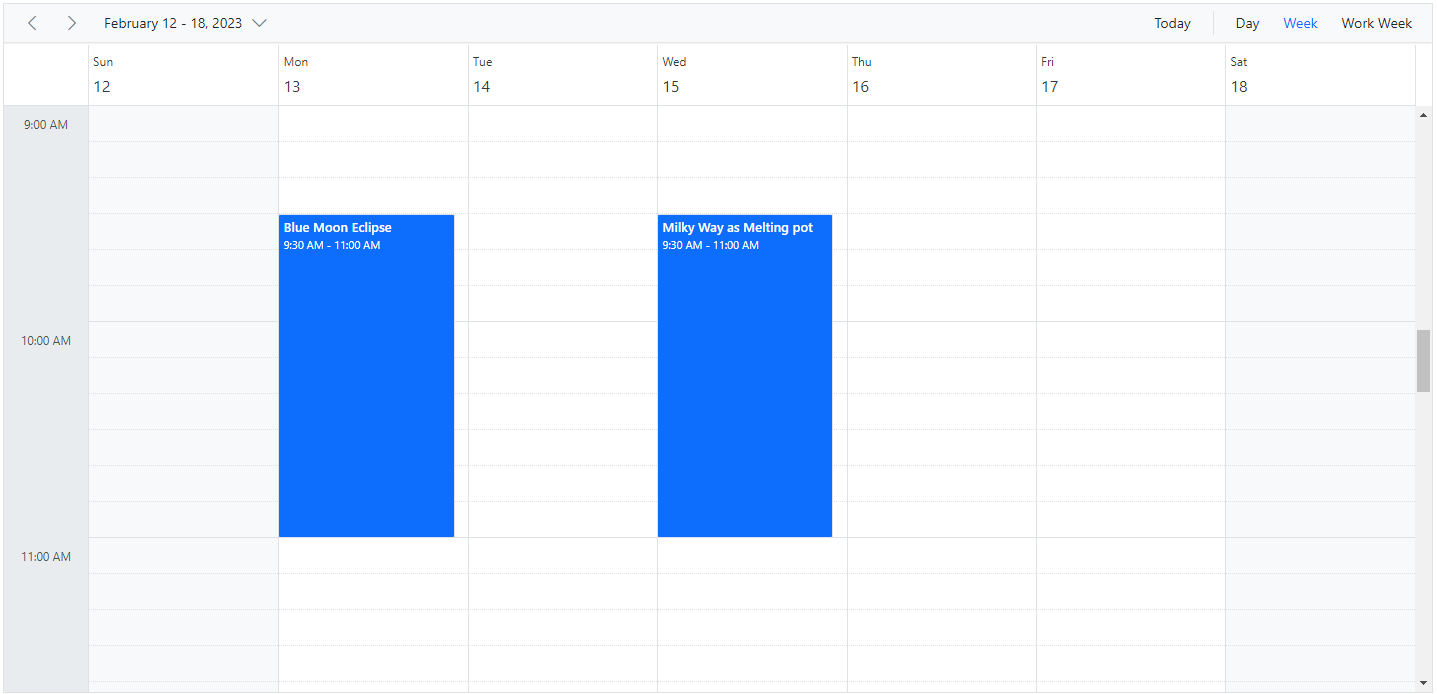
The interval and slotCount properties can be used together on the Scheduler to set a different time slot duration, which is depicted in the following code example. Here, six time slots together represent an hour.
@using Syncfusion.EJ2.Schedule

<ejs-schedule id="schedule" width="100%" height="550px" showTimeIndicator="false" selectedDate="new DateTime(2023, 2, 15)">
    <e-schedule-timescale enable="true" interval="60" slotCount="6"></e-schedule-timescale>
    <e-schedule-views>
        <e-schedule-view option="Day"></e-schedule-view>
        <e-schedule-view option="Week"></e-schedule-view>
        <e-schedule-view option="WorkWeek"></e-schedule-view>
    </e-schedule-views>
    <e-schedule-eventsettings dataSource="@ViewBag.datasource"></e-schedule-eventsettings>
</ejs-schedule>
public ActionResult Index()
{
ViewBag.datasource = GetScheduleData();
return View();
}
public List<AppointmentData> GetScheduleData()
{
List<AppointmentData> appData = new List<AppointmentData>();
appData.Add(new AppointmentData
{ Id = 1, Subject = "Blue Moon Eclipse", StartTime = new DateTime(2023, 2, 13, 9, 30, 0), EndTime = new DateTime(2023, 2, 13, 11, 0, 0) });
appData.Add(new AppointmentData
{ Id = 2, Subject = "Milky Way as Melting pot", StartTime = new DateTime(2023, 2, 15, 9, 30, 0), EndTime = new DateTime(2023, 2, 15, 11, 0, 0) });
return appData;
}
public class AppointmentData
{
public int Id { get; set; }
public string Subject { get; set; }
public DateTime StartTime { get; set; }
public DateTime EndTime { get; set; }
}
Customizing time cells using template
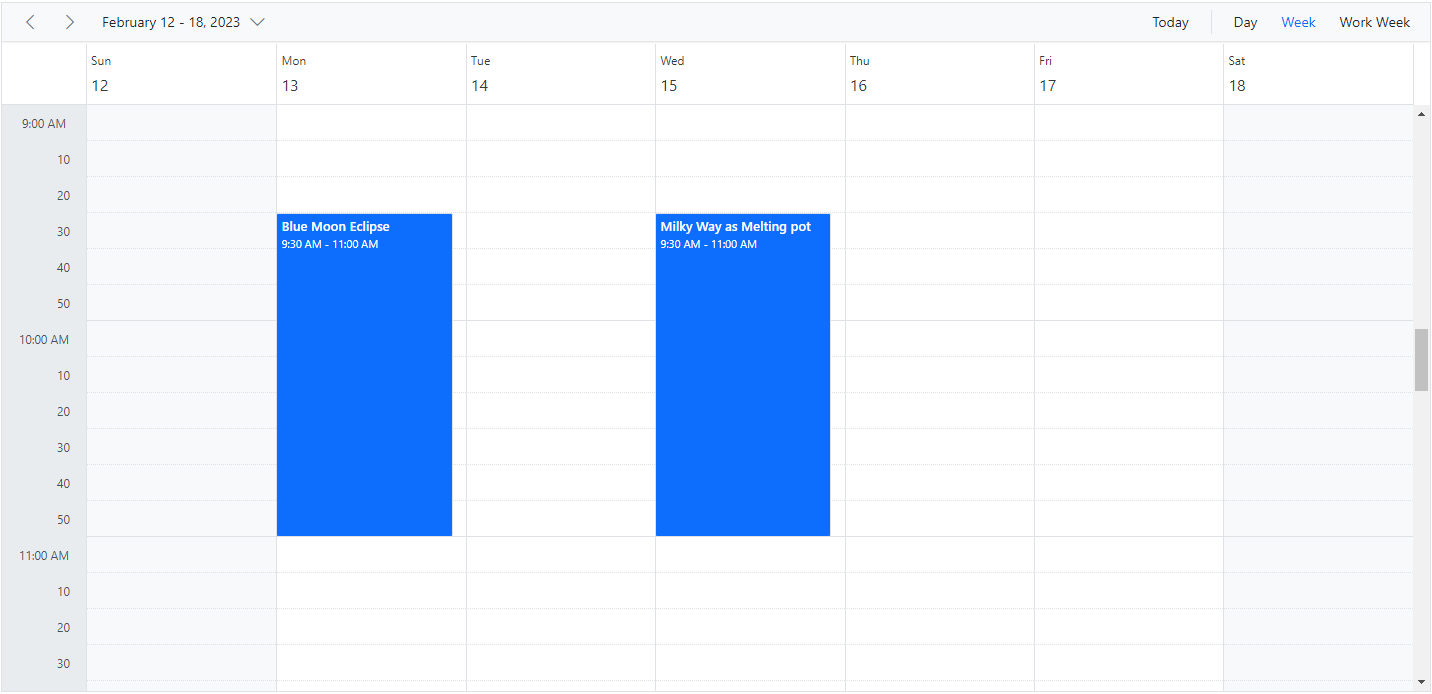
The timeScale property also provides a template option to allow customization of time slots, which are as follows:
-
majorSlotTemplate- The template option to be applied for major time slots. Here, the template accepts either the string or HTMLElement as template design and then the parsed design is displayed onto the time cells. The time details can be accessed within this template. -
minorSlotTemplate- The template option to be applied for minor time slots. Here, the template accepts either the string or HTMLElement as template design and then the parsed design is displayed onto the time cells. The time details can be accessed within this template.
@using Syncfusion.EJ2.Schedule

<ejs-schedule id="schedule" width="100%" height="550px" selectedDate="new DateTime(2023, 2, 15)">
    <e-schedule-timescale interval="60" slotCount="6"  majorSlotTemplate ="#majorSlotTemplate" minorSlotTemplate = "#minorSlotTemplate"></e-schedule-timescale>
    <e-schedule-views>
        <e-schedule-view option="Day"></e-schedule-view>
        <e-schedule-view option="Week"></e-schedule-view>
        <e-schedule-view option="WorkWeek"></e-schedule-view>
    </e-schedule-views>
    <e-schedule-eventsettings dataSource="@ViewBag.datasource"></e-schedule-eventsettings>
</ejs-schedule>

<script id="majorSlotTemplate" type="text/x-template">
    <div>${majorSlotTemplate(data.date)}</div>
</script>
<script id="minorSlotTemplate" type="text/x-template">
    <div style="text-align: right; margin-right: 15px">${minorSlotTemplate(data.date)}</div>
</script>
<script type="text/javascript">
    window.majorSlotTemplate = function (date) {
        var instance = new ej.base.Internationalization();
        return instance.formatDate(date, { skeleton: 'hm' });
    };
    window.minorSlotTemplate = function (date) {
        var instance = new ej.base.Internationalization();
        return instance.formatDate(date, { skeleton: 'ms' }).replace(':00', '');
    };
</script>
public ActionResult Index()
{
ViewBag.datasource = GetScheduleData();
return View();
}
public List<AppointmentData> GetScheduleData()
{
List<AppointmentData> appData = new List<AppointmentData>();
appData.Add(new AppointmentData
{ Id = 1, Subject = "Blue Moon Eclipse", StartTime = new DateTime(2023, 2, 13, 9, 30, 0), EndTime = new DateTime(2023, 2, 13, 11, 0, 0) });
appData.Add(new AppointmentData
{ Id = 2, Subject = "Milky Way as Melting pot", StartTime = new DateTime(2023, 2, 15, 9, 30, 0), EndTime = new DateTime(2023, 2, 15, 11, 0, 0) });
return appData;
}
public class AppointmentData
{
public int Id { get; set; }
public string Subject { get; set; }
public DateTime StartTime { get; set; }
public DateTime EndTime { get; set; }
}
Hide the timescale
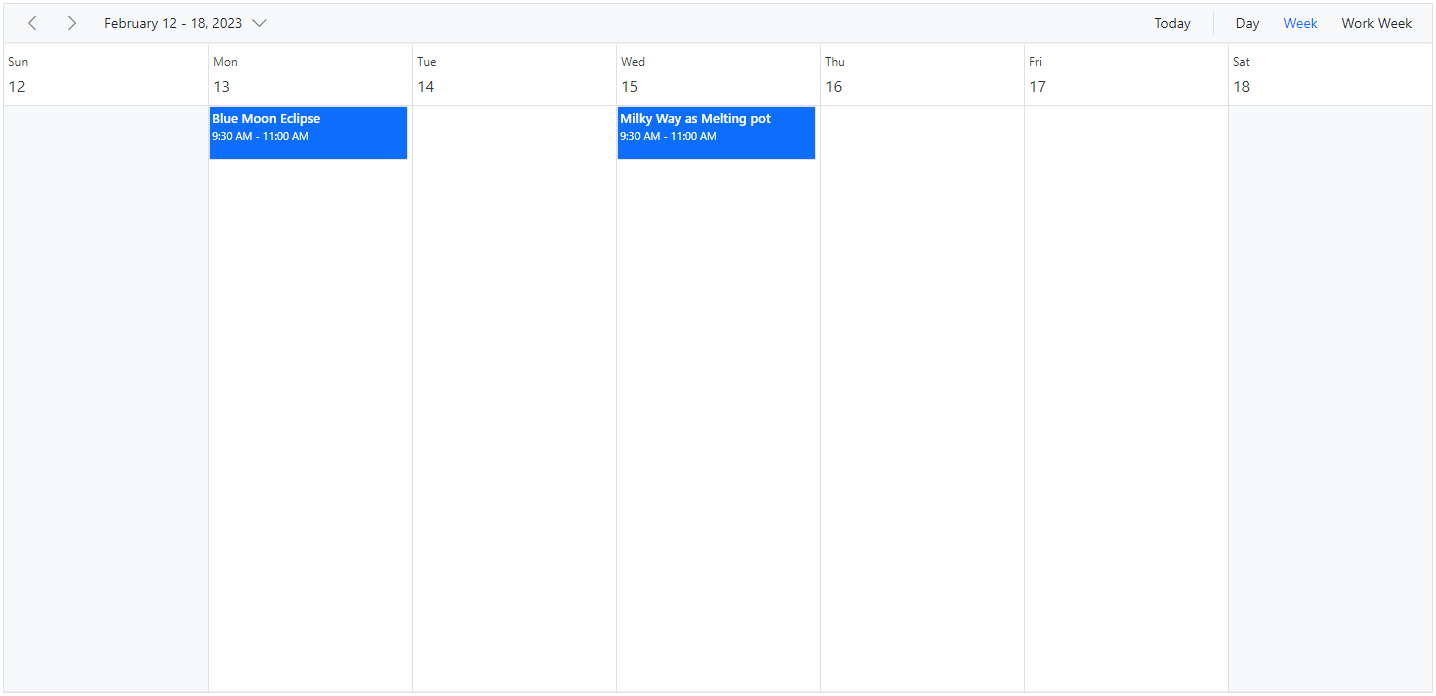
The grid lines that indicate the exact time duration can be enabled or disabled on the Scheduler by setting true or false to the enable option within the timeScale property. Its default value is true.
@using Syncfusion.EJ2.Schedule

<ejs-schedule id="schedule" width="100%" height="550px" selectedDate="new DateTime(2023, 2, 15)">
    <e-schedule-timescale enable="false"></e-schedule-timescale>
    <e-schedule-views>
        <e-schedule-view option="Day"></e-schedule-view>
        <e-schedule-view option="Week"></e-schedule-view>
        <e-schedule-view option="WorkWeek"></e-schedule-view>
    </e-schedule-views>
    <e-schedule-eventsettings dataSource="@ViewBag.datasource"></e-schedule-eventsettings>
</ejs-schedule>
public ActionResult Index()
{
ViewBag.datasource = GetScheduleData();
return View();
}
public List<AppointmentData> GetScheduleData()
{
List<AppointmentData> appData = new List<AppointmentData>();
appData.Add(new AppointmentData
{ Id = 1, Subject = "Blue Moon Eclipse", StartTime = new DateTime(2023, 2, 13, 9, 30, 0), EndTime = new DateTime(2023, 2, 13, 11, 0, 0) });
appData.Add(new AppointmentData
{ Id = 2, Subject = "Milky Way as Melting pot", StartTime = new DateTime(2023, 2, 15, 9, 30, 0), EndTime = new DateTime(2023, 2, 15, 11, 0, 0) });
return appData;
}
public class AppointmentData
{
public int Id { get; set; }
public string Subject { get; set; }
public DateTime StartTime { get; set; }
public DateTime EndTime { get; set; }
}
Highlighting current date and time
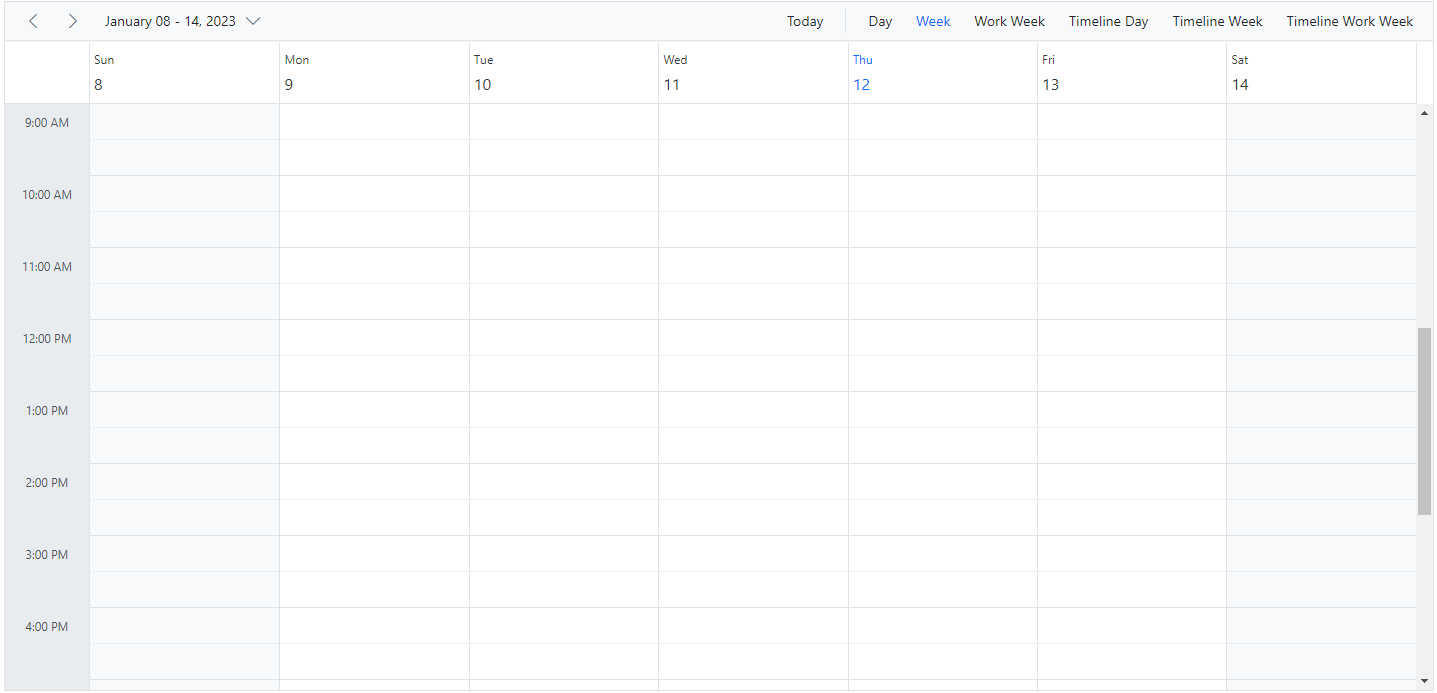
By default, the Scheduler indicates the current date with a highlighted date header on all views, and accurately marks the system’s current time on specific views such as Day, Week, Work Week, Timeline Day, Timeline Week, and Timeline Work Week. To stop highlighting the current time indicator on the Scheduler views, set the showTimeIndicator property to false, which defaults to true.
@using Syncfusion.EJ2.Schedule

<ejs-schedule id="schedule" width="100%" height="550px" showTimeIndicator="false">
    <e-schedule-views>
        <e-schedule-view option="Day"></e-schedule-view>
        <e-schedule-view option="Week"></e-schedule-view>
        <e-schedule-view option="WorkWeek"></e-schedule-view>
        <e-schedule-view option="TimelineDay"></e-schedule-view>
        <e-schedule-view option="TimelineWeek"></e-schedule-view>
        <e-schedule-view option="TimelineWorkWeek"></e-schedule-view>
    </e-schedule-views>
</ejs-schedule>
public ActionResult Index()
{
return View();
}
Customizing current time indicator
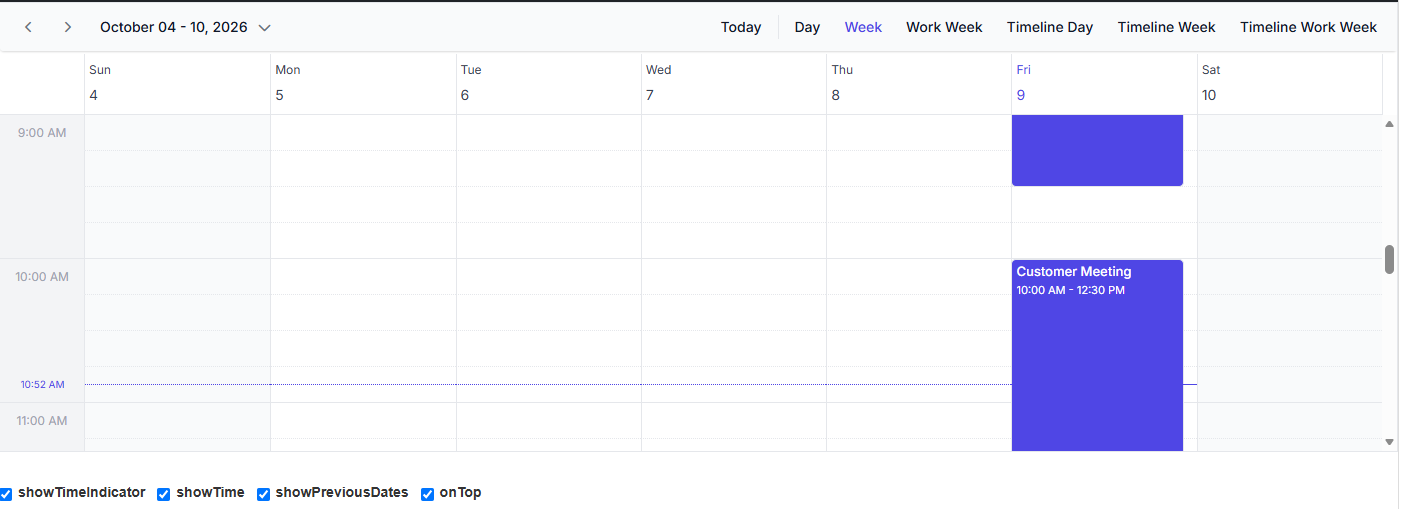
The appearance and behavior of the current time indicator can be customized using the currentTimeIndicatorSettings property. This property includes the following options to control different aspects of the time indicator:
-
showTime- When set totrue, displays the current time label (hours and minutes) on the indicator. The default value istrue. -
showPreviousDates- When set totrue, extends the indicator line to span across previous dates in the view. The default value istrue. -
onTop- When set totrue, positions the indicator line on top of appointments. When set tofalse, appointments appear on top of the indicator. The default value isfalse.
Note: The current time indicator customization is only applicable in views that display a time grid (Day, Week, Work Week, Timeline Day, Timeline Week, and Timeline Work Week views) when both
timeScaleis enabled andshowTimeIndicatoris set totrue.
@using Syncfusion.EJ2.Schedule

<div class="control-section">
    <div class="schedule-control-section">
        <ejs-schedule id="schedule" width="100%" height="550px" showTimeIndicator="true" selectedDate="new DateTime(2018, 2, 15)">
            <e-schedule-views>
                <e-schedule-view option="Day"></e-schedule-view>
                <e-schedule-view option="Week"></e-schedule-view>
                <e-schedule-view option="WorkWeek"></e-schedule-view>
                <e-schedule-view option="TimelineDay"></e-schedule-view>
                <e-schedule-view option="TimelineWeek"></e-schedule-view>
                <e-schedule-view option="TimelineWorkWeek"></e-schedule-view>
            </e-schedule-views>
            <e-schedule-timescale enable="true" interval="60" slotCount="4"></e-schedule-timescale>
            <e-schedule-currenttimeindicatorsettings showTime="true" showPreviousDates="true" onTop="true"></e-schedule-currenttimeindicatorsettings>
            <e-schedule-eventsettings dataSource="ViewBag.datasource"></e-schedule-eventsettings>
        </ejs-schedule>
    </div>
</div>

<div class="property-section">
    <h4>Properties</h4>
    <table id="property-grid" class="property-panel-table" style="width: 100%;">
        <tbody>
            <tr style="height: 50px">
                <td style="width: 30%">
                    <div>Show Time Indicator</div>
                </td>
                <td style="width: 70%">
                    <div id="master-toggle">
                        <input type="checkbox" id="masterToggle" checked="checked" />
                    </div>
                </td>
            </tr>
            <tr style="height: 50px">
                <td style="width: 30%">
                    <div>Show Time</div>
                </td>
                <td style="width: 70%">
                    <div>
                        <input type="checkbox" id="showTimeToggle" checked="checked" />
                    </div>
                </td>
            </tr>
            <tr style="height: 50px">
                <td style="width: 30%">
                    <div>Show Previous Dates</div>
                </td>
                <td style="width: 70%">
                    <div>
                        <input type="checkbox" id="showPreviousDatesToggle" checked="checked" />
                    </div>
                </td>
            </tr>
            <tr style="height: 50px">
                <td style="width: 30%">
                    <div>On Top</div>
                </td>
                <td style="width: 70%">
                    <div>
                        <input type="checkbox" id="onTopToggle" checked="checked" />
                    </div>
                </td>
            </tr>
        </tbody>
    </table>
</div>

<script>
    var masterToggle = document.getElementById('masterToggle');
    var showTimeToggle = document.getElementById('showTimeToggle');
    var showPreviousDatesToggle = document.getElementById('showPreviousDatesToggle');
    var onTopToggle = document.getElementById('onTopToggle');
    var scheduleObj = document.getElementById('schedule').ej2_instances[0];

    function applyChanges() {
        if (!masterToggle.checked) {
            scheduleObj.showTimeIndicator = false;
            return;
        }
        scheduleObj.showTimeIndicator = true;
        scheduleObj.currentTimeIndicatorSettings = {
            showTime: showTimeToggle.checked,
            showPreviousDates: showPreviousDatesToggle.checked,
            onTop: onTopToggle.checked
        };
    }

    masterToggle.addEventListener('change', applyChanges);
    showTimeToggle.addEventListener('change', applyChanges);
    showPreviousDatesToggle.addEventListener('change', applyChanges);
    onTopToggle.addEventListener('change', applyChanges);
</script>

<style>
    .control-section {
        margin-bottom: 20px;
    }

    .schedule-control-section {
        display: flex;
        justify-content: center;
        margin-bottom: 20px;
    }

    .property-section {
        border: 1px solid #d0d0d0;
        border-radius: 4px;
        padding: 15px;
    }

    .property-panel-table {
        border-collapse: collapse;
    }

    .property-panel-table td {
        border: 1px solid #d9d9d9;
        padding: 10px;
        vertical-align: middle;
    }

    #master-toggle, #showTimeToggle, #showPreviousDatesToggle, #onTopToggle {
        display: flex;
        align-items: center;
    }

    input[type="checkbox"] {
        width: 20px;
        height: 20px;
        cursor: pointer;
    }
</style>
public ActionResult Index()
{
ViewBag.datasource = GetScheduleData();
return View();
}
public List<AppointmentData> GetScheduleData()
{
List<AppointmentData> appData = new List<AppointmentData>();
appData.Add(new AppointmentData
{ Id = 1, Subject = "Blue Moon Eclipse", StartTime = new DateTime(2023, 2, 13, 9, 30, 0), EndTime = new DateTime(2023, 2, 13, 11, 0, 0) });
appData.Add(new AppointmentData
{ Id = 2, Subject = "Milky Way as Melting pot", StartTime = new DateTime(2023, 2, 15, 9, 30, 0), EndTime = new DateTime(2023, 2, 15, 11, 0, 0) });
return appData;
}
public class AppointmentData
{
public int Id { get; set; }
public string Subject { get; set; }
public DateTime StartTime { get; set; }
public DateTime EndTime { get; set; }
}
You can refer to our ASP.NET Core Scheduler feature tour page for its groundbreaking feature representations. You can also explore our ASP.NET Core Scheduler example to know how to present and manipulate data.