Globalization and Localization in ASP.NET Core Scheduler
The Scheduler supports different date and time formats as well as cultures, which helps it work across regions. Before using the samples, install the required CLDR data and ensure the Scheduler is configured with the appropriate locale.
You can adapt the Scheduler to various languages by parsing and formatting the date or number using Internationalization, and by adding culture-specific customization and text translation using Localization.
Globalization
The Internationalization library provides support for formatting and parsing the number, date, and time by using the official Unicode CLDR JSON data and also provides the loadCldr method to load the culture specific CLDR JSON data.
By default, Scheduler is set to follow the English culture (‘en-US’). If you want to use a culture other than English, follow these steps.
Install the cldr-data package by using the following command. For more information about CLDR data, refer to this link.
npm install cldr-data --save
Once the package is installed, you can find the culture-specific JSON data under node_modules/cldr-data.
After installing cldr-data, create a cldr-data folder inside wwwroot and add the following subfolders:
wwwroot/cldr-data/supplementalwwwroot/cldr-data/main
The following files are required to set up the specific culture for the Scheduler.
- numberingSystems.json
- ca-gregorian.json
- numbers.json
- timeZoneNames.json
- ca-islamic.json
The file named numberingSystems.json is available in the location node_modules/cldr-data/supplemental which is common for all the cultures. Now you can move this file to the location wwwroot/cldr-data/supplemental.
The other required files mentioned above are available in the location node_modules/cldr-data/main/culture_code. In this location every culture having the culture files inside the folder named as its language culture code. For example if we are loading the German culture we can find the German culture files inside the location node_modules/cldr-data/main/de. Now create a folder named de inside the location wwwroot/cldr-data/main and move the files inside it.
Then use the loadCultureFiles method to load the culture-specific CLDR JSON data.
    loadCultureFiles('de');
    function loadCultureFiles(name) {
        var files = ['ca-gregorian.json', 'numbers.json', 'timeZoneNames.json'];
        var loader = ej.base.loadCldr;
        var loadCulture = function (prop) {
            var val, ajax;
            ajax = new ej.base.Ajax(location.origin + '/../cldr-data/main/' + name + '/' + files[prop], 'GET', false);
            ajax.onSuccess = function (value) {
                val = value;
            };
            ajax.send();
            loader(JSON.parse(val));
        };
        for (var prop = 0; prop < files.length; prop++) {
            loadCulture(prop);
        }
    }
Set the culture to Scheduler by using the locale property.
@using Syncfusion.EJ2.Schedule

<ejs-schedule id="schedule" width="100%" height="550px" locale="fr-CH">
    <e-schedule-eventsettings dataSource="@ViewBag.datasource"></e-schedule-eventsettings>
</ejs-schedule>

<script>
    loadCultureFiles('fr-CH');
    function loadCultureFiles(name) {
        var files = ['ca-gregorian.json', 'numberingSystems.json', 'numbers.json', 'timeZoneNames.json', 'ca-islamic.json'];
        var loader = ej.base.loadCldr;
        var loadCulture = function (prop) {
            var val, ajax;
            if (files[prop] === 'numberingSystems.json') {
                ajax = new ej.base.Ajax(location.origin + '/../cldr-data/supplemental/' + files[prop], 'GET', false);
            } else {
                ajax = new ej.base.Ajax(location.origin + '/../cldr-data/main/' + name + '/' + files[prop], 'GET', false);
            }
            ajax.onSuccess = function (value) {
                val = value;
            };
            ajax.send();
            loader(JSON.parse(val));
        };
        for (var prop = 0; prop < files.length; prop++) {
            loadCulture(prop);
        }
    }
</script>
public ActionResult Index()
{
ViewBag.datasource = GetScheduleData();
return View();
}
public List<AppointmentData> GetScheduleData()
{
List<AppointmentData> appData = new List<AppointmentData>();
appData.Add(new AppointmentData
{ Id = 1, Subject = "Explosion of Betelgeuse Star", StartTime = new DateTime(2018, 2, 14, 9, 30, 0), EndTime = new DateTime(2018, 2, 14, 11, 0, 0) });
return appData;
}
public class AppointmentData
{
public int Id { get; set; }
public string Subject { get; set; }
public DateTime StartTime { get; set; }
public DateTime EndTime { get; set; }
}Localizing the static Scheduler text
The Localization library allows you to display all static text, date content, and time mode in the localized language. To achieve this, set the locale property of Scheduler and define the translation text for the static words of Scheduler through the load method of the L10n class.
For example, the following code example lets you define the Hungarian translation words for all the static words used in Scheduler.
@using Syncfusion.EJ2.Schedule

<ejs-schedule id="schedule" width="100%" height="550px" locale="hu">
    <e-schedule-eventsettings dataSource="@ViewBag.datasource"></e-schedule-eventsettings>
</ejs-schedule>

<script>
    var L10n = ej.base.L10n;
    L10n.load({
        "hu": {
            "schedule": {
                "day": "Nap",
                "week": "Hét",
                "workWeek": "Munkahét",
                "month": "Hónap",
                "year": "Év",
                "agenda": "Napirend",
                "weekAgenda": "Hét menetrend",
                "workWeekAgenda": "Munkahét napirend",
                "monthAgenda": "Havi menetrend",
                "today": "Ma",
                "noEvents": "Nincs esemény",
                "emptyContainer": "Ezen a napon nincsenek események.",
                "allDay": "Egész nap",
                "start": "Rajt",
                "end": "vég",
                "more": "több",
                "close": "Bezárás",
                "cancel": "Megszünteti",
                "noTitle": "(Nincs cím)",
                "delete": "Töröl",
                "deleteEvent": "Esemény törlése",
                "deleteMultipleEvent": "Több esemény törlése",
                "selectedItems": "A kiválasztott elemek",
                "deleteSeries": "Sorozat törlése",
                "edit": "szerkesztése",
                "editSeries": "Szerkesztés",
                "editEvent": "Esemény szerkesztése",
                "createEvent": "teremt",
                "subject": "Tantárgy",
                "addTitle": "Cím hozzáadása",
                "moreDetails": "További részletek",
                "moreEvents": "Több esemény",
                "save": "Mentés",
                "editContent": "Csak ezt az eseményt vagy egész sorozatot szeretné szerkeszteni?",
                "deleteRecurrenceContent": "Csak ezt az eseményt vagy egész sorozatot szeretné törölni?",
                "deleteContent": "Biztosan törölni szeretné ezt az eseményt?",
                "deleteMultipleContent": "Biztosan törli a kiválasztott eseményeket?",
                "newEvent": "Új esemény",
                "title": "Cím",
                "location": "Elhelyezkedés",
                "description": "Leírás",
                "timezone": "Időzóna",
                "startTimezone": "Indítsa el az időzónát",
                "endTimezone": "Időzóna vége",
                "repeat": "Ismétlés",
                "saveButton": "Mentés",
                "cancelButton": "Megszünteti",
                "deleteButton": "Töröl",
                "recurrence": "Ismétlődés",
                "wrongPattern": "Az ismétlődési minta nem érvényes.",
                "seriesChangeAlert": "A sorozat egyes példányaiban végrehajtott módosítások törlésre kerülnek, és ezek az események ismét megegyeznek a sorozattal.",
                "createError": "Az esemény időtartamának rövidebbnek kell lennie, mint a gyakorisága. Rövidítse az időtartamot, vagy változtassa meg az ismétlődési esemény szerkesztőjének ismétlődési mintáját.",
                "recurrenceDateValidation": "Néhány hónap kevesebb, mint a kiválasztott dátum. Ezekben a hónapokban az esemény a hónap utolsó napjára esik.",
                "sameDayAlert": "Ugyanezen esemény két eseménye nem fordulhat elő ugyanazon a napon.",
                "occurenceAlert": "Nem lehet átütemezni az ismétlődő találkozó előfordulását, ha átugrik ugyanazon találkozó későbbi előfordulását.",
                "editRecurrence": "Ismétlés szerkesztése",
                "repeats": "ismétlődés",
                "alert": "Éber",
                "startEndError": "A kiválasztott befejezési dátum a kezdő dátum előtt történik.",
                "invalidDateError": "A megadott dátumérték érvénytelen.",
                "blockAlert": "Az eseményeket nem lehet ütemezni a blokkolt időtartományon belül.",
                "ok": "Rendben",
                "yes": "Igen",
                "no": "Nem",
                "occurrence": "Esemény",
                "series": "Sorozat",
                "previous": "Előző",
                "next": "Következő",
                "timelineDay": "Idővonal napja",
                "timelineWeek": "Idősor-hét",
                "timelineWorkWeek": "Idővonal munkahét",
                "timelineMonth": "Idővonal hónap",
                "timelineYear": "Idővonal év",
                "expandAllDaySection": "kiterjed",
                "collapseAllDaySection": "összeomlás",
                "editFollowingEvent": "Következő események",
                "deleteTitle": "Esemény törlése",
                "editTitle": "Esemény szerkesztése",
                "beginFrom": "Kezdje",
                "endAt": "Vége",
                "searchTimezone": "Időzóna keresése",
                "noRecords": "Nincs találat"
            },
            "recurrenceeditor": {
                "none": "Egyik sem",
                "daily": "Napi",
                "weekly": "Heti",
                "monthly": "Havi",
                "month": "Hónap",
                "yearly": "Évi",
                "never": "Soha",
                "until": "Amíg",
                "count": "Számol",
                "first": "Első",
                "second": "Második",
                "third": "Harmadik",
                "fourth": "Negyedik",
                "last": "Utolsó",
                "repeat": "Ismétlés",
                "repeatEvery": "Ismételje meg minden",
                "on": "Ismétlés",
                "end": "vég",
                "onDay": "Nap",
                "days": "Napok)",
                "weeks": "Hét (ok)",
                "months": "Hónap (ok)",
                "years": "Évek)",
                "every": "minden",
                "summaryTimes": "idő (s)",
                "summaryOn": "tovább",
                "summaryUntil": "amíg",
                "summaryRepeat": "ismétlődés",
                "summaryDay": "napok)",
                "summaryWeek": "heti (s)",
                "summaryMonth": "hónap (ok)",
                "summaryYear": "évek)",
                "monthWeek": "Hónap",
                "monthPosition": "Havi pozíció",
                "monthExpander": "Hónaposító",
                "yearExpander": "Év bővítő",
                "repeatInterval": "Ismételje meg az intervallumot"
            },
            "calendar": {
                "today": "Ma"
            }
        }
    });
    loadCultureFiles('hu');
    function loadCultureFiles(name) {
        var files = ['ca-gregorian.json', 'numberingSystems.json', 'numbers.json', 'timeZoneNames.json', 'ca-islamic.json'];
        var loader = ej.base.loadCldr;
        var loadCulture = function (prop) {
            var val, ajax;
            if (files[prop] === 'numberingSystems.json') {
                ajax = new ej.base.Ajax(location.origin + '/../cldr-data/supplemental/' + files[prop], 'GET', false);
            } else {
                ajax = new ej.base.Ajax(location.origin + '/../cldr-data/main/' + name + '/' + files[prop], 'GET', false);
            }
            ajax.onSuccess = function (value) {
                val = value;
            };
            ajax.send();
            loader(JSON.parse(val));
        };
        for (var prop = 0; prop < files.length; prop++) {
            loadCulture(prop);
        }
    }
</script>
public ActionResult Index()
{
ViewBag.datasource = GetScheduleData();
return View();
}
public List<AppointmentData> GetScheduleData()
{
List<AppointmentData> appData = new List<AppointmentData>();
appData.Add(new AppointmentData
{ Id = 1, Subject = "Explosion of Betelgeuse Star", StartTime = new DateTime(2023, 2, 14, 9, 30, 0), EndTime = new DateTime(2023, 2, 14, 11, 0, 0) });
return appData;
}
public class AppointmentData
{
public int Id { get; set; }
public string Subject { get; set; }
public DateTime StartTime { get; set; }
public DateTime EndTime { get; set; }
}Setting date format
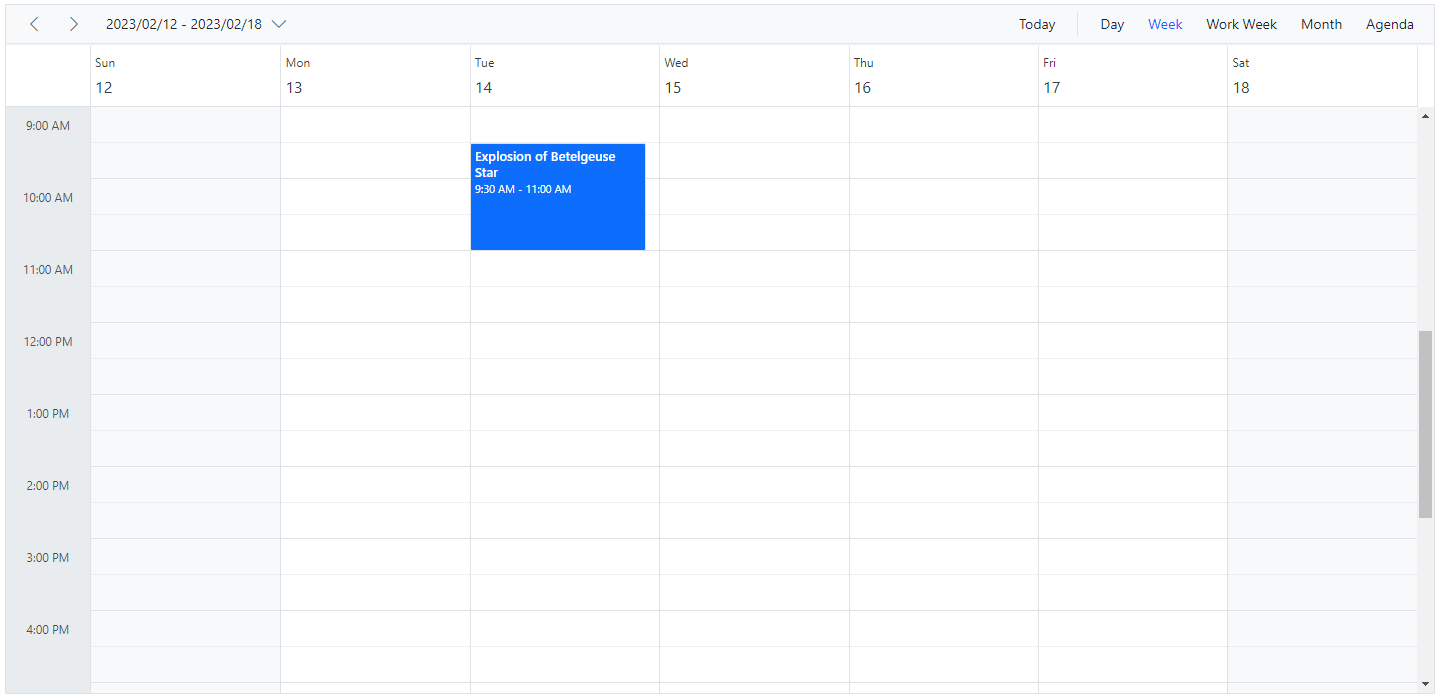
Scheduler can be used with all valid date formats and, by default, follows the universal date format “MM/dd/yyyy”. If the dateFormat property is not specified, it uses the locale assigned to Scheduler. Because the default locale is “en-US”, it follows the “MM/dd/yyyy” pattern.
@using Syncfusion.EJ2.Schedule

<ejs-schedule id="schedule" width="100%" height="550px" dateFormat="yyyy/MM/dd" selectedDate="new DateTime(2023, 2, 15)">
    <e-schedule-eventsettings dataSource="@ViewBag.datasource"></e-schedule-eventsettings>
</ejs-schedule>
public ActionResult Index()
{
ViewBag.datasource = GetScheduleData();
return View();
}
public List<AppointmentData> GetScheduleData()
{
List<AppointmentData> appData = new List<AppointmentData>();
appData.Add(new AppointmentData
{ Id = 1, Subject = "Explosion of Betelgeuse Star", StartTime = new DateTime(2023, 2, 14, 9, 30, 0), EndTime = new DateTime(2023, 2, 14, 11, 0, 0) });
return appData;
}
public class AppointmentData
{
public int Id { get; set; }
public string Subject { get; set; }
public DateTime StartTime { get; set; }
public DateTime EndTime { get; set; }
}
Setting the time format
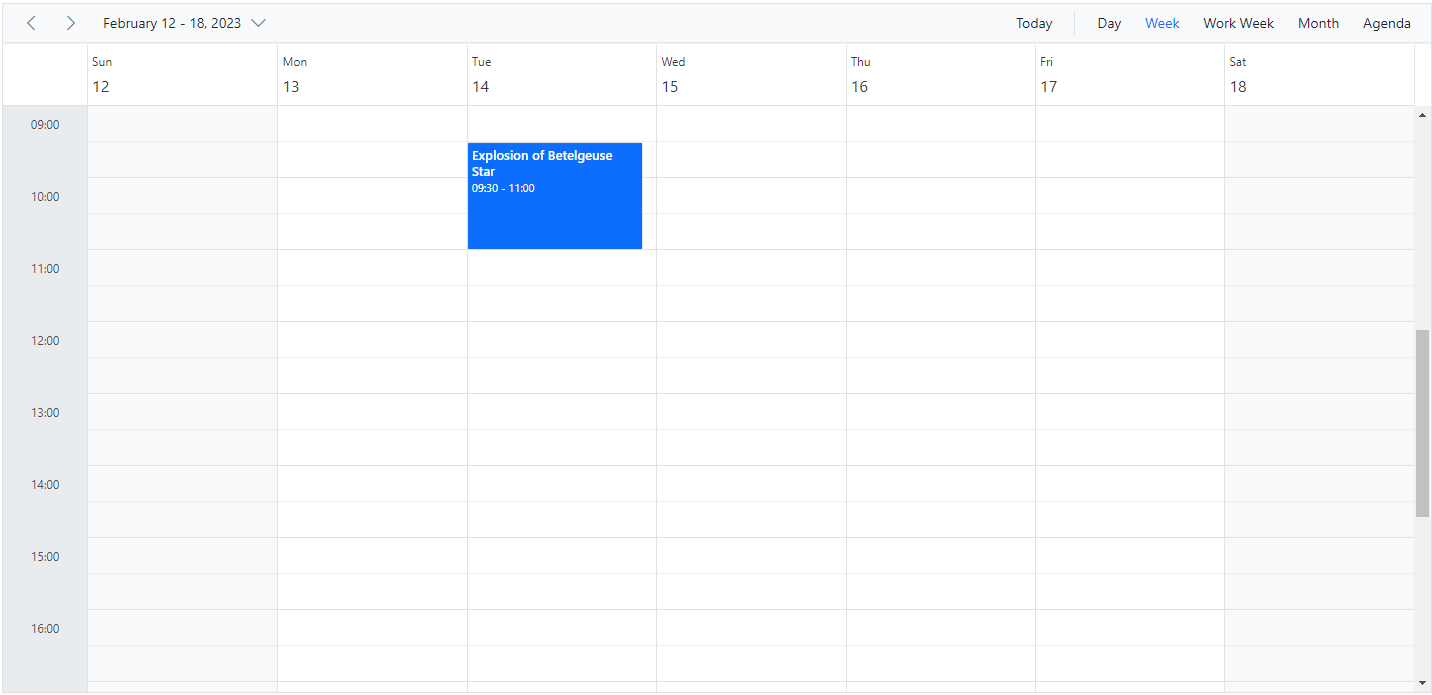
Time format is a way of representing time values in different string formats in the Scheduler. By default, the time mode of the Scheduler can be either 12-hour or 24-hour format, depending on the locale set on the Scheduler. Since the default locale value is en-US, the time mode is set to 12-hour format automatically. You can also customize the format by using the timeFormat property. To learn more about time format standards, refer to the Date and Time Format section.
The following example demonstrates the Scheduler component in 24-hour format.
@using Syncfusion.EJ2.Schedule

<ejs-schedule id="schedule" width="100%" height="550px" timeFormat="HH:mm" selectedDate="new DateTime(2023, 2, 15)">
    <e-schedule-eventsettings dataSource="@ViewBag.datasource"></e-schedule-eventsettings>
</ejs-schedule>
public ActionResult Index()
{
ViewBag.datasource = GetScheduleData();
return View();
}
public List<AppointmentData> GetScheduleData()
{
List<AppointmentData> appData = new List<AppointmentData>();
appData.Add(new AppointmentData
{ Id = 1, Subject = "Explosion of Betelgeuse Star", StartTime = new DateTime(2023, 2, 14, 9, 30, 0), EndTime = new DateTime(2023, 2, 14, 11, 0, 0) });
return appData;
}
public class AppointmentData
{
public int Id { get; set; }
public string Subject { get; set; }
public DateTime StartTime { get; set; }
public DateTime EndTime { get; set; }
}
The
timeFormatproperty accepts only valid time formats.
Displaying Scheduler in RTL mode
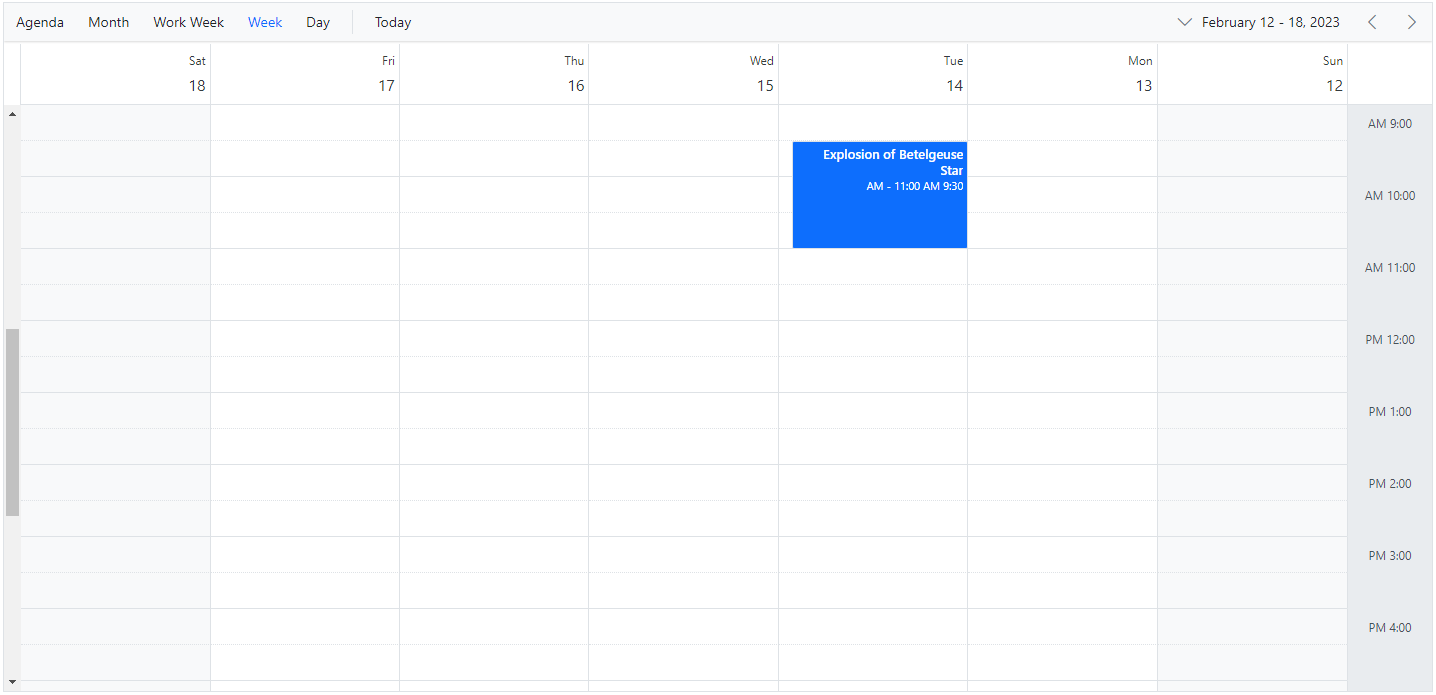
The Scheduler layout and its behavior can be changed according to the common RTL (right-to-left) conventions by setting enableRtl to true. By doing so, the Scheduler displays its layout from right to left. Its default value is false.
@using Syncfusion.EJ2.Schedule

<ejs-schedule id="schedule" width="100%" height="550px" enableRtl="true" selectedDate="new DateTime(2023, 2, 15)">
    <e-schedule-eventsettings dataSource="@ViewBag.datasource"></e-schedule-eventsettings>
</ejs-schedule>
public ActionResult Index()
{
ViewBag.datasource = GetScheduleData();
return View();
}
public List<AppointmentData> GetScheduleData()
{
List<AppointmentData> appData = new List<AppointmentData>();
appData.Add(new AppointmentData
{ Id = 1, Subject = "Explosion of Betelgeuse Star", StartTime = new DateTime(2023, 2, 14, 9, 30, 0), EndTime = new DateTime(2023, 2, 14, 11, 0, 0) });
return appData;
}
public class AppointmentData
{
public int Id { get; set; }
public string Subject { get; set; }
public DateTime StartTime { get; set; }
public DateTime EndTime { get; set; }
}
You can refer to our ASP.NET Core Scheduler feature tour page for an overview of its features. You can also explore our ASP.NET Core Scheduler example to learn how to present and manipulate data.