Context Menu in ASP.NET Core Scheduler
You can display a context menu on the work cells and appointments of the Scheduler by using the ContextMenu control from the application end. In the following code example, the context menu control is added from the sample end and its target is set to Scheduler.
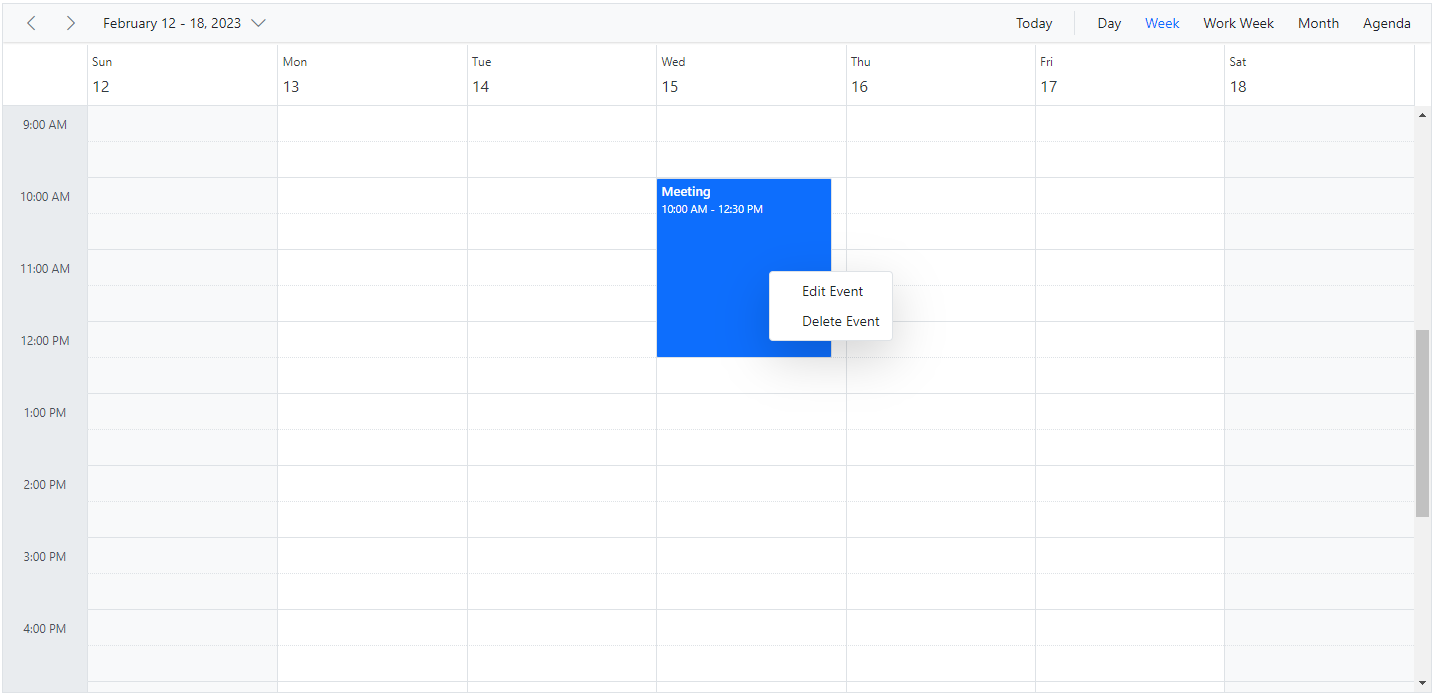
On Scheduler cells, you can display menu items such as New Event, New Recurring Event, and the Today option. For appointments, you can display related options such as Edit Event and Delete Event. The default event window can be opened for appointment creation and editing using the openEditor method of the Scheduler.
Appointments can be deleted by using the deleteEvent public method. Also, the selectedDate property can be used to navigate between different dates.
You can also display custom menu options on Scheduler cells and appointments. The context menu opens on tap and hold in responsive mode.
@using Syncfusion.EJ2.Schedule

<ejs-schedule id="schedule" height="650px" selectedDate="new DateTime(2023, 2, 15)" allowDragAndDrop="false" allowResizing="false">
    <e-schedule-eventsettings dataSource="@ViewBag.appointments"></e-schedule-eventsettings>
</ejs-schedule>

<ejs-contextmenu id="contextmenu" cssClass="schedule-context-menu" target=".e-schedule" items="ViewBag.menuItems" beforeOpen="onContextMenuBeforeOpen" select="onMenuItemSelect">
</ejs-contextmenu>

<style>
    .schedule-context-menu .e-menu-item .new::before {
        content: '\e7f9';
    }

    .schedule-context-menu .e-menu-item .edit::before {
        content: '\ea9a';
    }

    .schedule-context-menu .e-menu-item .recurrence::before {
        content: '\e308';
        font-weight: bold;
    }

    .schedule-context-menu .e-menu-item .today::before {
        content: '\e322';
    }

    .schedule-context-menu .e-menu-item .delete::before {
        content: '\e94a';
    }
    .e-bigger .schedule-context-menu ul .e-menu-item .e-menu-icon {
        font-size: 14px;
    }

    .schedule-context-menu ul .e-menu-item .e-menu-icon {
        font-size: 12px;
    }
</style>
<script type="text/javascript">
    var selectedTarget;
    function onContextMenuBeforeOpen(args) {
        var newEventElement = document.querySelector('.e-new-event');
        if (newEventElement) {
            ej.base.remove(newEventElement);
            ej.base.removeClass([document.querySelector('.e-selected-cell')], 'e-selected-cell');
        }
        var scheduleObj = document.querySelector(".e-schedule").ej2_instances[0];
        scheduleObj.closeQuickInfoPopup();
        var targetElement = args.event.target;
        if (ej.base.closest(targetElement, '.e-contextmenu')) {
            return;
        }
        selectedTarget = ej.base.closest(targetElement, '.e-appointment,.e-work-cells,' +
            '.e-vertical-view .e-date-header-wrap .e-all-day-cells,.e-vertical-view .e-date-header-wrap .e-header-cells');
        if (ej.base.isNullOrUndefined(selectedTarget)) {
            args.cancel = true;
            return;
        }
        if (selectedTarget.classList.contains('e-appointment')) {
            var eventObj = scheduleObj.getEventDetails(selectedTarget);
            if (eventObj.RecurrenceRule) {
                this.showItems(['EditRecurrenceEvent', 'DeleteRecurrenceEvent'], true);
                this.hideItems(['Add', 'AddRecurrence', 'Today', 'Save', 'Delete'], true);
            } else {
                this.showItems(['Save', 'Delete'], true);
                this.hideItems(['Add', 'AddRecurrence', 'Today', 'EditRecurrenceEvent', 'DeleteRecurrenceEvent'], true);
            }
            return;
        }
        this.hideItems(['Save', 'Delete', 'EditRecurrenceEvent', 'DeleteRecurrenceEvent'], true);
        this.showItems(['Add', 'AddRecurrence', 'Today'], true);
    }

    function onMenuItemSelect(args) {
        var scheduleObj = document.querySelector(".e-schedule").ej2_instances[0];
        var selectedMenuItem = args.item.id;
        var eventObj;
        if (selectedTarget.classList.contains('e-appointment')) {
            eventObj = scheduleObj.getEventDetails(selectedTarget);
        }
        switch (selectedMenuItem) {
            case 'Today':
                scheduleObj.selectedDate = new Date();
                break;
            case 'Add':
            case 'AddRecurrence':
                var selectedCells = scheduleObj.getSelectedElements();
                var activeCellsData = scheduleObj.getCellDetails(selectedCells.length > 0 ? selectedCells : selectedTarget);
                if (selectedMenuItem === 'Add') {
                    scheduleObj.openEditor(activeCellsData, 'Add');
                } else {
                    scheduleObj.openEditor(activeCellsData, 'Add', null, 1);
                }
                break;
            case 'Save':
            case 'EditOccurrence':
            case 'EditSeries':
                if (selectedMenuItem === 'EditSeries') {
                    eventObj = new ej.data.DataManager(scheduleObj.eventsData).executeLocal(new ej.data.Query().
                        where(scheduleObj.eventFields.id, 'equal', eventObj[scheduleObj.eventFields.recurrenceID]))[0];
                }
                scheduleObj.openEditor(eventObj, selectedMenuItem);
                break;
            case 'Delete':
                scheduleObj.deleteEvent(eventObj);
                break;
            case 'DeleteOccurrence':
            case 'DeleteSeries':
                scheduleObj.deleteEvent(eventObj, selectedMenuItem);
                break;
        }
    }
</script>
public ActionResult Index()
{
ViewBag.appointments = GetScheduleData();
List<object> menuItems = new List<object>();
menuItems.Add(new
{
text = "New Event",
iconCss = "e-icons new",
id = "Add"
});
menuItems.Add(new
{
text = "New Recurring Event",
iconCss = "e-icons recurrence",
id = "AddRecurrence"
});
menuItems.Add(new
{
text = "Today",
iconCss = "e-icons today",
id = "Today"
});
menuItems.Add(new
{
text = "Edit Event",
iconCss = "e-icons edit",
id = "Save"
});
menuItems.Add(new
{
text = "Edit Event",
id = "EditRecurrenceEvent",
iconCss = "e-icons edit",
items = new List<object>() {
new { text = "Edit Occurrence", id = "EditOccurrence"},
new { text = "Edit Series", id = "EditSeries" }
}
});
menuItems.Add(new
{
text = "Delete Event",
iconCss = "e-icons delete",
id = "Delete"
});
menuItems.Add(new
{
text = "Delete Event",
id = "DeleteRecurrenceEvent",
iconCss = "e-icons delete",
items = new List<object>() {
new { text = "Delete Occurrence", id = "DeleteOccurrence" },
new { text = "Delete Series", id = "DeleteSeries"}
}
});
ViewBag.menuItems = menuItems;
return View();
}
public List<AppointmentData> GetScheduleData()
{
List<AppointmentData> appData = new List<AppointmentData>();
appData.Add(new AppointmentData
{
Id = 2,
Subject = "Meeting",
StartTime = new DateTime(2023, 2, 15, 10, 0, 0),
EndTime = new DateTime(2023, 2, 15, 12, 30, 0),
IsAllDay = false,
Status = "Completed",
Priority = "High"
});
return appData;
}
public class AppointmentData
{
public int Id { get; set; }
public string Subject { get; set; }
public DateTime StartTime { get; set; }
public DateTime EndTime { get; set; }
public bool IsAllDay { get; set; }
public string Status { get; set; }
public string Priority { get; set; }
}
You can refer to our ASP.NET Core Scheduler feature tour page for its feature highlights. You can also explore our ASP.NET Core Scheduler example to learn how to present and manipulate data.