How to Insert Images in Blazor Markdown Editor Component
18 Nov 20181 minute to read
The Blazor Markdown Editor allows users to insert images using the built-in toolbar. This feature supports embedding images from online sources directly into the editor content.
Steps to Insert an Image
To insert an image in the Markdown Editor:
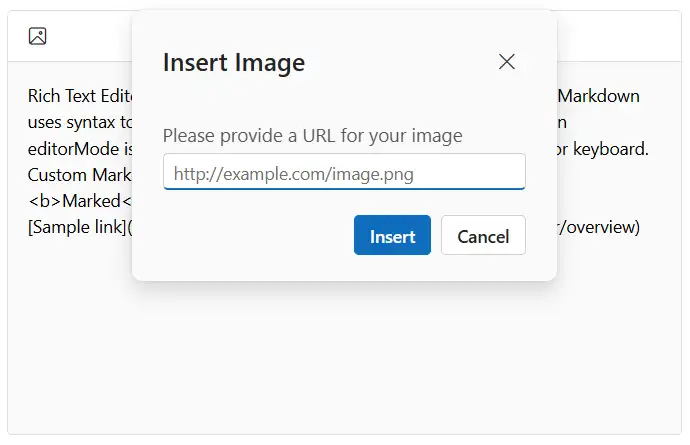
- Click the Image icon in the toolbar.
- Enter the URL of the image from an online source.
- Click the Insert button in the image dialog.
The image will be added to the editor content at the current cursor position.
The following example demonstrates how to enable image insertion in the Blazor Markdown Editor.
@using Syncfusion.Blazor.RichTextEditor

<SfRichTextEditor EditorMode="EditorMode.Markdown" Height="340px" Placeholder="Type Something" Value="@MarkdownValue">
    <RichTextEditorToolbarSettings Items="@Tools" />
</SfRichTextEditor>

@code {

    private string MarkdownValue { get; set; } = @"Rich Text Editor formats text instantly using toolbar actions, whereas Markdown uses syntax to apply formatting. Markdown editing is supported when editorMode is set to **markdown**, allowing formatting via toolbar or keyboard. Custom Markdown syntax can also be added. This sample uses the <b>Marked</b> library to convert Markdown to HTML.
[Sample link](https://blazor.syncfusion.com/demos/markdown-editor/overview)";

    private List<ToolbarItemModel> Tools = new List<ToolbarItemModel>()
    {
        new ToolbarItemModel() { Command = ToolbarCommand.Image }
    };
}