Getting Started with Blazor Markdown Editor in Blazor WASM App
This section briefly explains about to include the Blazor Markdown Editor component in a Blazor WebAssembly App using Visual Studio, Visual Studio Code, and the .NET CLI.
Create a new Blazor WebAssembly App
Create a Blazor WebAssembly App using Visual Studio via Microsoft Templates or the Syncfusion® Blazor Extension. For detailed instructions, refer to the Blazor WebAssembly App Getting Started documentation.
Run the following command to create a new Blazor WebAssembly App.
dotnet new blazorwasm -o BlazorApp
cd BlazorApp
Alternatively, create a Blazor WebAssembly App using Visual Studio Code via Microsoft Templates, the Syncfusion® Blazor Extension, or the C# Dev Kit extension.
Run the following command to create a new Blazor WebAssembly App.
dotnet new blazorwasm -o BlazorApp
cd BlazorApp
Install the required Blazor packages
Install Syncfusion.Blazor.RichTextEditor and Syncfusion.Blazor.Themes NuGet packages. All Syncfusion Blazor packages are available on nuget.org. See the NuGet packages topic for details.
- Go to Tools → NuGet Package Manager → Manage NuGet Packages for Solution.
- Search the required NuGet packages (
Syncfusion.Blazor.RichTextEditorandSyncfusion.Blazor.Themes) and install them.
Alternatively, you can install the same packages using the Package Manager Console with the following commands.
Install-Package Syncfusion.Blazor.RichTextEditor -Version 35.1.37
Install-Package Syncfusion.Blazor.Themes -Version 35.1.37
Open the terminal and run the following commands.
dotnet add package Syncfusion.Blazor.RichTextEditor -v 35.1.37
dotnet add package Syncfusion.Blazor.Themes -v 35.1.37
Open the command prompt and run the following commands.
dotnet add package Syncfusion.Blazor.RichTextEditor -v 35.1.37
dotnet add package Syncfusion.Blazor.Themes -v 35.1.37
Add import namespaces
After the packages are installed, open the ~/_Imports.razor file and import the Syncfusion.Blazor and Syncfusion.Blazor.RichTextEditor namespaces.
@using Syncfusion.Blazor
@using Syncfusion.Blazor.RichTextEditor
Register the Blazor service
Open the Program.cs file in Blazor WebAssembly App and register the Blazor service and include the required namespace reference using Syncfusion.Blazor; at the top.
builder.Services.AddSyncfusionBlazor();Add stylesheet and script resources
The theme stylesheet and script can be accessed from NuGet through Static Web Assets. Include the stylesheet at the end of the <head> section in the ~wwwroot/index.html file.
<link href="_content/Syncfusion.Blazor.Themes/fluent2.css" rel="stylesheet" />Include the required script references at the end of the <body> section in the ~wwwroot/index.html file to enable Markdown Editor functionality.
<script src="_content/Syncfusion.Blazor.Core/scripts/syncfusion-blazor.min.js" type="text/javascript"></script>Add Blazor Markdown Editor component
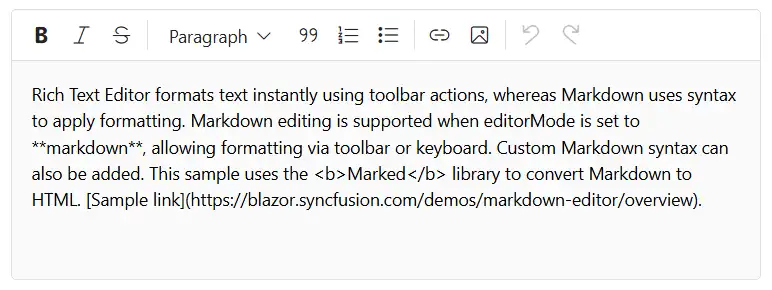
Open a Razor file located in the ~/Pages/*.razor (for example, Home.razor) and add the Blazor Markdown Editor component inside the razor file.
@using Syncfusion.Blazor.RichTextEditor

<SfRichTextEditor EditorMode="EditorMode.Markdown" value="@MarkdownValue"></SfRichTextEditor>

@code {
    private string MarkdownValue { get; set; } = @"Rich Text Editor formats text instantly using toolbar actions, whereas Markdown uses syntax to apply formatting. Markdown editing is supported when editorMode is set to **markdown**, allowing formatting via toolbar or keyboard. Custom Markdown syntax can also be added. This sample uses the <b>Marked</b> library to convert Markdown to HTML. [Sample link](https://blazor.syncfusion.com/demos/markdown-editor/overview?theme=fluent2).";

}
Run the application
Press Ctrl+F5 (Windows) or ⌘+F5 (macOS) to launch the application. The Blazor Markdown Editor component will render in your default web browser.
Open the terminal and run the following command.
dotnet runOpen the command prompt and run the following command.
dotnet run