Embed Blocks in Blazor Block Editor Component
18 Nov 20184 minutes to read
The Block Editor supports the addition of embeds to help you organize and showcase visual content effectively.
Adding an image block
You can use the Image block to showcase an image content within your editor.
Configure image block
You can render an Image block by setting the BlockType property to Image in the block model. The Properties property allows you to configure the image source, allowed file types, display dimensions, and more.
Global image settings
You can configure global settings for image blocks using the BlockEditorImageBlock tag directive. This ensures consistent behavior for all images in the editor.
The BlockEditorImageBlock tag directive supports the following options:
| Property | Description | Default Value |
|---|---|---|
| SaveFormat | Specifies the format to save the image. | Base64 |
| AllowedTypes | Specifies allowed image file types for upload. | ['.jpg', '.jpeg', '.png'] |
| Width | Specifies the default display width of the image. | auto |
| Height | Specifies the default display height of the image. | auto |
| EnableResize | Enables or disables image resizing. | true |
| MinWidth | Minimum width allowed for resizing. | '' |
| MaxWidth | Maximum width allowed for resizing. | '' |
| MinHeight | Minimum height allowed for resizing. | '' |
| MaxHeight | Maximum height allowed for resizing. | '' |
Configure image block properties
The Image block Properties property supports the following options:
| Property | Description | Default Value |
|---|---|---|
| Src | Specifies the image path. | '' |
| Width | Specifies the display width of the image. | '' |
| Height | Specifies the display height of the image. | '' |
| AltText | Specifies the alternative text to display when the image cannot be loaded. | '' |
@using Syncfusion.Blazor.BlockEditor

<div id="container">
    <SfBlockEditor Blocks="BlockData"></SfBlockEditor>
</div>

@code {
    private List<BlockModel> BlockData = new()
    {
        new BlockModel
        {
            BlockType = BlockType.Image,
            Properties = new ImageBlockSettings {Src = "https://cdn.syncfusion.com/ej2/richtexteditor-resources/RTE-Overview.png", AltText = "Sample image"}
        },
        new BlockModel
        {
            BlockType = BlockType.Paragraph,
            Content = new() {new ContentModel{ContentType = ContentType.Text, Content = "You can customize images further by configuring properties like allowedTypes for file upload restrictions, saveFormat for storage preferences, and cssClass for custom styling."}}
        }
    };
}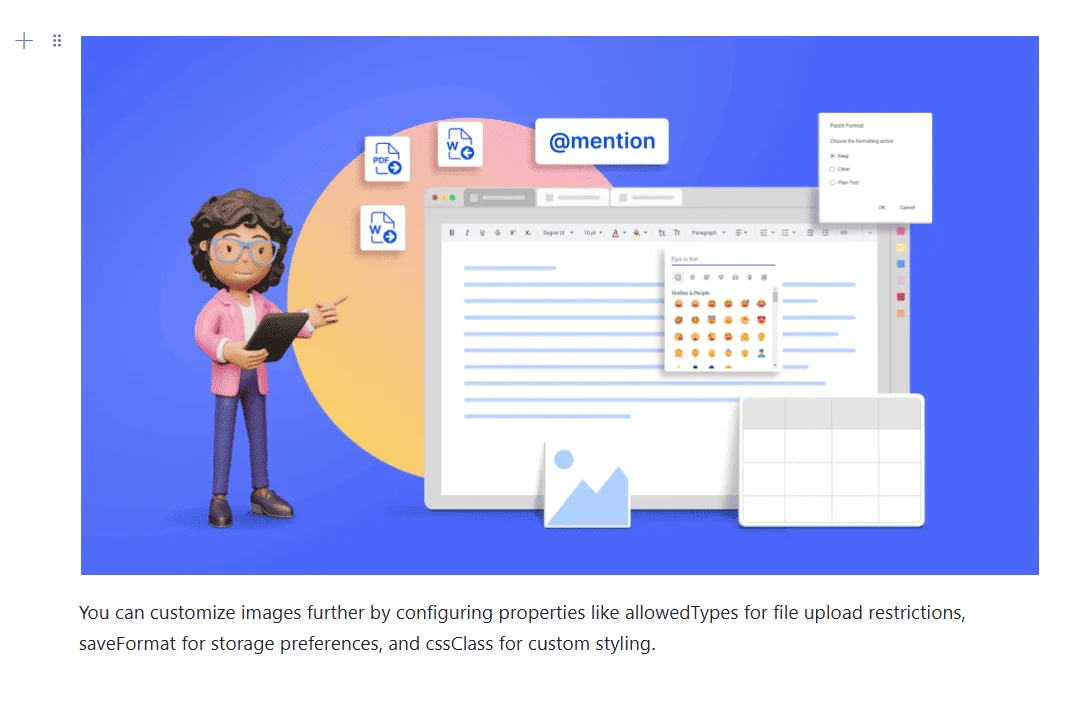
Image resizing
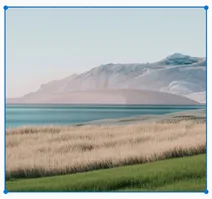
Block Editor has a built-in image inserting support. The resize points will be appearing on each corner of image when focus. So, users can resize the image using mouse points or thumb through the resize points easily. Also, the resize calculation will be done based on aspect ratio.