Filtering in .NET MAUI TreeView (SfTreeView)
14 Jul 202611 minutes to read
This section explains how to implement filtering in the TreeView control and its related operations. The TreeView provides built-in text filtering with multiple matching modes and custom predicate-based filtering capabilities that allow you to quickly locate nodes in hierarchical data.
Enabling filtering
The TreeView supports filtering nodes through the following approaches:
-
Built-in text filtering - Using
FilterTextwithFilterPathorFilterPathsand predefined matching strategies (Contains, StartsWith, Equals) -
Custom predicate filtering - Using
FilterPredicatefor custom filter logic with the help ofRefreshFilter() - Programmatic and data binding - Full MVVM support with bindable properties and events
FilterMode
The FilterMode property allows you to select the type of filtering to apply on the TreeView. The available filter modes are:
- None : No filtering is applied. This is the default value.
- Contains : Filters nodes where the display text contains the filter text.
- StartsWith : Filters nodes where the display text starts with the filter text.
- Equals : Filters nodes where the display text exactly matches the filter text.
-
Custom : Uses a custom predicate function for filtering. Set
FilterPredicatewhen using this mode.
When FilterMode is None or FilterText is null/empty, no filtering is applied, and all nodes are visible.
Setting filter mode
<ContentPage>
    <syncfusion:SfTreeView x:Name="treeView"
                           FilterMode="Contains"/>
</ContentPage>
using Syncfusion.Maui.TreeView;
public class MainPage : ContentPage
{
SfTreeView treeView;
public MainPage()
{
InitializeComponent();
treeView = new SfTreeView();
treeView.FilterMode = TreeViewFilterMode.Contains;
this.Content = treeView;
}
}FilterText
The FilterText property is a bindable string property that holds the text used for filtering nodes. When FilterText is set and FilterMode is not None, the TreeView automatically filters nodes based on the specified mode.
NOTE
Important:
FilterPathorFilterPathsmust be specified to enable filtering.FilterPathspecifies the single property name of the data model to use for filtering. If not set, filtering defaults to the display member used in the ItemTemplate or theToString()method.
NOTE
When
FilterTextisnullor empty, no filtering is applied, and all nodes become visible.
Programmatic filtering
You can set the FilterText property programmatically to apply filtering:
using Syncfusion.Maui.TreeView;

public class MainPage : ContentPage
{
    SfTreeView treeView;
    public MainPage()
    {
        InitializeComponent();
        treeView = new SfTreeView();
        treeView.FilterText = "Documents";
        treeView.FilterMode = TreeViewFilterMode.StartsWith;
        this.Content = treeView;
    }
}
Data binding
You can bind the FilterText property to a property in your ViewModel for MVVM scenarios:
<ContentPage>
    <ContentPage.BindingContext>
        <local:FileManagerViewModel x:Name="viewModel"/>
    </ContentPage.BindingContext>
    <ContentPage.Content>
        <Entry Placeholder="Enter filter text"
               Text="{Binding FilterText, Mode=TwoWay}"/>
        <syncfusion:SfTreeView x:Name="treeView"
                               ItemsSource="{Binding Items}"
                               ChildPropertyName="SubItems"
                               FilterText="{Binding FilterText}"
                               FilterMode="Contains"
                               FilterPath="ItemName"/>
    </ContentPage.Content>
</ContentPage>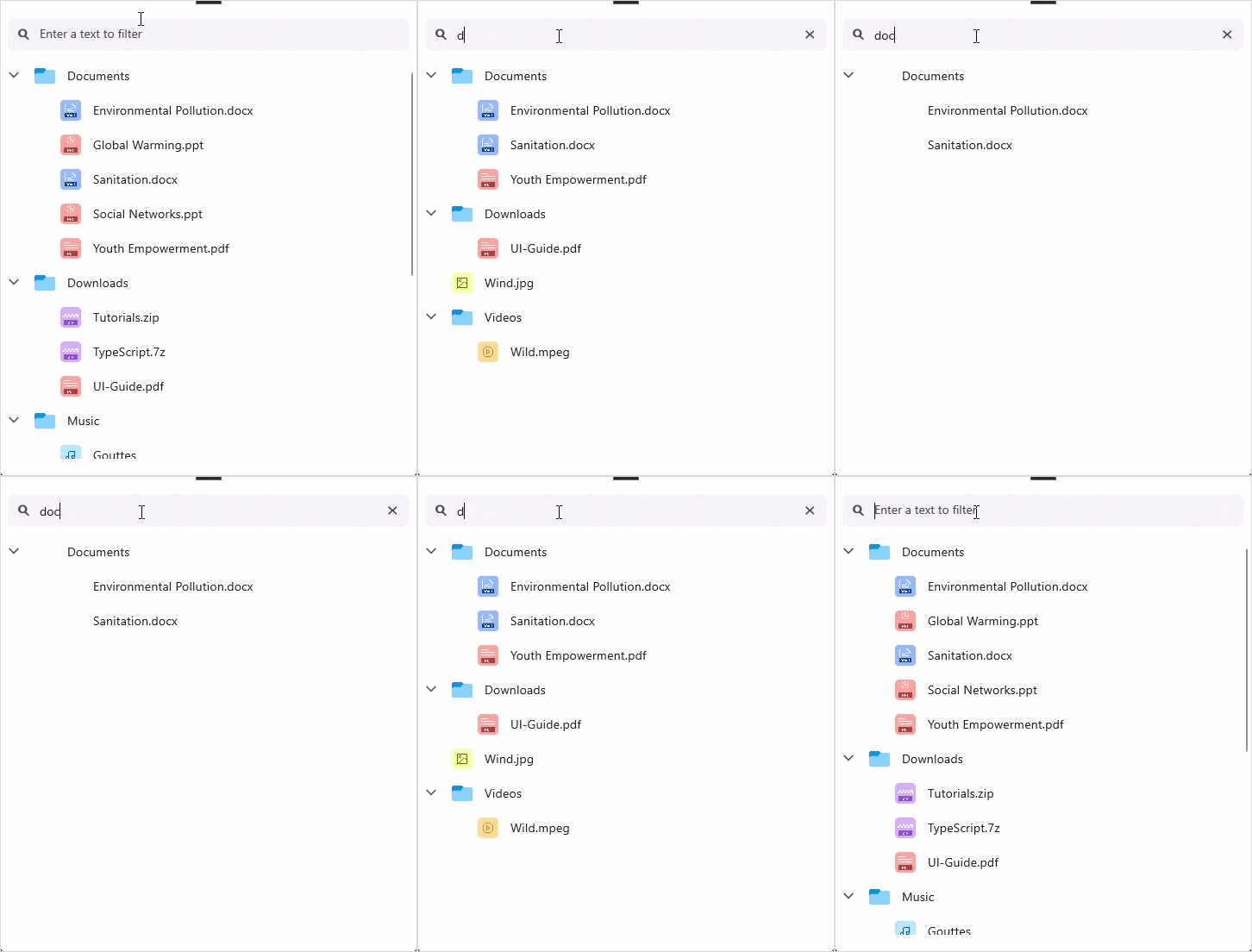
FilterPath and FilterPaths
Single field filtering with FilterPath
The FilterPath property specifies a single property name of the data model to use for filtering. If FilterPath is not set, filtering is applied to the default display member used in the ItemTemplate or the ToString() method.
<ContentPage>
    <ContentPage.BindingContext>
        <local:FileManagerViewModel x:Name="viewModel"/>
    </ContentPage.BindingContext>
    <ContentPage.Content>
        <syncfusion:SfTreeView x:Name="treeView"
                               ItemsSource="{Binding Items}"
                               FilterText="{Binding FilterText}"
                               FilterPath="Name"
                               FilterMode="Contains"/>
    </ContentPage.Content>
</ContentPage>treeView.FilterPath = "Name";
Multi-field filtering with FilterPaths
The FilterPaths property allows filtering across multiple properties. When specified, the filter evaluates all properties and displays a node if any property matches the filter criteria.
<ContentPage>
    <ContentPage.BindingContext>
        <local:FileManagerViewModel x:Name="viewModel"/>
    </ContentPage.BindingContext>
    <ContentPage.Content>
        <syncfusion:SfTreeView x:Name="treeView"
                               ItemsSource="{Binding Items}"
                               FilterText="{Binding FilterText}"
                               FilterMode="Contains">
            <syncfusion:SfTreeView.FilterPaths>
                <x:String>ItemName</x:String>
                <x:String>FileSize</x:String>
                <x:String>Description</x:String>
            </syncfusion:SfTreeView.FilterPaths>
        </syncfusion:SfTreeView>
    </ContentPage.Content>
</ContentPage>treeView.FilterPaths = new List<string> { "ItemName", "FileSize", "Description" };
Custom Predicate Filtering
For advanced filtering scenarios, you can use FilterMode.Custom with the FilterPredicate property. The predicate is a delegate that receives a data item and returns true if the item should be included in the filtered result, or false otherwise.
Setting a filter predicate
treeView.FilterMode = TreeViewFilterMode.Custom;
treeView.FilterPredicate = (item) =>
{
   ...
};
treeView.RefreshFilter();
AutoExpandOnFilter
The AutoExpandOnFilter property automatically expands ancestor nodes of matched items when a filter is applied. This helps users discover matches quickly without manually expanding nodes.
Using auto-expand
<ContentPage>
    <syncfusion:SfTreeView x:Name="treeView"
                           AutoExpandOnFilter="True"
                           FilterMode="Contains"
                           FilterText="Report"/>
</ContentPage>
using Syncfusion.Maui.TreeView;
public class MainPage : ContentPage
{
SfTreeView treeView;
public MainPage()
{
InitializeComponent();
treeView = new SfTreeView();
treeView.AutoExpandOnFilter = true;
this.Content = treeView;
}
}RefreshFilter
The RefreshFilter() method reapplies the current filter settings. This is useful when you have changed the filter criteria programmatically and need to update the filtered view.
using Syncfusion.Maui.TreeView;

public class MainPage : ContentPage
{
    SfTreeView treeView;
    public MainPage()
    {
        InitializeComponent();
        treeView = new SfTreeView();
        treeView.FilterMode = TreeViewFilterMode.Equals;
        treeView.RefreshFilter();
        this.Content = treeView;
    }
}
FilteredItems
The FilteredItems property returns a read-only snapshot of the currently filtered items. This is useful for diagnostics, UI logic, or displaying the count of filtered results.
Filtering Events
Filtering event
The Filtering event is raised before filtering is applied. You can use this to validate or modify filter criteria.
treeView.Filtering += (sender, args) =>
{
    // Handle the filtering event action
};
Filtered event
The Filtered event is raised after filtering is applied. You can use this to update UI elements, such as displaying the count of filtered results.
treeView.Filtered += (sender, args) =>
{
    // Handle the filtered event action
};