Empty view in .NET MAUI TreeView (SfTreeView)
14 Jul 202612 minutes to read
The SfTreeView control allows you to display and customize the empty view content when no data is available. The EmptyView property can be set to either a string or a view. It is shown when the ItemsSource is empty or null, or when the Nodes collection is empty. Use the EmptyViewTemplate property to customize the appearance of EmptyView.
Display a string when TreeView has no items
The EmptyView property in SfTreeView can be set to a string, which will be displayed when no items are present in the tree view.
<ContentPage>
    <ContentPage.BindingContext>
        <local:FileManagerViewModel/>
    </ContentPage.BindingContext>
    <syncfusion:SfTreeView x:Name="treeView"
                           ItemsSource="{Binding Items}"
                           EmptyView="No Items"/>
</ContentPage>
using Syncfusion.Maui.TreeView;
public class MainPage : ContentPage
{
SfTreeView treeView;
public MainPage()
{
InitializeComponent();
treeView = new SfTreeView();
FileManagerViewModel viewModel = new FileManagerViewModel();
treeView.ItemsSource = viewModel.Items;
treeView.EmptyView = "No Items";
this.Content = treeView;
}
}Display a custom view when TreeView has no items
The SfTreeView control uses the EmptyView property to display a custom view when the tree view has no items.
<ContentPage>
    <ContentPage.BindingContext>
        <local:FileManagerViewModel/>
    </ContentPage.BindingContext>
    <syncfusion:SfTreeView x:Name="treeView"
                           ItemsSource="{Binding Items}">
        <syncfusion:SfTreeView.EmptyView>
            <Border Padding="10" Stroke="Purple" StrokeThickness="2" HorizontalOptions="Center" VerticalOptions="Center">
                <Border.StrokeShape>
                    <RoundRectangle CornerRadius="6"/>
                </Border.StrokeShape>
                <Label Text="No Items Found"
                       HorizontalTextAlignment="Center"
                       VerticalTextAlignment="Center"
                       FontSize="16" FontAttributes="Bold" TextColor="Blue"/>
            </Border>
        </syncfusion:SfTreeView.EmptyView>
    </syncfusion:SfTreeView>
</ContentPage>
using Syncfusion.Maui.TreeView;
public class MainPage : ContentPage
{
SfTreeView treeView;
public MainPage()
{
InitializeComponent();
treeView = new SfTreeView();
FileManagerViewModel viewModel = new FileManagerViewModel();
treeView.ItemsSource = viewModel.Items;
treeView.EmptyView = new Border
{
Padding = 10,
Stroke = Colors.Purple,
StrokeThickness = 2,
HorizontalOptions = LayoutOptions.Center,
VerticalOptions = LayoutOptions.Center,
StrokeShape = new RoundRectangle { CornerRadius = 6 },
Content = new Label
{
Text = "No Items Found",
HorizontalTextAlignment = TextAlignment.Center,
VerticalTextAlignment = TextAlignment.Center,
FontSize = 16,
FontAttributes = FontAttributes.Bold,
TextColor = Colors.Blue
}
};
this.Content = treeView;
}
}NOTE
The
EmptyViewcan be a single view or a layout that contains multiple child views.
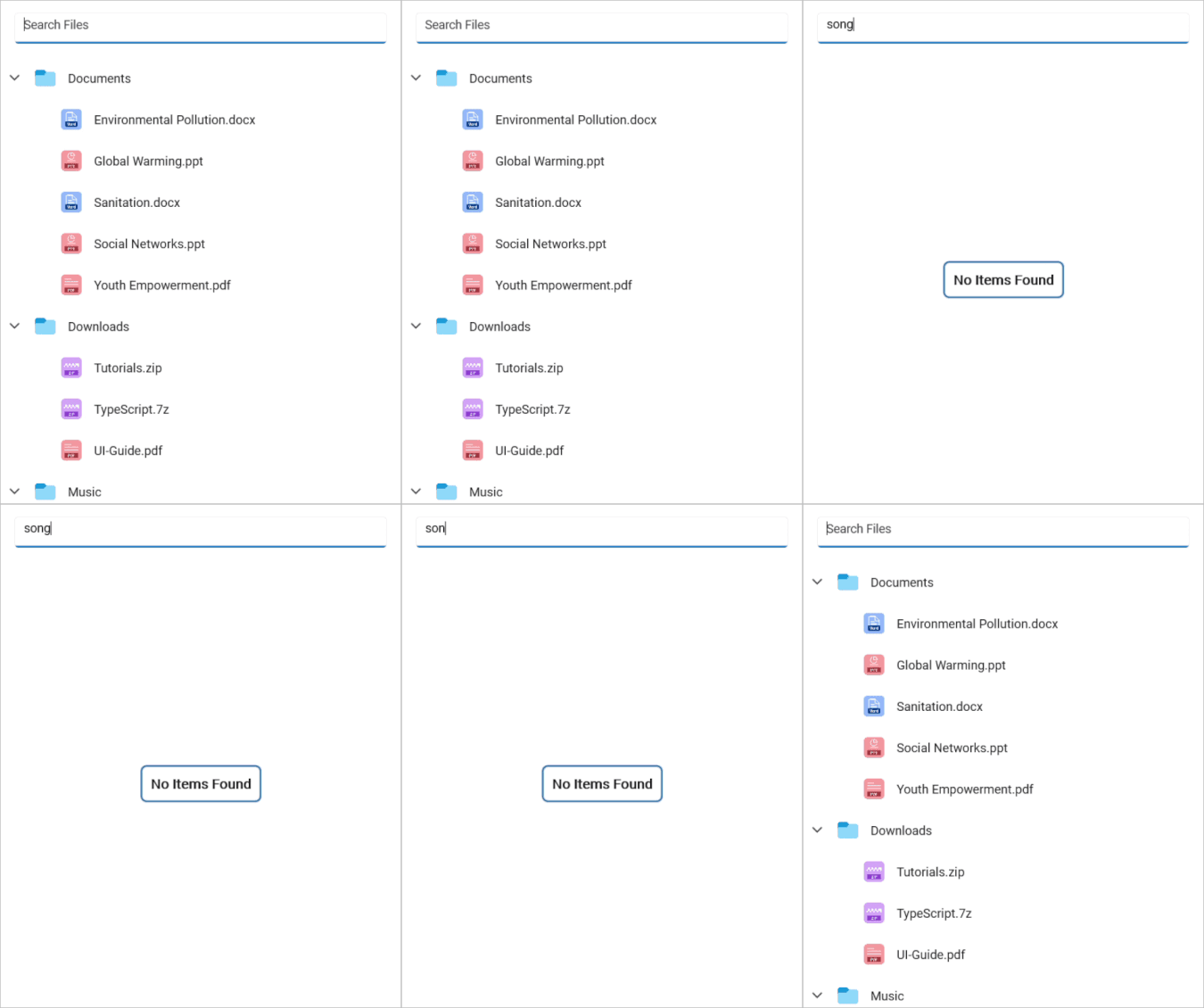
Empty view customization
The SfTreeView control allows you to fully customize the appearance of the empty view by using the EmptyViewTemplate property, which lets you define a custom view and style for the EmptyView.
<ContentPage>
    <ContentPage.BindingContext>
        <local:FileManagerViewModel/>
    </ContentPage.BindingContext>
    <Grid RowDefinitions="Auto,*">
        <SearchBar x:Name="filterText"
                   Placeholder="Search here"
                   TextChanged="FilterText_TextChanged" />
        <syncfusion:SfTreeView x:Name="treeView"
                               ItemsSource="{Binding FilteredFolders}"
                               AutoExpandMode="AllNodesExpanded"
                               NotificationSubscriptionMode="CollectionChange"
                               Grid.Row="1">
            <syncfusion:SfTreeView.EmptyView>
                <local:FilterItem Filter="{Binding Source={x:Reference filterText}, Path=Text}" />
            </syncfusion:SfTreeView.EmptyView>
            <syncfusion:SfTreeView.EmptyViewTemplate>
                <DataTemplate>
                    <Border>
                        <!-- ... -->
                    </Border>
                </DataTemplate>
            </syncfusion:SfTreeView.EmptyViewTemplate>
        </syncfusion:SfTreeView>
    </Grid>
</ContentPage>
using Syncfusion.Maui.TreeView;
public class MainPage : ContentPage
{
SfTreeView treeView;
Grid grid;
SearchBar filterText;
public MainPage()
{
InitializeComponent();
grid = new Grid();
grid.RowDefinitions.Add(new RowDefinition { Height = GridLength.Auto });
grid.RowDefinitions.Add(new RowDefinition { Height = new GridLength(1, GridUnitType.Star) });
filterText = new SearchBar
{
Placeholder = "Search here"
};
filterText.TextChanged += FilterText_TextChanged;
// Add SearchBar to Grid (Row 0)
grid.Children.Add(filterText);
Grid.SetRow(filterText, 0);
FileManagerViewModel viewModel = new FileManagerViewModel();
treeView = new SfTreeView
{
ItemsSource = viewModel.FilteredFolders,
AutoExpandMode = AutoExpandMode.AllNodesExpanded,
NotificationSubscriptionMode = NotificationSubscriptionMode.CollectionChange
};
Grid.SetRow(treeView, 1);
grid.Children.Add(treeView);
var filterItem = new FilterItem();
filterItem.SetBinding(FilterItem.FilterProperty, new Binding
{
Source = filterText,
Path = "Text"
});
treeView.EmptyView = filterItem;
// Define the EmptyViewTemplate
treeView.EmptyViewTemplate = new DataTemplate(() =>
{
return new Border
{
...
};
});
this.Content = grid;
}
}NOTE
- The
EmptyViewTemplateis applied only when theEmptyViewproperty is explicitly defined. IfEmptyViewis not set, the template will not be displayed.EmptyViewcan be set to a custom data model, and its appearance can be customized by usingEmptyViewTemplate.
NOTE