Drag and Drop in .NET MAUI TreeView
18 Nov 201824 minutes to read
The SfTreeView allows items to be dragged and dropped within the TreeView control by setting the AllowDragging property to true.
<syncfusion:SfTreeView x:Name="treeView"
                       ItemsSource="{Binding Folders}"
                       AllowDragging="True" />
using Syncfusion.Maui.TreeView;

public class MainPage : ContentPage
{
    SfTreeView treeView;
    public MainPage()
    {
        InitializeComponent();
        treeView = new SfTreeView();
        treeView.AllowDragging = true;
        treeView.SetBinding(SfTreeView.ItemsSourceProperty, new Binding("Folders"));
        this.Content = treeView;
    }
}
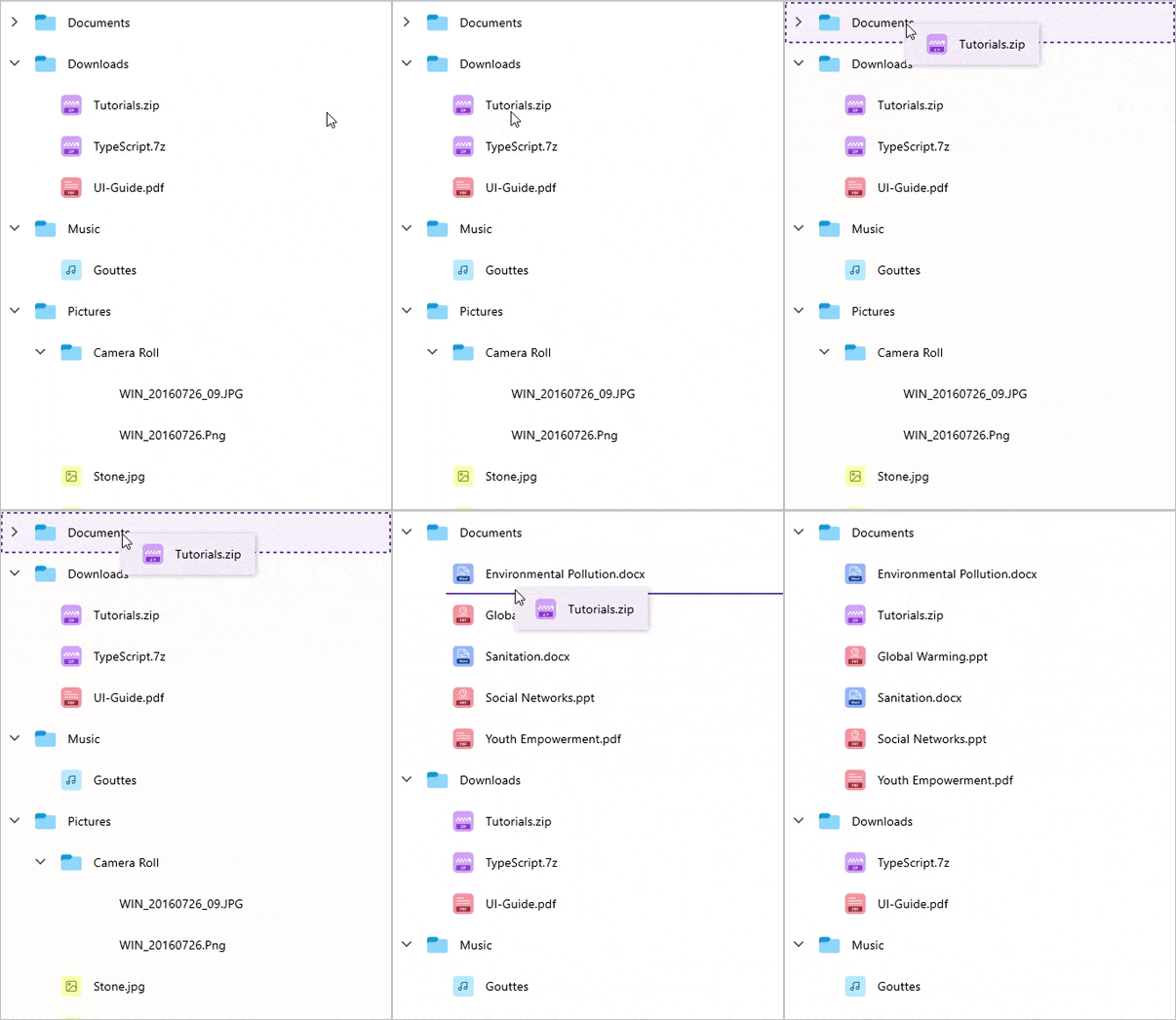
When dropping, dragged items can be placed above, below, or as a child of the target item, based on the drag indicator’s position.

NOTE
The drag-and-drop operation is not supported when Load on Demand is enabled.
Dragging multiple items
SfTreeView allows dragging of multiple selected items. To enable multiple selection, set the SfTreeView.SelectionMode to Multiple or Extended.
<syncfusion:SfTreeView x:Name="treeView"
                       ItemsSource="{Binding Folders}"
                       SelectionMode="Multiple"
                       AllowDragging="True" />
using Syncfusion.Maui.TreeView;

public class MainPage : ContentPage
{
    SfTreeView treeView;
    public MainPage()
    {
        InitializeComponent();
        treeView = new SfTreeView();
        treeView.AllowDragging = true;
        treeView.SelectionMode = TreeViewSelectionMode.Multiple;
        treeView.SetBinding(SfTreeView.ItemsSourceProperty, new Binding("Folders"));
        this.Content = treeView;
    }
}
Drag item customization
By defining the DragItemTemplate property of the SfTreeView, you can display a custom user interface (UI) during drag-and-drop operations.
<ContentPage.BindingContext>
<local:FileManagerViewModel x:Name="viewModel"/>
</ContentPage.BindingContext>
<syncfusion:SfTreeView x:Name="treeView"
ItemsSource="{Binding Folders}"
AllowDragging="True" >
<syncfusion:SfTreeView.DragItemTemplate>
<DataTemplate>
<Border x:Name="grid" Padding="8" StrokeThickness="1" Stroke="#6750A4">
<Border.StrokeShape>
<RoundRectangle CornerRadius="8"/>
</Border.StrokeShape>
<Grid RowSpacing="0" ColumnSpacing="0">
<Grid.ColumnDefinitions>
<ColumnDefinition Width="Auto"/>
<ColumnDefinition Width="40"/>
<ColumnDefinition Width="*"/>
</Grid.ColumnDefinitions>
<Label Text=""
TextColor="#B3261E"
VerticalOptions="Center"
HorizontalOptions="Center"
FontSize="20"
FontFamily="MauiMaterialAssets"
IsVisible="{Binding Source={x:Reference viewModel}, Path=BlockIconVisible}"/>
<Image Grid.Column="1" Source="{Binding ImageIcon}"
VerticalOptions="Center"
HorizontalOptions="Center"
HeightRequest="24"
WidthRequest="24"/>
<Label LineBreakMode="NoWrap" Grid.Column="2"
Margin="5,0,0,0"
Text="{Binding FolderName}"
CharacterSpacing="0.25"
FontSize="14"
VerticalTextAlignment="Center"/>
</Grid>
</Border>
</DataTemplate>
</syncfusion:SfTreeView.DragItemTemplate>
</syncfusion:SfTreeView>using Syncfusion.Maui.TreeView;
public class MainPage : ContentPage
{
SfTreeView treeView;
public MainPage()
{
InitializeComponent();
treeView = new SfTreeView();
FileManagerViewModel viewModel = new FileManagerViewModel();
treeView.AllowDragging = true;
treeView.SetBinding(SfTreeView.ItemsSourceProperty, new Binding("Folders"));
treeView.DragItemTemplate = new DataTemplate(() =>
{
var border = new Border
{
Padding = 8,
StrokeThickness = 1,
Stroke = Color.FromArgb("#6750A4"),
Background = Colors.White,
StrokeShape = new RoundRectangle { CornerRadius = 8 }
};
var grid = new Grid
{
RowSpacing = 0,
ColumnSpacing = 0
};
grid.ColumnDefinitions.Add(new ColumnDefinition { Width = GridLength.Auto });
grid.ColumnDefinitions.Add(new ColumnDefinition { Width = new GridLength(40) });
grid.ColumnDefinitions.Add(new ColumnDefinition { Width = GridLength.Star });
var iconLabel = new Label
{
Text = "\uE70E",
TextColor = Color.FromArgb("#B3261E"),
VerticalOptions = LayoutOptions.Center,
HorizontalOptions = LayoutOptions.Center,
FontSize = 20,
FontFamily = "MauiMaterialAssets",
IsVisible = viewModel.BlockIconVisible
};
var image = new Image
{
VerticalOptions = LayoutOptions.Center,
HorizontalOptions = LayoutOptions.Center,
HeightRequest = 24,
WidthRequest = 24
};
image.SetBinding(Image.SourceProperty, "ImageIcon");
Grid.SetColumn(image, 1);
var nameLabel = new Label
{
Margin = new Thickness(5, 0, 0, 0),
LineBreakMode = LineBreakMode.NoWrap,
CharacterSpacing = 0.25,
FontSize = 14,
VerticalTextAlignment = TextAlignment.Center
};
nameLabel.SetBinding(Label.TextProperty, "FolderName");
Grid.SetColumn(nameLabel, 2);
grid.Children.Add(iconLabel);
grid.Children.Add(image);
grid.Children.Add(nameLabel);
border.Content = grid;
return border;
});
this.Content = treeView;
}
}
NOTE
View sample in GitHub.
ItemDragging event
The ItemDragging event is raised while an item is being dragged or dropped in the SfTreeView. The ItemDraggingEventArgs has the following members which provide the information for the ItemDragging event:
-
Action: Returns the drag
Actionsuch as start, dragging, dropping, and drop. -
Handled: Set to true to handle the dragging operation. Applicable only when Action is
Dragging. - DraggingNodes: Returns the list of nodes being dragged.
- DropPosition: Returns the position where dragged nodes are going to be dropped.
- Position: Returns the touch position of the dragged item in screen coordinates.
-
Cancel: Set to true to cancel the drag-and-drop operation.
Auto scroll options
Auto-scrolling automatically scrolls the view when dragging an item near the edges.
Auto scroll margin
To adjust the auto-scroll margin in SfTreeView, set the ScrollMargin property of the AutoScroller. The default value is 15. Auto-scrolling triggers when the drag item is within the ScrollMargin from the view’s bounds.
NOTE
To disable auto-scrolling, set the
ScrollMarginto0.
using Syncfusion.Maui.TreeView;

public class MainPage : ContentPage
{
    SfTreeView treeView;
    public MainPage()
    {
        InitializeComponent();
        treeView = new SfTreeView();
        treeView.AllowDragging = true;
        treeView.AutoScroller.ScrollMargin = 20;
        this.Content = treeView;
    }
}
Auto scroll interval
Adjust the auto-scroll interval during dragging by setting the Interval property of the AutoScroller. The default interval is 150 milliseconds.
using Syncfusion.Maui.TreeView;

public class MainPage : ContentPage
{
    SfTreeView treeView;
    public MainPage()
    {
        InitializeComponent();
        treeView = new SfTreeView();
        treeView.AllowDragging = true;
        treeView.AutoScroller.Interval = new TimeSpan(0, 0, 0, 0, 200);
        this.Content = treeView;
    }
}
Disable outside scroll
To prevent auto-scrolling when the dragged item is moved outside the SfTreeView during a drag, set the AllowOutsideScroll property of the AutoScroller to false. The default value is true.
using Syncfusion.Maui.TreeView;

public class MainPage : ContentPage
{
    SfTreeView treeView;
    public MainPage()
    {
        InitializeComponent();
        treeView = new SfTreeView();
        treeView.AllowDragging = true;
        treeView.AutoScroller.AllowOutsideScroll = false;
        this.Content = treeView;
    }
}
Auto expand
Enable auto expand
To enable auto-expanding of nodes when dragging items over them, set the CanAutoExpand property to true. The default value is false.
<syncfusion:SfTreeView x:Name="treeView"
                       ItemsSource="{Binding Folders}"
                       AllowDragging="True">
    <syncfusion:SfTreeView.DragAndDropController>
        <treeviewengine:DragAndDropController CanAutoExpand="True"/>
    </syncfusion:SfTreeView.DragAndDropController>
</syncfusion:SfTreeView>
using Syncfusion.Maui.TreeView;
public class MainPage : ContentPage
{
SfTreeView treeView;
public MainPage()
{
InitializeComponent();
treeView = new SfTreeView();
treeView.AllowDragging = true;
treeView.SetBinding(SfTreeView.ItemsSourceProperty, new Binding("Folders"));
treeView.DragAndDropController.CanAutoExpand = true;
this.Content = treeView;
}
}
Auto expand delay
To set the delay for auto-expanding nodes, use the AutoExpandDelay property. The default value is 3 seconds.
<syncfusion:SfTreeView x:Name="treeView"
                       ItemsSource="{Binding Folders}"
                       AllowDragging="True">
    <syncfusion:SfTreeView.DragAndDropController>
        <treeviewengine:DragAndDropController CanAutoExpand="True"
                                              AutoExpandDelay="0:0:1"/>
    </syncfusion:SfTreeView.DragAndDropController>
</syncfusion:SfTreeView>
using Syncfusion.Maui.TreeView;
public class MainPage : ContentPage
{
SfTreeView treeView;
public MainPage()
{
InitializeComponent();
treeView = new SfTreeView();
treeView.AllowDragging = true;
treeView.SetBinding(SfTreeView.ItemsSourceProperty, new Binding("Folders"));
treeView.DragAndDropController.CanAutoExpand = true;
treeView.DragAndDropController.AutoExpandDelay = new TimeSpan(0, 0, 1);
this.Content = treeView;
}
}Disable dragging for particular item
To disable dragging for a particular item, handle the ItemDragging event based on the conditions of the Action event argument.
You can cancel the dragging action for a particular item by setting the Cancel property of the ItemDraggingEventArgs.
using Syncfusion.Maui.TreeView;

public class MainPage : ContentPage
{
    SfTreeView treeView;
    public MainPage()
    {
        InitializeComponent();
        treeView = new SfTreeView();
        FileManagerViewModel viewModel = new FileManagerViewModel();
        treeView.AllowDragging = true;
        treeView.SetBinding(SfTreeView.ItemsSourceProperty, new Binding("Folders"));
        treeView.ItemDragging += TreeView_ItemDragging;
        this.Content = treeView;
    }

    private void TreeView_ItemDragging(object sender, ItemDraggingEventArgs e)
    {
        if (e.Action == DragAction.Start)
        {
            var item = e.DraggingNodes[0].Content as File;
            if (item.FolderName == "Sanitation.docx")
            {
                e.Cancel = true;
            }
        }
    }
}
Cancel dropping for the dragged item
To cancel dropping for the dragged item, handle the ItemDragging event based on the conditions of the Action event argument.
You can cancel the dropping action for an item by setting the Cancel property of the ItemDraggingEventArgs.
using Syncfusion.Maui.TreeView;

public class MainPage : ContentPage
{
    SfTreeView treeView;
    public MainPage()
    {
        InitializeComponent();
        treeView = new SfTreeView();
        FileManagerViewModel viewModel = new FileManagerViewModel();
        treeView.AllowDragging = true;
        treeView.SetBinding(SfTreeView.ItemsSourceProperty, new Binding("Folders"));
        treeView.ItemDragging += TreeView_ItemDragging;
        this.Content = treeView;
    }

    private void TreeView_ItemDragging(object sender, ItemDraggingEventArgs e)
    {
        if (e.Action == DragAction.Dropping)
        {
            var item = e.TargetNode.Content as Folder;
            if (item != null && item.FolderName == "Documents")
            {
                e.Cancel = true;
            }
        }
    }
}
Limitations
Drag-and-drop operations are not executed in the following scenarios. When this occurs, the default drag item view displays an “Invalid drop” indicator to inform users that the action is not permitted.
-
Drop as child into same node: An indicator appears if you attempt to drop an item as a child of the same node. -
Incompatible child node type: An indicator appears if you attempt to drop an item as a child where the target node’s child and the dragged item’s types are incompatible. It is applicable only whenSfTreeViewhas HierarchyPropertyDescriptor. -
Drop below or above with different type: An indicator appears if you attempt to drop an item below or above another node where the parent node’s existing child’s type differs from the dragged item’s type. It is applicable only whenSfTreeViewhasHierarchyPropertyDescriptor.