Data Population in .NET MAUI TreeView
18 Nov 201822 minutes to read
TreeView can be populated either with the data source by using the ItemsSource property or by creating and adding the TreeViewNode in a hierarchical structure to the Nodes property.
Populating nodes by data binding - bound mode
Populating nodes in bound mode includes the following steps:
To reflect collection and property changes in the UI, set the NotificationSubscriptionMode property of the TreeView to CollectionChange or PropertyChange.
The NotificationSubscriptionMode enum has the following members:
-
CollectionChange - Updates its tree structure when the child items collection is changed. Use this mode when items can be added to or removed from the
SubFilescollection at runtime. - PropertyChange - Updates its child items when the associated collection property is changed. Use this mode when the whole child collection reference is reassigned.
- None - This is the default mode and it does not reflect collection or property changes in the UI. Use this when the data source is static.
To decide how to populate the nodes, set the NodePopulationMode property of the TreeView.
The NodePopulationMode enum has the following members:
- OnDemand - Populates the child nodes only when the parent node is expanded. It is the default value. Recommended for large data sets to improve initial load performance.
- Instant - Populates all the child nodes when the TreeView control is initially loaded.
The following code example shows how to configure the NotificationSubscriptionMode and NodePopulationMode properties of the TreeView in XAML and C#:
<ContentPage.Content>
   <syncfusion:SfTreeView x:Name="treeView"
                           ChildPropertyName="SubFiles"
                           ItemsSource="{Binding ImageNodeInfo}"
                           NotificationSubscriptionMode="CollectionChange"
                           NodePopulationMode="OnDemand"/>
</ContentPage.Content>
using Syncfusion.Maui.TreeView;
public class MainPage : ContentPage
{
public MainPage()
{
InitializeComponent();
SfTreeView treeView = new SfTreeView();
treeView.ChildPropertyName = "SubFiles",
treeView.NotificationSubscriptionMode = Syncfusion.TreeView.Engine.NotificationSubscriptionMode.CollectionChange;
treeView.NodePopulationMode = Syncfusion.TreeView.Engine.NodePopulationMode.OnDemand;
treeView.SetBinding(SfTreeView.ItemsSourceProperty, "ImageNodeInfo");
this.Content = treeView;
}
}Create data model for treeview
Create a simple data source as shown in the following code example in a new class file, and save it as FileManager.cs file:
using System.Collections.ObjectModel;
using System.ComponentModel;
using Microsoft.Maui.Controls;

public class FileManager : INotifyPropertyChanged
{
   private string itemName;
   private ImageSource imageIcon;
   private ObservableCollection<FileManager> subFiles;

   public ObservableCollection<FileManager> SubFiles
   {
      get { return subFiles; }
      set
      {
         subFiles = value;
         RaisedOnPropertyChanged("SubFiles");
      }
   }

   public string ItemName
   {
      get { return itemName; }
      set
      {
         itemName = value;
         RaisedOnPropertyChanged("ItemName");
      }
   }

   public ImageSource ImageIcon
   {
       get { return imageIcon; }
       set
       {
          imageIcon = value;
          RaisedOnPropertyChanged("ImageIcon");
       }
   }

   public event PropertyChangedEventHandler PropertyChanged;

   public void RaisedOnPropertyChanged(string _propertyName)
   {
      PropertyChanged?.Invoke(this, new PropertyChangedEventArgs(_propertyName));
   }
}
Create a model repository class with ImageNodeInfo collection property initialized with the required number of data objects in a new class file as shown in the following code example, and save it as FileManagerViewModel.cs file:
public class FileManagerViewModel
{
   private ObservableCollection<FileManager> imageNodeInfo;

   public FileManagerViewModel()
   {
      GenerateSource();
   }

   public ObservableCollection<FileManager> ImageNodeInfo
   {
      get { return imageNodeInfo; }
      set { this.imageNodeInfo = value; }
   }

   private void GenerateSource()
   {
      var nodeImageInfo = new ObservableCollection<FileManager>();
      var doc = new FileManager() { ItemName = "Documents", ImageIcon = "folder.png" };
      var download = new FileManager() { ItemName = "Downloads", ImageIcon = "folder.png" };
      var mp3 = new FileManager() { ItemName = "Music", ImageIcon = "folder.png" };
      var pictures = new FileManager() { ItemName = "Pictures", ImageIcon = "folder.png" };
      var video = new FileManager() { ItemName = "Videos", ImageIcon = "folder.png" };

      var pollution = new FileManager() { ItemName = "Environmental Pollution.docx", ImageIcon = "word.png" };
      var globalWarming = new FileManager() { ItemName = "Global Warming.ppt", ImageIcon = "ppt.png" };
      var sanitation = new FileManager() { ItemName = "Sanitation.docx", ImageIcon = "word.png" };
      var socialNetwork = new FileManager() { ItemName = "Social Network.pdf", ImageIcon = "pdfimage.png" };
      var youthEmpower = new FileManager() { ItemName = "Youth Empowerment.pdf", ImageIcon = "pdfimage.png" };

      var tutorials = new FileManager() { ItemName = "Tutorials.zip", ImageIcon = "zip.png" };
      var typeScript = new FileManager() { ItemName = "TypeScript.7z", ImageIcon = "zip.png" };
      var uiGuide = new FileManager() { ItemName = "UI-Guide.pdf", ImageIcon = "pdfimage.png" };

      var song = new FileManager() { ItemName = "Gouttes", ImageIcon = "audio.png" };

      var camera = new FileManager() { ItemName = "Camera Roll", ImageIcon = "folder.png" };
      var stone = new FileManager() { ItemName = "Stone.jpg", ImageIcon = "image.png" };
      var wind = new FileManager() { ItemName = "Wind.jpg", ImageIcon = "image.png" };

      var img0 = new FileManager() { ItemName = "WIN_20160726_094117.JPG", ImageIcon = "people_circle23.png" };
      var img1 = new FileManager() { ItemName = "WIN_20160726_094118.JPG", ImageIcon = "people_circle2.png" };

      var video1 = new FileManager() { ItemName = "Naturals.mp4", ImageIcon = "video.png" };
      var video2 = new FileManager() { ItemName = "Wild.mpeg", ImageIcon = "video.png" };

      doc.SubFiles = new ObservableCollection<FileManager>
      {
         pollution,
         globalWarming,
         sanitation,
         socialNetwork,
         youthEmpower
      };

      download.SubFiles = new ObservableCollection<FileManager>
      {
         tutorials,
         typeScript,
         uiGuide
      };

      mp3.SubFiles = new ObservableCollection<FileManager>
      {
         song
      };

      pictures.SubFiles = new ObservableCollection<FileManager>
      {
         camera,
         stone,
         wind
      };

      camera.SubFiles = new ObservableCollection<FileManager>
      {
         img0,
         img1
      };

      video.SubFiles = new ObservableCollection<FileManager>
      {
         video1,
         video2
      };

      nodeImageInfo.Add(doc);
      nodeImageInfo.Add(download);
      nodeImageInfo.Add(mp3);
      nodeImageInfo.Add(pictures);
      nodeImageInfo.Add(video);
      imageNodeInfo = nodeImageInfo;
   }
}
Bind to hierarchical data source
To create a tree view using data binding, set a hierarchical data collection to the ItemsSource property. And set the child object name to the ChildPropertyName property.
<?xml version="1.0" encoding="utf-8" ?>
<ContentPage xmlns="http://schemas.microsoft.com/dotnet/2021/maui"
             xmlns:x="http://schemas.microsoft.com/winfx/2009/xaml"
             xmlns:syncfusion="clr-namespace:Syncfusion.Maui.TreeView;assembly=Syncfusion.Maui.TreeView"
             xmlns:local="clr-namespace:GettingStarted"
             x:Class="GettingStarted.MainPage">
    <ContentPage.BindingContext>
       <local:FileManagerViewModel x:Name="viewModel"></local:FileManagerViewModel>
    </ContentPage.BindingContext>
    <ContentPage.Content>
       <syncfusion:SfTreeView x:Name="treeView"
                              ChildPropertyName="SubFiles"
                              ItemsSource="{Binding ImageNodeInfo}"/>
    </ContentPage.Content>
</ContentPage>
using Syncfusion.Maui.TreeView;
public class MainPage : ContentPage
{
SfTreeView treeView;
public MainPage()
{
InitializeComponent();
treeView = new SfTreeView();
var viewModel = new FileManagerViewModel();
treeView.ChildPropertyName = "SubFiles";
treeView.ItemsSource = viewModel.ImageNodeInfo;
treeView.BindingContext = viewModel;
this.Content = treeView;
}
}To display each node’s content (such as the icon and item name), define an ItemTemplate as shown in the following code example:
<syncfusion:SfTreeView x:Name="treeView"
                       ChildPropertyName="SubFiles"
                       ItemsSource="{Binding ImageNodeInfo}">
    <syncfusion:SfTreeView.ItemTemplate>
        <DataTemplate>
            <Grid>
                <Grid.ColumnDefinitions>
                    <ColumnDefinition Width="Auto"/>
                    <ColumnDefinition Width="*"/>
                </Grid.ColumnDefinitions>
                <Image Source="{Binding ImageIcon}"
                       HeightRequest="30"
                       WidthRequest="30"
                       VerticalOptions="Center"/>
                <Label Grid.Column="1"
                       Text="{Binding ItemName}"
                       Margin="10,0,0,0"
                       VerticalOptions="Center"/>
            </Grid>
        </DataTemplate>
    </syncfusion:SfTreeView.ItemTemplate>
</syncfusion:SfTreeView>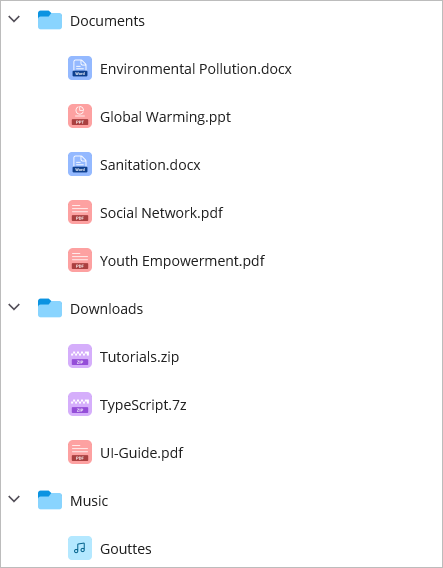
Populating nodes without data binding - unbound mode
You can create and manage the TreeViewNode objects by yourself to display the data in a hierarchical view. Create the node hierarchy by adding one or more root nodes to the Nodes collection. Each TreeViewNode can then have more nodes added to its ChildNodes collection. You can nest the tree view nodes to any depth you need.
<?xml version="1.0" encoding="utf-8" ?>
<ContentPage xmlns="http://schemas.microsoft.com/dotnet/2021/maui"
             xmlns:x="http://schemas.microsoft.com/winfx/2009/xaml"
             xmlns:syncfusion="clr-namespace:Syncfusion.Maui.TreeView;assembly=Syncfusion.Maui.TreeView"
             xmlns:treeviewengine="clr-namespace:Syncfusion.TreeView.Engine;assembly=Syncfusion.Maui.TreeView">
    <ContentPage.Content>
       <syncfusion:SfTreeView x:Name="treeView">
            <syncfusion:SfTreeView.Nodes>
                <treeviewengine:TreeViewNode Content="Australia">
                    <treeviewengine:TreeViewNode.ChildNodes>
                        <treeviewengine:TreeViewNode Content="New South Wales">
                            <treeviewengine:TreeViewNode.ChildNodes>
                                <treeviewengine:TreeViewNode Content="Sydney"/>
                            </treeviewengine:TreeViewNode.ChildNodes>
                        </treeviewengine:TreeViewNode>
                    </treeviewengine:TreeViewNode.ChildNodes>
                </treeviewengine:TreeViewNode>
                <treeviewengine:TreeViewNode Content="United States of America">
                    <treeviewengine:TreeViewNode.ChildNodes>
                        <treeviewengine:TreeViewNode Content="New York"/>
                        <treeviewengine:TreeViewNode Content="California">
                            <treeviewengine:TreeViewNode.ChildNodes>
                                <treeviewengine:TreeViewNode Content="San Francisco"/>
                            </treeviewengine:TreeViewNode.ChildNodes>
                        </treeviewengine:TreeViewNode>
                    </treeviewengine:TreeViewNode.ChildNodes>
                </treeviewengine:TreeViewNode>
            </syncfusion:SfTreeView.Nodes>
        </syncfusion:SfTreeView>
    </ContentPage.Content>
</ContentPage>
using Microsoft.Maui.Controls;
using Syncfusion.Maui.TreeView;
using Syncfusion.TreeView.Engine;
using System;
namespace GettingStarted
{
public class MainPage : ContentPage
{
SfTreeView treeView;
public MainPage()
{
treeView = new SfTreeView();
var australia = new TreeViewNode() { Content = "Australia" };
var nsw = new TreeViewNode() { Content = "New South Wales" };
var sydney = new TreeViewNode() { Content = "Sydney" };
australia.ChildNodes.Add(nsw);
nsw.ChildNodes.Add(sydney);
var usa = new TreeViewNode() { Content = "United States of America" };
var newYork = new TreeViewNode() { Content = "New York" };
var california = new TreeViewNode() { Content = "California" };
var sanFrancisco = new TreeViewNode() { Content = "San Francisco" };
usa.ChildNodes.Add(newYork);
usa.ChildNodes.Add(california);
california.ChildNodes.Add(sanFrancisco);
treeView.Nodes.Add(australia);
treeView.Nodes.Add(usa);
this.Content = treeView;
}
}
}Download the entire source code from GitHub here.

TreeViewNode properties
The following TreeViewNode properties are available :
-
Content - Gets or sets the data object associated with the tree view node. For unbound nodes, you can directly set the
Contentvalue. For bound nodes, you bind the data object using theContentproperty by setting theItemTemplateContextTypetoNode. - ParentNode - Gets the parent node of the current tree view node.
-
Level - Gets the zero-based depth of the tree node in the TreeView control. The root node returns
0. - IsExpanded - Gets or sets a value indicating whether the node is expanded.
- IsVisible - Gets or sets a value indicating whether the node is visible in the TreeView.
- HasChildNodes - Gets a value indicating whether the node has child nodes.
- ChildNodes - Gets the collection of child nodes for the current node.