Selection Mode in .NET MAUI Toolbar (SfToolbar)
20 Aug 202524 minutes to read
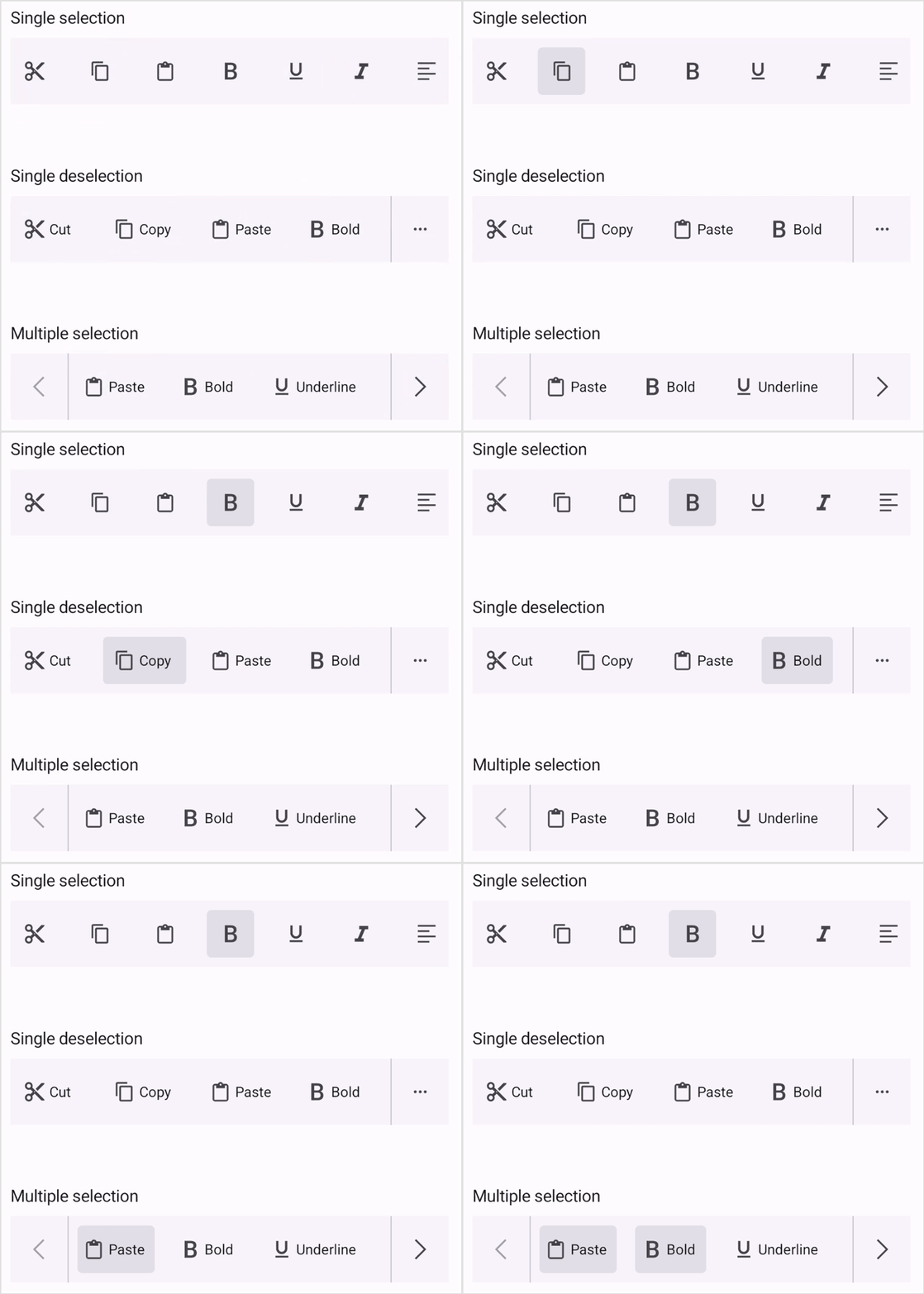
The Selection mode is specified in the Toolbar property enumeration. You can select the toolbar item by tapping the item in the toolbar. SfToolbar provides three types of modes such as Single, SingleDeselect, and Multiple. The default SelectionMode is Single, which allows the user to select only one item at a time.
Single Selection
The Single selection can be performed in the Toolbar by setting the SelectionMode property to Single. In this selection, you can select a single item at a time in the toolbar.
<toolbar:SfToolbar x:Name="Toolbar" HeightRequest="56" SelectionMode="Single">
<toolbar:SfToolbar.Items>
<toolbar:SfToolbarItem Name="Bold">
<toolbar:SfToolbarItem.Icon>
<FontImageSource Glyph=""
FontFamily="MauiMaterialAssets" />
</toolbar:SfToolbarItem.Icon>
</toolbar:SfToolbarItem>
<toolbar:SfToolbarItem Name="Underline">
<toolbar:SfToolbarItem.Icon>
<FontImageSource Glyph=""
FontFamily="MauiMaterialAssets" />
</toolbar:SfToolbarItem.Icon>
</toolbar:SfToolbarItem>
<toolbar:SfToolbarItem Name="Italic">
<toolbar:SfToolbarItem.Icon>
<FontImageSource Glyph=""
FontFamily="MauiMaterialAssets" />
</toolbar:SfToolbarItem.Icon>
</toolbar:SfToolbarItem>
<toolbar:SfToolbarItem Name="AlignLeft">
<toolbar:SfToolbarItem.Icon>
<FontImageSource Glyph=""
FontFamily="MauiMaterialAssets" />
</toolbar:SfToolbarItem.Icon>
</toolbar:SfToolbarItem>
<toolbar:SfToolbarItem Name="AlignRight">
<toolbar:SfToolbarItem.Icon>
<FontImageSource Glyph=""
FontFamily="MauiMaterialAssets" />
</toolbar:SfToolbarItem.Icon>
</toolbar:SfToolbarItem>
<toolbar:SfToolbarItem Name="AlignCenter">
<toolbar:SfToolbarItem.Icon>
<FontImageSource Glyph=""
FontFamily="MauiMaterialAssets" />
</toolbar:SfToolbarItem.Icon>
</toolbar:SfToolbarItem>
<toolbar:SfToolbarItem Name="AlignJustify">
<toolbar:SfToolbarItem.Icon>
<FontImageSource Glyph=""
FontFamily="MauiMaterialAssets" />
</toolbar:SfToolbarItem.Icon>
</toolbar:SfToolbarItem>
</toolbar:SfToolbar.Items>
</toolbar:SfToolbar>using Syncfusion.Maui.Toolbar;
namespace ToolbarSample
{
public partial class MainPage : ContentPage
{
public MainPage()
{
InitializeComponent();
SfToolbar toolbar = new SfToolbar();
toolbar.HeightRequest = 56;
toolbar.SelectionMode = ToolbarSelectionMode.Single;
ObservableCollection<BaseToolbarItem> itemCollection = new ObservableCollection<BaseToolbarItem>
{
new SfToolbarItem
{
Name = "Bold",
Icon = new FontImageSource { Glyph = "\uE770", FontFamily = "MauiMaterialAssets" }
},
new SfToolbarItem
{
Name = "Underline",
Icon = new FontImageSource { Glyph = "\uE762", FontFamily = "MauiMaterialAssets" }
},
new SfToolbarItem
{
Name = "Italic",
Icon = new FontImageSource { Glyph = "\uE771", FontFamily = "MauiMaterialAssets" }
},
new SfToolbarItem
{
Name = "AlignLeft",
Icon = new FontImageSource { Glyph = "\uE751", FontFamily = "MauiMaterialAssets" }
},
new SfToolbarItem
{
Name = "AlignRight",
Icon = new FontImageSource { Glyph = "\uE753", FontFamily = "MauiMaterialAssets" }
},
new SfToolbarItem
{
Name = "AlignCenter",
Icon = new FontImageSource { Glyph = "\uE752", FontFamily = "MauiMaterialAssets" }
},
new SfToolbarItem
{
Name = "AlignJustify",
Icon = new FontImageSource { Glyph = "\uE74F", FontFamily = "MauiMaterialAssets" }
}
};
toolbar.Items = itemCollection;
this.Content = toolbar;
}
}
}Single Deselection
The Single Deselection can be performed in the Toolbar by setting the SelectionMode property to SingleDeselect. In this mode, only one item can be selected at a time, and you can deselect the currently selected item by simply clicking on it again. This provides a quick way to clear the selection without needing additional actions.
<toolbar:SfToolbar x:Name="Toolbar" HeightRequest="56" SelectionMode="SingleDeselect">
<toolbar:SfToolbar.Items>
<toolbar:SfToolbarItem Name="Bold">
<toolbar:SfToolbarItem.Icon>
<FontImageSource Glyph=""
FontFamily="MauiMaterialAssets" />
</toolbar:SfToolbarItem.Icon>
</toolbar:SfToolbarItem>
<toolbar:SfToolbarItem Name="Underline">
<toolbar:SfToolbarItem.Icon>
<FontImageSource Glyph=""
FontFamily="MauiMaterialAssets" />
</toolbar:SfToolbarItem.Icon>
</toolbar:SfToolbarItem>
<toolbar:SfToolbarItem Name="Italic">
<toolbar:SfToolbarItem.Icon>
<FontImageSource Glyph=""
FontFamily="MauiMaterialAssets" />
</toolbar:SfToolbarItem.Icon>
</toolbar:SfToolbarItem>
<toolbar:SfToolbarItem Name="AlignLeft">
<toolbar:SfToolbarItem.Icon>
<FontImageSource Glyph=""
FontFamily="MauiMaterialAssets" />
</toolbar:SfToolbarItem.Icon>
</toolbar:SfToolbarItem>
<toolbar:SfToolbarItem Name="AlignRight">
<toolbar:SfToolbarItem.Icon>
<FontImageSource Glyph=""
FontFamily="MauiMaterialAssets" />
</toolbar:SfToolbarItem.Icon>
</toolbar:SfToolbarItem>
<toolbar:SfToolbarItem Name="AlignCenter">
<toolbar:SfToolbarItem.Icon>
<FontImageSource Glyph=""
FontFamily="MauiMaterialAssets" />
</toolbar:SfToolbarItem.Icon>
</toolbar:SfToolbarItem>
<toolbar:SfToolbarItem Name="AlignJustify">
<toolbar:SfToolbarItem.Icon>
<FontImageSource Glyph=""
FontFamily="MauiMaterialAssets" />
</toolbar:SfToolbarItem.Icon>
</toolbar:SfToolbarItem>
</toolbar:SfToolbar.Items>
</toolbar:SfToolbar>using Syncfusion.Maui.Toolbar;
namespace ToolbarSample
{
public partial class MainPage : ContentPage
{
public MainPage()
{
InitializeComponent();
SfToolbar toolbar = new SfToolbar();
toolbar.HeightRequest = 56;
toolbar.SelectionMode = ToolbarSelectionMode.SingleDeselect;
ObservableCollection<BaseToolbarItem> itemCollection = new ObservableCollection<BaseToolbarItem>
{
new SfToolbarItem
{
Name = "Bold",
Icon = new FontImageSource { Glyph = "\uE770", FontFamily = "MauiMaterialAssets" }
},
new SfToolbarItem
{
Name = "Underline",
Icon = new FontImageSource { Glyph = "\uE762", FontFamily = "MauiMaterialAssets" }
},
new SfToolbarItem
{
Name = "Italic",
Icon = new FontImageSource { Glyph = "\uE771", FontFamily = "MauiMaterialAssets" }
},
new SfToolbarItem
{
Name = "AlignLeft",
Icon = new FontImageSource { Glyph = "\uE751", FontFamily = "MauiMaterialAssets" }
},
new SfToolbarItem
{
Name = "AlignRight",
Icon = new FontImageSource { Glyph = "\uE753", FontFamily = "MauiMaterialAssets" }
},
new SfToolbarItem
{
Name = "AlignCenter",
Icon = new FontImageSource { Glyph = "\uE752", FontFamily = "MauiMaterialAssets" }
},
new SfToolbarItem
{
Name = "AlignJustify",
Icon = new FontImageSource { Glyph = "\uE74F", FontFamily = "MauiMaterialAssets" }
}
};
toolbar.Items = itemCollection;
this.Content = toolbar;
}
}
}Multiple Selection
The Multiple selection can be performed in the Toolbar by setting the SelectionMode property to Multiple. In this mode, users can select more than one item at a time. You can remove selected items by clicking on them again, which will deselect them. This toggle-based interaction provides a clear and efficient method for managing selections without requiring additional controls.
NOTE
Multiple selection not supported when ToolbarItem has Overlay toolbar.
<toolbar:SfToolbar x:Name="Toolbar" HeightRequest="56" SelectionMode="Multiple">
<toolbar:SfToolbar.Items>
<toolbar:SfToolbarItem Name="Bold">
<toolbar:SfToolbarItem.Icon>
<FontImageSource Glyph=""
FontFamily="MauiMaterialAssets" />
</toolbar:SfToolbarItem.Icon>
</toolbar:SfToolbarItem>
<toolbar:SfToolbarItem Name="Underline">
<toolbar:SfToolbarItem.Icon>
<FontImageSource Glyph=""
FontFamily="MauiMaterialAssets" />
</toolbar:SfToolbarItem.Icon>
</toolbar:SfToolbarItem>
<toolbar:SfToolbarItem Name="Italic">
<toolbar:SfToolbarItem.Icon>
<FontImageSource Glyph=""
FontFamily="MauiMaterialAssets" />
</toolbar:SfToolbarItem.Icon>
</toolbar:SfToolbarItem>
<toolbar:SfToolbarItem Name="AlignLeft">
<toolbar:SfToolbarItem.Icon>
<FontImageSource Glyph=""
FontFamily="MauiMaterialAssets" />
</toolbar:SfToolbarItem.Icon>
</toolbar:SfToolbarItem>
<toolbar:SfToolbarItem Name="AlignRight">
<toolbar:SfToolbarItem.Icon>
<FontImageSource Glyph=""
FontFamily="MauiMaterialAssets" />
</toolbar:SfToolbarItem.Icon>
</toolbar:SfToolbarItem>
<toolbar:SfToolbarItem Name="AlignCenter">
<toolbar:SfToolbarItem.Icon>
<FontImageSource Glyph=""
FontFamily="MauiMaterialAssets" />
</toolbar:SfToolbarItem.Icon>
</toolbar:SfToolbarItem>
<toolbar:SfToolbarItem Name="AlignJustify">
<toolbar:SfToolbarItem.Icon>
<FontImageSource Glyph=""
FontFamily="MauiMaterialAssets" />
</toolbar:SfToolbarItem.Icon>
</toolbar:SfToolbarItem>
</toolbar:SfToolbar.Items>
</toolbar:SfToolbar>using Syncfusion.Maui.Toolbar;
namespace ToolbarSample
{
public partial class MainPage : ContentPage
{
public MainPage()
{
InitializeComponent();
SfToolbar toolbar = new SfToolbar();
toolbar.HeightRequest = 56;
toolbar.SelectionMode = ToolbarSelectionMode.Multiple;
ObservableCollection<BaseToolbarItem> itemCollection = new ObservableCollection<BaseToolbarItem>
{
new SfToolbarItem
{
Name = "Bold",
Icon = new FontImageSource { Glyph = "\uE770", FontFamily = "MauiMaterialAssets" }
},
new SfToolbarItem
{
Name = "Underline",
Icon = new FontImageSource { Glyph = "\uE762", FontFamily = "MauiMaterialAssets" }
},
new SfToolbarItem
{
Name = "Italic",
Icon = new FontImageSource { Glyph = "\uE771", FontFamily = "MauiMaterialAssets" }
},
new SfToolbarItem
{
Name = "AlignLeft",
Icon = new FontImageSource { Glyph = "\uE751", FontFamily = "MauiMaterialAssets" }
},
new SfToolbarItem
{
Name = "AlignRight",
Icon = new FontImageSource { Glyph = "\uE753", FontFamily = "MauiMaterialAssets" }
},
new SfToolbarItem
{
Name = "AlignCenter",
Icon = new FontImageSource { Glyph = "\uE752", FontFamily = "MauiMaterialAssets" }
},
new SfToolbarItem
{
Name = "AlignJustify",
Icon = new FontImageSource { Glyph = "\uE74F", FontFamily = "MauiMaterialAssets" }
}
};
toolbar.Items = itemCollection;
this.Content = toolbar;
}
}
}