Getting Started with .NET MAUI Smart Data Grid
18 Nov 201814 minutes to read
This section provides a quick overview for working with the SfSmartDataGrid for .NET MAUI. Follow the steps below to add a basic Smart DataGrid to your project and configure AI-powered features.
Note: The Smart DataGrid is distributed as part of the
Syncfusion.Maui.SmartDataGridpackage and supports AI-assisted interactions such as intelligent sorting, filtering, grouping, and highlighting. Ensure your application has the required AI service configuration to enable these features.
Prerequisites
Before proceeding, ensure the following are set up:
- Install .NET 9 SDK or later is installed.
- Set up a .NET MAUI environment with Visual Studio 2026 (v18.0.0 or later).
Step 1: Create a new .NET MAUI Project
- Go to File > New > Project and choose the .NET MAUI App template.
- Name the project and choose a location. Then, click Next.
- Select the .NET framework version and click Create.
Step 2: Install the Syncfusion® MAUI Smart Data Grid NuGet Package
- In Solution Explorer, right-click the project and choose Manage NuGet Packages.
- Search for
Syncfusion.Maui.SmartDataGridand install the latest version. - Ensure the necessary dependencies are installed correctly, and the project is restored.
Prerequisites
Before proceeding, ensure the following are set up:
- Install .NET 9 SDK or later is installed.
- Set up a .NET MAUI environment with Visual Studio Code.
- Ensure that the .NET MAUI extension is installed and configured as described here.
Step 1: Create a new .NET MAUI Project
- Open the command palette by pressing
Ctrl+Shift+Pand type .NET:New Project and enter. - Choose the .NET MAUI App template.
- Select the project location, type the project name and press Enter.
- Then choose Create project.
Step 2: Install the Syncfusion® MAUI Smart Data Grid NuGet Package
- Press Ctrl + ` (backtick) to open the integrated terminal in Visual Studio Code.
- Ensure you’re in the project root directory where your .csproj file is located.
- Run the command
dotnet add package Syncfusion.Maui.SmartDataGridto install the Syncfusion® .NET MAUI Smart Data Grid package. - To ensure all dependencies are installed, run
dotnet restore.
Prerequisites
Before proceeding, ensure the following are set up:
- Ensure you have the latest version of JetBrains Rider.
- Install .NET 9 SDK or later is installed.
- Make sure the MAUI workloads are installed and configured as described here.
Step 1: Create a new .NET MAUI Project
- Go to File > New Solution, Select .NET (C#) and choose the .NET MAUI App template.
- Enter the Project Name, Solution Name, and Location.
- Select the .NET framework version and click Create.
Step 2: Install the Syncfusion® MAUI Smart Data Grid NuGet Package
- In Solution Explorer, right-click the project and choose Manage NuGet Packages.
- Search for
Syncfusion.Maui.SmartDataGridand install the latest version. - Ensure the necessary dependencies are installed correctly, and the project is restored.
Step 3: Register the handler
Syncfusion.Maui.Core NuGet is a dependent package for all Syncfusion® controls of .NET MAUI. In the MauiProgram.cs file, register the handler for Syncfusion® core.
using Syncfusion.Maui.Core.Hosting;Register the Syncfusion core handler in your CreateMauiApp method of MauiProgram.cs file to use Syncfusion controls.
builder.ConfigureSyncfusionCore();Step 4: Register the AI Service
To configure the AI services, you must call the ConfigureSyncfusionAIServices() method in the MauiProgram.cs file.
Add the following namespaces:
using Syncfusion.Maui.SmartComponents.Hosting;
using Azure.AI.OpenAI;
using Azure;
In the CreateMauiApp method, add the following code to configure the Azure AI service:
string key = "<MENTION-YOUR-KEY>";
Uri azureEndPoint = new Uri("<MENTION-YOUR-URL>");
string deploymentName = "<MENTION-YOUR-DEPLOYMENT-NAME>";

// Shows how to configure Azure AI service to the Smart Components.
AzureOpenAIClient azureOpenAIClient = new AzureOpenAIClient(azureEndPoint, new AzureKeyCredential(key));
IChatClient azureChatClient = azureOpenAIClient.GetChatClient(deploymentName).AsIChatClient();

builder.Services.AddChatClient(azureChatClient);
builder.ConfigureSyncfusionAIServices();
Step 5: Add a Basic Smart DataGrid
- Import the control namespace
Syncfusion.Maui.SmartDataGridin XAML or C# code. - Initialize the
SfSmartDataGridcontrol.
xmlns:syncfusion="clr-namespace:Syncfusion.Maui.SmartDataGrid;assembly=Syncfusion.Maui.SmartDataGrid"using Syncfusion.Maui.SmartDataGrid;Create a ViewModel instance and set it as the SmartDataGrid’s BindingContext. This enables property binding from ViewModel class.
To populate the SfSmartDataGrid, bind the item collection from its BindingContext to SfSmartDataGrid.ItemsSource property.
The following code example binds the collection to the SfSmartDataGrid.ItemsSource property:
<syncfusion:SfSmartDataGrid x:Name="dataGrid"
                        ItemsSource="{Binding OrderInfoCollection}">
    <syncfusion:SfSmartDataGrid.BindingContext>
        <local:OrderInfoRepository />
    </syncfusion:SfSmartDataGrid.BindingContext>
</syncfusion:SfSmartDataGrid>
OrderInfoRepository viewModel = new OrderInfoRepository();
SfSmartDataGrid dataGrid = new SfSmartDataGrid();
dataGrid.ItemsSource = viewModel.OrderInfoCollection;Step 6: Define Data Model and View Model
Data Model
Create a data model class and save it as OrderInfo.cs. Implement INotifyPropertyChanged to enable property binding:
public class OrderInfo
{
    private string? orderID;
    private string? customerID;
    private string? customer;
    private string? shipCity;
    private string? shipCountry;

    public string? OrderID
    {
        get { return orderID; }
        set { this.orderID = value; }
    }

    public string? CustomerID
    {
        get { return customerID; }
        set { this.customerID = value; }
    }

    public string? ShipCountry
    {
        get { return shipCountry; }
        set { this.shipCountry = value; }
    }

    public string? Customer
    {
        get { return this.customer; }
        set { this.customer = value; }
    }

    public string? ShipCity
    {
        get { return shipCity; }
        set { this.shipCity = value; }
    }

    public OrderInfo(string orderId, string customerName, string country, string customerId, string shipCity)
    {
        this.OrderID = orderId;
        this.Customer = customerName;
        this.ShipCountry = country;
        this.CustomerID = customerId;
        this.ShipCity = shipCity;
    }
}
Note: Implement
INotifyPropertyChangedin your model to enable property-level binding and automatic UI updates when data changes.
public class OrderInfo : INotifyPropertyChanged
{
    private string? orderID;
    public string? OrderID
    {
        get { return orderID; }
        set
        {
            if (orderID != value)
            {
                orderID = value;
                OnPropertyChanged(nameof(OrderID));
            }
        }
    }

    public event PropertyChangedEventHandler? PropertyChanged;

    protected void OnPropertyChanged(string propertyName)
    {
        PropertyChanged?.Invoke(this, new PropertyChangedEventArgs(propertyName));
    }
}
View Model
Create a model repository class with OrderInfo collection property initialized with the required number of data objects in a new class file as shown in the following code example, and save it as OrderInfoRepository.cs file:
public class OrderInfoRepository
{
    private ObservableCollection<OrderInfo> orderInfo;
    public ObservableCollection<OrderInfo> OrderInfoCollection
    {
        get { return orderInfo; }
        set { this.orderInfo = value; }
    }

    public OrderInfoRepository()
    {
        orderInfo = new ObservableCollection<OrderInfo>();
        this.GenerateOrders();
    }

    public void GenerateOrders()
    {
        orderInfo.Add(new OrderInfo("1001", "Maria Anders", "Germany", "ALFKI", "Berlin"));
        orderInfo.Add(new OrderInfo("1002", "Ana Trujillo", "Mexico", "ANATR", "Mexico D.F."));
        orderInfo.Add(new OrderInfo("1003", "Ant Fuller", "Mexico", "ANTON", "Mexico D.F."));
        orderInfo.Add(new OrderInfo("1004", "Thomas Hardy", "UK", "AROUT", "London"));
        orderInfo.Add(new OrderInfo("1005", "Tim Adams", "Sweden", "BERGS", "London"));
        orderInfo.Add(new OrderInfo("1006", "Hanna Moos", "Germany", "BLAUS", "Mannheim"));
        orderInfo.Add(new OrderInfo("1007", "Andrew Fuller", "France", "BLONP", "Strasbourg"));
        orderInfo.Add(new OrderInfo("1008", "Martin King", "Spain", "BOLID", "Madrid"));
        orderInfo.Add(new OrderInfo("1009", "Lenny Lin", "France", "BONAP", "Marsiella"));
        orderInfo.Add(new OrderInfo("1010", "John Carter", "Canada", "BOTTM", "Lenny Lin"));
        orderInfo.Add(new OrderInfo("1011", "Laura King", "UK", "AROUT", "London"));
        orderInfo.Add(new OrderInfo("1012", "Anne Wilson", "Germany", "BLAUS", "Mannheim"));
        orderInfo.Add(new OrderInfo("1013", "Martin King", "France", "BLONP", "Strasbourg"));
        orderInfo.Add(new OrderInfo("1014", "Gina Irene", "UK", "AROUT", "London"));
    }
}
Binding the View Model
Create a ViewModel instance and set it as the DataGrid’s BindingContext. This enables property binding from ViewModel class.
To populate the SfSmartDataGrid, bind the item collection from its BindingContext to SfSmartDataGrid.ItemsSource property.
The following code example binds the collection created in the previous step to the SfSmartDataGrid.ItemsSource property:
<syncfusion:SfSmartDataGrid x:Name="dataGrid"
                        ItemsSource="{Binding OrderInfoCollection}">
    <syncfusion:SfSmartDataGrid.BindingContext>
        <local:OrderInfoRepository />
    </syncfusion:SfSmartDataGrid.BindingContext>
</syncfusion:SfSmartDataGrid>
OrderInfoRepository viewModel = new OrderInfoRepository();
SfSmartDataGrid dataGrid = new SfSmartDataGrid();
dataGrid.ItemsSource = viewModel.OrderInfoCollection;Step 7: Enable AI-Assisted Operations
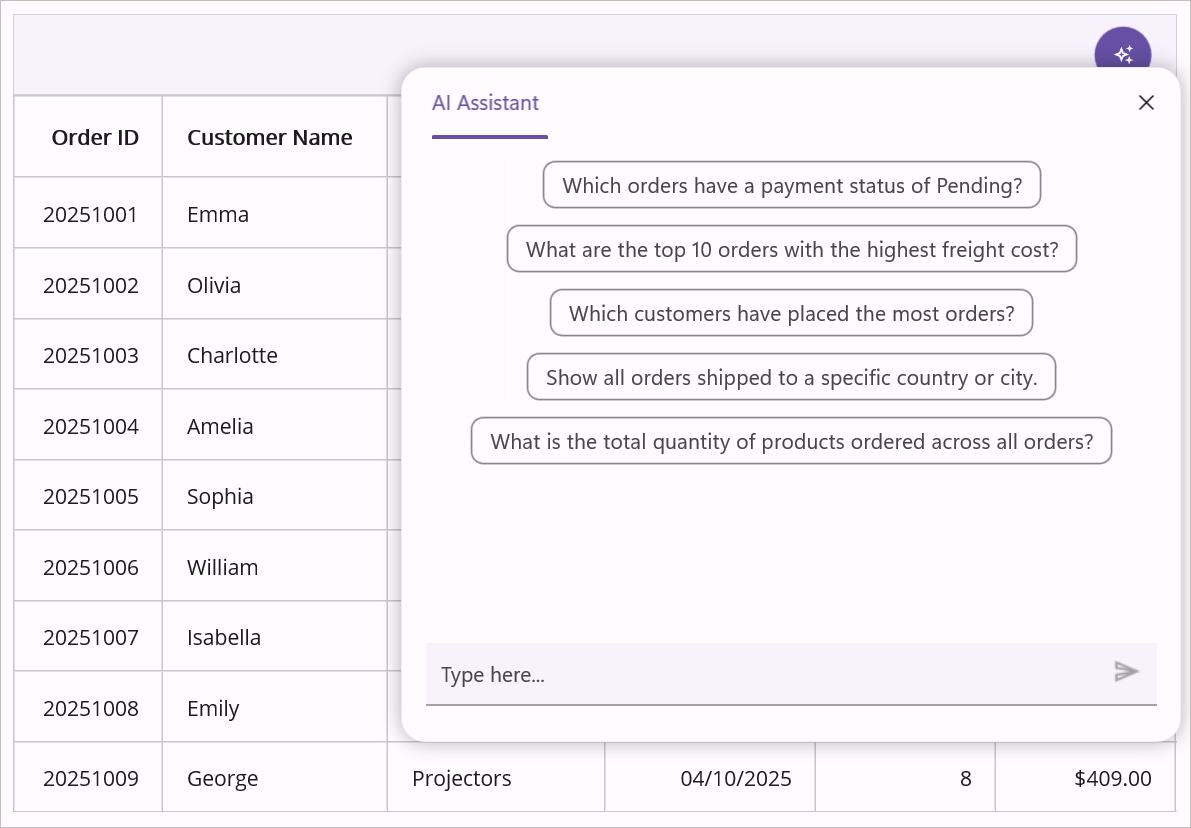
The Smart DataGrid automatically enables AI features when an Azure OpenAI client is configured. Users can interact with the grid using natural language commands through the AI Assist button in the toolbar.
Using AI Features
Once configured, leverage AI-assisted features such as:
- AI Sorting: Sort data intelligently by entering prompts like “Sort by customer name alphabetically”.
- Intelligent Filtering: Apply filters using natural language, e.g., “Show orders from Germany shipped in the last month”.
- Smart Grouping: Group data with prompts like “Group by ship country, then by customer”.
- Row and Cell Highlighting: Highlight critical information, e.g., “Highlight orders where quantity is greater than 10”.
Step 8: Running the Application
Press F5 to build and run the application. Once compiled, the smart datagrid will be displayed with the data provided, and AI features will be available after configuration.
Here is the result of the previous codes,
You can download the complete project of this demo from GitHub.
Note: You can refer to our .NET MAUI Smart Data Grid feature tour page for its groundbreaking feature representations. You can also explore our .NET MAUI Smart Data Grid Example that shows you how to render the Smart DataGrid in .NET MAUI.