AI-Powered features in .NET MAUI Smart Data Grid
18 Nov 20182 minutes to read
The SfSmartDataGrid provides AI-powered capabilities that enable grid operations through natural language prompts. Instead of manually configuring sort criteria, filter conditions, or grouping levels through UI controls, you can type natural language commands to perform these actions instantly. Actions such as sorting, grouping, filtering, highlighting, and clearing can be applied using simple text commands. Multi-column operations are supported in a single prompt for efficient interaction with the grid.
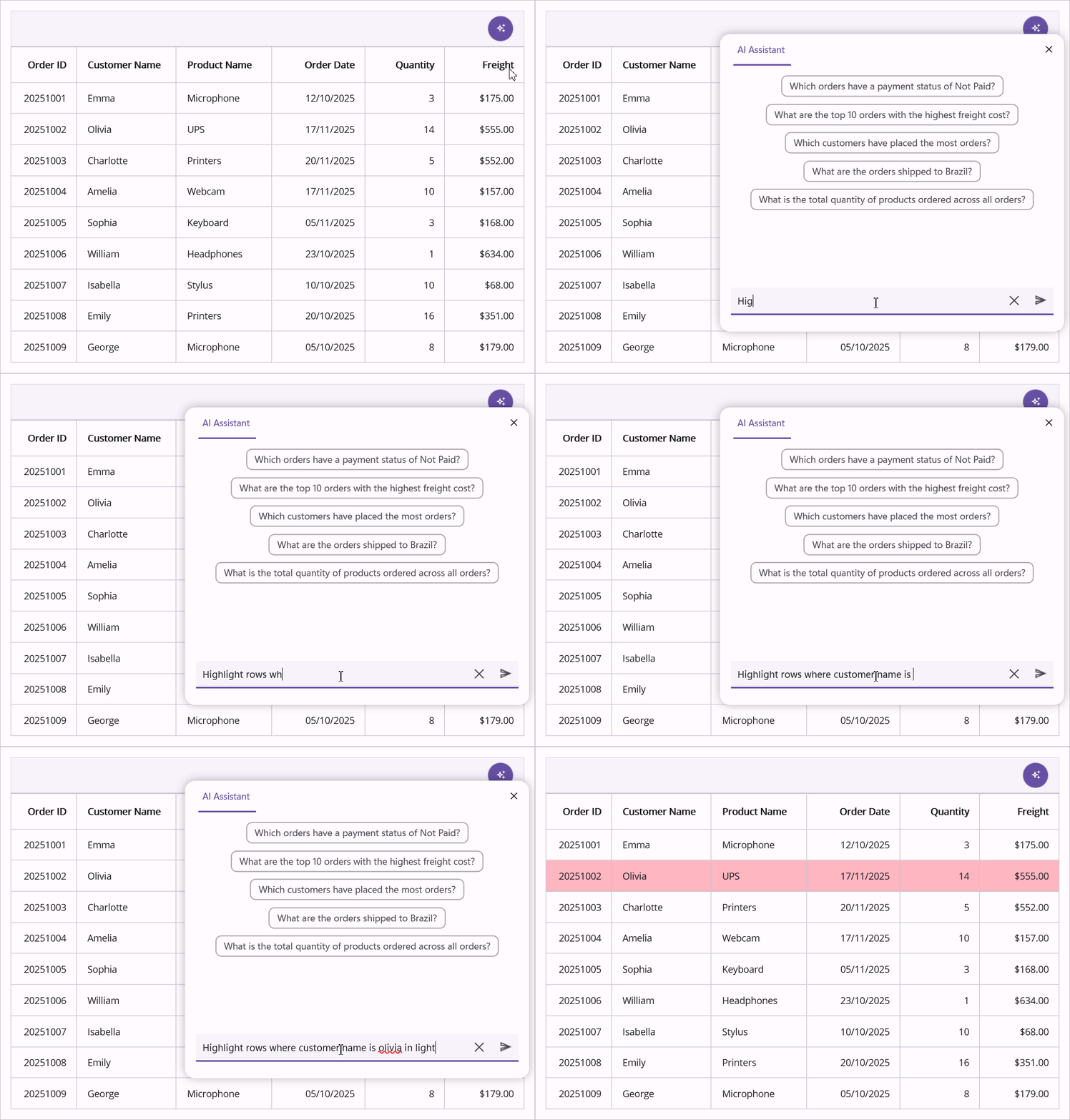
Sorting
Sorting organizes data by one or more columns in ascending or descending order. Multi-column sorting can be applied in a single command, and previously applied sorting can be removed using a clear command.
Example Prompts
// Applies sort to the City column in Descending direction
sort by city in descending

// Applies sort to the City and Revenue columns in Descending and Ascending directions
sort by city column in descending and Revenue ascending

// Clears sort columns
clear sorting
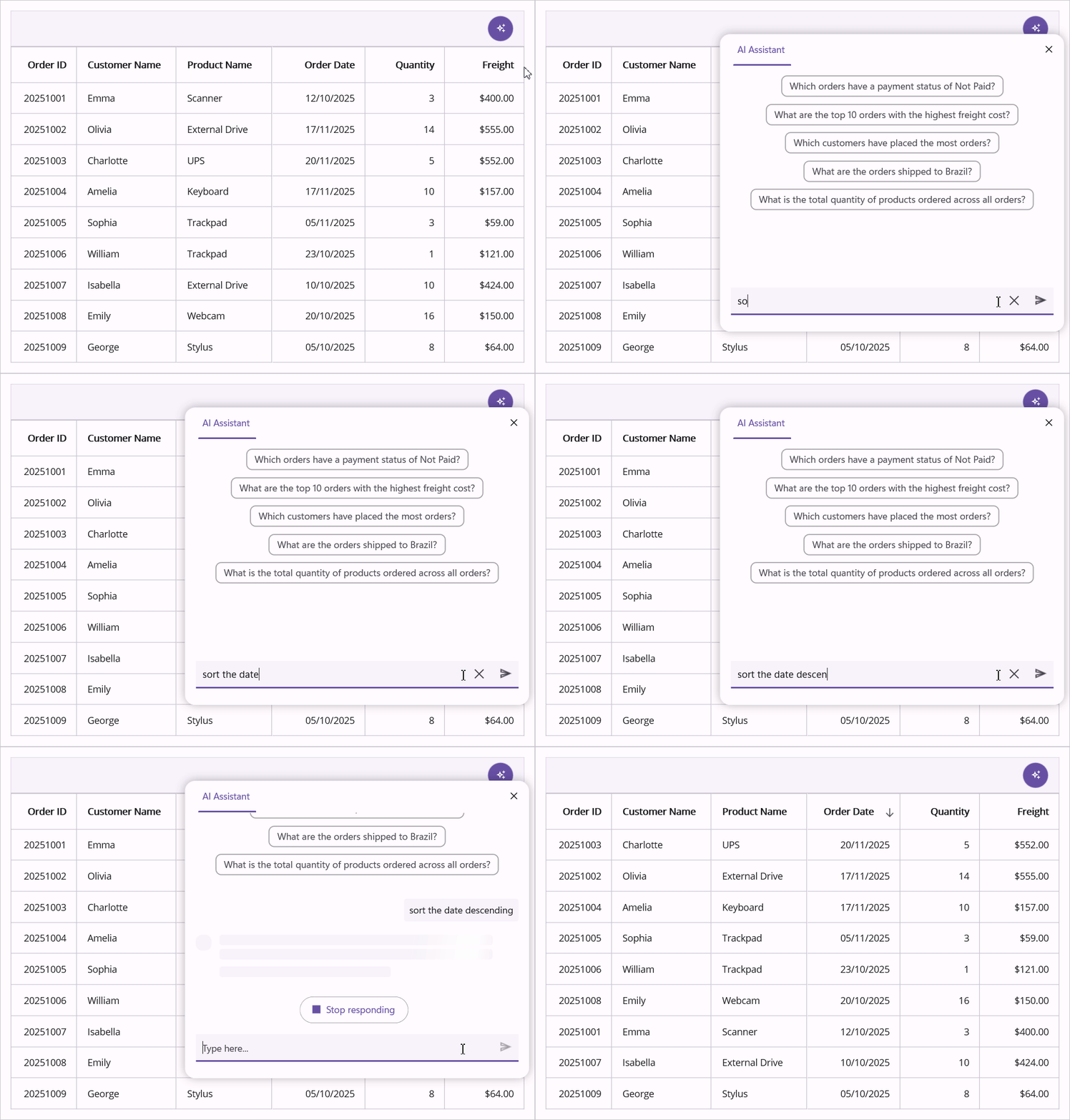
Grouping
Grouping organizes data by one or more columns as specified in the command. Multiple commands can be combined to create multi-level grouping, and grouping can be removed using a clear command.
Example Prompts
// Groups data by Country column
group by Country

// Groups data by Country and ShipCity columns
group by Country and ShipCity

// Clears all applied grouping
clear grouping
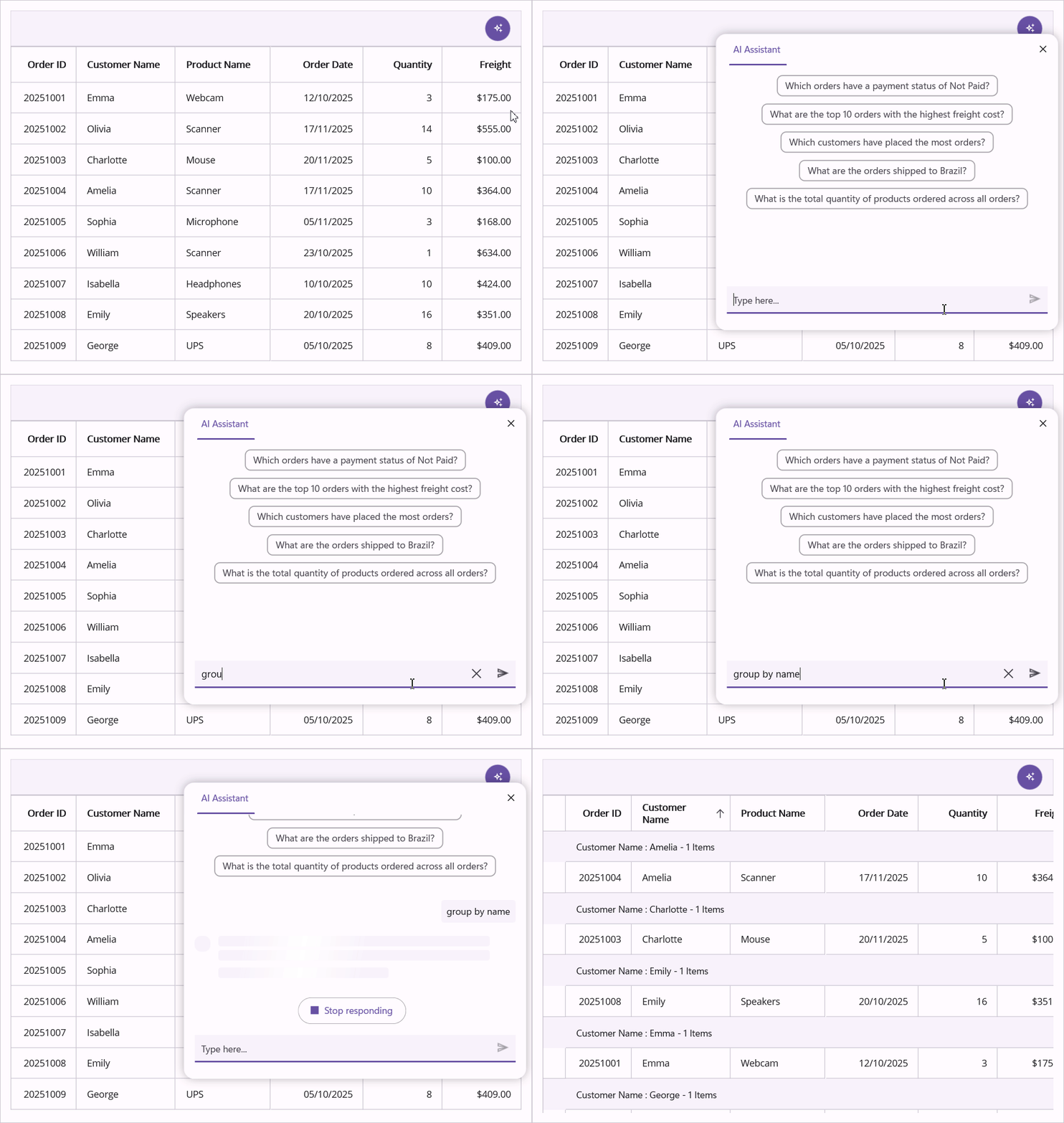
Filtering
Filtering uses natural language conditions like equals, contains, greaterThan, or between to build predicates internally and apply them to the grid. Multi step filters using AND/OR can be expressed in a single prompt and filters can be cleared with a single command.
Example Prompts
// Filters rows where Country equals Germany
filter Country equals Germany

// Filters rows where Country equals Germany AND Revenue is greater than 1000
filter Country equals Germany AND Revenue greaterThan 1000

// Clears all applied filters
clear filters
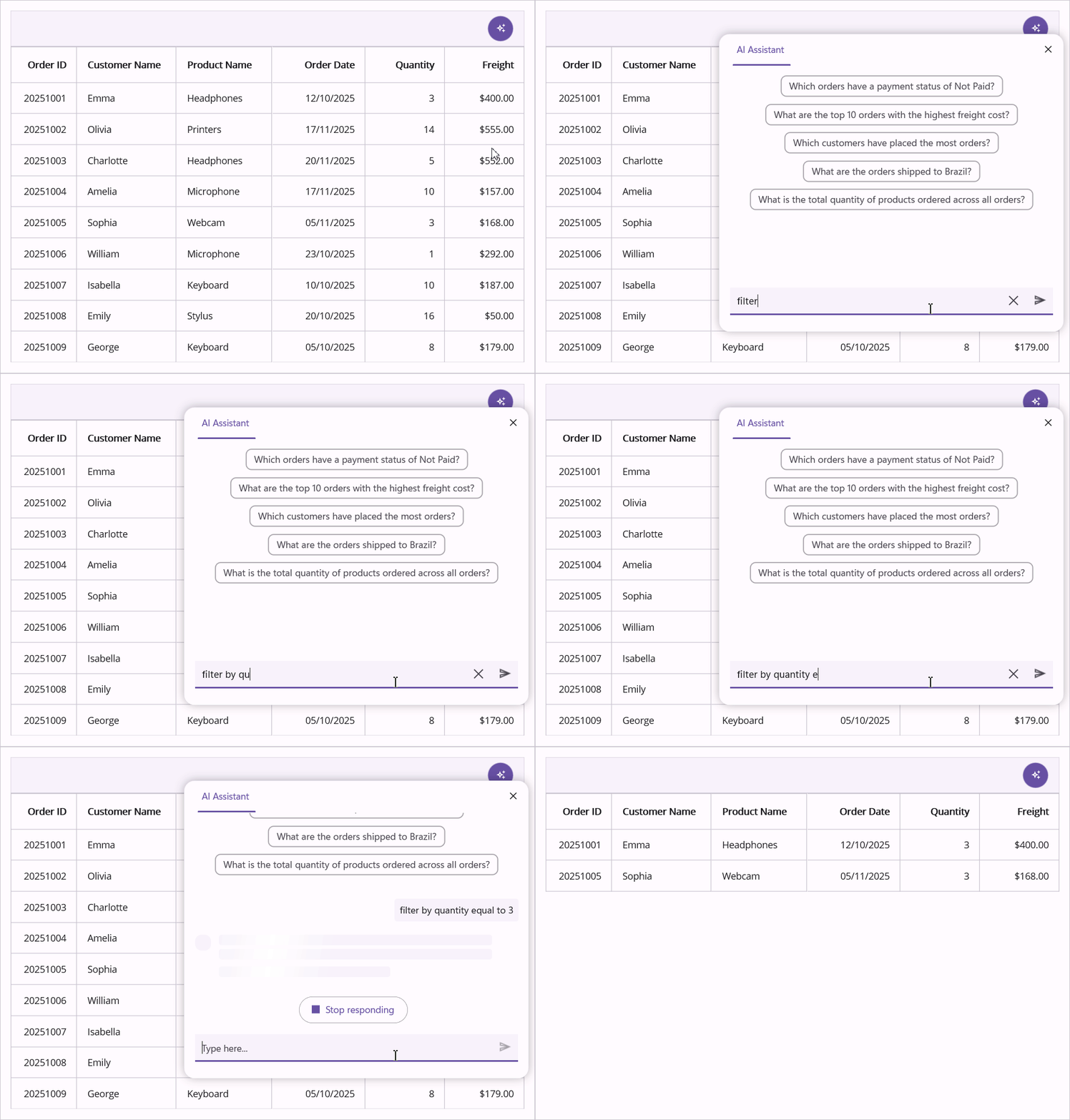
Highlight
Highlighting applies styles to rows or cells that meet specified conditions. A color can be included in the command; if no color is specified, the default highlight color is used. Multiple highlight rules can be combined, and highlights can be cleared individually or all at once.
Supported Color Formats
- Named colors: Red, LightPink, Yellow, Green, Blue, etc. (standard .NET color names)
- Hex format: #FF0000 or FF0000 (6-digit hexadecimal)
- RGB format: RGB(255, 0, 0) or (255, 0, 0)
Example Prompts
// Highlights rows where Total is greater than 1000 with LightPink color
highlight rows where Total > 1000 color LightPink

// Highlights rows where Total > 1000 with LightPink AND cells in OrderID less than 1005 with Red color
highlight rows where Total > 1000 color LightPink AND highlight cells in OrderID lessThan 1005 color Red

// Clears all highlights
clear highlight

// Clears only row highlights
clear row highlight

// Clears only cell highlights
clear cell highlight