Liquid Glass Effect in .NET MAUI Segmented control
13 Feb 20265 minutes to read
The Liquid Glass Effect introduces a modern, translucent design with adaptive color tinting and light refraction, creating a sleek, glass like user experience that remains clear and accessible. This section explains how to enable and customize the effect in the Syncfusion® .NET MAUI Segmented control control.
Apply liquid glass effect
Follow these steps to enable and configure the Liquid Glass Effect in the Segmented control control:
Step 1: Wrap the control inside glass effect view
To apply the Liquid Glass Effect to Syncfusion® SfSegmentedControl control, wrap the control inside the SfGlassEffectView class.
For more details, refer to the Liquid Glass Getting Started documentation.
Step 2: Enable the liquid glass effect on Segmented control
Set the EnableLiquidGlassEffect property to true in the SfSegmentedControl control to apply the Liquid Glass Effect. When enabled, the effect is also applied to its dependent controls and provides responsive interaction for a smooth and engaging user experience.
Step 3: Customize the background
To achieve a glass like background in the Segmented Control, set the Background property to Transparent. The background will then be treated as a tinted color, ensuring a consistent glass effect across the controls.
The following code snippet demonstrates how to apply the Liquid Glass Effect to the SfSegmentedControl control:
<ContentPage
    xmlns="http://schemas.microsoft.com/dotnet/2021/maui"
    xmlns:x="http://schemas.microsoft.com/winfx/2009/xaml"
    xmlns:buttons="clr-namespace:Syncfusion.Maui.Buttons;assembly=Syncfusion.Maui.Buttons"
    xmlns:core="clr-namespace:Syncfusion.Maui.Core;assembly=Syncfusion.Maui.Core"
    x:Class="SegmentPage">
    <Grid>
        <Image Source="wallpaper.jpg" Aspect="AspectFill" />
        <core:SfGlassEffectView EffectType="Clear">
            <buttons:SfSegmentedControl x:Name="segmentedControl"
                                EnableLiquidGlassEffect="True"
                                Stroke="#1F000000"
                                Background="#EDEDED"
                                StrokeThickness="1">
                <buttons:SfSegmentedControl.SelectionIndicatorSettings>
                    <buttons:SelectionIndicatorSettings TextColor="#0088FF" Background="#19F2F2F7"/>
                </buttons:SfSegmentedControl.SelectionIndicatorSettings>
                <buttons:SfSegmentedControl.ItemsSource>
                    <x:Array Type="{x:Type x:String}">
                        <x:String>Day</x:String>
                        <x:String>Week</x:String>
                        <x:String>Month</x:String>
                    </x:Array>
                </buttons:SfSegmentedControl.ItemsSource>
            </buttons:SfSegmentedControl>
        </core:SfGlassEffectView>
    </Grid>
</ContentPage>
using Syncfusion.Maui.Core;
using Syncfusion.Maui.Buttons;
var backgroundImage = new Image
{
Source = "wallpaper.jpg",
Aspect = Aspect.AspectFill
};
var glassView = new SfGlassEffectView
{
EffectType = LiquidGlassEffectType.Clear
};
var segmentedControl = new SfSegmentedControl
{
EnableLiquidGlassEffect = true,
Stroke = Color.FromArgb("#1F000000"),
Background = Color.FromArgb("#EDEDED"),
StrokeThickness = 1,
ItemsSource = new List<SfSegmentItem>
{
new SfSegmentItem() {Text = "Day"},
new SfSegmentItem() {Text = "Week"},
new SfSegmentItem() {Text = "Month"},
}
};
segmentedControl.SelectionIndicatorSettings = new SelectionIndicatorSettings
{
TextColor = Color.FromArgb("#0088FF"),
Background = Color.FromArgb("#19F2F2F7")
};
glassView.Content = segmentedControl;
var grid = new Grid();
grid.Children.Add(backgroundImage);
grid.Children.Add(glassView);
this.Content = grid;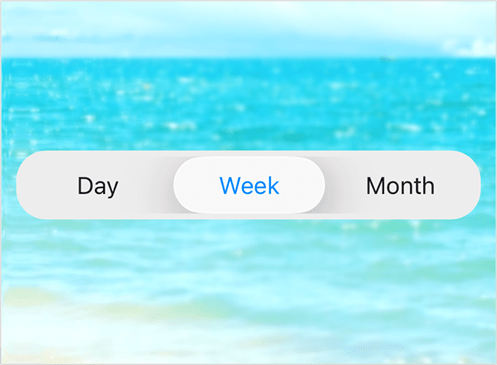
NOTE
- Supported on
macOS 26 or higherandiOS 26 or higher.- This feature is available only in
.NET 10.