Table Insertion in .NET MAUI Rich Text Editor
3 Aug 20262 minutes to read
The SfRichTextEditor allows users to organize content in a structured format by creating, editing, and formatting tables. Tables can be added by the end-user through the toolbar or programmatically.
Insert a table from the toolbar
The most common way to insert a table is by using the Table item on the toolbar. When the user taps this button, a dialog appears, allowing them to specify the number of rows and columns for the new table.
To enable this functionality, ensure the Table toolbar item is included in your ToolbarItems collection.
xmlns:richTextEditor="clr-namespace:Syncfusion.Maui.RichTextEditor;assembly=Syncfusion.Maui.RichTextEditor"

<richTextEditor:SfRichTextEditor ShowToolbar="True">
    <richTextEditor:SfRichTextEditor.ToolbarItems>
        <richTextEditor:RichTextToolbarItem Type="FontFamily" />
        <richTextEditor:RichTextToolbarItem Type="FontSize" />
        <richTextEditor:RichTextToolbarItem Type="Separator" />
        <richTextEditor:RichTextToolbarItem Type="Bold" />
        <richTextEditor:RichTextToolbarItem Type="Italic" />
        <richTextEditor:RichTextToolbarItem Type="Underline" />
        <richTextEditor:RichTextToolbarItem Type="Separator" />
        <!-- Add the Table toolbar item -->
        <richTextEditor:RichTextToolbarItem Type="Table" />
        <richTextEditor:RichTextToolbarItem Type="Separator" />
        <richTextEditor:RichTextToolbarItem Type="Hyperlink" />
        <richTextEditor:RichTextToolbarItem Type="Image" />
    </richTextEditor:SfRichTextEditor.ToolbarItems>
</richTextEditor:SfRichTextEditor>
Programmatic table insertion
You can insert a table into the editor programmatically using the InsertTable method. This method requires the number of rows and columns as arguments.
The following example demonstrates how to insert a 3x3 table at the current cursor position.
using Syncfusion.Maui.RichTextEditor;

SfRichTextEditor richTextEditor = new SfRichTextEditor();
richTextEditor.InsertTable(3, 3);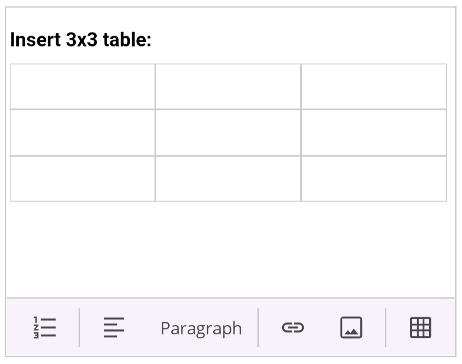
Table interactions after insertion
After a table is inserted (via the toolbar or programmatically), end users can
modify its structure using the table context tooltip:
- Desktop: Right-click a table cell to open the table tooltip.
- Mobile: Long-press a table cell to open the table tooltip.
The tooltip provides the following actions, all applied relative to the
current cursor position within the table:
- Insert Row Above
- Insert Row Below
- Insert Column Left
- Insert Column Right
- Delete Row
- Delete Column
- Delete Table