Syncfusion® License Validation in CI Services
18 Nov 20188 minutes to read
Syncfusion® license key validation in CI services ensures that Syncfusion® Essential Studio® components are properly licensed during CI processes. Validating the license key at the CI level can prevent licensing errors during deployment. Configure the continuous integration pipeline to fail when the license key validation fails. If validation fails, re-verify the platform, version, and license key values to resolve the issue.
Prerequisites
- PowerShell 7+ (
pwsh) must be available on the build agent. It is pre installed onwindows-latestin Azure DevOps and GitHub Actions, but you must add an installation step for Linux or macOS agents.- The Syncfusion license key must be stored as a CI secret (Azure DevOps secret variable, GitHub Actions secret, or Jenkins credentials) rather than being hard-coded in scripts.
- The Syncfusion NuGet/assembly version referenced in the project must match the version passed to the validator.
The following sections show how to validate the Syncfusion® license key in CI services.
Validate the license key by using the LicenseKeyValidator utility
-
Download and extract the LicenseKeyValidator.zip utility from the following link: LicenseKeyValidator.
-
Extract the contents to a known location on the build agent (for example,
D:\LicenseKeyValidator). TheLicenseKeyValidation.ps1script and theLicenseKeyValidatorConsole.exemust reside in the same folder so the$PSScriptRootpath resolves correctly. -
Open the
LicenseKeyValidation.ps1script in a text or code editor. The default contents are shown below.
# Replace the parameters with the desired platform, version, and actual license key.

$result = & $PSScriptRoot"\LicenseKeyValidatorConsole.exe" /platform:"MAUI" /version:"34.1.29" /licensekey:"Your License Key"

Write-Host $result-
Update the parameters in the script:
Platform: Modify the value for
/platform:to the actual platform"MAUI".Version: Change the value for
/version:to the required version (e.g.,"34.1.29").License Key: Replace the value for
/licensekey:with your actual license key (e.g.,"Your License Key").
Azure Pipelines (YAML)
-
Create a new User-defined Variable named
LICENSE_VALIDATIONin the Azure Pipeline. Use the path of theLicenseKeyValidation.ps1script file as a value (for example,D:\LicenseKeyValidator\LicenseKeyValidation.ps1). -
Add a step that downloads and extracts the LicenseKeyValidator utility (or include it in your repository) before the PowerShell task.
-
Add a PowerShell task to the pipeline and run the script to validate the license key. The following example shows the syntax for Windows build agents.
pool:
  vmImage: 'windows-latest'

steps:

- task: PowerShell@2
  inputs:
    targetType: filePath
    filePath: $(LICENSE_VALIDATION) #Or the actual path to the LicenseKeyValidation.ps1 script.

  displayName: Syncfusion<sup>®</sup> License Validation
Azure Pipelines (Classic)
-
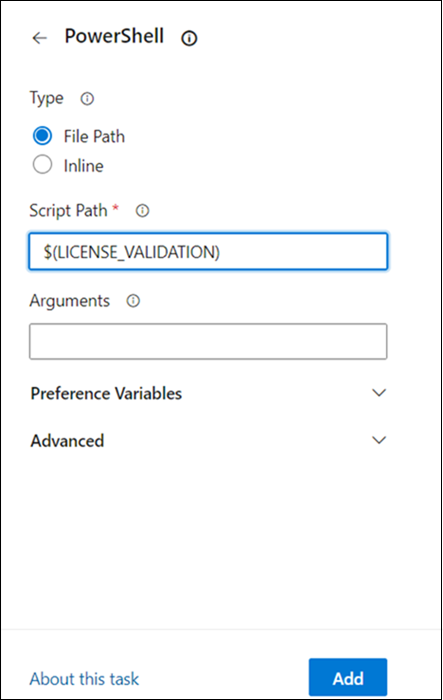
Create a new User-defined Variable named
LICENSE_VALIDATIONin the Azure Pipeline. Use the path of theLicenseKeyValidation.ps1script file as a value (for example,D:\LicenseKeyValidator\LicenseKeyValidation.ps1). -
Include the PowerShell task in the pipeline and execute the script to validate the license key.
GitHub Actions
- To execute the script in PowerShell as part of a GitHub Actions workflow, add a step in the workflow file that downloads and extracts the LicenseKeyValidator utility, then run
LicenseKeyValidation.ps1.
The following example shows the syntax for validating the Syncfusion® license key in GitHub actions.
steps:
  - name: Syncfusion License Validation
    shell: pwsh
    run: |
	  ./path/LicenseKeyValidator/LicenseKeyValidation.ps1
Jenkins
-
Create an Environment Variable named
LICENSE_VALIDATIONin the Jenkins pipeline. Use the path of theLicenseKeyValidation.ps1script file as a value (for example,path\\to\\LicenseKeyValidator\\LicenseKeyValidation.ps1). -
Add a stage in the Jenkins pipeline that executes the
LicenseKeyValidation.ps1script in PowerShell. Use thebatstep on Windows agents and theshstep on Linux/macOS agents.
The following example shows the syntax for validating the Syncfusion® license key in the Jenkins pipeline.
pipeline {
	agent any
	environment {
		LICENSE_VALIDATION = 'path\\to\\LicenseKeyValidator\\LicenseKeyValidation.ps1'
	}
	stages {
		stage('Syncfusion License Validation') {
			steps {
				sh 'pwsh ${LICENSE_VALIDATION}'
			}
		}
	}
}
Validate the license key by using the ValidateLicense() method
-
Register the license key properly by calling RegisterLicense(“License Key”) method with the license key.
-
Once the license key is registered, it can be validated by using the
ValidateLicense(Platform.MAUI)method for version prior to v34.1.29, or theValidateLicense(new[] { Platform.MAUI })method for v34.1.29 and later. This ensures that the license key is valid for the platform and version you are using. Refer to the following example.
using Syncfusion.Licensing;

// Register the Syncfusion license key
SyncfusionLicenseProvider.RegisterLicense("Your License Key");

// Validate the registered license key.
// The array overload allows validating against multiple platforms in a single call.
bool isValid = SyncfusionLicenseProvider.ValidateLicense(new[] { Platform.MAUI });
using Syncfusion.Licensing;
// Register the Syncfusion license key
SyncfusionLicenseProvider.RegisterLicense("Your License Key");
// Validate the registered license key
bool isValid = SyncfusionLicenseProvider.ValidateLicense(Platform.MAUI);-
If the
ValidateLicense()method returnstrue, the registered license key is valid and you can proceed with deployment. -
If the
ValidateLicense()method returnsfalse, invalid license errors will occur during deployment. This is typically caused by an invalid license key or by referencing Syncfusion® assemblies or NuGet packages whose version does not match the license key version. Ensure that all referenced Syncfusion® assemblies or NuGet packages use the same version as the license key before deploying.
Validate the license key by using the Unit Test project
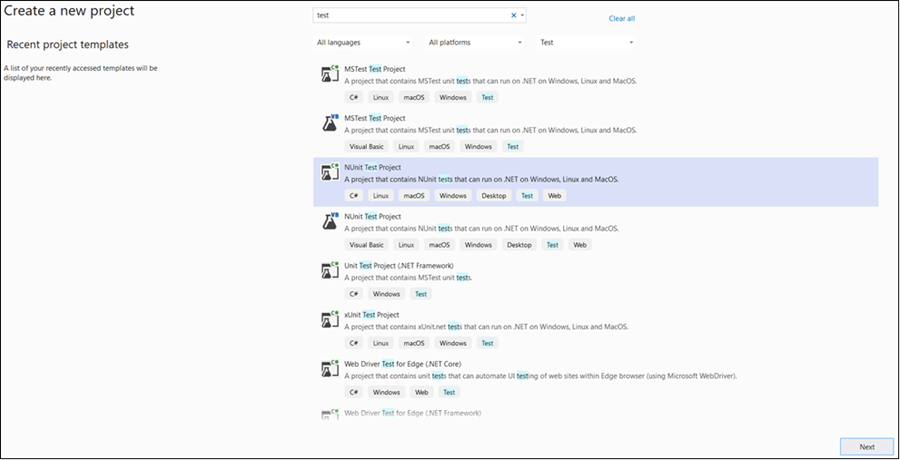
- To create a unit test project in Visual Studio, choose File -> New -> Project from the menu. Filter the project type by Test, or type Test in the search box, to find available unit test projects. Select the framework (such as MSTest, NUnit, or xUnit) that best suits your needs. The following example uses NUnit.
-
For more details on creating unit test projects in Visual Studio, refer to the Getting Started with Unit Testing guide.
-
Install the
Syncfusion.LicensingNuGet package in the test project and referenceSyncfusion.Licensing.dll. -
Register the license key by calling the
RegisterLicense("<Your License Key>")method in the unit test project.
- Place the license key between double quotes. Ensure that
Syncfusion.Licensing.dllis referenced in the project where the license key is registered.
-
After registering the license key, validate it by calling
ValidateLicense(Platform.MAUI, out var validationMessage). This ensures that the license key is valid for the platform and version you are using. -
The following example demonstrates how to register and validate the license key in an NUnit unit test project.
public void TestSyncfusionMAUILicense()
{
	var platform = Platform.MAUI;
	// Register the Syncfusion<sup>®</sup> license key
	SyncfusionLicenseProvider.RegisterLicense("Your License Key");

	bool isValidLicense = SyncfusionLicenseProvider.ValidateLicense(platform, out var validationMessage);
	Assert.That(isValidLicense, Is.True, $"Validation failed for {platform}." + $" Validation Message: {validationMessage}");

	// Log validation messages to TestContext output
	if (isValidLicense)
	{
		TestContext.Out.WriteLine($"Platform {platform} is correctly licensed for version " + $"{typeof(SyncfusionLicenseProvider).Assembly.GetName().Version}");
	}
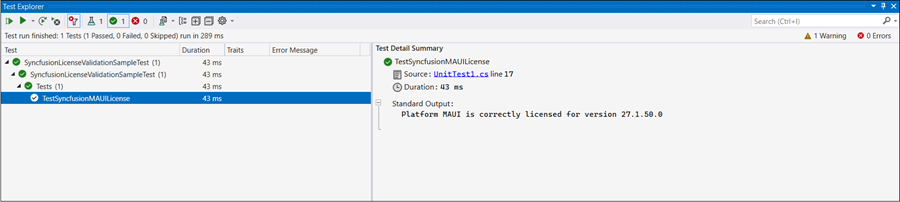
}- Once the unit test is executed, if the license key validation passes for the specified platform, output similar to the following is displayed in the Test Explorer window.
- If the license validation fails during unit testing, output similar to the following is displayed in the Test Explorer window.
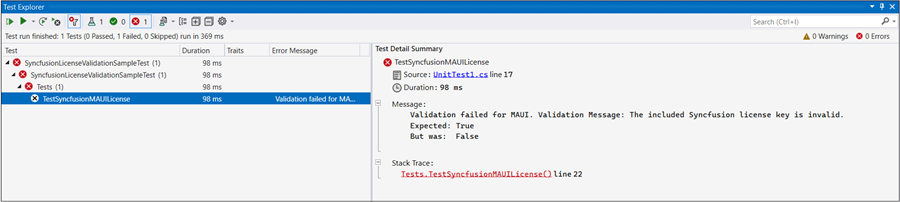
- License validation fails due to either an invalid license key or an incorrect assembly or package version that is referenced in the project. In such cases, verify that you are using the valid license key for the platform, and ensure the assembly or package versions referenced in the project match the version of the license key.