Liquid Glass Effect in .NET MAUI DateTime Slider (SfDateTimeSlider)
17 Dec 20252 minutes to read
The Liquid Glass Effect introduces a modern, translucent design with adaptive color tinting and light refraction, creating a sleek, glass like user experience that remains clear and accessible. This section explains how to enable and customize the effect in the Syncfusion® .NET MAUI DateTime Slider (SfDateTimeSlider) control.
Apply liquid glass effect
Follow these steps to enable and configure the Liquid Glass Effect in the DateTime Slider control:
Step 1: Enable the liquid glass effect on DateTime Slider
Set the EnableLiquidGlassEffect property to true in the SfDateTimeSlider control to apply the Liquid Glass Effect. When enabled,it provides responsive interaction for a smooth and engaging user experience.
The following code snippet demonstrates how to apply the Liquid Glass Effect to the SfDateTimeSlider control:
<Grid>
        <Image Source="Wallpaper.png" Aspect="AspectFill">
            <sliders:SfDateTimeSlider
                Minimum="2010-01-01"
                Maximum="2018-01-01"
                EnableLiquidGlassEffect="True" />
    </Grid>
using Syncfusion.Maui.Sliders;
var grid = new Grid
{
BackgroundColor = Colors.Transparent
};
var image = new Image
{
Source = "Wallpaper.png",
Aspect = Aspect.AspectFill
};
grid.Children.Add(image);
SfDateTimeSlider dateTimeSlider = new SfDateTimeSlider
{
Minimun = new DateTime(2010, 01, 01),
Maximum = new DateTime(2018, 01, 01),
EnableLiquidGlassEffect = true
};
grid.Children.Add(dateTimeSlider);
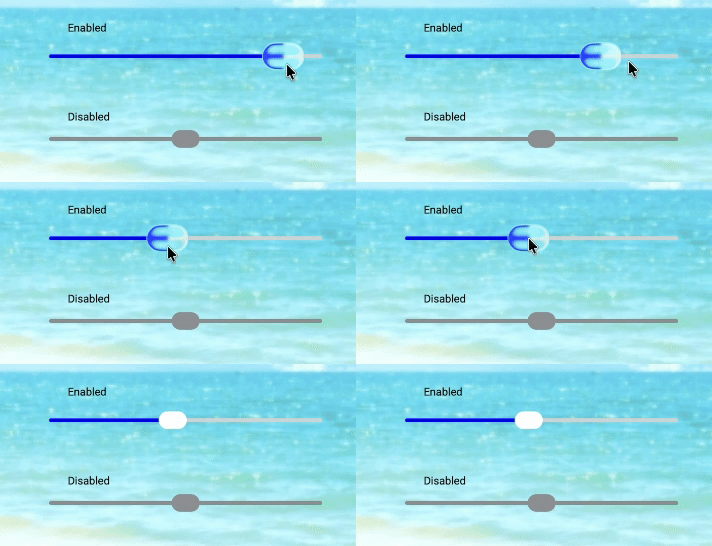
this.Content = grid;The following screenshot illustrates SfDateTimeSlider with the glass effect visible on the thumb while it is pressed.
NOTE
This feature is supported only on .NET 10 along with iOS 26 and macOS 26