Liquid Glass Effect in .NET MAUI DataGrid (SfDataGrid)
7 Jul 20266 minutes to read
The Liquid Glass Effect introduces a modern, translucent design with adaptive color tinting and light refraction, creating a sleek, glass-like user experience that remains clear and accessible. This section explains how to enable and customize the effect in the .NET MAUI DataGrid (SfDataGrid) control.
Apply liquid glass effect
Follow these steps to enable and configure the Liquid Glass Effect in the DataGrid control:
Step 1: Wrap the DataGrid inside SfGlassEffectView
To apply the Liquid Glass Effect to Syncfusion® .NET MAUI SfDataGrid control, wrap it inside the SfGlassEffectView container in your XAML layout.
Step 2: Enable the liquid glass effect on DataGrid
Set the EnableLiquidGlassEffect property to true in the SfDataGrid control to apply the Liquid Glass Effect. When enabled, the effect is also applied to its dependent surfaces such as the row/column dragging view, tooltip, popups, context menu, and editor drop-downs (e.g., ComboBox/Picker) when their corresponding backgrounds are set to Transparent for a smooth and engaging user experience.
Step 3: Configure surface backgrounds for glass effect
To achieve a glass-like background in the DataGrid and related surfaces (ContextMenu, Tooltip, RowDragViewBackground, ColumnDragViewBackground), set their Background properties to Transparent. The backgrounds will then be treated as tinted colors, ensuring a consistent glass effect across the control and its overlays.
The following code snippet demonstrates how to apply the Liquid Glass Effect to the SfDataGrid control:
<Grid>
    <Grid.Background>
        <LinearGradientBrush StartPoint="0,0"
                             EndPoint="0,1">
            <GradientStop Color="#0F4C75"
                          Offset="0.0"/>
            <GradientStop Color="#3282B8"
                          Offset="0.5"/>
            <GradientStop Color="#1B262C"
                          Offset="1.0"/>
        </LinearGradientBrush>
    </Grid.Background>

    <core:SfGlassEffectView EffectType="Regular"
                            CornerRadius="20">
       <syncfusion:SfDataGrid x:Name="dataGrid"
                               Background="Transparent"
                               ItemsSource="{Binding OrderInfoCollection}"
                               EnableLiquidGlassEffect="True">
            <!-- Make specific surfaces transparent to reveal glass -->
            <syncfusion:SfDataGrid.DefaultStyle>
                <syncfusion:DataGridStyle RowDragViewBackgroundColor="Transparent"
                                          ColumnDragViewBackgroundColor="Transparent"/>
            </syncfusion:SfDataGrid.DefaultStyle>
        </syncfusion:SfDataGrid>
    </core:SfGlassEffectView>
</Grid>
using Syncfusion.Maui.Core;
using Syncfusion.Maui.DataGrid;
var gradientBrush = new LinearGradientBrush
{
StartPoint = new Point(0, 0),
EndPoint = new Point(0, 1),
GradientStops = new GradientStopCollection
{
new GradientStop { Color = Color.FromArgb("#0F4C75"), Offset = 0.0f },
new GradientStop { Color = Color.FromArgb("#3282B8"), Offset = 0.5f },
new GradientStop { Color = Color.FromArgb("#1B262C"), Offset = 1.0f }
}
};
var grid = new Grid
{
Background = gradientBrush
};
var glassView = new SfGlassEffectView
{
CornerRadius = 20,
EffectType = LiquidGlassEffectType.Regular
};
var dataGrid = new SfDataGrid
{
Background = Colors.Transparent,
ItemsSource = viewModel.OrderInfoCollection,
EnableLiquidGlassEffect = true
};
// Configure surface backgrounds for glass effect
var defaultStyle = new DataGridStyle
{
RowDragViewBackgroundColor = Colors.Transparent,
ColumnDragViewBackgroundColor = Colors.Transparent
};
dataGrid.DefaultStyle = defaultStyle;
// Assemble the layout
glassView.Content = dataGrid;
grid.Children.Add(glassView);
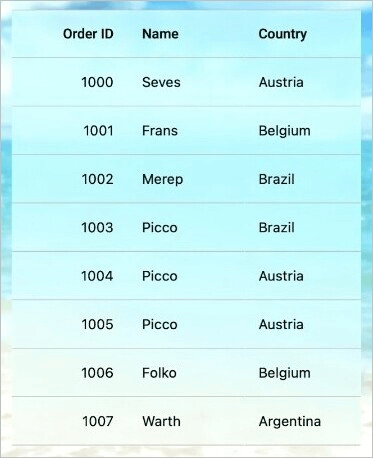
this.Content = grid;The following screenshot illustrates SfDataGrid within SfGlassEffectView.
Platform Support
The Liquid Glass Effect is supported on the following platforms:
| Platform | Supported | Minimum Version |
|---|---|---|
| macOS | Yes | 26 or higher |
| iOS | Yes | 26 or higher |
| Android | No | Not supported |
| Windows | No | Not supported |
Framework requirement: This feature is available only in .NET 10.0 or higher.