AI-Driven Predictive Data Entry in .NET MAUI DataGrid (SfDataGrid)
7 Jul 202616 minutes to read
This document explains how to implement AI-assisted predictive data entry with the Syncfusion .NET MAUI DataGrid. It demonstrates using Azure OpenAI to predict GPA and grade values based on historical student performance data.
Integrating Azure OpenAI with the .NET MAUI App
Step 1: Set Up Azure OpenAI Service
First, open Visual Studio and create a new .NET MAUI app.
Configure Azure OpenAI:
- Log in to the Azure Portal
- Create a new OpenAI resource (or use an existing one)
- Deploy a GPT-4o model for text analysis
- Copy your deployment name, endpoint URL, and API key from the Keys and Endpoint section
Install NuGet Package:
Run the following command in the Package Manager Console or terminal:
dotnet add package Azure.AI.OpenAI --version 1.0.0-beta.12
Alternatively, use the NuGet Package Manager in Visual Studio to install the Azure.AI.OpenAI package.
Step 2: Create the Azure OpenAI Service Class
To configure Azure OpenAI, use the GPT-4O model for text analysis. Set up the OpenAIClient as shown in the following code example. This class provides the foundation for making API calls to Azure OpenAI.
using Azure;
using Azure.AI.OpenAI;
using System;
using System.Threading.Tasks;

internal class AzureOpenAIService
{
    const string endpoint = "https://{YOUR_END_POINT}.openai.azure.com";
    const string deploymentName = "GPT-4O";
    const string imageDeploymentName = "DALL-E";
    string key = "API key";

    OpenAIClient? client;
    ChatCompletionsOptions? chatCompletions;

    internal AzureOpenAIService()
    {

    }
}
Step 3: Initialize the OpenAI Client
Initialize the OpenAIClient in your AzureOpenAIService constructor or initialization method. This establishes the connection to Azure OpenAI:
// Initialize when required
this.client = new OpenAIClient(new Uri(endpoint), new AzureKeyCredential(key));
This connection allows you to send prompts to the model and receive predictions, which can then be used to populate your DataGrid with AI-generated values.
Step 4: Implement the GetResultsFromAI Method
Implement a method to retrieve predictions from the Azure OpenAI API.
using Azure;
using Azure.AI.OpenAI;
using System;
using System.Threading.Tasks;

public async Task<string> GetResultsFromAI(string userPrompt)
{
    if (this.Client != null && this.chatCompletions != null)
    {
        // Add the system message and user message to the options.
        this.chatCompletions.Messages.Add(new ChatRequestSystemMessage("You are a predictive analytics assistant."));
        this.chatCompletions.Messages.Add(new ChatRequestUserMessage(userPrompt));
        try
        {
            var response = await Client.GetChatCompletionsAsync(this.chatCompletions);
            return response.Value.Choices[0].Message.Content;
        }
        catch
        {
            return string.Empty;
        }
    }
    return string.Empty;
}
Integrating AI-Driven Predictive Data Entry in .NET MAUI DataGrid
After completing the Azure OpenAI setup above, use the .NET MAUI DataGrid control to display student data and enable AI-powered predictions. This section demonstrates how to leverage AI services to automatically predict and populate values based on historical patterns and existing student data.
Before proceeding, review the .NET MAUI DataGrid getting started guide.
Step 1: Create the DataGrid Layout
<ContentPage xmlns="http://schemas.microsoft.com/dotnet/2021/maui"
xmlns:x="http://schemas.microsoft.com/winfx/2009/xaml"
x:Class="SampleBrowser.Maui.SmartDemos.SmartDemos.DataPrediction"
xmlns:syncfusion="clr-namespace:Syncfusion.Maui.DataGrid;assembly=Syncfusion.Maui.DataGrid">
<ContentPage.BindingContext>
<local:GenerateDataCollection x:Name="generateDataCollection" />
</ContentPage.BindingContext>
<ContentPage.Resources>
<local:DataPredictionConverter x:Key="converter" />
<Style TargetType="syncfusion:DataGridCell">
<Setter Property="Background" Value="{Binding Source={RelativeSource Mode=Self}, Converter={StaticResource Key=converter}}" />
<Setter Property="FontSize" Value="14" />
</Style>
<Style TargetType="syncfusion:DataGridHeaderCell">
<Setter Property="FontFamily" Value="Roboto-Medium" />
<Setter Property="FontSize" Value="14" />
</Style>
</ContentPage.Resources>
<ContentPage.Content>
<Grid>
<Grid.RowDefinitions>
<RowDefinition Height="56" />
<RowDefinition Height="*" />
</Grid.RowDefinitions>
<Grid Grid.Row="0" >
<Grid.ColumnDefinitions>
<ColumnDefinition Width="Auto" />
<ColumnDefinition Width="*" />
<ColumnDefinition Width="Auto" />
</Grid.ColumnDefinitions>
<Label Text="Predictive Data Entry" VerticalTextAlignment="Center" Padding="16,0,16,0" FontSize="15" Grid.Column="0" FontAttributes="Bold" />
<button:SfButton x:Name="button"
Text=""
FontFamily="MauiSampleFontIcon"
Grid.Column="2"
FontAutoScalingEnabled="True"
FontSize="24"
Margin="16,0,16,0"
WidthRequest="40"
HeightRequest="40"
FontAttributes="Bold"
CornerRadius="5" />
</Grid>
<syncfusion:SfDataGrid x:Name="dataGrid"
Grid.Row="1"
HeaderRowHeight="52"
HorizontalScrollBarVisibility="Always"
VerticalScrollBarVisibility="Always"
ColumnWidthMode="Fill"
AutoGenerateColumnsMode="None"
ItemsSource="{Binding Predictivedatas}">
<syncfusion:SfDataGrid.Columns>
<syncfusion:DataGridTextColumn MinimumWidth="90" HeaderText="ID" MappingName="StudentID" />
<syncfusion:DataGridTextColumn MinimumWidth="130" HeaderText="Name" MappingName="StudentName" />
<syncfusion:DataGridNumericColumn MinimumWidth="125" HeaderText="First Year GPA" MappingName="FirstYearGPA" />
<syncfusion:DataGridNumericColumn MinimumWidth="145" HeaderText="Second Year GPA" MappingName="SecondYearGPA" />
<syncfusion:DataGridNumericColumn MinimumWidth="130" HeaderText="Third Year GPA" MappingName="ThirdYearGPA" />
</syncfusion:SfDataGrid.Columns>
</syncfusion:SfDataGrid>
<ActivityIndicator IsRunning="False" x:Name="Indicator" Grid.Row="1" VerticalOptions="Center" HorizontalOptions="Center" />
</Grid>
</ContentPage.Content>
</ContentPage>Step 2: Enable AI-Powered .NET MAUI DataGrid
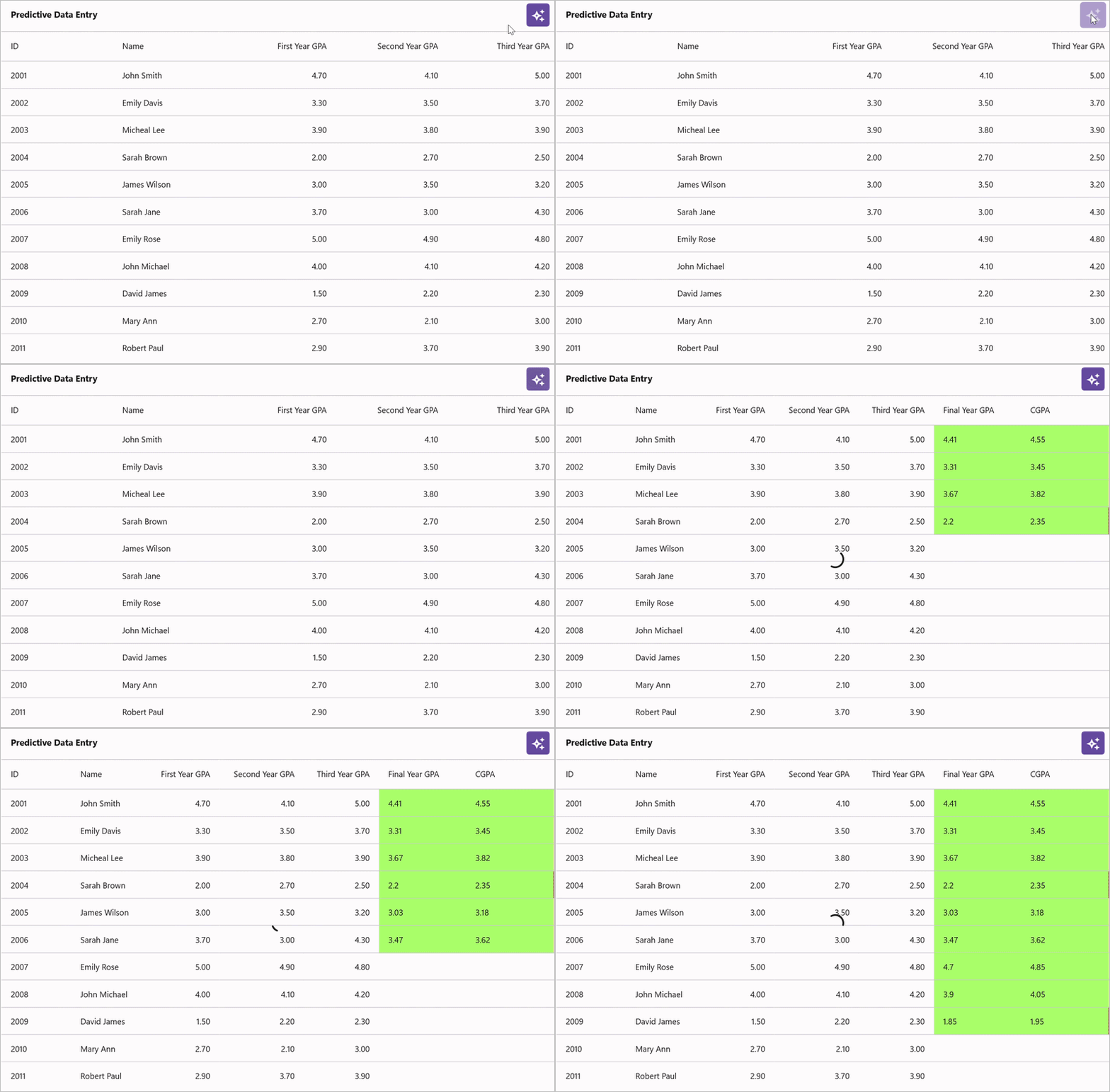
Create a method to send student data to Azure OpenAI for prediction. The AI service analyzes historical GPA data and returns predictions for Final Year GPA, CGPA, and Total Grade. After deserializing the JSON response, add these new columns to the DataGrid and populate each row with the predicted values.
Note: The helper methods GetSerializedGridReport(), ValidateAndGeneratePrompt(), and DeserializeResult() are assumed to be implemented in your ViewModel or code-behind to handle data serialization and JSON parsing.
private async Task GetResponseAsync()
{
    try
    {
        string prompt =
            "Final year GPA column should be updated based on GPA of FirstYearGPA, SecondYearGPA and ThirdYearGPA columns. " +
            "Total GPA (CGPA) should be updated based on the average of all years GPA. " +
            "Total Grade should be updated based on total GPA. " +
            "Updated grade rules: 0 - 2.5 = F, 2.6 - 2.9 = C, 3.0 - 3.4 = B, 3.5 - 3.9 = B+, 4.0 - 4.4 = A, 4.5 - 5 = A+. " +
            "Average value decimals should not exceed 1 digit. " +
            "Return JSON ONLY, no explanation. " +
            "Schema: { \"GenerateDataSource\": [ { \"StudentID\": \"string\", \"FinalYearGPA\": number, \"TotalGPA\": number, \"TotalGrade\": \"string\" } ] }. " +
            "Remove ```json and ``` if they are present.";

        var repo = (this.datagrid.BindingContext as GenerateDataCollection);
        if (repo == null || repo.Predictivedatas == null || repo.Predictivedatas.Count == 0)
            return;

        GenerateGridReport gridReport = new GenerateGridReport()
        {
            GenerateDataSource = repo.Predictivedatas
        };

        var gridReportJson = GetSerializedGridReport(gridReport);
        string userInput = ValidateAndGeneratePrompt(gridReportJson, prompt);

        var result = await openAi.GetResponseFromOpenAI(userInput);

        result = result.Replace("```json", "").Replace("```", "").Trim();

        GenerateGridReport deserializeResult = DeserializeResult(result);

        if (deserializeResult?.GenerateDataSource != null && gridReport.GenerateDataSource != null)
        {
            foreach (var item in gridReport.GenerateDataSource)
            {
                if (item != null)
                {
                    if (item.StudentID == gridReport.GenerateDataSource[index].StudentID)
                    {
                        if (deserializeResult != null && deserializeResult.GenerateDataSource != null)
                        {
                            gridReport.GenerateDataSource[index].FinalYearGPA = deserializeResult.GenerateDataSource[index].FinalYearGPA;
                            gridReport.GenerateDataSource[index].TotalGrade = deserializeResult.GenerateDataSource[index].TotalGrade;
                            gridReport.GenerateDataSource[index].TotalGPA = deserializeResult.GenerateDataSource[index].TotalGPA;
                        }
                    }
               }
            }
        }

        this.datagrid.Refresh();
    }
    finally
    {
        this.activityIndicator.IsRunning = false;
        isButtonClicked = false;
    }
}
You can find the complete sample from this link.