AI-Driven Anomaly Detection in .NET MAUI Data Grid
18 Nov 201816 minutes to read
This document provides a comprehensive guide to implementing AI-driven anomaly detection with the Syncfusion .NET MAUI Data Grid. It demonstrates how to integrate Azure OpenAI services to analyze dataset patterns and automatically highlight anomalies in real-time.
Integrating AI-Driven Anomaly Detection in .NET MAUI Data Grid
Before proceeding, ensure that Azure OpenAI is configured and integrated with your .NET MAUI application. Refer to the Azure OpenAI integration prerequisites and complete the required setup steps.
The GetResultsFromAI method sends the user’s prompt to the Azure OpenAI service and retrieves the AI-generated response. It processes the request asynchronously, supports cancellation, and includes exception handling to ensure reliable communication with the AI model.
public async Task<string?> GetResultsFromAI(string prompt)
{
    if (IsCredentialValid)
    {
        try
        {
            ChatHistory = string.Empty;

            if (ChatHistory != null)
            {
                // Add the user's prompt as a user message to the conversation.
                ChatHistory = ChatHistory + "You are a predictive analytics assistant.";
                // Add the user's prompt as a user message to the conversation.
                ChatHistory = ChatHistory + prompt;
                if (Client != null)
                {
                    //// Send the chat completion request to the OpenAI API and await the response.
                    var response = await Client.CompleteAsync(ChatHistory);
                    return response.ToString();
                }
            }
            return null;

        }
        catch
        {
            return null;
        }
    }
    else
    {
        return null;
    }
}
After completing the Azure OpenAI setup above, use the .NET MAUI Data Grid control to display data and visualize anomaly detection results. This section demonstrates how to style cells dynamically based on AI analysis and highlight outliers in real-time.
Before proceeding, review the .NET MAUI Data Grid getting started guide.
Step 1: Create the DataGrid Layout
<ContentPage xmlns="http://schemas.microsoft.com/dotnet/2021/maui"
xmlns:x="http://schemas.microsoft.com/winfx/2009/xaml"
x:Class="SampleBrowser.Maui.SmartDemos.SmartDemos.AnomalyDetection"
xmlns:syncfusion="clr-namespace:Syncfusion.Maui.DataGrid;assembly=Syncfusion.Maui.DataGrid">
<ContentPage.BindingContext>
<local:MachineDataRepository x:Name="viewModel" />
</ContentPage.BindingContext>
<ContentPage.Resources>
<local:AnomalyDetectionConverter x:Key="converter" />
<Style TargetType="syncfusion:DataGridCell">
<Setter Property="Background"
Value="{Binding Source={RelativeSource Mode=Self}, Converter={StaticResource Key=converter}}" />
<Setter Property="FontSize" Value="14" />
</Style>
<Style TargetType="syncfusion:DataGridHeaderCell">
<Setter Property="FontFamily" Value="Roboto-Medium" />
<Setter Property="FontSize" Value="14" />
</Style>
</ContentPage.Resources>
<ContentPage.Content>
<Grid>
<Grid.RowDefinitions>
<RowDefinition Height="56" />
<RowDefinition Height="*" />
</Grid.RowDefinitions>
<Grid Grid.Row="0">
<Grid.ColumnDefinitions>
<ColumnDefinition Width="Auto" />
<ColumnDefinition Width="*" />
<ColumnDefinition Width="Auto" />
</Grid.ColumnDefinitions>
<Label Text="Anomaly Detection"
VerticalTextAlignment="Center"
Padding="16,0,16,0"
FontSize="15"
Grid.Column="0"
FontAttributes="Bold" />
<button:SfButton x:Name="button"
Text=""
FontFamily="MauiSampleFontIcon"
Grid.Column="2"
Margin="16,0,16,0"
FontAutoScalingEnabled="True"
FontSize="24"
WidthRequest="40"
HeightRequest="40"
FontAttributes="Bold"
CornerRadius="5" />
</Grid>
<syncfusion:SfDataGrid x:Name="dataGrid"
Grid.Row="1"
HeaderRowHeight="52"
HorizontalScrollBarVisibility="Always"
VerticalScrollBarVisibility="Always"
ColumnWidthMode="Fill"
AutoGenerateColumnsMode="None"
ItemsSource="{Binding MachineDataCollection}">
<syncfusion:SfDataGrid.Columns>
<syncfusion:DataGridTextColumn HeaderText="Machine ID" MinimumWidth="120" MappingName="MachineID" />
<syncfusion:DataGridTextColumn HeaderText="Temperature" MinimumWidth="120" MappingName="Temperature" />
<syncfusion:DataGridTextColumn HeaderText="Pressure" MinimumWidth="120" MappingName="Pressure" />
<syncfusion:DataGridTextColumn HeaderText="Voltage" MinimumWidth="120" MappingName="Voltage" />
<syncfusion:DataGridTextColumn HeaderText="Motor Speed" MinimumWidth="120" MappingName="MotorSpeed" />
<syncfusion:DataGridTextColumn HeaderText="Production Rate" MinimumWidth="140" MappingName="ProductionRate" />
</syncfusion:SfDataGrid.Columns>
</syncfusion:SfDataGrid>
<ActivityIndicator IsRunning="False" x:Name="Indicator" Grid.Row="1" VerticalOptions="Center" HorizontalOptions="Center" Color="Black" />
</Grid>
</ContentPage.Content>
</ContentPage>Step 2: Enable AI-Powered .NET MAUI Data Grid
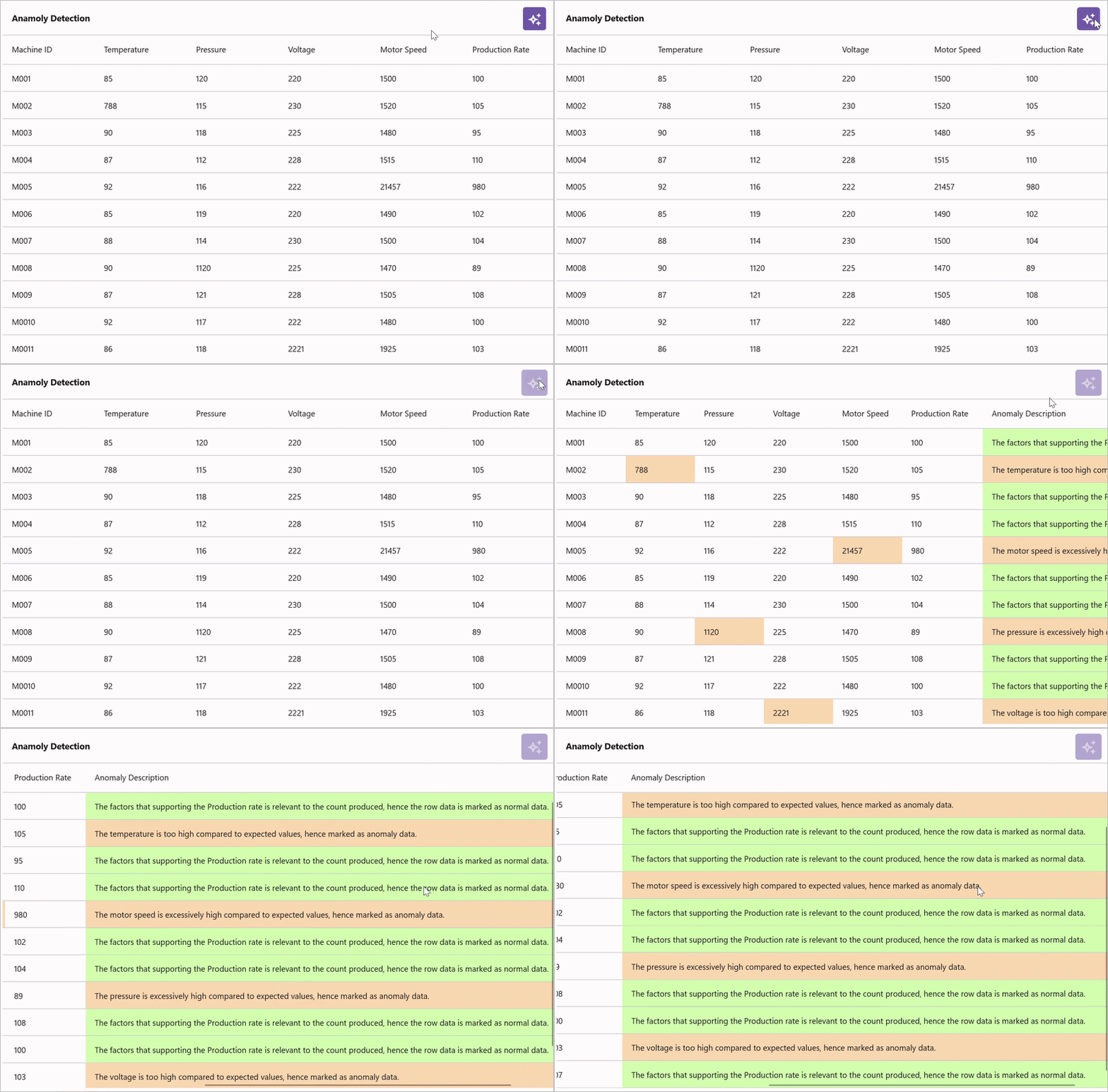
In your code-behind or ViewModel, create a method that sends the DataGrid data to Azure OpenAI for analysis. The AI service analyzes the dataset and returns anomaly detection results in JSON format, including the row index and anomaly status for each record. This data is then parsed and applied to the SfDataGrid by dynamically updating cell styles using the AnomalyDetectionConverter or by setting custom properties in the ViewModel.
private async Task GetAnomalyResponseAsync()
{
    try
    {
        var repo = this.datagrid.BindingContext as MachineDataRepository;
        if (repo == null || repo.MachineDataCollection == null || repo.MachineDataCollection.Count == 0)
            return;

        var gridReport = new GridReport
        {
            DataSource = repo.MachineDataCollection
        };

        var gridReportJson = GetSerializedGridReport(gridReport);

        string userInput = ValidateAndGeneratePrompt(gridReportJson);

        var result = await openAi.GetResponseFromOpenAI(userInput);

        if (string.IsNullOrWhiteSpace(result))
        {
            result = openAi.GetAnomalyDetectionResponse();
        }

        result = result.Replace("```json", "").Replace("```", "").Trim();

        GridReport? deserializeResult = DeserializeResult(result);

        if (deserializeResult?.DataSource != null && gridReport.DataSource != null)
        {

            string[] anomalies = deserializeResult.DataSource
                .Select(x => x.AnomalyDescription)
                .ToArray();

            var colorConverter = new AnomalyDetectionConverter();
            colorConverter.GetString(anomalies);

            var anomalyDescriptionColumn = new DataGridTextColumn() { HeaderText = "Anomaly Description", MappingName = "AnomalyDescription",ColumnWidthMode = ColumnWidthMode.Auto };

            this.datagrid?.Columns.Add(anomalyDescriptionColumn);

            if (gridReport.DataSource != null)
            {
                foreach (var item in gridReport.DataSource)
                {
                    if (generateDataAlone.Contains(item.MachineID))
                    {
                        index++;
                        item.AnomalyDescription = deserializeResult.DataSource[index].AnomalyDescription;
                    }
                }
            }
        }

        this.datagrid.Refresh();
    }
    finally
    {
        this.activityIndicator.IsRunning = false;
        isButtonClicked = false;
    }
}
You can find the complete sample from this link.