Add New Row in MAUI DataGrid (SfDataGrid)
7 Jul 202624 minutes to read
The .NET MAUI DataGrid provides a built-in row (called AddNewRow) that allows users to add new records to the underlying collection. The built-in add new row can be enabled or disabled by setting the SfDataGrid.AddNewRowPosition property. The AddNewRowPosition property also denotes the position of the add new row in the DataGrid.
When you start editing in AddNewRow, the SfDataGrid control creates an instance of the underlying data object and adds it to the underlying collection when editing is completed.
Note:
- The underlying data object must be defined with a default (parameterless) constructor. If omitted, an error will occur when initiating a new row.
- Selection must be enabled (set
SelectionModeto any value other thanNone).- Editing must be enabled by setting
AllowEditingtotrue.NavigationModeshould be set to allow cell-level editing (typicallyDataGridNavigationMode.Cell).
<syncfusion:SfDataGrid x:Name="DataGrid"
                       ItemsSource="{Binding Orders}"
                       AutoGenerateColumnsMode="None"
                       SelectionMode="Single"
                       NavigationMode="Cell"
                       AllowEditing="True"
                       AddNewRowPosition="Top">
    <syncfusion:SfDataGrid.Columns>
        <syncfusion:DataGridTextColumn MappingName="OrderID"
                                       HeaderText="Order ID" />
        <syncfusion:DataGridTextColumn MappingName="Customer"
                                       HeaderText="Customer" />
        <syncfusion:DataGridTextColumn MappingName="City"
                                       HeaderText="Ship City"/>
        <syncfusion:DataGridTextColumn MappingName="Country"
                                       HeaderText="Ship Country" />
    </syncfusion:SfDataGrid.Columns>
</syncfusion:SfDataGrid>
OrderInfoViewModel viewModel = new OrderInfoViewModel();
SfDataGrid dataGrid = new SfDataGrid();
dataGrid.ItemsSource = viewModel.Orders;
dataGrid.SelectionMode = DataGridSelectionMode.Single;
dataGrid.NavigationMode = DataGridNavigationMode.Cell;
dataGrid.AllowEditing = true;
dataGrid.AddNewRowPosition = DataGridAddNewRowPosition.Top;
this.Content = dataGrid;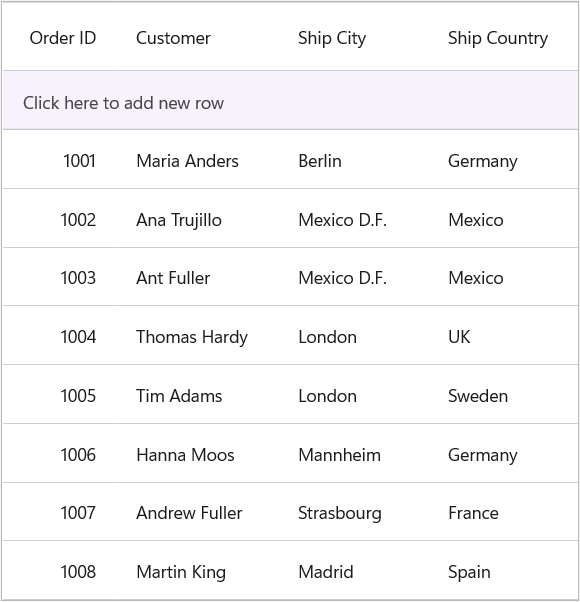
Changing the AddNewRow position
The position of the AddNewRow in SfDataGrid can be customized using the SfDataGrid.AddNewRowPosition property. By default, this property is set to Top. Valid values are:
-
DataGridAddNewRowPosition.Top— Places the add new row at the top of the grid -
DataGridAddNewRowPosition.Bottom— Places the add new row at the bottom of the grid -
DataGridAddNewRowPosition.FixedTop— Places the add new row at the top of the grid and keeps it fixed -
DataGridAddNewRowPosition.None— Disables the add new row
The following code snippet demonstrates how to change the AddNewRow position to Bottom in SfDataGrid:
<syncfusion:SfDataGrid x:Name="DataGrid"
                       ItemsSource="{Binding Orders}"
                       AutoGenerateColumnsMode="None"
                       SelectionMode="Single"
                       NavigationMode="Cell"
                       AllowEditing="True"
                       AddNewRowPosition="Bottom">
    <syncfusion:SfDataGrid.Columns>
        <syncfusion:DataGridTextColumn MappingName="OrderID"
                                       HeaderText="Order ID" />
        <syncfusion:DataGridTextColumn MappingName="Customer"
                                       HeaderText="Customer" />
        <syncfusion:DataGridTextColumn MappingName="City"
                                       HeaderText="Ship City"/>
        <syncfusion:DataGridTextColumn MappingName="Country"
                                       HeaderText="Ship Country" />
    </syncfusion:SfDataGrid.Columns>
</syncfusion:SfDataGrid>
OrderInfoViewModel viewModel = new OrderInfoViewModel();
SfDataGrid dataGrid = new SfDataGrid();
dataGrid.ItemsSource = viewModel.Orders;
dataGrid.SelectionMode = DataGridSelectionMode.Single;
dataGrid.NavigationMode = DataGridNavigationMode.Cell;
dataGrid.AllowEditing = true;
dataGrid.AddNewRowPosition = DataGridAddNewRowPosition.Bottom;
this.Content = dataGrid;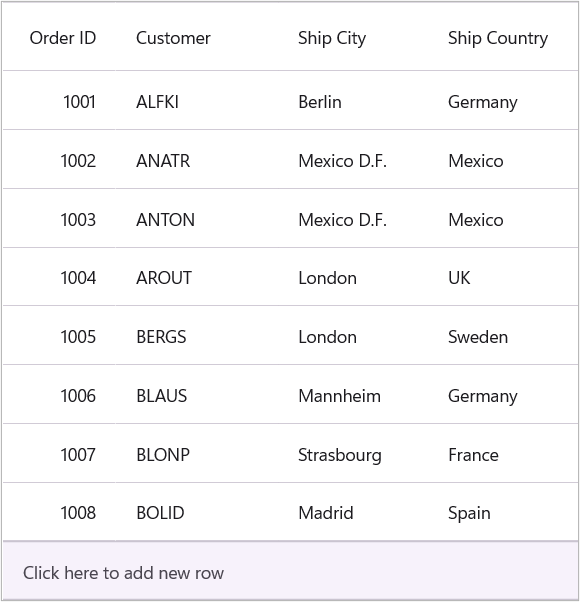
Customize the newly added row position
By default, SfDataGrid adds a new data item from AddNewRow at the end of the collection. When data operations such as sorting or grouping are applied, the new item is positioned based on those operations. You can customize where the newly added data item appears by setting the SfDataGrid.NewItemPlaceholderPosition property. Valid values include:
-
NewItemPlaceholderPosition.AtBeginning— Places the new row at the beginning of the collection -
NewItemPlaceholderPosition.AtEnd— Places the new row at the end of the collection (default) -
NewItemPlaceholderPosition.None— Disables the new row placeholder
<syncfusion:SfDataGrid x:Name="DataGrid"
                       ItemsSource="{Binding Orders}"
                       AddNewRowPosition="Top"
                       SelectionMode="Single"
                       NavigationMode="Cell"
                       AllowEditing="True"
                       NewItemPlaceholderPosition="AtBeginning">
</syncfusion:SfDataGrid>
OrderInfoViewModel viewModel = new OrderInfoViewModel();
SfDataGrid dataGrid = new SfDataGrid();
dataGrid.ItemsSource = viewModel.Orders;
dataGrid.SelectionMode = DataGridSelectionMode.Single;
dataGrid.NavigationMode = DataGridNavigationMode.Cell;
dataGrid.AllowEditing = true;
dataGrid.AddNewRowPosition = DataGridAddNewRowPosition.Top;
dataGrid.NewItemPlaceholderPosition = Syncfusion.Maui.Data.NewItemPlaceholderPosition.AtBeginning;
this.Content = dataGrid;Changing the AddNewRow default text
You can change the default static string of AddNewRow in datagrid by using the SfDataGrid.AddNewRowText property. The AddNewRowText property has higher priority than the text that is localized in resx file.
<syncfusion:SfDataGrid x:Name="DataGrid"
                       ItemsSource="{Binding Orders}"
                       AutoGenerateColumnsMode="None"
                       AddNewRowText="Click here to add new row in datagrid"
                       SelectionMode="Single"
                       NavigationMode="Cell"
                       AllowEditing="True"
                       AddNewRowPosition="Top">
    <syncfusion:SfDataGrid.Columns>
        <syncfusion:DataGridTextColumn MappingName="OrderID"
                                       HeaderText="Order ID" />
        <syncfusion:DataGridTextColumn MappingName="Customer"
                                       HeaderText="Customer" />
        <syncfusion:DataGridTextColumn MappingName="City"
                                       HeaderText="Ship City"/>
        <syncfusion:DataGridTextColumn MappingName="Country"
                                       HeaderText="Ship Country" />
    </syncfusion:SfDataGrid.Columns>
</syncfusion:SfDataGrid>
OrderInfoViewModel viewModel = new OrderInfoViewModel();
SfDataGrid dataGrid = new SfDataGrid();
dataGrid.ItemsSource = viewModel.Orders;
dataGrid.SelectionMode = DataGridSelectionMode.Single;
dataGrid.NavigationMode = DataGridNavigationMode.Cell;
dataGrid.AllowEditing = true;
dataGrid.AddNewRowPosition = DataGridAddNewRowPosition.Top;
dataGrid.AddNewRowText = "Click here to add new row in datagrid";
this.Content = dataGrid;
Initializing default values for AddNewRow
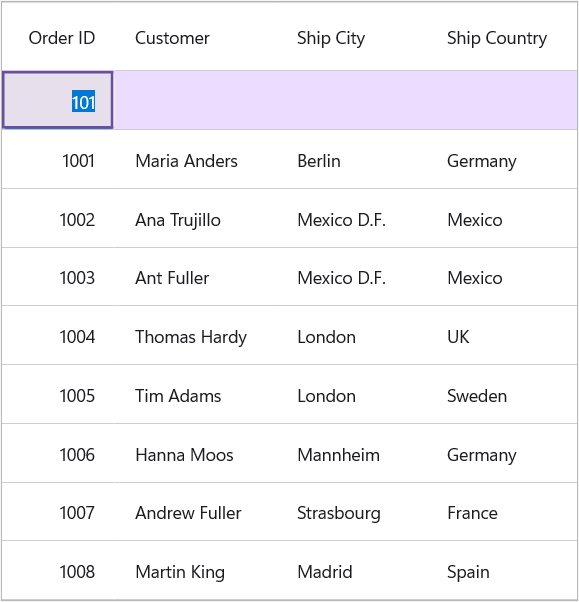
SfDataGrid allows you to set the default values for AddNewRow when it is initiated through the DataGridAddNewRowInitiatingEventArgs.Object property in the SfDataGrid.AddNewRowInitiating event. This event fires when a new row is about to be added and allows you to initialize default values before the user begins editing.
<syncfusion:SfDataGrid x:Name="DataGrid"
                       ItemsSource="{Binding Orders}"
                       SelectionMode="Single"
                       NavigationMode="Cell"
                       AllowEditing="True"
                       AddNewRowPosition="Top"
                       AddNewRowInitiating="DataGrid_AddNewRowInitiating">
</syncfusion:SfDataGrid>DataGrid.AddNewRowInitiating += DataGrid_AddNewRowInitiating;
private void DataGrid_AddNewRowInitiating(object? sender, DataGridAddNewRowInitiatingEventArgs e)
{
var data = e.Object as OrderInfo;
if(data != null)
{
data.OrderID = 101;
}
}
Working with complex properties in AddNewRow
SfDataGrid control does not initiate values for complex properties defined in the data object. Hence, you need to initiate the default values for the complex properties externally by using the SfDataGrid.AddNewRowInitiating event.
<syncfusion:SfDataGrid x:Name="DataGrid"
                       ItemsSource="{Binding Orders}"
                       SelectionMode="Single"
                       NavigationMode="Cell"
                       AllowEditing="True"
                       AddNewRowPosition="Top"
                       AddNewRowInitiating="DataGrid_AddNewRowInitiating">
</syncfusion:SfDataGrid>DataGrid.AddNewRowInitiating += DataGrid_AddNewRowInitiating;
private void DataGrid_AddNewRowInitiating(object? sender, DataGridAddNewRowInitiatingEventArgs e)
{
var data = e.Object as OrderInfo;
if(data != null)
{
data.OrderID = 101;
data.Customer = new CustomerInfo();
}
}Add row programmatically
You can commit or cancel the new record in AddNewRow by pressing the Enter and Esc key respectively. AddNewRow operations can be performed programmatically by using DataGridAddNewRowController.CommitAddNew and DataGridAddNewRowController.CancelAddNew methods at runtime.
Cancel AddNewRow
if (this.dataGrid.View.IsAddingNew)
{
    // This ends the edit of the current cell and reverts the entered value.
    if (this.dataGrid.CurrentCellManager.DataColumn.IsEditing)
        this.dataGrid.EndEdit();

    var addNewRowController = this.dataGrid.AddNewRowController;
    addNewRowController.CancelAddNew();
}
Commit AddNewRow
if (this.dataGrid.View.IsAddingNew)
{
    if (this.dataGrid.CurrentCellManager.DataColumn.IsEditing)
        this.dataGrid.EndEdit();

   RowColumnIndex rowColumnIndex = this.dataGrid.CurrentCellManager.RowColumnIndex;

    // Process the commit operation in AddNewRow.
    var addNewRowController = this.dataGrid.AddNewRowController;
    addNewRowController.CommitAddNew(dataGrid);

    // Gets the row index of AddNewRow
    rowColumnIndex.RowIndex = addNewRowController.GetAddNewRowIndex(dataGrid);
    this.dataGrid.SelectedRows.Clear();

    // If the AddNewRowPosition is Top, move the current cell to the next row
    if (this.dataGrid.AddNewRowPosition == DataGridAddNewRowPosition.Top)
        rowColumnIndex.RowIndex = rowColumnIndex.RowIndex + 1;

    // This maintains the current cell border in the row after committing the AddNewRow.
    this.dataGrid.MoveCurrentCellTo(rowColumnIndex);
}
Customizing AddNewRow text using default resource file
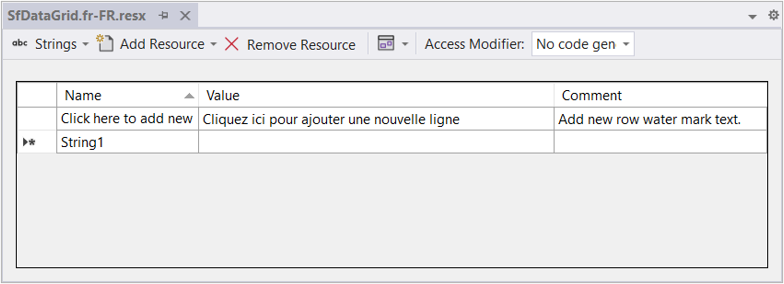
SfDataGrid enables you to customize the watermark text of AddNewRow by changing value of AddNewRowText in Resource Designer.
To customize the AddNewRowText, add the default Syncfusion.SfDataGrid.WPF.resx file in Resources folder and then customize the value of AddNewRowText. Refer here to learn more about localization.

Customizing AddNewRow
DataGridAddNewRow can be customized in two ways:
-
Implicit Style: Use a resource style when working with XAML-only pages. This approach applies globally to all
DataGridAddNewRowViewinstances on the page. -
DefaultStyle Property: Use the
DefaultStyleproperty when you need programmatic control or to apply a style from code-behind or when using XAML with C#.
Apply implicit style
DataGridAddNewRow can be customized by writing a style for the DataGridAddNewRowView TargetType. This approach is useful when defining styles in your page’s resources.
<ContentPage.Resources>
    <Style TargetType="syncfusion:DataGridAddNewRowView">
        <Setter Property="Background"
                Value="#1976D2" />
        <Setter Property="TextColor"
                Value="White" />
        <Setter Property="FontAttributes"
                Value="Bold" />
        <Setter Property="FontSize"
                Value="16" />
        <Setter Property="FontFamily"
                Value="Segoe UI" />
    </Style>
</ContentPage.Resources>
Apply default style
You can customize the AddNewRow’s background, text color, font attributes, and font family using the SfDataGrid.DefaultStyle property. This approach works with both XAML and code-behind.
<syncfusion:SfDataGrid x:Name="DataGrid"
                       ItemsSource="{Binding Orders}"
                       AddNewRowPosition="Top"
                       SelectionUnit="Row"
                       SelectionMode="Single"
                       NavigationMode="Cell"
                       AllowEditing="True">
    <syncfusion:SfDataGrid.DefaultStyle>
        <syncfusion:DataGridStyle  AddNewRowBackground="#1976D2"
                                   AddNewRowTextColor="White"
                                   AddNewRowFontAttributes="Bold"
                                   AddNewRowFontSize="16"
                                   AddNewRowFontFamily="Segoe UI" />
    </syncfusion:SfDataGrid.DefaultStyle>
</syncfusion:SfDataGrid>
// Code-behind approach
SfDataGrid dataGrid = new SfDataGrid();
dataGrid.ItemsSource = viewModel.Orders;
dataGrid.SelectionMode = DataGridSelectionMode.Single;
dataGrid.NavigationMode = DataGridNavigationMode.Cell;
dataGrid.AllowEditing = true;
dataGrid.AddNewRowPosition = DataGridAddNewRowPosition.Top;
// Create and apply the default style
DataGridStyle style = new DataGridStyle
{
AddNewRowBackground = Color.FromArgb("#1976D2"),
AddNewRowTextColor = Colors.White,
AddNewRowFontAttributes = FontAttributes.Bold,
AddNewRowFontSize = 16,
AddNewRowFontFamily = "Segoe UI"
};
dataGrid.DefaultStyle = style;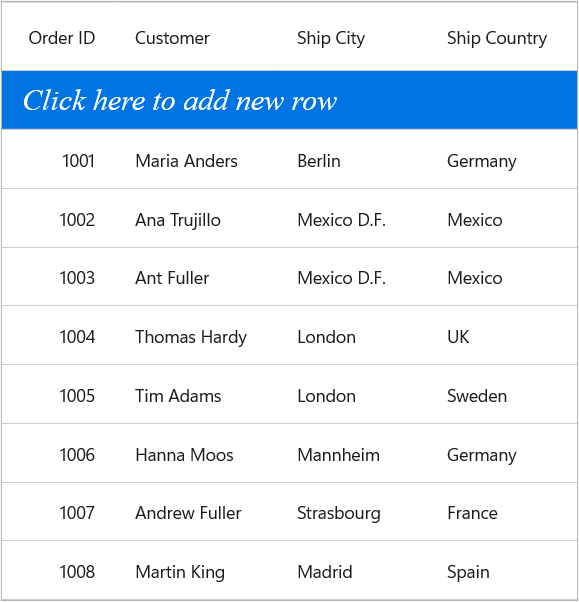
AddNewRow support in Master-Details View
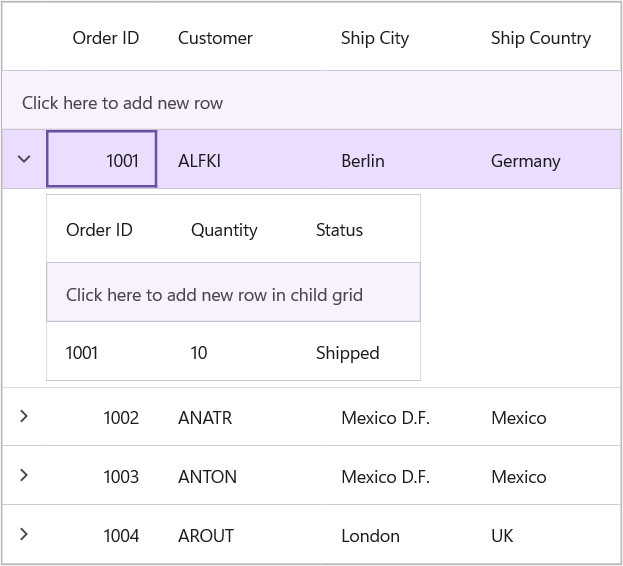
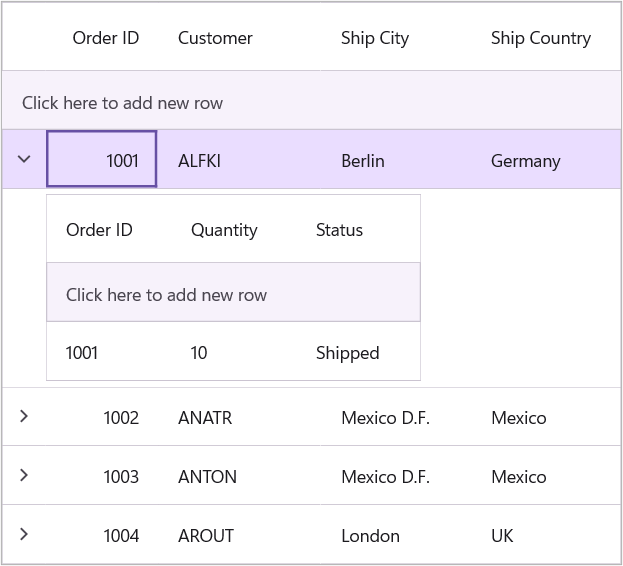
You can enable the AddNewRow in the child DetailsViewDataGrid by setting the SfDataGrid.AddNewRowPosition property in ViewDefinition.DataGrid. The same prerequisites (selection enabled, editing enabled, and navigation mode set to Cell) apply to details view grids.
<syncfusion:SfDataGrid x:Name="DataGrid"
                       ItemsSource="{Binding Orders}"
                       AutoGenerateColumnsMode="None"
                       AllowEditing="True"
                       AddNewRowPosition="Top"
                       SelectionMode="Single"
                       NavigationMode="Cell">
    <syncfusion:SfDataGrid.Columns>
        <syncfusion:DataGridTextColumn MappingName="OrderID"
                                       HeaderText="Order ID" />
        <syncfusion:DataGridTextColumn MappingName="Customer"
                                       HeaderText="Customer" />
        <syncfusion:DataGridTextColumn MappingName="City"
                                       HeaderText="Ship City" />
        <syncfusion:DataGridTextColumn MappingName="Country"
                                       HeaderText="Ship Country" />
    </syncfusion:SfDataGrid.Columns>
    <syncfusion:SfDataGrid.DetailsViewDefinition>
        <syncfusion:DataGridViewDefinition RelationalColumn="Orders">
            <syncfusion:DataGridViewDefinition.DataGrid>
                <syncfusion:SfDataGrid x:Name="firstLevelNestedGrid"
                                       AddNewRowPosition="Top">
                    <syncfusion:SfDataGrid.Columns>
                        <syncfusion:DataGridTextColumn MappingName="OrderID"
                                                       HeaderText="Order ID" />
                        <syncfusion:DataGridTextColumn MappingName="Quantity"
                                                       HeaderText="Quantity" />
                        <syncfusion:DataGridTextColumn MappingName="Status"
                                                       HeaderText="Status" />
                    </syncfusion:SfDataGrid.Columns>
                </syncfusion:SfDataGrid>
            </syncfusion:DataGridViewDefinition.DataGrid>
        </syncfusion:DataGridViewDefinition>
    </syncfusion:SfDataGrid.DetailsViewDefinition>
</syncfusion:SfDataGrid>
OrderInfoViewModel viewModel = new OrderInfoViewModel();
// Parent DataGrid
SfDataGrid dataGrid = new SfDataGrid();
dataGrid.ItemsSource = viewModel.Orders;
dataGrid.AllowEditing = true;
dataGrid.SelectionMode = DataGridSelectionMode.Single;
dataGrid.AddNewRowPosition = DataGridAddNewRowPosition.Top;
dataGrid.NavigationMode = DataGridNavigationMode.Cell;
// Child (DetailsView) DataGrid
SfDataGrid detailsGrid = new SfDataGrid();
detailsGrid.AllowEditing = true;
detailsGrid.AddNewRowPosition = DataGridAddNewRowPosition.Top;
detailsGrid.NavigationMode = DataGridNavigationMode.Cell;
detailsGrid.SelectionMode = DataGridSelectionMode.Single;
// DetailsView definition
DataGridViewDefinition viewDefinition = new DataGridViewDefinition();
viewDefinition.RelationalColumn = "Orders";
viewDefinition.DataGrid = detailsGrid;
// Assign DetailsView to parent grid
dataGrid.DetailsViewDefinition.Add(viewDefinition);
// Set content
this.Content = dataGrid;Similarly, you can wire AddNewRowInitiating event for ViewDefinition.DataGrid.
this.firstLevelNestedGrid.AddNewRowInitiating += FirstLevelNestedGrid_AddNewRowInitiating;

private void FirstLevelNestedGrid_AddNewRowInitiating(object? sender, DataGridAddNewRowInitiatingEventArgs e)
{

}
For auto-generated relation (when the AutoGenerateRelations is set to true), the AddNewRow can be enabled by specifying the position to AddNewRowPosition property in AutoGeneratingRelations event.
this.dataGrid.AutoGeneratingRelations += DataGrid_AutoGeneratingRelations;

private void DataGrid_AutoGeneratingRelations(object? sender, DataGridAutoGeneratingRelationsArgs e)
{
    e.DataGridViewDefinition.DataGrid.AddNewRowPosition = DataGridAddNewRowPosition.Top;
}
In the same way, you can wire AddNewRowInitiating event in the AutoGeneratingRelations event.
this.dataGrid.AutoGeneratingRelations += DataGrid_AutoGeneratingRelations;

private void DataGrid_AutoGeneratingRelations(object? sender, DataGridAutoGeneratingRelationsArgs e)
{
    e.DataGridViewDefinition.DataGrid.AddNewRowInitiating += DataGrid_AddNewRowInitiating;
}

private void DataGrid_AddNewRowInitiating(object? sender, DataGridAddNewRowInitiatingEventArgs e)
{

}
Customizing AddNewRow in details view grid
You can customize the AddNewRow in the details view grid by setting the SfDataGrid.AddNewRowText property in ViewDefinition.DataGrid. The AddNewRowText property has higher priority than any localized text.
<syncfusion:SfDataGrid x:Name="DataGrid"
                       ItemsSource="{Binding Orders}"
                       AllowEditing="True"
                       AddNewRowPosition="Top"
                       SelectionMode="Single"
                       NavigationMode="Cell">
    <syncfusion:SfDataGrid.Columns>
        <syncfusion:DataGridTextColumn MappingName="OrderID"
                                       HeaderText="Order ID" />
        <syncfusion:DataGridTextColumn MappingName="Customer"
                                       HeaderText="Customer" />
        <syncfusion:DataGridTextColumn MappingName="City"
                                       HeaderText="Ship City" />
        <syncfusion:DataGridTextColumn MappingName="Country"
                                       HeaderText="Ship Country" />
    </syncfusion:SfDataGrid.Columns>
    <syncfusion:SfDataGrid.DetailsViewDefinition>
        <syncfusion:DataGridViewDefinition RelationalColumn="Orders">
            <syncfusion:DataGridViewDefinition.DataGrid>
                <syncfusion:SfDataGrid x:Name="firstLevelNestedGrid"
                                       AddNewRowText="Click here to add new row in child grid"
                                       AddNewRowPosition="Top">
                    <syncfusion:SfDataGrid.Columns>
                        <syncfusion:DataGridTextColumn MappingName="OrderID"
                                                       HeaderText="Order ID" />
                        <syncfusion:DataGridTextColumn MappingName="Quantity"
                                                       HeaderText="Quantity" />
                        <syncfusion:DataGridTextColumn MappingName="Status"
                                                       HeaderText="Status" />
                    </syncfusion:SfDataGrid.Columns>
                </syncfusion:SfDataGrid>
            </syncfusion:DataGridViewDefinition.DataGrid>
        </syncfusion:DataGridViewDefinition>
    </syncfusion:SfDataGrid.DetailsViewDefinition>
</syncfusion:SfDataGrid>
OrderInfoViewModel viewModel = new OrderInfoViewModel();
// Parent DataGrid
SfDataGrid dataGrid = new SfDataGrid();
dataGrid.ItemsSource = viewModel.Orders;
dataGrid.AllowEditing = true;
dataGrid.SelectionMode = DataGridSelectionMode.Single;
dataGrid.AddNewRowPosition = DataGridAddNewRowPosition.Top;
dataGrid.NavigationMode = DataGridNavigationMode.Cell;
// Child (DetailsView) DataGrid
SfDataGrid detailsGrid = new SfDataGrid();
detailsGrid.AllowEditing = true;
detailsGrid.AddNewRowPosition = DataGridAddNewRowPosition.Top;
detailsGrid.NavigationMode = DataGridNavigationMode.Cell;
detailsGrid.SelectionMode = DataGridSelectionMode.Single;
detailsGrid.AddNewRowText = "Click here to add new row in child grid";
// DetailsView definition
DataGridViewDefinition viewDefinition = new DataGridViewDefinition();
viewDefinition.RelationalColumn = "Orders";
viewDefinition.DataGrid = detailsGrid;
// Assign DetailsView to parent grid
dataGrid.DetailsViewDefinition.Add(viewDefinition);
// Set content
this.Content = dataGrid;