AI-Powered Smart Paste in .NET MAUI DataForm
18 Nov 201824 minutes to read
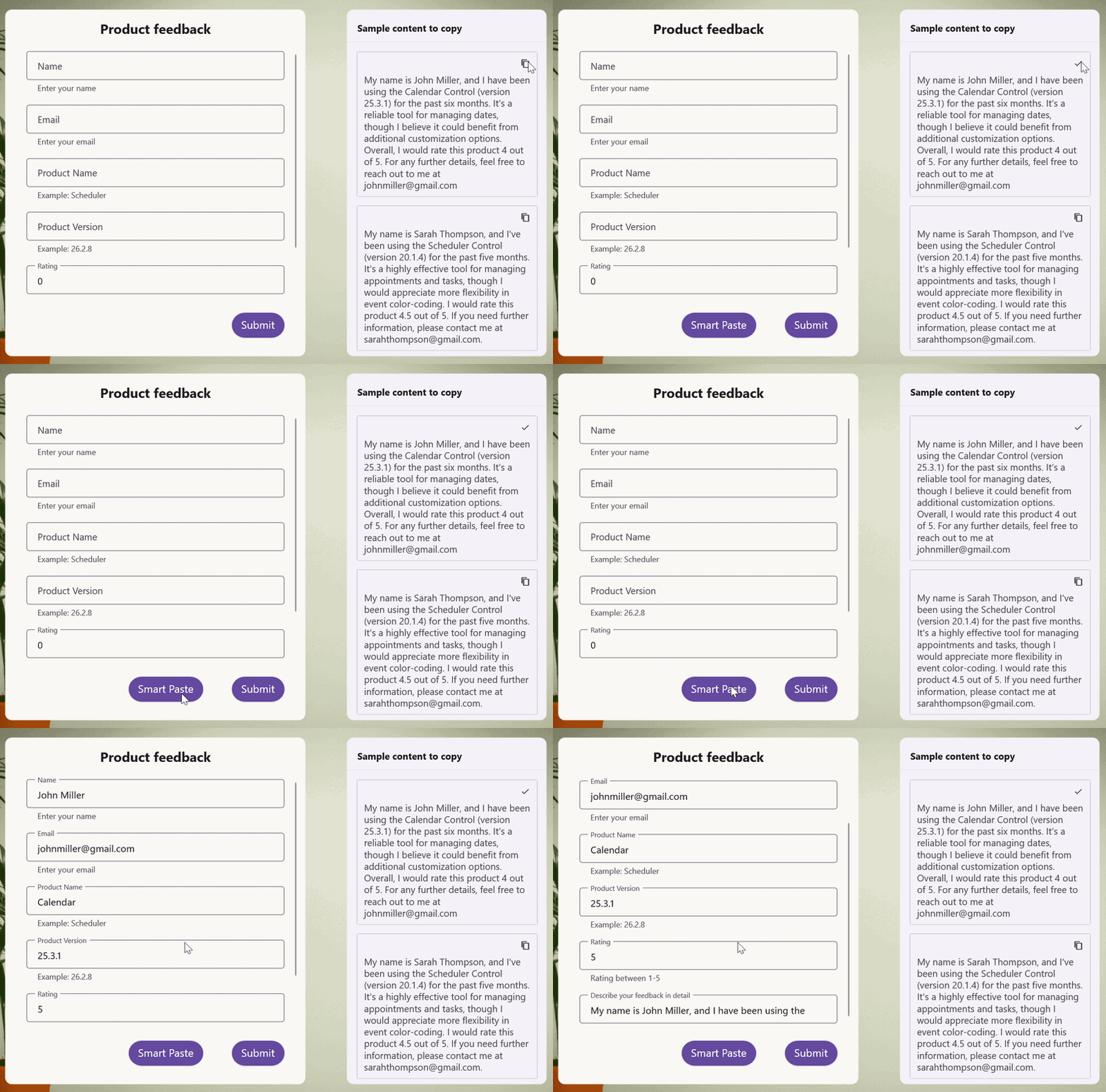
This guide introduces the integration of AI-powered Smart Paste functionality into the .NET MAUI DataForm, enhancing user experience by automating data entry through intelligent clipboard parsing. Smart Paste is an AI-powered feature that automates data entry by intelligently pasting and organizing clipboard content into the correct fields of a form. It reduces manual errors and boosts efficiency, especially useful in scenarios like customer feedback forms, surveys, and registrations
Integrating AI-powered Smart Paste in .NET MAUI DataForm
Before proceeding, ensure that Azure OpenAI is configured and integrated with your .NET MAUI application. Refer to the Azure OpenAI integration prerequisites and complete the required setup steps.
The GetResultsFromAI method sends the user’s prompt to the Azure OpenAI service and retrieves the AI-generated response. It processes the request asynchronously, supports cancellation, and includes exception handling to ensure reliable communication with the AI model.
internal async Task<string> GetResultsFromAI(string userPrompt)
{
    ChatHistory = string.Empty;
    if (IsCredentialValid && Client != null && ChatHistory != null)
    {
        // Add the user's prompt as a user message to the conversation.
        ChatHistory = ChatHistory + "You are a predictive analytics assistant.";
        // Add the user's prompt as a user message to the conversation.
        ChatHistory = ChatHistory + userPrompt;
        try
        {
            //// Send the chat completion request to the OpenAI API and await the response.
            var response = await Client.CompleteAsync(ChatHistory);
            return response.ToString();
        }
        catch
        {
            // If an exception occurs (e.g., network issues, API errors), return an empty string.
            return "";
        }
    }

    return "";
}
Step 1: Create the DataForm Model
Define a model class (FeedBackForm) that represents the fields of the form. Add properties such as Name, Email, Product Name, Product Version, Rating and Comments. Use data annotations to configure display labels and validation rules.
/// <summary>
/// Feedback form model class
/// </summary>
public class FeedBackForm
{
    /// <summary>
    /// Initializes a new instance of the <see cref="FeedbackForm" /> class.
    /// </summary>
    public FeedBackForm()
    {
        this.Name = string.Empty;
        this.Email = string.Empty;
        this.ProductName = string.Empty;
        this.ProductVersion = string.Empty;
        this.Rating = 0;
        this.Comments = string.Empty;
    }

    [Display(Name = "Name", Prompt = "Enter your name")]
    [Required(ErrorMessage = "Please enter your name")]
    public string Name { get; set; }

    [Display(Name = "Email", Prompt = "Enter your email")]
    [EmailAddress(ErrorMessage = "Invalid email address")]
    public string Email { get; set; }

    [Display(Name = "Product Name", Prompt = "Example: Scheduler")]
    public string ProductName { get; set; }

    [Display(Name = "Product Version", Prompt = "Example: 26.2.8")]
    public string ProductVersion { get; set; }

    [Display(Name = "Rating", Prompt = "Rating between 1-5")]
    [Range(1, 5, ErrorMessage = "Rating should be between 1 and 5")]
    public int Rating { get; set; }

    [DataType(DataType.MultilineText)]
    [Display(ShortName = "Describe your feedback in detail", Name = "Comments")]
    public string Comments { get; set; }
}
Step 2: Bind the model to the dataform
Create a view model containing an instance of the model. Assign this instance to the DataObject property of the dataform so that the fields are generated automatically according to the model properties.
Step 3: Design the UI
In XAML, set up the form layout - including labels, images, dataform control. Add a smart paste button that triggers the AI functionality and a submit button for data validation.
<Grid BackgroundColor="{DynamicResource SfDataFormNormalBackground}">
<Image Source="{converters:SfImageResource feedbackform.png}" Aspect="Fill"/>
<Grid ColumnDefinitions="Auto,Auto" HorizontalOptions="Center" VerticalOptions="Center" ColumnSpacing="20">
<Border BackgroundColor="{DynamicResource SfDataFormNormalBackground}"
MaximumHeightRequest="{OnPlatform WinUI=500, MacCatalyst= 550}"
VerticalOptions="Start"
HorizontalOptions="Center"
WidthRequest="{OnPlatform MacCatalyst=560, WinUI=450, Default=-1}" Margin="20" Padding="10">
<Border.StrokeShape>
<RoundRectangle CornerRadius="10"/>
</Border.StrokeShape>
<Grid BackgroundColor ="{DynamicResource SfDataFormNormalBackground}">
<Grid.RowDefinitions>
<RowDefinition Height="40"/>
<RowDefinition Height="0.8*"/>
<RowDefinition Height="1"/>
<RowDefinition Height="75"/>
</Grid.RowDefinitions>
<Grid.BindingContext>
<local:FeedbackFormModel/>
</Grid.BindingContext>
<Label Text="Product feedback" TextColor="{DynamicResource SfDataFormNormalEditorTextColor}" FontSize="Subtitle"
FontAttributes="Bold" VerticalTextAlignment="Center"
HorizontalTextAlignment="Center"/>
<dataForm:SfDataForm x:Name="feedbackForm"
Grid.RowSpan="1"
Grid.Row="1"
DataObject="{Binding FeedbackForm}"
ValidationMode="PropertyChanged"
LayoutType="TextInputLayout"
HorizontalOptions="Center">
<dataForm:SfDataForm.TextInputLayoutSettings>
<dataForm:TextInputLayoutSettings ShowHelperText="True"
FocusedStroke="{DynamicResource SfDataFormFocusedEditorStroke}"/>
</dataForm:SfDataForm.TextInputLayoutSettings>
</dataForm:SfDataForm>
<Line Grid.Row="2" Background="#F5F5F5" />
<HorizontalStackLayout Grid.Row="4" HorizontalOptions="End">
<Button x:Name="onlineSmartPaste" Text="Smart Paste" IsVisible="False" TextColor="{AppThemeBinding Light={StaticResource ButtonForegroundLight}, Dark={StaticResource ButtonForegroundDark}}"
Background="{DynamicResource SfDataFormFocusedEditorStroke}" CornerRadius="20"
FontSize="16"
Margin="20, 0, 20, 0"
HeightRequest="40"
toolTip:ToolTipProperties.Text="Click to smart paste based on copied text through online.">
</Button>
<Button x:Name="submitButton" Text="Submit"
TextColor="{AppThemeBinding Light={StaticResource ButtonForegroundLight}, Dark={StaticResource ButtonForegroundDark}}"
Background="{DynamicResource SfDataFormFocusedEditorStroke}"
CornerRadius="20"
FontSize="16"
Margin="20, 0, 20, 0"
HeightRequest="40"/>
</HorizontalStackLayout>
</Grid>
</Border>
<popup:SfPopup Grid.Row="0" Grid.RowSpan="3" IsVisible="False" x:Name="popup" FooterHeight="80" ShowHeader="False" ShowFooter="True" HeightRequest="200">
<popup:SfPopup.PopupStyle>
<popup:PopupStyle CornerRadius="15" MessageFontSize="16" />
</popup:SfPopup.PopupStyle>
</popup:SfPopup>
<Border x:Name="offLineView" Grid.Column="1" IsVisible="True" WidthRequest="300" MaximumHeightRequest="{OnPlatform WinUI=500, MacCatalyst= 550}" BackgroundColor="{AppThemeBinding Light={StaticResource SampleBrowserBackgroundLight}, Dark={StaticResource BackgroundDark}}"
VerticalOptions="Start"
HorizontalOptions="Center" Margin="20">
<Border.StrokeShape>
<RoundRectangle CornerRadius="10" />
</Border.StrokeShape>
<Grid RowDefinitions="Auto,*">
<VerticalStackLayout Grid.Row="0" Spacing="0">
<Label Grid.Column="1" Margin="15,0,0,0" Padding="0,0,0,5" Text="Sample content to copy" HorizontalOptions="Start" VerticalOptions="Center" FontAttributes="Bold"/>
<BoxView HeightRequest="1" Opacity="0.5" Margin="-20,15,-20,0" BackgroundColor="{AppThemeBinding Light=#CAC4D0, Dark=#CAC4D0}"/>
</VerticalStackLayout>
<ScrollView Grid.Row="1" Orientation="Vertical" VerticalScrollBarVisibility="Never" x:Name="ScrollView" >
<Grid ColumnDefinitions="auto,*">
<Grid.BindingContext>
<local:FeedbackFormModel/>
</Grid.BindingContext>
<Grid Grid.Column="1" BackgroundColor="{AppThemeBinding Light={StaticResource SampleBrowserBackgroundLight}, Dark={StaticResource BackgroundDark}}" >
<Grid.RowDefinitions>
<RowDefinition Height="auto"/>
<RowDefinition Height="auto"/>
<RowDefinition Height="auto"/>
</Grid.RowDefinitions>
<Grid x:Name="CopiedDataGrid_Desktop1" Grid.Row="0" RowDefinitions="auto,*" ColumnDefinitions="*,auto" RowSpacing="05"
BackgroundColor="{AppThemeBinding Light={StaticResource SampleBrowserBackgroundLight}, Dark={StaticResource BackgroundDark}}"
Padding="10" Margin="15">
<Button x:Name="CopiedButton1" BorderWidth="0" AutomationId="CopiedButton1" Text="" Grid.Row="0"
BackgroundColor="Transparent" FontFamily="MauiSampleFontIcon"
HorizontalOptions="End" Padding="0" VerticalOptions="Start" FontAttributes="Bold" FontSize="14"
TextColor="{AppThemeBinding Light={StaticResource IconColourLight}, Dark={StaticResource IconColour}, Default=#99000000}" />
<Label x:Name="InputData1" Grid.Row="1" Grid.ColumnSpan="2" Text="{Binding FeedbackForm1}" VerticalOptions="FillAndExpand" LineHeight="1.25" FontFamily="MauiSampleFontIcon" LineBreakMode="WordWrap"
TextColor="{AppThemeBinding Light={StaticResource IconColourLight}, Dark={StaticResource IconColour}, Default=#99000000}" />
<Grid.Shadow>
<Shadow Brush="{AppThemeBinding Light={StaticResource IconColourLight}, Dark={StaticResource IconColour},Default=#99000000}" Offset="0,0" Radius="1" />
</Grid.Shadow>
</Grid>
<Grid x:Name="CopiedDataGrid_Desktop2" Grid.Row="1" RowDefinitions="auto,*" ColumnDefinitions="*,auto" RowSpacing="05"
BackgroundColor="{AppThemeBinding Light={StaticResource SampleBrowserBackgroundLight}, Dark={StaticResource BackgroundDark}}"
Padding="10" Margin="15,0">
<Button Text="" x:Name="CopiedButton2" AutomationId="CopiedButton2" BorderWidth="0" Grid.Row="0"
BackgroundColor="Transparent" FontFamily="MauiSampleFontIcon"
HorizontalOptions="End" VerticalOptions="Start" FontAttributes="Bold" FontSize="14" Padding="0"
TextColor="{AppThemeBinding Light={StaticResource IconColourLight}, Dark={StaticResource IconColour}, Default=#99000000}" />
<Label x:Name="InputData2" LineHeight="1.25" Grid.Row="1" Grid.ColumnSpan="2" Text="{Binding FeedbackForm2}" VerticalOptions="FillAndExpand"
FontFamily="MauiSampleFontIcon" LineBreakMode="WordWrap"
TextColor="{AppThemeBinding Light={StaticResource IconColourLight}, Dark={StaticResource IconColour}, Default=#99000000}" />
<Grid.Shadow>
<Shadow Brush="{AppThemeBinding Light={StaticResource IconColourLight}, Dark={StaticResource IconColour},Default=#99000000}" Offset="0,0" Radius="1" />
</Grid.Shadow>
</Grid>
<Grid Grid.Row="2" Margin="15" x:Name="CopiedDataGrid_Desktop3" RowDefinitions="auto,*" RowSpacing="05" ColumnDefinitions="*,auto" BackgroundColor="{AppThemeBinding Light={StaticResource SampleBrowserBackgroundLight}, Dark={StaticResource BackgroundDark}}" Padding="10">
<Button x:Name="CopiedButton3" AutomationId="CopiedButton3" BorderWidth="0" Text="" Grid.Row="0" BackgroundColor="Transparent" FontFamily="MauiSampleFontIcon" HorizontalOptions="End" VerticalOptions="Start" FontAttributes="Bold" Padding="0" FontSize="14" TextColor="{AppThemeBinding Light={StaticResource IconColourLight}, Dark={StaticResource IconColour},Default=#99000000}" />
<Label x:Name="InputData3" LineHeight="1.25" Grid.Row="1" Text="{Binding FeedbackForm3}" VerticalOptions="FillAndExpand" FontFamily="MauiSampleFontIcon" LineBreakMode="WordWrap" TextColor="{AppThemeBinding Light={StaticResource IconColourLight}, Dark={StaticResource IconColour}, Default=#99000000}" />
<Grid.Shadow>
<Shadow Brush="{AppThemeBinding Light={StaticResource IconColourLight}, Dark={StaticResource IconColour},Default=#99000000}" Offset="0,0" Radius="1" />
</Grid.Shadow>
</Grid>
</Grid>
</Grid>
</ScrollView>
</Grid>
</Border>
</Grid>
</Grid>Step 4: Implement Smart Paste Functionality.
The Smart Paste feature enables users to quickly populate form fields using unstructured text copied to the clipboard. This functionality leverages Azure OpenAI’s GPT model to interpret the clipboard content and convert it into structured data that matches the form’s data model.
To implement this, the application first checks whether the clipboard contains any text. If valid content is found, it constructs a prompt instructing the AI to convert the text into a JSON object that aligns with the FeedBackForm model. This prompt is sent to Azure OpenAI using the service class AzureOpenAIServiceConnector, which handles the connection and communication with the AI model.
Once the AI returns a response, the application deserialize the JSON string into a FeedBackForm object. The deserialized values are then assigned to the model bound to the DataForm, automatically updating the form fields with the extracted values.
private async void OnlineSmartPasteButtonClicked(object? sender, EventArgs e)
 {
     if (Clipboard.Default.HasText)
     {
         this.clipboardText = await Clipboard.Default.GetTextAsync();
     }
     else
     {
         this.clipboardText = string.Empty;
     }

     if (string.IsNullOrEmpty(this.clipboardText))
     {
         if (this.popup != null)
         {
             this.popup.IsOpen = true;
             this.popup.Message = "No text copied to clipboard. Please copy the text and try again.";
         }

         return;
     }

     string dataFormJsonData = JsonConvert.SerializeObject(this.dataForm!.DataObject);
     string prompt = $"Merge the copied data into the DataForm field content, ensuring that the copied text matches suitable field names. Here are the details:" +
           $"\n\nCopied data: {this.clipboardText}," +
           $"\nDataForm Field Name: {dataFormJsonData}," +
           $"\nProvide the resultant DataForm directly." +
           $"\n\nConditions to follow:" +
           $"\n1. Do not use the copied text directly as the field name; merge appropriately." +
           $"\n2. Ignore case sensitivity when comparing copied text and field names." +
           $"\n3. Final output must be Json format" +
           $"\n4. No need any explanation or comments in the output" +
           $"\n Please provide the valid JSON object without any additional formatting characters like backticks or newlines";
     string finalResponse = await this.azureAIService.GetAnswerFromGPT(prompt);
     if (finalResponse == "")
     {
         if (this.index == -1)
         {
             if (this.popup != null)
             {
                 this.popup.IsOpen = true;
                 this.popup.Message = "Please copy the data from demo and paste.";
             }

             return;
         }

         FeedbackFormModel feedbackFormModel = new FeedbackFormModel();
         string response = feedbackFormModel.FeedbackForms[this.index];
         this.UpdateOfflineSmartFillDataForm(response);

     }
     else
     {
         this.UpdateOfflineSmartFillDataForm(finalResponse);
     }
}private void UpdateOfflineSmartFillDataForm(string response)
{
//// Deserialize the JSON string to a Dictionary
var openAIJsonData = JsonConvert.DeserializeObject<Dictionary<string, object>>(response);
//// Create lists to hold field names and values
var filedNames = new List<string>();
var fieldValues = new List<string>();
foreach (var data in openAIJsonData!)
{
filedNames.Add(data.Key);
fieldValues.Add(data.Value?.ToString() ?? string.Empty);
}
if (this.dataForm!.DataObject is FeedBackForm feedbackForm)
{
feedbackForm.Name = fieldValues[0];
feedbackForm.Email = fieldValues[1];
feedbackForm.ProductName = fieldValues[2];
feedbackForm.ProductVersion = fieldValues[3];
feedbackForm.Rating = (int)Math.Round(double.Parse(fieldValues[4]));
feedbackForm.Comments = fieldValues[5];
};
for (int i = 0; i < filedNames.Count; i++)
{
this.dataForm!.UpdateEditor(filedNames[i]);
}
}Step 5: Validate and Submit the form
Enable DataForm validation for all the fields during submission using the Validate method. If validation passes, display a confirmation message. If validation fails, show appropriate error messages.
private void OnSubmitButtonClicked(object? sender, EventArgs e)
{
    if (this.popup == null || this.dataForm == null)
    {
        return;
    }

    if (this.dataForm.Validate())
    {
        this.popup.Message = "Feedback sent successfully";
    }
    else
    {
        this.popup.Message = "Please enter the required details";
    }

    this.popup.Show();
}
You can download the complete sample from this link