Localization in .NET MAUI Color Picker (SfColorPicker)
26 Jun 20251 minute to read
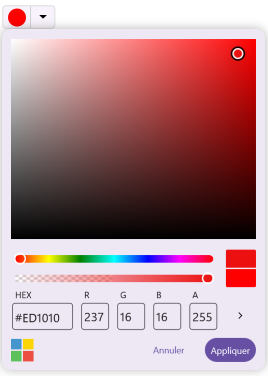
Localization is the process of translating the application resources into different languages for specific cultures. The SfColorPicker can be localized by adding resource file.
Setting CurrentUICulture to the application
The application’s culture can be changed by setting CurrentUICulture in the App.xaml.cs file.
using Syncfusion.Maui.Inputs;
using System.Resources;

public partial class App : Application
{
	public App()
	{
		InitializeComponent();
		CultureInfo.CurrentUICulture = new CultureInfo("fr-FR");
      // ResXPath => Full path of the resx file; For example : //SfColorPickerResources.ResourceManager = new ResourceManager
      // ("ColorPickerLocalization.Resources.SfColorPicker", Application.Current.GetType().Assembly);

		SfColorPickerResources.ResourceManager = new ResourceManager(ResXPath, Application.Current.GetType().Assembly);
	}
}
NOTE
Ensure that the required
resxfiles are included withBuild Actionset asEmbeddedResource, and the file name contains the culture code, within theResourcesfolder.
Localize application level
To localize the Color Picker based on CurrentUICulture using resource files, follow the steps below:
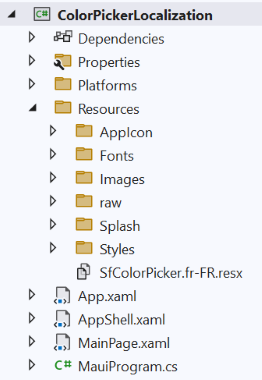
First we need to add the default resource file of Color Picker into Resources folder of the application.
-
Right-click on the
Resourcesfolder, selectAdd, and thenNewItem. -
In the
Add New Itemwizard, select theResources Fileoption and name the file asSfColorPicker.<culture name>.resx.For example, name itSfColorPicker.fr-FR.resxfor the French culture. -
The culture name indicates the name of the language and country.
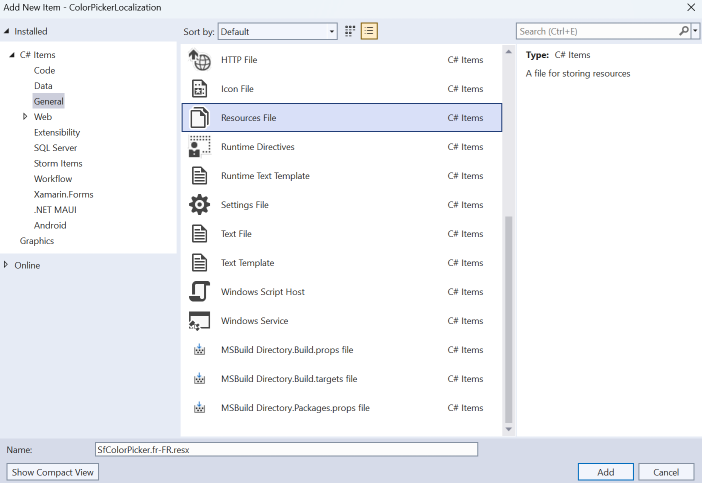
- Click the
Addoption to add the resource file to the Resources folder.
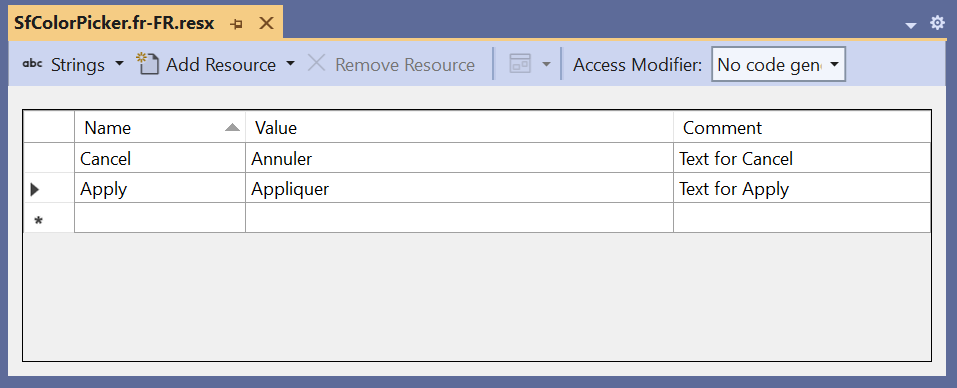
- Add the Name/Value pair in the Resource Designer of the
SfColorPicker.fr-FR.resxfile and change its corresponding value to match the corresponding culture.