Inline Support in .NET MAUI Color Picker
18 Nov 20183 minutes to read
The .NET MAUI Color Picker supports an inline rendering mode that embeds the color editor directly within the page layout, rather than opening it in a pop-up or flyout. By default, IsInline is false, so the picker is shown inside a pop-up triggered from the drop-down button.
Prerequisites
Before using the SfColorPicker, ensure the following NuGet package is installed in your .NET MAUI project:
Syncfusion.Maui.Inputs
For a step-by-step setup, refer to the Getting Started documentation.
Behavior
When IsInline is set to true, the color editor is rendered as part of the page layout. The following changes apply:
- The drop-down button and selected-color display view are not shown.
- The color editor (palette, spectrum, sliders, and so on) takes up the space allocated to the picker in the layout.
- The IsActionButtonsVisible property has no effect in inline mode (Apply/Cancel buttons are only meaningful in pop-up mode).
Enable inline rendering
Set the IsInline property to true in your XAML or C# code, as shown in the following example:
<inputs:SfColorPicker IsInline="True" />SfColorPicker colorPicker = new SfColorPicker()
{
IsInline = true
};
this.Content = colorPicker;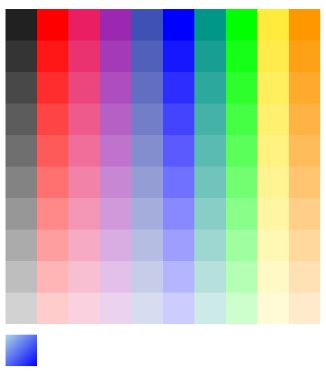
Embed the inline picker in a layout
The inline picker participates in the page layout like any other view, so you can size and place it with a Grid, StackLayout, or any other parent layout:
<Grid Padding="12"
      RowDefinitions="Auto,*"
      RowSpacing="8">

    <Label Grid.Row="0"
           Text="Pick a background color"
           FontAttributes="Bold" />

    <inputs:SfColorPicker Grid.Row="1"
                          IsInline="True"
                          ColorChanged="OnColorChanged" />

</Grid>
SfColorPicker colorPicker = new SfColorPicker
{
IsInline = true
};
colorPicker.ColorChanged += OnColorChanged;
Content = new Grid
{
Padding = 12,
RowDefinitions =
{
new RowDefinition { Height = GridLength.Auto },
new RowDefinition { Height = new GridLength(1, GridUnitType.Star) }
},
Children =
{
new Label { Text = "Pick a background color", FontAttributes = FontAttributes.Bold },
colorPicker
}
};The ColorChanged event can be handled in C# as follows:
private void OnColorChanged(object sender, ColorChangedEventArgs e)
{
    this.BackgroundColor = e.NewColor;
}