Customization in .NET MAUI Color Picker
18 Nov 201820 minutes to read
This section explains how to customize the appearance and behavior of the .NET MAUI Color Picker control, including the default selected color, the visibility of UI elements, action button appearance, palette layout, label styles, slider thumb, and popup placement.
Prerequisites
Before using the SfColorPicker, ensure the following NuGet package is installed in your .NET MAUI project:
Syncfusion.Maui.Inputs
For a step-by-step setup, refer to the Getting Started documentation.
Selected color
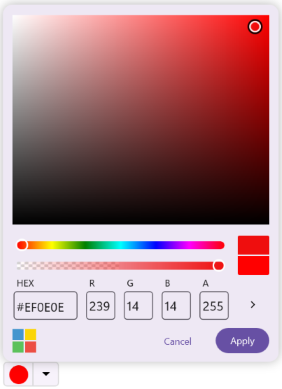
The SelectedColor property of the Color Picker is used to display a default color during initial load. You can also select a color value in the UI using built-in elements like the color spectrum, sliders, palette, or HEX input.
<inputs:SfColorPicker SelectedColor="DodgerBlue"/>SfColorPicker colorPicker = new SfColorPicker()
{
SelectedColor = Colors.DodgerBlue
};
this.Content = colorPicker;
Show recent colors
You can display the recently selected colors in the Color Picker when in Palette mode by enabling the ShowRecentColors property. By default, it is set to True.
<inputs:SfColorPicker ShowRecentColors="True"/>SfColorPicker colorPicker = new SfColorPicker()
{
ShowRecentColors = true
};
this.Content = colorPicker;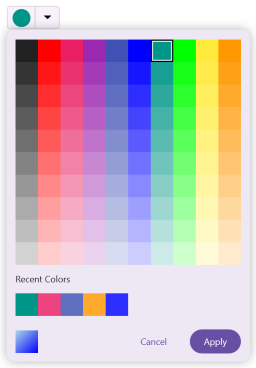
Clear recent colors
You can clear all colors shown in the Recent Colors section of the Color Picker by calling the ClearRecentColors method. This method removes all previously selected colors and resets the Recent Colors list. Use this method in an event handler such as a button click to let users clear the recent colors history manually.
// Create SfColorPicker
colorPicker = new SfColorPicker()
{
    ShowRecentColors = true
};

// Create Button
clearRecentColorsButton = new Button()
{
    Text = "Clear Recent Colors",
    WidthRequest = 160,
    HeightRequest = 50
};

// Clear all recent colors
clearRecentColorsButton.Clicked += (s,e) => { colorPicker.ClearRecentColors(); } ;

// Create VerticalStackLayout
var stackLayout = new VerticalStackLayout()
{
    Spacing = 10,
    VerticalOptions = LayoutOptions.Center,
    HorizontalOptions = LayoutOptions.Center,
    Children = { colorPicker, clearRecentColorsButton }
};

this.Content = stackLayout;
Show input area
You can show or hide the input area (HEX/RGBA/HSV editors) of the Color Picker by adjusting the ShowInputArea property. By default, it is set to True.
<inputs:SfColorPicker ShowInputArea="False"/>SfColorPicker colorPicker = new SfColorPicker()
{
ShowInputArea = false
};
this.Content = colorPicker;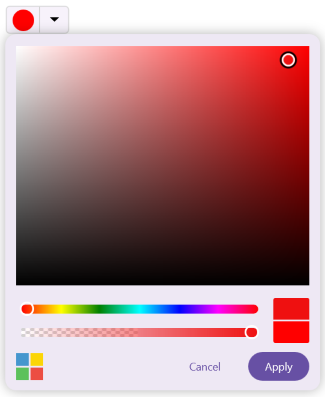
Alpha slider
The alpha slider is used to control the transparency of the selected color. You can show or hide the alpha slider by adjusting the ShowAlphaSlider property. By default, it is set to True.
<inputs:SfColorPicker ShowAlphaSlider="True"/>SfColorPicker colorPicker = new SfColorPicker()
{
ShowAlphaSlider = true
};
this.Content = colorPicker;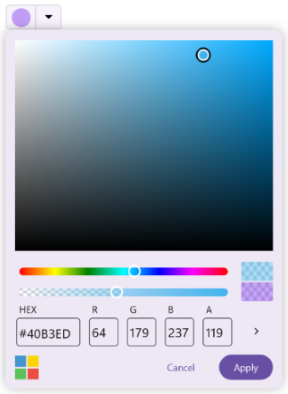
Hide action buttons
You can remove the Apply and Cancel buttons to apply the selected color immediately on selection. To enable this, set the IsActionButtonsVisible property to False. By default, this property is set to True.
When the action buttons are hidden, the color picker popup automatically closes after a color is selected.
<inputs:SfColorPicker IsActionButtonsVisible="False"/>SfColorPicker colorPicker = new SfColorPicker()
{
IsActionButtonsVisible = false
};
this.Content = colorPicker;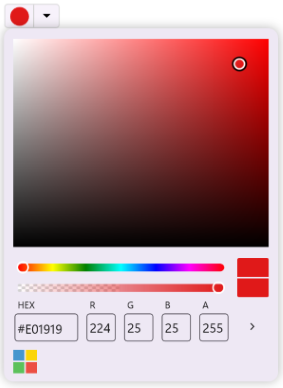
Customize action buttons
You can customize the background color for the action buttons by specifying a suitable color for the ApplyButtonBackground and CancelButtonBackground properties.
<inputs:SfColorPicker ApplyButtonBackground="Navy"
                      CancelButtonBackground="LightGray">
</inputs:SfColorPicker>
SfColorPicker colorPicker = new SfColorPicker()
{
ApplyButtonBackground = Colors.Navy,
CancelButtonBackground = Colors.LightGray
};
this.Content = colorPicker;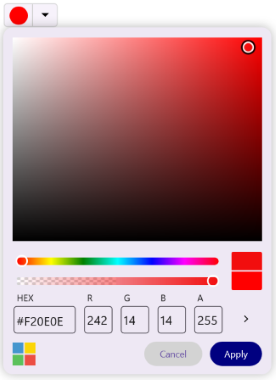
You can also customize the text appearance of the action buttons by defining a suitable label style for the ApplyButtonLabelStyle and CancelButtonLabelStyle properties.
<inputs:SfColorPicker>
    <inputs:SfColorPicker.ApplyButtonLabelStyle>
        <core:LabelStyle FontSize="16"
                         TextColor="White"
                         FontAttributes="Bold" />
    </inputs:SfColorPicker.ApplyButtonLabelStyle>
    <inputs:SfColorPicker.CancelButtonLabelStyle>
        <core:LabelStyle FontSize="14"
                         TextColor="Gray"
                         FontAttributes="None" />
    </inputs:SfColorPicker.CancelButtonLabelStyle>
</inputs:SfColorPicker>
SfColorPicker colorPicker = new SfColorPicker();
// Set Apply button label style
colorPicker.ApplyButtonLabelStyle = new LabelStyle
{
FontSize = 16,
TextColor = Colors.White,
FontAttributes = FontAttributes.Bold
};
// Set Cancel button label style
colorPicker.CancelButtonLabelStyle = new LabelStyle
{
FontSize = 14,
TextColor = Colors.Gray,
FontAttributes = FontAttributes.None
};
this.Content = colorPicker;Customize label styles
Recent colors label style
You can customize the text appearance of the recent colors label by defining a suitable label style for the RecentColorsLabelStyle property. This style applies to the “Recent Colors” text displayed above the recent color palette.
<inputs:SfColorPicker>
    <inputs:SfColorPicker.RecentColorsLabelStyle>
        <core:LabelStyle FontSize="14"
                         TextColor="DarkGray"
                         FontAttributes="Italic" />
    </inputs:SfColorPicker.RecentColorsLabelStyle>
</inputs:SfColorPicker>
SfColorPicker colorPicker = new SfColorPicker();
// Set recent colors label style
colorPicker.RecentColorsLabelStyle = new LabelStyle
{
FontSize = 14,
TextColor = Colors.DarkGray,
FontAttributes = FontAttributes.Italic
};
this.Content = colorPicker;Spectrum input view label style
You can customize the text appearance of the labels displayed in the spectrum input view by defining a suitable label style for the SpectrumInputViewLabelStyle property. This style applies to the label texts displayed in the spectrum input view, such as HEX, R, G, B, H, S, V, and A input labels.
<inputs:SfColorPicker>
    <inputs:SfColorPicker.SpectrumInputViewLabelStyle>
        <core:LabelStyle FontSize="14"
                         TextColor="Black"
                         FontFamily="Arial" />
    </inputs:SfColorPicker.SpectrumInputViewLabelStyle>
</inputs:SfColorPicker>
SfColorPicker colorPicker = new SfColorPicker();
// Set spectrum input view label style (HEX, RGBA, HSV labels)
colorPicker.SpectrumInputViewLabelStyle = new LabelStyle
{
FontSize = 14,
TextColor = Colors.Black,
FontFamily = "Arial"
};
this.Content = colorPicker;No color option
The ShowNoColor property determines whether the No Color option is displayed in the Color Picker UI. This option allows users to clear their selection from the palette, effectively choosing no color. By default, this property is set to False.
<inputs:SfColorPicker ShowNoColor="True"/>SfColorPicker colorPicker = new SfColorPicker()
{
ShowNoColor = true
};
this.Content = colorPicker;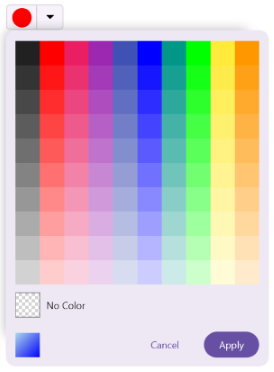
Palette count
The PaletteColumnCount and PaletteRowCount properties define the number of columns and rows displayed in the palette grid. By default, both are set to 10.
<inputs:SfColorPicker PaletteColumnCount="6"
                      PaletteRowCount="5"/>
SfColorPicker colorPicker = new SfColorPicker()
{
PaletteColumnCount = 6,
PaletteRowCount = 5
};
this.Content = colorPicker;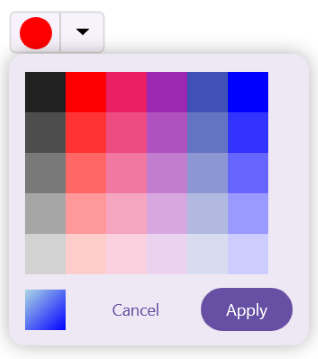
Palette spacing
The PaletteColumnSpacing property defines the horizontal spacing between columns, while the PaletteRowSpacing property defines the vertical spacing between rows in Palette mode. By default, both properties are set to 0, meaning the swatches are placed directly next to each other without any spacing.
<inputs:SfColorPicker PaletteColumnSpacing="10"
                      PaletteRowSpacing="10"/>
SfColorPicker colorPicker = new SfColorPicker()
{
PaletteColumnSpacing = 10,
PaletteRowSpacing = 10
};
this.Content = colorPicker;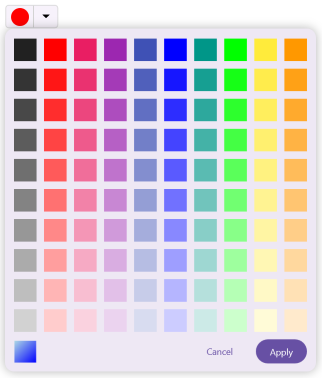
Palette cell customization
PaletteCellCornerRadius
You can customize the corner radius of individual palette cells by adjusting the PaletteCellCornerRadius property. The default value is 0 (square corners).
<inputs:SfColorPicker PaletteCellCornerRadius="15, 12, 15, 7" />SfColorPicker colorPicker = new SfColorPicker()
{
PaletteCellCornerRadius = new CornerRadius(15, 12, 15, 7)
};
this.Content = colorPicker;PaletteCellShape
You can define the shape of the color palette cells using the PaletteCellShape property.
<inputs:SfColorPicker PaletteCellShape="Circle" />SfColorPicker colorPicker = new SfColorPicker()
{
PaletteCellShape = PaletteCellShape.Circle
};
this.Content = colorPicker;PaletteCellSize
You can control the width and height (in device-independent pixels) of each color cell in the palette by setting the PaletteCellSize property. The default value is 30.
<inputs:SfColorPicker PaletteCellSize="40" />SfColorPicker colorPicker = new SfColorPicker()
{
PaletteCellSize = 40
};
this.Content = colorPicker;PaletteColors
You can define a custom collection of Color values displayed in the palette view by using the PaletteColors property. The PaletteColors collection is only rendered when ColorMode is set to Palette.
SfColorPicker colorPicker = new SfColorPicker();

// Set custom palette colors
colorPicker.ColorMode = ColorPickerMode.Palette;
colorPicker.PaletteColumnCount = 6;
colorPicker.PaletteRowCount = 3;
colorPicker.PaletteColors = new List<Color>
{
    Colors.Red,
    Colors.Green,
    Colors.Blue,
    Colors.Yellow,
    Colors.Purple,
    Colors.Orange
};

// Add a color to the existing palette
colorPicker.PaletteColors.Add(Colors.Pink);

this.Content = colorPicker;
Selection indicator customization
SelectionIndicatorRadius
You can customize the corner radius of the selection indicator by setting the SelectionIndicatorRadius property. The default value is 8.
<inputs:SfColorPicker SelectionIndicatorRadius="6" />SfColorPicker colorPicker = new SfColorPicker()
{
SelectionIndicatorRadius = 6
};
this.Content = colorPicker;SelectionIndicatorStroke
You can specify the stroke color of the selection indicator using the SelectionIndicatorStroke property.
<inputs:SfColorPicker SelectionIndicatorStroke="White" />SfColorPicker colorPicker = new SfColorPicker()
{
SelectionIndicatorStroke = Colors.White
};
this.Content = colorPicker;SelectionIndicatorStrokeThickness
You can modify the thickness of the selection outline by adjusting the SelectionIndicatorStrokeThickness property. The default value is 2.
<inputs:SfColorPicker SelectionIndicatorStrokeThickness="3" />SfColorPicker colorPicker = new SfColorPicker()
{
SelectionIndicatorStrokeThickness = 3
};
this.Content = colorPicker;Slider thumb customization
The Slider thumb represents the Hue and Alpha Sliders in the Color Picker. You can customize its appearance using the following properties.
SliderThumbFill
You can customize the fill brush of the Slider thumb by setting the SliderThumbFill property.
<inputs:SfColorPicker SliderThumbFill="Blue" />SfColorPicker colorPicker = new SfColorPicker()
{
SliderThumbFill = new SolidColorBrush(Colors.Blue)
};
this.Content = colorPicker;SliderThumbRadius
You can control the size and roundness of the Slider thumb by adjusting the SliderThumbRadius property. The default value is 8.
<inputs:SfColorPicker SliderThumbRadius="12" />SfColorPicker colorPicker = new SfColorPicker()
{
SliderThumbRadius = 12
};
this.Content = colorPicker;SliderThumbStroke
You can customize the stroke color of the Slider thumb by adjusting the SliderThumbStroke property.
<inputs:SfColorPicker SliderThumbStroke="Black" />SfColorPicker colorPicker = new SfColorPicker()
{
SliderThumbStroke = Colors.Black
};
this.Content = colorPicker;SliderThumbStrokeThickness
You can control the thickness of the Slider thumb’s outline by adjusting the SliderThumbStrokeThickness property. The default value is 2.
<inputs:SfColorPicker SliderThumbStrokeThickness="3" />SfColorPicker colorPicker = new SfColorPicker()
{
SliderThumbStrokeThickness = 3
};
this.Content = colorPicker;Popup customization
IsOpen
The IsOpen property in the Color Picker control allows you to programmatically open the popup by setting it to True. By default, this property is set to False.
<VerticalStackLayout Spacing="10"
                     HorizontalOptions="Center">

    <Label Text="IsOpen Switch"/>
    <Switch IsToggled="{Binding Source={x:Reference colorPicker}, Path=IsOpen, Mode=TwoWay}" />

    <inputs:SfColorPicker x:Name="colorPicker"
                          IsOpen="False" />

</VerticalStackLayout>
// Create the color picker
var colorPicker = new SfColorPicker
{
IsOpen = false
};
// Create the switch with binding
var switchControl = new Switch();
switchControl.SetBinding(Switch.IsToggledProperty,
new Binding
{
Source = colorPicker,
Path = "IsOpen",
Mode = BindingMode.TwoWay
});
// Create the label
var label = new Label
{
Text = "IsOpen Switch"
};
// Create the vertical stack layout
var stackLayout = new VerticalStackLayout
{
Spacing = 10,
HorizontalOptions = LayoutOptions.Center,
Children =
{
label,
switchControl,
colorPicker
}
};
this.Content = stackLayout;Popup background
The PopupBackground property specifies the background color of the popup panel in the Color Picker control.
<inputs:SfColorPicker x:Name="colorPicker"
                      PopupBackground="Thistle"/>
SfColorPicker colorPicker = new SfColorPicker()
{
PopupBackground = Colors.Thistle
};
this.Content = colorPicker;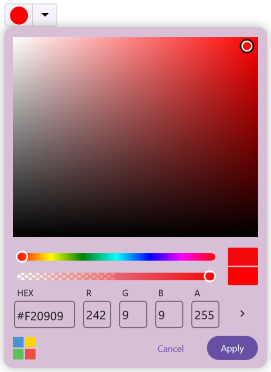
Popup relative position
The PopupRelativePosition property specifies the placement of the popup in the Color Picker control. It supports the following eight positioning options:
- AlignBottom
- AlignBottomLeft
- AlignBottomRight
- AlignToLeftOf
- AlignTop
- AlignTopLeft
- AlignTopRight
- AlignToRightOf
The default position is AlignBottom.
<inputs:SfColorPicker x:Name="colorPicker"
                      PopupRelativePosition="AlignTop"/>
SfColorPicker colorPicker = new SfColorPicker()
{
PopupRelativePosition = PopupRelativePosition.AlignTop
};
this.Content = colorPicker;