How to Customize Toolbar in .NET MAUI SfAIAssistView?
10 Jul 20267 minutes to read
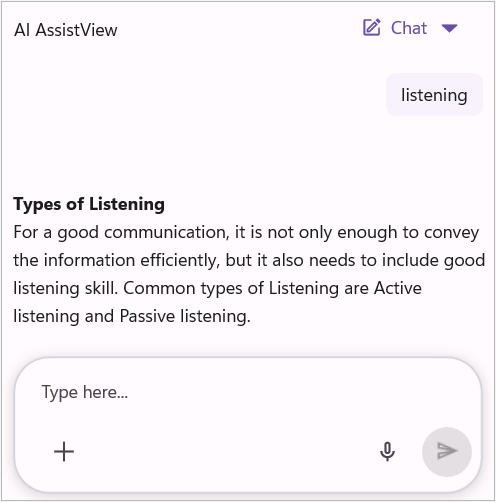
The SfAIAssistView control allows you to define and customize the toolbar to tailor actions and improve user interaction within the chat interface.
AssistView Toolbar
SfAIAssistView exposes a header toolbar that can be enabled and customized for conversation-level actions and titles. The toolbar will not be visible when the ShowToolbar is set to false.
-
ShowToolbar: Set to
falseto hide the toolbar. The default value istrue. - ToolbarTitle: A simple string title you can bind or set to display in the toolbar.
- ToolbarHeight: Set a custom height for the toolbar area.
<syncfusion:SfAIAssistView x:Name = "sfAIAssistView"
                           ShowToolbar="True"
                           ToolbarTitle="AI AssistView"
                           ToolbarHeight="50" />
using Syncfusion.Maui.AIAssistView;

public partial class MainPage : ContentPage
{
    public MainPage()
    {
        InitializeComponent();
        SfAIAssistView sfAIAssistView = new SfAIAssistView();
        sfAIAssistView.ToolbarTitle = "AI AssistView";
        sfAIAssistView.ShowToolbar = true;
        sfAIAssistView.ToolbarHeight = 50;
        this.Content = sfAIAssistView;
    }
}
Toolbar Menu Items
In the Syncfusion .NET MAUI AI AssistView, you can provide toolbar menu items using the ToolbarMenuOptions collection on SfAIAssistView. Each item can be an ActionButton (or any suitable view) and bound to a command on your view model.
<syncfusion:SfAIAssistView x:Name="sfAIAssistView">
    <syncfusion:SfAIAssistView.ToolbarMenuOptions>
        <syncfusion:ActionButton Text="Settings" Icon="settings.png" Command="{Binding SettingsCommand}" />
        <syncfusion:ActionButton Text="Help" Icon="help.png" Command="{Binding HelpCommand}" />
    </syncfusion:SfAIAssistView.ToolbarMenuOptions>
</syncfusion:SfAIAssistView>
The items added to ToolbarMenuOptions appear when the toolbar menu icon is clicked. Each item invokes its bound command when tapped.
Chat Modes
New Chat Button
The toolbar includes a “New Chat” option. When clicked, it opens a fresh chat session so the user can start an entirely new conversation, while the previous session is preserved in the conversation history.
Temporary Chat
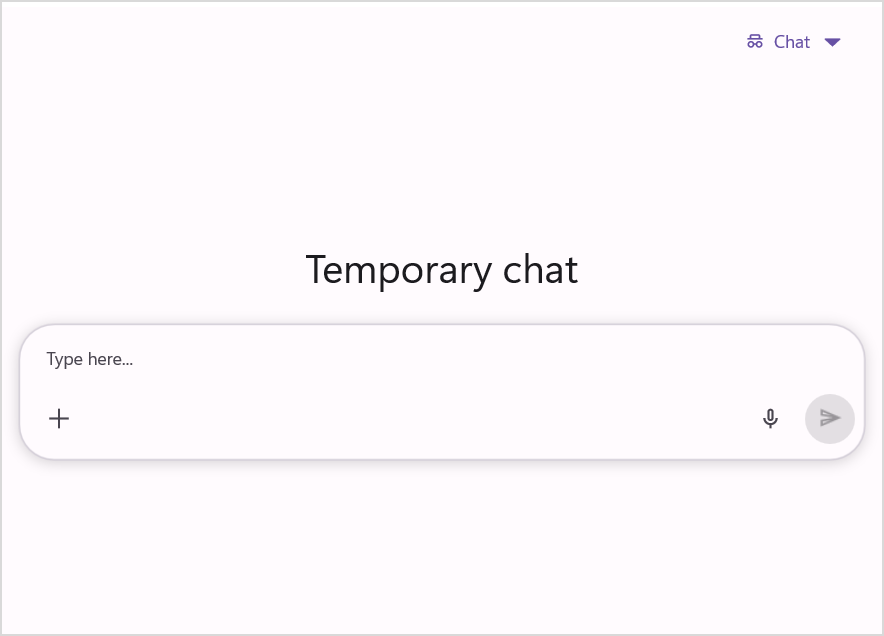
The SfAIAssistView supports a Temporary Chat mode that provides a temporary conversation that is not saved, useful for quick, non-persistent interactions. When temporary mode is clicked, the control clears the active AssistItems collection and displays a banner above the chat to indicate the temporary state. The control preserves your original EmptyViewTemplate and restores it when temporary mode ends.
-
EnableTemporaryChat: Set to
falseto disable Temporary Chat mode. -
TemporaryChatBannerTemplate: Provide a
DataTemplateto replace the default temporary-mode banner with a custom view. - TemporaryChatBannerText: The default banner text when no custom banner template is provided.
NOTE
Enabling
EnableTemporaryChatincludes the temporary chat in the toolbar’s new chat button. Clicking the temporary chat routes new requests to a freshAssistItemscollection and displays a temporary banner.
<syncfusion:SfAIAssistView x:Name="assist"
                           EnableTemporaryChat="True"
                           TemporaryChatBannerText="This chat will not be saved" />
using Syncfusion.Maui.AIAssistView;

public partial class MainPage : ContentPage
{
    public MainPage()
    {
        InitializeComponent();
        SfAIAssistView sfAIAssistView = new SfAIAssistView();
        sfAIAssistView.EnableTemporaryChat = true;
        sfAIAssistView.TemporaryChatBannerText = "This chat will not be saved";
        this.Content = sfAIAssistView;
    }
}
Events for chat mode
SfAIAssistView raises two events when the user changes the chat mode via the toolbar: ChatModeChanging (raised before the change) and ChatModeChanged (raised after the change). Both event-args types expose a ChatMode property indicating the mode being switched to. The ChatMode enumeration includes values such as NewChat and TemporaryChat.
-
ChatModeChanging: Provides a ChatModeChangingEventArgs with the ChatMode that the control is about to transition to. Handlers can cancel the change by settinge.Cancel = true. TheCancelproperty is available only on this event. -
ChatModeChanged: Provides a ChatModeChangedEventArgs with the ChatMode that the control has transitioned to.
using Syncfusion.Maui.AIAssistView;

public partial class MainPage : ContentPage
{
    public MainPage()
    {
        InitializeComponent();
        SfAIAssistView sfAIAssistView = new SfAIAssistView();
        sfAIAssistView.ChatModeChanging += OnChatModeChanging;
        sfAIAssistView.ChatModeChanged += OnChatModeChanged;
        this.Content = sfAIAssistView;
    }

    private void OnChatModeChanging(object sender, ChatModeChangingEventArgs e)
    {
        if (e.ChatMode == ChatMode.TemporaryChat)
        {
            e.Cancel = true;
        }
    }

    private void OnChatModeChanged(object sender, ChatModeChangedEventArgs e)
    {
        if (e.ChatMode == ChatMode.TemporaryChat)
        {
            // Temporary chat is active: show custom banner or reset local state.
        }
        else
        {
            // Any other chat mode (for example, NewChat): restore saved templates/state if needed.
        }
    }
}