How to Work with Conversation History in .NET MAUI SfAIAssistView?
8 Jul 202610 minutes to read
The SfAIAssistView enables managing conversation history by using AssistItems to store, display, and track chat interactions effectively.
Conversation history
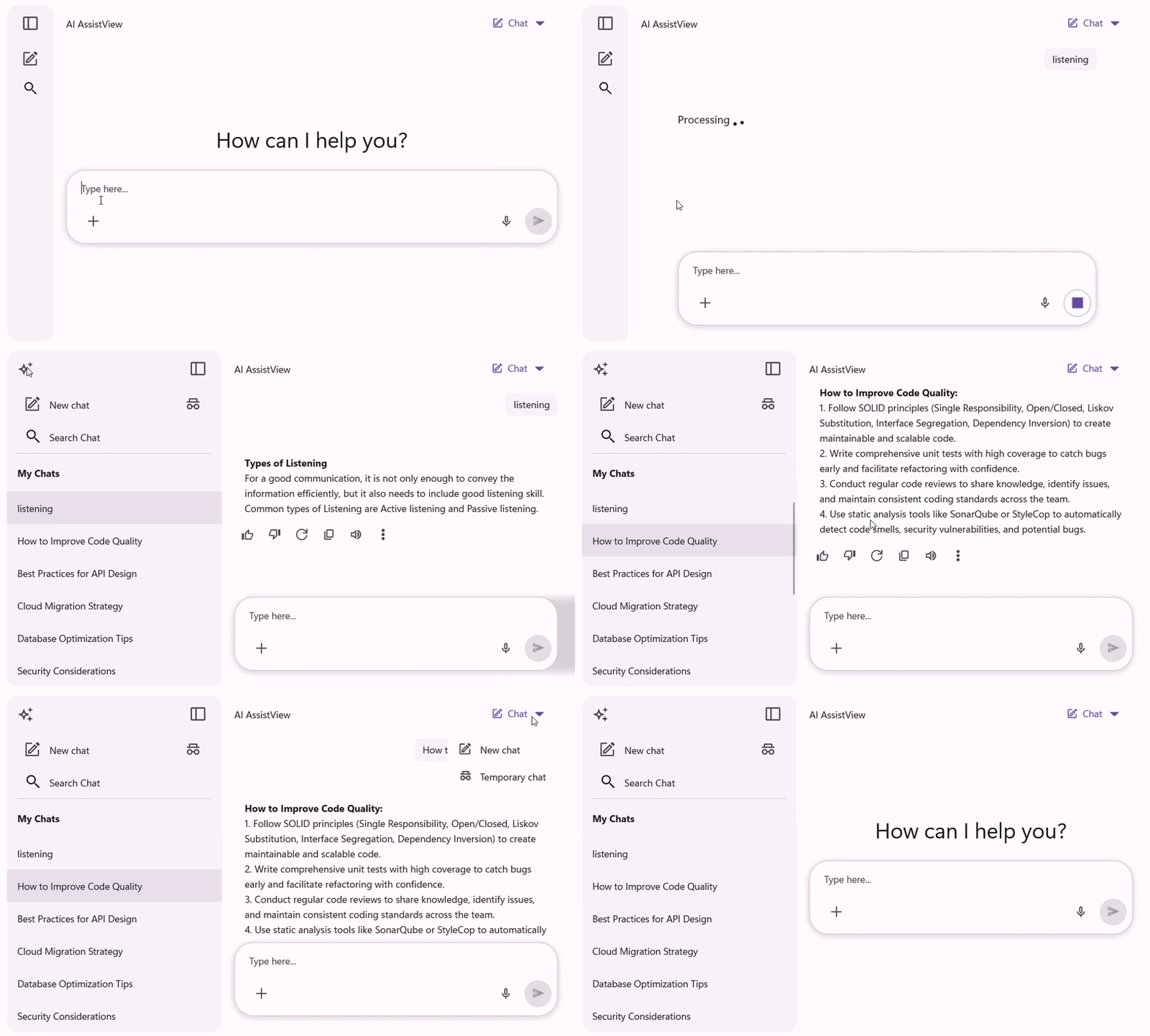
The SfAIAssistView control provides a History feature that allows you to display the conversation history from interactions with real-time AI. To disable this feature, set the EnableConversationHistory property to false.
Binding data into conversation history
The SfAIAssistView control provides the ConversationItemsSource API to manually set the conversation history items source. This source also updates at runtime when new requests are made in the conversation.
Define the view model
Create a simple view model as shown in the following code example, and save it as a GettingStartedViewModel.cs file.
using System.Collections.ObjectModel;
using System.ComponentModel;
using Syncfusion.Maui.AIAssistView;

public class GettingStartedViewModel : INotifyPropertyChanged
{
    private ObservableCollection<AssistConversationItem> conversationItems;

    public GettingStartedViewModel()
    {
        this.conversationItems = new ObservableCollection<AssistConversationItem>();
        this.InitializeConversationHistory();
    }

    public ObservableCollection<AssistConversationItem> ConversationItems
    {
        get { return this.conversationItems; }
        set
        {
            this.conversationItems = value;
            this.RaisePropertyChanged(nameof(ConversationItems));
        }
    }

    public event PropertyChangedEventHandler PropertyChanged;

    public void RaisePropertyChanged(string propertyName)
    {
        PropertyChanged?.Invoke(this, new PropertyChangedEventArgs(propertyName));
    }

    public void InitializeConversationHistory()
    {
        DateTime baseTime = DateTime.Now;

        string[] topics = new string[]
        {
            "listening",
            "Hey AI, can you tell me what Maui is?",
        };

        string[] responses = new string[]
        {
            "Types of Listening: For effective communication, it is not only enough to convey the information efficiently, but it also needs to include good listening skills. Common types of Listening are Active listening and Passive listening.",
            "MAUI stands for .NET Multi-platform App UI. It is a framework that allows you to create cross-platform applications using a single codebase.",
        };

        for (int i = 0; i < 2; i++)
        {
            var dateTime = baseTime.AddDays(-i);
            var request = new AssistItem
            {
                Text = topics[i],
                IsRequested = true,
                DateTime = dateTime,
            };

            var response = new AssistItem
            {
                Text = responses[i],
                IsRequested = false,
                DateTime = dateTime,
                RequestItem = request,
            };

            var title = topics[i];
            var conversationItem = new AssistConversationItem
            {
                Title = title,
                DateTime = baseTime.AddDays(-i),
                AssistItems = new ObservableCollection<IAssistItem>
                {
                    request,
                    response,
                }
            };

            this.ConversationItems.Add(conversationItem);
        }
    }
}
Binding conversation items to SfAIAssistView
To populate the conversation items, bind the item collection from its BindingContext to SfAIAssistView.ConversationItemsSource property.
<ContentPage.BindingContext>
    <local:GettingStartedViewModel />
</ContentPage.BindingContext>

<syncfusion:SfAIAssistView x:Name="sfAIAssistView"
                           ConversationItemsSource="{Binding ConversationItems}" />
using Syncfusion.Maui.AIAssistView;

public partial class MainPage : ContentPage
{
    public MainPage()
    {
        InitializeComponent();
        SfAIAssistView sfAIAssistView = new SfAIAssistView();
        GettingStartedViewModel viewModel = new GettingStartedViewModel();
        sfAIAssistView.BindingContext = viewModel;
        sfAIAssistView.ConversationItemsSource = viewModel.ConversationItems;
        this.Content = sfAIAssistView;
    }
}
Customizing conversation header text in SfAIAssistView
The SfAIAssistView control provides the ConversationHeaderText API to set the header text for the conversation view. By default, this property is set to string.Empty.
<syncfusion:SfAIAssistView x:Name="aiAssistView"
                           ConversationHeaderText="Chat History" />
using Syncfusion.Maui.AIAssistView;

public partial class MainPage : ContentPage
{
    public MainPage()
    {
        InitializeComponent();
        SfAIAssistView sfAIAssistView = new SfAIAssistView();
        sfAIAssistView.ConversationHeaderText = "Chat History";
        this.Content = sfAIAssistView;
    }
}
Customizing the empty conversation view
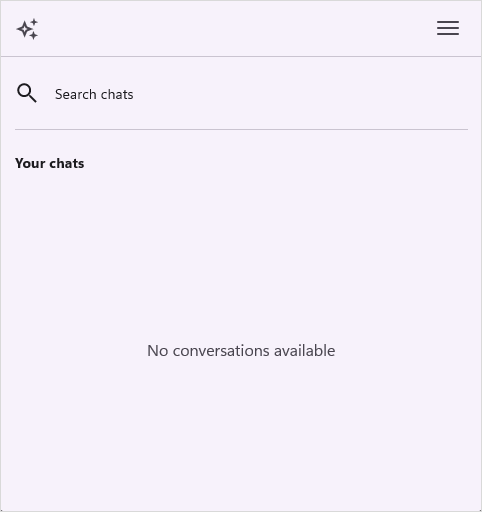
The ConversationEmptyView property can be set to a string or a custom view, which will be displayed when no conversation items are available in the control.
<syncfusion:SfAIAssistView x:Name="sfAIAssistView"
                           ConversationEmptyView="No conversations available" />
using Syncfusion.Maui.AIAssistView;

public partial class MainPage : ContentPage
{
    public MainPage()
    {
        InitializeComponent();
        SfAIAssistView sfAIAssistView = new SfAIAssistView();
        sfAIAssistView.ConversationEmptyView = "No conversations available";
        this.Content = sfAIAssistView;
    }
}
Filter Conversations by Date Range
The Filter button allows users to narrow down conversation results by selecting a specific date range. This helps quickly locate relevant conversations within the history.
The following date-range options are available:
- All
- Today
- Yesterday
- Last 7 Days
- Last 30 Days
Use these options to quickly narrow the conversation history shown in the drawer.
Conversation Actions Menu
Each conversation item shows a More option that opens a small menu with three actions:
- Pin: Pins the selected conversation so it appears at the top of the conversation list.
- Rename: Opens a rename popup containing an editor where you can change the conversation title. The popup has two actions: Rename (save) and Cancel (exit without saving). When Rename is clicked, the conversation item’s title is updated with the entered text.
- Delete: Opens a delete confirmation popup with two actions: Delete and Cancel. When Delete is clicked the selected conversation item is removed from the conversation history.