How to Display AutoComplete Suggestions in .NET MAUI SfAIAssistView?
8 Jul 202618 minutes to read
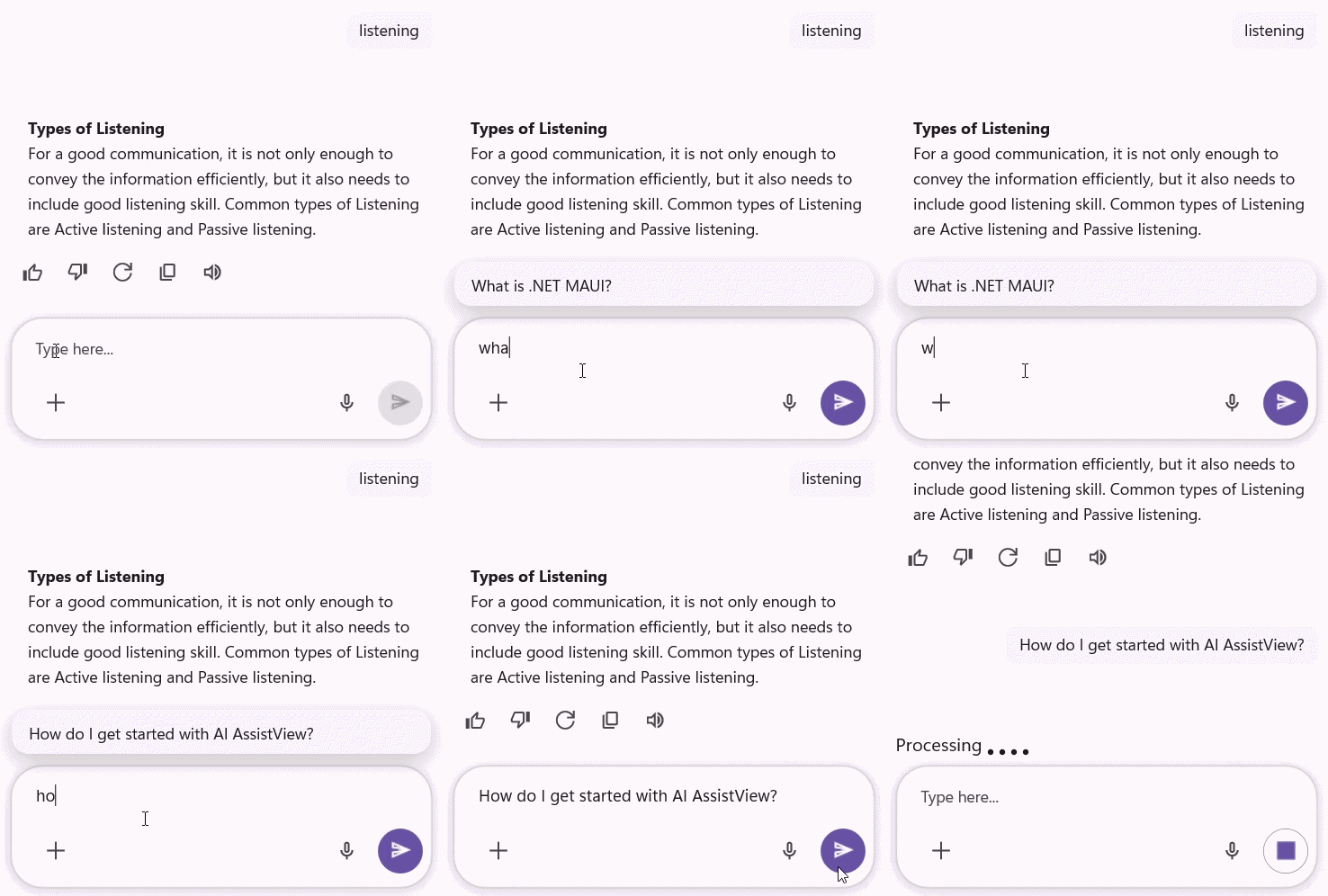
AutoComplete suggestions in the SfAIAssistView enable dynamic prompts as users type. They improve input efficiency and enhance the overall chat interaction experience.
Displaying AutoComplete suggestions
The SfAIAssistView control includes an AutoCompleteSuggestions feature that displays relevant suggestions as the user types. The suggestions appear when the user enters the required number of characters, which is defined by the MinimumPrefixCharacters property. The list updates automatically as the user continues typing.
Suggestions are provided through the AutoSuggestions property, which accepts any IEnumerable<ISuggestion> collection. This feature helps users compose clearer and more effective prompts, making it especially valuable in conversational AI scenarios.
AutoComplete suggestion customization
The SfAIAssistView control provides a set of properties under the AutoSuggestionOverlay that enable you to customize the autocomplete overlay’s behavior, appearance, and interaction model to fit your application’s needs.
Configuring AutoSuggestions in SfAIAssistView
The AutoSuggestions property displays a bound collection of ISuggestion items in the autocomplete overlay. Populate this collection in your view model or code-behind for dynamic, context-aware suggestions.
<ContentPage.BindingContext>
    <local:GettingStartedViewModel />
</ContentPage.BindingContext>

<syncfusion:SfAIAssistView x:Name="sfAIAssistView"
                           AssistItems="{Binding AssistItems}">
    <syncfusion:SfAIAssistView.AutoSuggestionOverlay>
        <syncfusion:AutoSuggestionOverlay AutoSuggestions="{Binding AutoCompleteSuggestions}" />
    </syncfusion:SfAIAssistView.AutoSuggestionOverlay>
</syncfusion:SfAIAssistView>
using System.Collections.ObjectModel;
using System.ComponentModel;
using System.Runtime.CompilerServices;
using Syncfusion.Maui.AIAssistView;
public class GettingStartedViewModel : INotifyPropertyChanged
{
private ObservableCollection<ISuggestion> autoSuggestions;
public GettingStartedViewModel()
{
AutoCompleteSuggestions = new ObservableCollection<ISuggestion>()
{
new AssistSuggestion() { Text = "What is .NET MAUI?" },
new AssistSuggestion() { Text = "How do I get started with AI AssistView?" },
new AssistSuggestion() { Text = "Explain data binding in .NET MAUI" },
};
}
public ObservableCollection<ISuggestion> AutoCompleteSuggestions
{
get { return this.autoSuggestions; }
set
{
this.autoSuggestions = value;
RaisePropertyChanged(nameof(AutoCompleteSuggestions));
}
}
/// <summary>
/// Occurs when a property value changes.
/// </summary>
public event PropertyChangedEventHandler PropertyChanged;
/// <summary>
/// Raises the <see cref="PropertyChanged"/> event for the specified property.
/// </summary>
private void RaisePropertyChanged([CallerMemberName] string propertyName = null)
{
this.PropertyChanged?.Invoke(this, new PropertyChangedEventArgs(propertyName));
}
}
Grouped suggestions view
In SfAIAssistView, the AssistSuggestion class exposes a Category property that you can use to group autocomplete suggestions by category label. Set Category when creating suggestions (for example, “Recommended”, “History”, or “Recent”) so the overlay can present related items together.
Grouping suggestions by category in view model
using System.Collections.ObjectModel;
using Syncfusion.Maui.AIAssistView;

public class GettingStartedViewModel : INotifyPropertyChanged
{
    public GettingStartedViewModel()
    {
        AutoCompleteSuggestions = new ObservableCollection<ISuggestion>()
        {
            new AssistSuggestion() { Text = "What is .NET MAUI?", Category = "Recommended" },
            new AssistSuggestion() { Text = "How do I get started with AI AssistView?", Category = "Recommended" },
            new AssistSuggestion() { Text = "Explain data binding in .NET MAUI", Category = "History" },
        };
    }

    public ObservableCollection<ISuggestion> AutoCompleteSuggestions { get; set; }
}
Executing commands on suggestion selection
The ItemSelectedCommand property accepts an ICommand that runs when the user selects an item from the autocomplete overlay. The command receives the selected ISuggestion as its parameter.
<ContentPage.BindingContext>
    <local:GettingStartedViewModel />
</ContentPage.BindingContext>

<syncfusion:SfAIAssistView x:Name="sfAIAssistView"
                           AssistItems="{Binding AssistItems}">
    <syncfusion:SfAIAssistView.AutoSuggestionOverlay>
        <syncfusion:AutoSuggestionOverlay AutoSuggestions="{Binding AutoCompleteSuggestions}"
                                          ItemSelectedCommand="{Binding SuggestionSelectedCommand}" />
    </syncfusion:SfAIAssistView.AutoSuggestionOverlay>
</syncfusion:SfAIAssistView>
using System.Windows.Input;
using Syncfusion.Maui.AIAssistView;
public class GettingStartedViewModel : INotifyPropertyChanged
{
public GettingStartedViewModel()
{
SuggestionSelectedCommand = new Command<ISuggestion>(OnSuggestionSelected);
}
public ICommand SuggestionSelectedCommand { get; set; }
private void OnSuggestionSelected(ISuggestion selectedSuggestion)
{
// Handle the selected suggestion
Console.WriteLine($"Selected: {selectedSuggestion.Text}");
}
}AutoSuggestions customization
The AutoSuggestionTemplate property lets you customize the look and structure of each suggestion item shown in the autocomplete overlay.
<ContentPage.BindingContext>
    <local:GettingStartedViewModel />
</ContentPage.BindingContext>

<ContentPage.Resources>
    <ResourceDictionary>
        <DataTemplate x:Key="autoSuggestionTemplate">
            <Grid Padding="8"
                  Margin="4"
                  BackgroundColor="#F5F5F5">
                <Label Text="{Binding Text}"
                       FontSize="14"
                       TextColor="Black"
                       VerticalOptions="Center"/>
            </Grid>
        </DataTemplate>
    </ResourceDictionary>
</ContentPage.Resources>

<syncfusion:SfAIAssistView x:Name="sfAIAssistView">
    <syncfusion:SfAIAssistView.AutoSuggestionOverlay>
        <syncfusion:AutoSuggestionOverlay AutoSuggestions="{Binding AutoCompleteSuggestions}"
                                          AutoSuggestionTemplate="{StaticResource autoSuggestionTemplate}" />
    </syncfusion:SfAIAssistView.AutoSuggestionOverlay>
</syncfusion:SfAIAssistView>
using Microsoft.Maui.Controls;
using Syncfusion.Maui.AIAssistView;
public partial class MainPage : ContentPage
{
SfAIAssistView sfAIAssistView;
GettingStartedViewModel viewModel;
public MainPage()
{
InitializeComponent();
this.viewModel = new GettingStartedViewModel();
this.BindingContext = this.viewModel;
this.sfAIAssistView = new SfAIAssistView();
this.sfAIAssistView.AutoSuggestionOverlay = new AutoSuggestionOverlay()
{
AutoSuggestions = this.viewModel.AutoCompleteSuggestions,
AutoSuggestionTemplate = CreateSuggestionTemplate(),
};
this.Content = this.sfAIAssistView;
}
private DataTemplate CreateSuggestionTemplate()
{
return new DataTemplate(() =>
{
var grid = new Grid
{
Padding = new Thickness(8),
Margin = new Thickness(4),
BackgroundColor = Color.FromArgb("#F5F5F5")
};
var label = new Label
{
FontSize = 14,
TextColor = Colors.Black,
VerticalOptions = LayoutOptions.Center
};
label.SetBinding(Label.TextProperty, "Text");
grid.Children.Add(label);
return grid;
});
}
}Setting minimum characters for AutoSuggestions
The MinimumPrefixCharacters property sets the minimum number of typed characters required before displaying suggestions. The default value is 1.
<ContentPage.BindingContext>
    <local:GettingStartedViewModel />
</ContentPage.BindingContext>

<syncfusion:SfAIAssistView x:Name="sfAIAssistView">
    <syncfusion:SfAIAssistView.AutoSuggestionOverlay>
        <syncfusion:AutoSuggestionOverlay AutoSuggestions="{Binding AutoCompleteSuggestions}"
                                          MinimumPrefixCharacters="3" />
    </syncfusion:SfAIAssistView.AutoSuggestionOverlay>
</syncfusion:SfAIAssistView>
using Microsoft.Maui.Controls;
using Syncfusion.Maui.AIAssistView;
public partial class MainPage : ContentPage
{
SfAIAssistView sfAIAssistView;
GettingStartedViewModel viewModel;
public MainPage()
{
InitializeComponent();
this.viewModel = new GettingStartedViewModel();
this.BindingContext = this.viewModel;
this.sfAIAssistView = new SfAIAssistView();
this.sfAIAssistView.AutoSuggestionOverlay = new AutoSuggestionOverlay()
{
AutoSuggestions = this.viewModel.AutoCompleteSuggestions,
MinimumPrefixCharacters = 3,
};
this.Content = this.sfAIAssistView;
}
}Configuring suggestion delay
The SuggestionOpenDelay property sets the delay, in milliseconds, before the AutoSuggestionOverlay opens after typing. This helps reduce unnecessary lookups during rapid typing. The default value is 200.
<ContentPage.BindingContext>
    <local:GettingStartedViewModel />
</ContentPage.BindingContext>

<syncfusion:SfAIAssistView x:Name="sfAIAssistView">
    <syncfusion:SfAIAssistView.AutoSuggestionOverlay>
        <syncfusion:AutoSuggestionOverlay AutoSuggestions="{Binding AutoCompleteSuggestions}"
                                          SuggestionOpenDelay="300" />
    </syncfusion:SfAIAssistView.AutoSuggestionOverlay>
</syncfusion:SfAIAssistView>
using Microsoft.Maui.Controls;
using Syncfusion.Maui.AIAssistView;
public partial class MainPage : ContentPage
{
SfAIAssistView sfAIAssistView;
GettingStartedViewModel viewModel;
public MainPage()
{
InitializeComponent();
this.viewModel = new GettingStartedViewModel();
this.BindingContext = this.viewModel;
this.sfAIAssistView = new SfAIAssistView();
this.sfAIAssistView.AutoSuggestionOverlay = new AutoSuggestionOverlay()
{
AutoSuggestions = this.viewModel.AutoCompleteSuggestions,
SuggestionOpenDelay = 300,
};
this.Content = this.sfAIAssistView;
}
}Controlling request submission behavior
The CancelRequest property controls whether selecting a suggestion automatically submits it as a request. When set to false, the selected suggestion is sent immediately. When set to true, the suggestion text is inserted into the editor so the user can review or edit it before submitting. The default value is true.
<ContentPage.BindingContext>
    <local:GettingStartedViewModel />
</ContentPage.BindingContext>

<syncfusion:SfAIAssistView x:Name="sfAIAssistView"
                           AssistItems="{Binding AssistItems}">
    <syncfusion:SfAIAssistView.AutoSuggestionOverlay>
        <syncfusion:AutoSuggestionOverlay AutoSuggestions="{Binding AutoCompleteSuggestions}"
                                          CancelRequest="True" />
    </syncfusion:SfAIAssistView.AutoSuggestionOverlay>
</syncfusion:SfAIAssistView>
using Microsoft.Maui.Controls;
using Syncfusion.Maui.AIAssistView;
public partial class MainPage : ContentPage
{
SfAIAssistView sfAIAssistView;
GettingStartedViewModel viewModel;
public MainPage()
{
InitializeComponent();
this.viewModel = new GettingStartedViewModel();
this.BindingContext = this.viewModel;
this.sfAIAssistView = new SfAIAssistView();
this.sfAIAssistView.AutoSuggestionOverlay = new AutoSuggestionOverlay()
{
AutoSuggestions = this.viewModel.AutoCompleteSuggestions,
CancelRequest = true,
};
this.Content = this.sfAIAssistView;
}
}Observing the AutoSuggestion overlay state
The IsOpen property is a read-only boolean that indicates whether the autocomplete overlay is currently visible. It is updated automatically by the control, and you can observe it to respond to changes in the overlay’s state.
using Microsoft.Maui.Controls;
using Syncfusion.Maui.AIAssistView;

public partial class MainPage : ContentPage
{
    SfAIAssistView sfAIAssistView;

    public MainPage()
    {
        InitializeComponent();
        this.sfAIAssistView = new SfAIAssistView();
        this.Content = this.sfAIAssistView;

        // Observing the IsOpen state
        var autoComplete = this.sfAIAssistView.AutoSuggestionOverlay;
        if (autoComplete != null && autoComplete.IsOpen)
        {
            // The suggestion overlay is currently visible
            Console.WriteLine("Autocomplete overlay is open.");
        }
        else
        {
            // The suggestion overlay is hidden
            Console.WriteLine("Autocomplete overlay is closed.");
        }
    }
}
NOTE
The
IsOpenproperty is read-only and is managed internally bySfAIAssistView. Attempting to set it directly from external code will have no effect.