Getting Started with .NET MAUI Circular Progress Bar
This section explains the steps required to add the circular progress bar control with the progress and its customizable elements such as indeterminate, segment, progress fill, and track fill. This section covers only the basic features needed to know and gets started with the Syncfusion® circular progress bar. Follow the steps below to add a .NET MAUI Circular progress bar to your project.
Prerequisites
Before proceeding, ensure the following are set up:
- Install .NET 9 SDK or later.
- Set up a .NET MAUI environment with Visual Studio 2022 v17.12 or later.
Step 1: Create a new .NET MAUI project
- Go to File > New > Project and choose the .NET MAUI App template.
- Name the project and choose a location. Then click Next.
- Select the .NET framework version and click Create.
Step 2: Install the Syncfusion® .NET MAUI Toolkit NuGet package
- In Solution Explorer, right-click the project and choose Manage NuGet Packages.
- Search for Syncfusion.Maui.Toolkit and install the latest version.
- Ensure the necessary dependencies are installed correctly, and the project is restored.
Prerequisites
Before proceeding, ensure the following are set up:
- Install .NET 9 SDK or later.
- Set up a .NET MAUI environment with Visual Studio Code.
- Ensure that the .NET MAUI workloads are installed and configured as described here.
Step 1: Create a new .NET MAUI project
- Open the command palette by pressing
Ctrl+Shift+Pand type .NET:New Project and enter. - Choose the .NET MAUI App template.
- Select the project location, type the project name and press Enter.
- Then choose Create project.
Step 2: Install the Syncfusion® .NET MAUI Toolkit NuGet package
- Press Ctrl + ` (backtick) to open the integrated terminal in Visual Studio Code.
- Ensure you’re in the project root directory where your .csproj file is located.
- Run the command
dotnet add package Syncfusion.Maui.Toolkitto install the Syncfusion® .NET MAUI Toolkit NuGet package. - To ensure all dependencies are installed, run
dotnet restore.
Prerequisites
Before proceeding, ensure the following are set up:
- Install .NET 9 SDK or later.
- Set up a .NET MAUI environment with JetBrains Rider 2024.3 or later.
- Make sure the MAUI workloads are installed and configured as described here.
Step 1: Create a new .NET MAUI project
- Go to File > New Solution, Select .NET (C#) and choose the .NET MAUI App template.
- Enter the Project Name, Solution Name, and Location.
- Select the .NET framework version and click Create.
Step 2: Install the Syncfusion® MAUI Toolkit NuGet package
- In Solution Explorer, right-click the project and choose Manage NuGet Packages.
- Search for Syncfusion.Maui.Toolkit and install the latest version.
- Ensure the necessary dependencies are installed correctly, and the project is restored. If not, Open the Terminal in Rider and manually run:
dotnet restore
Step 3: Register Syncfusion handler
Make sure to add the namespace.
using Syncfusion.Maui.Toolkit.Hosting;Register the Syncfusion toolkit handler in your CreateMauiApp method of MauiProgram.cs file to use Syncfusion controls.
builder.ConfigureSyncfusionToolkit();Step 4: Import Circular Progress Bar namespace
Add the following namespace in your XAML or C#.
xmlns:progressBar="clr-namespace:Syncfusion.Maui.Toolkit.ProgressBar;assembly=Syncfusion.Maui.Toolkit"using Syncfusion.Maui.Toolkit.ProgressBar;Step 5: Add the Circular Progress Bar component
Create an instance for the circular progress bar control, and add it as content.
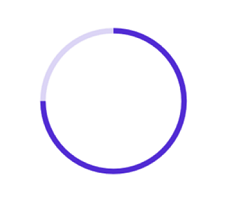
<progressBar:SfCircularProgressBar Progress="75"/>SfCircularProgressBar circularProgressBar = new SfCircularProgressBar { Progress = 75 };
this.Content = circularProgressBar;By default, the value of progress should be specified between 0 and 100. To determine the progress value between 0 and 1, set the Minimum property to 0 and the Maximum property to 1.
Run the project, and check if you get following output to make sure that the project has been configured properly to add the circular progress bar.
You can download the Circular Progress Bar Getting Started sample from here.